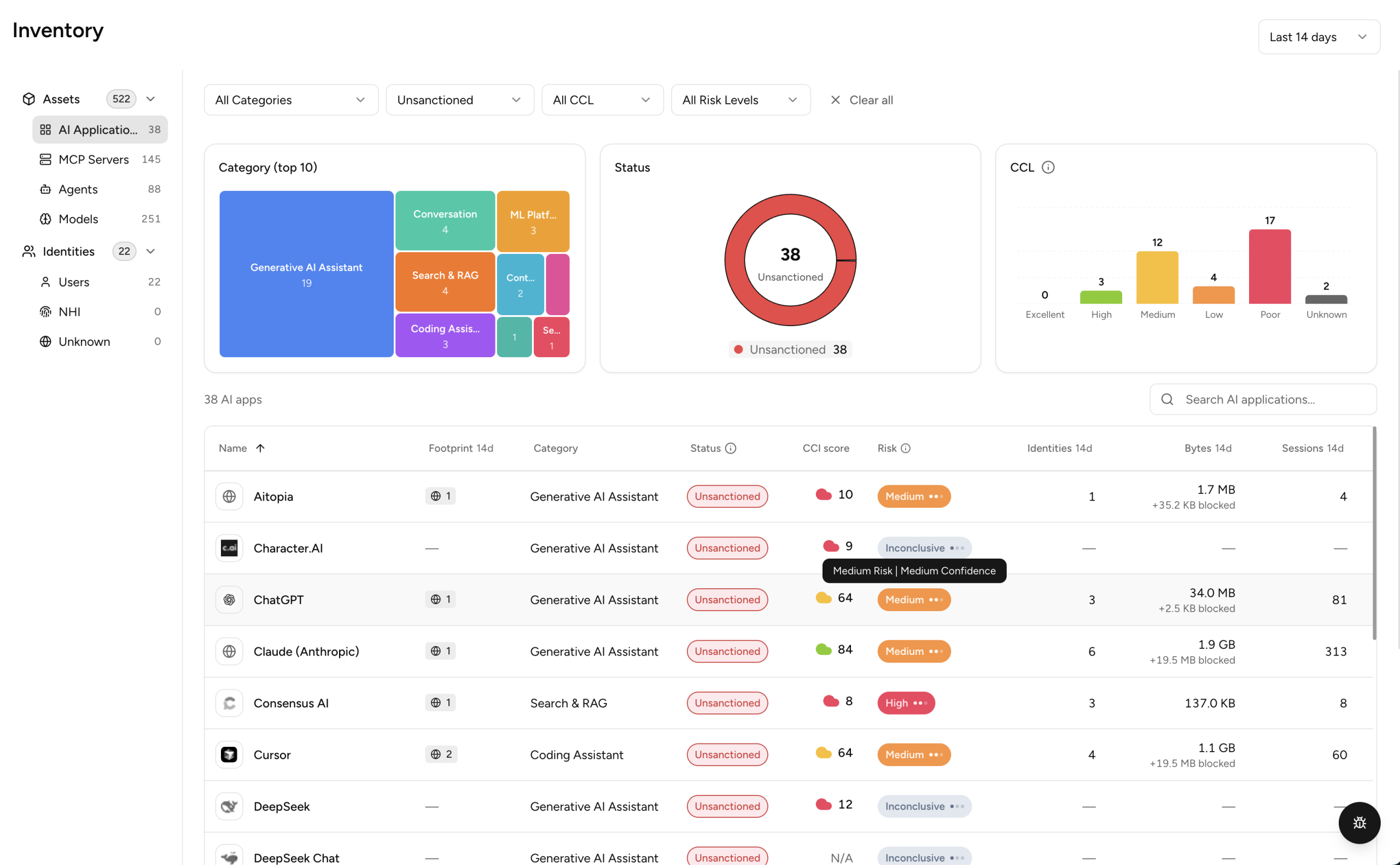
The AI Applications provides visibility into AI applications used within the organization.
Source – Next-Gen Secure Web Gateway
- Category – Shows the top 10 application categories by usage. Click a category to filter the table.
- Status – Shows the distribution of Sanctioned vs Unsanctioned applications. Click a segment to filter.
- CCL – Shows the distribution of applications by Cloud Confidence Level. Click a bar to filter.
The following table displays a list of AI applications discovered in your environment with the following details:
- Name – Name of the AI application.
- Footprint #d – Number of managed endpoints where this AI Application was detected by Netskope Client. Hover over or click on the footprint number to see more details. Available when Endpoint AI Discovery is enabled. For details on what Netskope Client discovers on the endpoint, see Assets Detected during AI Discovery.
- Category – Category of AI application for example, Conversation, Code, Writing, Platform, Meeting.
- Status – Takes Sanctioned or Unsanctioned values depending on the AI Application status. If an application has multiple instances, AICC shows the application as Unsanctioned in the main view whenever at least one instance is unsanctioned, even if other instances are sanctioned. Click the status to see the status of each individual instance in the Footprints section in the side panel.
- CCI Score – CCI score associated with the application.
- Risk – Reconciled risk level for the application, combined with a confidence indicator. Hover over the confidence dots to see the confidence level. This data comes from the AI Risk Agent (Beta), part of AI SecOps. For details on how risk is calculated, see the AI Risk Agent documentation in your tenant. See What Does the Risk Score and Confidence Level Mean in AICC?
- Identities #d – Number of unique users interacting with the application for selected time range.
- Bytes #d – Volume of data exchanged with the application (upload and download) for selected time range.
- Sessions #d – Number of sessions involving the application for selected time range.
- First Seen – Timestamp when the application was first detected in the environment.
Click any row to open the application detail panel.