Netskope’s Browser Extension is a Digital Experience Management (DEM) feature that works in browsers to monitor the performance of web applications for users. Browser Extension provides deep visibility into real user experience by capturing performance data directly from the browser, allowing you to accurately diagnose and troubleshoot web application issues from any location. This helps you validate network and application changes, proactively monitor critical services, and reduce the time spent resolving performance issues, regardless of the user’s location or device. Browser Extension is available for Google Chrome and Microsoft Edge browsers.
Note: This feature is available for customers with DEM Enterprise and DEM Enterprise Starter.
Use Cases
DEM Browser Extension provides a solution for monitoring and troubleshooting browser based web application performance. It enables you to collect and analyze real user metrics directly from the browser. The following use cases outline how the extension can be deployed to solve specific performance and network visibility challenges:
- Monitoring user device and application performance for users without a Netskope client.
- Monitoring application performance for both steered and bypassed application traffic.
- Granular targeting and visibility into browser based application performance down to the individual web resource and API calls.
Configure and Provision Browser Extension
Netskope DEM Browser extension configuration and deployment is simple and easy using the email invitation deployment method. The Netskope DEM browser extension is supported on the following browsers.
- Google Chrome
- Microsoft Edge
Netskope DEM Browser extension deployment steps are outlined below:
- Go to Digital Experience Management > Settings.
- Within Settings go to Monitoring Sources > General Settings.
- Click Edit beside the Monitored Users and Stations section.
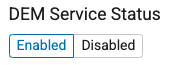
- Ensure the DEM Service Status toggle is set to Enabled.
- You can select the targets you want to monitor by using inclusion criteria. You can select specific users, user groups, organization units, operating systems and devices based on their classification.
- In addition to inclusion criteria, you can fine tune the monitoring scope by adding exclusion criteria. Exclusions can be configured per users, user groups, organization units, operating systems and devices based on their classification. For example, you can include all users within a specific user group, then exclude all machines running on Windows operating system from this monitoring scope.
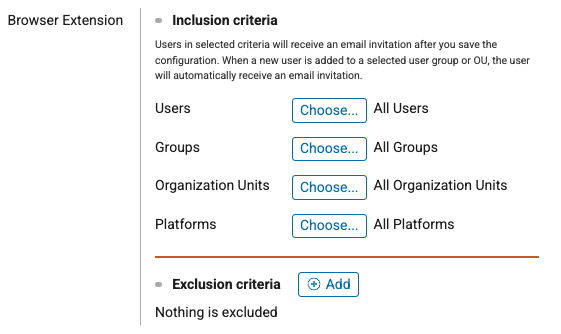
Remember that leaving one selection empty means that everything is monitored by default. For example, not selecting any specific user from the Users field means that all users are being monitored. Netskope recommends deploying based on user groups and OUs to ensure a controlled provisioning. - When you’re satisfied with the targets defined in your deployment scope you can click the “Apply” button at the top.
Important
This will initiate the process of bulk sending email invitations to all users defined in scope for the browser extension deployment. Ensure you are confident in your configuration prior to applying your configuration.
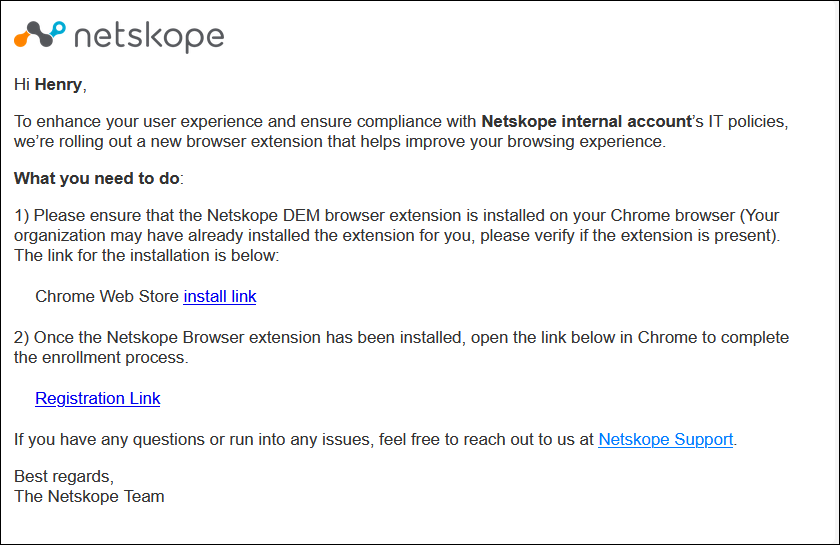
- The users targeted will receive an email invitation to their inbox asking them to install the browser extension. See below for an example of what the email invitation would look like. The email invitation contains a user specific id to ensure that when they install the browser extension it will automatically call back to Netskope DEM cloud services and register the extension to the respective user.