

When integrating ChatGPT Enterprise with Next Generation API Data Protection, customers can onboard access in one of two ways:
-
Enterprise Workspace onboarding — Provides coverage for conversations, messages, memories, and users.
-
Organization Project onboarding — Provides coverage for fine-tuning datasets.
Each ChatGPT instance can be configured for one type of onboarding only. Once selected, the access type cannot be changed for that instance. To switch from workspace-level to project-level access (or vice versa), customers must create and onboard a new ChatGPT instance.
For customers who want to begin scanning fine-tuning data, this means the ChatGPT instance must be onboarded at the project level, even if an existing instance is already onboarded at the workspace level.
Prerequisite
-
Role requirement:
-
For enterprise workspace onboarding, a ChatGPT Enterprise workspace administrator account.
-
For organization project onboarding, the user generating the key must have the owner role for both the OpenAI platform organization and the specific project where the fine-tuning data resides.
-
-
Make sure the Organization ID in the OpenAI Platform API settings (https://platform.openai.com/settings/organization/general) matches the Organization ID of the ChatGPT workspace where you want to enable the Compliance API (https://chatgpt.com/admin/settings).
If the Organization IDs do not match, contact support at support@openai.com to resolve the issue before proceeding.
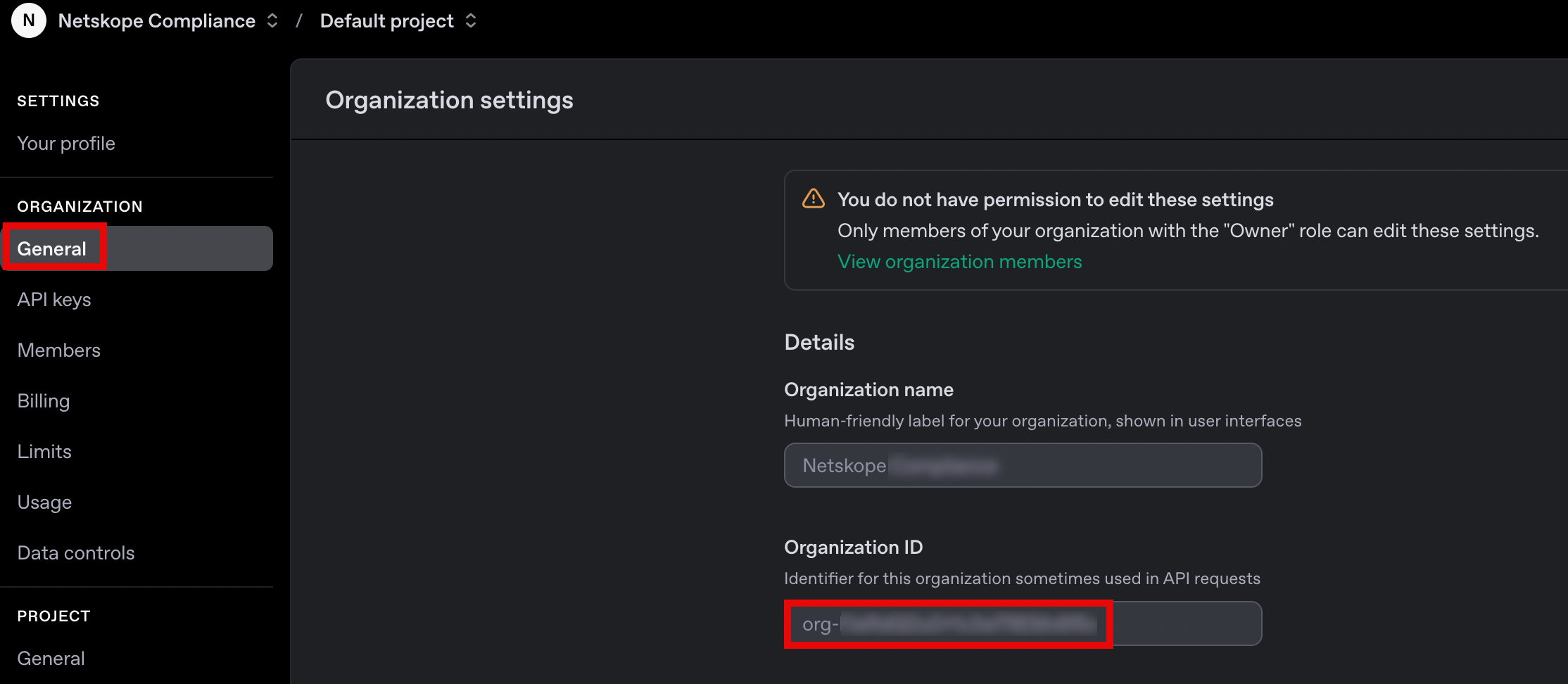
Organization ID in the OpenAI Platform API settings 
Organization ID of the ChatGPT workspace
Enterprise Workspace Onboarding
Create an Admin key
This section describes the steps to create a new admin key for the ChatGPT organization. This key will be required when you set up the ChatGPT Enterprise instance on the Netskope tenant UI.
-
Sign in to the Admin Console.
-
Select the ChatGPT workspace where you have the Owner and Admin role.
-
On the left navigation, under Identity, click Credentials, then select Admin keys.
-
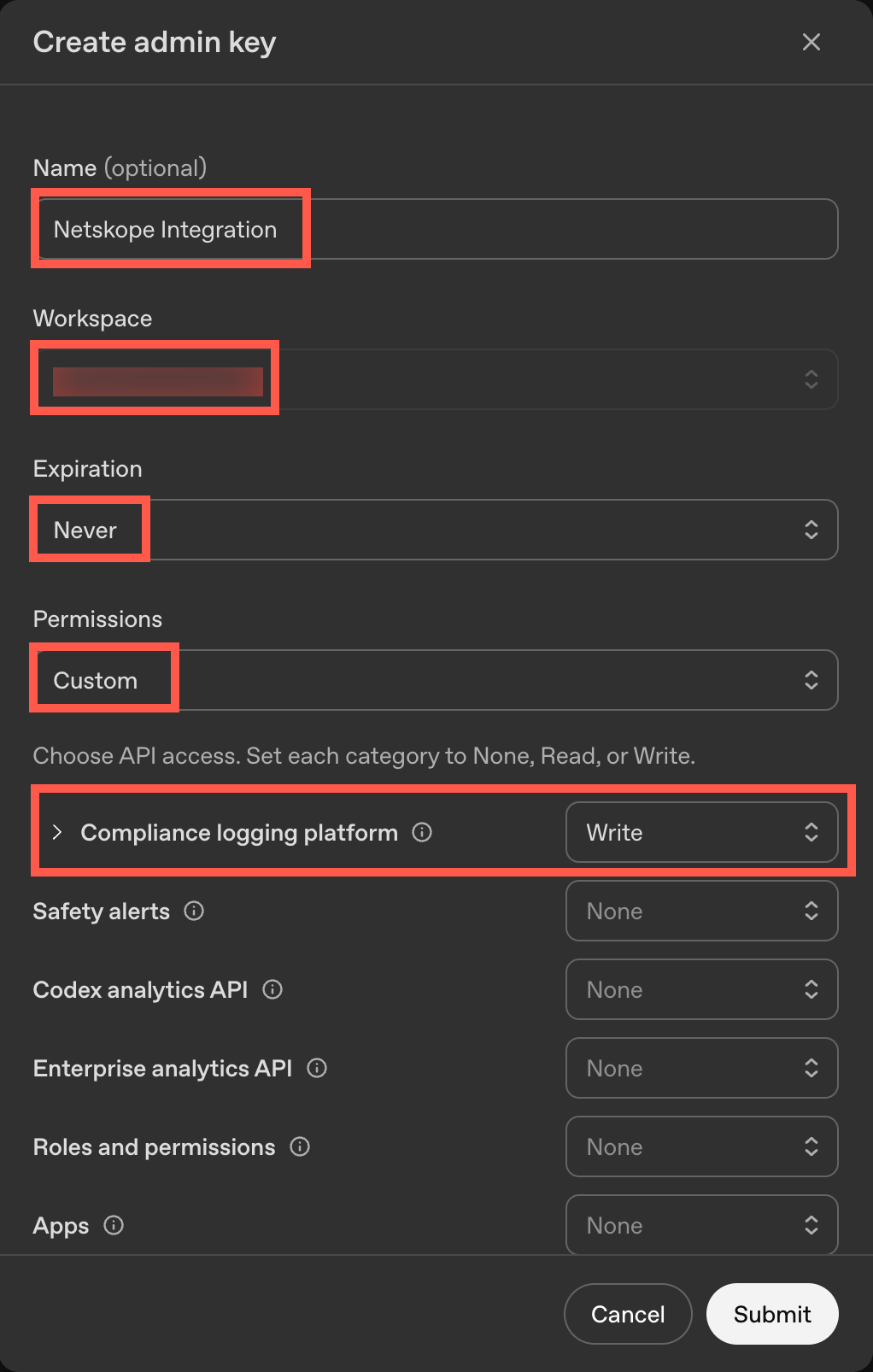
Click + Create new admin key and enter the following details:
-
Enter the name of the admin key.
-
Select the Workspace.
-
Set the expiration to Never.
-
Set the permissions to Custom. Set the Compliance logging platform API access to Write.
-
-
Click Submit.
-
Save the key.
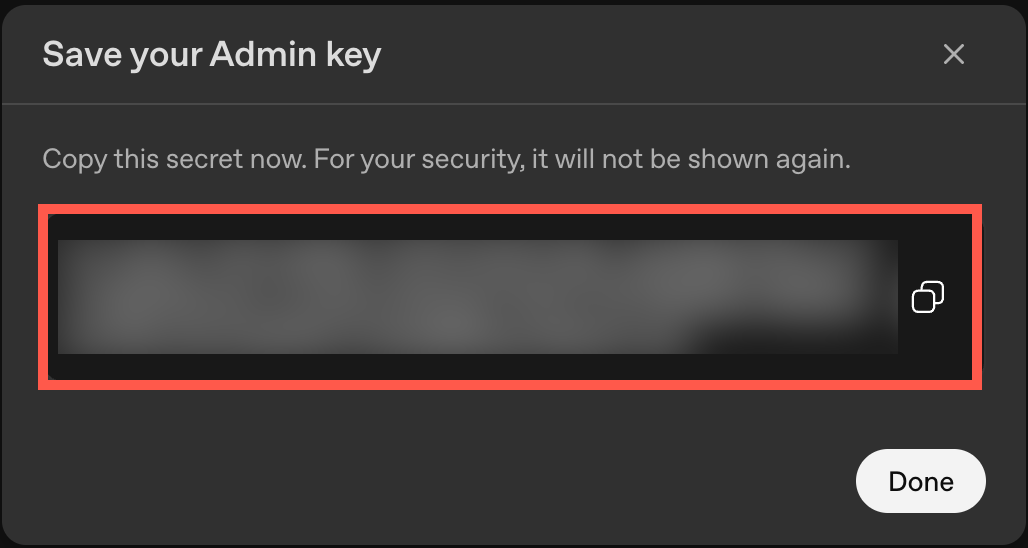 The admin key is only visible once, so be sure to copy it securely. The key will be required when you set up the ChatGPT Enterprise instance on the Netskope tenant.
Next, configure Netskope to access your ChatGPT Enterprise account.
Organization Project Onboarding
Create an API Key
This section describes the steps to create a new API key for the ChatGPT organization project. This API key will be required when you set up the ChatGPT Enterprise instance on the Netskope tenant UI.
-
Log in as an owner of your OpenAI platform organization and create a new API Key at https://platform.openai.com/api-keys.
Be sure to create the API key within the same organization as your ChatGPT Enterprise workspace. You can find the organization ID at https://platform.openai.com/settings. Only an owner of both the OpenAI organization and the ChatGPT Enterprise workspace can create the key. -
Select a project that contains the fine-tuning data you wish to scan.

-
Click + Create new secret key.
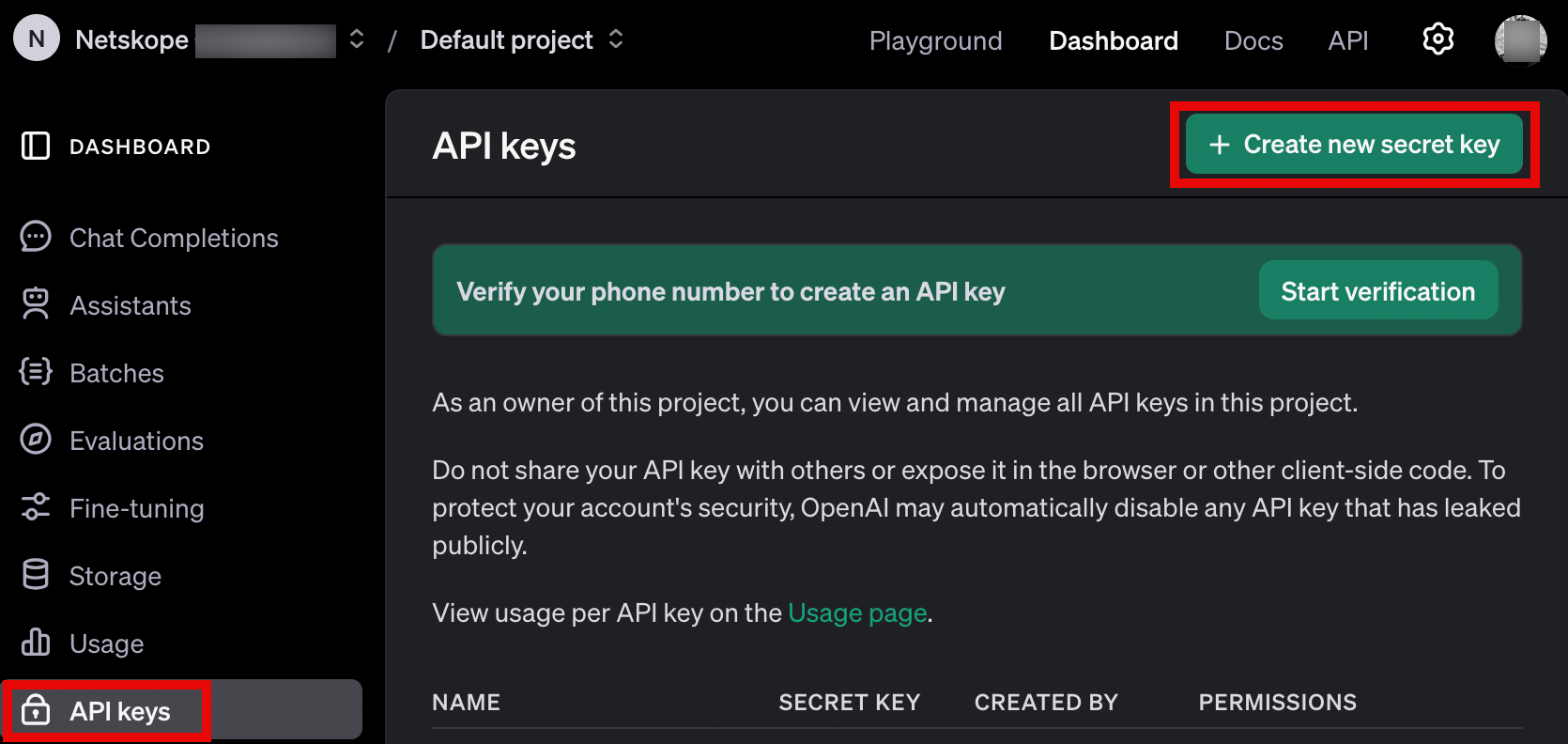 You may be prompted to verify your mobile number.
 -
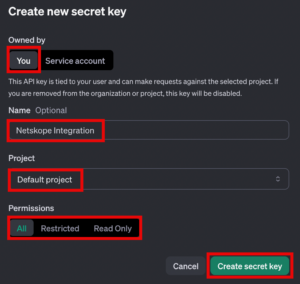
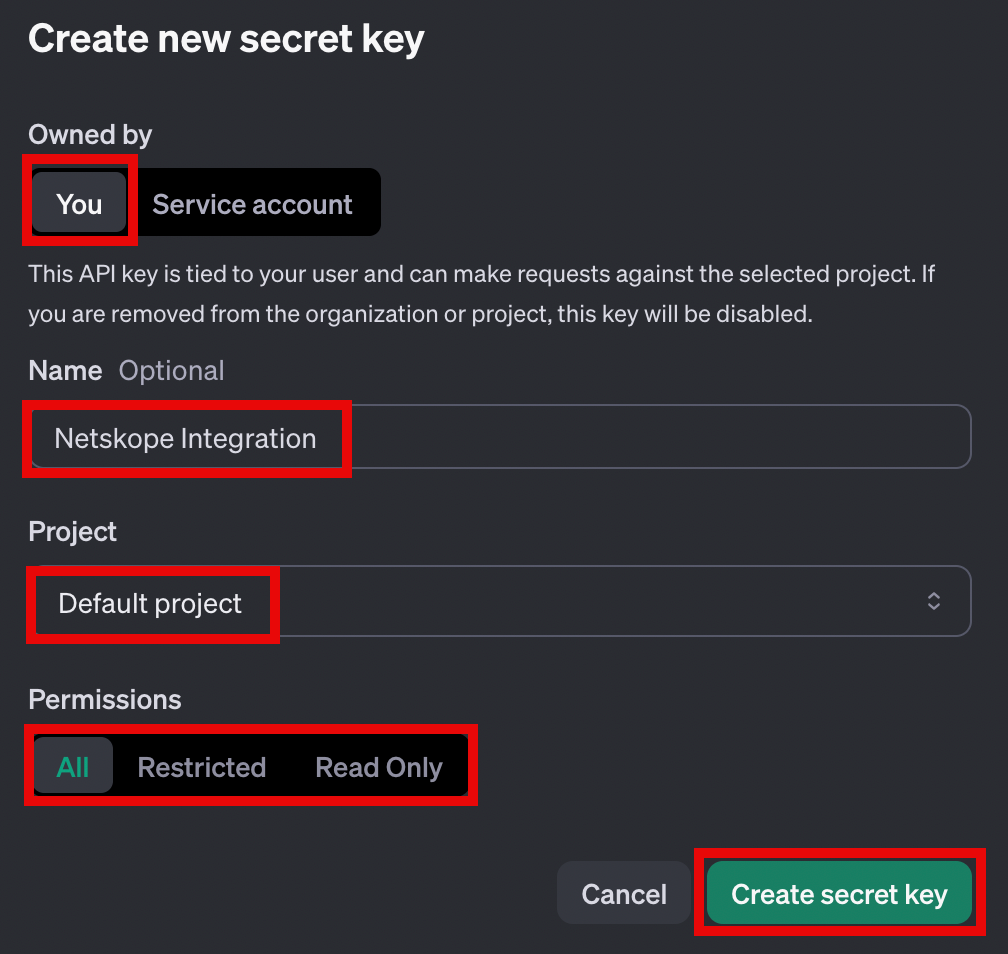
On the pop-up window, enter the following details:
-
Under Owned by, select You.
-
Enter the name of the API key.
-
Select the default project (or the project you selected in step 2).
-
Under Permissions, select All.
-
-
Click Create secret key.
-
Save the key.
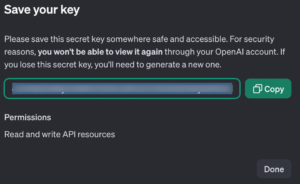 The API key is only visible once, so be sure to copy it securely. The API key will be required when you set up the ChatGPT Enterprise instance on the Netskope tenant.

Next, configure Netskope to access your ChatGPT Enterprise account.
Configure Netskope to Access your ChatGPT Enterprise Account
To authorize Netskope to access your ChatGPT Enterprise account, follow the steps below:
-
Log in to the Netskope tenant UI and go to Settings > Configure App Access > Next Gen > CASB API.
-
Under Apps, select ChatGPT Enterprise and click Setup CASB API Instance.
The Setup Instance window opens.
-
Under Administrator Email, enter the email address of the user who will receive an email notification when a policy violation or event triggers. This step is optional.
-
If you are onboarding an enterprise workspace, enter the following details:
-
Under Workspace ID, enter your ChatGPT account’s workspace ID.
The Workspace ID can be obtained from https://chatgpt.com/admin/settings. Ensure that you are a workspace administrator to access the URL.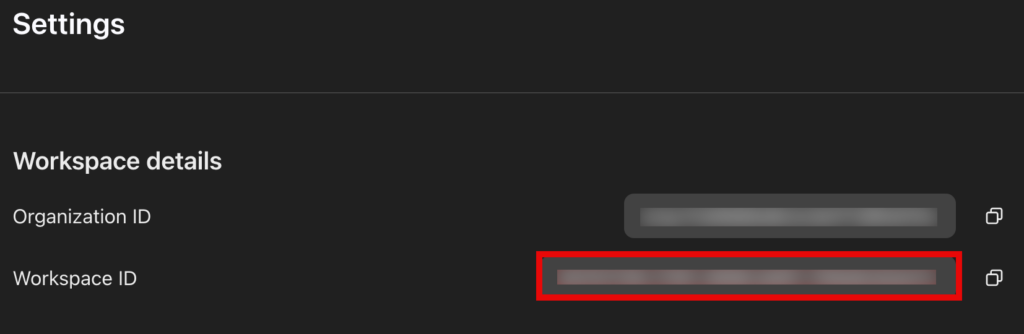
-
Under API Key for Enterprise Workspace, enter the admin key that was previously created for enterprise workspace.
Leave the rest of the fields empty.
-
-
If you are onboarding an organization project, under API Key for Project, enter the API key that was previously created for organization project.
Leave the rest of the fields empty.
-
Under Instance Name, enter a name of the SaaS app instance. This step is optional and if left blank, Netskope will determine the name of the app instance post grant.
-
Click Grant Access.

Refresh your browser, and you should see a green check icon next to the instance name.
Next, you can view the Next Generation API Data Protection Inventory page to get deep insights on various entities on your ChatGPT Enterprise instance. For more information on the Inventory page, see Next Generation API Data Protection Inventory.
Next, you should configure a Next Generation API Data Protection policy. To do so, see Next Generation API Data Protection Policy Wizard.