

To configure Microsoft 365 SharePoint (Commercial, GCC & GCC High) for the Next Generation API Data Protection, follow the instructions below.
Prerequisites
Before configuring Microsoft 365 SharePoint (Commercial, GCC & GCC High) for the Next Generation API Data Protection, review the prerequisite.
-
Review the Microsoft Office 365 SharePoint licenses here.
-
Netskope does not support Microsoft 365 apps during the migration of your Microsoft tenant between data centers. Ensure the migration is fully completed before granting access to Netskope. For more information about Microsoft tenant migration, see:
-
A global administrator account is required to grant access to Netskope. Post-grant, you can either delete or downgrade this account.
The way permissions work in Azure/Office 365 is that Netskope requires an administrator to grant enough privileges for Netskope to perform specific actions. Note that the Netskope app does not receive global admin permissions. It only receives permissions for the scope Netskope requests. -
You must turn on audit logging in Microsoft 365 admin center. To enable audit logging, follow the steps below:
-
Log in to https://purview.microsoft.com/.On the left navigation, click Solutions > Audit.
If auditing is not turned on for your organization, a banner is displayed prompting you to start recording user and admin activity.

-
Click the Start recording user and admin activity banner.
It may take up to 60 minutes for the change to take effect. After enabling, the first application event contents can take up to 12 hours to show up in Skope IT.
-
-
If you have guest or external users in your SaaS environment belonging to domains considered internal, you must set the appropriate internal domains for Netskope to classify exposure accurately. To set up internal domains, follow this article.
Configure Netskope to Access your Microsoft 365 SharePoint Account
To authorize Netskope to access your Microsoft 365 SharePoint account, follow the steps below:
-
Log in to the Netskope tenant UI and go to Settings > Configure App Access > Next Gen > CASB API.
-
Under Apps, select SharePoint and click Setup CASB API Instance.
The Setup Instance window opens.
-
Under Office 365 Environment, select either of the following – Commercial, GCC, or GCC High.
GCC & GCC High is designed for U.S. federal, state, and local government customers. -
(optional) Under Azure Log Analytics Workspace ID, leave it blank if you a creating this instance for the first time. This step can be configured after the grant access steps (7-10). For more information, see Configure Azure Log Analytics Workspace.
-
Under Administrator Email, enter the email address of the user who will receive an email notification when a policy violation or event triggers. This step is optional.
-
Under Instance Name, enter a name of the SaaS app instance. This step is optional and if left blank, Netskope will determine the name of the app instance post grant.
-
Click Grant Access.
The Microsoft Login window opens.
-
Enter the global administrator username and password.
-
Keep Consent on behalf of your organization unchecked and Accept the permissions.


Justification for Permissions Requested
Permissions required by Netskope Claim Value Description Purpose Trade-off if not allowed Have full control of all site collections (Graph API) Site.FullControl.All (Graph API) Allows the application to have full control of all site collections. Allows Netskope to receive and process permission changes required for core capabilities such as sharing detection, exposure computation and subsequent policy-processing. Without this permission, the Microsoft Graph API would return errors whenever a folder permission changes. These errors cause significant delays in detecting changes and impact next-gen platforms efficacy in tracking exposure changes for folders/files in near-real time. Read and write items and lists in all site collections Sites.Manage.All (Graph API) Allows the application to read, create, update, and delete document libraries and lists in all site collections. Allows Netskope to efficiently receive file and permission changes with a cost-effective approach that minimizes impact, even for customers with numerous drives in a single site. Without this permission, site performance may degrade if the customer's lists and libraries exceed the recommended limits outlined in the Microsoft article. Sign in and read user profile User.Read (Graph API) Allows
- users to sign-in to the application,
- the application to read the profile of signed-in users,
- the application to read basic company information of signed-in users.
Allows sign-in and to obtain information about signed-in users. Required for sign-in workflows. Read all audit log data
(SharePoint only)AuditLog.Read.All (Graph API) Allows the application to read all audit log data, including:
- information about user and application sign-ins,
- logs of changes to users, groups, and apps,
- logs for user provisioning services.
Allows the application to read and query your audit log activities, without a signed-in user. Cannot provide full visibility into authentication and identity events. Without this, detection of advanced threats such as OAuth token theft, device code phishing, and compromised token abuse will be limited. Read directory data Directory.Read.All (Graph API) Allows the application to read data in your organization's directory such as users, groups, and applications. Allows Netskope to read users, groups and apps data in the configured OneDrive or SharePoint instance. Cannot obtain user/group-related information and affects subsequent inventory and exposure computations. Have full control of all site collections (SharePoint API) Site.FullControl.All (SharePoint Rest API) Allows the application to have full control of all site collections. Allows Netskope to enhance exposure accuracy and protection beyond the capabilities of the Graph API alone. Without this permission, Netskope cannot bypass the Microsoft Graph API limitations outlined in the 3rd-Party App Limitations article. Read and write items in all site collections
(commercial only)Sites.ReadWrite.All (Graph API) Allows the application to create, read, update, and delete documents and list items in all site collections without a signed in user. If a customer is concerned that granting the Site.FullControl.All (Graph API) permission provides excessive access, they can revoke it and grant Sites.ReadWrite.All instead. However, this may result in delays or missed file permission changes. Cannot detect any file changes when both Site.FullControl.All (Graph API) and Sites.ReadWrite.All are missing. Read activity data for your organization ActivityFeed.Read (Office 365 Management API) Allows to retrieve information about user, administrator, system, and policy actions and events from Office 365 and Microsoft Entra activity logs via the Office 365 Management Activity API. Allows Netskope to retrieve audit logs and events from Office 365 and Entra activity logs. Cannot provide visibility via Skope IT application events and other UEBA capabilities. The Netskope CASB API for SharePoint [GCC High] app now require you to allow theHave full control of all site collectionspermission. This permission replaces the earlierRead items in all site collectionspermission. The new permission now allows the following:- Policy actions: Allows Netskope to revoke permissions from files that have violated a policy.
- Activity scan: Allows Netskope to get notifications of the latest and most accurate permission updates for files & folders from the Microsoft Graph API.
The Netskope CASB API app is installed in Microsoft Entra ID with additional permissions once you grant access to the Microsoft 365 SharePoint app.
-
After accepting the permissions, you will be redirected to the successful result page. Click Close.
Refresh your browser, and you should see a green check icon next to the instance name.
Next Generation API Data Protection automatically detects multi-geo–enabled tenants. If your Microsoft 365 tenant supports multi-geo, follow the steps below.
Before proceeding, review the important notes for existing customers to ensure correct configuration. -
On closing the success confirmation page, the Select Region pop-up appears:

-
Select either of the options:
Selected regions cannot be modified after instance creation.-
All regions (default): Automatically includes all multi-geo regions from your Microsoft 365 tenant, including both central and satellite regions.
-
Select specific region(s): With this option, you can choose the specific multi-geo regions you want to monitor.
Cross-region file exposure is detected only for the specific multi-geo regions that you onboard during instance setup, and will be reflected on the inventory, dashboard, and policy pages. -
-
Click Save.
Refresh your browser, and you should see a green check icon next to the instance name.
.us.Post grant, you can either delete or downgrade the global administrator account. To know more: Delete or Downgrade the Global Administrator Account.
Next, you can view the Next Generation API Data Protection Inventory page to get deep insights on various entities on your Microsoft 365 SharePoint account. For more information on the Inventory page, see Next Generation API Data Protection Inventory.
You can receive audit events and standard user behavior analytic alerts in Skope IT. To know more: Next Generation API Data Protection Skope IT Events.
Next, you should configure a Next Generation API Data Protection policy. To do so, see Next Generation API Data Protection Policy Wizard.
Important Notes on Multi-Geo for Existing Customers
-
Microsoft SharePoint REST API requirements
To leverage the multi-geo feature, ensure your tenant has Microsoft SharePoint REST APIs enabled as part of the Next Generation API Data Protection integration. To learn more, see this (Next Generation API Data Protection > Enhanced Exposure Insights).-
If the REST APIs were not originally granted, you must re-grant the SharePoint instance.
-
Re-granting enables Microsoft SharePoint REST APIs and allows Netskope to re-list all entities in your Microsoft 365 SharePoint environment. This process is required to accurately compute file exposure and multi-geo data.
-
-
Region selection behavior for existing instances
For existing instances, the selected region defaults to all regions. If you want to customize or restrict the selected regions, you must delete the instance and recreate it with your preferred region selections.
Require Check Out of Files
Next Generation API Data Protection now gracefully handles scenarios where the Require Check Out setting is enabled in Microsoft 365 SharePoint. This SharePoint setting prevents overwriting files unless they are explicitly checked out, which previously caused tombstone file creation to silently fail during a quarantine action.
With this enhancement, administrators can now easily identify when a file couldn’t be replaced with a tombstone due to this restriction. To improve visibility and control, the following updates have been made in the Netskope UI:
-
Incidents > DLP:
-
A clear “Tombstone Failed” message is now displayed when you open a related incident.

-
Restore and Block actions are now disabled for incidents involving files with the “Require Check Out” setting enabled. In such cases, a copy of the file is quarantined, but the original file remains untouched in SharePoint.

-
-
Skope IT > Events > Alerts:
A new alert type called “Tombstone Failed” has been introduced to flag quarantine actions that failed due to this SharePoint setting.
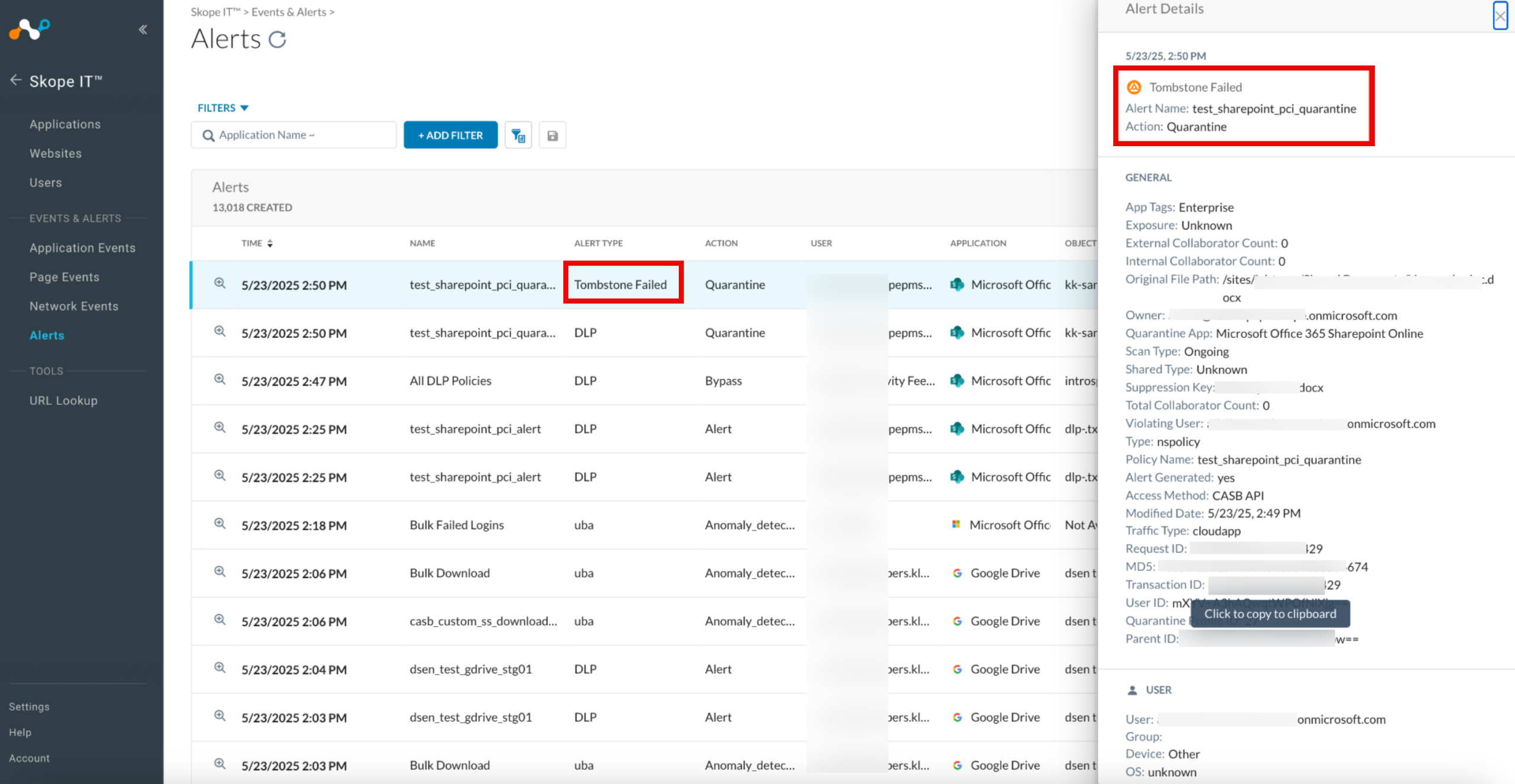
These enhancements help administrators better manage quarantine actions and maintain visibility into policy enforcement in SharePoint environments with editing restrictions.