

Overview
Netskope One DSPM supports scanning GCP BigQuery Data Stores. Follow these instructions to setup your BigQuery datastore and configure its connection to Netskope One DSPM.
These instructions are for connecting an individual GCP BigQuery Data Store. To learn more about onboarding many GCP BigQuery Data Stores at once, please visit our Connect to multiple GCP BigQuery data stores article.
Prerequisites:
Before attempting to connect a GCP Data Store, be sure you have completed all the steps and the setup needed to onboard GCP projects.
Connect Your Data Store
Step 1: Provide Credentials
Follow these steps to configure the connection:
-
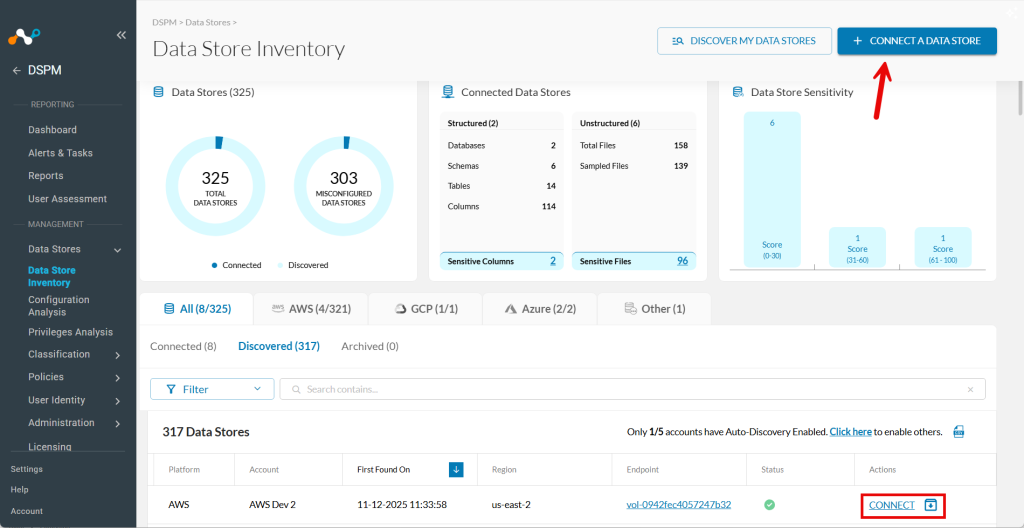
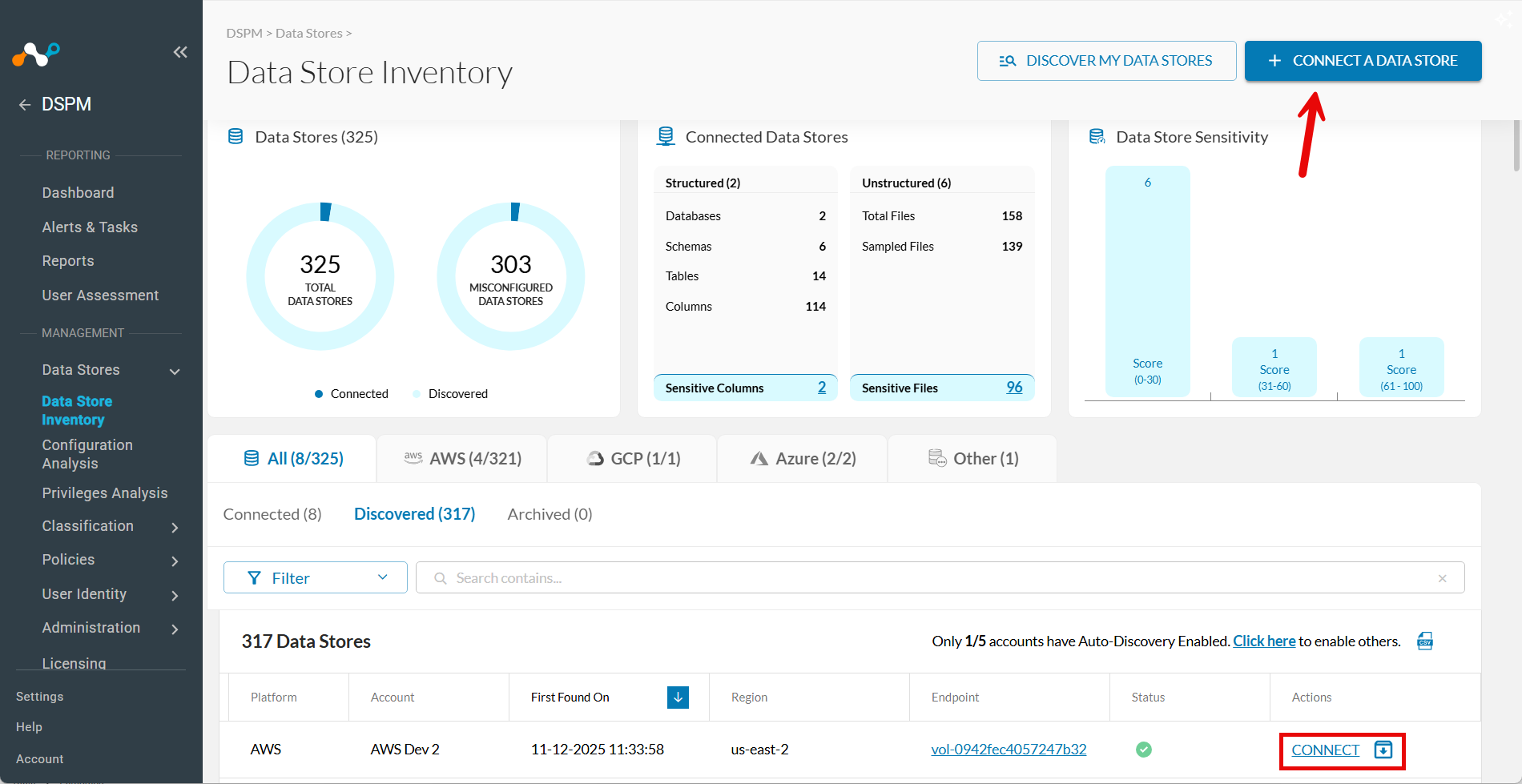
Go to Data Stores > Data Store Inventory.
-
Click CONNECT A DATA STORE in the upper right.
Tip: Alternatively, if the data store was already found by auto-discovery, go to the Discovered tab and click Connect in the Actions column.
-
In the Connect a Data Store window, click the data store icon you wish to connect.
-
In the Provide Credentials section, complete the following fields:
| Field | Value |
|---|---|
| Select GCP Account | Select one of the GCP Accounts defined within the Infrastructure Section screen. The field will default if there is just one GCP Account configured |
| Data Store Identifier | Provide a friendly name to describe this Data Store. This value is displayed in other Netskope One DSPM screens such as Policy Management and Classification Management. |
| Project ID | Provide your unique ID of the Google Cloud Project in which this Data Store being Onboarded resides. |
| Authentication Method | Select the type of Authentication based on your ConfigurationIAMService Account Key |
| Scan Frequency | Controls how often your Data Store is reviewed for changes, Netskope One DSPM’s recommended frequency is defaulted, which you can override if (desired). |
| Sidecar Pool | If you will use sidecars to monitor this data store, select a sidecar pool with network visibility to said data store. This field is displayed when there is at least one defined sidecar pool. To learn more, please visit our Sidecar Administration article. |

Note that the BigQuery API must be enabled for each GCP Project for which you’ll connect a BigQuery data store.
Step 2: Scanning Infrastructure
- Click Next.
- When the Select Capabilities tab appears, complete the following fields:
- Assign a Data Owner (Optional): Select one or more users responsible for this data store.
- Which databases should Netskope DSPM scan?: Select the specific data stores and schemas to monitor, if applicable.
- Features: Select the features you want to enable.
| Capability | Supported for GCP BigQuery |
|---|---|
| Discovery | Yes (always-on) |
| Privilege Analysis | No |
| Shadow Data Analysis | Yes |
| Classification | Yes |
| Data In Use Monitoring | Yes (BigQuery automatically applies correct configurations by default) |
| Automation | Yes (always-on) |
Step 3: Review and Save
- Click Save.
- When the Review tab appears, the system validates your configuration. If there are any issues, follow the on-screen instructions to fix them.
- Click Save to finalize the connection.