

Create a Private Access App Definition for the Publisher to steer. A message appears on the Private App Segments App Definition page when you’re approaching the maximum limit. You can contact Support to increase the limit.
- Go to Settings > Security Cloud Platform > App Definition and click Private App Segments.

- Click New Application Segment.

- Enter a meaningful app name in the Application Name field (like
jira app). - Enter the Host domain in the Host field (like
jira.site.io). The Host field supports various syntax depending on your app configuration. Up to 500 hosts can be added per client app, and one host per browser app.Note
Refer to Host Validation Rules for App Definition Configuration for the supported input fields.
- Enter the app TCP or UDP port, port range, or ports and port ranges. For example:
- Enter a specific port:
80 - Enter a specific port range:
1024-2048 - Enter ports and port range(s):
22,80,443,1024-2048
- Enter a specific port:
- Click in the Publisher text field and select one or more Publishers from the dropdown list.
Tip
For high-availability, add multiple Publishers for each private app. Up to 16 Publishers can be used per app by default.The maximum number of Publishers configured for Private Apps can be increased to 64. This is a Controlled GA feature. Contact Netskope Support or your sales representative to enable this feature .
- (Optional) To have the Netskope Client send DNS requests for the specified hosts to the configured Publishers, enable the Use Publisher DNS toggle. To learn more, go to Configure Private Apps for DNS with the Publisher DNS Feature Enabled.
- (Optional) Private App Segments enable you to group multiple Private App Definitions for use in a Real-time Protection policy. Select one or more Private App Segment Tag(s) from the dropdown list. To add a new Private App Segment Tag, enter a new tag in the text field. To learn more, go to Use Private App Segment Tags in App Definitions.
- Click Save.
- A confirmation window opens for you to review the changes. After verifying the changes, click Confirm.

Connecting the Private App to the Publisher may take several minutes. Make sure that you see the green icon for this Private App before proceeding. If the badge is red, use the Troubleshooter feature or check your firewall rules before proceeding.
Note
When a user has access to a Private App on different tenants using Netskope-encoded Private App URLs from the same browser, then after accessing the Private App on one tenant, a user will need to clear the cookies from the browser before being able to access the Private App on a different tenant.
Host Validation Rules for App Definition Configuration
For Client Apps
Allowed Formats:
- Fully Qualified Domain Names (FQDNs, like
app.example.com) - Partially Qualified Domain Names (PQDNs, like
internal-app) - Wildcard Domains (like
*.netskope.com). - IPv4 Addresses (like
192.168.1.1). - IPv4 Networks/CIDR Notation (like
192.168.1.0/24). - Top-Level Domains (TLDs) when explicitly enabled.
For Apps with NPA Browser Access and User Portal Enabled
Allowed Format:
Only Fully Qualified Domain Names (FQDNs) are permitted (like https://portal.example.com.
For Apps with NPA Browser Access and User Portal Disabled
Allowed Formats:
- Fully Qualified Domain Names (FQDNs) (like
app.example.com) - IPv4 Addresses (like
192.168.1.1.)
Important Guidelines
Hostname Recommendations
- It is recommended to use a hostname instead of IP addresses.
- For client access, if an app needs to be accessible via both hostname and IP address, enter each separately by clicking “Add.”
- When using an IP address for a host domain, ensure it is distinct from all IP addresses used for Publishers.
Wildcard/TLD Usage
- Wildcard hostnames require at least three parts (like
*.netskope.com). - Wildcards can be used two levels down (like
*.test.xyz). - By default, no Top-Level Domains (TLDs) are allowed for a tenant. A tenant-level feature flag controls the permitted TLDs. Host validation ensures that only allowed TLDs are configurable in the app definition and app discovery scope.
- Specific TLDs can be enabled at the tenant level via feature flag enablement. The process for enabling TLD features is as follows:
- Contact your Netskope representative (or Support) to have this feature enabled.
- Provide the following information for approval:
- A list of specific TLDs to be enabled (comma-separated).
- Detailed justification and use case information.
- Business impact if not enabled.
- Approval Process: All requests require Netskope NPA PM (Product Management) approval.
- Once approved and enabled:
- The specified TLDs will be available for use in Netskope Private Access App Definitions.
- App Discovery will recognize and categorize the specified TLDs appropriately.
- Host validation will ensure that only approved TLDs are used. For example, TLD format (like
*.acme) is supported when specified in the feature flag.
TLD Restrictions
The following TLDs remain prohibited regardless of request:
- Common TLDs: like
.com,.net,.org,.gov,.edu,.int,.mil. - Country-specific TLDs (like
.uk,.jp,.ca).
IP Address Restrictions
- Do not use
0/0. - Do not use any CIDR less than
/8(10/8is allowed, but1/7is not allowed). - Do not use IPv6 equivalents of 0/0:
::;0:0:0:0:0:0:0:0.
Private App Definition Page
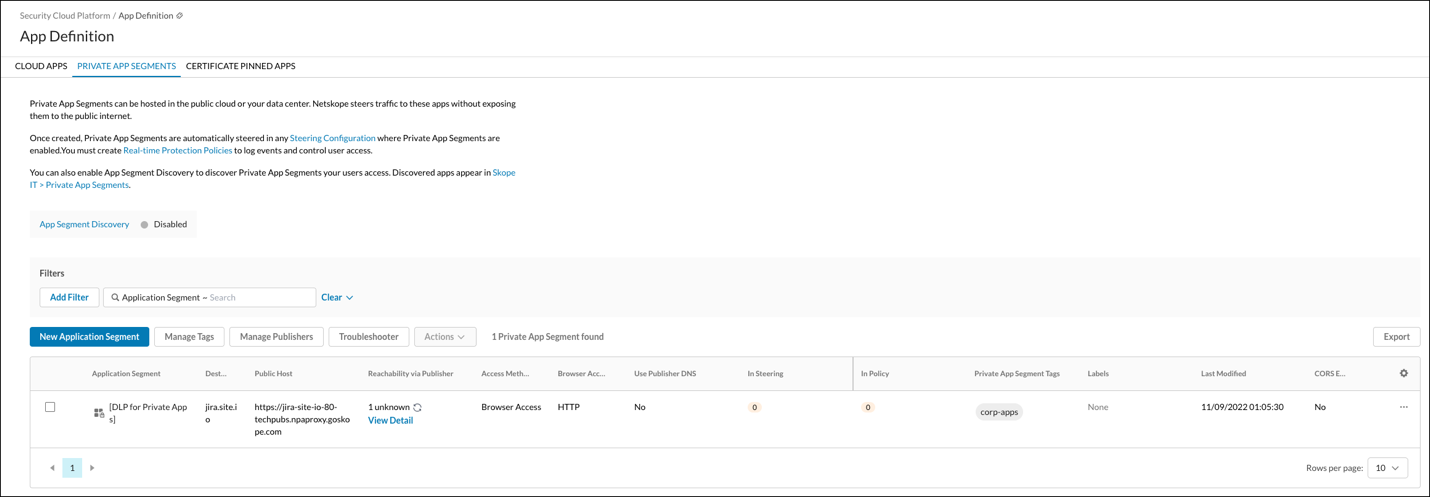
The Private App Definition page shows these specifications for each Private App.
- Whether App Segment Discovery is enabled or not.
- The Private App Segment name.
- Whether Browser Access is enabled or not.
- The host IP addresses or IP subnets, hostnames, or wild card domains.
- The status of the Publisher connection, and the name of the Publisher used.
- Whether Publisher DNS is enabled or not.
- The number of steering configurations used.
- The number of policies applied to a Private App.
- Any Private App Segment Tags used.
- Any Labels used.
- The last modification date.
- Whether CORS is enabled.
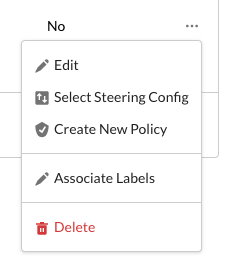
Private Apps Dropdown Menu and Page Settings
These features enable you to manage your Private App Definitions. Click the menu icon (…) for an App Definition and select an action.
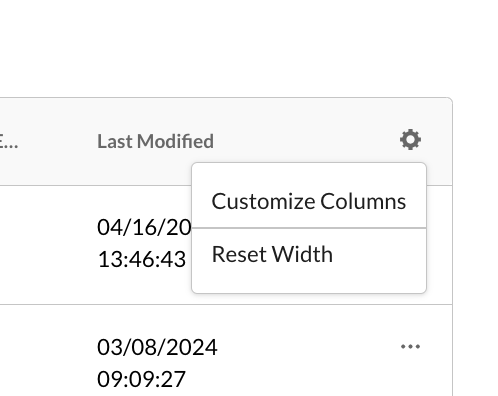
To change how the table displays on the page, click on the Settings (gear) icon on the top right of table header select an option.
Private Apps Filtering and Exporting Options
These features enable you to filter the Private Apps listed in the page, and then export the results in CSV format.
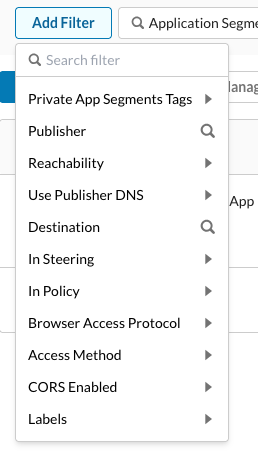
Filters
Click Add Filter to see these filtering options:
- Private App Segment Tags
- Publisher
- Reachability
- Use Publisher DNS
- Destination
- In Steering
- In Policy
- Browser Access Protocol
- Access Method
- CORS Enabled
- Labels
Note
When you select a filter with a search icon  , that value is added to the search field so you can add more specifics. When a filter has an adjacent toggle arrow
  , there are expanded options to choose from.
Export
The filter results displayed can be exported by clicking Export.
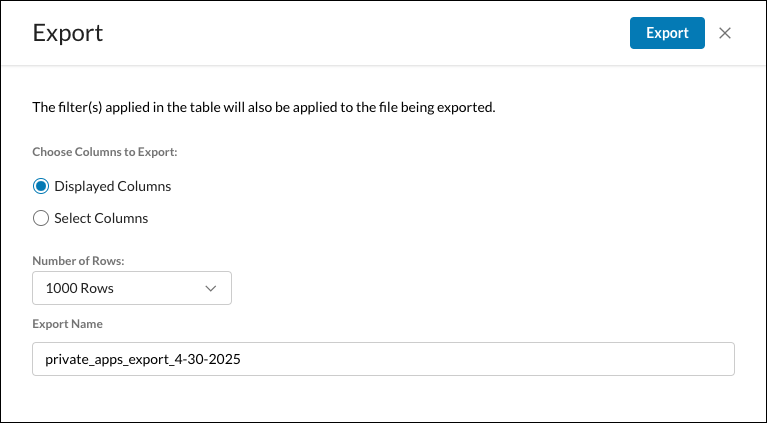
By default, the displayed columns will be exported. You can choose the number of rows, and change the file name. Click Select Columns to specify which columns to export.
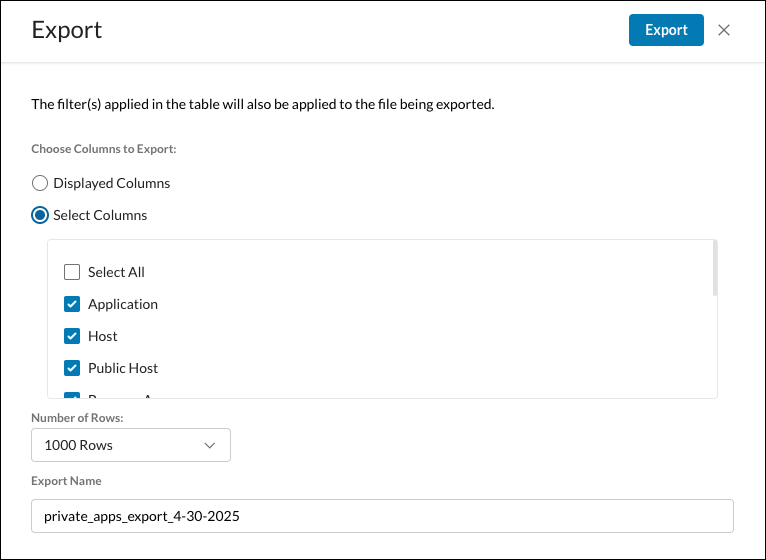
Click Export to download a CSV file.