

This document explains how to configure the CyberArk v1.0.0 plugin with the Risk Exchange module of the Netskope Cloud Exchange platform. The CyberArk plugin fetches users and their risk levels from the Core Services > Users page of the Identity Administration portal. To fetch the risk levels, you must have the Behavioral Analytics portal enabled for your CyberArk tenant. This plugin also performs actions on CyberArk users, like Add users to a role and Remove users from a role.
Netskope normalization score mappings:
- RiskLevel Unknown: N/A
- RiskLevel Normal: 875
- RiskLevel Low: 625
- RiskLevel Medium: 375
- RiskLevel High: 125
Prerequisites
To complete this integration, you need:
- A Netskope tenant (or multiple, for example, production and development/test instances).
- A Netskope Cloud Exchange tenant with the Tenant plugin and Risk Exchange plugin already configured.
- A CyberArk tenant.
- Access to the User Behavior Analytics portal.
- Connectivity to the following hosts:
- https://<Tenant_ID>.id.cyberark.cloud
- https://<Tenant_ID>.id.idaptive.com
You need any one of the URLs mentioned for the plugin.
CyberArk Plugin Support
CyberArk supports pulling of users and their risk levels from the Core Services > Users page of the Identity Administration portal.
| Type of data pulled | User |
| Actions |
|
Mappings
Score Mapping
The expected score type on CyberArk is Unknown, Normal , Low, Medium, and High. Make sure the scores are mapped as a string along with these CyberArk supported scores.
Mappings are used to view the pulled Users and their respective details. Fields mapped during plugin configuration are visible on the Records page after the data is pulled. Here are the suggested mappings that should be used while configuring the plugin.
Pull Mapping for User
| Plugin Field | Expected Datatype | Suggested Field Name | Suggested Aggregate Score |
|---|---|---|---|
| User ID | String | CyberArk User ID | Unique |
| Display Name | String | CyberArk Display Name | Overwrite |
| Username | String | CyberArk Username | Unique |
| Login Name | String | CyberArk Login Name | Overwrite |
| String | CyberArk Email | Overwrite | |
| Status | String | CyberArk Status | Overwrite |
| Status Enum | String | CyberArk Status Enum | Overwrite |
| Risk Level | String | CyberArk Risk Level | Overwrite |
| Risk Level Localized | String | CyberArk Risk Level Localized | Overwrite |
| Risk Level Rank | String | CyberArk Risk Level Rank | Overwrite |
Permissions
Here are the permissions needed to use the CyberArk plugin:
- System Administrator permission (for platform access)
- Is OAuth confidential client (for plugin configuration)
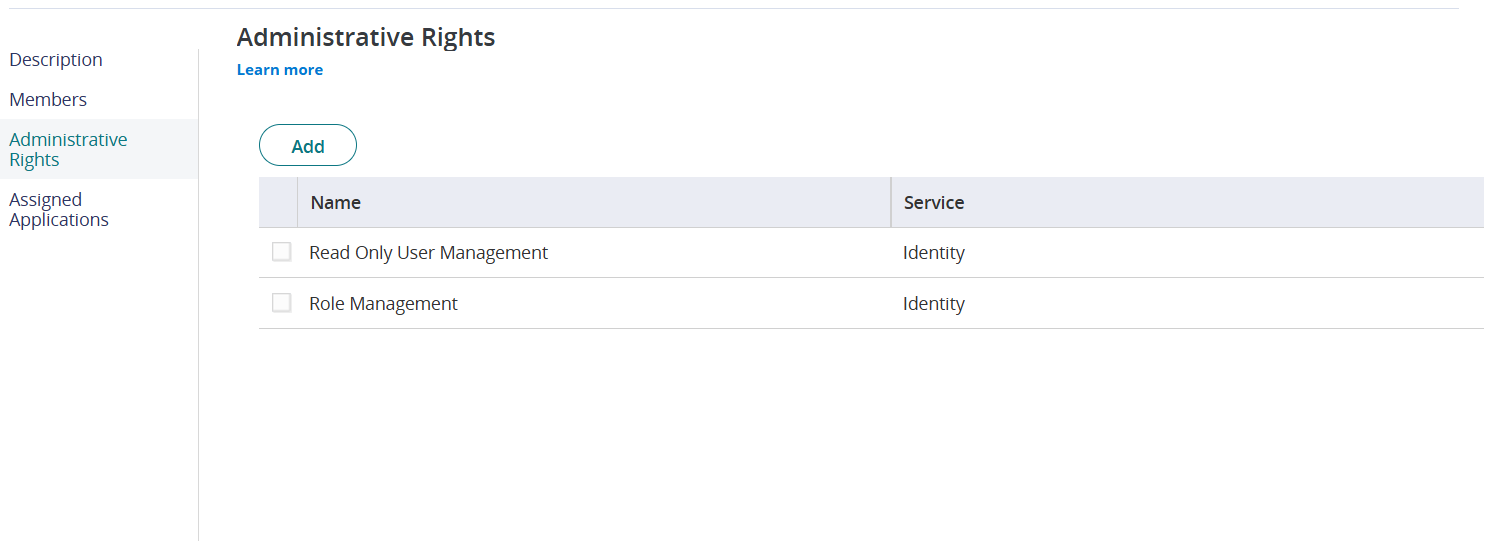
- User is assigned a role having below Administrative Rights to fetch users, risk levels and perform actions on role:
- Read Only User Management
- Role Management
API Details
List of APIs Used
| API Endpoint | Method | Use Case |
|---|---|---|
| /oauth2/platformtoken | POST | Generate Auth Token |
| /RedRock/query | POST | Get All Roles |
| /RedRock/query | POST | To fetch users and risk levels |
| /RedRock/query | POST | Updating Users |
| /RedRock/query | POST | Find user by username |
| /RedRock/query | POST | Find role by rolename |
| /Roles/StoreRole | POST | Create Role |
| /UserMgmt/GetUserInfo | POST | Get User Info |
| /SaasManage/AddUsersAndGroupsToRole | POST | Add user to role |
| /SaasManage/RemoveUsersAndGroupsFromRole | POST | Remove user from role |
The CyberArk plugin uses RedRock endpoints with different queries.
Generate a Token
API Request Endpoint: https://<tenant_url>/oauth2/platformtoken
Method: POST
Data:
grant_type: client_credentials
scope: all
client_id: cyberark_service_user
client_secret: cyberark_service_password
Headers:
Accept: application/json
Content-Type: application/x-www-form-urlencoded
Sample API Response
{
    "access_token": "eyJhbGciOiJSUzI1NiIsInR5cCI6IkpXVCIsImtpZCI6IkRDRTVENUI3MTBEMzc3MEYwNkNCRTUyQzY3RTVGRjY2QTA3MjZFNzUiLCJ4NXQiOiIzT1hWdHhEVGR3OEd5LVVzWi1YX1pxQnliblUiLCJhcHBfaWQiOiJf*******************************************************************Ef1M6Frjux1pLS4FBFBfb4_IZYbUoA9oNvKN82nL2Wv3ErV7x87gOvmrc63liBYx5-BHH8fXIUN8kA",
    "token_type": "Bearer",
    "expires_in": 900,
    "scope": "all"
}
Get All Roles
API Request Endpoint: https://<tenant_url>/RedRock/query
Method: POST
Data:
{"Script": "Select ID, Name from Role order by Name"}
Headers:
Authorization: Bearer <bearer token>
Sample API Response
{
    "success": true,
    "Result": {
        "IsAggregate": false,
        "Count": 13,
        "Columns": [
            {
                "Name": "ID",
                "IsHidden": false,
                "DDName": "_ID",
                "Title": "ID",
                "DDTitle": "ID",
                "Description": "Row Identifier (primary key)",
                "Type": 12,
                "Format": null,
                "Width": 0,
                "TableKey": "Primary",
                "ForeignKey": null,
                "TableName": "Role"
            },
            {
                "Name": "Name",
                "IsHidden": false,
                "DDName": "Name",
                "Title": "Name",
                "DDTitle": "Name",
                "Description": null,
                "Type": 12,
                "Format": null,
                "Width": 0,
                "TableKey": "NotAKey",
                "ForeignKey": null,
                "TableName": "Role"
            }
        ],
        "FullCount": 2,
        "Results": [
            {
                "Entities": [
                    {
                        "Type": "Role",
                        "Key": "d47336b0_d7bd_4a65_989e_95606e878cb7",
                        "IsForeignKey": false
                    }
                ],
                "Row": {
                    "_TableName": "roles",
                    "Name": "Add role to CE users",
                    "ID": "d47336b0_d7bd_4a65_989e_95606e878cb7"
                }
            },
            {
                "Entities": [
                    {
                        "Type": "Role",
                        "Key": "bbf1d29f_7f69_45af_8555_aca99ded577b",
                        "IsForeignKey": false
                    }
                ],
                "Row": {
                    "_TableName": "roles",
                    "Name": "testuser",
                    "ID": "bbf1d29f_7f69_45af_8555_aca99ded577b"
                }
            }
        ],
        "ReturnID": ""
    },
    "Message": null,
    "MessageID": null,
    "Exception": null,
    "ErrorID": null,
    "ErrorCode": null,
    "IsSoftError": false,
    "InnerExceptions": null
}
Fetch Users and Risk Levels
API Request Endpoint: https://<tenant_url>/RedRock/query
Method: POST
Data:
{
   "Script":"SELECT\n    LoginName,\n    StatusEnum,\n     Status,\n    RiskLevel,\n    ID\n,  RiskLevelLocalized,\n    RiskLevelRank\nFROM\n    User",
   "Args":{
      "PageNumber":1,
      "PageSize":2,
      "Limit":2,
      "SortBy":"LoginName",
      "Caching":-1
   }
}
Headers:
Authorization: Bearer <bearer token>
Sample API Response
{
    "success": true,
    "Result": {
        "IsAggregate": false,
        "Count": 1,
        "Columns": [
            {
                "Name": "LoginName",
                "IsHidden": false,
                "DDName": "LoginName",
                "Title": "LoginName",
                "DDTitle": "LoginName",
                "Description": null,
                "Type": 12,
                "Format": null,
                "Width": 0,
                "TableKey": "NotAKey",
                "ForeignKey": null,
                "TableName": "User"
            },
            {
                "Name": "StatusEnum",
                "IsHidden": false,
                "DDName": "StatusEnum",
                "Title": "Status Enumeration",
                "DDTitle": "Status Enumeration",
                "Description": null,
                "Type": 12,
                "Format": null,
                "Width": 0,
                "TableKey": "NotAKey",
                "ForeignKey": null,
                "TableName": "User"
            },
            {
                "Name": "Status",
                "IsHidden": false,
                "DDName": "Status",
                "Title": "Status",
                "DDTitle": "Status",
                "Description": null,
                "Type": 12,
                "Format": null,
                "Width": 0,
                "TableKey": "NotAKey",
                "ForeignKey": null,
                "TableName": "User"
            },
            {
                "Name": "RiskLevel",
                "IsHidden": false,
                "DDName": "RiskLevel",
                "Title": "Risk Level",
                "DDTitle": "Risk Level",
                "Description": null,
                "Type": 12,
                "Format": null,
                "Width": 0,
                "TableKey": "NotAKey",
                "ForeignKey": null,
                "TableName": "User"
            },
            {
                "Name": "ID",
                "IsHidden": false,
                "DDName": "_ID",
                "Title": "ID",
                "DDTitle": "ID",
                "Description": "Row Identifier (primary key)",
                "Type": 12,
                "Format": null,
                "Width": 0,
                "TableKey": "Primary",
                "ForeignKey": null,
                "TableName": "User"
            },
            {
                "Name": "RiskLevelLocalized",
                "IsHidden": false,
                "DDName": "RiskLevelLocalized",
                "Title": "Risk Level Localized",
                "DDTitle": "Risk Level Localized",
                "Description": null,
                "Type": 12,
                "Format": null,
                "Width": 0,
                "TableKey": "NotAKey",
                "ForeignKey": null,
                "TableName": "User"
            },
            {
                "Name": "RiskLevelRank",
                "IsHidden": false,
                "DDName": "RiskLevelRank",
                "Title": "Risk Level Rank",
                "DDTitle": "Risk Level Rank",
                "Description": null,
                "Type": 8,
                "Format": null,
                "Width": 0,
                "TableKey": "NotAKey",
                "ForeignKey": null,
                "TableName": "User"
            }
        ],
        "FullCount": 12,
        "Results": [
            {
                "Entities": [
                    {
                        "Type": "User",
                        "Key": "0df2042e-b926-4a8f-859f-210442016929",
                        "IsForeignKey": false
                    }
                ],
                "Row": {
                    "_TableName": "users",
                    "RiskLevel": "Medium",
                    "Status": "Active",
                    "StatusEnum": "Active",
                    "ID": "0df2042e-b926-4a8f-859f-210442016929",
                    "RiskLevelLocalized": "Medium",
                    "RiskLevelRank": 2,
                    "LoginName": "tanushree.kurup@netskope.cloud"
                }
            }
        ],
        "ReturnID": ""
    },
    "Message": null,
    "MessageID": null,
    "Exception": null,
    "ErrorID": null,
    "ErrorCode": null,
    "IsSoftError": false,
    "InnerExceptions": null
}
Update Users
API Request Endpoint: https://<tenant_url>/RedRock/query
Method: POST
Data:
{
   "Script":"select ID, DisplayName, Username, LoginName, Email, Status, StatusEnum, RiskLevel, RiskLevelLocalized, RiskLevelRank from Users where Username IN (‘user1’, ‘user’)"
}
Headers:
Authorization: Bearer <bearer token>
Sample API Response
{
    "success": true,
    "Result": {
        "IsAggregate": false,
        "Count": 1,
        "Columns": [
            {
                "Name": "LoginName",
                "IsHidden": false,
                "DDName": "LoginName",
                "Title": "LoginName",
                "DDTitle": "LoginName",
                "Description": null,
                "Type": 12,
                "Format": null,
                "Width": 0,
                "TableKey": "NotAKey",
                "ForeignKey": null,
                "TableName": "User"
            },
            {
                "Name": "StatusEnum",
                "IsHidden": false,
                "DDName": "StatusEnum",
                "Title": "Status Enumeration",
                "DDTitle": "Status Enumeration",
                "Description": null,
                "Type": 12,
                "Format": null,
                "Width": 0,
                "TableKey": "NotAKey",
                "ForeignKey": null,
                "TableName": "User"
            },
            {
                "Name": "Status",
                "IsHidden": false,
                "DDName": "Status",
                "Title": "Status",
                "DDTitle": "Status",
                "Description": null,
                "Type": 12,
                "Format": null,
                "Width": 0,
                "TableKey": "NotAKey",
                "ForeignKey": null,
                "TableName": "User"
            },
            {
                "Name": "RiskLevel",
                "IsHidden": false,
                "DDName": "RiskLevel",
                "Title": "Risk Level",
                "DDTitle": "Risk Level",
                "Description": null,
                "Type": 12,
                "Format": null,
                "Width": 0,
                "TableKey": "NotAKey",
                "ForeignKey": null,
                "TableName": "User"
            },
            {
                "Name": "ID",
                "IsHidden": false,
                "DDName": "_ID",
                "Title": "ID",
                "DDTitle": "ID",
                "Description": "Row Identifier (primary key)",
                "Type": 12,
                "Format": null,
                "Width": 0,
                "TableKey": "Primary",
                "ForeignKey": null,
                "TableName": "User"
            },
            {
                "Name": "RiskLevelLocalized",
                "IsHidden": false,
                "DDName": "RiskLevelLocalized",
                "Title": "Risk Level Localized",
                "DDTitle": "Risk Level Localized",
                "Description": null,
                "Type": 12,
                "Format": null,
                "Width": 0,
                "TableKey": "NotAKey",
                "ForeignKey": null,
                "TableName": "User"
            },
            {
                "Name": "RiskLevelRank",
                "IsHidden": false,
                "DDName": "RiskLevelRank",
                "Title": "Risk Level Rank",
                "DDTitle": "Risk Level Rank",
                "Description": null,
                "Type": 8,
                "Format": null,
                "Width": 0,
                "TableKey": "NotAKey",
                "ForeignKey": null,
                "TableName": "User"
            }
        ],
        "FullCount": 12,
        "Results": [
            {
                "Entities": [
                    {
                        "Type": "User",
                        "Key": "0df2042e-b926-4a8f-859f-210442016929",
                        "IsForeignKey": false
                    }
                ],
                "Row": {
                    "_TableName": "users",
                    "RiskLevel": "Medium",
                    "Status": "Active",
                    "StatusEnum": "Active",
                    "ID": "0df2042e-b926-4a8f-859f-210442016929",
                    "RiskLevelLocalized": "Medium",
                    "RiskLevelRank": 2,
                    "LoginName": "tanushree.kurup@netskope.cloud"
                }
            }
        ],
        "ReturnID": ""
    },
    "Message": null,
    "MessageID": null,
    "Exception": null,
    "ErrorID": null,
    "ErrorCode": null,
    "IsSoftError": false,
    "InnerExceptions": null
}
Find User by Username
API Request Endpoint: https://<tenant_url>/RedRock/query
Method: POST
Data:
{"Script": "select ID, Username from Users where Username = <user>@<suffix>'"}
Headers:
Authorization: Bearer <bearer token>
Sample API Response
{
    "success": true,
    "Result": {
        "IsAggregate": false,
        "Count": 1,
        "Columns": [
            {
                "Name": "ID",
                "IsHidden": false,
                "DDName": "_ID",
                "Title": "ID",
                "DDTitle": "ID",
                "Description": "Row Identifier (primary key)",
                "Type": 12,
                "Format": null,
                "Width": 0,
                "TableKey": "Primary",
                "ForeignKey": null,
                "TableName": "User"
            },
            {
                "Name": "Username",
                "IsHidden": false,
                "DDName": "Username",
                "Title": "Username",
                "DDTitle": "Username",
                "Description": "User name.",
                "Type": 12,
                "Format": null,
                "Width": 0,
                "TableKey": "NotAKey",
                "ForeignKey": null,
                "TableName": "User"
            }
        ],
        "FullCount": 1,
        "Results": [
            {
                "Entities": [
                    {
                        "Type": "User",
                        "Key": "d3530f17-0e7f-4114-aeea-b8fbe678814e",
                        "IsForeignKey": false
                    }
                ],
                "Row": {
                    "_TableName": "users",
                    "ID": "d3530f17-0e7f-4114-aeea-b8fbe678814e",
                    "Username": "@"
                }
            }
        ],
        "ReturnID": ""
    },
    "Message": null,
    "MessageID": null,
    "Exception": null,
    "ErrorID": null,
    "ErrorCode": null,
    "IsSoftError": false,
    "InnerExceptions": null
}
Find Role by Rolename
API Request Endpoint:: https://<tenant_url>/RedRock/query
Method: POST
Data
{"Script": "select ID, Name from Role where Name = 'System Administrator'"}
Headers:
Authorization: Bearer <bearer token>
Sample API Response
{
    "success": true,
    "Result": {
        "IsAggregate": false,
        "Count": 1,
        "Columns": [
            {
                "Name": "ID",
                "IsHidden": false,
                "DDName": "_ID",
                "Title": "ID",
                "DDTitle": "ID",
                "Description": "Row Identifier (primary key)",
                "Type": 12,
                "Format": null,
                "Width": 0,
                "TableKey": "Primary",
                "ForeignKey": null,
                "TableName": "Role"
            },
            {
                "Name": "Name",
                "IsHidden": false,
                "DDName": "Name",
                "Title": "Name",
                "DDTitle": "Name",
                "Description": null,
                "Type": 12,
                "Format": null,
                "Width": 0,
                "TableKey": "NotAKey",
                "ForeignKey": null,
                "TableName": "Role"
            }
        ],
        "FullCount": 1,
        "Results": [
            {
                "Entities": [
                    {
                        "Type": "Role",
                        "Key": "sysadmin",
                        "IsForeignKey": false
                    }
                ],
                "Row": {
                    "_TableName": "roles",
                    "Name": "System Administrator",
                    "ID": "sysadmin"
                }
            }
        ],
        "ReturnID": ""
    },
    "Message": null,
    "MessageID": null,
    "Exception": null,
    "ErrorID": null,
    "ErrorCode": null,
    "IsSoftError": false,
    "InnerExceptions": null
}
Create a Role
API Request Endpoint: https://<tenant_url>/Roles/StoreRole
Method: POST
Data:
{
    "Description": "Created From Netskop URE",
    "Name":
}
Headers:
Authorization: Bearer <bearer token>
Sample API Response
{
    "success": true,
    "Result": {
        "_RowKey": "8a67f7e2_a9f6_4a9a_bfbb_a11f673323b2"
    },
    "Message": null,
    "MessageID": null,
    "Exception": null,
    "ErrorID": null,
    "ErrorCode": null,
    "IsSoftError": false,
    "InnerExceptions": null
}
Get User Info
API Request Endpoint: https://<tenant_url>/UserMgmt/GetUserInfo
Method: POST
Data:
NA
Headers:
Authorization: Bearer <bearer token>
Sample API Response
{
    "success": true,
    "Result": {
        "TenantId": "ABD4143",
        "Id": "6c32a200-010d-432a-9b72-f1bbf7b66dd7",
        "ExternalUuid": "6c32a200-010d-432a-9b72-f1bbf7b66dd7",
        "Name": "tanushree@crest_netskope",
        "DisplayName": "tansuhree",
        "EmailAddress": "tanushree.kurup@crestdatasys.com",
        "MobileNumber": null,
        "DirectoryServiceType": "CDS",
        "DirectoryServiceId": "09B9A9B0-6CE8-465F-AB03-65766D33B05E",
        "DirectoryServiceName": "CDS",
        "DirectoryServiceLocalizedName": "CyberArk Cloud Directory",
        "IsSysAdmin": true,
        "CanChangePassword": true,
        "PasswordExpDate": "/Date(253402300799999)/",
        "LastPasswordChangeDate": "/Date(-62135596800000)/",
        "ThirdPartyOathConfigured": false,
        "SqEnabled": true,
        "SecurityQuestion": null,
        "SecurityQuestionsLastUpdate": null,
        "PhonePinLastChangeDate": null,
        "LastLoginDate": "/Date(1701671479876)/",
        "LastLastLoginDate": "/Date(1701671164189)/",
        "PasswordChangeSoftDays": 14,
        "PasswordChangeHardHours": 48,
        "PasswordResetFlag": 0,
        "SelfUnlocked": false,
        "HasPicture": false,
        "Settings": {
            "uisection": {
                "doNotShowIdaptiveWelcomeWizard": true
            }
        },
        "HasU2fDeviceWithFacetIdMatched": false,
        "SecurityKeyConfigured": false,
        "OnDeviceAuthenticatorConfigured": false,
        "PreferredCulture": null,
        "PreferredTimeZone": null,
        "DisplayPreferredCulture": null,
        "EnablePurchasedLicenseMenu": false,
        "MfaSetupWizardSettings": {
            "ShowYubikeyOtpInMfaSetupWizard": false,
            "ShowMfaSetupWizard": false,
            "ShowPasskeysInMfaSetupWizard": false,
            "MobileNumberAttribute": "",
            "ShowU2fInMfaSetupWizard": false,
            "ShowSecurityQuestionInMfaSetupWizard": false,
            "SaveMobileNumberToCloud": false,
            "RequiredFactorSetupCount": 0,
            "ShowSmsMessageInMfaSetupWizard": false,
            "ShowOathPassCodeInMfaSetupWizard": false
        },
        "IsMobileAttributeConfigured": false,
        "MobileDeviceAuthCapableCount": 0,
        "SlackAuthEnabled": false,
        "SlackMemberIdSet": false,
        "YubikeyOtpConfigured": false,
        "PasskeyConfigured": false
    },
    "Message": null,
    "MessageID": null,
    "Exception": null,
    "ErrorID": null,
    "ErrorCode": null,
    "IsSoftError": false,
    "InnerExceptions": null
}
Add a User to a Role
API Request Endpoint: https://<tenant_url>/SaasManage/AddUsersAndGroupsToRole
Method: POST
Data:
{
    "Users": [
        ""
    ],
    "Name": ""
}
Headers:
Authorization: Bearer <bearer token>
Sample API Response
{
    "success": true,
    "Result": null,
    "Message": null,
    "MessageID": null,
    "Exception": null,
    "ErrorID": null,
    "ErrorCode": null,
    "IsSoftError": false,
    "InnerExceptions": null
}
Remove a User from a Role
API Request Endpoint: https://<tenant_url>/SaasManage/RemoveUsersAndGroupsFromRole
Method: POST
Data:
{
    "Users": [
        ""
    ],
    "Name": ""
}
Headers:
Authorization: Bearer <bearer token>
Sample API Response
{
    "success": true,
    "Result": null,
    "Message": null,
    "MessageID": null,
    "Exception": null,
    "ErrorID": null,
    "ErrorCode": null,
    "IsSoftError": false,
    "InnerExceptions": null
}
Performance Matrix
Below is the performance reading conducted on a Large CE Stack by pulling 500K User and Risk Levels from CyberArk to Netskope CE.
| Stack details | Size: Large RAM: 32 GB CPU: 16 Cores |
| Time taken to store the pulled and updated user records | ~ 20 mins |
User Agent
netskope-ce-5.1.0-cre-cyberark-v1.0.0
Workflow
- Create a user.
- Add an API permission to the user.
- Create a role and add a user to the role.
- Get your CyberArk Tenant URL.
- Configure the CyberArk plugin.
- Add a Business Rule for CyberArk
- Add an Action for CyberArk.
- Validate the CyberArk plugin.
Click play to watch a video.
Create a User
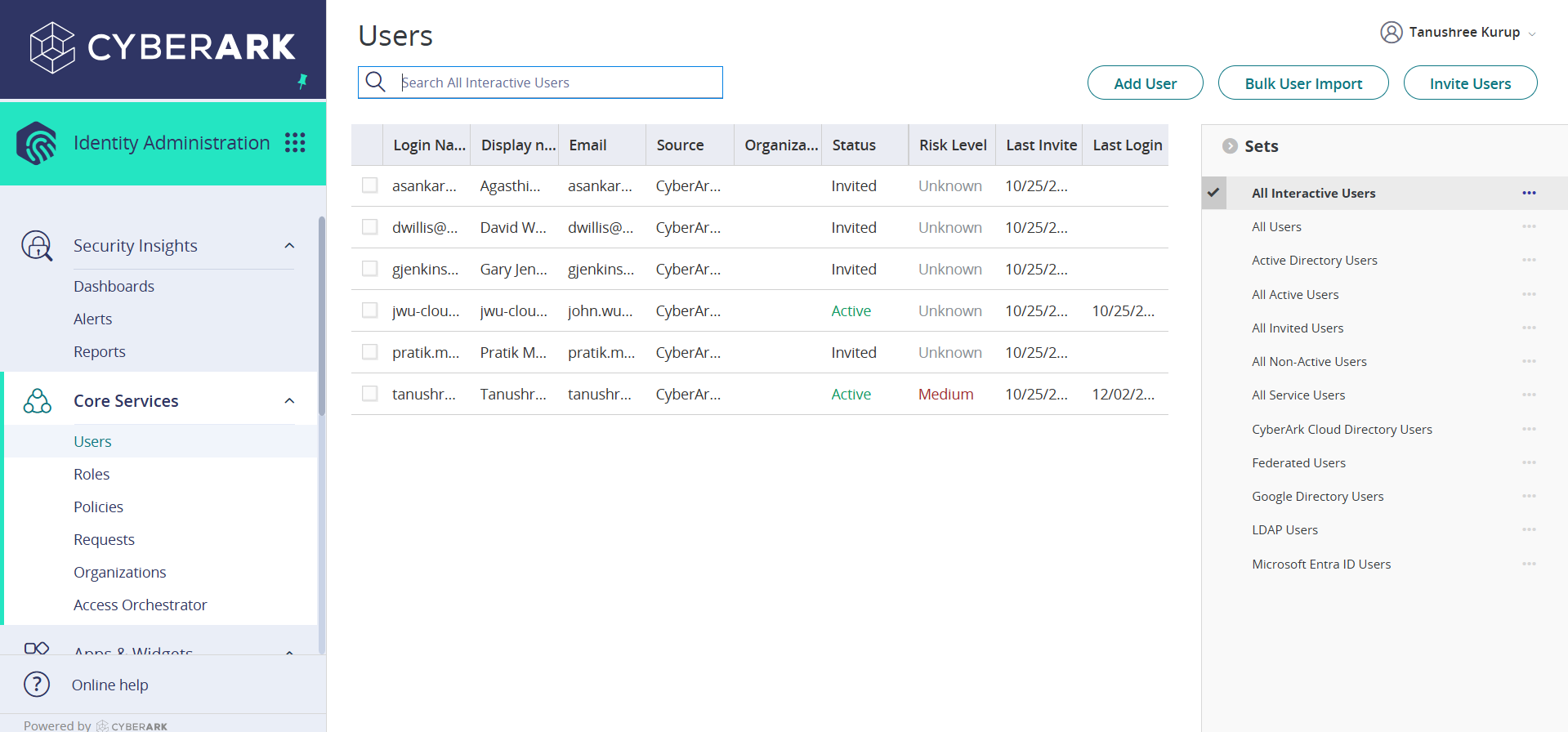
- In CyberArk, go to Core Services > Users and click Add User.
- Enter the information and password for the user.
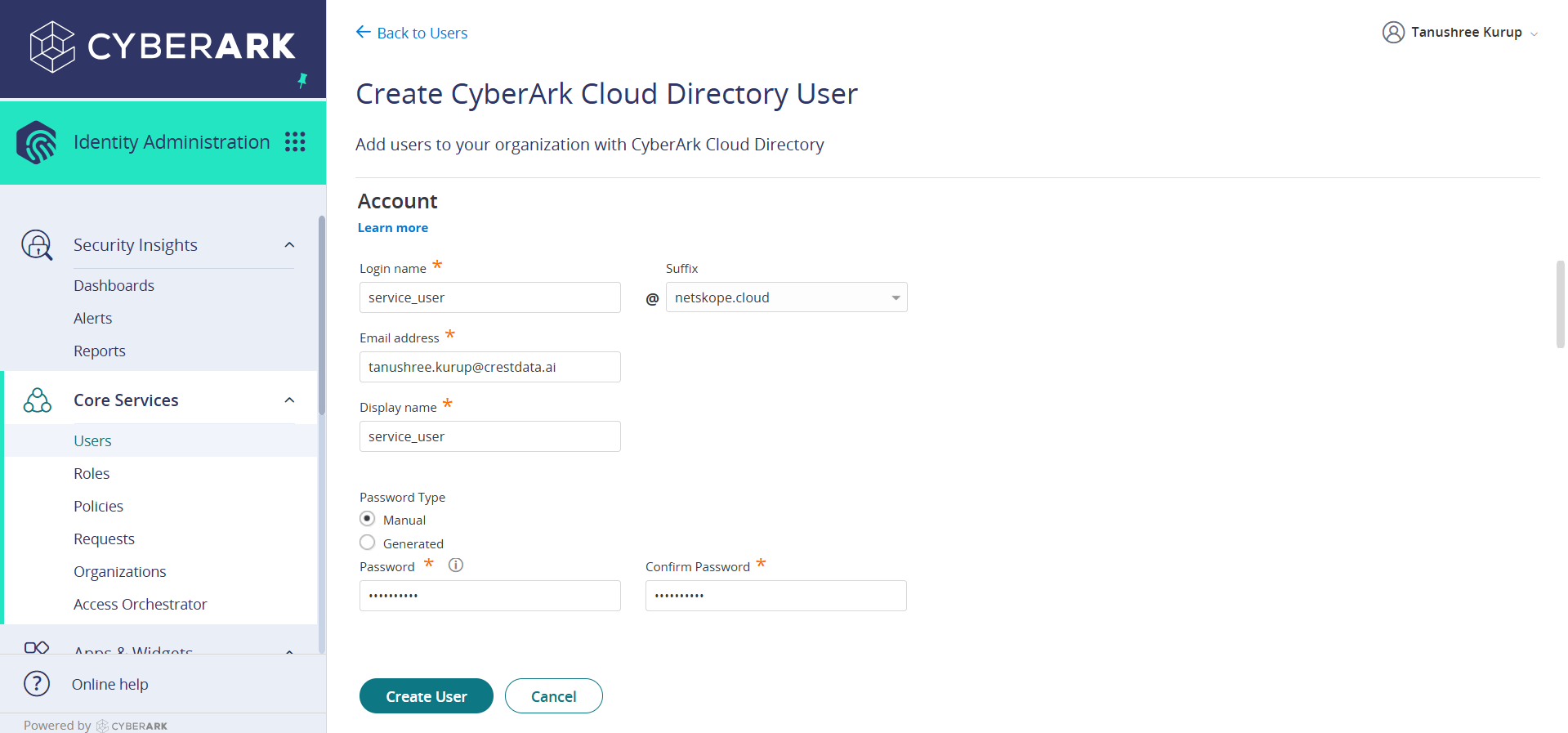
- Click Create User.
Add an API Permission to the User
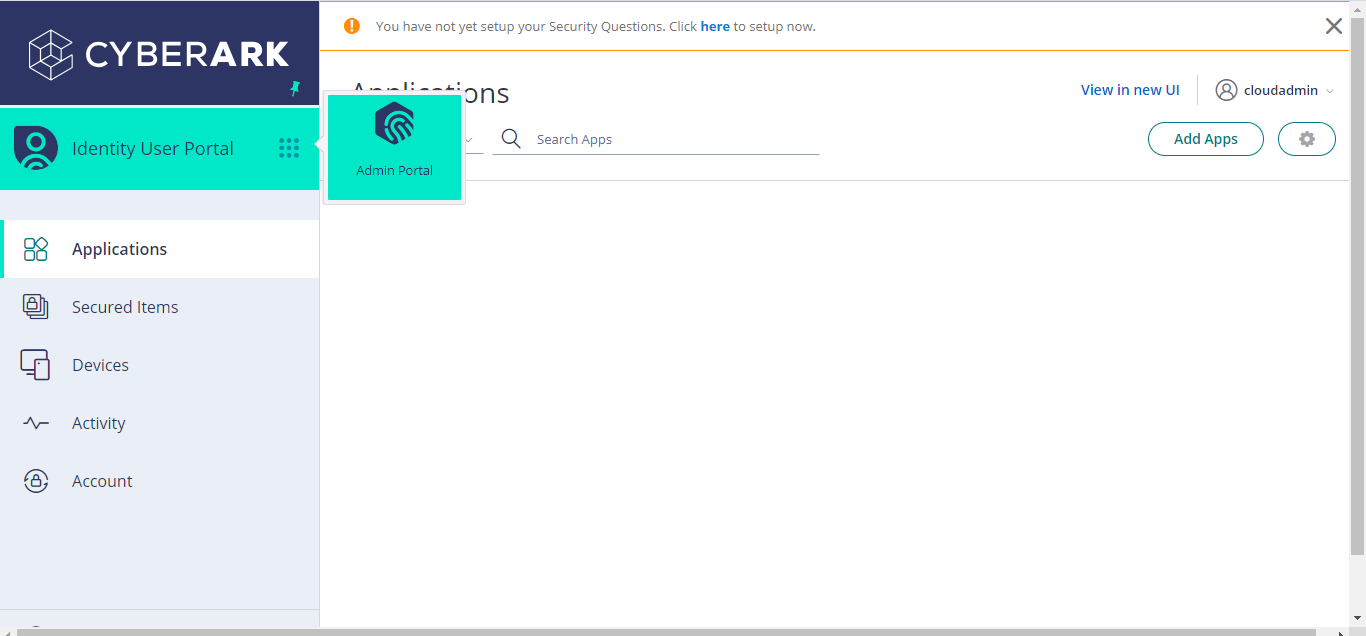
- In CyberArk, go to Admin Portal.
- Go to Users and click All Users in the left panel.
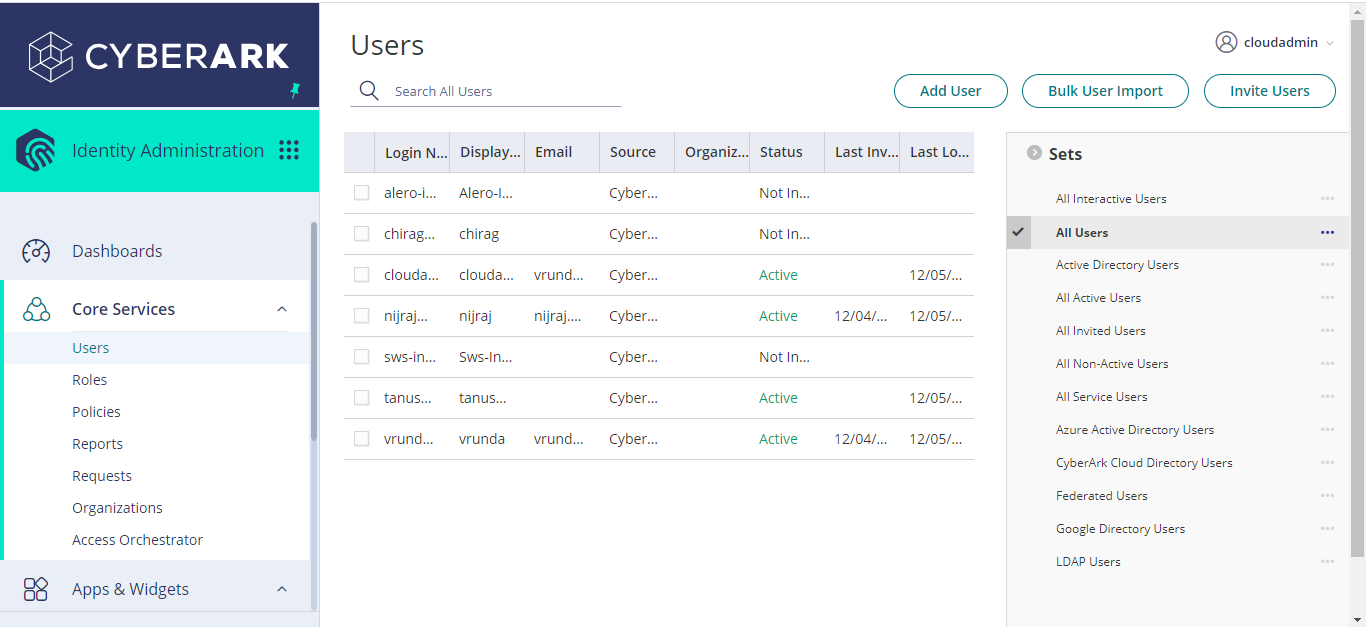
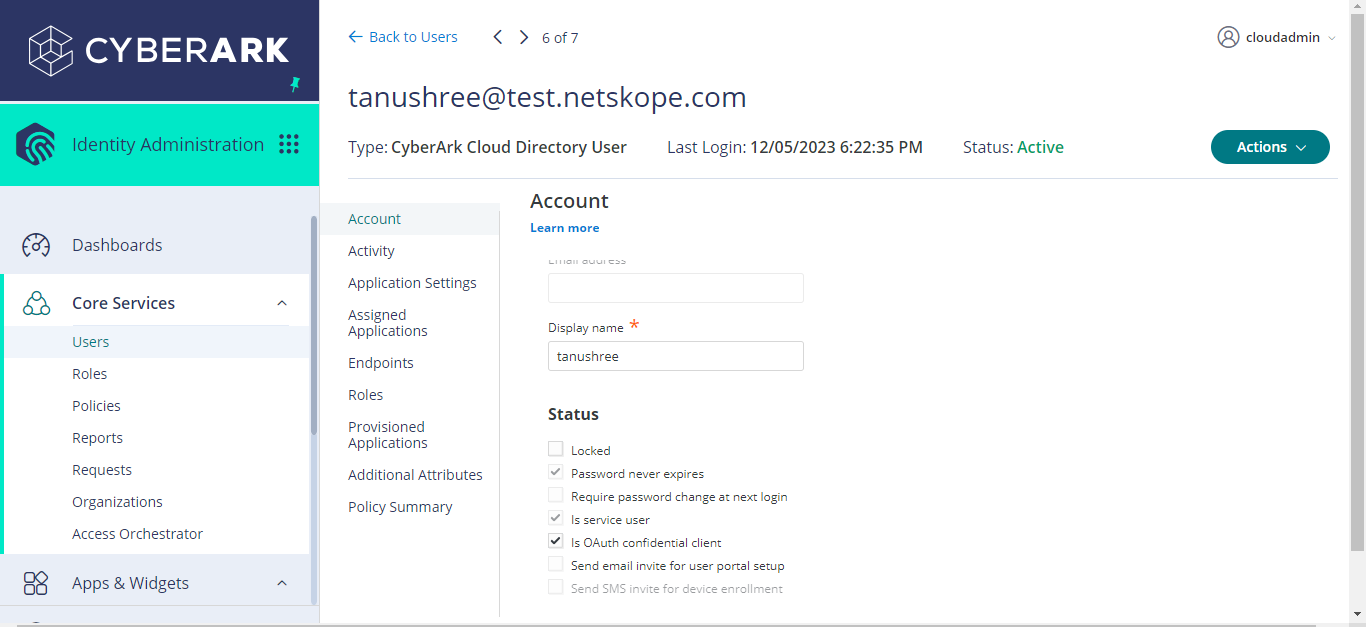
- Click on the user you will be using to configure the plugin, scroll down to status and enable the Is OAuth confidential client permission for the user, and then click Save.
Create a Role and Add a User to the Role
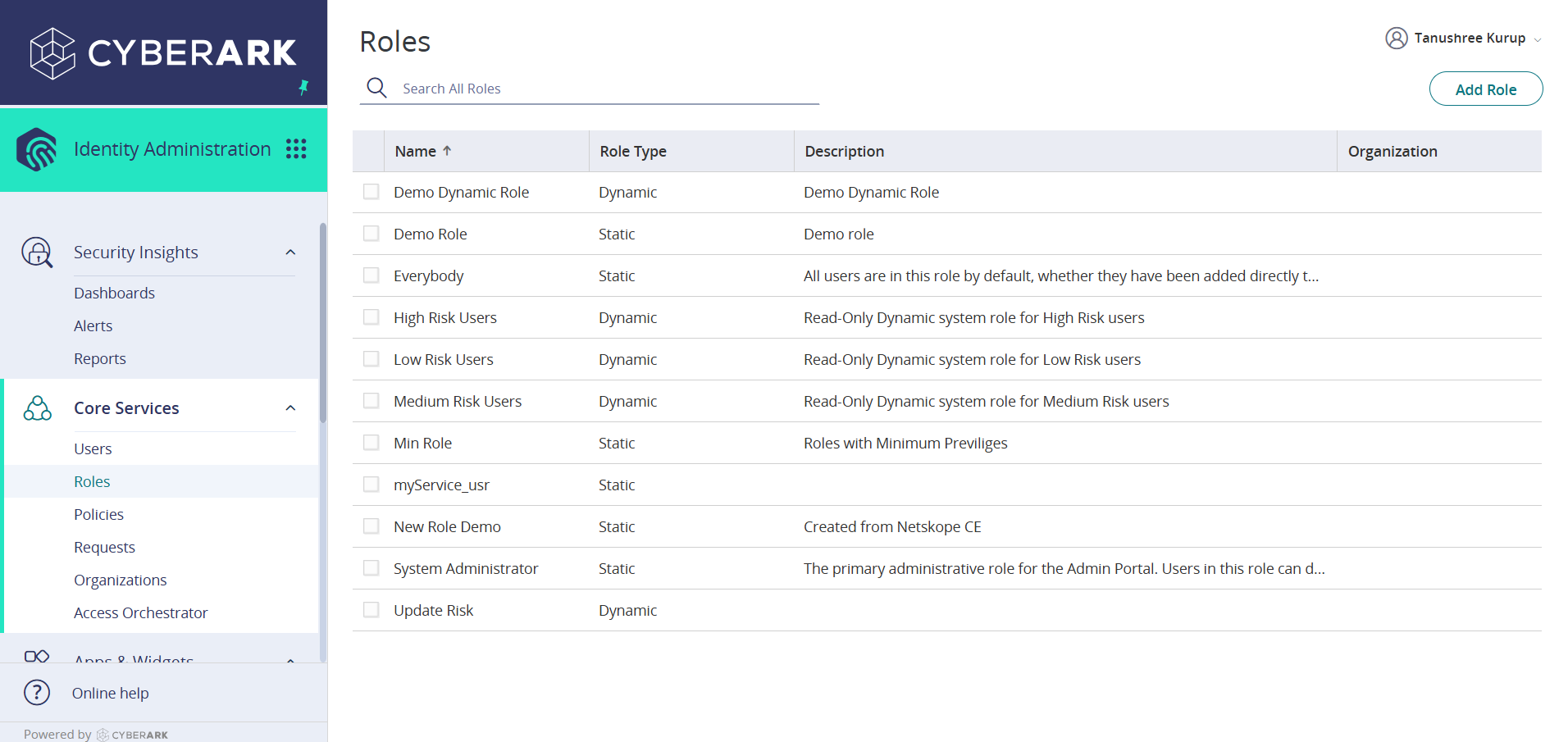
- Go to Core Services > Roles and click Add Role.
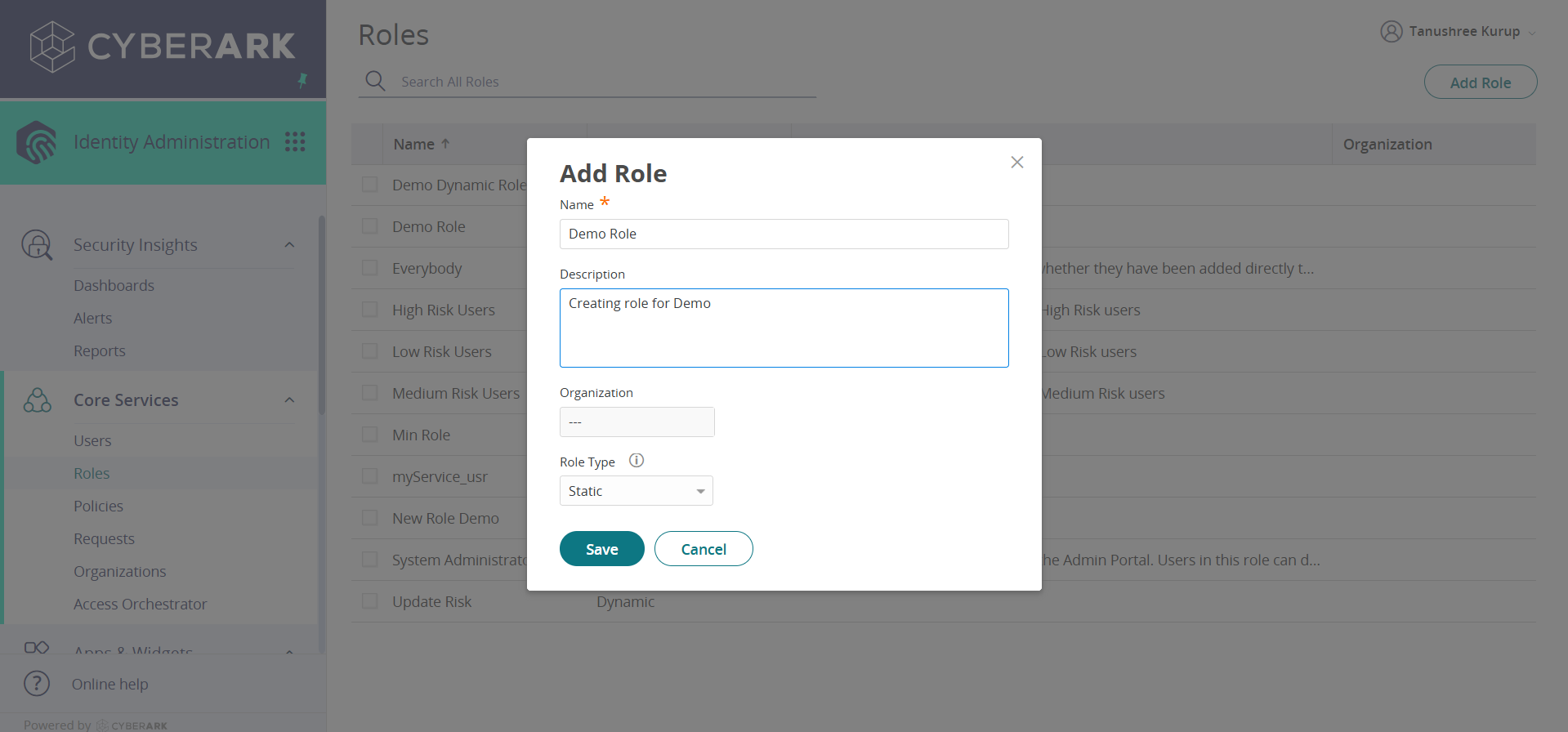
- Enter the role information and select Static as the Role Type. Click Save.
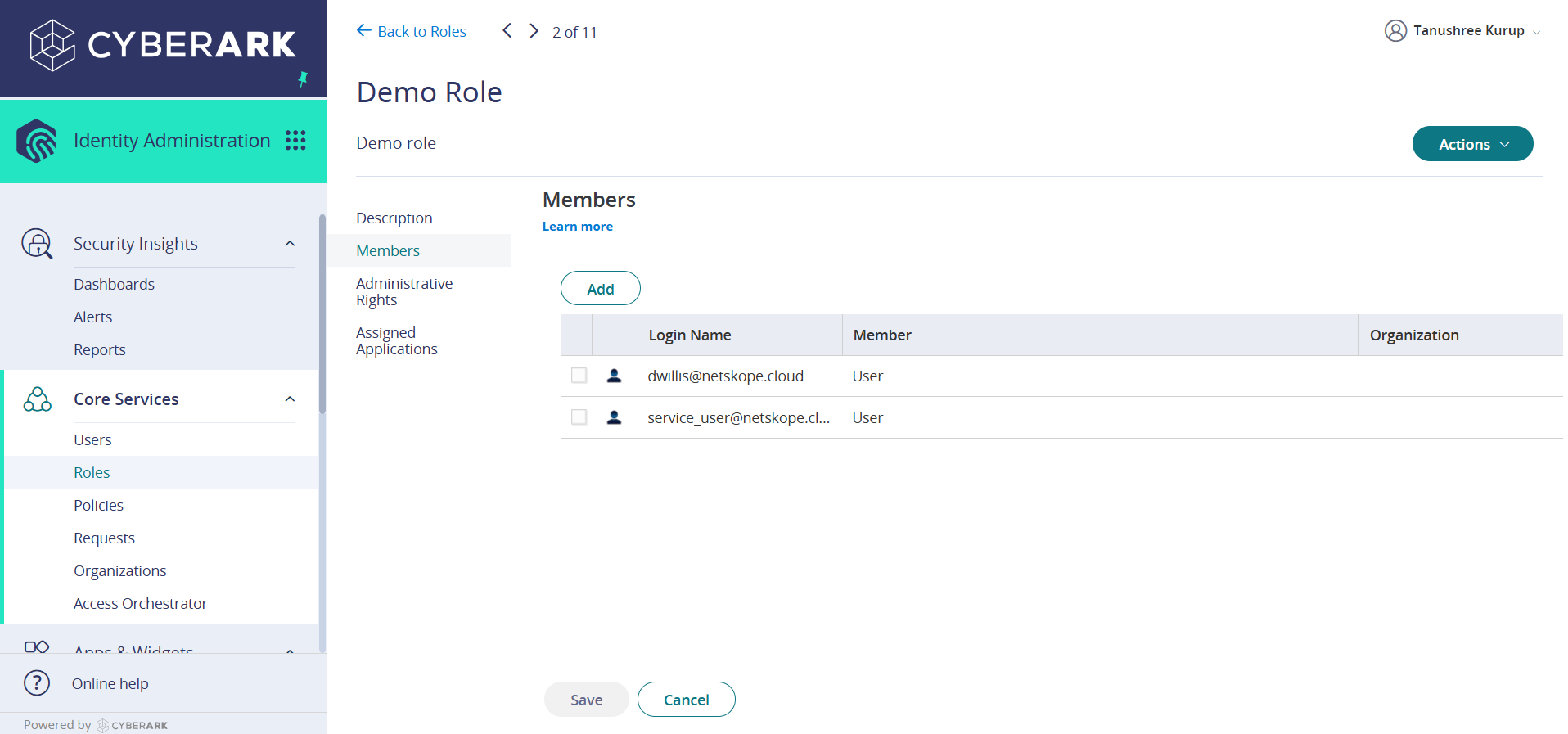
- Go to Roles > Demo Role > Members and click Add to add the created user.
- Go to Roles > Demo Role > Administrative Rights and add these rights.
Get your CyberArk Tenant URL
To get your CyberArk tenant URL, refer to the Connectivity to the following hosts in the Prerequisites section.
Configure the CyberArk Plugin
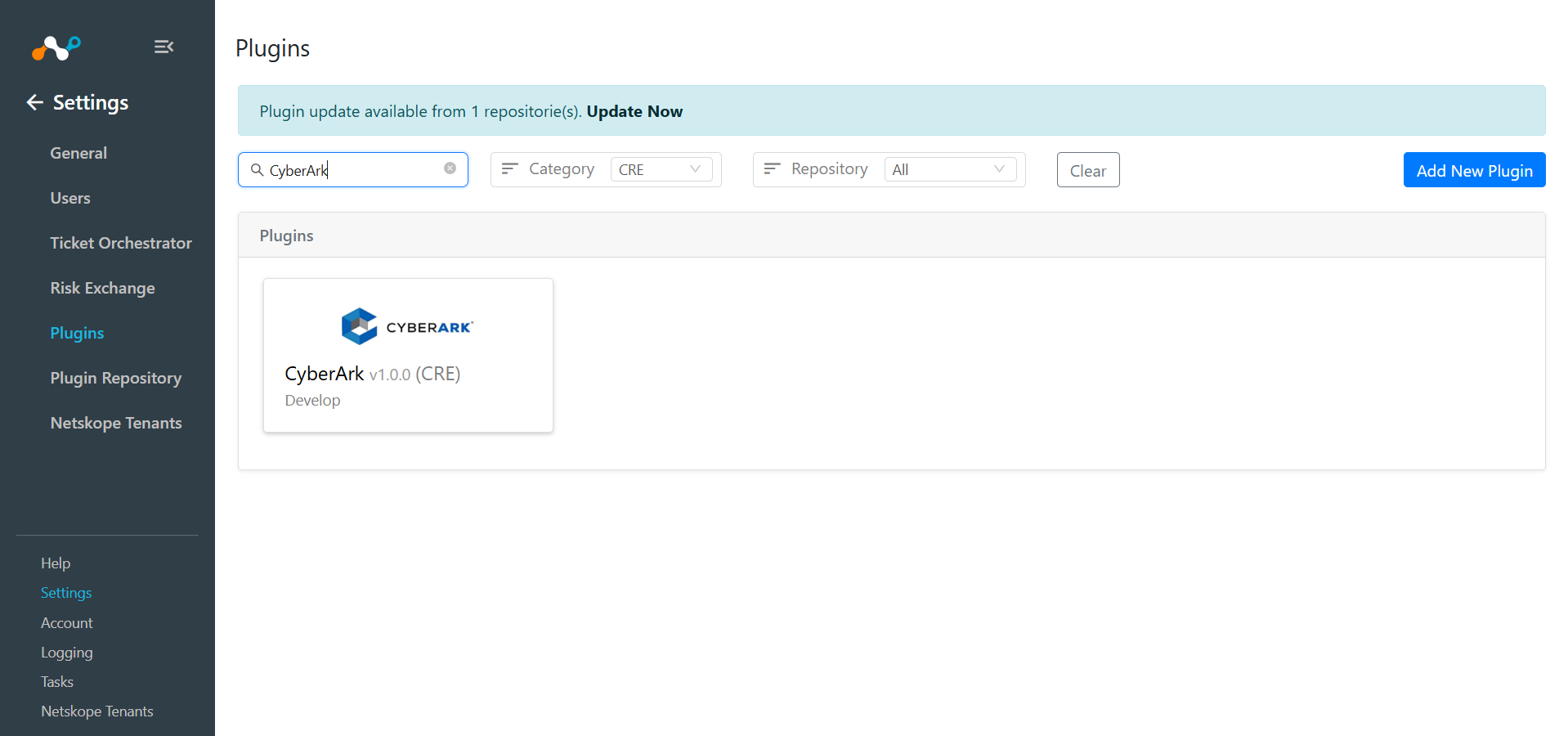
- In Cloud Exchange, go to Settings > Plugins. Search for and select the CyberArk v1.0.0 (CRE) plugin box.
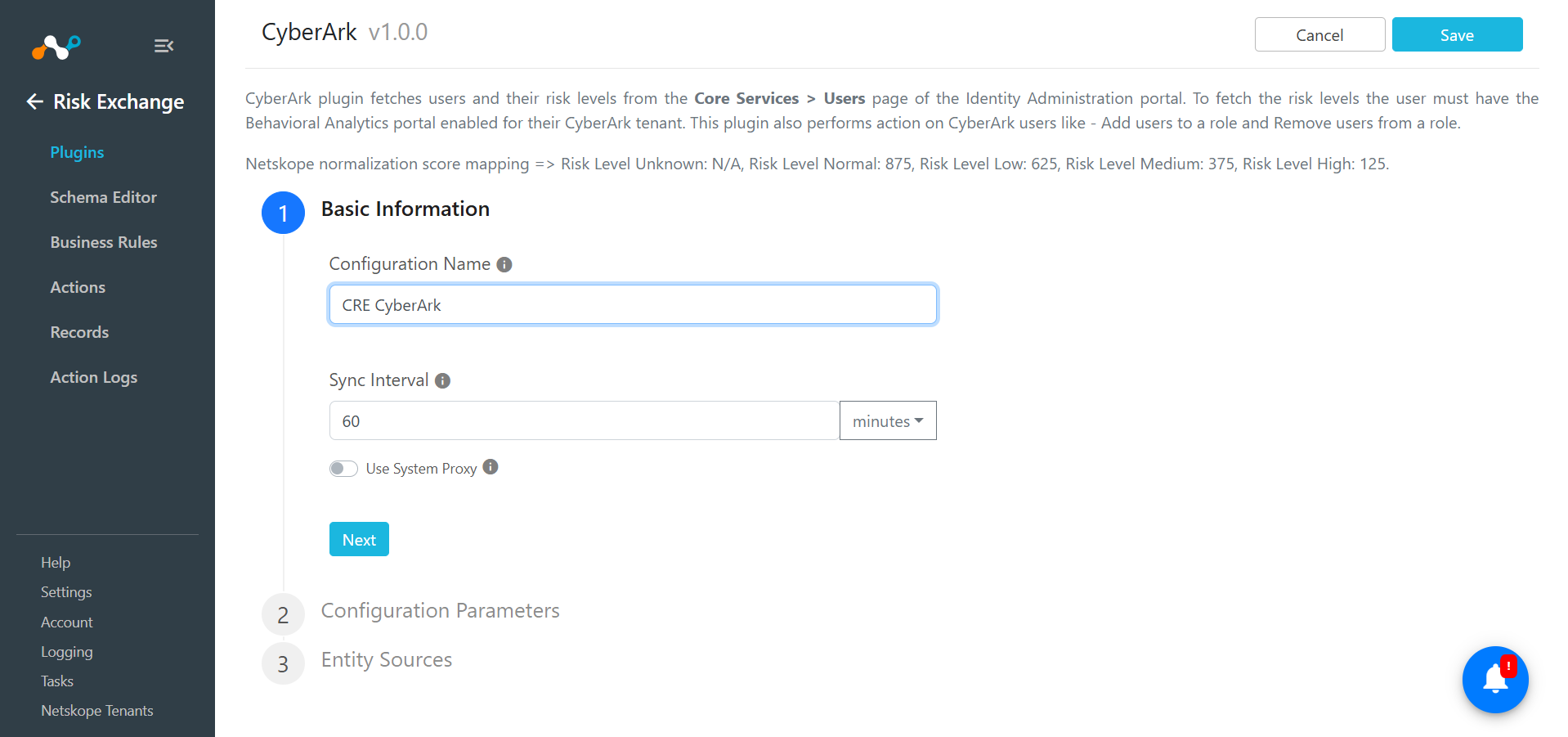
- Enter the Basic Information parameters:
- Configuration Name: Enter a name for the plugin configuration.
- Sync Interval: Enter the time at which the plugin will be synced.
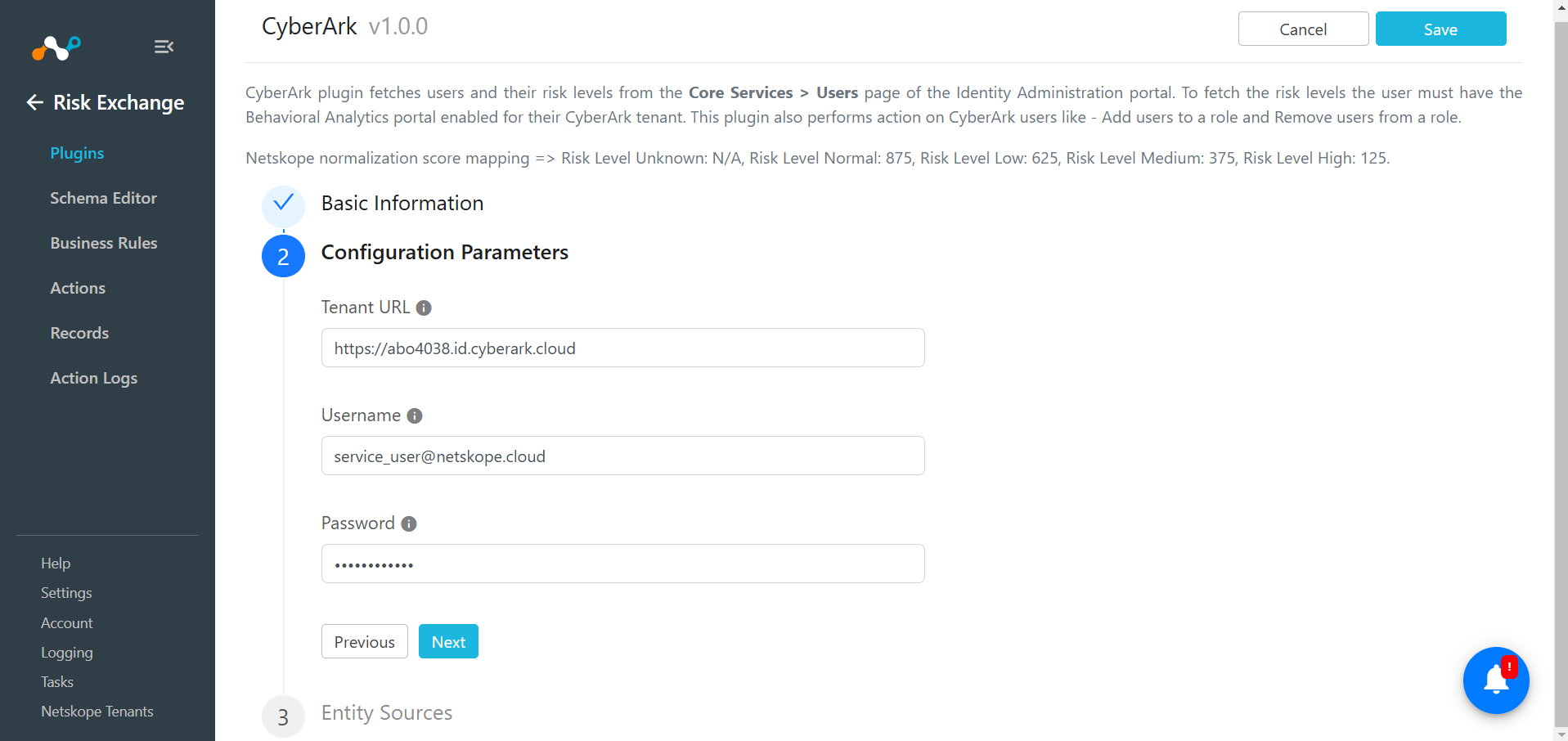
- Click Next. Enter the Configuration Parameters for authenticating:
- Tenant URL: Your Tenant URL for CyberArk.
Example: https://<Tenant_ID>.id.CyberArk.cloud
or
https://<Tenant_ID>.id.idaptive.com - Username: Your username for CyberArk. Make sure to include the domain (suffix).
Example: user@domain. - Password: Password associated with your CyberArk username.
- Tenant URL: Your Tenant URL for CyberArk.
- Click Next. Select the Entity from the Entity dropdown.
The Entity fields can be created from the Schema editor page, or using the + Add Field option from the field dropdown.
Provide the field mapping. For suggested mappings, refer to the Mappings section.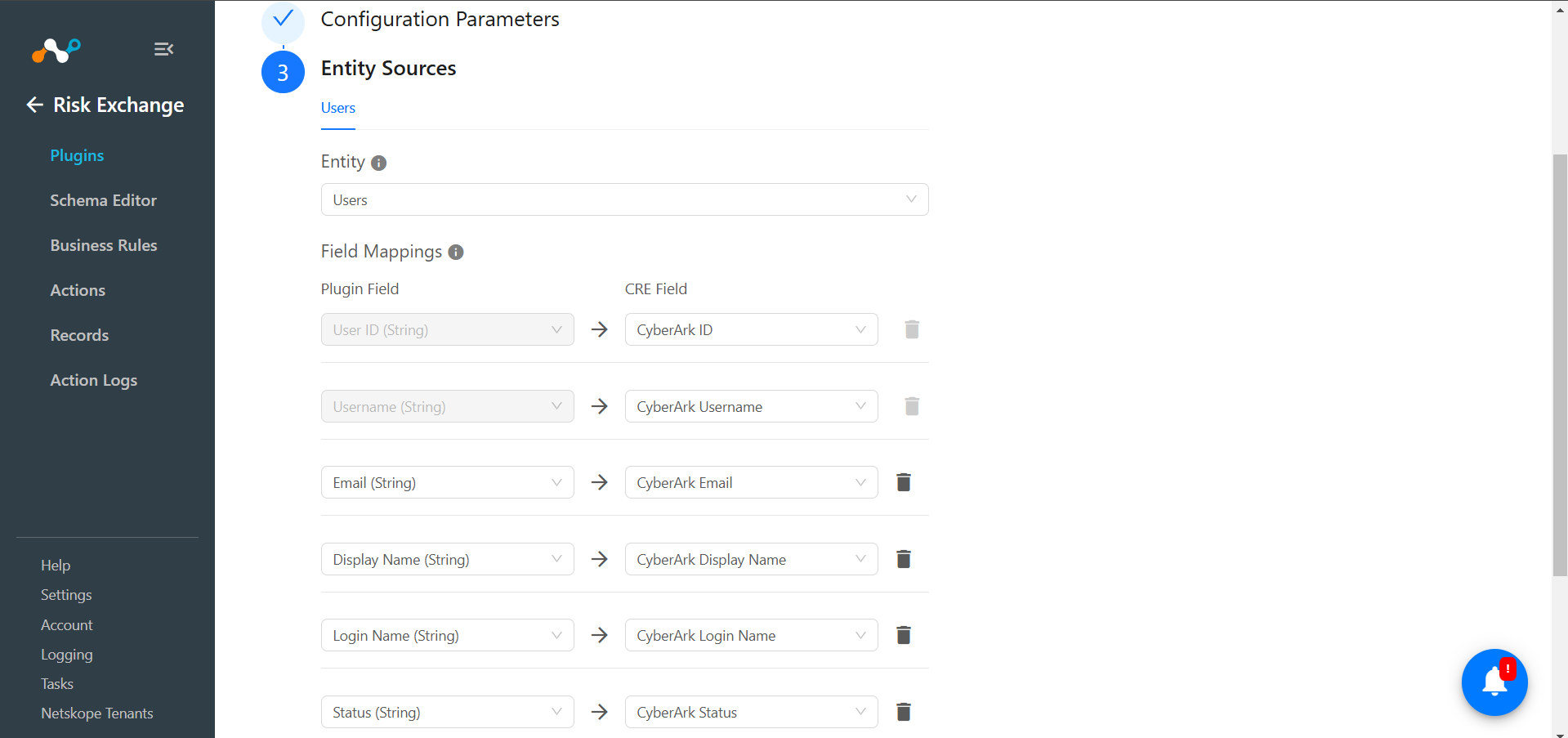
- Click Save.
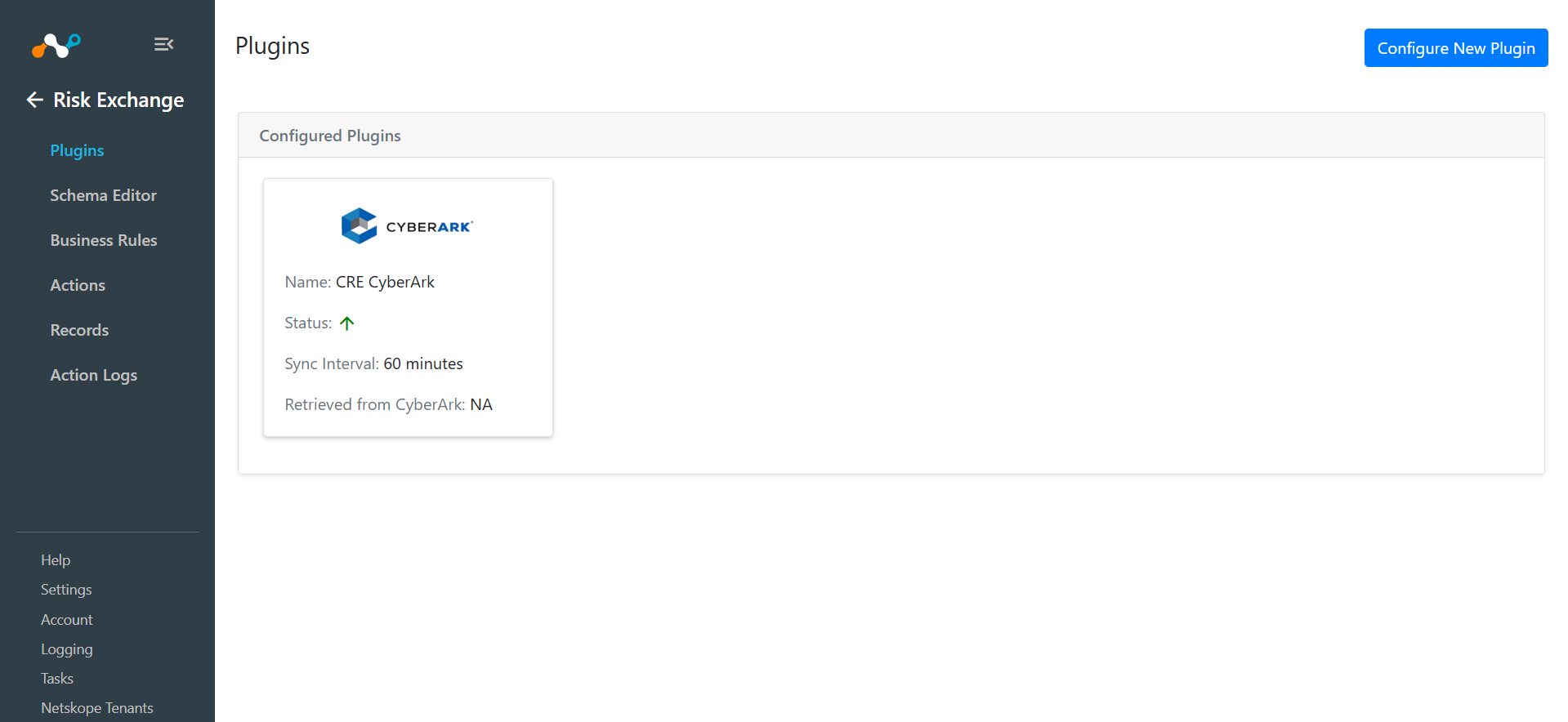
Add a Risk Exchange Business Rule for CyberArk
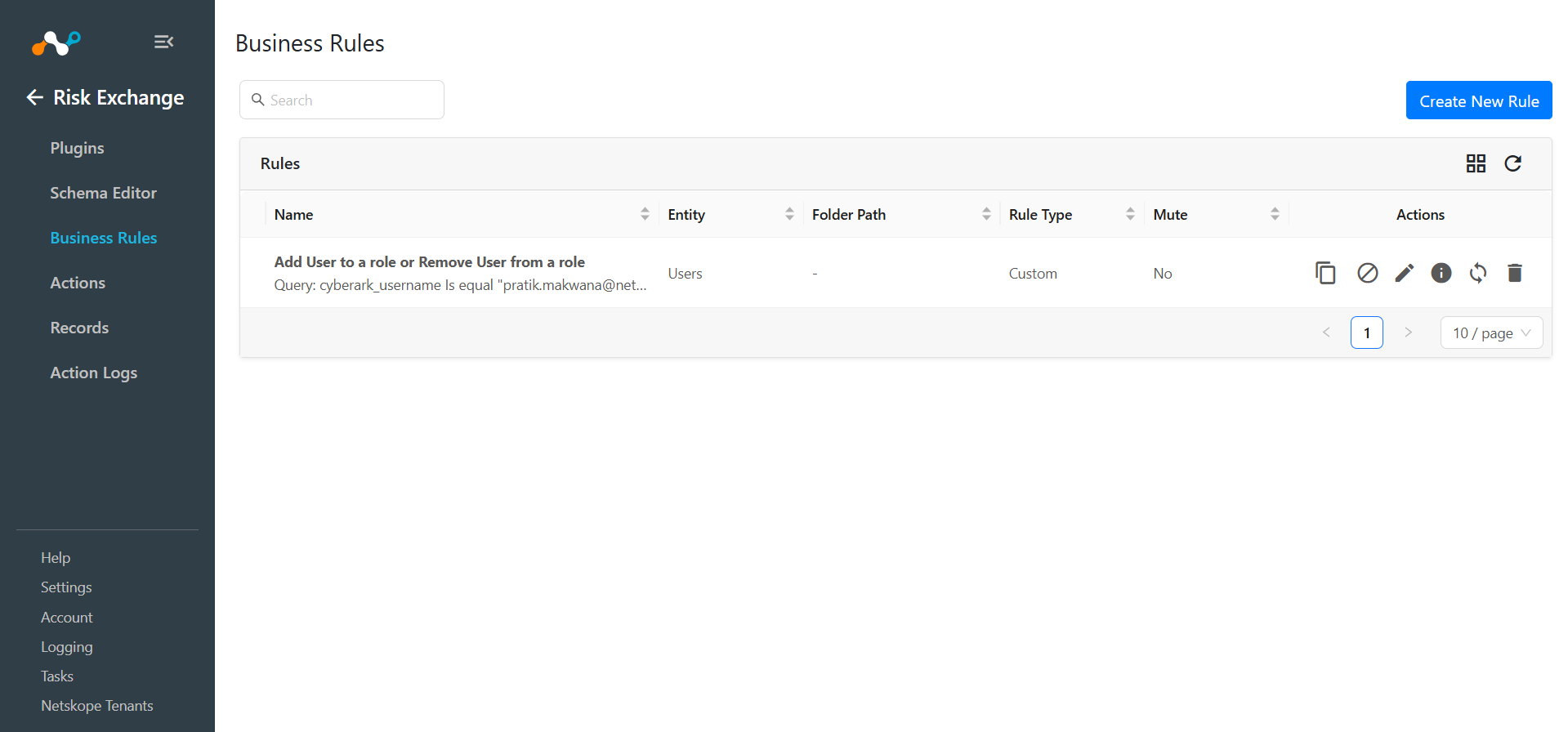
Use a Business Rule to filter out the users for which you want to perform actions.
- Go to Risk Exchange > Business Rule. Click Create New Rule.
- Select the Business Rule, Entity, and provide the filter as per your requirement to perform an action on the user.
- Click Save.
Add Risk Exchange Actions for CyberArk
Here are the supported actions for the CyberArk plugin.
Add to a Role
Whenever an action triggers, this action adds users to the Role that was selected while creating the action configuration.
- Go to Risk Exchange > Actions, and click Add Action Configuration.
- Select a Business Rule.
- Select the CyberArk Plugin for the Configuration.
- For Action, select Add to Role.
- Select the preferred User Email.
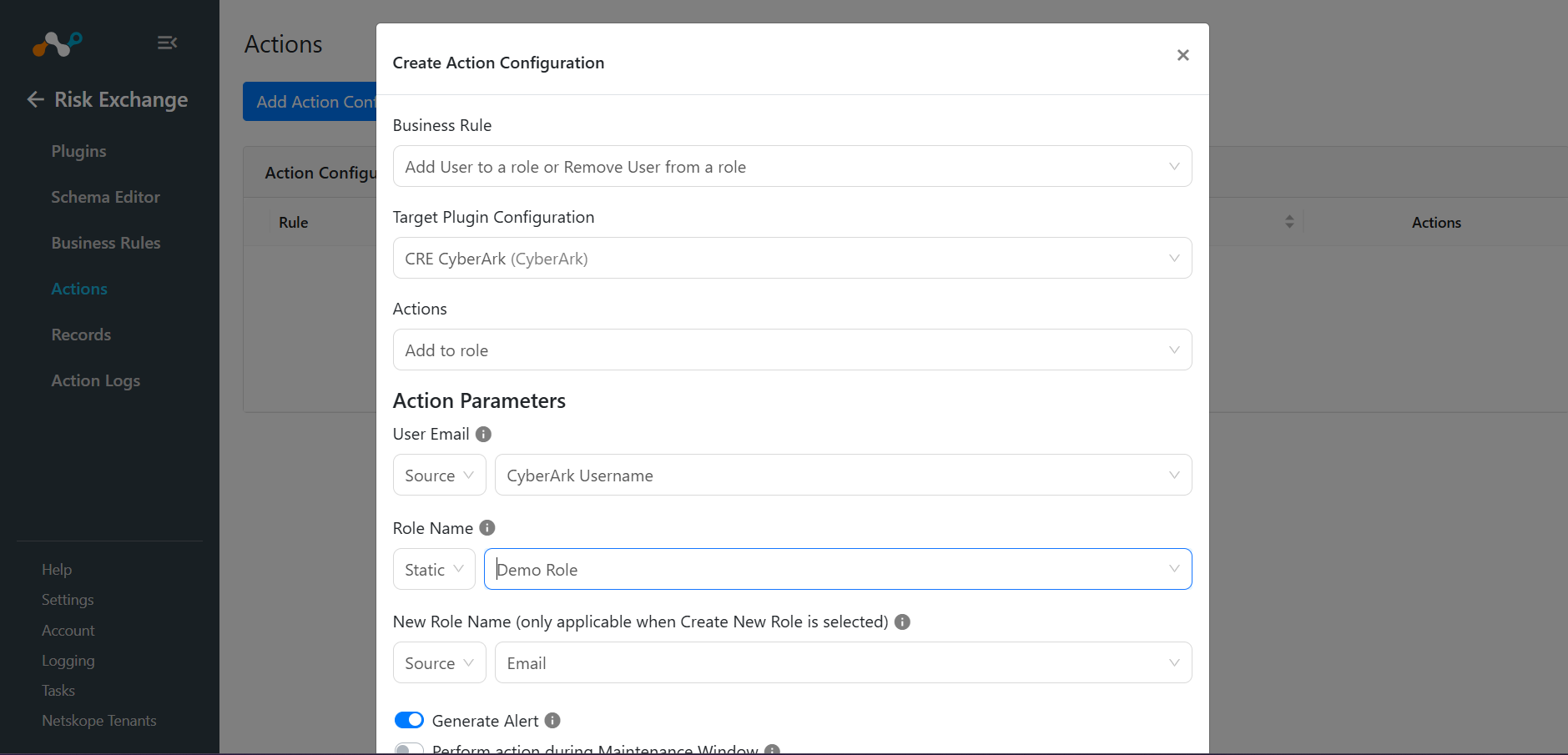
- Select an existing role in the Role Name dropdown to add the user to an existing Role, or select Create New Role. Note that Role Name must be Static.
- Enter a Role Name if you have selected the Create New Role option in the Group parameter.
- Click Save.
Remove from a Role
Whenever an action triggers, this action removes users from the Role that was used while creating the action configuration.
- Go to Risk Exchange > Actions, and click Add Action Configuration.
- Select a Business Rule.
- Select the CyberArk Plugin as the Configuration.
- For Action, select Remove from Role.
- Select the preferred User Email.
- Select a role from the Role Name dropdown to remove the users that match the Business Rule from the selected Role. Note that Role Name must be Static.
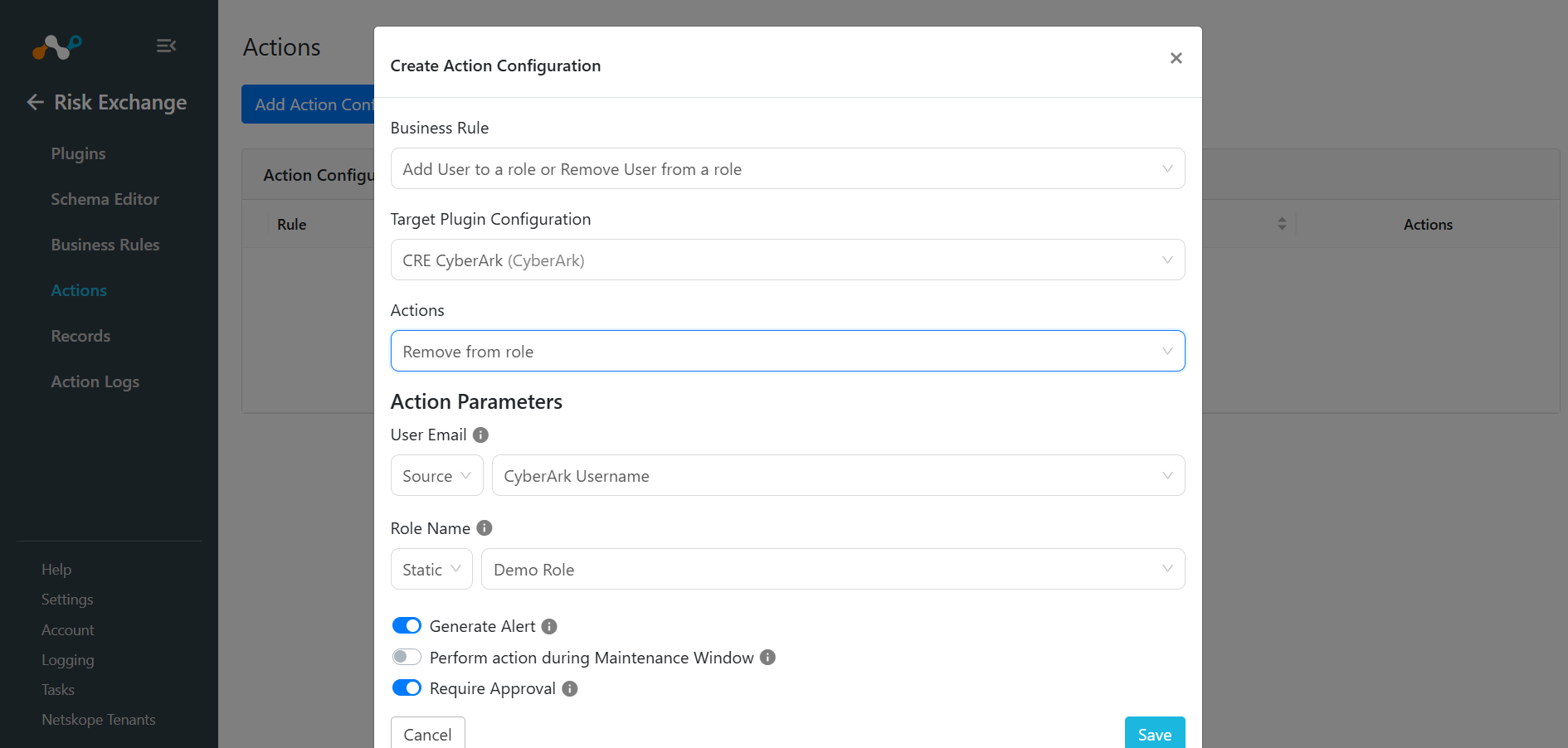
- Click Save.
No Action
This action will not perform any kind of action on users. Users can use this action to generate the UBA alerts in the Netskope Ticket Orchestrator module.
Note that you can perform the actions on the users pulled from CyberArk on the Netskope Tenant. For performing the user related actions on Netskope, refer to the Risk Exchange plugin guide.
- Go to Risk Exchange > Actions, and click Add Action Configuration..
- Select a Business Rule.
- Select the CyberArk Plugin as the Configuration.
- For Action, select No Action.
- Click Save.
Validate the CyberArk Plugin
Validate on Cloud Exchange
To validate the configuration, go to Risk Exchange > Logging to view the logs.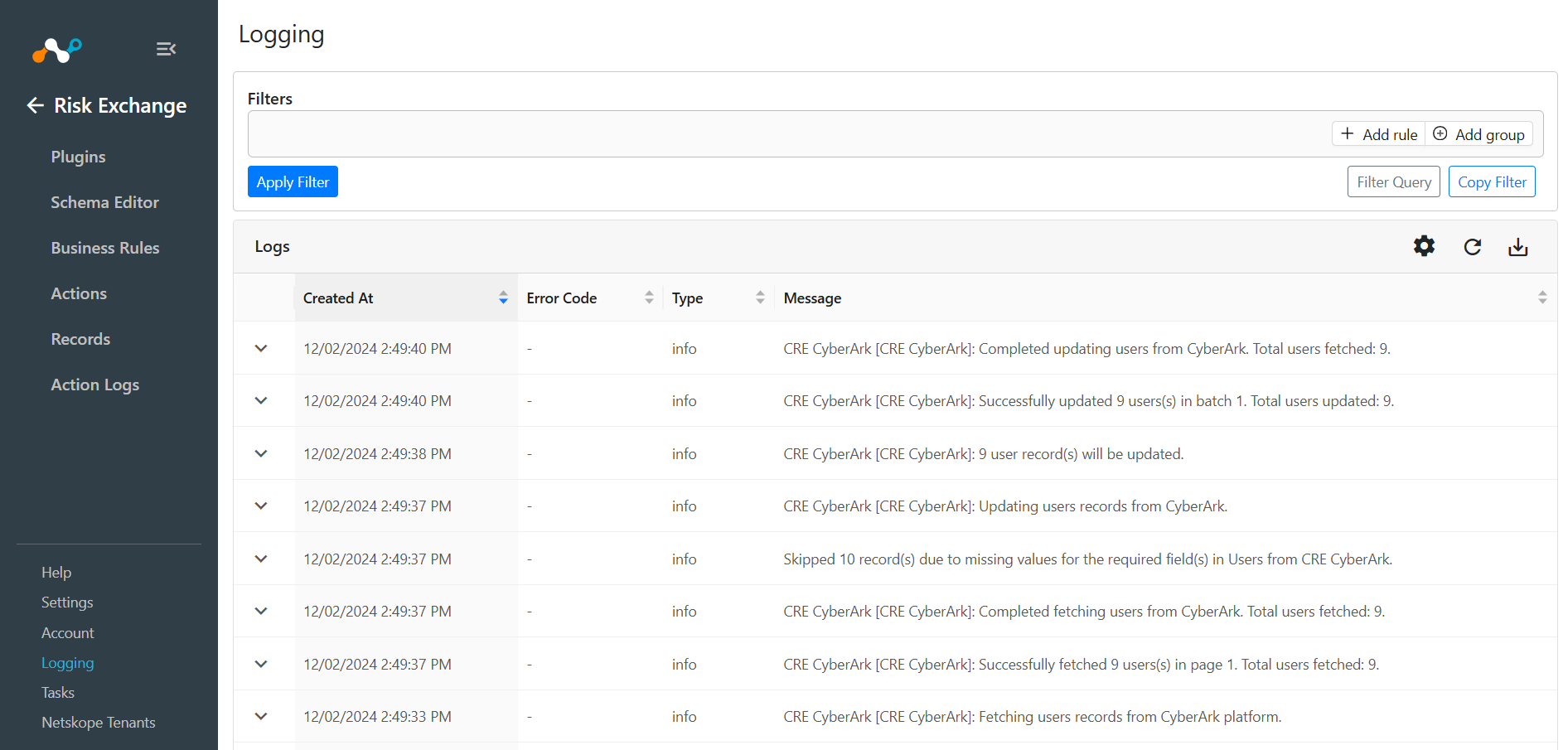
For Users, go to Risk Exchange > Records to view the user records.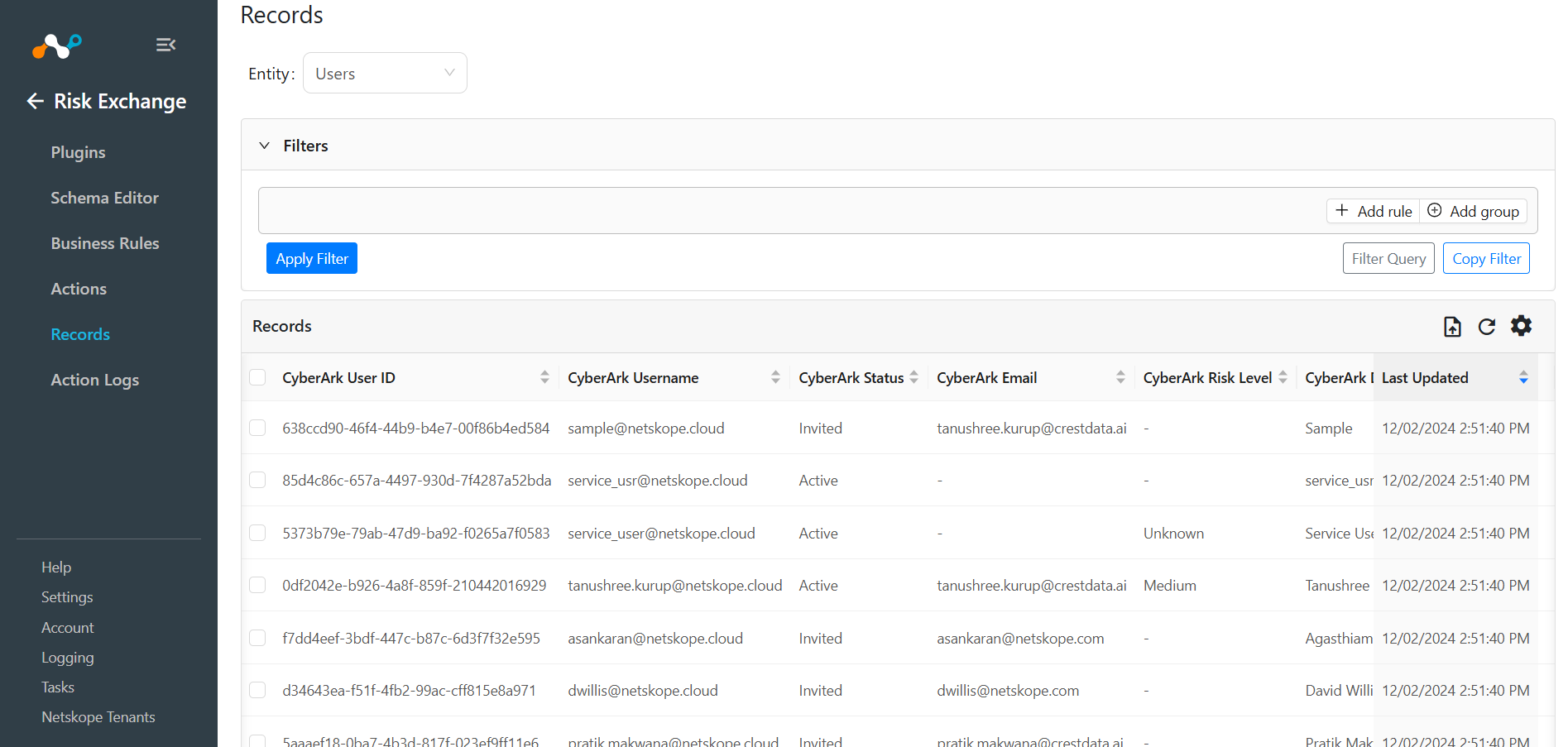
For the Add to Role action: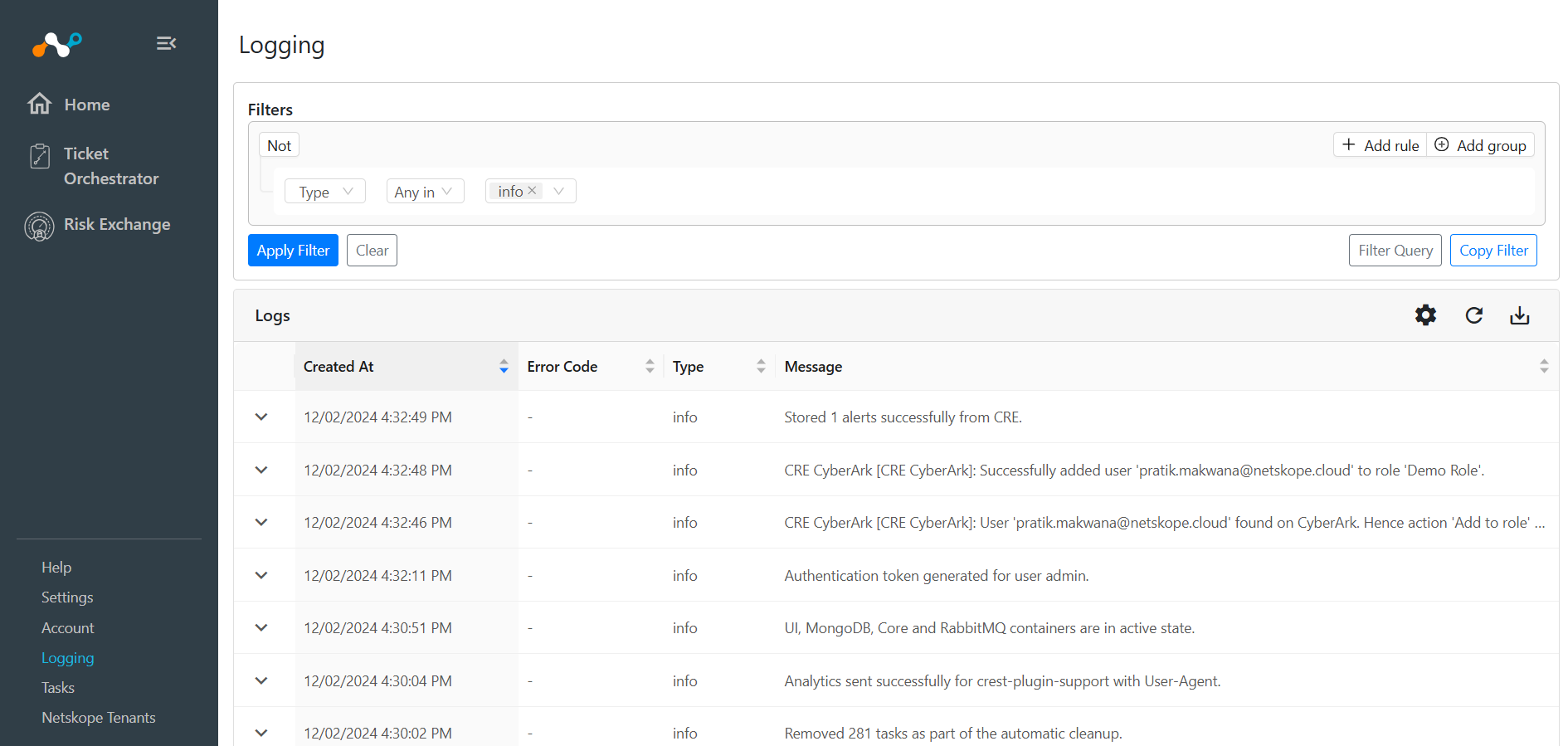
For the Remove from Role action: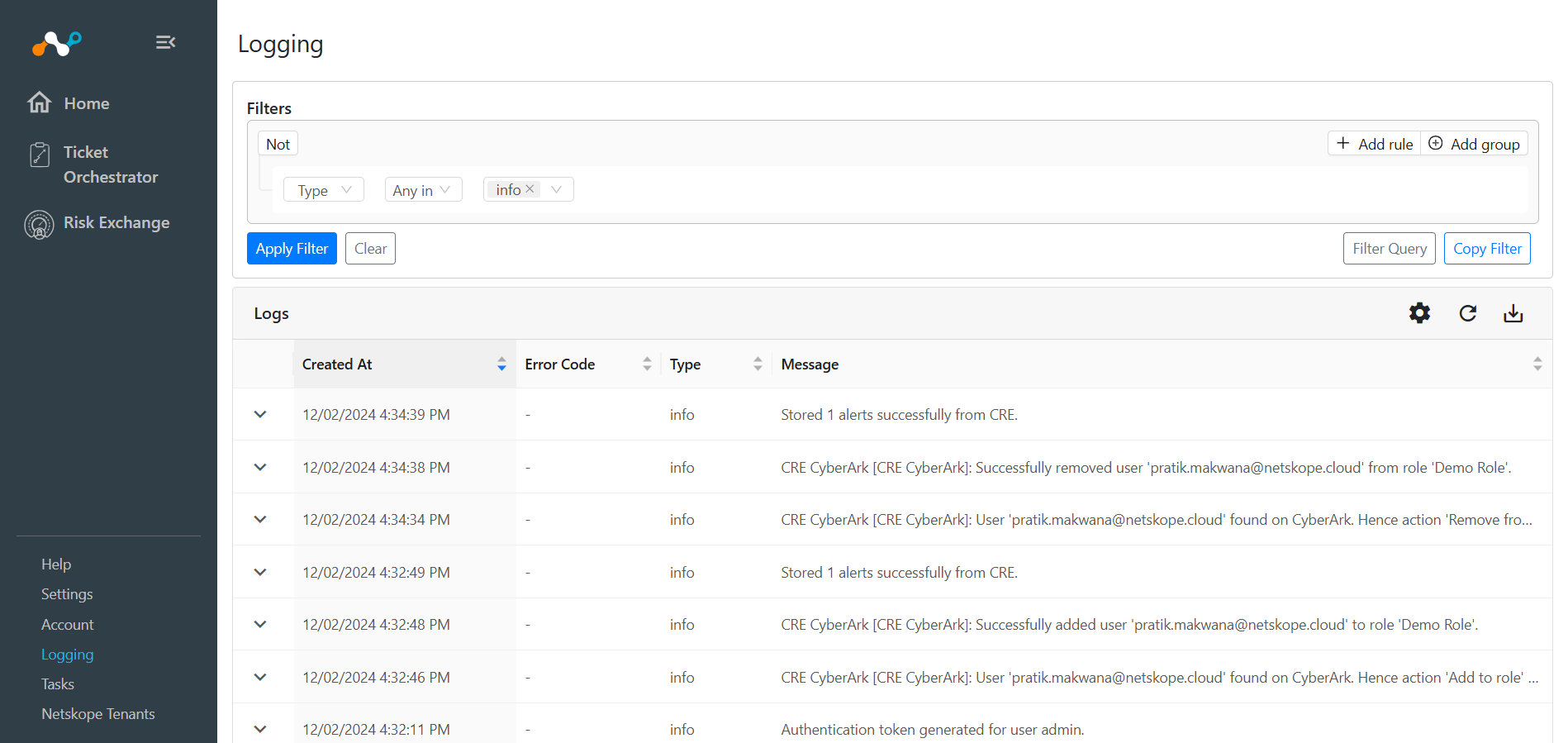
If the Require Approval toggle is enabled while configuring the action, make sure to provide the approval from the Action Log page shown here by selecting the pending approval entries and selecting the approval button.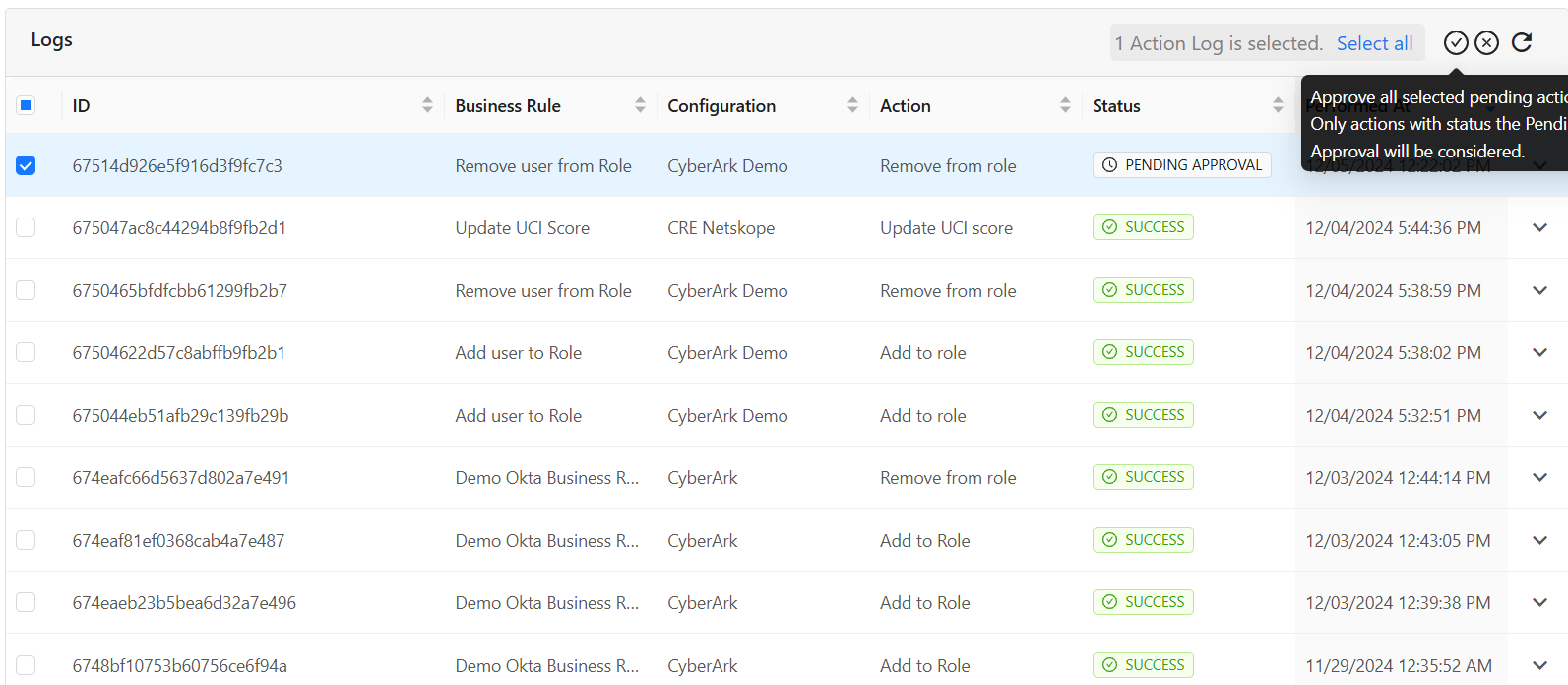
Validate on CyberArk
For verifying the received user data, go to Core Services > Users.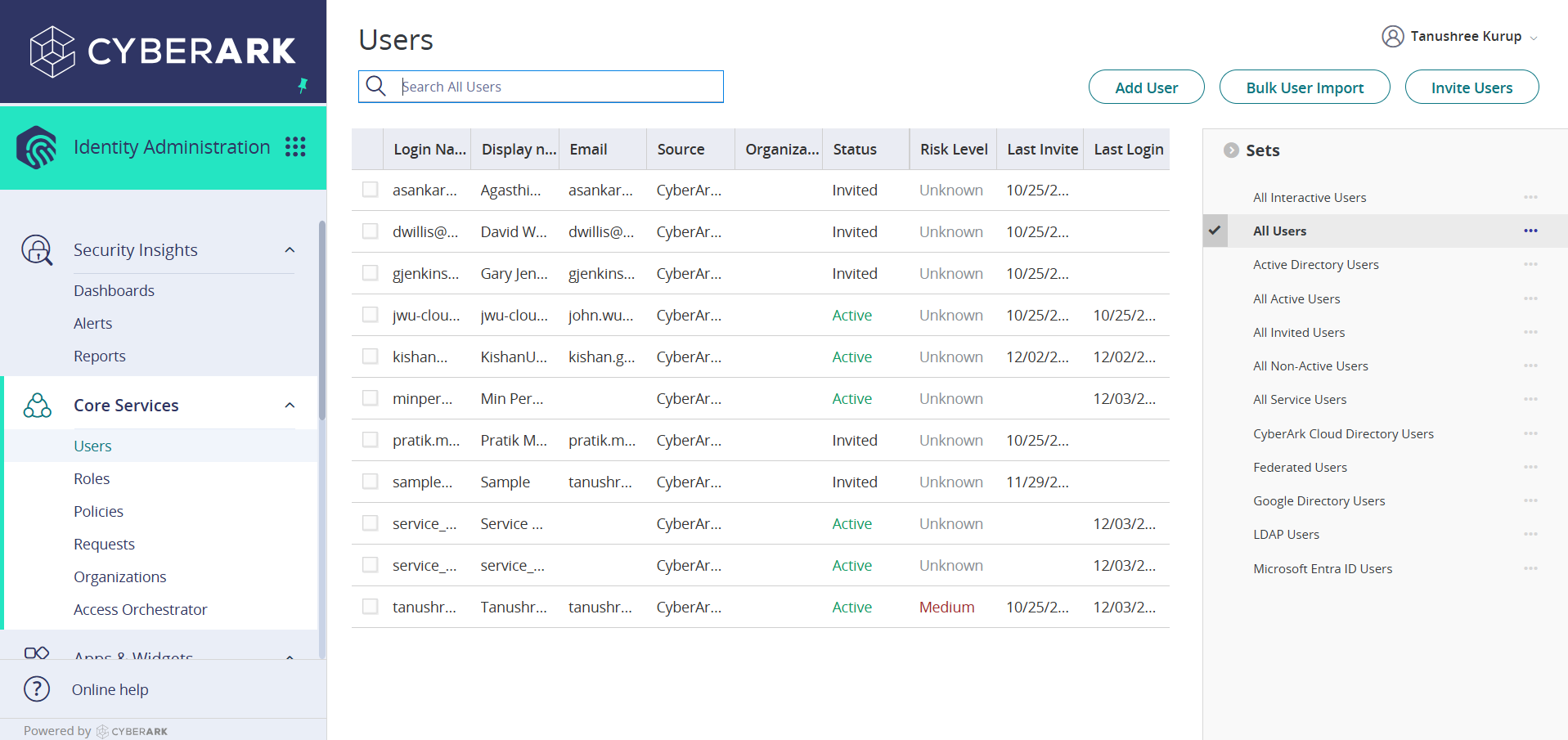
For the Add to Role action:
You can check respective the Roles member list under Core services > Roles > <Role-Name>.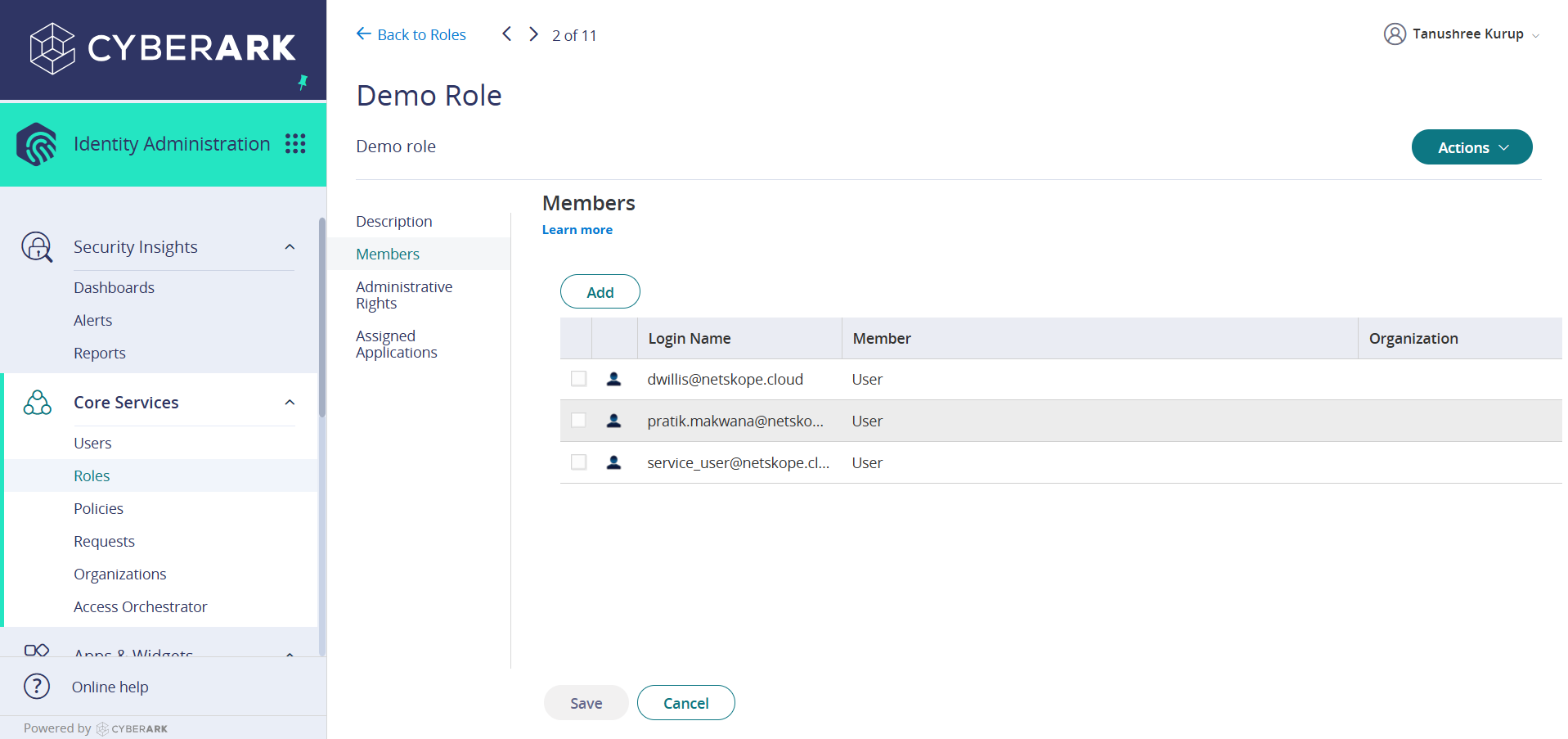
For the Remove from Role action, you can validate this on the same page.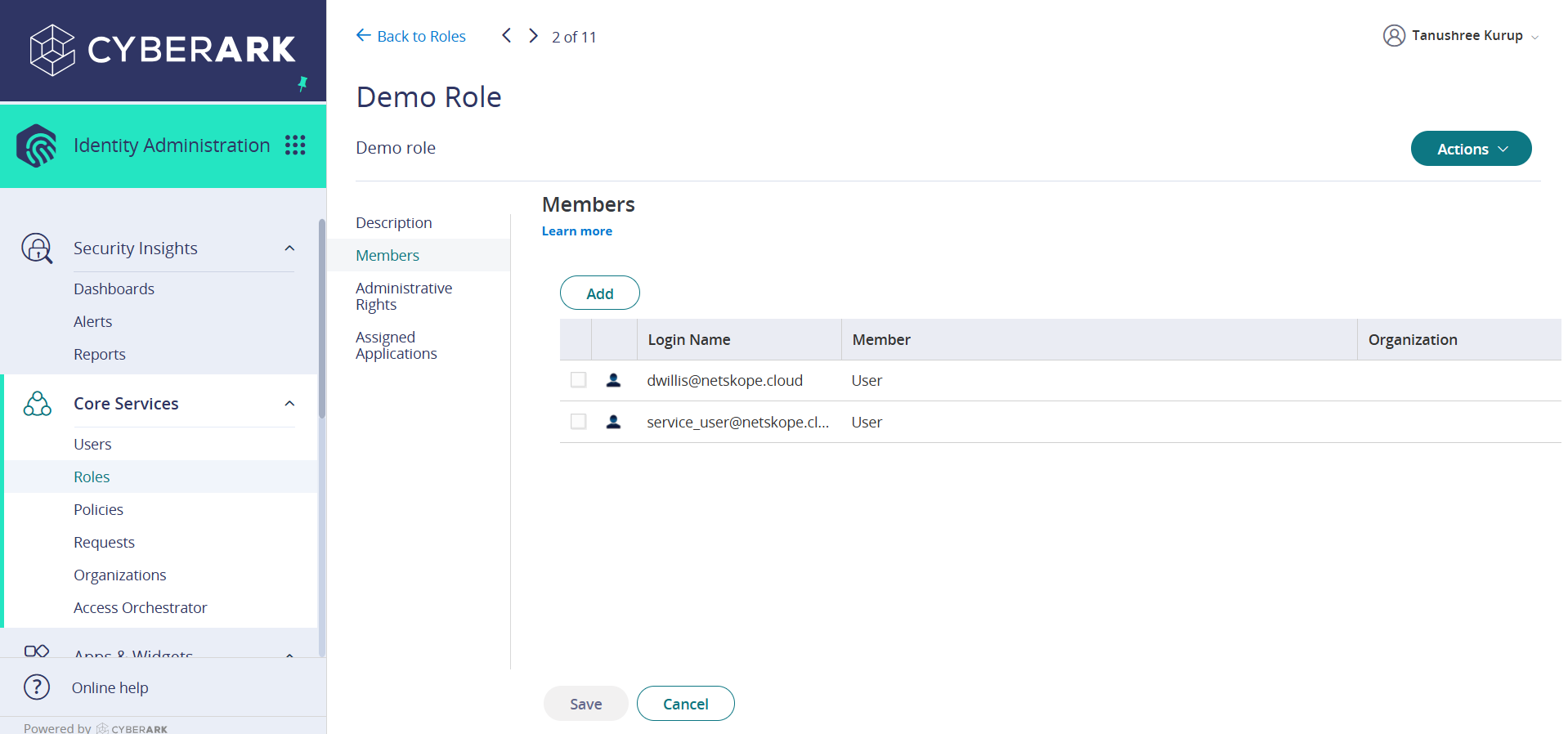
Troubleshooting the CyberArk Plugin
Unable to fetch Roles while configuring the Add to Role Action
While configuring the plugin no roles are fetched in the Add to Role action, it could be due to one of these reasons.
- No Roles are available on the CyberArk platform.
- Insufficient permission of the user.
What to do:
For the first point, No Roles are available on the CyberArk platform, check if the Role is present on the CyberArk or not, by following these steps:
- Log in to CyberArk and go to Admin Portal.
- Go to Roles under Core Services and check the list of Roles.
If no Roles are listed that means the platform itself has no roles available, so create a new role using an Action configuration on Cloud Exchange, or directly on the CyberArk platform.
If the Role is present on CyberArk and yet not pulled/fetched in the Action configuration, it could be because of insufficient permission of the user. Check the user permission needed for the plugin.
Action is skipped on User
Here are the scenarios when the action is not performed:
- Users are not present on CyberArk.
- Roles on CyberArk has ReadOnly access
- Groups on CyberArk has Role as Dynamic
If logs for a successfully performed action is received in Cloud Exchange for adding a user to a Role/Group, but the users aren’t actually added in the groups, this might be because the Roles type is Dynamic. The action also won’t be performed if the group has ReadOnly Access.
You will receive an error like shown below if the group is Dynamic with ReadOnly access.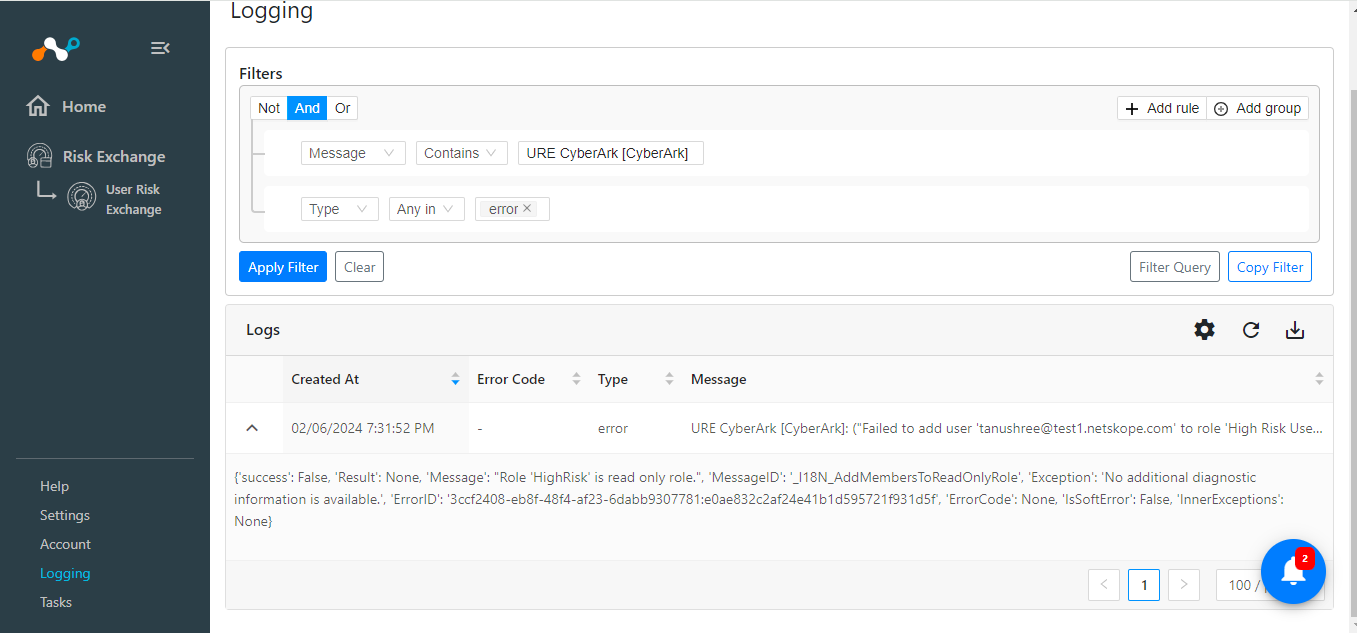
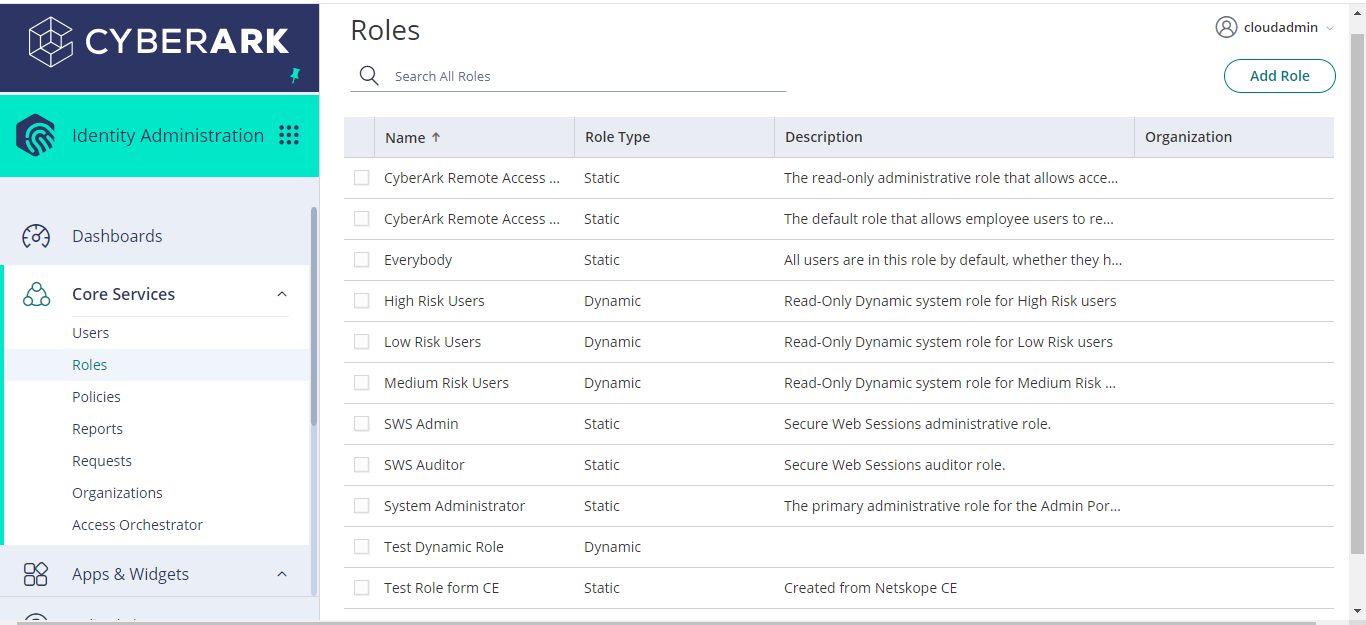
Also, CyberArk does not allow to perform actions on these Roles. They will be available on the CyberArk platform and in Cloud Exchange, but these actions won’t be performed for these Roles even though these are Static and are not ReadOnly.
- CyberArk Remote Access Admin Users
- SWS Admin
- SWS Auditor
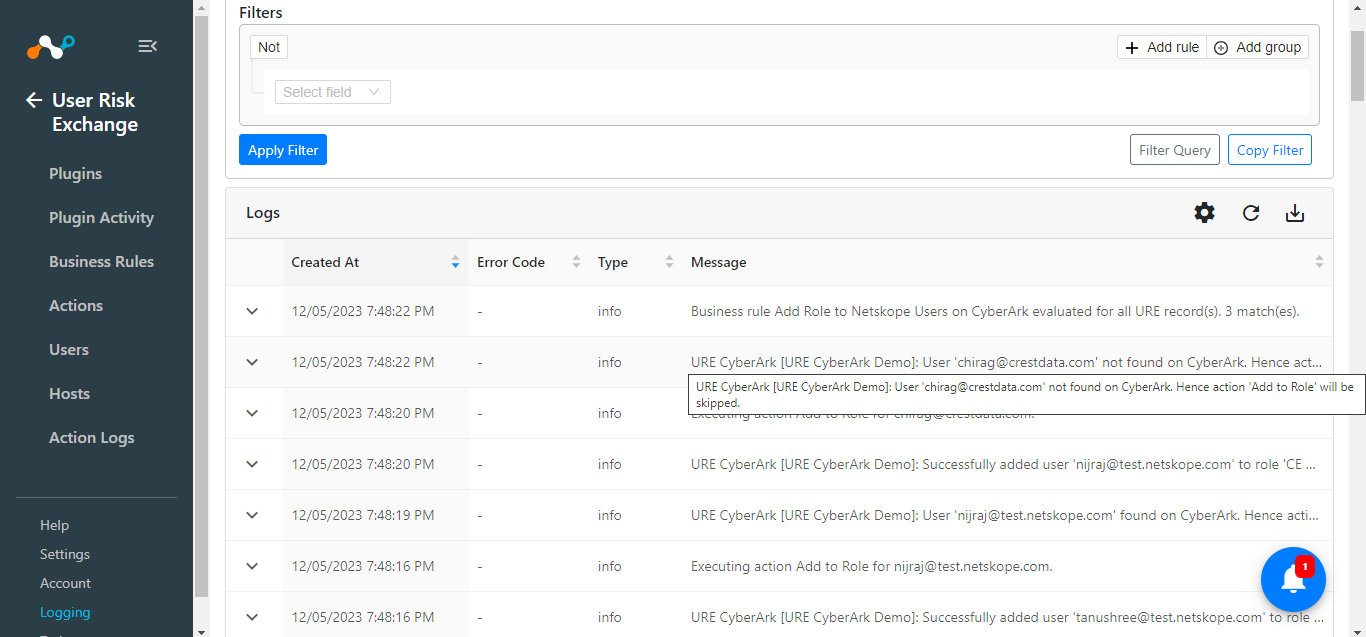
What to do: Check the domain of the user from the Users page of Cloud Exchange and verify the suffix added on the CyberArk platform. The CyberArk plugin only performs Add to Role and Remove from Role actions on the users matched in the business rule that is present on the CyberArk platform. Users are matched based on the username, which is a combination of (user + domain). Therefore, you have to make sure that you create the same domain (suffix) on CyberArk as their email domain so that the actions are performed.
In Cloud Exchange, go to Risk Exchange > Users.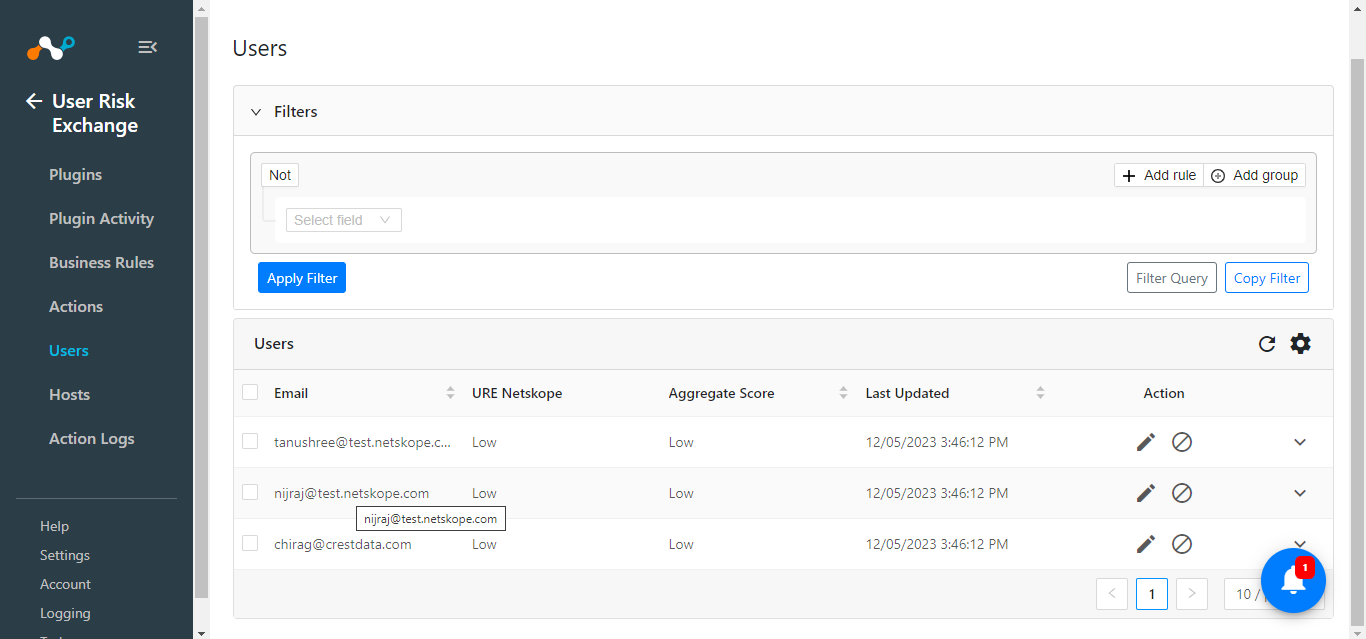
In CyberArk, click on the user listed under All Users (Core Services > Users > All Users).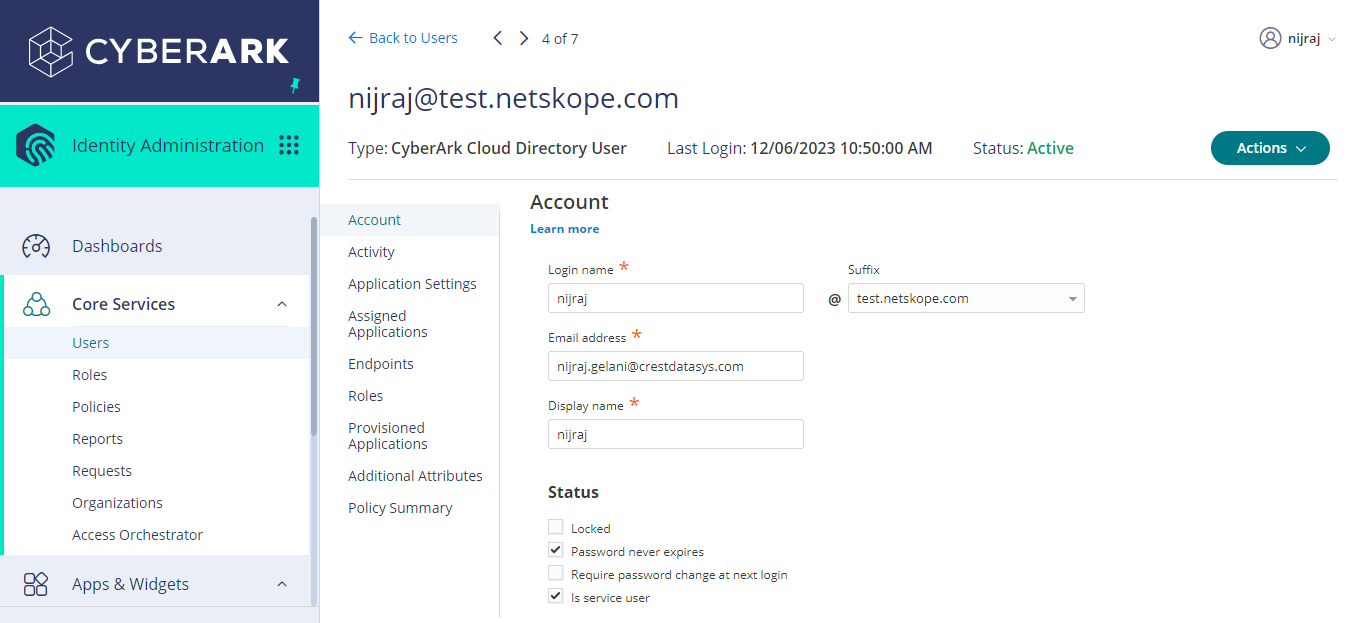
Check the suffix and compare the suffix with the domain of the user present n Cloud Exchange.
For example: if the user’s email ID fetched in Cloud Exchange is like abc@netskope.com, the domain(suffix) created on the Cyber platform should be netskope.com.
If the domain and suffix do not match, the user is not considered to be present on CyberArk and the action will not be performed.