

To deploy an AI Gateway on Netskope portal, follow the steps below.
-
Log in to the Netskope tenant UI and go to Settings > Security Cloud Platform > VM Onboarding.
-
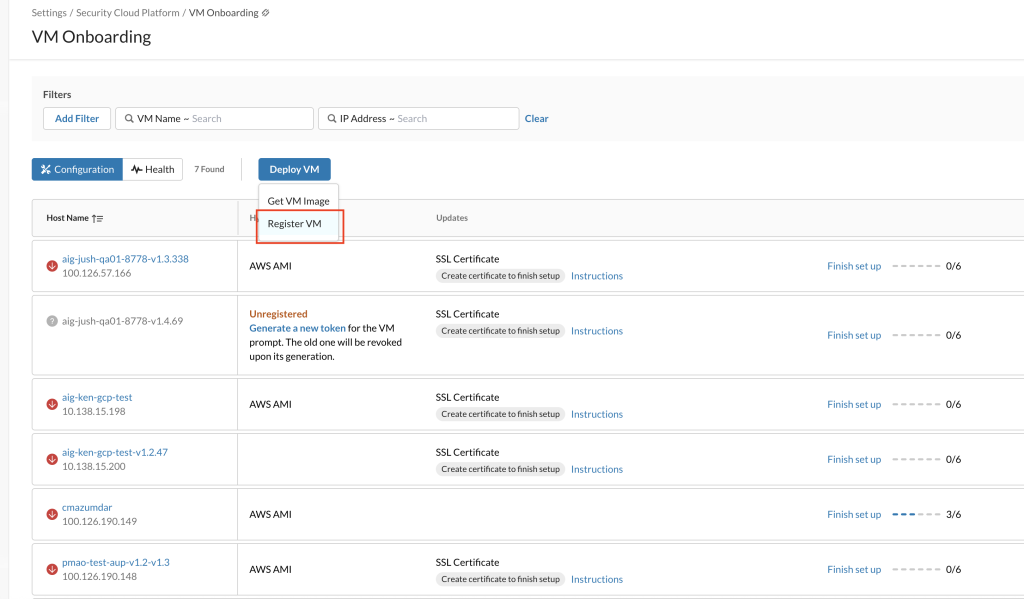
On the VM Onboarding page, click Deploy VM, and then select Register VM.
-
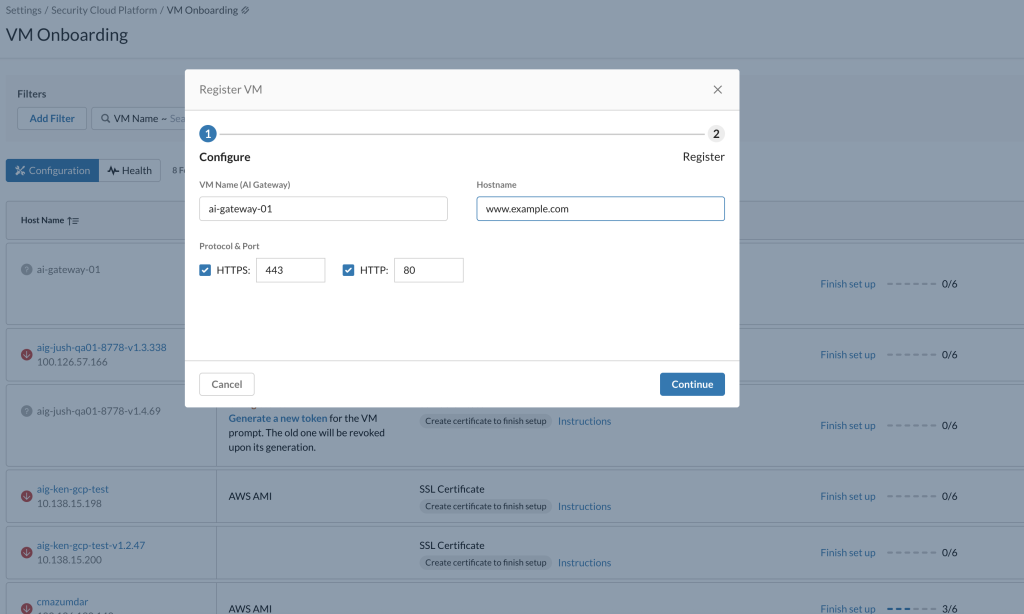
In the Register VM dialog box, under Step 1 (Configure), in the VM Name (AI Gateway) field, enter the VM name of the AI Gateway. In the Hostname field, enter the host name. Ensure that the host name is a valid domain name through which the AIG is accessible.
-
Under Protocol and Port section, choose the appropriate HTTPS and HTTP through which the AIG is accessible.
-
Click Continue.

In the Register step (Step 2), a registration token is generated.
Click Copy or Download to save the token.
The token expires 24 hours after it is generated. Once you complete deploying the VM in your hypervisor environment, copy and paste the token into the VM prompt within 24 hours from the token generation.Click Finish.


Enrolling AI Gateway
After copying the registration token that you receive after successful deployment of AI Gateway into Netskope portal, you need to enroll in AI Gateway. Follow the steps below:
-
Access the Netskope AI Gateway Configuration Wizard using the CLI interface. For information on login details, see Signing in to the Appliance.
 – Before you enroll this AI Gateway, ensure that the network configuration is properly set up. You can navigate to the Network Configuration menu to configure DNS servers, DHCP, or a static IP network configuration. We recommend avoiding static IP address configuration using the AIG CLI Network Configuration for AWS deployment.
Static IP assignment within the appliance can lead to routing conflicts and loss of connectivity, as it may override the AWS VPC networking stack. You can either configure using the AWS network management console or via the DHCP IP option.
– Network configuration is only supported on ESXi appliances.
For AWS AMI deployments, you need to configure DNS, DHCP, or static IP settings using the AWS Networking Management console. -
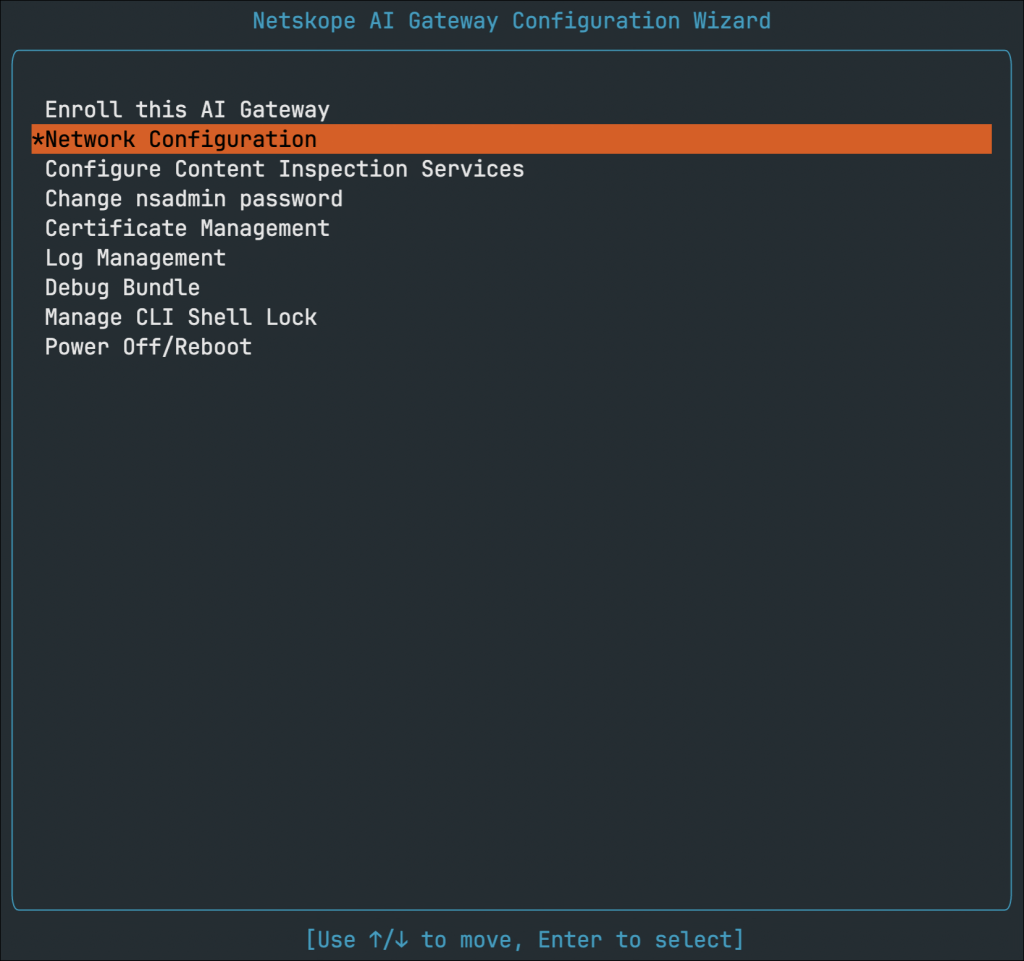
Select Network Configuration menu.
-
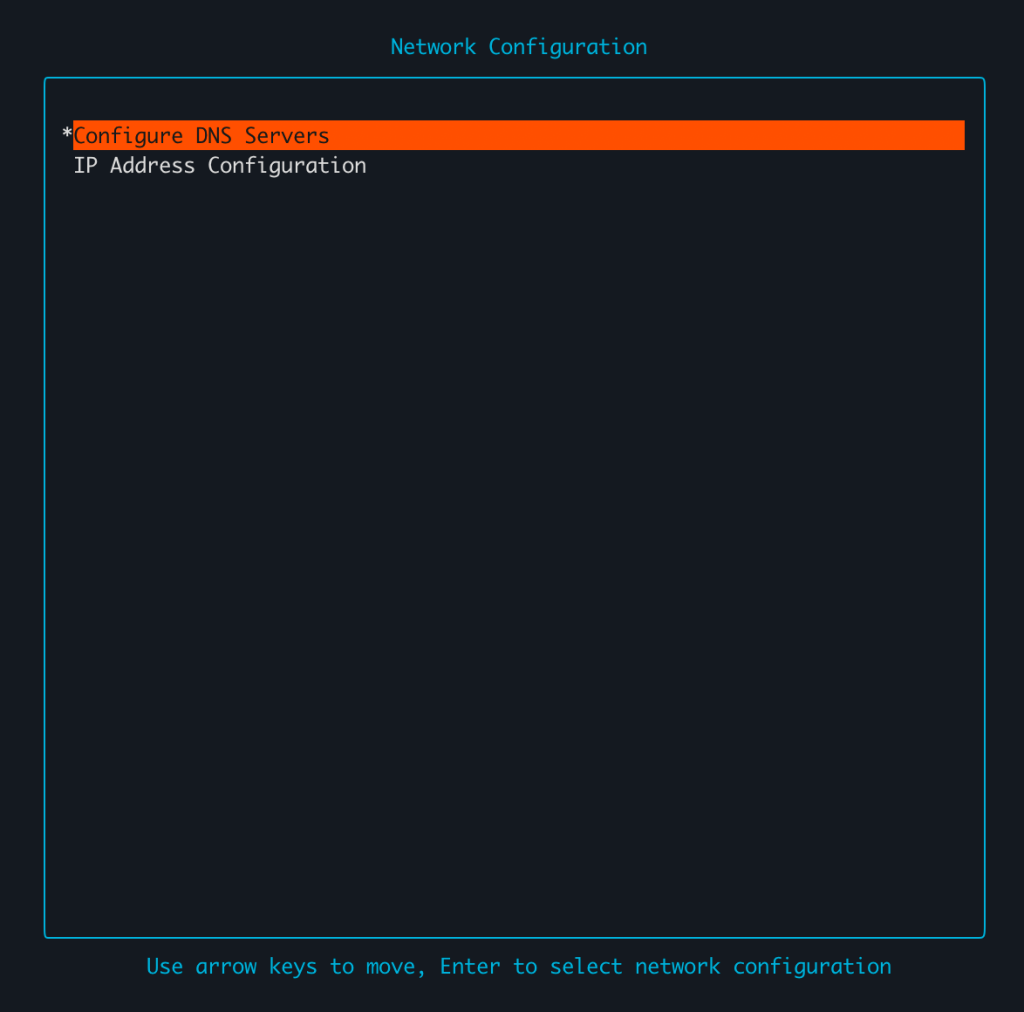
Configure DNS servers, DHCP, or a static IP.
-
After the Network Configuration is complete, access Netskope AI Gateway Configuration Wizard and navigate select the Enroll this AI Gateway menu.
The pre-enrollment process starts and it takes a few minutes to set up the AI Gateway services.
-
On successful completion of the pre-enrollment process, in the AI Gateway Enrollment page, enter the registration token to initiate the enrollment process.
The AI Gateway will then begin the enrollment process. Once enrollment is complete, you see the successful enrollment status in the appliance CLI. You can also view the Gateway ID.
-
After successful registration, access the Netskope tenant UI and go to Settings > Security Cloud Platform > VM Onboarding. On the VM Onboarding page, you can see a green icon next to the registered VM in the VM-Name column.

