

This document explains how to configure the Elastic v1.0.0 plugin for the Risk Exchange module of the Netskope Cloud Exchange platform. This plugin is used to fetch users available at Security > Explore > Users > All users page and their respective risk scores available at Security > Explore > Users > User risk page from the configured Elastic instance. This plugin does not support performing any actions on users.
Risk Exchange score calculation => | 100 – Elastic Risk Score | x 10.
Prerequisites
To complete this integration, you need:
- A Netskope tenant (or multiple, for example, production and development/test instances).
- A Netskope Cloud Exchange tenant with the Tenant plugin and Risk Exchange plugin already configured.
- Elastic instance credentials (Username, Password, API Base URL for Elastic Search, API Key)
- Connectivity to the following host: Elastic instance.
Elastic Plugin Support
This plugin fetches users available at Security > Explore > Users > All users page and their respective risk scores available at Security > Explore > Users > User risk page from the configured Elastic instance.
| Type of data pulled | Users and their Risk Scores |
| Actions Supported | No action |
Mappings
Mapping will be used to view the pulled Users details. Mapped fields during plugin configuration will be visible on the Records page once the data is pulled. Below is the suggested mapping that should be used while configuring the plugin.
Pull Mapping for Users
| Plugin Field | Expected Datatype | Suggested Field Name | Suggested Field Aggregate Strategy |
|---|---|---|---|
| username | String | Username | Unique |
| calculated_score_norm | Number | Score | Overwrite |
| calculated_score | Number | Calculated Score | Overwrite |
| calculated_level | String | Score Level | Overwrite |
| Netskope Normalized Score | Number | Normalized Score | Overwrite |
Note that Netskope Normalized Score will be calculated using calculated_score_norm.
Score Mapping
The score will be normalized in the Cloud exchange using the below formula:
Risk Exchange score calculation => | 100 – Elastic Risk Score | x 10
| Netskope Score | Netskope Score Range |
|---|---|
| Critical | 0-250 |
| High | 251-500 |
| Medium | 501-750 |
| Low | 751-1000 |
| Elastic Score | Elastic Score Range |
|---|---|
| Unknown | < 20 |
| Low | 20 – 40 |
| Moderate | 40 – 70 |
| High | 70 – 90 |
| Critical | > 90 ** |
Permissions
Here are the permissions needed for the plugin:
- Cluster Privileges > manage_tokens
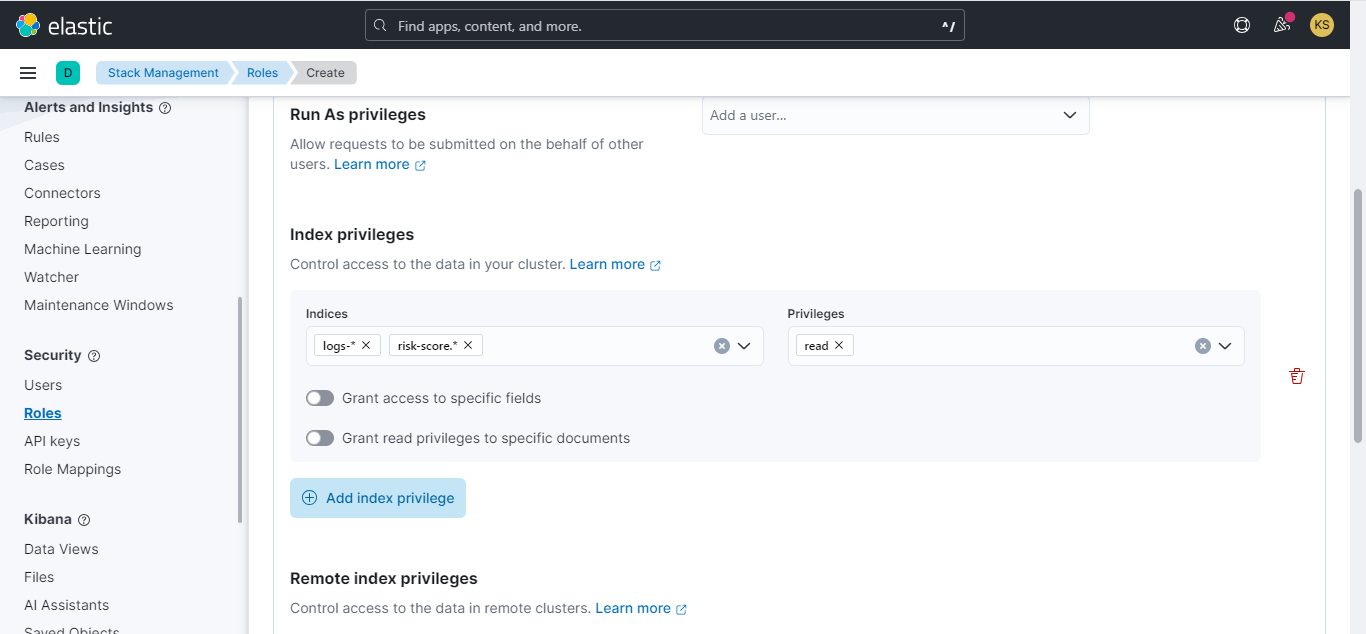
- Index privileges > logs-* and risk-score.*
- Privileges > Read
- API Key > Restrict Privileges
API Details
List of APIs Used
| API Endpoint | Method | API Client Scope | Use Case |
|---|---|---|---|
| /_security/oauth2/token | POST | manage_token | Get OAuth2 token |
| /logs-*/_search | POST | logs-* => read access | Fetch users |
| /risk-score.*/_search | POST | risk-score* => read access | Fetch scores |
Get Auth Token
API Endpoint: <Base URL>/_security/oauth2/token
Method: POST
Headers:
| Key | Value | Description |
|---|---|---|
| Content-Type | application/json | |
| Accept | application/json | |
| Authorization | ApiKey <Token> | For basic authentication, like Username-Password, the Token should be UTF-8 encoded. |
| Basic <Token> |
Body:
{
  "grant_type" : "client_credentials"
}
Sample API Response:
{
    "access_token": "gLuKBBjxurcPqq7cZyTj4jL0A****j*******",
    "type": "Bearer",
    "expires_in": 1200,
    "authentication": {
        "username": "test user",
        "roles": [
            "Netskope"
        ],
        "full_name": "Test",
        "email": "",
        "metadata": {},
        "enabled": true,
        "authentication_realm": {
            "name": "native",
            "type": "native"
        },
        "lookup_realm": {
            "name": "native",
            "type": "native"
        },
        "authentication_type": "realm"
    }
}
Fetch Records
API Endpoint: <Base URL>/logs-*/_search
Method: POST
Headers:
| Key | Value |
|---|---|
| Content-Type | application/json |
| Accept | application/json |
| Authorization | Bearer <access_token> |
Body:
{
            "query": {
                "bool": {
                    "must_not": {"exists": {"field": "host.name"}},
                    "filter": [
                        {"exists": {"field": "user.name"}},
                        {"range": {"@timestamp": {"gte": "2023-01-01T18:08:11.148813Z"}}},
                    ],
                }
            },
            "sort": [{"@timestamp": "asc"}],
            "_source": True,
            "size": 10000,
        }
Sample API Response:
{
    "took": 10,
    "timed_out": false,
    "_shards": {
        "total": 75,
        "successful": 75,
        "skipped": 53,
        "failed": 0
    },
    "hits": {
        "total": {
            "value": 491,
            "relation": "eq"
        },
        "max_score": null,
        "hits": [
            {
                "_index": "logs-tes",
                "_id": "wHUW2YEyx7Kaj*****",
                "_score": null,
                "_source": {
                    "event": {
                        "kind": "alert",
                        "module": "proofpoint"
                    },
                    "user": {
                        "name": "kamlesh.solanki@crestdatasys.com"
                    },
                    "@timestamp": "2024-01-03T09:00:00.000Z"
                },
                "sort": [
                    1704272400000
                ]
            }
        ]
    }
}
Fetch Scores
API Endpoint: <Base URL>/risk-score.*/_search
Method: POST
Headers:
| Key | Value |
|---|---|
| Content-Type | application/json |
| Accept | application/json |
| Authorization | Bearer <access_token> |
Body:
{
    "query": {
        "bool": {
            "minimum_should_match": 1,
            "should": [{"match_phrase": {"user.name": "testuser@test.com"}}]
        }
    }
}
Sample API Response:
{
    "took": 0,
    "timed_out": false,
    "_shards": {
        "total": 1,
        "successful": 1,
        "skipped": 0,
        "failed": 0
    },
    "hits": {
        "total": {
            "value": 1,
            "relation": "eq"
        },
        "max_score": 0.9808291,
        "hits": [
            {
                "_index": "risk-score.risk-score-latest-default",
                "_id": "X2vS7pclkEYZFSG************",
                "_score": 0.9808291,
                "_source": {
                    "@timestamp": "2024-01-23T11:16:33.549Z",
                    "user": {
                        "name": "testuser@test.com",
                        "risk": {
                            "id_field": "user.name",
                            "id_value": "testuser@test.com",
                            "calculated_level": "Low",
                            "calculated_score": 92.29454468696414,
                            "calculated_score_norm": 35.33481802716851,
                            "category_1_score": 89,
                            "category_1_count": 9,
                            "notes": [],
                            "inputs": [
                                {
                                    "id": "953f2530b0ea1ca14876583df459c8e24a21e9989876876869*****************",
                                    "index": ".internal.alerts-security.alerts-default-000003",
                                    "description": "Alert from Rule: External Alerts [Duplicate]",
                                    "category": "category_1",
                                    "risk_score": 47,
                                    "timestamp": "2024-01-10T09:36:16.888Z"
                                },
                                {
                                    "id": "2b1f87b7353ae4f1cebc95fc618a6b4cb3696b5b8383c3f***********",
                                    "index": ".internal.alerts-security.alerts-default-000003",
                                    "description": "Alert from Rule: External Alerts [Duplicate]",
                                    "category": "category_1",
                                    "risk_score": 47,
                                    "timestamp": "2024-01-10T09:36:16.890Z"
                                },
                                {
                                    "id": "3b5d3e2b1b0017567b3e2dc6835957a3118486e89fa20***********************",
                                    "index": ".internal.alerts-security.alerts-default-000003",
                                    "description": "Alert from Rule: External Alerts",
                                    "category": "category_1",
                                    "risk_score": 47,
                                    "timestamp": "2024-01-05T11:53:39.960Z"
                                },
                                {
                                    "id": "fe788d9601e817f0e7219b56686d9ba4a55d90c5ea4627***************a",
                                    "index": ".internal.alerts-security.alerts-default-000003",
                                    "description": "Alert from Rule: External Alerts",
                                    "category": "category_1",
                                    "risk_score": 47,
                                    "timestamp": "2024-01-05T11:53:39.963Z"
                                },
                                {
                                    "id": "7c7f1da36f5fbc904bb109c38d677e061fd4cbc************************************",
                                    "index": ".internal.alerts-security.alerts-default-000003",
                                    "description": "Alert from Rule: External Alerts [Duplicate]",
                                    "category": "category_1",
                                    "risk_score": 47,
                                    "timestamp": "2024-01-05T11:49:27.539Z"
                                }
                            ]
                        }
                    }
                }
            }
        ]
    }
}
Performance Matrix
Here are the performance readings conducted on a Large CE Stack with these VM specifications, by pulling 100K User Risk scores.
| Stack details | Size: Large RAM: 32 GB CPU: 16 Cores |
| Time taken to store pulled and updated user records | ~ 32 mins |
User Agent
netskope-ce-5.1.0-cre-elastic-v1.0.0
Workflow
- Create Roles.
- Configure a User with a Role.
- Create an API Key.
- Configure the Elastic plugin.
- Add a Risk Exchange Business Rule for Elastic.
- Add a Risk Exchange Action for Elastic.
- Validate the Elastic plugin.
Click play to watch a video.
Create Roles
- Log in to Elastic (Kibana, Elastic Search) and go to Management > Stack Management > Security > Roles from the left Panel.
- Click Create Roles.
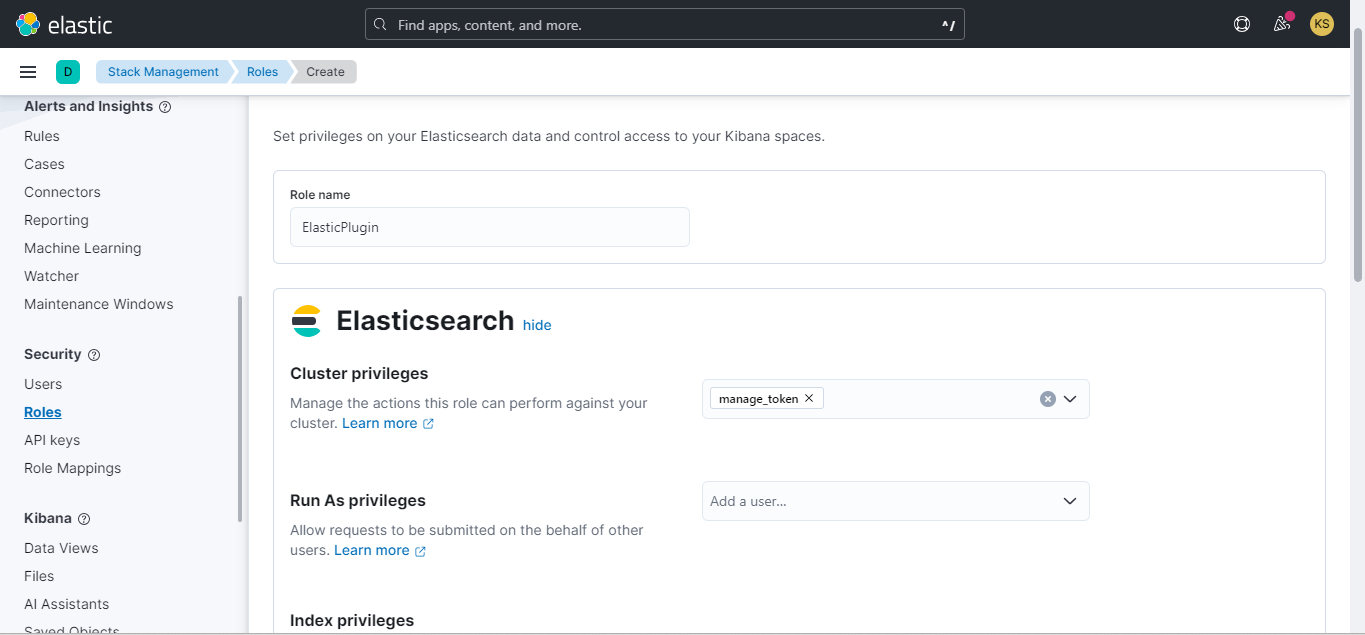
- Provide a Role Name and select a manage_token access in the Cluster privileges.
- Scroll down to Index privileges and add logs-* and risk-score.* indexes in the indices and click on Create role.
Creating a User with the New Role
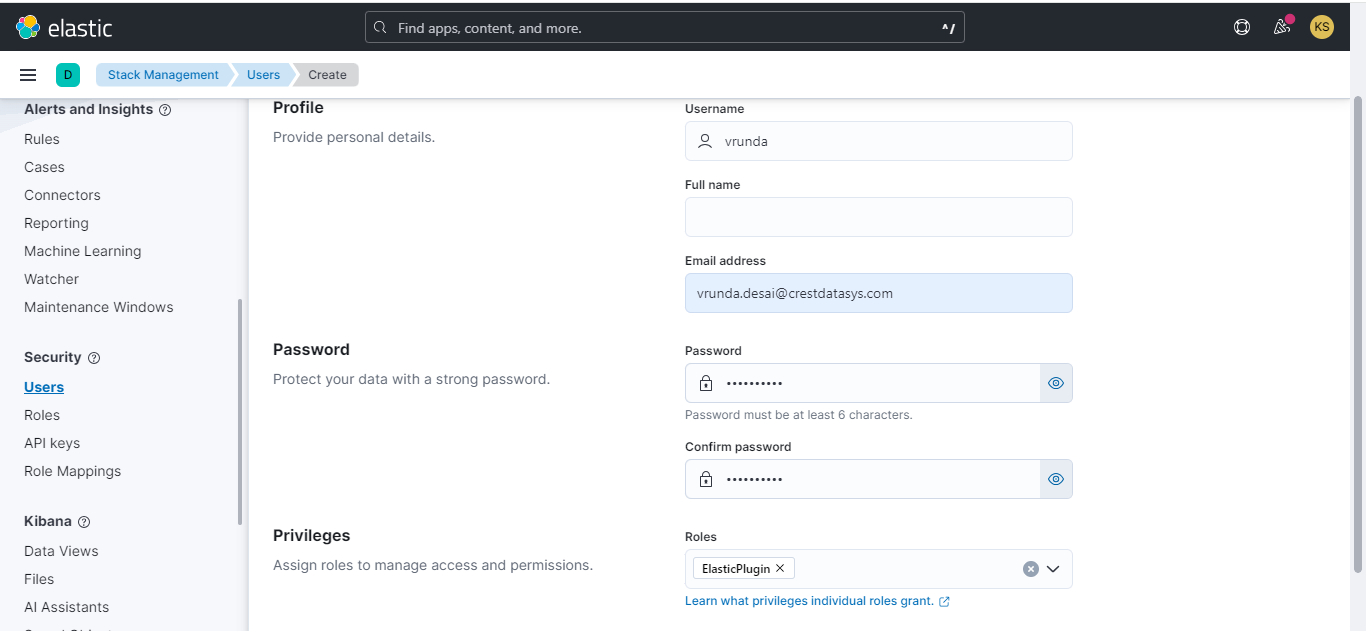
- Go to Users from Stack Management. Click Create User and provide a Username, Email address, Password, Confirm password, and then select the previously created role in the Privileges dropdown. Click Create User.
Create an API Key (for API Key Authentication method)
- Go to API Keys under Security in Stack Management. Click Create API Key.
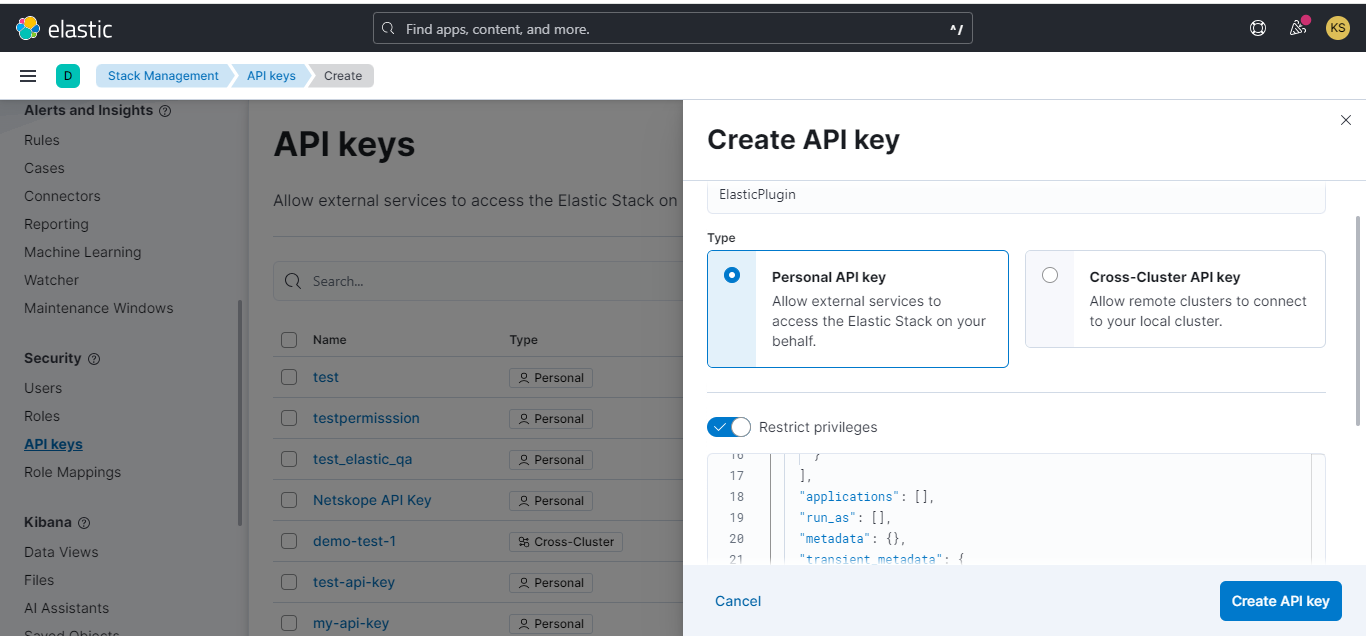
- Provide a name and enable the Restrict Privileges toggle button. Add this dictionary in the role descriptor.
{ "role-a": { "cluster": [ "all" ], "indices": [ { "names": [ "logs-*", "risk-score.*" ], "privileges": [ "read" ], "allow_restricted_indices": false } ], "applications": [], "run_as": [], "metadata": {}, "transient_metadata": { "enabled": true } } } - Enable Include metadata and add this in it.
{ "application": "Netskope Cloud Exchange" }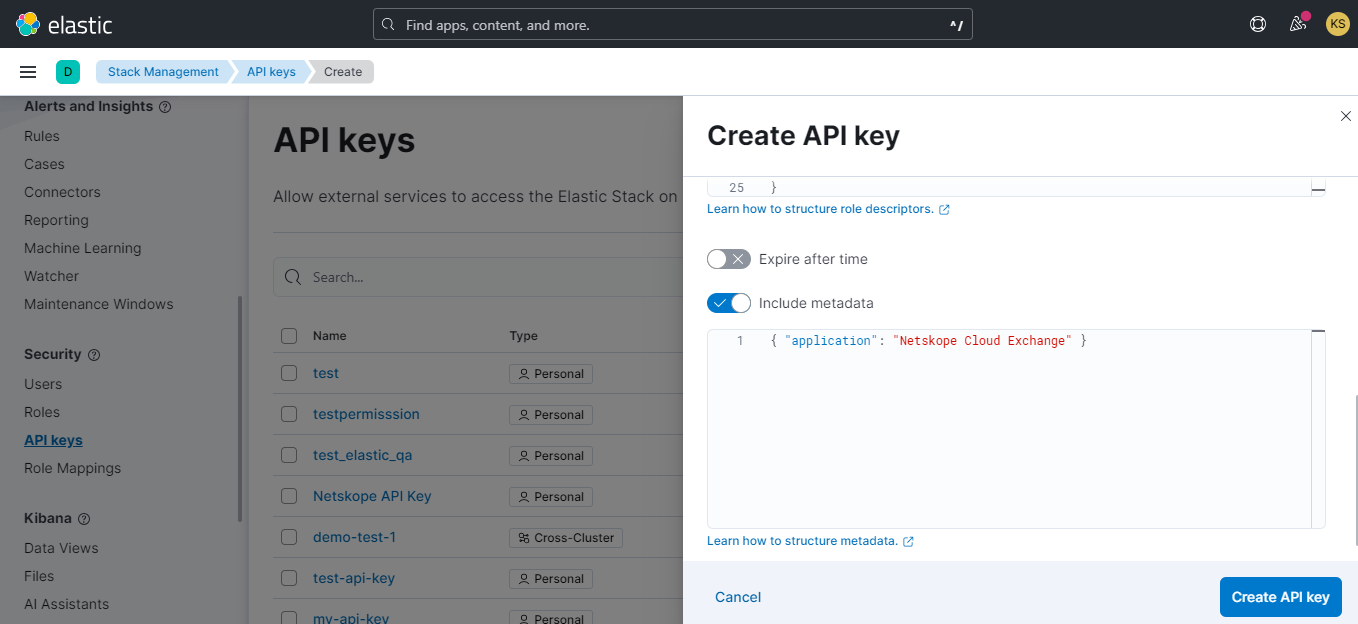
- Click Create API Key.
Copy the API Key available on the page and save it somewhere safe since it will only be visible once.
Configure the Elastic Plugin
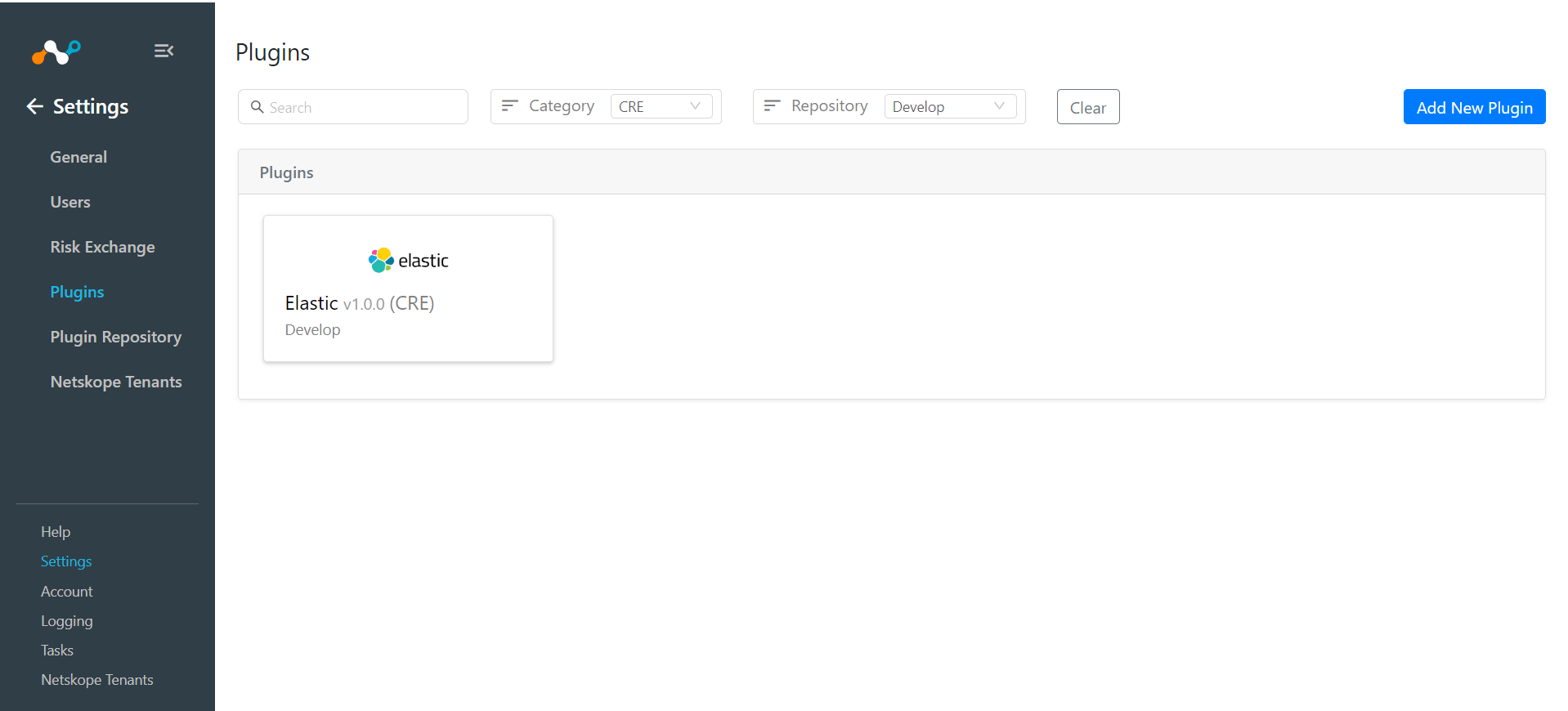
- In Cloud Exchange go to Settings > Plugins. Search for and select the Elastic v1.0.0 (CRE) plugin box.
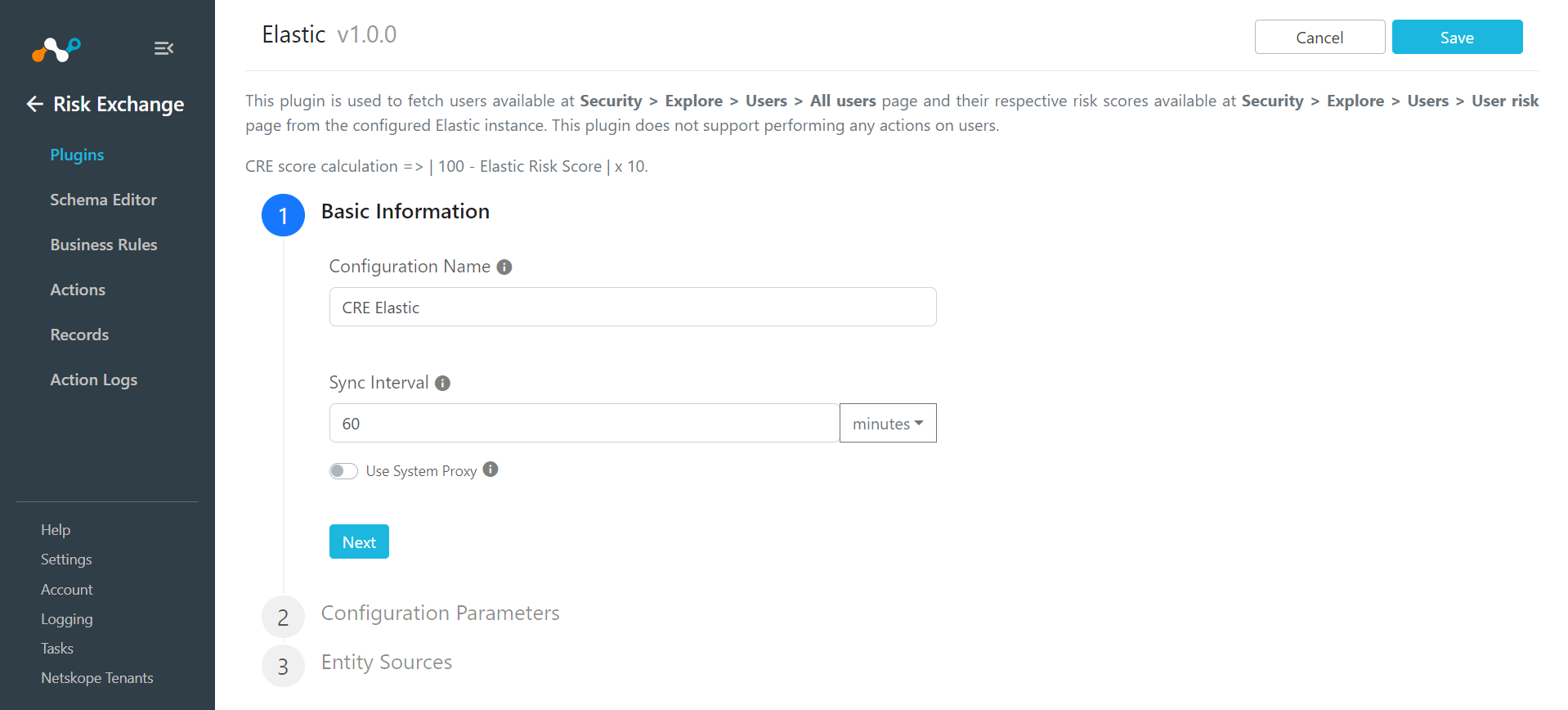
- Enter a Configuration name and sync interval..
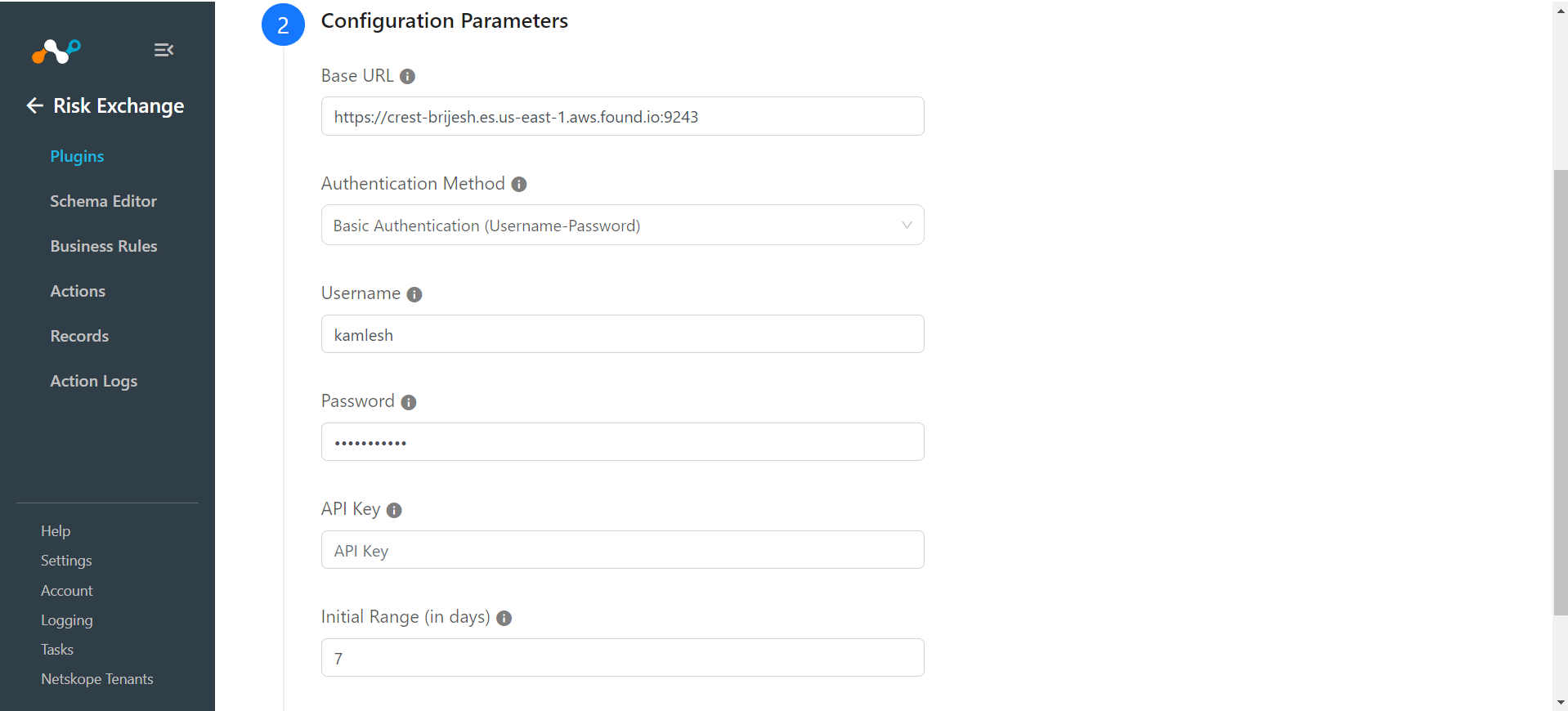
- Click Next and enter these configuration parameters:
- Base URL: API Base URL of your Elastic instance.
- Authentication Method: Select the type of Authentication Method used to perform the API call to Elastic instance.
- Username: Username for the Elastic instance. Required for ‘Basic Authentication (Username-Password)’ authentication type.
- Password: Password for the Elastic instance. Required for Basic Authentication (Username-Password) authentication type.
- API Key: API Key generated from the Elastic instance. Required for API Key Authentication authentication type.
- Initial Range: Number of days to pull users from for initial run.
- Click Next. Select the Entity from the Entity dropdown.
The Entity fields can be created from the Schema editor page or using the + Add Field option from the field dropdown.
Provide the field mapping. For the suggested mapping, refer to the Mappings section.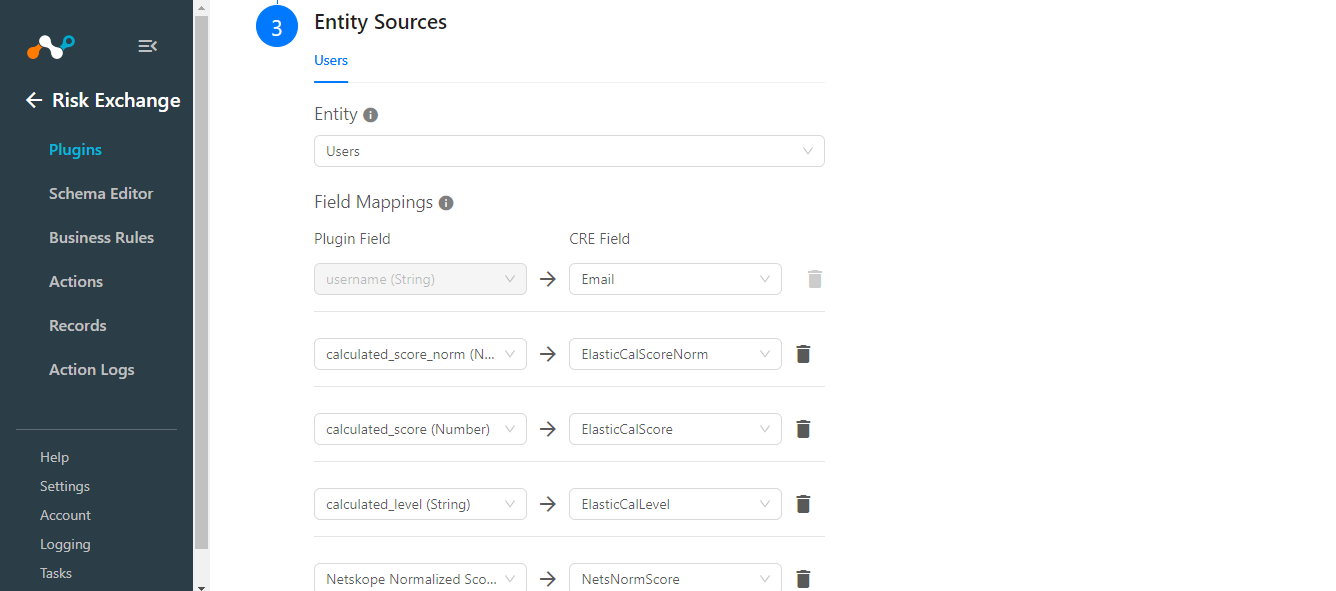
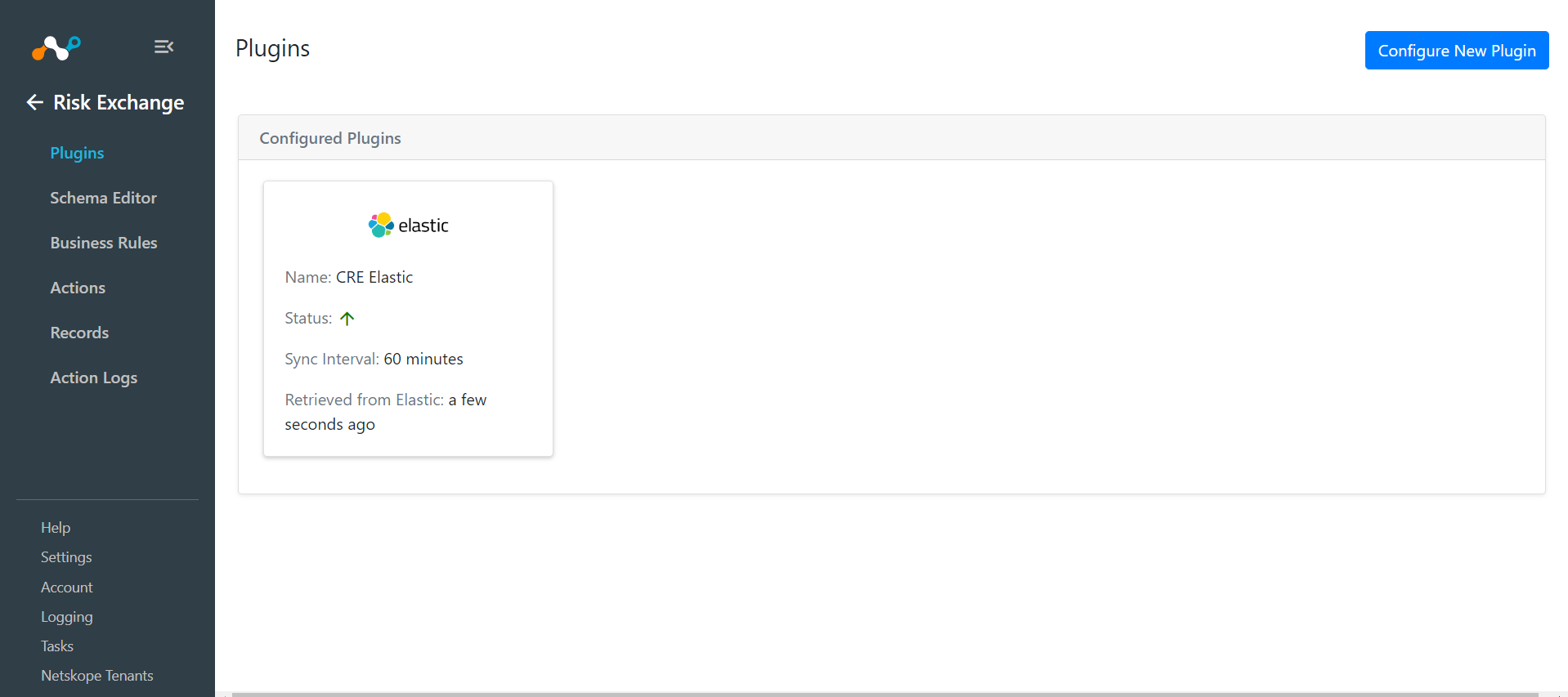
- Click Save.
Add a Risk Exchange Business Rule for Elastic
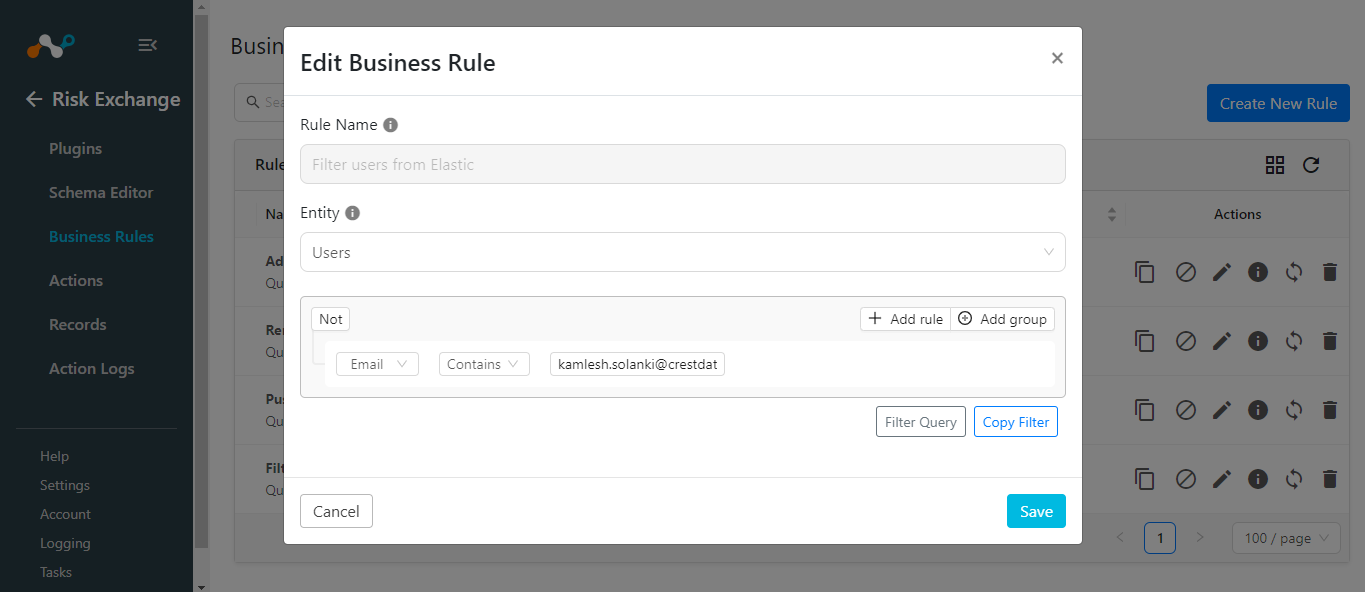
- In Risk Exchange go to Business Rules.
- Click Create New Rule in the top right corner.
- Enter a Rule Name and configure the query based on your requirements.
- Click Save.
Add Risk Exchange Actions for Elastic
The Elastic plugin does not support performing actions. But using No Action can generated alerts in the Ticket Orchestrator module.
You can perform the actions on the users pulled from Elastic on the Netskope tenant.
To configure this action:
- In Risk Exchange go to Actions.
- Click Add Action Configuration in the top left corner.
- Select a Business Rule, your plugin Configuration, and Action (No action) from the respective dropdowns.
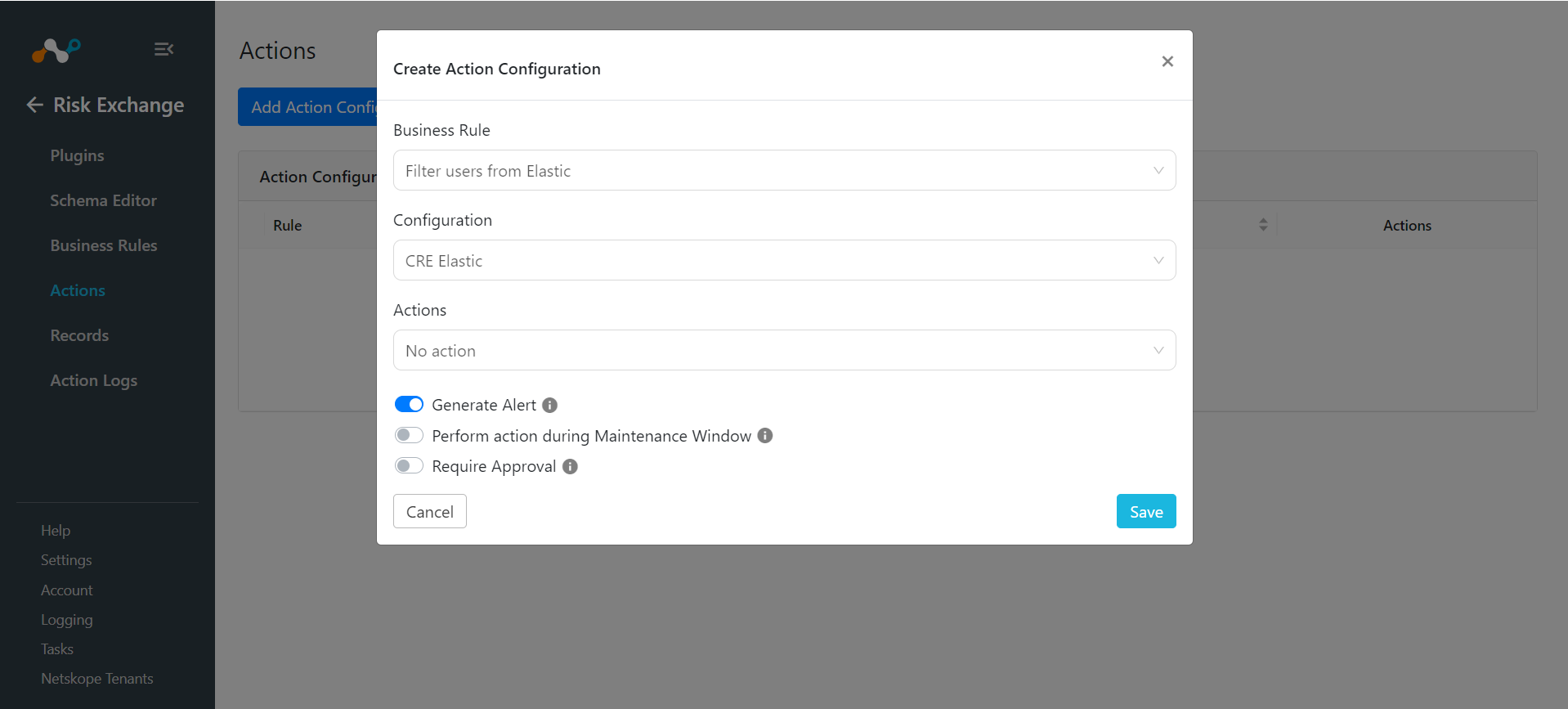
- To generate Alerts in the Ticket Orchestrator module, enable the Generate Alert toggle, and similarly enable Perform action during the maintenance Window if you wish to perform an action during the Maintenance Window. Make sure to enable the Ticket Orchestrator module.
- Enable the Require Approval toggle if approval is needed before performing the action.
- Click Save.
Validate the Elastic Plugin
Validate on Cloud Exchange
To verify the Users pulled from Elastic, go to Risk Exchange > Records. Select the entity used while configuring the Elastic plugin.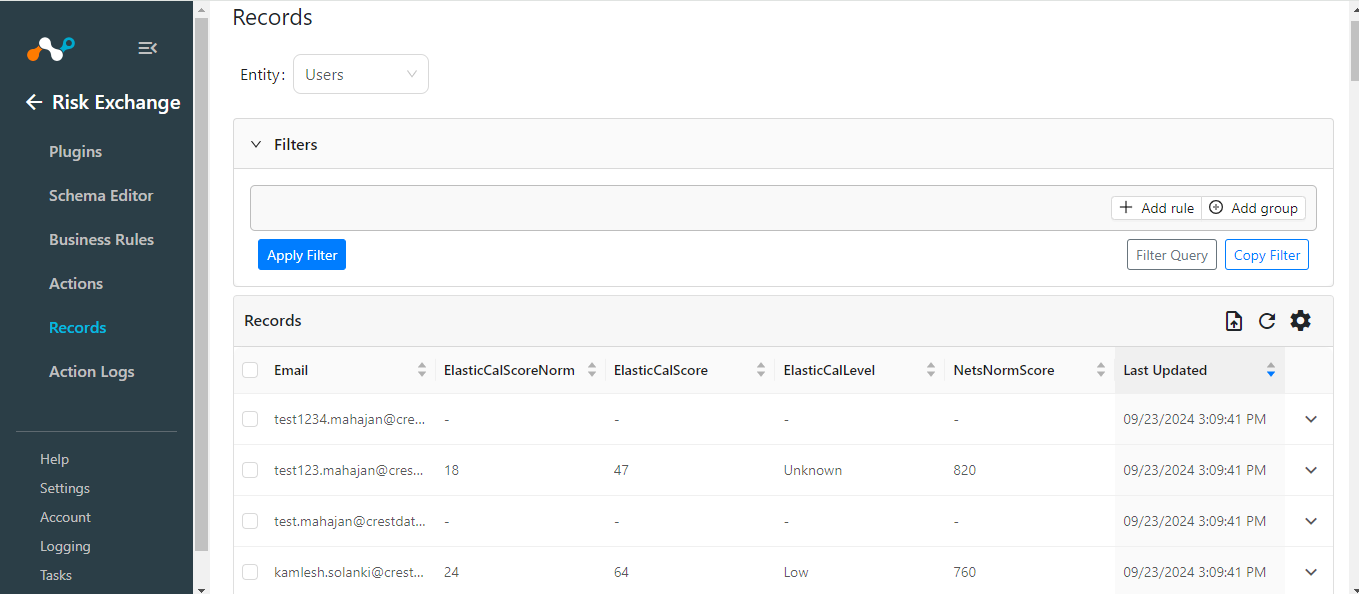
Go to Logging and search for logs based on the plugin configuration.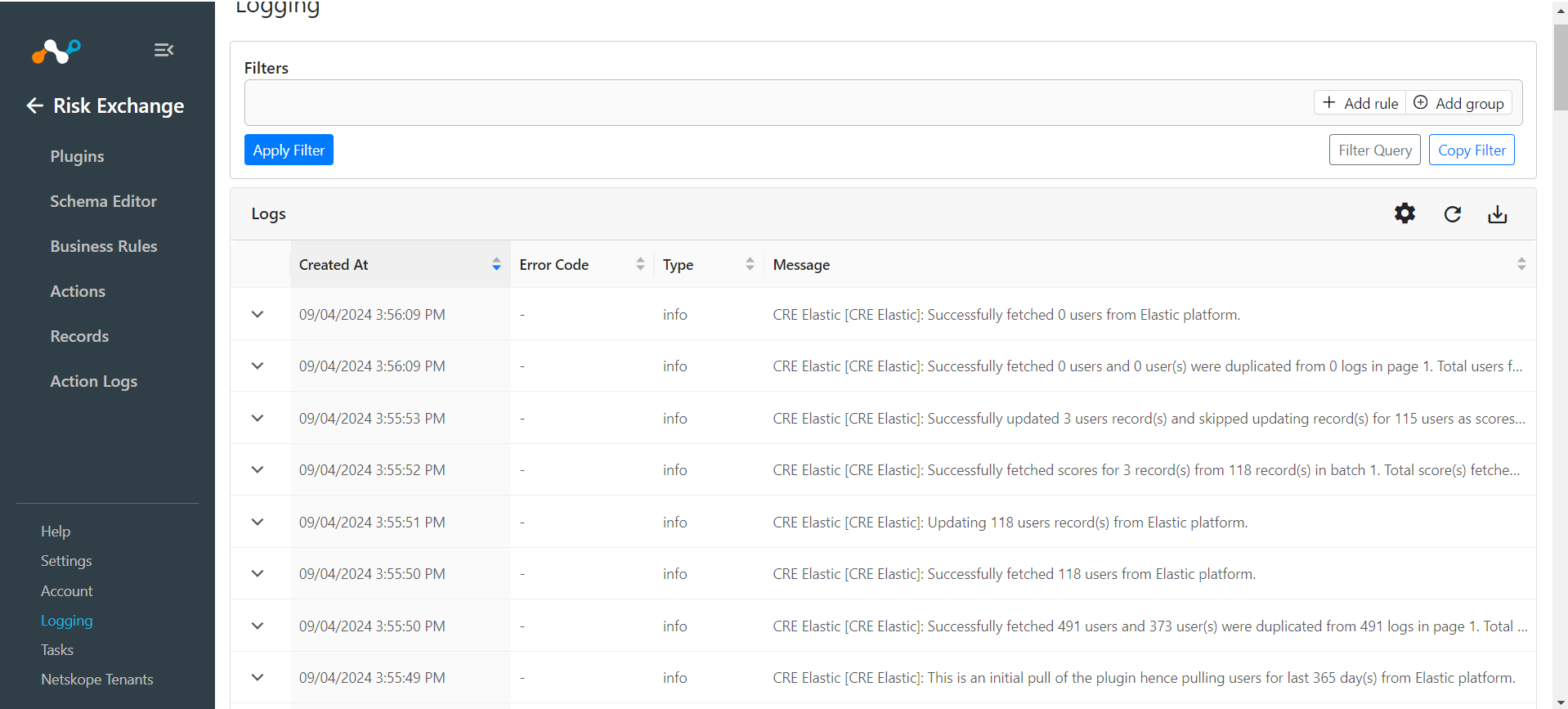
Validate on Elastic
Go to Security from the left panel and click Explore > Users > All users.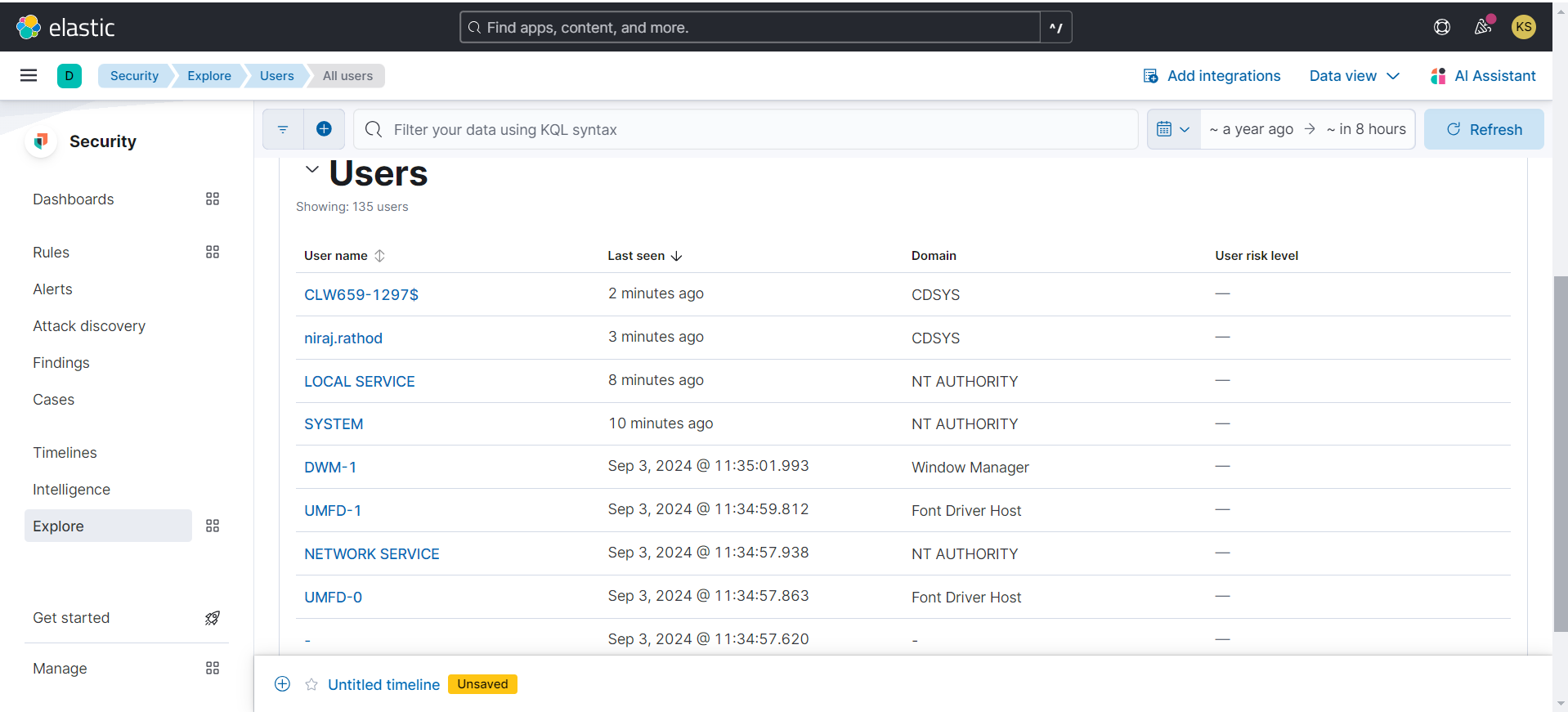
User scores are pulled from Security > Explore > Users > User risk.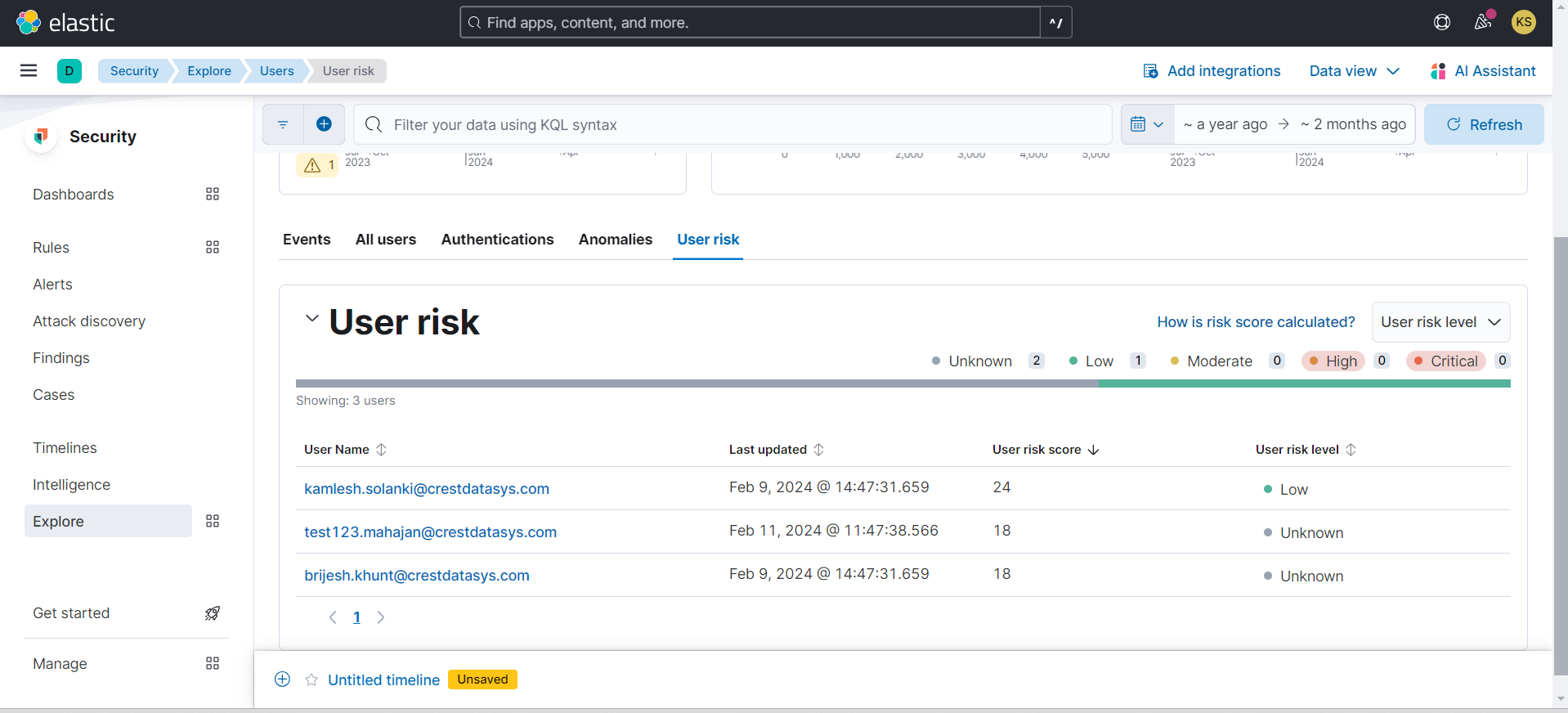
This plugin does not support performing actions.
Troubleshooting the Elastic Plugin
Unable to pull Users or User scores
If you are unable to pull Users or User scores in Cloud Exchange, it could be due to one of these reasons:
- The users are available on the platform to pull.
- The user are available in the given initial range provided in the plugin.
- The user scores are not pulled in Cloud Exchange.
- Proper mapping is not done while configuring the plugin.
What to do:
- If the users are not fetched from the plugin, check if you have users available on the Elastic platform.
- If you have users available on Elastic to pull, check the last seen date on which the users are available. Check the initial range provided in the plugin configuration. The initial range should be greater than or equal to the last seen time available on the Elastic so the users can be pulled.
- If you are not able to pull user scores after users are pulled, verify if you have correct permissions added to your user, and verify the scores are available for the users.
- Make sure to provide proper mapping, make sure to map the scores field properly.
Unable to configure the plugin
If you are unable to configure the plugin, it could be due to one of these reasons:
- Proper permissions are set for the provide credentials.
- Correct values are provided in configuration parameters.
What to do:
- Make sure to provide proper permissions.
- Make sure to provide correct values in configuration parameters.
Unable to perform action on third party
If you are unable to configure the plugin, check that the Require Approval toggle button is enabled while performing an action.
What to do:
Make sure to disable the approval check, or approve the request.