Netskope provides support real-time data security and threat protection for Cloud and Web Application traffic through Netskope Inline App Connectors for Real-Time security. Inline App connectors provide visibility into user activities based on the end user interaction with the Cloud Apps. Additionally for Cloud Apps which have both Enterprise and Commercial versions, the instance or accounts being accessed by users are also identified across the activities being performed. The Admin can translate this visibility into enforcement through Real-Time Policies.
Inline App Connector Types
Netskope provides several app connectors as defined below.
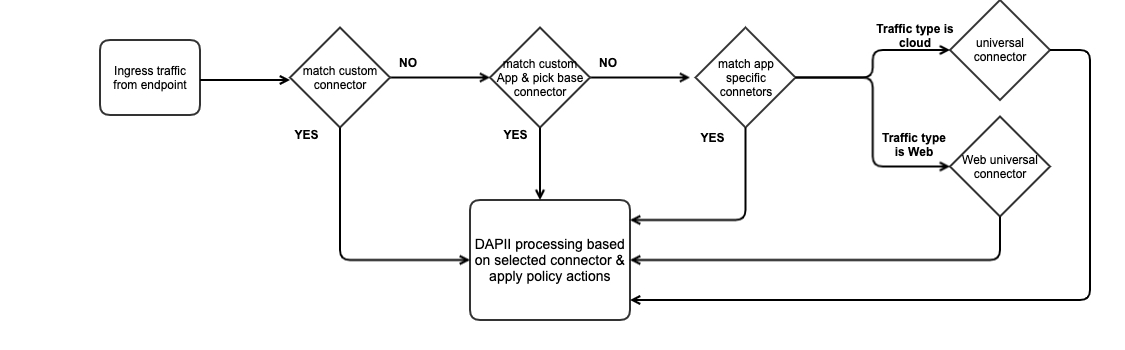
App-specific Connectors: Developed based on detailed traffic analysis for the various use cases of the application. These connectors are part of the content package deployed in all data centers. Netskope provides app-specific connectors for key Enterprise Cloud Apps out of the box.
Universal Connector (UC): Netskope’s Universal Connector is developed based on a heuristic approach to identify the activities. The following activities are supported for the Universal Connector: Login Attempt, Login Successful, Login Failed, Logout, Formpost (with DLP only), Upload, and Download. For the long tail of Cloud Apps Netskope leverages the Universal App Connector to provide best-effort activity detection of the specified activities. By default, only a subset of UC apps appear in Real-Time policy. UC apps that are marked as Discovery only (and do not appear in Real-time policy) in CCI will require custom “App Definition” . See the App Definitions topic for details to create an App Definition.
Web Universal Connector: Netskope’s Web Universal Connector is also developed based on a heuristic approach to identify the activities. This is similar to a universal connector, with less activity support. Supported activities include: Browse, Login Attempt, Formpost (with DLP only), Upload, and Download. The Web Universal Connector provides best-effort activity detection for Non-App or Web traffic specific activities.
Custom Connectors: Netskope provides an option to develop custom connectors through your account UI by providing the traffic definitions for the application. The traffic definitions can be recorded using a chrome browser extension tool into a JSON file. This JSON file, that has the app activities to traffic mapping and additional information, can be loaded through your account UI to create a custom connector. The custom connector definition is done through the Custom App configuration workflow. To learn more: Creating a Cloud App Definition
Inline App Connector Workflow
When traffic for a cloud app goes through Netskope, application events are generated based on the appropriate connector match as outlined in the workflow diagram below.
One activity which is not seen in a policy but is captured in Skope IT Events is “Browse,” which is the very first activity in the initial transaction when a Domain/URL is accessed, this is not captured as an event unless the Domain/URL/App (with Activities set to Any) is blocked by a policy.
App Categorization and Web Categorization for Policy Matching
For traffic matching domains that have been mapped to an app listed in CCI, the “Union” of relevant App + Web Category is used for policy matching. The example in the image below shows categorization for box.com with possible category matches for box.com for the following:
- Cloud Storage (Box App Category in CCI)
- Collaboration (box.com Web Category)
- Technology (box.com Web Category)


For domains which do not belong to any app in CCI the traffic is processed by the Web Universal connector and the relevant “Web Category” is applicable. The example in the image below shows Web Category for flipkart.com which does not belong to any App in CCI.

Custom Categories
In addition to the predefined categories, if Custom Category is defined for any of the domains / URLs then custom category is also included in the “Union of Categories” during policy match.
Understanding App to App Traffic Events
Whenever a user accesses an application, background traffic may be generated to other apps. In the example below, WeTransfer uses S3 for storage and uploads files to it.
This app to app traffic results in http traffic with a referrer field in the event. In these cases, the Background App (Telemetry App) Amazon S3 is swapped with the “Referrer” app (WeTransfer) in the event.

Policy Configuration
Netskope allows creating policies based on the primary or “Referrer” app or its Category. A category / custom category based policy can be used to block background traffic.
Understanding Google Apps Shared Domains
Google employs shared domains for its Google Drive application, which are also utilized across various other Google services by assigning different subdomains. This shared usage can cause an issue when implementing a block policy for Google Drive.
A key issue arises from the way Fully Qualified Domain Names (FQDNs) are used to detect application-specific traffic. For example, Google Drive commonly uses the FQDN clients6.google.com for activity detection. However, the same FQDN, when extended with a subdomain—such as testing.clients6.google.com—may be used by other background services or unrelated Google applications.
Netskope’s steering policy associates all traffic to clients6.google.com under the Google Drive application, any additional subdomains (e.g., testing.clients6.google.com) are also categorized as Google Drive traffic. In this example, subdomains do not clearly belong to any specific application which can cause issues with misclassification.
If you have block policies for Google Drive, best practice is to add the following domains in your allowlist to avoid getting blocked with this type of policy setup.
- clients6.google.com
- googusercontent.com
- googleapis.com
Understanding CASB Mode and Google Main Domain Steering
If your version of the Netskope tenant uses CASB Mode, which is designed for customers with a cloud-Inline license that does not include SWG features, only SaaS applications can be steered to Netskope. The decision to steer traffic is determined by the specific application domain.
Traffic directed to the www.google.com domain is not associated with any SaaS application in the Netskope CCI database. Consequently, this traffic will not be steered, even if URI paths are used to target specific applications.
Best Practice
Create custom applications and use predefined dedicated application connectors. By doing so, your traffic is properly steered, and activity detection will function as intended.
Example: You want to steer www.google.com with different URI paths related to different applications, add the full path in the custom application to steer traffic.
App: Google Translate
URI : www.google.com/async/translate
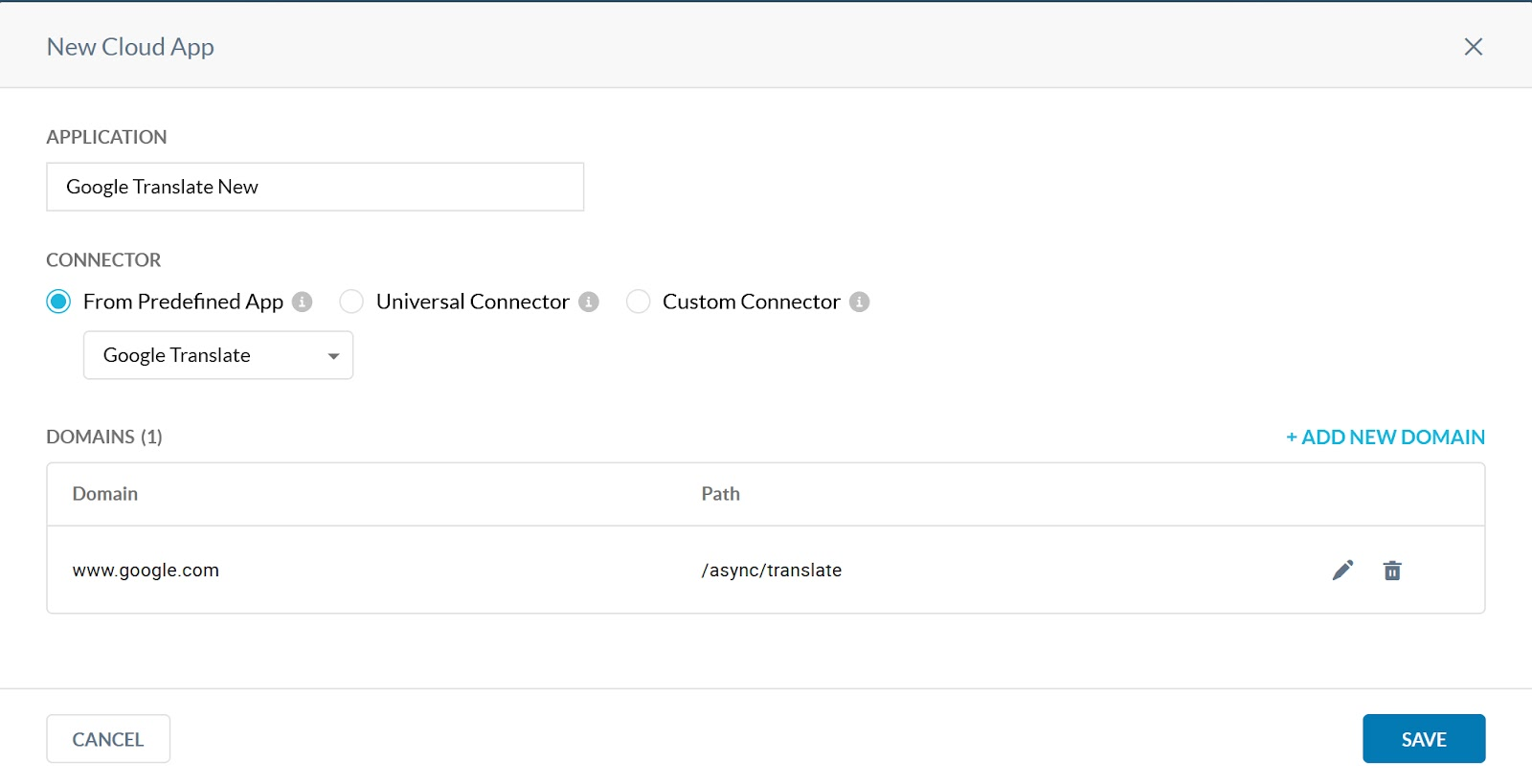
The following sections are more examples using similar patterns with other application connectors.
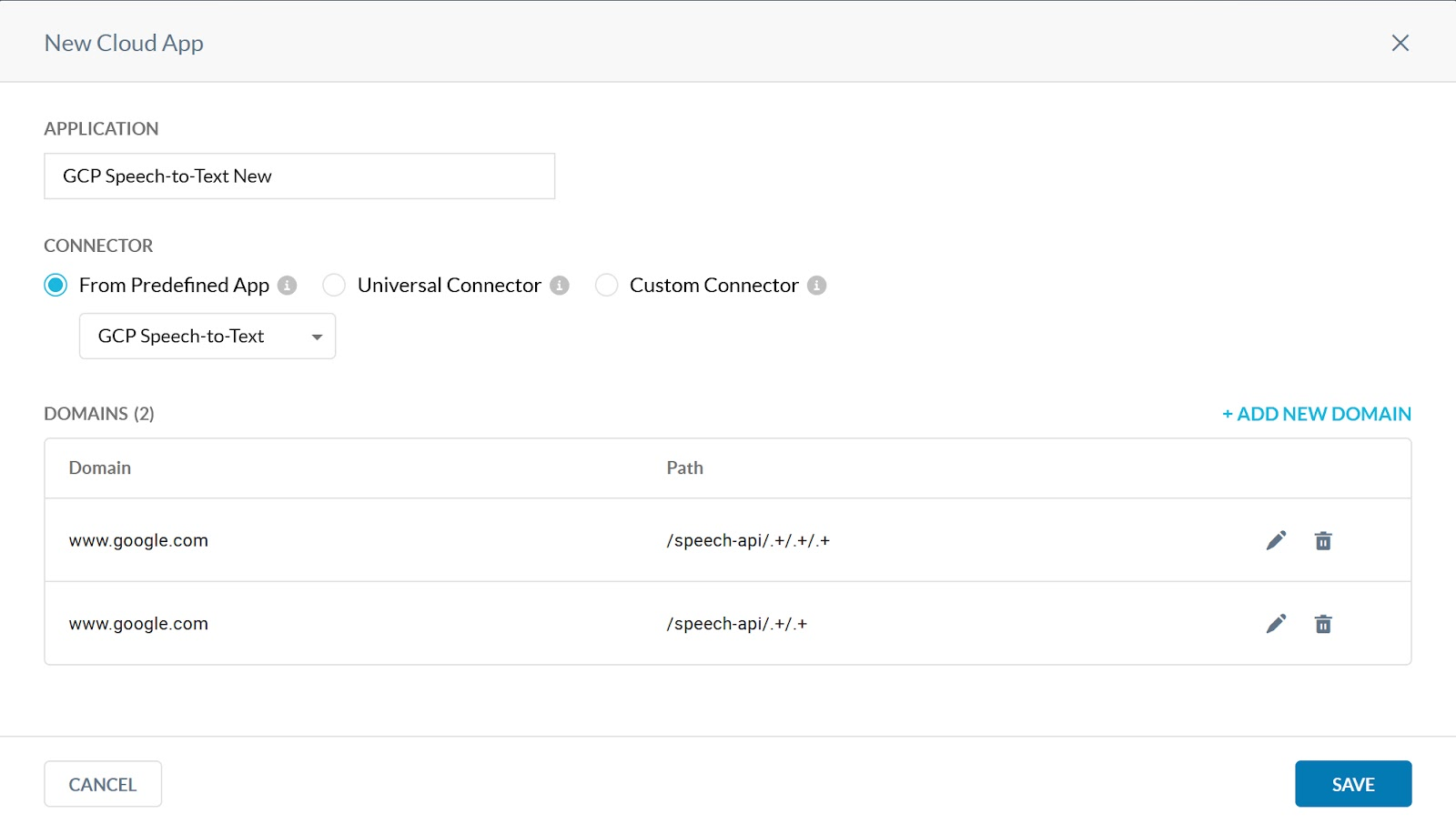
Custom App: GCP Speech-to-Text
Domain: “www.google.com“
Uripath: “/speech-api”
Create a custom connector like the following example. You must update your custom application based on the traffic paths you are experiencing, which include: /speech-api
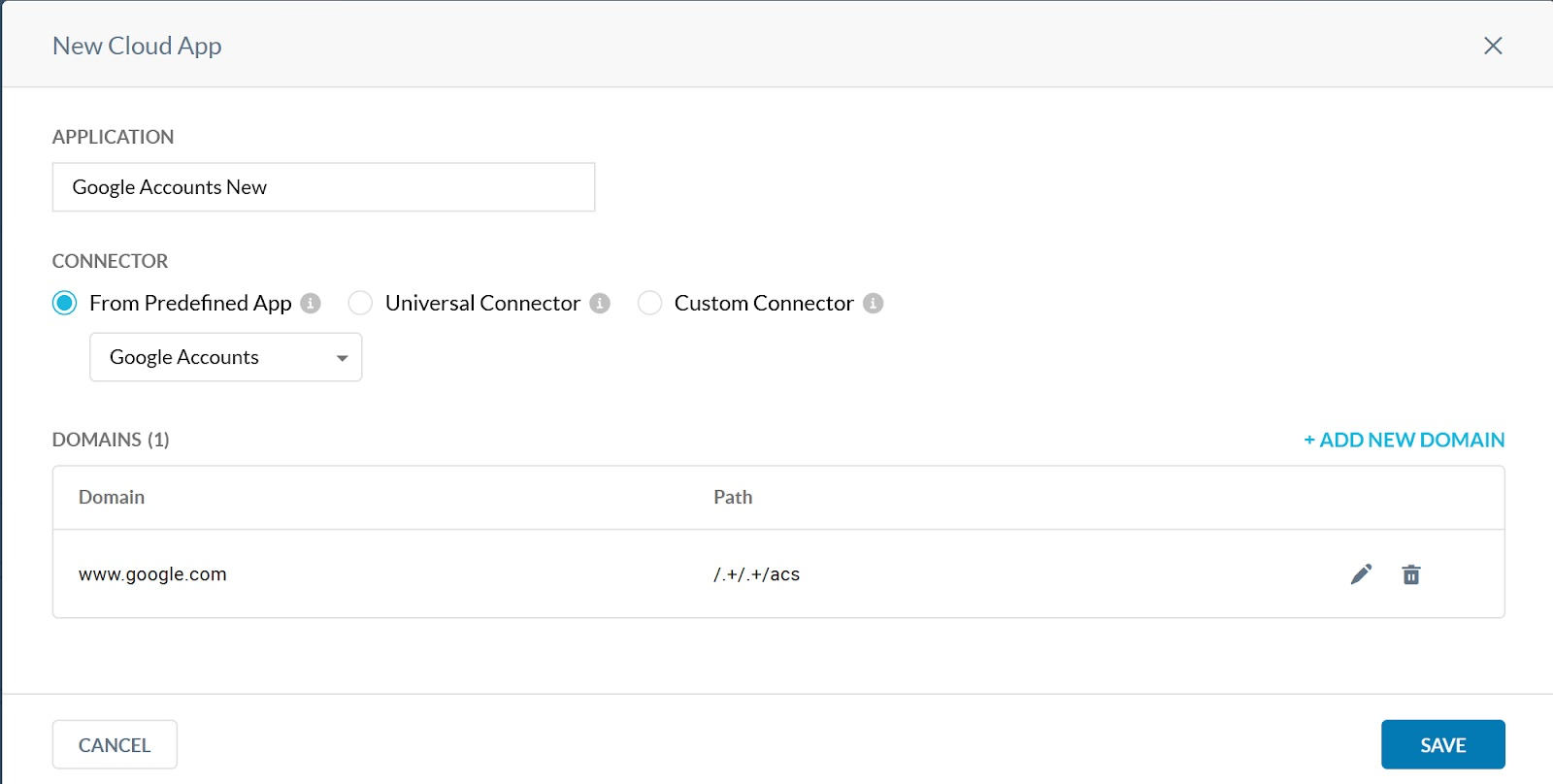
Custom App : Google Accounts
Domain: “www.google.com“
Uripath: “/accounts/Logout”
Domain: “www.google.com“
Uripath: “/acs”
Create a custom connector like the following example. You must update your custom application based on the traffic paths you are experiencing, which include: /acs
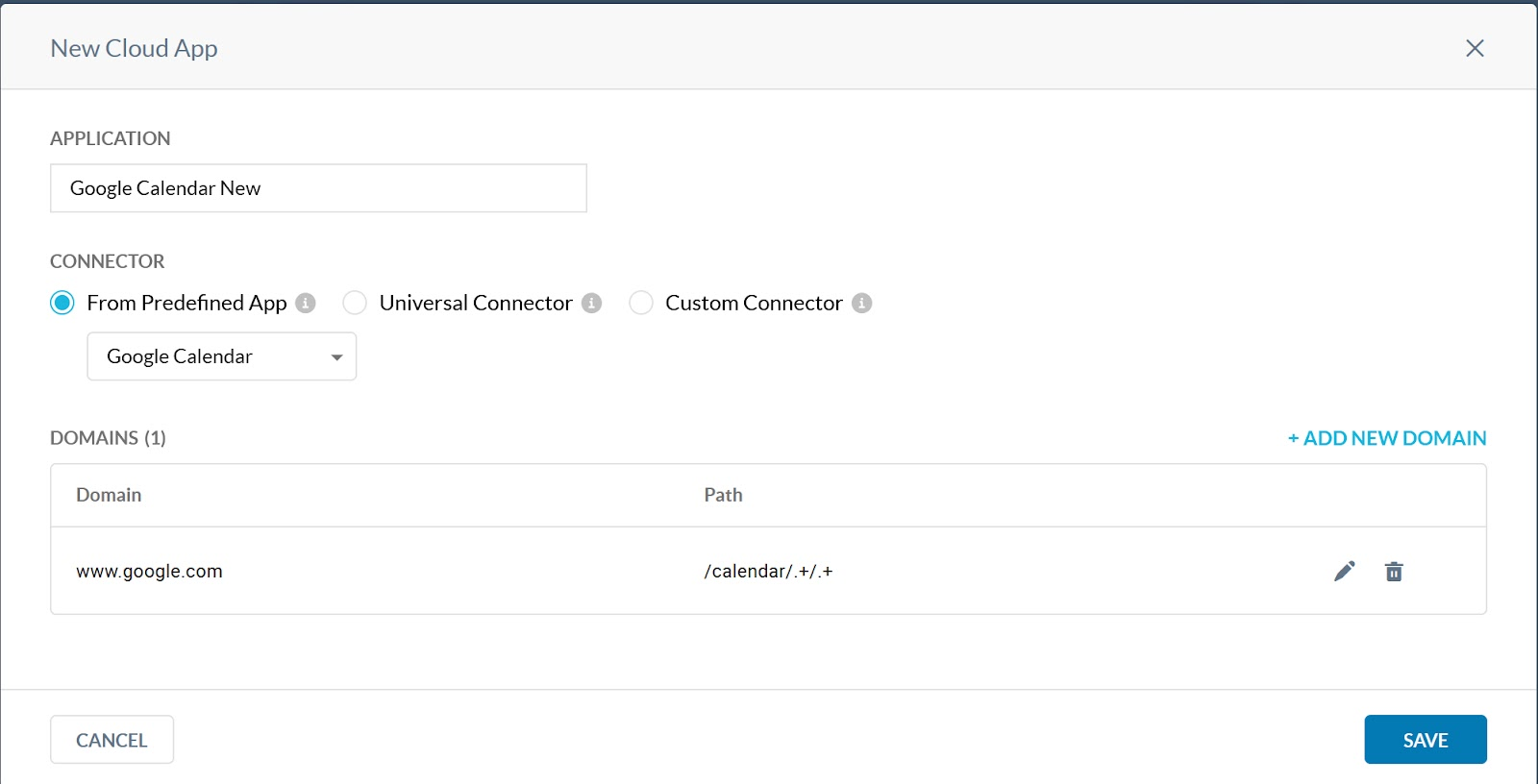
Custom App: Google Calendar
Domain: “www.google.com“
Uripath: “/calendar”
Create a custom connector like the following example. You must update your custom application based on the traffic paths you are experiencing, which include: /calendar
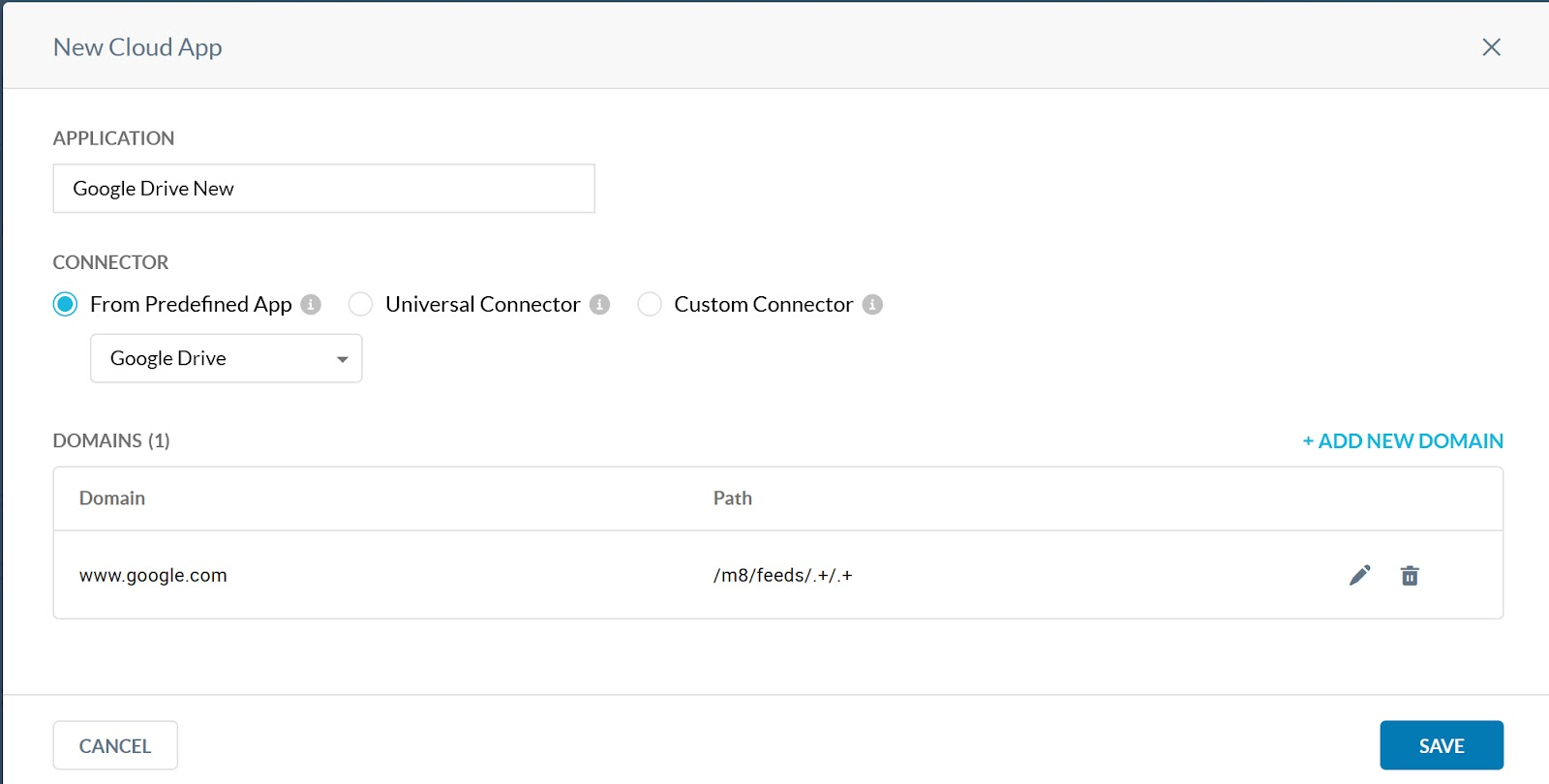
Custom App: Google Drive
Domain: “www.google.com“
Uripath: “/m8/feeds/”
Create a custom connector like the following example. You must update your custom application based on the traffic paths you are experiencing, which include: /m8/feeds/