

Log Shipper is a logging service that pulls all or a subset of customer tenant events and alerts logs and sends them in a customized, customer-selected format to its SIEM and datalake(s) using either the mapping wizard or the raw editor. Use either tool to add or remove fields, change mappings, change field headers, transform field extended attributes, or insert static placeholders to meet your specific log requirements.
Click play to learn how to set up Log Shipper.
Log Shipper Global Settings
Only Admins can change Log Shipper Global Settings. Go to Settings > Log Shipper. There are two tabs: General and Mappings.
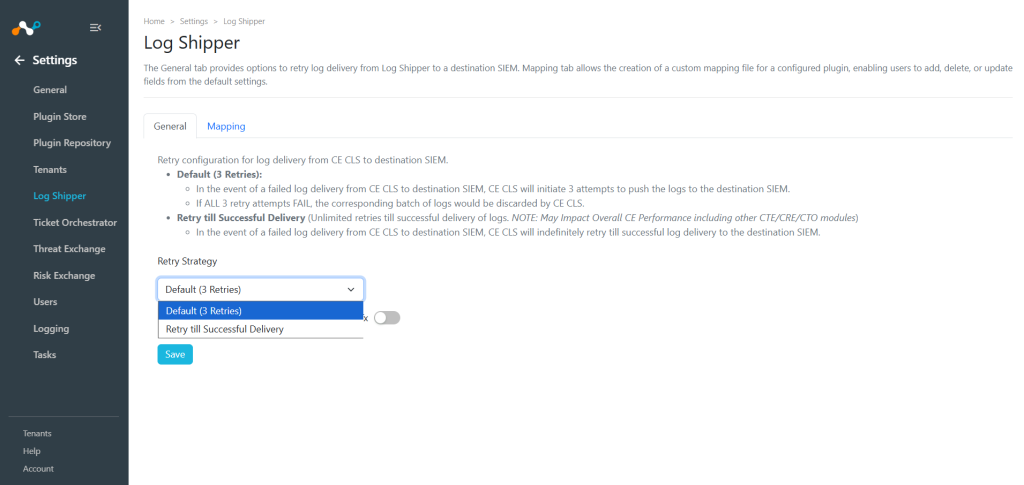
On the General tab, you can retry configuration for log delivery from Log Shipper to a destination SIEM.
- Default (3 Retries):
- In the event of a failed log delivery from Log Shipper to a destination SIEM, Log Shipper will initiate 3 attempts to push the logs to the destination SIEM.
- If ALL 3 retry attempts FAIL, the corresponding batch of logs will be discarded by Log Shipper.
- Retry till Successful Delivery: Unlimited retries till successful delivery of logs. This may impact overall Cloud Exchange performance, including other Cloud Exchange modules likeTicket Orchestrator, Threat Exchange, etc.
In the event of a failed log delivery from Log Shipper to a destination SIEM, Log Shipper will indefinitely retry till successful log delivery to the destination SIEM.
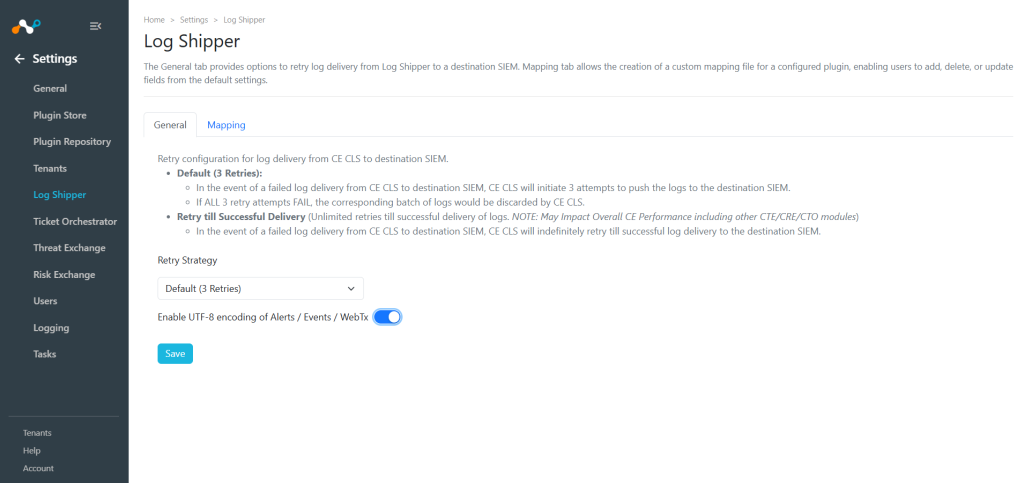
- UTF-8 encoding: Enable UTF-8 encoding for Alerts, Events, and WebTx to ensure seamless handling of UTF-8 encoded data. By default, this feature is disabled.


Use the Mapping tab to manage your Log Shipper Mapping files. 

You can also create a new mapping file to be invoked by a configured plugin as an alternative to the defaults provided. In the Wizard view, you can modify the mapping file to enable the addition, deletion, or modification of new fields to the default.
Note
AWS S3, Microsoft Azure Cloud Storage (Azure Blob), and Google Cloud SCC (Google GCS) plugins for WebTx logs can not be edited. These plugins push the original .gzip files obtained from Netskope to the cloud service providers without decompressing or modifying the content.
- Click Add Mapping File (or the Copy icon) from any of the default mapping file.

- Enter a Name.
- Select the Wizard radio button.
- From the Alerts/Event tab, expand the Alert/Event row. Target Field specifies the destination field name to which the data will be mapped or transmitted. Transformation defines the type of data conversion or transformation applied to the Netskope field before it is transmitted to the target field. Netskope field Indicates the source field from the Netskope data that will be mapped to the target field. Default Value means If the source value is empty, this default value will be sent to the target field instead.

- From Header expand, select the Netskope field for each Target field and edit the Default value if required. The new fields coming from new alerts/events will be added in Netskope field. The newly available fields will also be shown in notifications as well as in Netskope CE logs.

- You can delete the alert/event value row from wizard by clicking the Delete icon.
- You can also delete a target field as well by clicking on Delete icon.

- From Extension expand, select a Transformation for each Target field and enter a Default value.
- Delete the Alert Value and Target field value row as well from Delete icon. Click Extension Expand.

- Add a New Alert/event field on clicking Add Alert Field.

- Enter a Field name and click Add.

- Enter a new Alert field, and add a Target field and Default value for the respective Netskope field mappings and click Add.
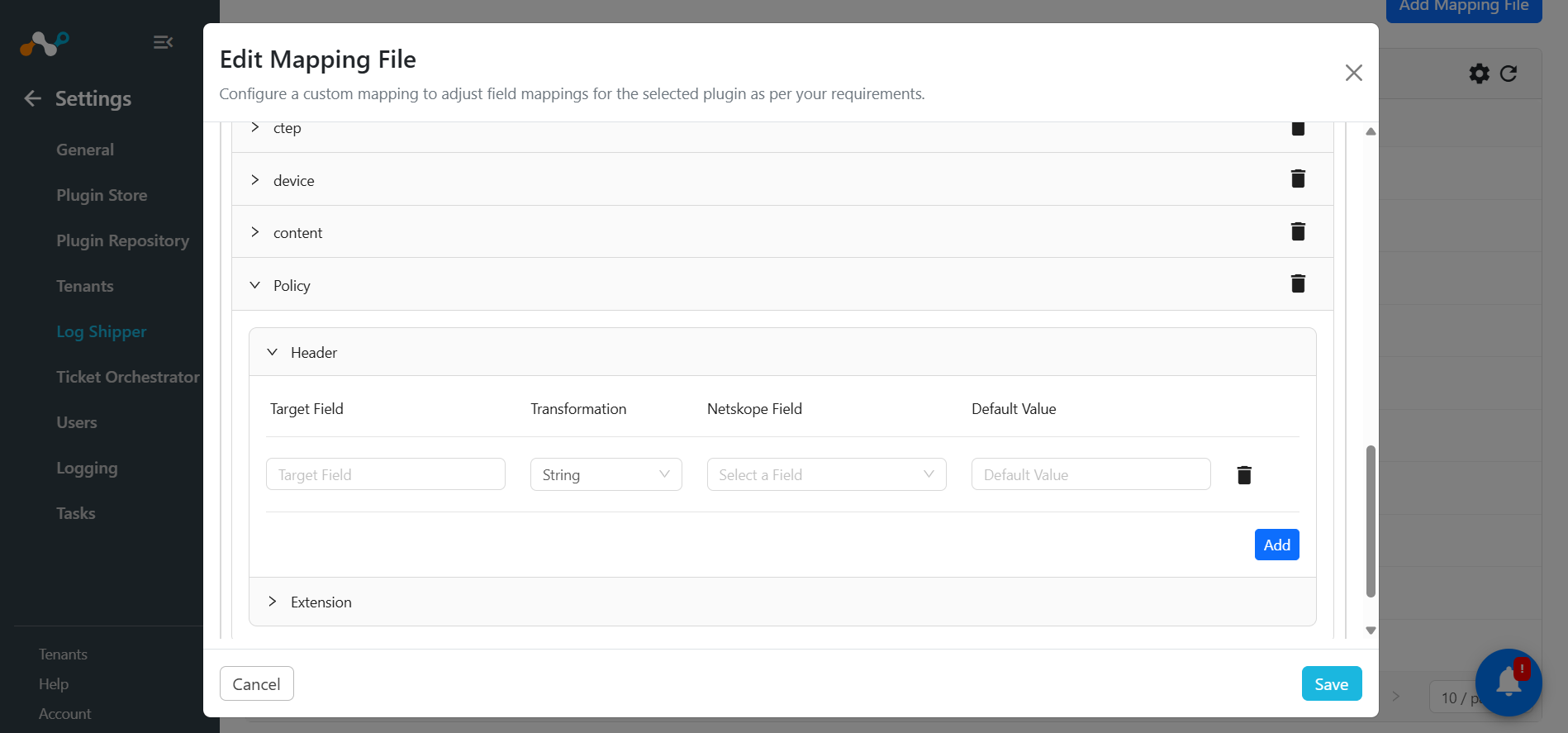
- Click the WebTx tab and select the Header and Extensions Target fields with the respective Netskope field. You can delete the WebTx field by clicking Delete.

- Click on Editor toggle to add/edit/delete the Event and Alert name.
- Click Save.

- You can download the custom or default mapping file from the download icon from list and can upload the same from Load from file option on Create mapping file window and click Save.


- You can enable the toggle button displayed in the CLS plugin configuration (which are supporting this functionality to send the data in JSON to the SIEM) to send the data in JSON format without transforming the data using Default Mapping file. There is a functionality to send specific fields only to the target SIEM, user can select the number of fields they want to send using the CLS Mapping wizard.

- When you select the JSON option for sending data and do not specify any Netskope fields, all available Netskope field data will be sent to the destination by default. However, if you choose specific Netskope fields, only those selected fields will be included in the data sent to the destination.
