

To provide with a comprehensive view of your environment, perform the follow the steps below to generate and retrieve a diagnostic bundle.
-
Access the Netskope AI Gateway Configuration Wizard using the CLI interface. For information on login details, see Signing in to the Appliance.
-
Select Log Management menu.

-
Set the AIG services log level to Debug to collect more detailed logs.

-
Navigate to the Debug Bundle menu and enter the password to generate the ns-debug.zip debug bundle.

-
In the Debug Bundle window, enter the password and press Enter.
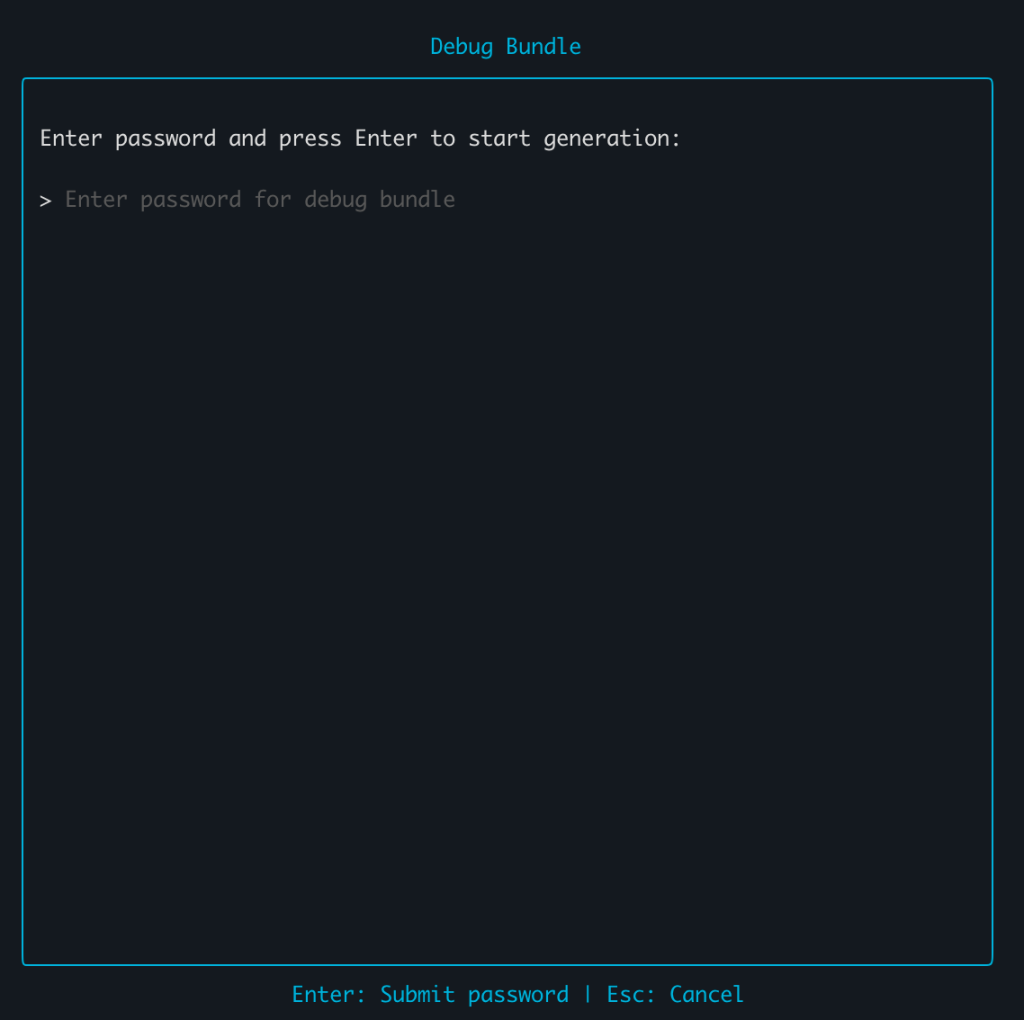
This generates the ns-debug.zip debug bundle.
-
After generating the debug bundle, log in to the AI Gateway appliance via SFTP using the
nsdebugaccount. Run the commandsftp nsdebug@{Gateway-IP}to download the ns-debug.zip file. To log in to the AI Gateway appliance via SFTP, you can use the following command.For example:
sftp -i ~/.ssh/your-ssh-key.pem -o IdentitiesOnly=yes nsdebug@{GATEWAY_IP}Access the ESXi-based AI Gateway via password-based SFTP using the nsdebug account and the default password nsadmin. For improved security, update this default password within the AI Gateway Configuration Wizard via the CLI interface.
To access the AWS EC2 appliance, use an SSH key pair for passwordless SFTP login to the nsdebug account. During provisioning, bind your selected SSH key to the EC2 instance to enable secure authentication. -
Upload the ns-debug.zip bundle and its corresponding decryption password to the Netskope support portal to facilitate log analysis by the engineering team.
