

You can map business rules with actions so that when a record matches a business rule, the configured action will be performed on it. The rule can be a Risk Exchange business rule, which matches the records of one entity, or a unified mapping business rule created in the Universal Schema Builder, which matches the joined records of a unified mapping.
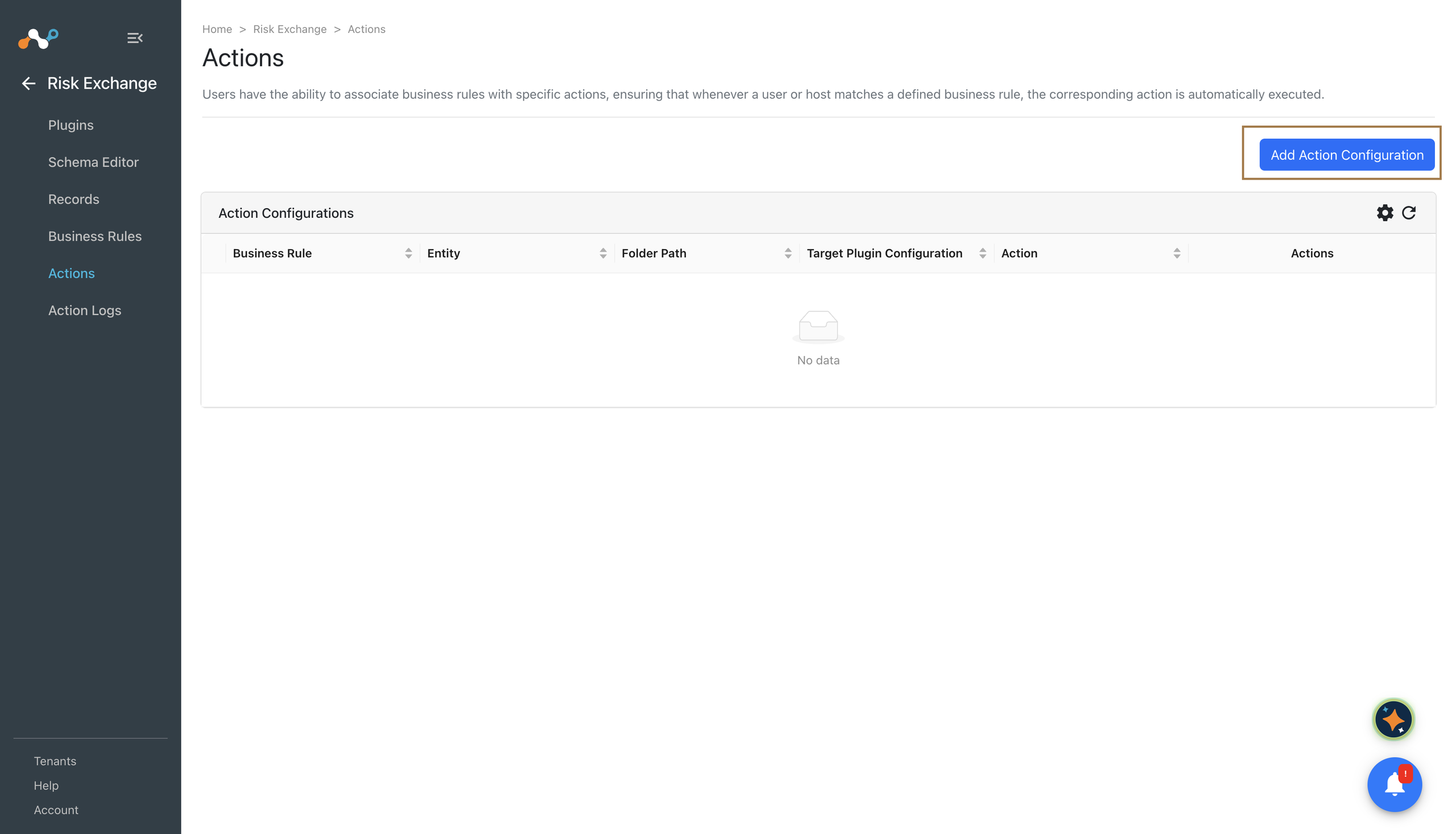
- Go to Risk Exchange > Actions.
- Click Add Action Configuration.
- Select a Business Rule, and then a Configuration. The Business Rule list contains both Risk Exchange business rules and unified mapping business rules; unified mapping business rules are shown with a [Unified Mapping] prefix.
- Based on the selected configuration, a list of Actions will be populated. Select an action that you want to map to the business rule.
- If the action has required parameters, you must provide values for them. For each parameter, you can choose between two types:
- Source: Allows you to dynamically use the value of a field from the matching record. This is useful when the action needs data from the record that triggered it. For example, you can use the email to populate the User Email field in a ticketing system. You can select multiple fields for one parameter, but doing so may take longer time to execute the action. The fields offered follow the selected business rule: for a Risk Exchange business rule, the fields of its entity; for a unified mapping business rule, the fields of the mapping’s joined records, each shown as the table it came from followed by the field name.
- Static: Allows you to provide a fixed, hardcoded value for the parameter. This is useful when the action requires a constant value that does not change based on the record that triggered it, such as a standard Groups for a specific severity level for alerts.
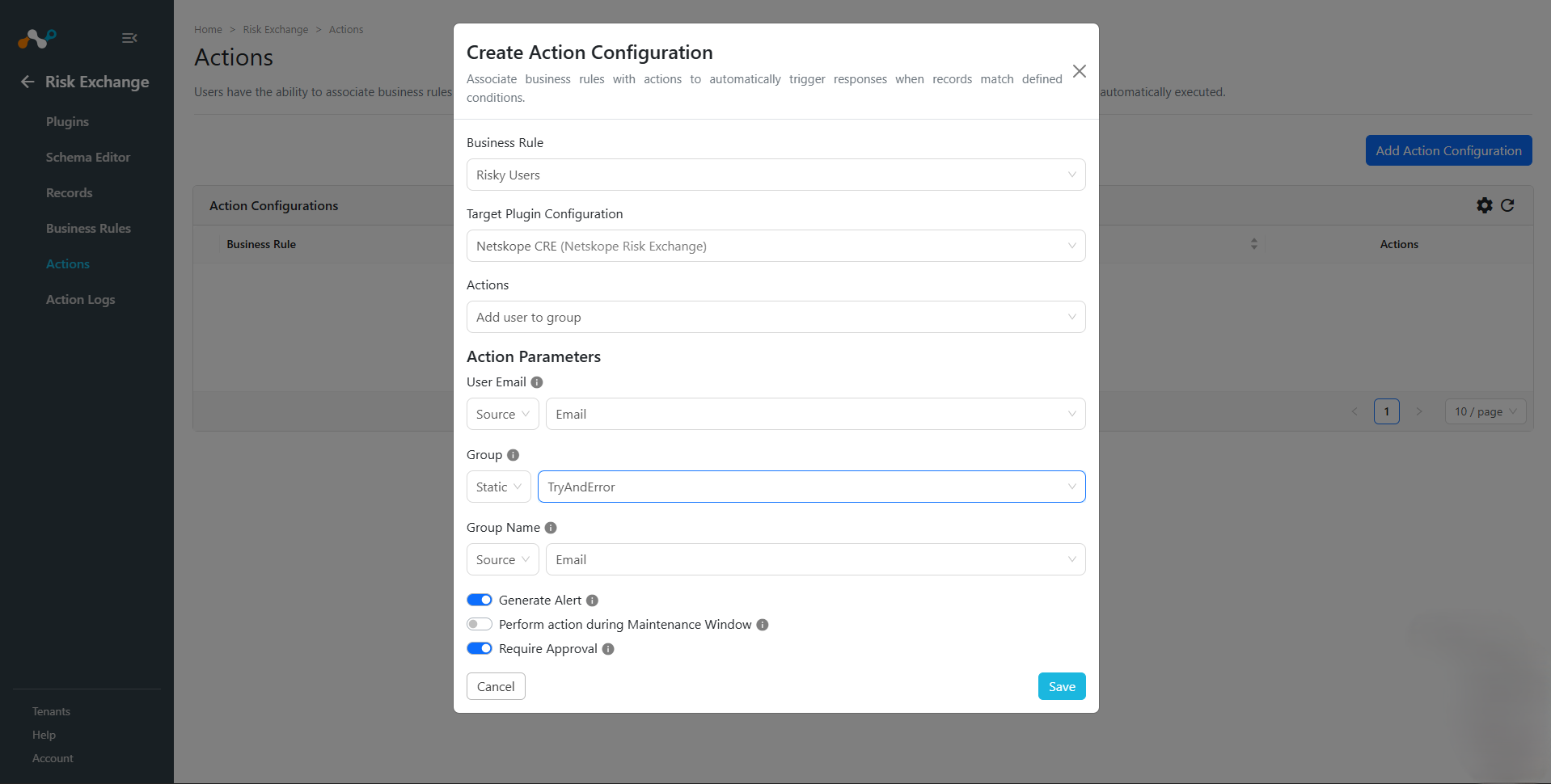
- Enable Generate Alert to send an alert to the Ticket Orchestrator module each time this action is performed. Use these alerts to create tickets in your ITSM platform or send notifications. The alert includes the fields of the matching record, and the plugin, action, and business rule names, so you can map them to ticket or notification fields. For more information, refer to Mapping a Business Rule to a Workflow Queue.
For a new action, this toggle follows the Generate Alert setting in Settings > Risk Exchange. While that setting is disabled, this toggle is unavailable and no alerts are generated for any action. Alerts also require the Ticket Orchestrator module to be enabled. For more information, refer to Risk Exchange Module.
- Enable Perform Action during Maintenance Window if you want the action to be executed only during a predefined maintenance window. If disabled, the action is performed instantly.
- Enable Require Approval if you do not want the action to be performed automatically when a record matches the business rule. If enabled, when a record matches the business rule, an action log will be added to the Action Logs page that you will have to manually approve in order to perform the action.
- Click Save.
A unified mapping business rule does not need a Field Mapping to perform Risk Exchange actions. Field Mapping is required only when the rule also shares records to a Threat Exchange destination, because sharing has to build an indicator from each record. An action resolves its parameters directly from the record instead.
If the unified mapping joins the Threat Exchange indicators collection, Threat Exchange read permission is also required, because evaluating the rule reads the mapping’s joined records.