

Migration Assist helps you move your Classic API Data Protection instances, along with their corresponding policies, to Next Generation API Data Protection. It automates policy translation and configuration in the background, so you do not have to recreate every policy manually before Classic API Data Protection reaches end-of-life on June 1, 2027.
Prerequisites
Before you start a migration with Migration Assist, ensure you have:
-
An existing Classic API Data Protection instance with active policies.
-
At least one app in that instance that’s supported in Next Generation API Data Protection. Instances that use only unsupported apps, such as Workplace by Meta or Slack Team, cannot be migrated.
-
Before you migrate, understand the Next Generation API Data Protection nuances.
Scope of Migration Assist
Migration Assist migrates ongoing policies only. It is helpful to understand exactly what that means: which apps are covered, what a migrated policy’s status tells you, and what’s never part of the migration at all.
Migration statuses. After migration, each policy is reported with one of the following statuses:
| Status | What it means? | What you need to do? |
|---|---|---|
| Migrated | The policy migrated automatically. | None. |
| Action required | Next Generation supports the intent, but you need to recreate or adjust the policy manually. | Recreate the policy in Next Generation. |
| Not available in Next Gen | Next Generation has no equivalent for this policy today. | Set up an alternative control if you still need this protection. |
| Netskope error | An internal issue prevented migration. | Contact Netskope Support. |
Salesforce exposure-filtered policies. If a migrated Salesforce policy uses an exposure filter like internal, external, or public, the policy continues to cover file and attachment content in Next Generation. Exposure classification in Next Generation currently applies to file and attachment content; it doesn’t extend to Page (Chatter post), Comment, or Chat Message Body content. If you rely on exposure-filtered policies for non-file content in Salesforce, plan for this gap before you cut over.
Most policies that need action fall under “Action required” — for example, an action like Revoke that maps to more than one Next Generation option, or a policy referencing a quarantine or legal-hold profile that does not exist yet in Next Generation. A small number of policies are “Not available in Next Gen” and cannot be translated at all — for example, policies using the Encrypt or RMS (Azure Rights Management) action, or Google Workspace connected-app governance policies. Your downloadable migration report lists the exact status and next step for every policy in your instance.
Application scope. Migration Assist supports 13 Classic applications: Box, Dropbox, Egnyte, GitHub, Google Drive, Microsoft Teams, OneDrive, Outlook, Salesforce, ServiceNow, SharePoint, Slack Enterprise, and Workday. The following applications are not supported, for the reasons noted:
| Application | Status |
|---|---|
| AWS, Azure, Google Cloud | Not API Data Protection SaaS applications. Cloud-provider security is covered by a separate Netskope product; contact your account team. |
| Workplace from Meta | Deprecated by the vendor. No migration path to Next Generation. |
| Slack Team (non-Enterprise) | Not supported. Use Slack Enterprise, which is supported. |
Never part of the migration. The following are not touched by Migration Assist and must be handled manually in Next Generation:
-
Malware and threat protection configuration.
-
Forensics destination configuration.
-
Quarantine, legal-hold, and IRM profiles — the profiles themselves must exist in Next Generation before a dependent policy can migrate.
-
Retroactive scan — Migration Assist does not support retroactive scan policies; set these up manually in Next Generation.
-
Instance credentials, OAuth grants, and API permissions — these must be set up independently in Next Generation.
-
Alert history, incident history, and audit history.
-
Tenant-level settings, such as notification defaults and retention.
Start Migration
Migration Assist runs in three phases: you initiate the migration, Netskope migrates your policies in the background, and you review the results before cutting over. This section covers how to start the process.
To start a migration:
-
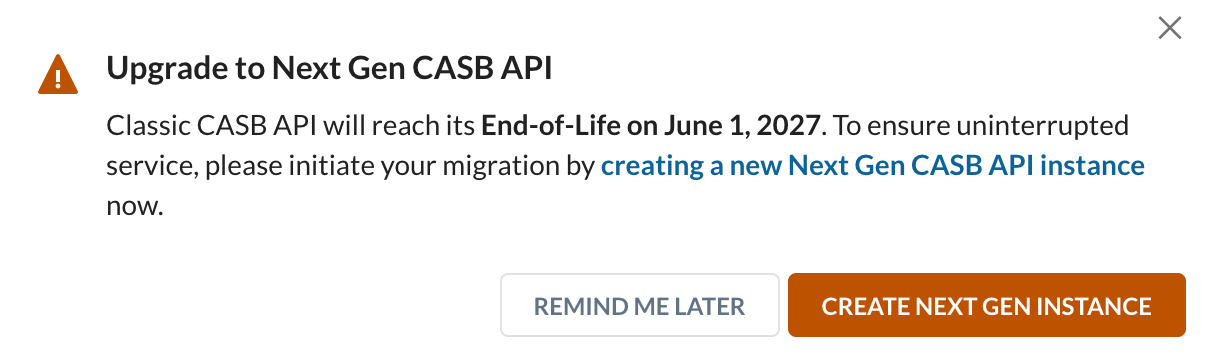
Log in to your Netskope tenant. A pop-up notifies you that Classic API Data Protection is reaching end-of-life.
-
Click Create Next Gen Instance in the pop-up. If you dismiss the pop-up, you can start migration later from Settings > API-enabled Protection > Configure App Access > Next Gen, then click Set Up CASB API Instance.
-
Select the app and the Classic instance you want to link to the new Next Generation instance.
For app-specific configuration of setting up an instance, see Next Generation API Data Protection Platform.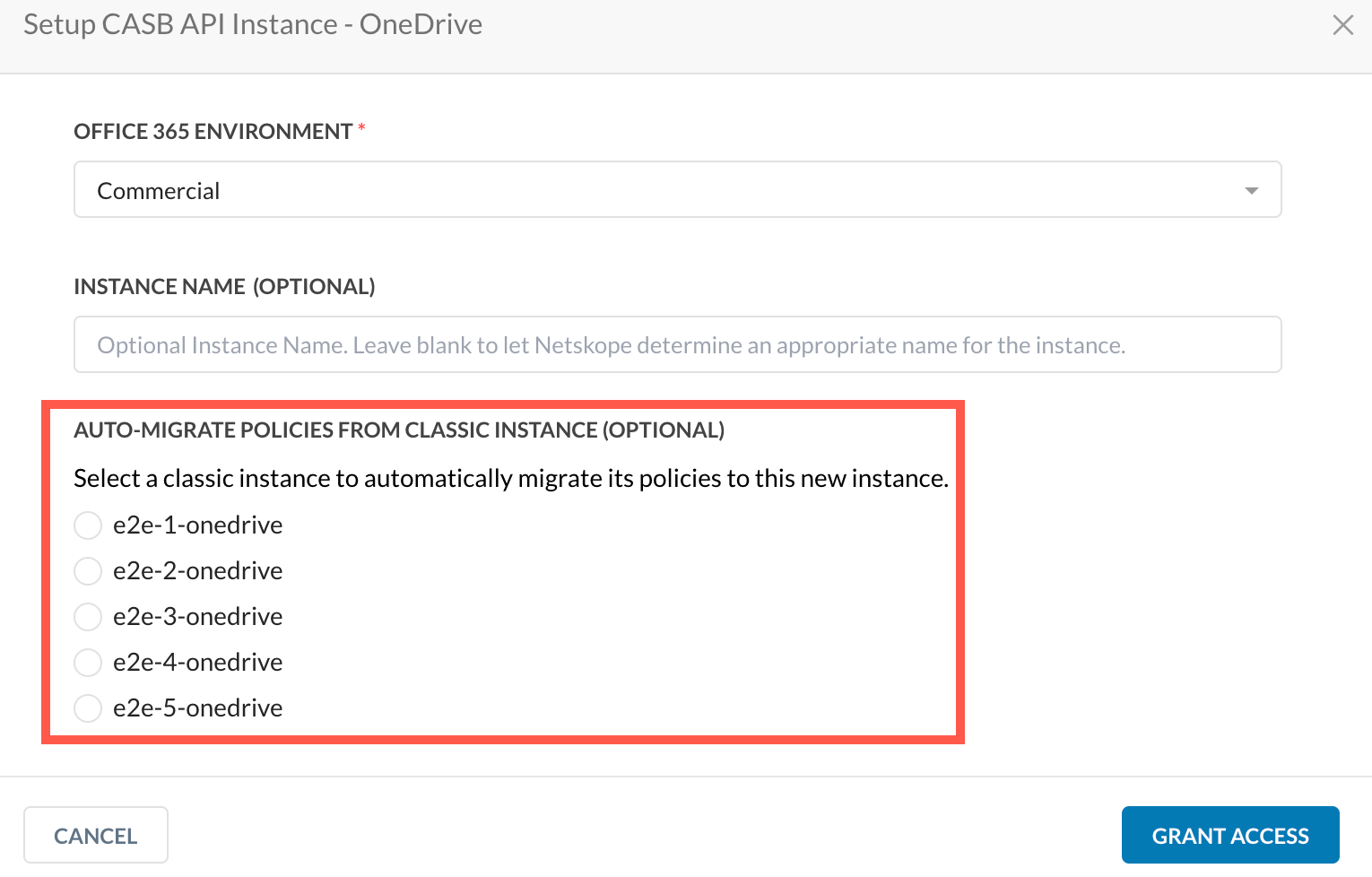
-
Click Grant Access.
Next Generation API Data Protection then builds an inventory of the instance and translates and configures its policies in Next Generation automatically. You do not need to take any action while this runs.
Review Migration Results
Once background migration finishes, Netskope notifies you on the Next Generation instance page so you can review what happened before you cut over from Classic.
To review the results:
-
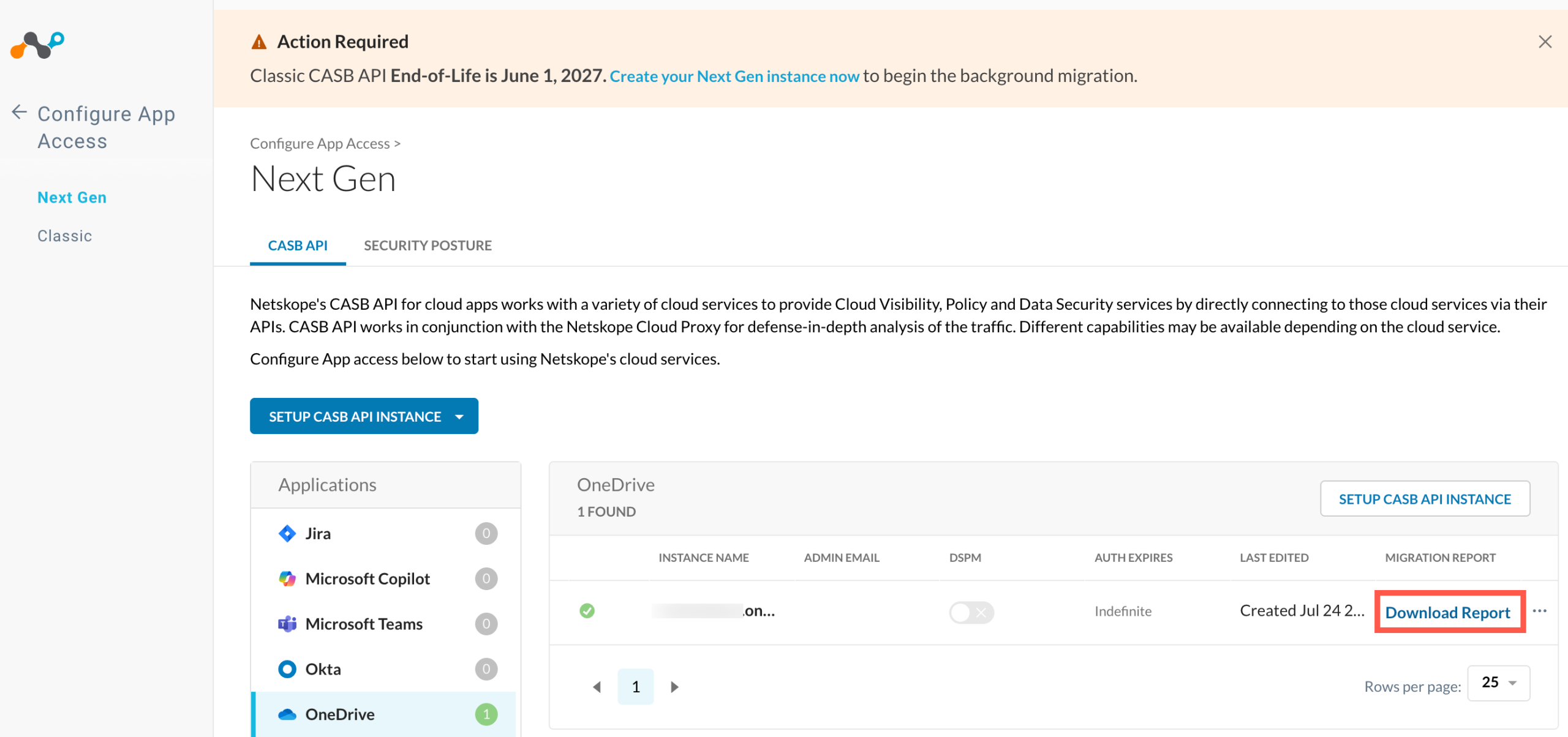
Navigate to Settings > API-enabled Protection > Configure App Access > Next Gen.
-
Identify the SaaS app you have migrated. Click Download Report to get a PDF listing every policy and its migration outcome, including guidance for any policy that needs manual action.
-
Review each migrated policy in Next Generation, then enable it.
To enable the Next Generation API Data Protection policy, navigate to Policies > API Data Protection > SaaS > Next Gen.
-
Disable the matching policy in your Classic platform.
To disable classic API Data Protection, navigate to Policies > API Data Protection > SaaS > Classic.
Enable the Next Generation policy before disabling the Classic one, so there is no gap in coverage while you cut over.Do not delete your Classic instance immediately after migrating. Wait for six months or the duration of your incident retention period. Consult your Netskope sales representative to confirm the exact retention period. During this time, you can manage incidents and work with quarantined files. -
Post retention period, delete the classic instance. To do so, navigate to Settings > Configure App Access > Classic, select the SaaS app, then click the Remove Instance icon to delete the app instance.