

This document explains how to configure the Okta plugin with the Cloud Risk Exchange module of the Netskope Cloud Exchange platform. The Okta Plugin fetches Users (Directory > People page), their Risk Levels and Applications (Applications page) from the Okta platform. This plugin also performs actions on Okta users, like Add users to a group, Remove users from a group, Upsert User Risk, and Push risk score (using Security Events Provider).
The Push risk score enables action via group membership changes used in Okta Authentication Policies when Netskope identifies a risky user, and to share risk signals with Okta Identity Threat Protection. Netskope normalization score mapping = RiskLevel Low: 875, RiskLevel Medium: 625, RiskLevel High: 375, RiskLevel None.
Prerequisites
To complete this integration, you need:
- A Netskope tenant (or multiple, for example, production and development/test instances).
- A Netskope Cloud Exchange tenant with the Tenant plugin and Risk Exchange plugin already configured.
- Advanced UEBA already configured on your Netskope tenant.
- Access to your Okta Domain and API Token for performing group operations.
- For Push Risk Score:
- The public key generated in the steps below is to be hosted publicly.
- Netskope Advanced UEBA license.
- Okta Identity Protection license. Go here for more information.
- Connectivity to one of the following hosts:
- https://<user>.oktapreview.com/
- https://<user>.okta.com/
- https://<user>.okta-emea.com/
You only need any one of the URLs mentioned above for the plugin.
Okta Plugin Support
Okta supports pulling of Users, their risk levels from the Directory > Profile page and Applications from the Applications page. This plugin supports performing actions on the user.
| Type of data pulled |
|
| Actions |
|
Mappings
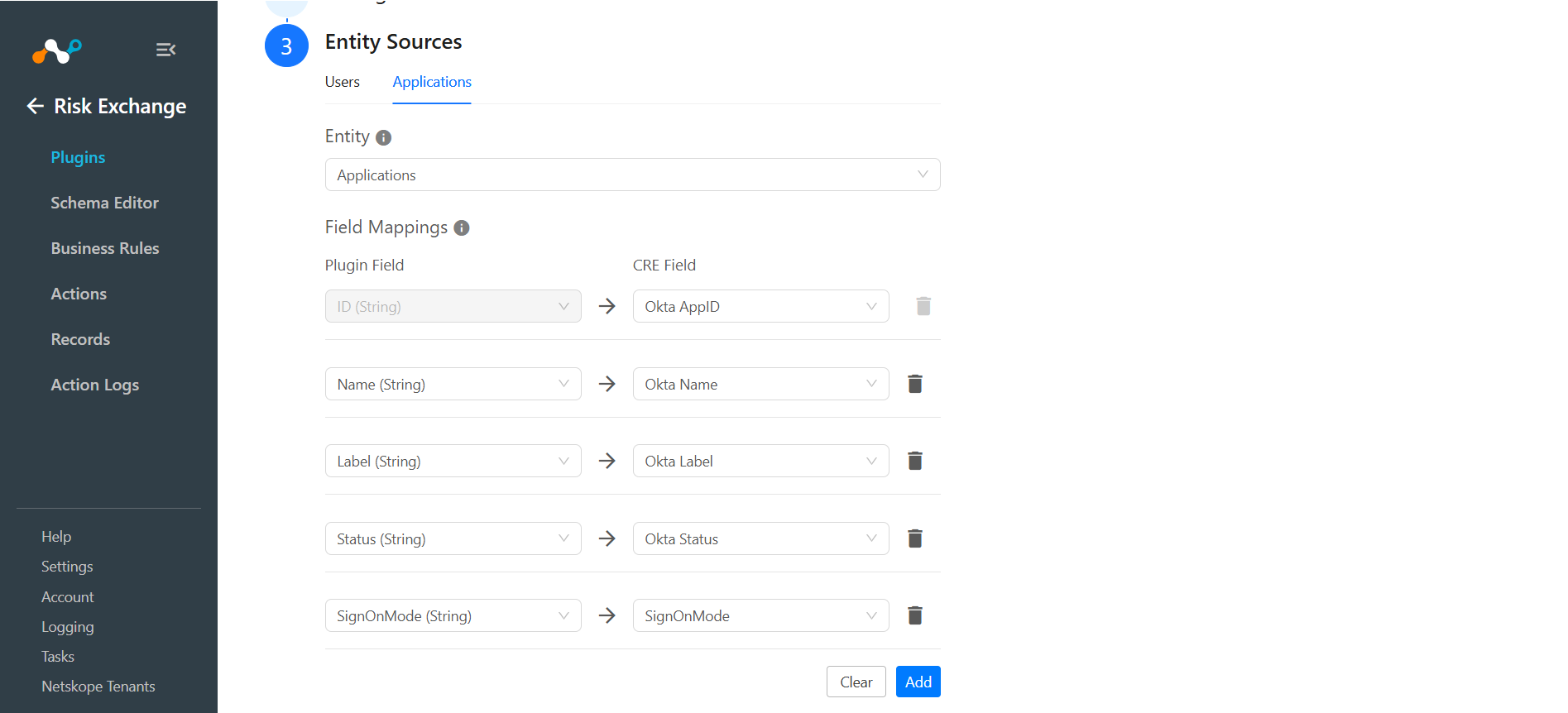
Pull Mapping for Application
| Plugin Field | Expected Datatype | Suggested Field Name | Suggested Aggregate Strategy |
|---|---|---|---|
| ID | String | Okta ID | Unique |
| Name | String | Okta App Name | Unique |
| Label | String | Okta App Label | Overwrite |
| Status | String | Okta Status | Overwrite |
| SignOnMode | String | Okta Sign On Mode | Overwrite |
Pull Mapping for Users
| Plugin Field Label | Expected Data Type | Suggested Field Label | Suggested Aggregate Strategy |
|---|---|---|---|
| User ID | String | User ID | Unique |
| Primary Email | String | Primary Email | Unique |
| Login Username (email) | String | Login Email | Unique |
| Second Email | String | Second Email | Overwrite |
| First Name | String | First Name | Overwrite |
| Last Name | String | Last Name | Overwrite |
| Risk Level | String | Risk Level | Overwrite |
| Netskope Normalized Score | Number | Normalized Score | Overwrite |
Score Mapping
The expected score type on Okta is low, medium, and high. Make sure the scores are mapped as String along with the above Okta supported scores when the schema is created for using the Push Risk Score Action.
Mapping will be used to view the pulled Users, their respective details, and Application details. Mapped fields during plugin configuration will be visible on the Records page after the data is pulled. Here are the suggested mappings that should be used while configuring the plugin.
Historical Score Field Mapping
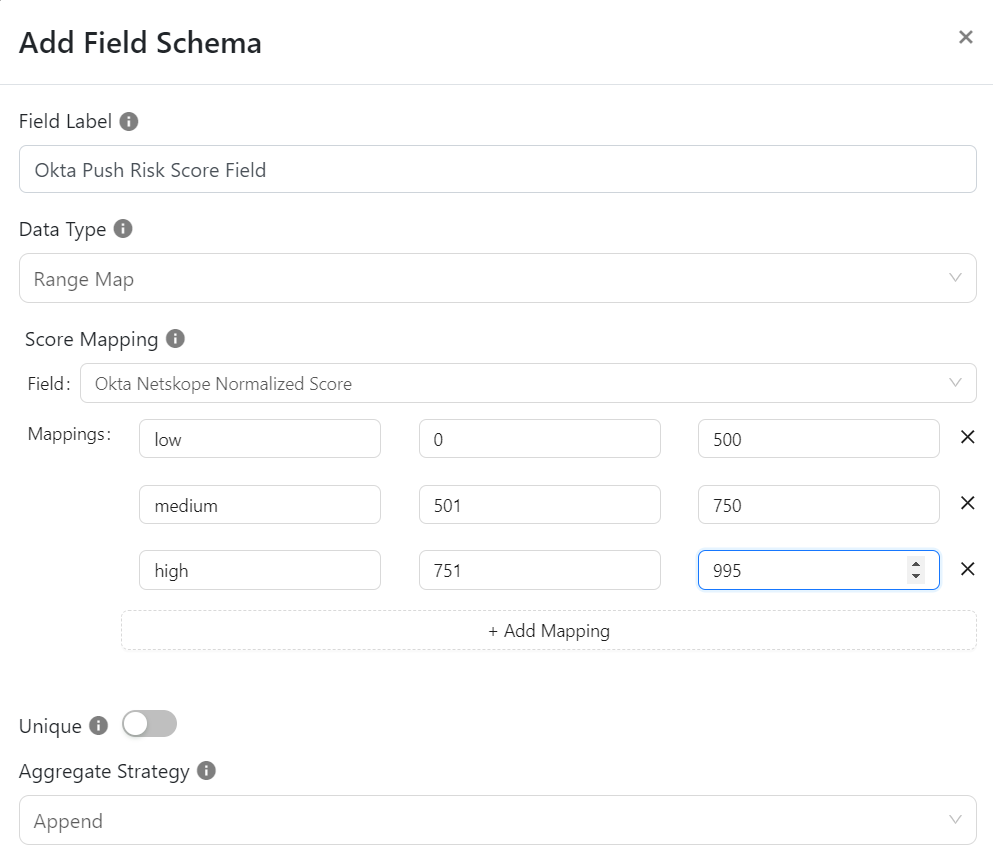
Create a field that can store the historical score levels for the Okta’s Push Risk Score action.
- On the Schema Editor page, click on the + icon to add the fields.
- Provide a Field Label.
- Select Range Map for the Data Type.
- In the Score Mapping Field, select the field that is being used to store the Netskope Normalized Score (note that this should be a Merge field).
- Add the Mapping as per the below image.
- Select Append for the Aggregate Strategy parameter.
- Click Save.
Permissions
For configuring the API Token, make sure you have super administrator privileges.
API Details
List of APIs used
| API Detail | Method | Endpoint |
|---|---|---|
| Get All Users | GET | /api/v1/users |
| Fetch Risk Level | GET | /api/v1/users/<user_id>/risk |
| Get All Groups | GET | /api/v1/groups |
| Create Group | POST | /api/v1/groups |
| Add to Group | PUT | /api/v1/groups/<group_id>/users/<user_id> |
| Remove from Group | DELETE | /api/v1/groups/<group_id>/users/<user_id> |
| Generate Security Provider | POST | /api/v1/security-events-providers |
| Fetch all Security Events Provider | GET | /api/v1/security-events-providers |
| Update Security Events Provider | PUT | /api/v1/security-events-providers/{provider_id} |
| Upsert User Risk | PUT | /api/v1/users/<user_id>/risk |
| Push Risk Score | POST | /security/api/v1/security-events |
| Fetch Applications | GET | /api/v1/apps |
Generating SET Token – for Push Risk Score Action: The SET Token will be generated using the JWT library using the RS256 Algorithm and the event schema.
Get All Users
Endpoint: {{base_url}}/api/v1/users
Method: GET
Data
| Parameter | Value |
|---|---|
| limit | 200 |
Headers
| Key | Value |
|---|---|
| Accept | application/json |
| Content-Type | application/json |
| okta-response | omitCredentials, omitCredentialsLinks, omitTransitioningToStatus |
| Authorization | SSWS <TOKEN> |
Sample Response
[
    {
        "id": "00ua91artpqbRy3J61d7",
        "status": "STAGED",
        "created": "2023-09-27T09:50:36.000Z",
        "activated": null,
        "statusChanged": null,
        "lastLogin": null,
        "lastUpdated": "2023-09-27T12:24:26.000Z",
        "passwordChanged": null,
        "type": {
            "id": "oty72m75ugKF1nf6T1d7"
        },
        "profile": {
            "firstName": "KeshavTest",
            "lastName": "KeshavTest",
            "mobilePhone": null,
            "secondEmail": null,
            "login": "keshavtest@hackermob.co.in",
            "email": "keshavtest@hackermob.co.in"
        },
        "credentials": {
            "provider": {
                "type": "OKTA",
                "name": "OKTA"
            }
        },
        "_links": {
            "self": {
                "href": "https://cae-netskope.oktapreview.com/api/v1/users/00ua91artpqbRy3J61d7"
            }
        }
    }
]
Get All Groups
Endpoint: {{base_url}}/api/v1/groups
Method: GET
Params
| Parameter | Value |
|---|---|
| limit | 200 |
| filter | type eq OKTA_GROUP |
Headers
| Key | Value |
|---|---|
| Accept | application/json |
| Content-Type | application/json |
| Authorization | SSWS <TOKEN> |
Sample Response
[
    {
        "id": "00g8lfgw3bGRdOEIw1d7",
        "created": "2023-06-20T09:31:38.000Z",
        "lastUpdated": "2023-06-20T09:31:38.000Z",
        "lastMembershipUpdated": "2023-10-18T10:47:25.000Z",
        "objectClass": [
            "okta:user_group"
        ],
        "type": "OKTA_GROUP",
        "profile": {
            "name": "addchiragtogroup",
            "description": "Created From Netskop CRE"
        },
        "_links": {
            "logo": [
                {
                    "name": "medium",
                    "href": "https://op3static.oktacdn.com/assets/img/logos/groups/odyssey/okta-medium.30ce6d4085dff29412984e4c191bc874.png",
                    "type": "image/png"
                },
                {
                    "name": "large",
                    "href": "https://op3static.oktacdn.com/assets/img/logos/groups/odyssey/okta-large.c3cb8cda8ae0add1b4fe928f5844dbe3.png",
                    "type": "image/png"
                }
            ],
            "users": {
                "href": "https://cae-netskope.oktapreview.com/api/v1/groups/00g8lfgw3bGRdOEIw1d7/users"
            },
            "apps": {
                "href": "https://cae-netskope.oktapreview.com/api/v1/groups/00g8lfgw3bGRdOEIw1d7/apps"
            }
        }
    },
|
Create Group
Endpoint: {{base_url}}/api/v1/groups
Method: POST
Data
{
  "profile": {
    "name": "<GROUP NAME>",
    "description": "GROUP DESCRIPTION"
  }
}
Headers
| Key | Value |
|---|---|
| Accept | application/json |
| Content-Type | application/json |
| Authorization | SSWS <TOKEN> |
Sample Response
{
    "id": "00gdpnanjcFNe98yE1d7",
    "created": "2024-03-28T04:06:24.000Z",
    "lastUpdated": "2024-03-28T04:06:24.000Z",
    "lastMembershipUpdated": "2024-03-28T04:06:24.000Z",
    "objectClass": [
        "okta:user_group"
    ],
    "type": "OKTA_GROUP",
    "profile": {
        "name": "West Coast Users2",
        "description": "West Coast Users"
    },
    "_links": {
        "logo": [
            {
                "name": "medium",
                "href": "https://op3static.oktacdn.com/assets/img/logos/groups/odyssey/okta-medium.30ce6d4085dff29412984e4c191bc874.png",
                "type": "image/png"
            },
            {
                "name": "large",
                "href": "https://op3static.oktacdn.com/assets/img/logos/groups/odyssey/okta-large.c3cb8cda8ae0add1b4fe928f5844dbe3.png",
                "type": "image/png"
            }
        ],
        "users": {
            "href": "https://cae-netskope.oktapreview.com/api/v1/groups/00gdpnanjcFNe98yE1d7/users"
        },
        "apps": {
            "href": "https://cae-netskope.oktapreview.com/api/v1/groups/00gdpnanjcFNe98yE1d7/apps"
        }
    }
}
Add to Group
Endpoint: {{base_url}}/api/v1/groups/{{group_Id}}/users/{{user_Id}}
Method: PUT
Headers
| Key | Value |
|---|---|
| Accept | application/json |
| Content-Type | application/json |
| Authorization | SSWS <TOKEN> |
Sample Response
204 - <No Content>
Remove from Group
Endpoint: {{nase_url}}/api/v1/groups/{{group_Id}}/users/{{user_Id}}
Method: DELETE
Headers
| Key | Value |
|---|---|
| Accept | application/json |
| Content-Type | application/json |
| Authorization | SSWS <TOKEN> |
Sample Response
204 <No Content>
Generate Security Provider
Endpoint:{{base_url}}/api/v1/security-events-providers
Method: POST
Data
 {
    "name": "Netskope Security Events Provider",
    "type": "Netskope",
    "settings": {
        "issuer": "<ISSUER URL>",
        "jwks_url": "JWKS URL"

    }
  }
Headers
| Key | Value |
|---|---|
| Accept | application/json |
| Content-Type | application/json |
| Authorization | SSWS <TOKEN> |
Sample Response
{
    "id": "ssedpne7xpmtBACBk1d7",
    "name": "Netskope Security Events Provider",
    "type": "App",
    "status": "ACTIVE",
    "settings": {
        "issuer": "https://tanushree12.pythonanywhere.com",
        "jwks_url": "https://tanushree12.pythonanywhere.com/jwks"
    },
    "_links": {
        "self": {
            "href": "https://cae-netskope.oktapreview.com/api/v1/security-events-providers/ssedpne7xpmtBACBk1d7",
            "hints": {
                "allow": [
                    "GET",
                    "PUT",
                    "DELETE"
                ]
            }
        },
        "deactivate": {
            "href": "https://cae-netskope.oktapreview.com/api/v1/security-events-providers/ssedpne7xpmtBACBk1d7/lifecycle/deactivate",
            "hints": {
                "allow": [
                    "POST"
                ]
            }
        }
    }
}
Fetch all Security Events Provider
Endpoint:{{base_url}}/api/v1/security-events-providers
Method: GET
Headers
| Key | Value |
|---|---|
| Accept | application/json |
| Content-Type | application/json |
| Authorization | SSWS <TOKEN> |
Sample Response
[
    {
        "id": "ssedv9tn73Q679Pvw1d7",
        "name": "SecurityABC",
        "type": "App",
        "status": "ACTIVE",
        "settings": {
            "issuer": "https://netskope-tech.workflows.okta.com/api/flo/b8a6fc8f1a6446fe0074fa7fc783150c/invoke",
            "jwks_url": "https://netskope-tech.workflows.okta.com/api/flo/b8a6fc8f1a6446fe0074fa7fc783150c/invoke"
        },
        "_links": {
            "self": {
                "href": "https://cae-netskope.oktapreview.com/api/v1/security-events-providers/ssedv9tn73Q679Pvw1d7",
                "hints": {
                    "allow": [
                        "GET",
                        "PUT",
                        "DELETE"
                    ]
                }
            },
            "deactivate": {
                "href": "https://cae-netskope.oktapreview.com/api/v1/security-events-providers/ssedv9tn73Q679Pvw1d7/lifecycle/deactivate",
                "hints": {
                    "allow": [
                        "POST"
                    ]
                }
            }
        }
    },
    {
        "id": "ssedwd2i36lLkzfrJ1d7",
        "name": "Netskope Security Events Provider",
        "type": "Netskope",
        "status": "ACTIVE",
        "settings": {
            "issuer": "https://trial-5192595.workflows.okta.com/",
            "jwks_url": "https://trial-5192595.workflows.okta.com/api/flo/932a84212b5fc8c633c2255859fa565e/invoke"
        },
        "_links": {
            "self": {
                "href": "https://cae-netskope.oktapreview.com/api/v1/security-events-providers/ssedwd2i36lLkzfrJ1d7",
                "hints": {
                    "allow": [
                        "GET",
                        "PUT",
                        "DELETE"
                    ]
                }
            },
            "deactivate": {
                "href": "https://cae-netskope.oktapreview.com/api/v1/security-events-providers/ssedwd2i36lLkzfrJ1d7/lifecycle/deactivate",
                "hints": {
                    "allow": [
                        "POST"
                    ]
                }
            }
        }
    }
]
Update Security Events Provider
Endpoint:{{base_url}}/api/v1/security-events-providers/{provider_id}
Method: PUT
Data
{
   "name":"Netskope Security Events Provider",
   "type":"Netskope CE",
   "settings":{
      "issuer":"https://tanushree1234.pythonanywhere.com",
      "jwks_url":"https://tanushree1234.pythonanywhere.com/jwks"
   }
}
Headers
| Key | Value |
|---|---|
| Accept | application/json |
| Content-Type | application/json |
| Authorization | SSWS <TOKEN> |
Sample Response
{
    "id": "ssedv9tn73Q679Pvw1d7",
    "name": "SecurityABC",
    "type": "Netskope CE",
    "status": "ACTIVE",
    "settings": {
        "issuer": "https://tanushree1234.pythonanywhere.com",
        "jwks_url": "https://tanushree1234.pythonanywhere.com/jwks"
    },
    "_links": {
        "self": {
            "href": "https://cae-netskope.oktapreview.com/api/v1/security-events-providers/ssedv9tn73Q679Pvw1d7",
            "hints": {
                "allow": [
                    "GET",
                    "PUT",
                    "DELETE"
                ]
            }
        },
        "deactivate": {
            "href": "https://cae-netskope.oktapreview.com/api/v1/security-events-providers/ssedv9tn73Q679Pvw1d7/lifecycle/deactivate",
            "hints": {
                "allow": [
                    "POST"
                ]
            }
        }
    }
}
Upsert User Risk
Endpoint: {{base_url}}/api/v1/users/00ufen752glXW1gMs1d7/risk
Headers
| Key | Value |
|---|---|
| Accept | application/json |
| Content-Type | application/json |
| Authorization | SSWS <TOKEN> |
Method: PUT
Data:
{
     "riskLevel": "<RISK_LEVEL>"
}
Headers
| Key | Value |
|---|---|
| Accept | application/json |
| Content-Type | application/json |
| Authorization | SSWS <TOKEN> |
Sample Response
{
    "riskLevel": "HIGH",
    "reason": "Admin override risk",
    "_links": {
        "user": {
            "href": "https://cae-netskope.oktapreview.com/api/v1/users/00ufen752glXW1gMs1d7",
            "hints": {
                "allow": [
                    "GET"
                ]
            }
        },
        "self": {
            "href": "https://cae-netskope.oktapreview.com/api/v1/users/00ufen752glXW1gMs1d7/risk",
            "hints": {
                "allow": [
                    "GET",
                    "PUT"
                ]
            }
        }
    }
}
Fetch Applications
Endpoint: {{base_url}}/api/v1/apps
Method: GET
Data
| Parameter | Value |
|---|---|
| limit | 200 |
Headers
| Key | Value |
|---|---|
| Accept | application/json |
| Content-Type | application/json |
| Authorization | SSWS <TOKEN> |
Sample Response
[
    {
        "id": "0oa72m75tw1XO0r3D1d7",
        "name": "saasure",
        "label": "Okta Admin Console",
        "status": "ACTIVE",
        "lastUpdated": "2023-02-21T16:38:58.000Z",
        "created": "2023-02-21T16:38:58.000Z",
        "accessibility": {
            "selfService": false,
            "errorRedirectUrl": null,
            "loginRedirectUrl": null
        },
        "visibility": {
            "autoSubmitToolbar": false,
            "hide": {
                "iOS": false,
                "web": false
            },
            "appLinks": {
                "admin": true
            }
        },
        "features": [],
        "signOnMode": "OPENID_CONNECT",
        "credentials": {
            "userNameTemplate": {
                "template": "${source.login}",
                "type": "BUILT_IN"
            },
            "signing": {
                "kid": "R11xtpeeNRodOH4suQSc2Hl253u4nQgC8iDDL-HLgf0"
            }
        },
        "settings": {
            "app": {},
            "notifications": {
                "vpn": {
                    "network": {
                        "connection": "DISABLED"
                    },
                    "message": null,
                    "helpUrl": null
                }
            },
            "manualProvisioning": false,
            "implicitAssignment": false
        },
        "_links": {
            "uploadLogo": {
                "href": "https://cae-netskope.oktapreview.com/api/v1/apps/0oa72m75tw1XO0r3D1d7/logo",
                "hints": {
                    "allow": [
                        "POST"
                    ]
                }
            },
            "appLinks": [
                {
                    "name": "admin",
                    "href": "https://cae-netskope.oktapreview.com/home/saasure/0oa72m75tw1XO0r3D1d7/2",
                    "type": "text/html"
                }
            ],
            "profileEnrollment": {
                "href": "https://cae-netskope.oktapreview.com/api/v1/policies/rst72m7606HryRjZZ1d7"
            },
            "policies": {
                "href": "https://cae-netskope.oktapreview.com/api/v1/apps/0oa72m75tw1XO0r3D1d7/policies",
                "hints": {
                    "allow": [
                        "PUT"
                    ]
                }
            },
            "groups": {
                "href": "https://cae-netskope.oktapreview.com/api/v1/apps/0oa72m75tw1XO0r3D1d7/groups"
            },
            "logo": [
                {
                    "name": "medium",
                    "href": "https://op3static.oktacdn.com/assets/img/logos/okta_admin_app.da3325676d57eaf566cb786dd0c7a819.png",
                    "type": "image/png"
                }
            ],
            "accessPolicy": {
                "href": "https://cae-netskope.oktapreview.com/api/v1/policies/rst72m75yvZwMnApH1d7"
            },
            "users": {
                "href": "https://cae-netskope.oktapreview.com/api/v1/apps/0oa72m75tw1XO0r3D1d7/users"
            },
            "deactivate": {
                "href": "https://cae-netskope.oktapreview.com/api/v1/apps/0oa72m75tw1XO0r3D1d7/lifecycle/deactivate"
            }
        }
    }
]
Push Risk Score
Endpoint: {{base_url}}/security/api/v1/security-events
Method: POST
Data: <SET TOKEN>
Headers
| Key | Value |
|---|---|
| Accept | application/json |
| Content-Type | application/json |
Sample Response
202 response
Fetch Applications
Endpoint: {{base_url}}/api/v1/apps
Method: GET
Data
| Parameter | Value |
|---|---|
| limit | 200 |
Headers
| Key | Value |
|---|---|
| Accept | application/json |
| Content-Type | application/json |
| Authorization | SSWS <TOKEN> |
Sample Response
[
    {
        "id": "0oa72m75tw1XO0r3D1d7",
        "name": "saasure",
        "label": "Okta Admin Console",
        "status": "ACTIVE",
        "lastUpdated": "2023-02-21T16:38:58.000Z",
        "created": "2023-02-21T16:38:58.000Z",
        "accessibility": {
            "selfService": false,
            "errorRedirectUrl": null,
            "loginRedirectUrl": null
        },
        "visibility": {
            "autoSubmitToolbar": false,
            "hide": {
                "iOS": false,
                "web": false
            },
            "appLinks": {
                "admin": true
            }
        },
        "features": [],
        "signOnMode": "OPENID_CONNECT",
        "credentials": {
            "userNameTemplate": {
                "template": "${source.login}",
                "type": "BUILT_IN"
            },
            "signing": {
                "kid": "R11xtpeeNRodOH4suQSc2Hl253u4nQgC8iDDL-HLgf0"
            }
        },
        "settings": {
            "app": {},
            "notifications": {
                "vpn": {
                    "network": {
                        "connection": "DISABLED"
                    },
                    "message": null,
                    "helpUrl": null
                }
            },
            "manualProvisioning": false,
            "implicitAssignment": false
        },
        "_links": {
            "uploadLogo": {
                "href": "https://cae-netskope.oktapreview.com/api/v1/apps/0oa72m75tw1XO0r3D1d7/logo",
                "hints": {
                    "allow": [
                        "POST"
                    ]
                }
            },
            "appLinks": [
                {
                    "name": "admin",
                    "href": "https://cae-netskope.oktapreview.com/home/saasure/0oa72m75tw1XO0r3D1d7/2",
                    "type": "text/html"
                }
            ],
            "profileEnrollment": {
                "href": "https://cae-netskope.oktapreview.com/api/v1/policies/rst72m7606HryRjZZ1d7"
            },
            "policies": {
                "href": "https://cae-netskope.oktapreview.com/api/v1/apps/0oa72m75tw1XO0r3D1d7/policies",
                "hints": {
                    "allow": [
                        "PUT"
                    ]
                }
            },
            "groups": {
                "href": "https://cae-netskope.oktapreview.com/api/v1/apps/0oa72m75tw1XO0r3D1d7/groups"
            },
            "logo": [
                {
                    "name": "medium",
                    "href": "https://op3static.oktacdn.com/assets/img/logos/okta_admin_app.da3325676d57eaf566cb786dd0c7a819.png",
                    "type": "image/png"
                }
            ],
            "accessPolicy": {
                "href": "https://cae-netskope.oktapreview.com/api/v1/policies/rst72m75yvZwMnApH1d7"
            },
            "users": {
                "href": "https://cae-netskope.oktapreview.com/api/v1/apps/0oa72m75tw1XO0r3D1d7/users"
            },
            "deactivate": {
                "href": "https://cae-netskope.oktapreview.com/api/v1/apps/0oa72m75tw1XO0r3D1d7/lifecycle/deactivate"
            }
        }
    }
]
Performance Matrix
Below performance readings are conducted on a Large CE Stack with below-mentioned VM specifications by pulling 500K Applications records and User records each from Okta plugin.
| Stack details | Size: Large RAM: 32 GB CPU: 16 Cores |
| Time take to store the pulled Application records | ~15 mins |
| Time take to store the pulled User records with the Risk Levels | ~ 80 mins |
User Agent
netskope-ce-5.1.0-cre-okta-v1.1.0
Workflow
- Configure an Okta Entity Risk Policy.
- Create an Okta User.
- Assign Roles and Applications to Users
- Get your API Token.
- Get your Okta Domain.
- Generate a JWKS Public and Private Key.
- Get your Issuer and JWKS URL.
- Host the Public Key.
- Configure the Okta plugin.
- Configure a Business Rule.
- Configure Actions.
- Validate the Okta plugin.
Click play to watch a video.
Configure an Okta Entity Risk Policy
To add the Okta Entity Risk Policy refer to the below links, make sure to choose the detection as Security Events Provider Reported Risk.
https://help.okta.com/oie/en-us/content/topics/itp/detections.htm?cshid=csh-detections
https://help.okta.com/oie/en-us/content/topics/itp/add-entity-risk-policy-rule.htm
Create an Okta User
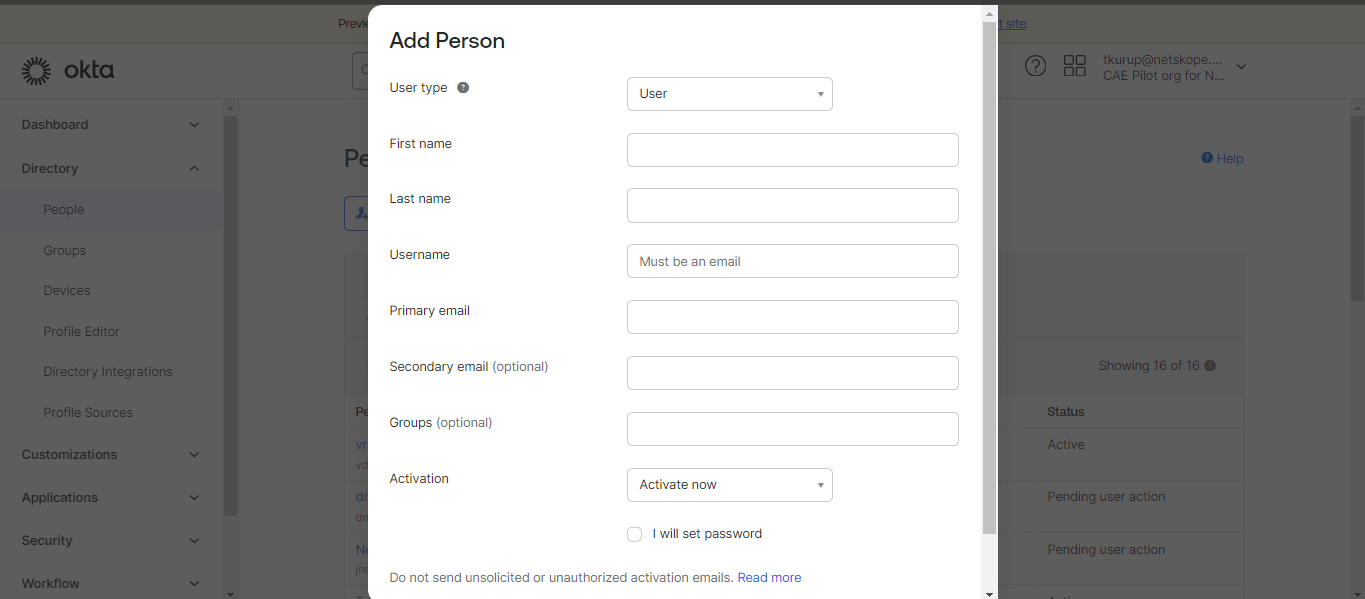
- Log in to Okta. Go to Directory > People. Click Add Person, enter the details, and then click Save.
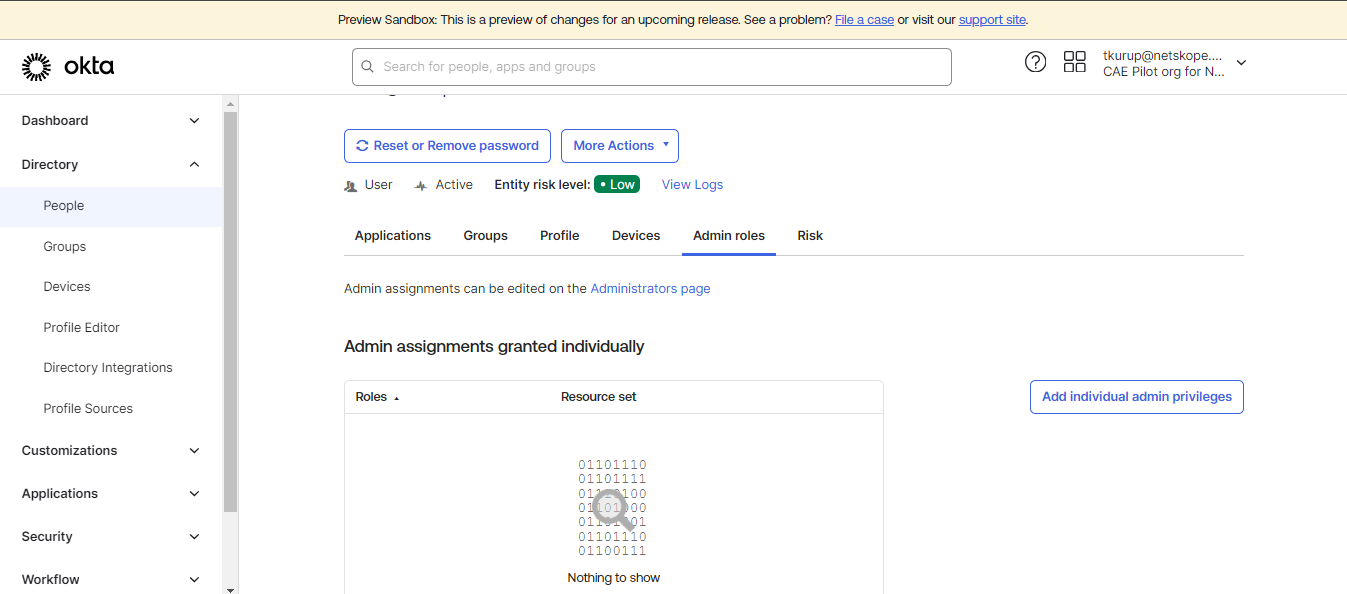
- After the user is created, it will be listed on the People page. Click on your user, go to Admin Roles, and then click Add individual admin privileges.
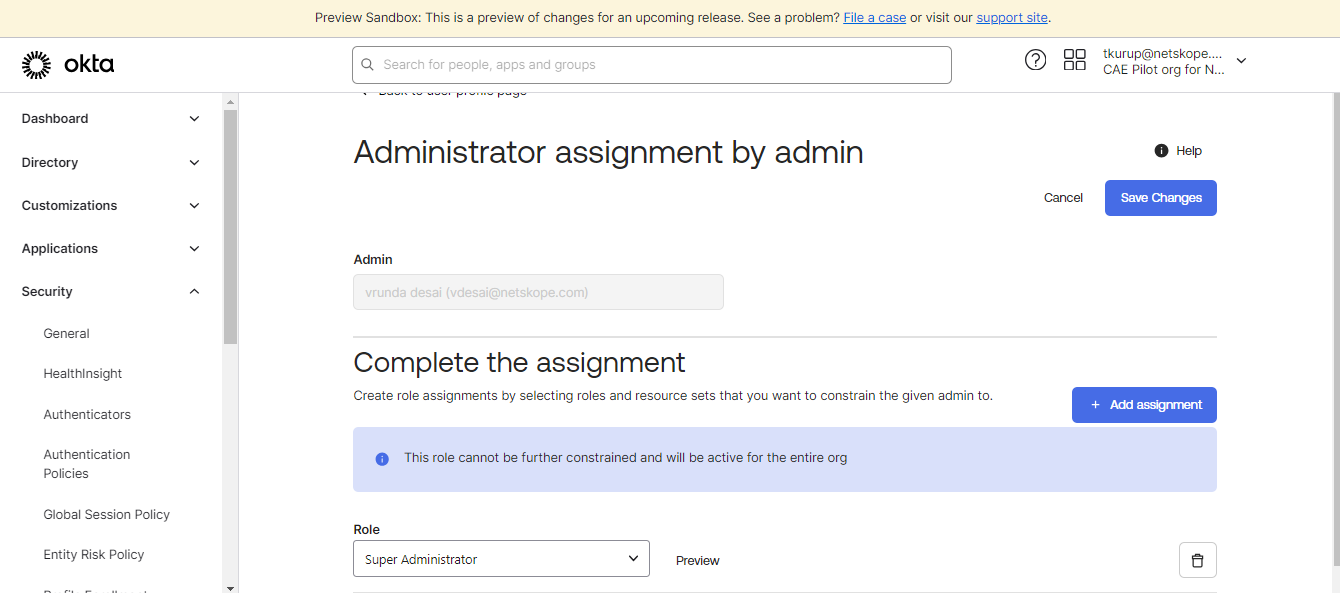
- In the Role dropdown, select Super Administrator and click Save Changes.
Assign Roles and Applications to Users
- Create a separate user that will be used for generating the API Token and performing API operations.
- Log in to your Okta platform using an admin account and click Admin.
- Go to Directory > People and click Add Person.
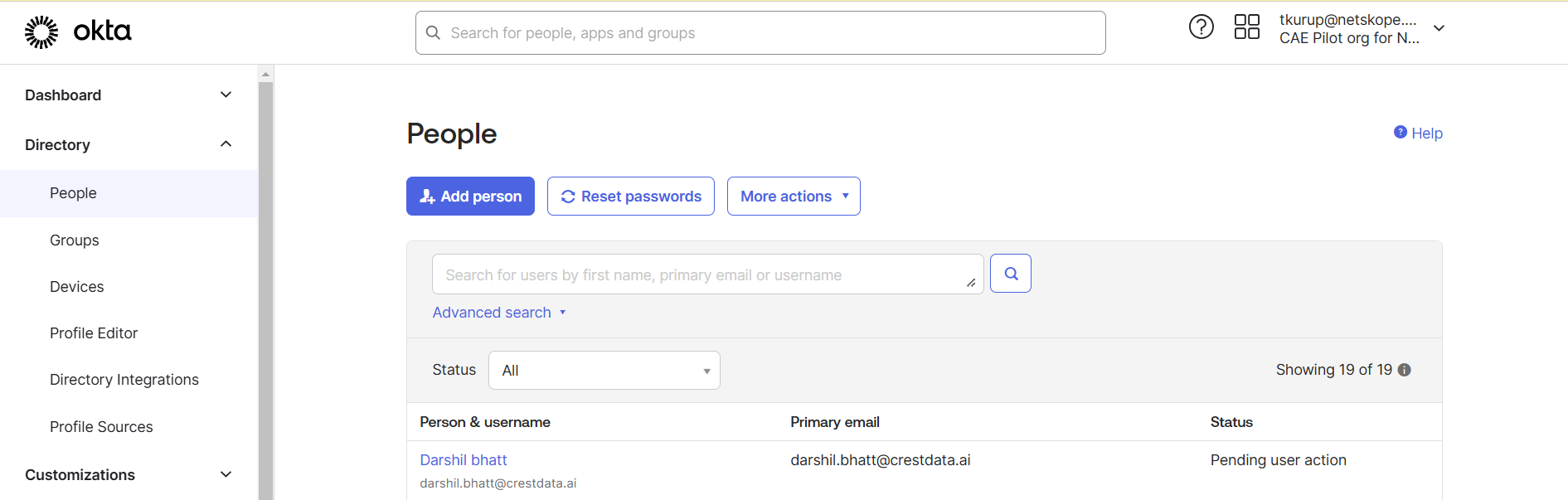
- Select User for the User Type.
- Enter the First Name, Last Name, and Username.
- Select the Password per your requirement and click Save.
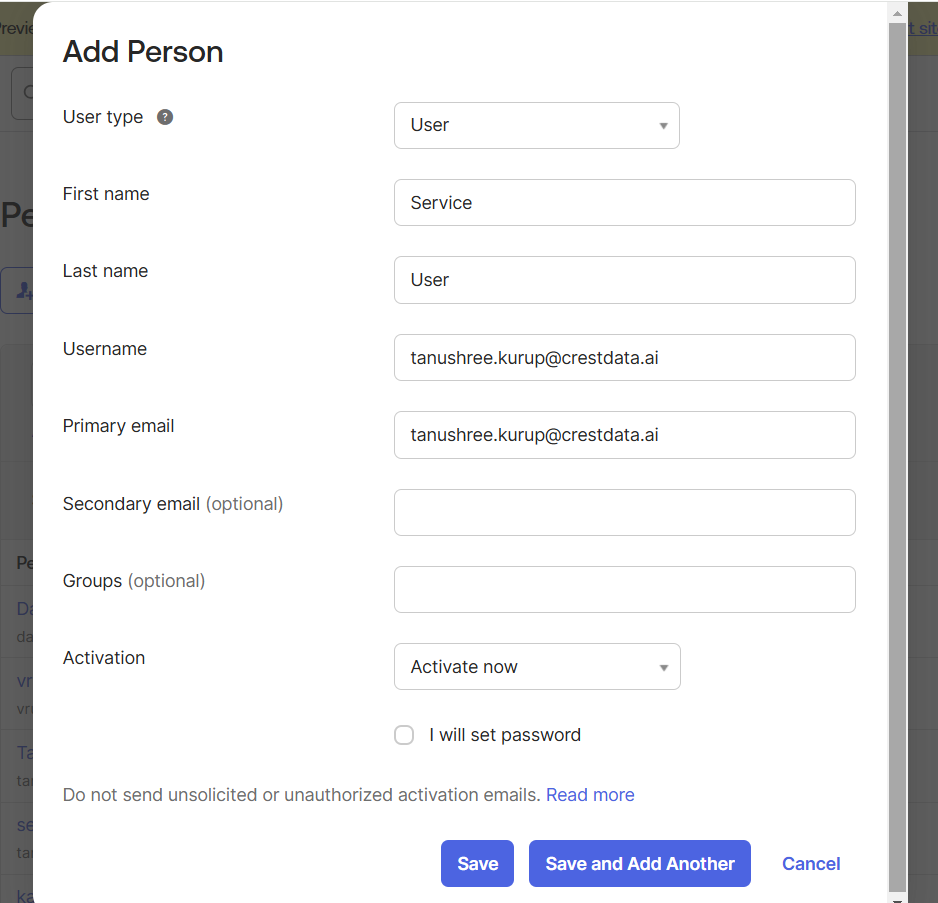
- Using the Password selected login, set up the authenticator for the newly created user.
- On the Directory > People page, select the user that you have created recently from the admin account.
- After you have successfully logged in to your new account, you will see the Admin roles tab on the People page. Click Admin Roles.
- Click Add assignment.
- Select Organization Administrator in the Role dropdown and click Save.
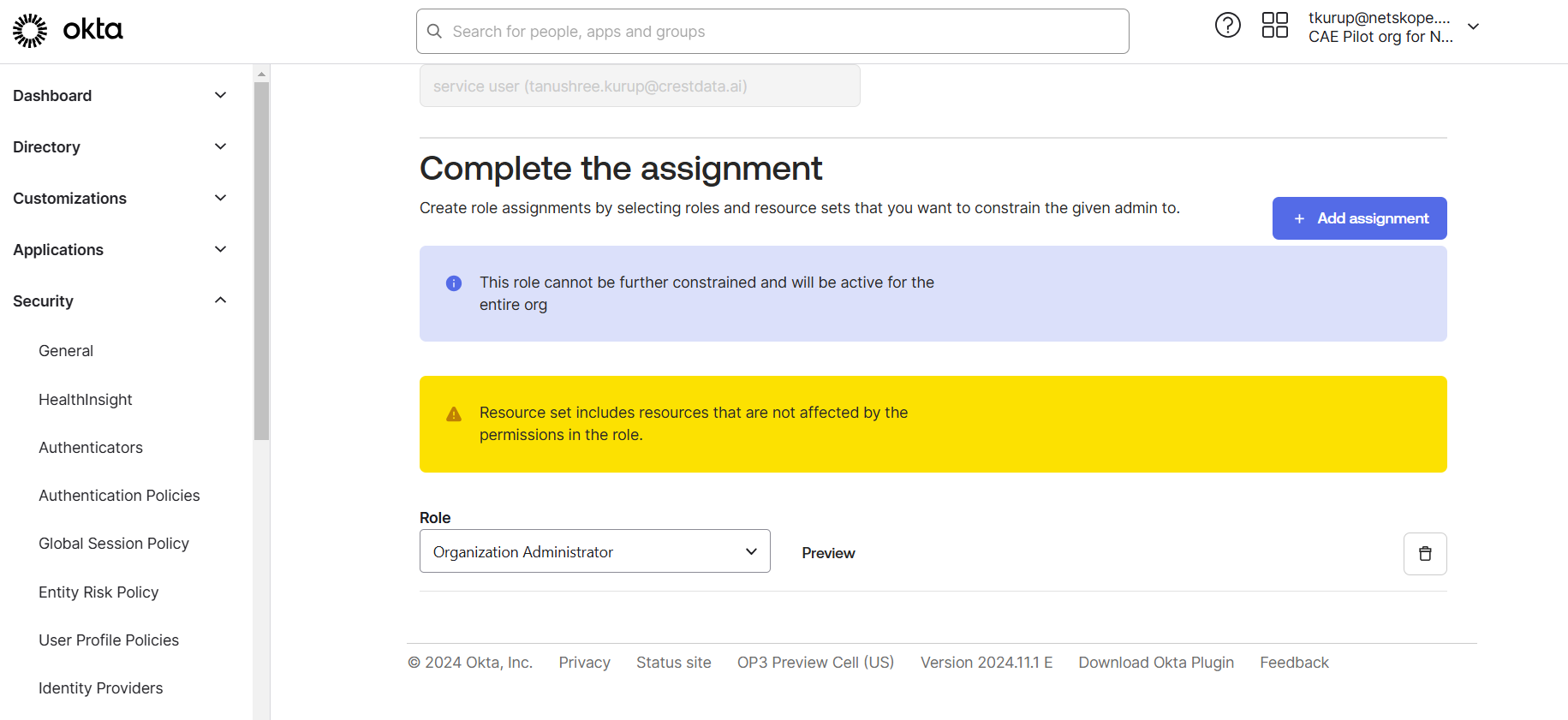
- Go to the Applications tab for the same user, click Assign Applications, select the Okta Workflows and Okta Workflow OAUTH applications, and then click Save.
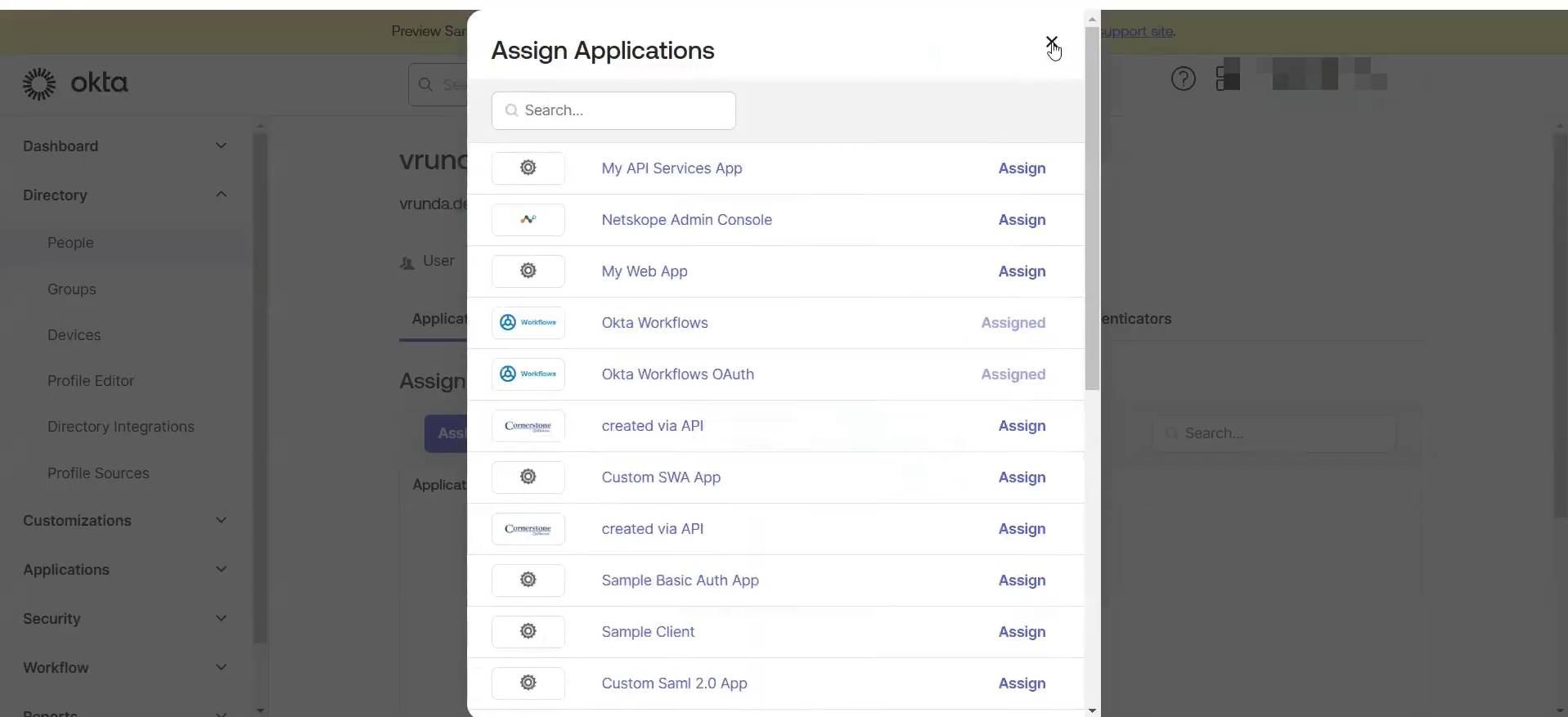
- Now log in to the Okta admin console using the newly created user and generate the API token.
Get your API Token
- Log in to your Okta platform and click Admin.
- Go to Security > API in the left panel and click Create Token.
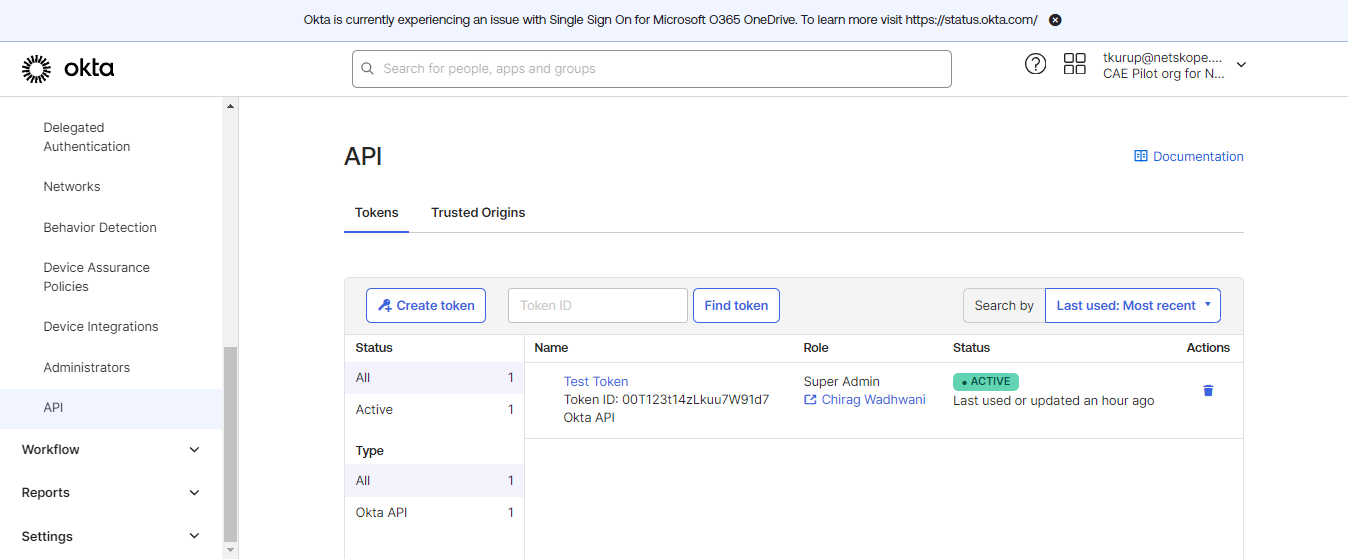
- Enter a token name and click Create Token.
- Copy the token value as it will only be visible once, and it is needed for the plugin configuration.
Get your Okta Domain
You can get the Okta domain from the top left corner of your Okta page. Click on your username and you will see a Base URL below your Username.
Make sure to add https:// with your Okta domain when you use it to configure the plugin.
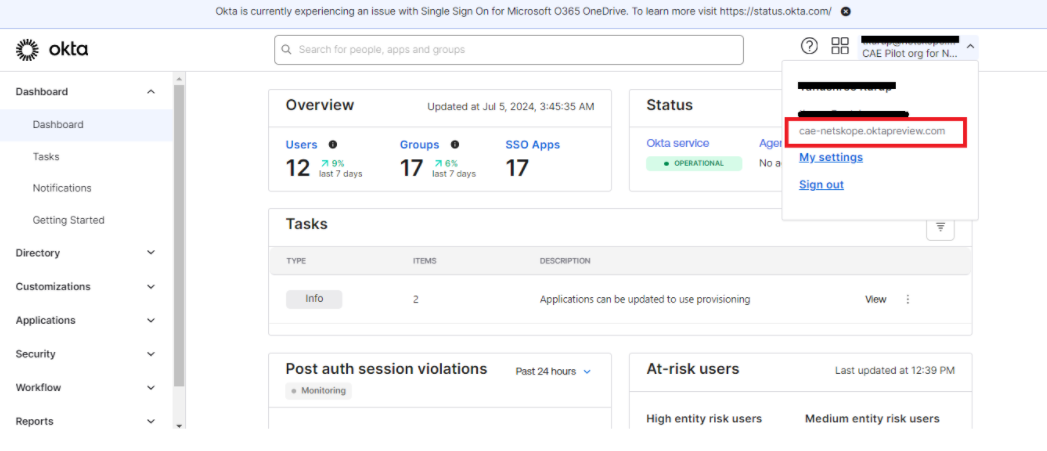
Generate a JWKS Public and Private Key Pair (Required for Push Risk Score Action for Okta Identity Threat Protection)
The Push Risk Score requires the public key to be hosted on a public URL. Here is one way of generating the Public and Private key pair.
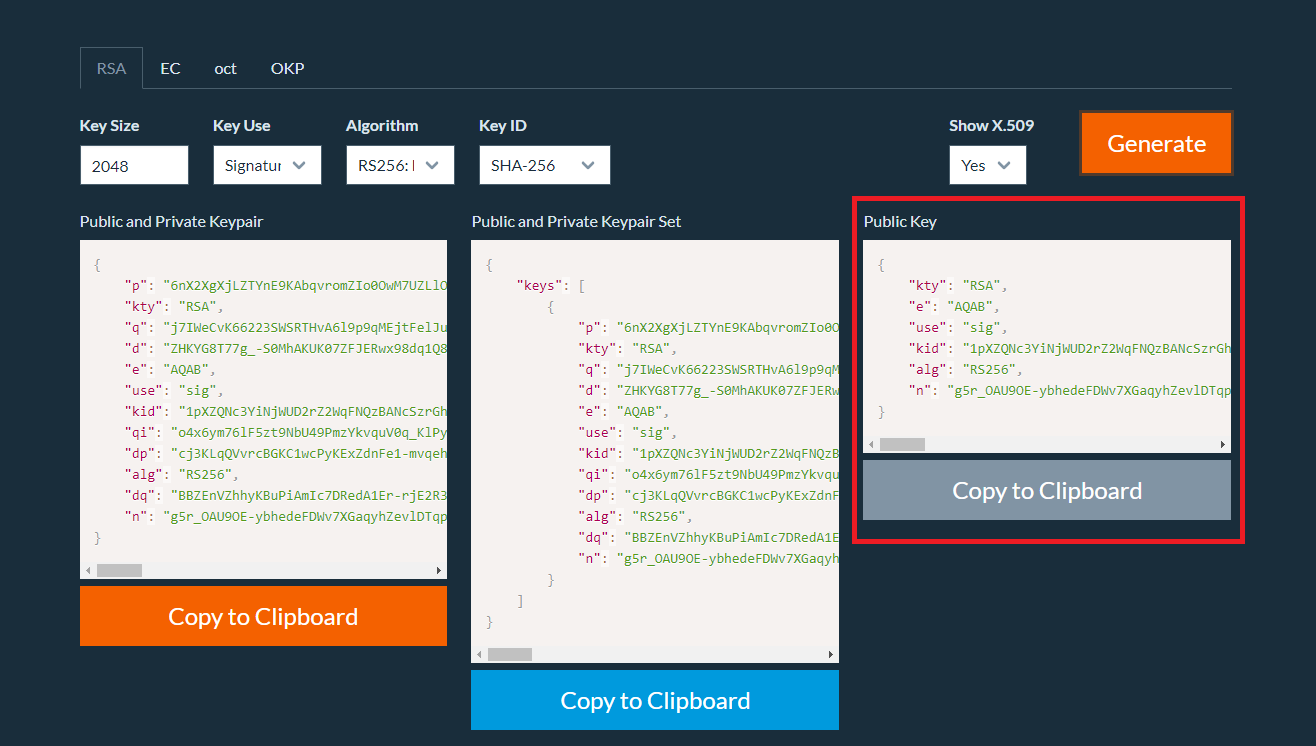
- Go to https://mkjwk.org/.
- Specify the following values to generate the key pair from the RSA tab:
- Key Size: 2048
- Key Use: Signature
- Algorithm: RS256
- Key ID: SHA-256
- Show X.509: Yes
- Click Generate.
- Copy and save the Public Key. Host this Public Key on a public URL. This public URL will be required for the sharing configuration. The Base URL used for posting the Public Key will be used as the Issuer URL.
- Scroll down, copy, and make a note of Private Key (X.509 PEM Format); this is required in the sharing configuration (Don’t use the Copy to Clipboard button; instead, copy manually as it may include \n for line break, which will result in invalid OEM format while using in the plugin configuration).
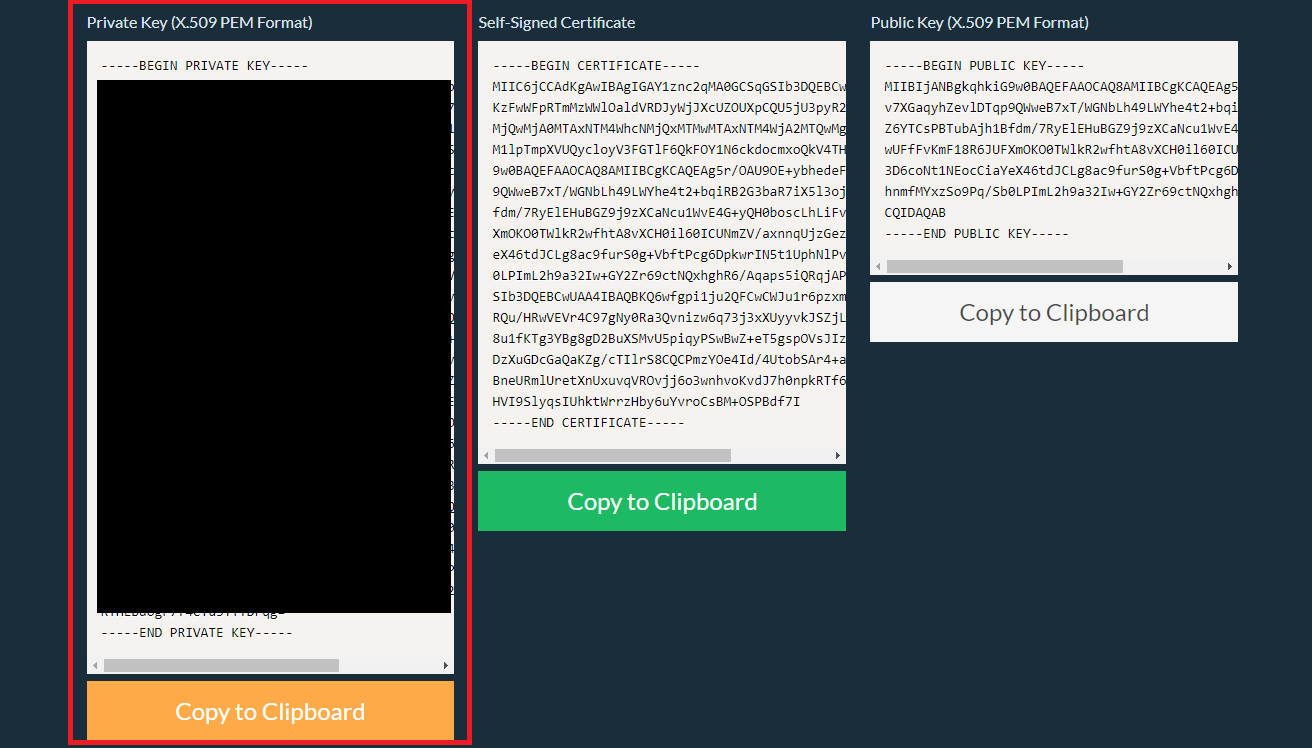
Note that the Public Key needs to be in the JWK format (to be hosted publicly), and the Private Key needs to be in the PEM format.
JWKS Format
{
    "keys":
    [
      <public key>
    ]
}
Get the Issuer and JWKS URL (Required for Push Risk Score Action)
You need to host the Public Key on a publicly-hosted URL. Here are the steps for creating the API endpoint in the Okta workflow for the Okta plugin, where the public API endpoint will be used as publicly hosted JWKS URL.
Host the Public Key
- Log in to Okta, and go to the admin console by clicking Admin in the top right corner.
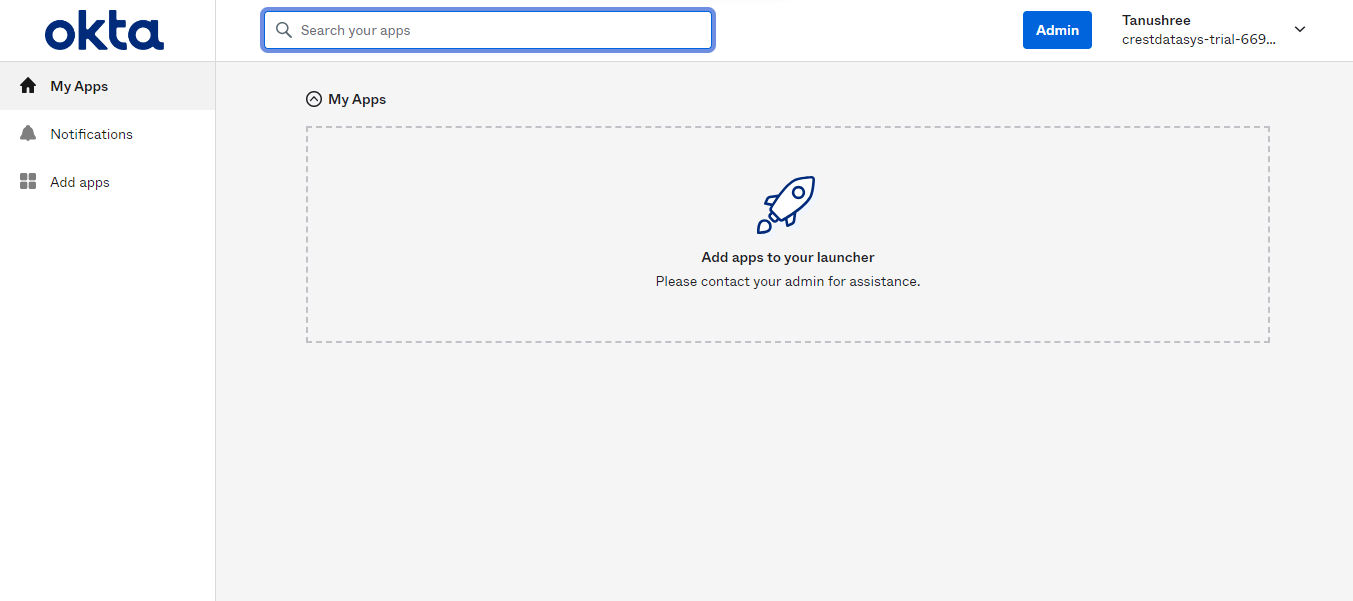
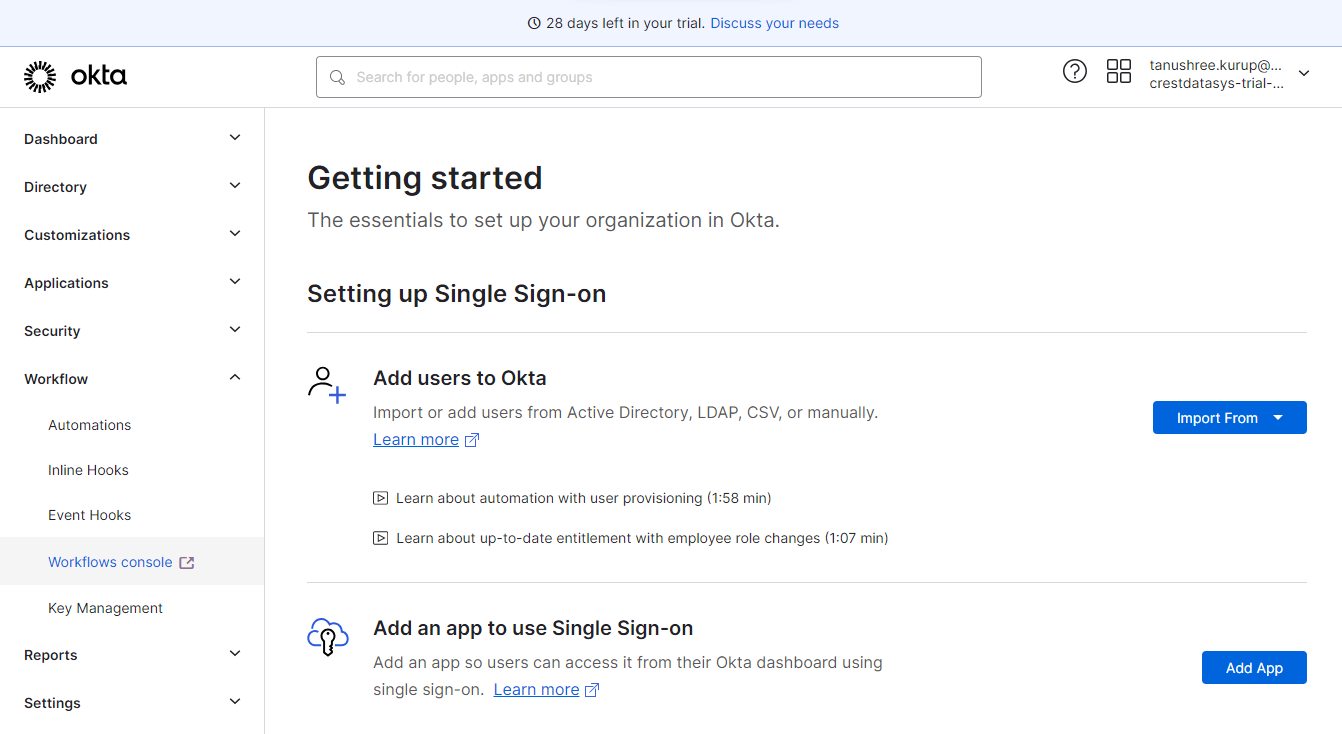
- Go to the Workflow console by clicking Workflow > Workflows console in the left panel.
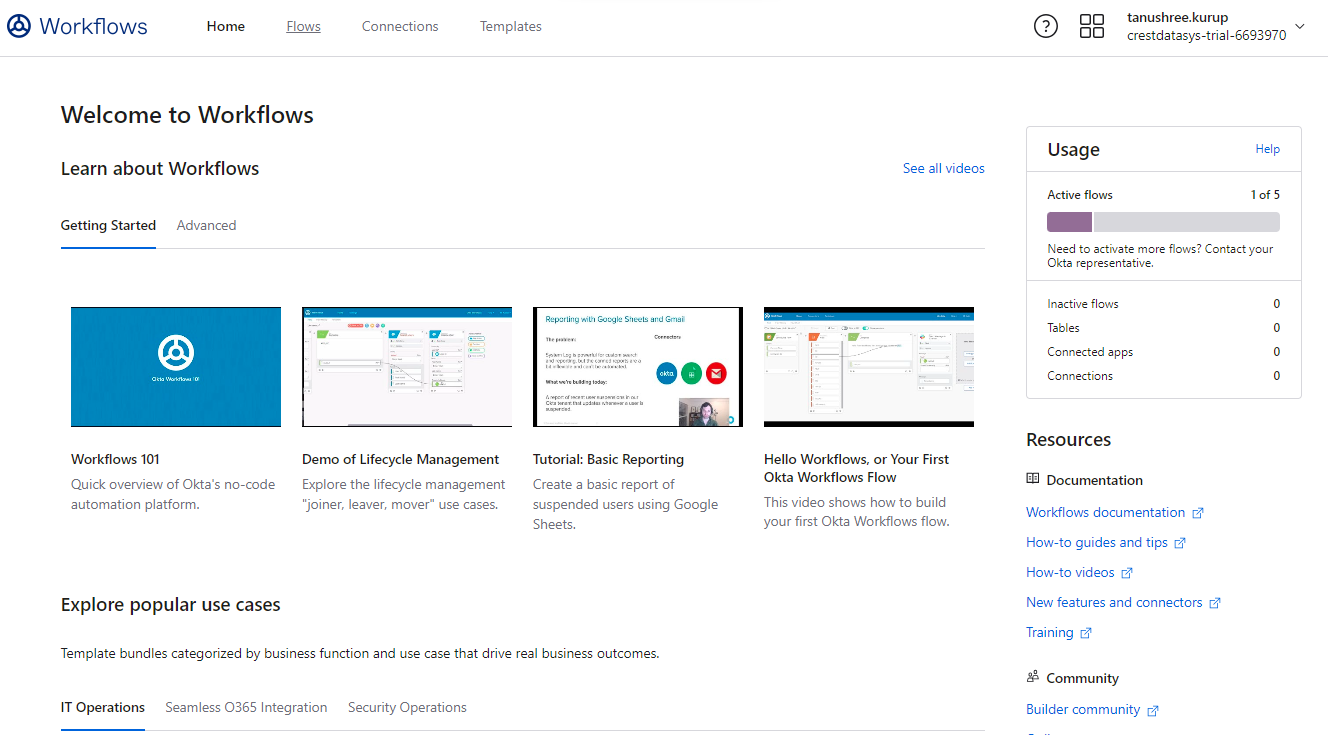
- Select the Flows tab from the top panel.
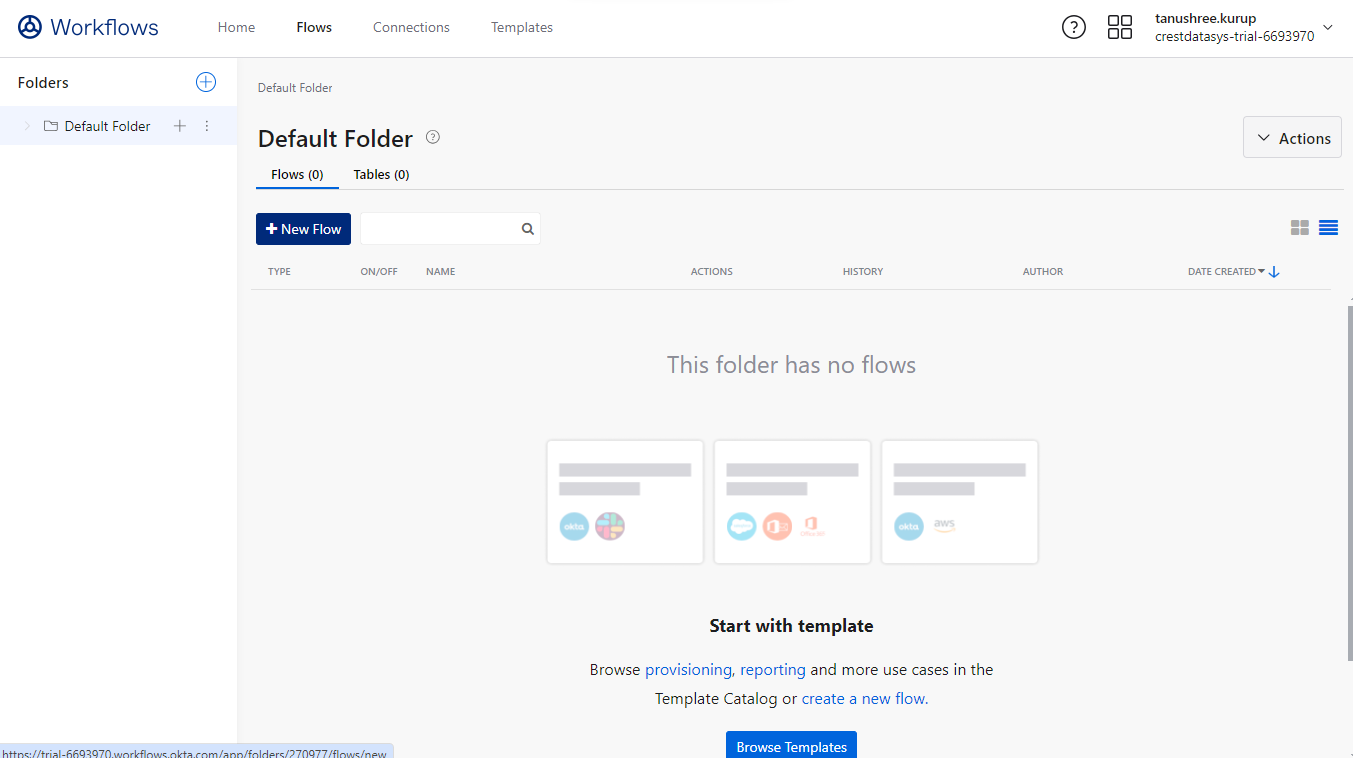
- Click New Flow.
- Click Add Event.
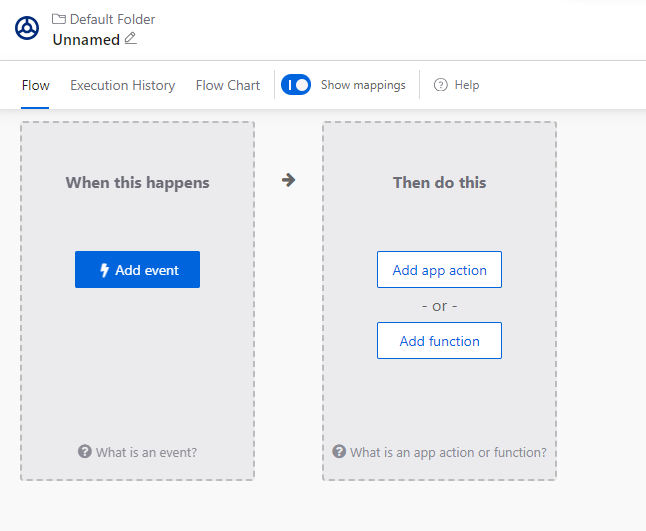
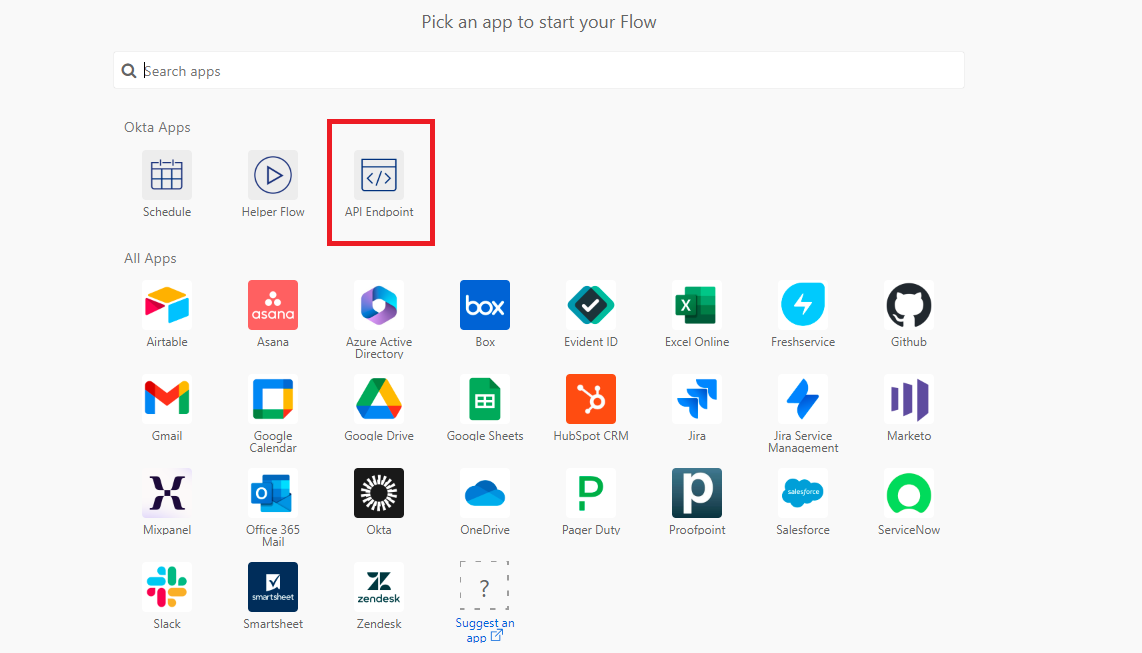
- Click API Endpoint.
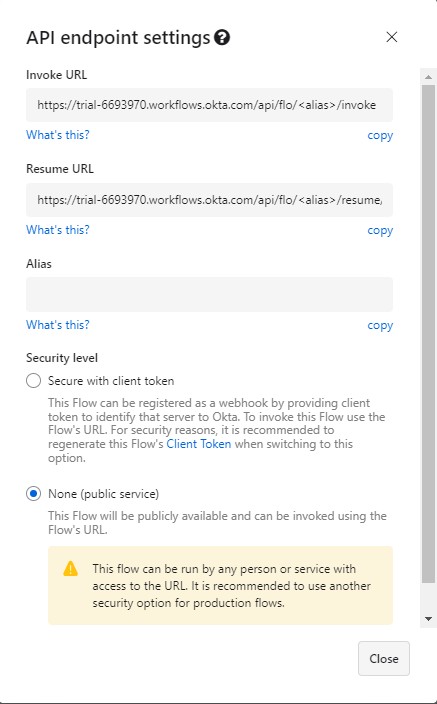
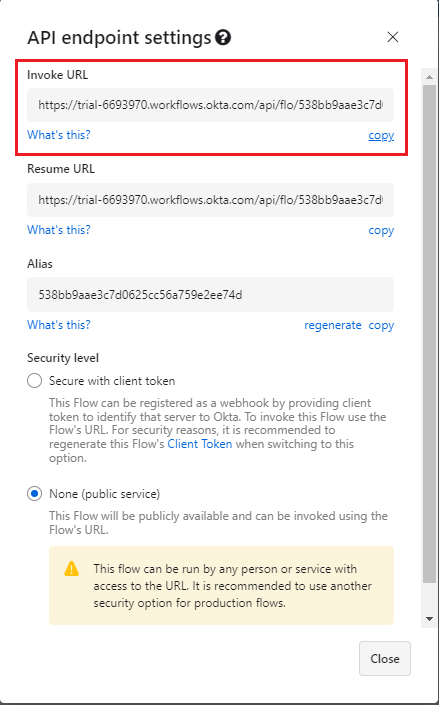
- The API endpoint settings dialog will open. Select the Security level as None (public service) and click Close.
- Click Add function.
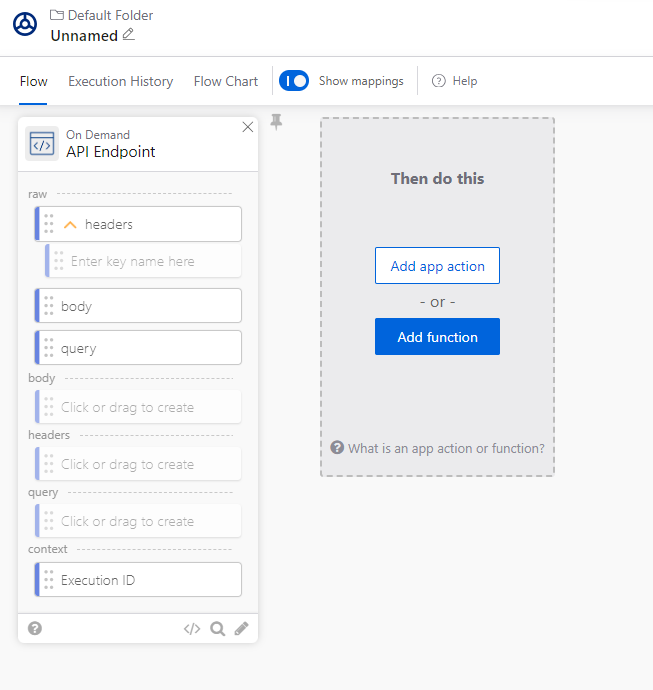
- Search for Return raw in the search box and select Return Raw from the list.
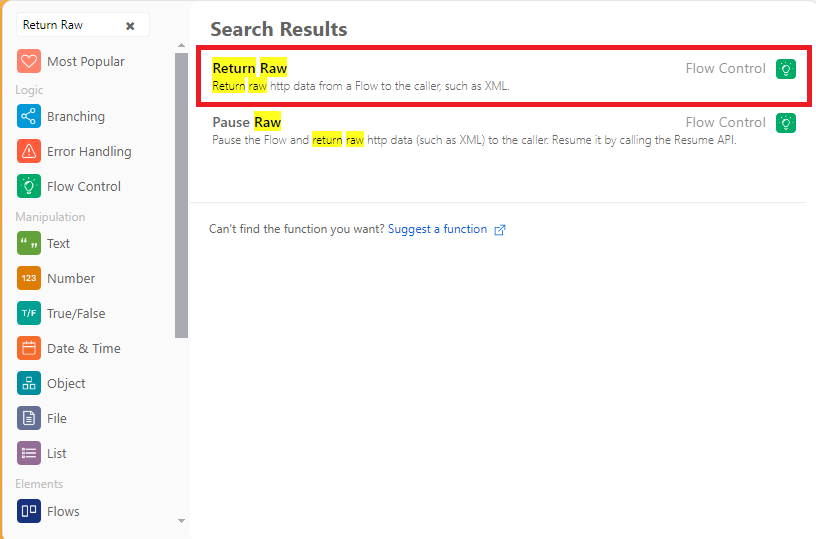
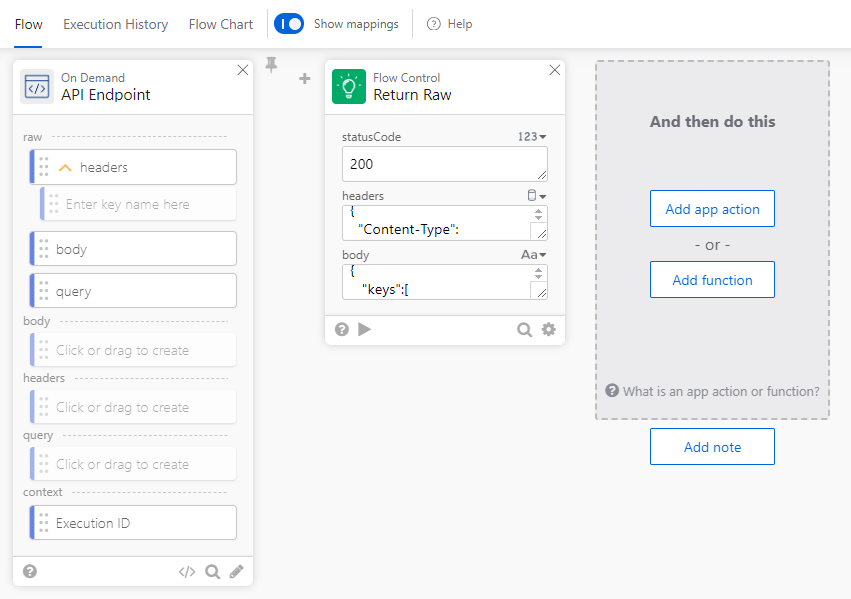
- Now make the below changes in the header and body of the Return Raw function.
- Paste the below content in the headers field:
{ "Content-Type": "application/json" } - Paste the public key in JWKS format in the body:
{
   "keys":[
      {
         "kty":"RSA",
         "e":"AQAB",
         "use":"sig",
         "kid":"1pXZQNc3YiNjWUD2rZ2WqFNQzBANcSzrGhrlhBExLzA",
         "alg":"RS256",
         ************"n":"g5r_OAU9OE-ybhedeFDWv7XGKmF18R6JUFXmOKO0TWlkR2wfhtA8vXCH0il60ICUNmZV_axnnqUjzGezF_3D6coNt1NEocCiaYeX46tdJCLg8ac9furS0g-VbftPcg6DpkwrIN5t1UphNlPvkxhnmfMYxzSo9Pq_Sb0LPImL2h9a32Iw-GY2Zr69ctNQxhghR6_Aqaps5iQRqjAPs3CQ"
      }
   ]
}
- Paste the below content in the headers field:
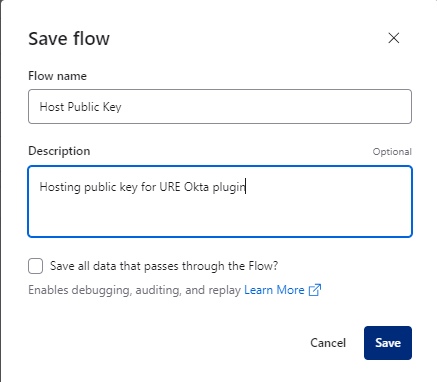
- Click Save at the top and enter a name for the flow.
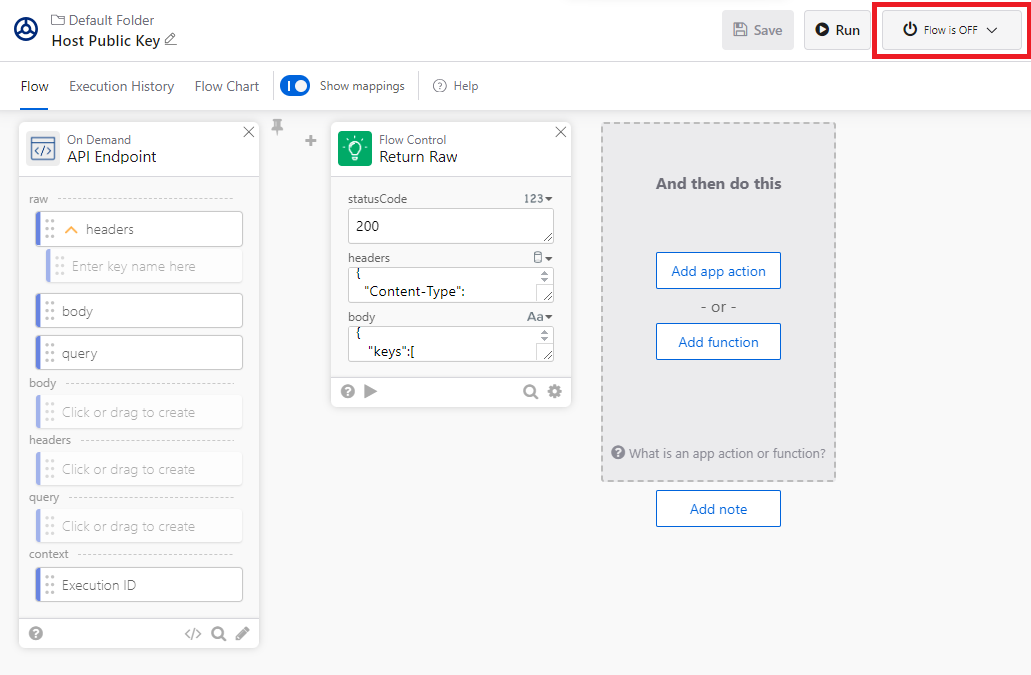
- Expand the Flow is Off dropdown on the top and turn it on.
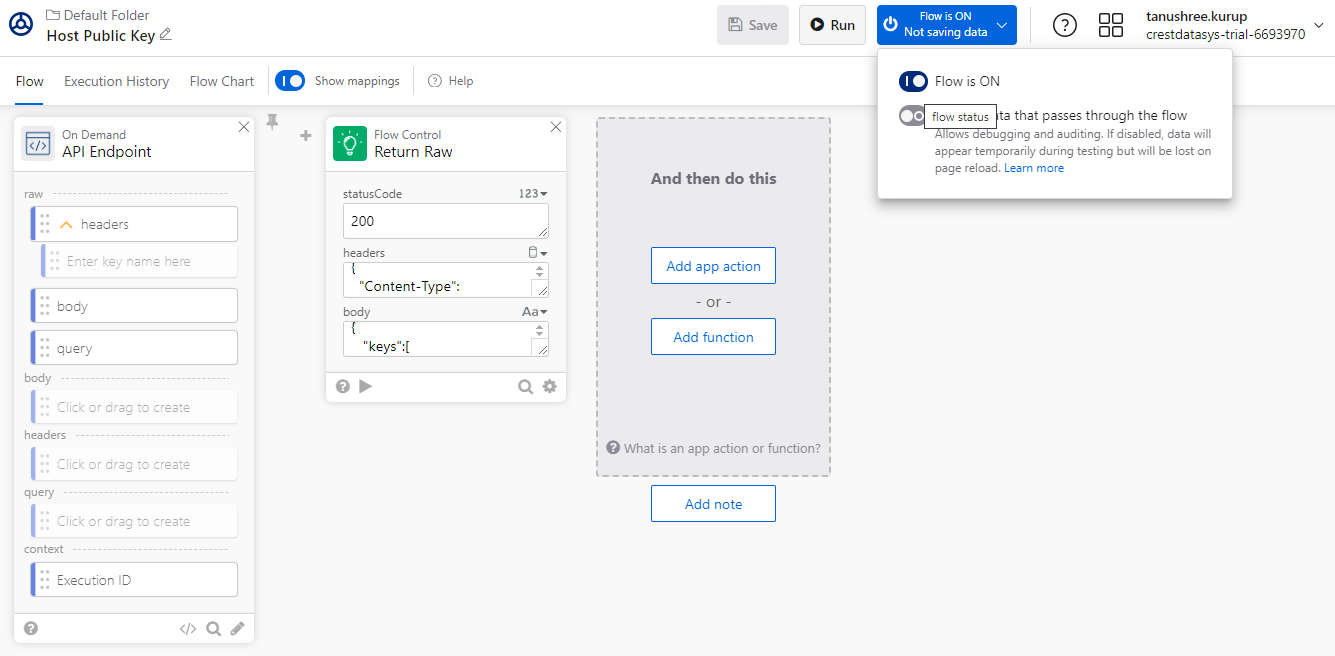
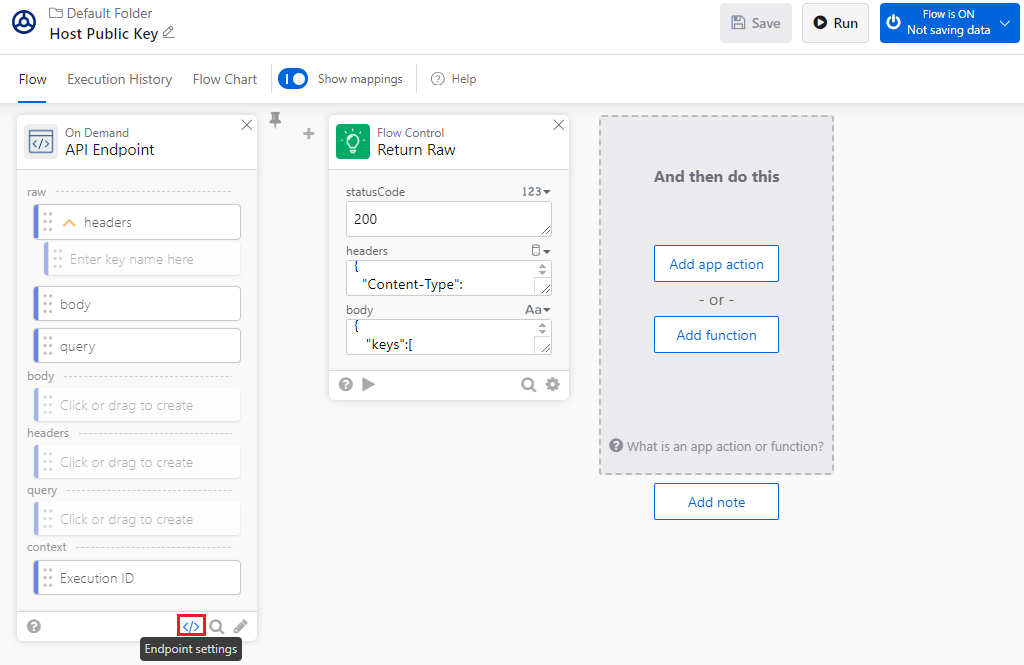
- Copy the Invoke URL from the Endpoint settings, and then click </> to open the Endpoint settings.
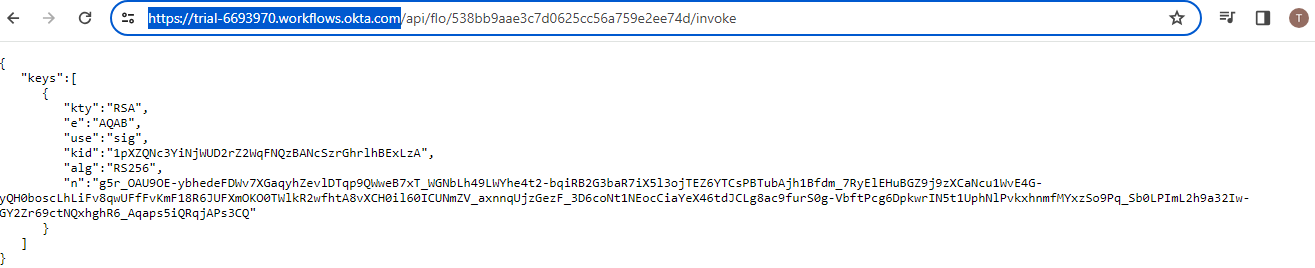
- The public key will be hosted on the public URL, and you can view it using Invoke URL. Copy the URL and paste it in your browser as shown below in the next step.
- The tenant URL of the Okta account used for hosting the public key will be used as the Issuer URL. Make a note of the tenant URL.
Configure the Okta Plugin
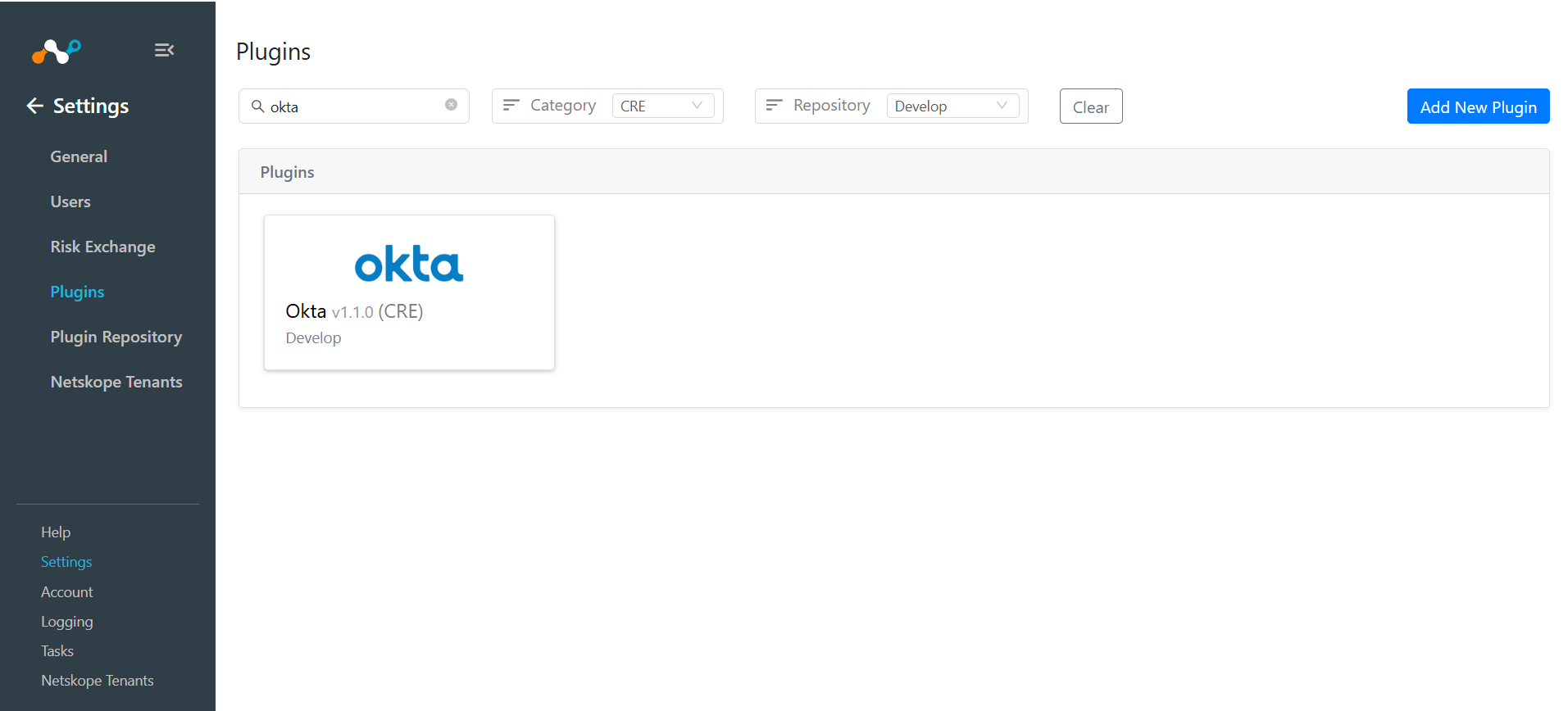
- Log in to Cloud Exchange and go to Settings > Plugins. Search for and select the Okta 1.1.0 (CRE) plugin box.
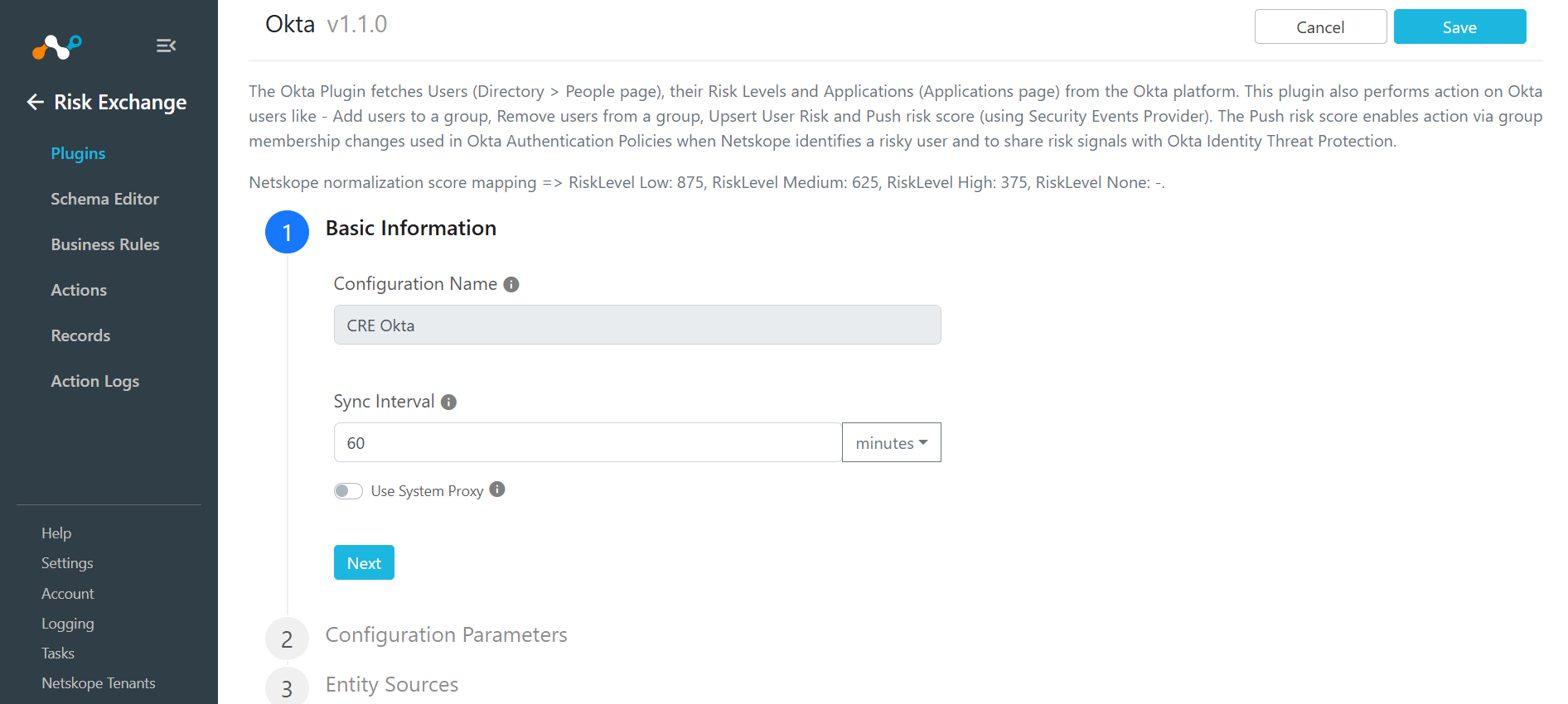
- Enter the Basic Information:
- Configuration Name: Enter a name for the configuration.
- Sync Interval: Enter the time at which the plugin will be synced.
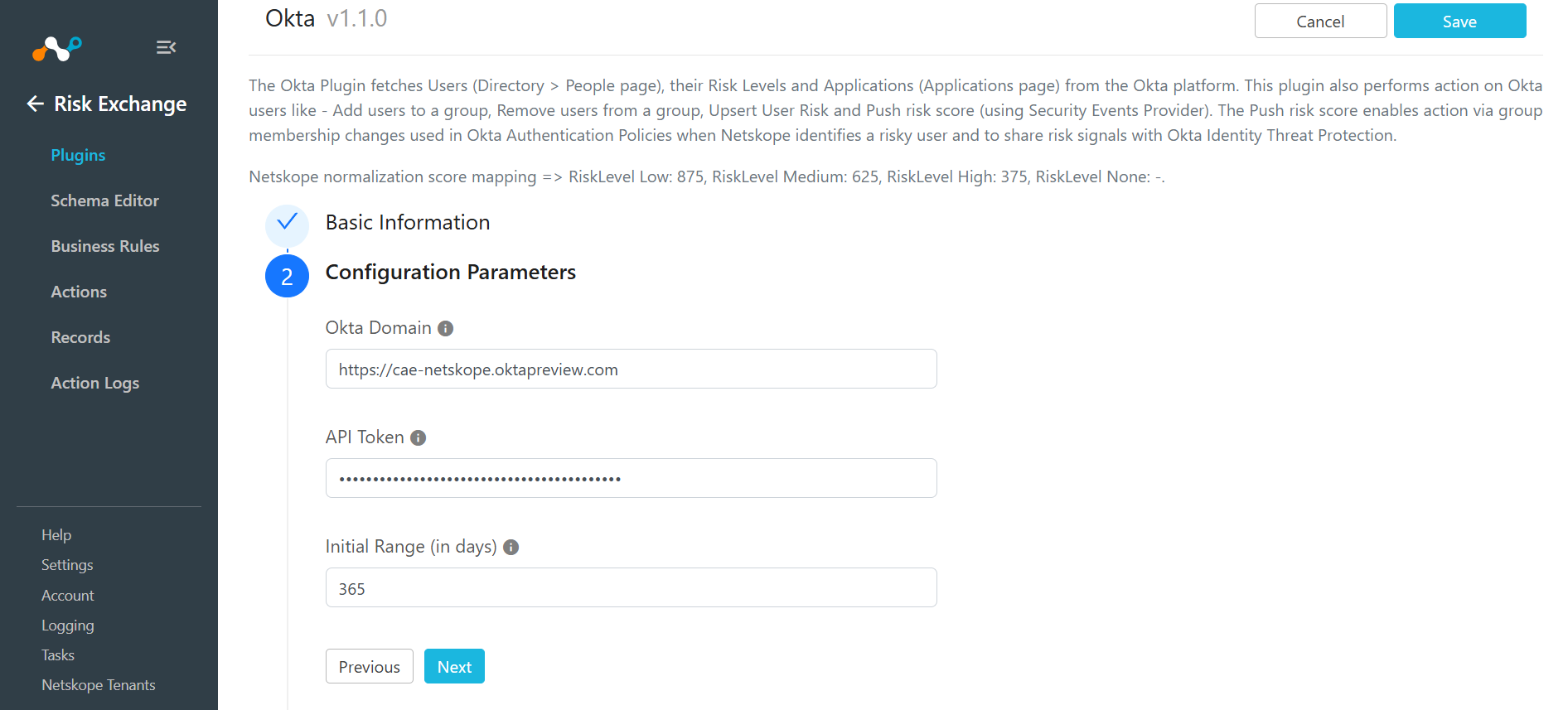
- Click Next. Enter the Configuration Parameters for authenticating:
- Okta Domain: Enter the Okta Domain you got previously.
- API Token: Enter the API Token you got previously.
- Initial Range (in days): Number of days to pull the Users for the initial run.
- Click Next. Select the Entity from the Entity dropdown.
The Entity fields can be created from the Schema editor page, or using the + Add Field option from the dropdown.
Provide the field mapping. For the suggested mapping, refer to the Mappings section.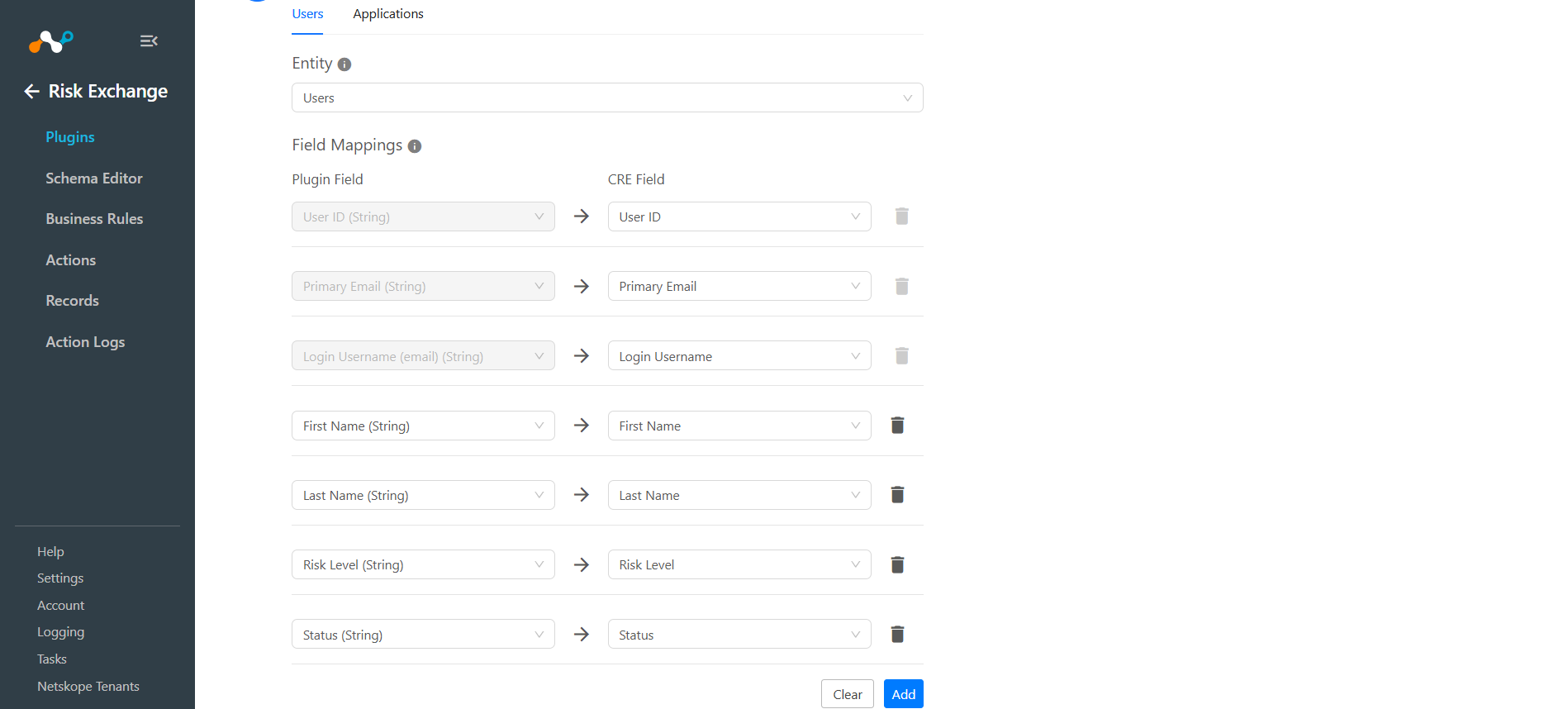
- Click Save.
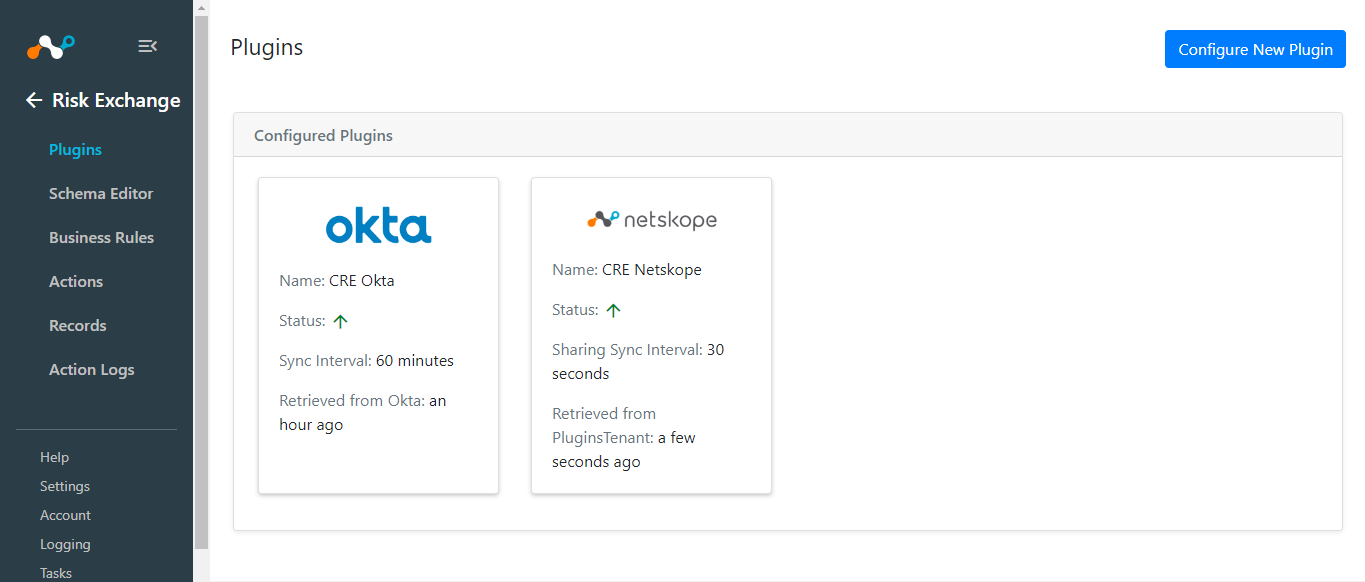
Add a Risk Exchange Business Rule for Okta
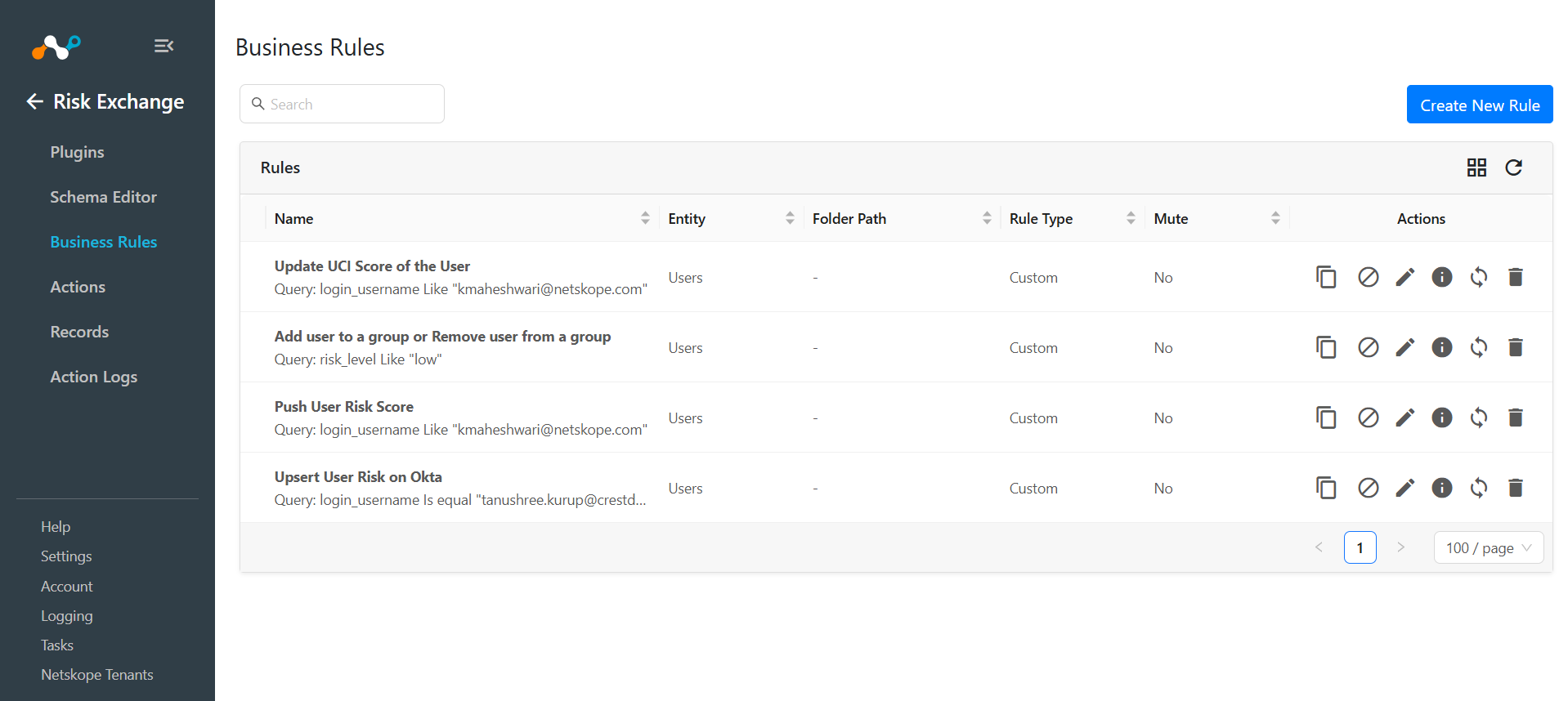
Add a Business Rule to filter out the users for which you want to perform actions. Follow these steps to configure a business rule.
- Go to Risk Exchange > Business Rule and click Create New Rule.
- Select the business rule Entity and provide the filter as per your requirement to perform action on the users. Click Save.
Add Risk Exchange Actions for Okta
Following is the list of available actions for the Okta plugin.
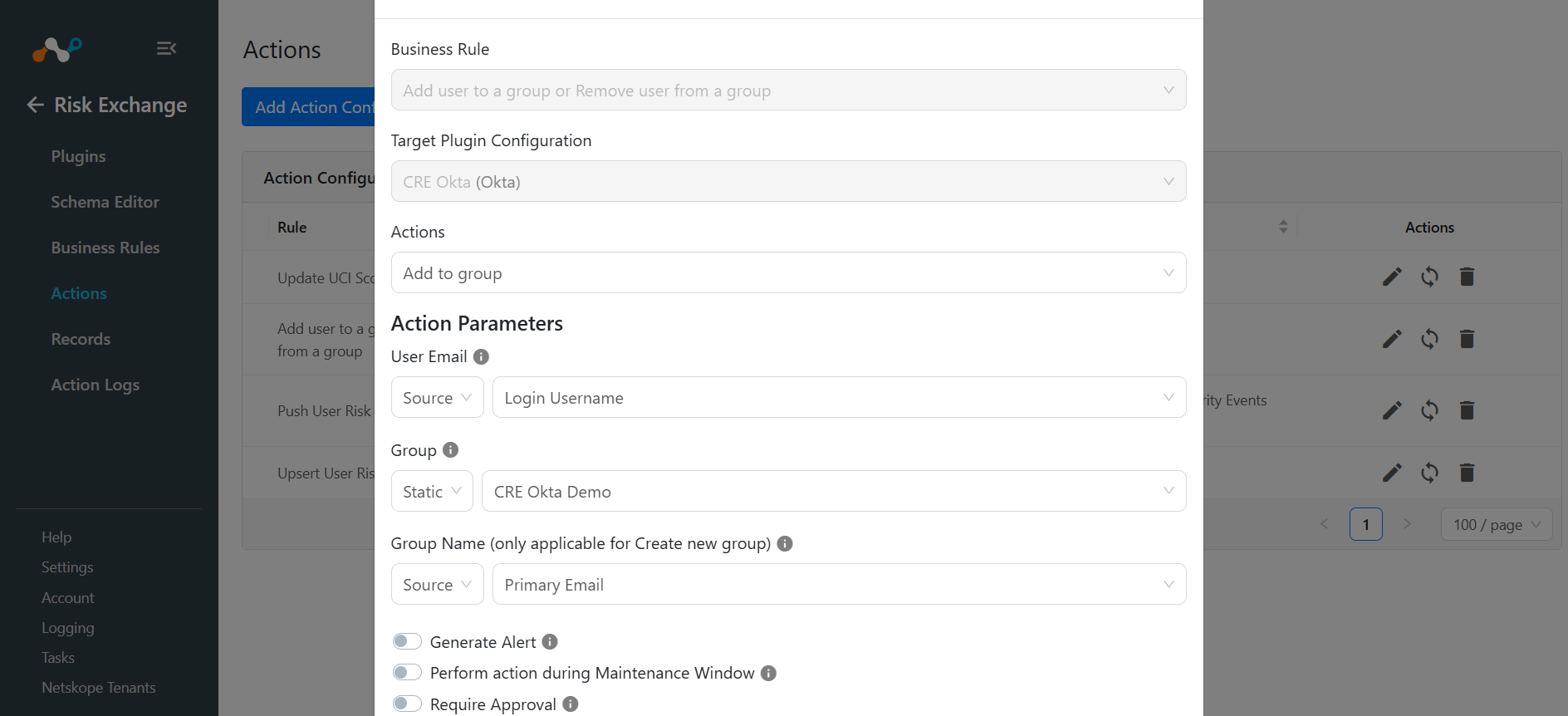
Add to Group
Whenever an action triggers, this action adds users to the group that has been mentioned while creating the action configuration.
- Go to Risk Exchange > Actions and click Add Action Configuration.
- Select a Business Rule, Configuration (plugin), and Action (Add to Group).
- Provide User Email as Static value or Business Rule Record Field.
- Select group name from the existing group list available from Static, or select Create New Group and provide the Group Name in the Group Name textbox in Static. While adding the Group, make sure to use the Static Group and not the Business Rule Record Field.
- Click Save.
Remove from Group
Whenever an action triggers, this action removes users from the group that has been mentioned while creating the action configuration.
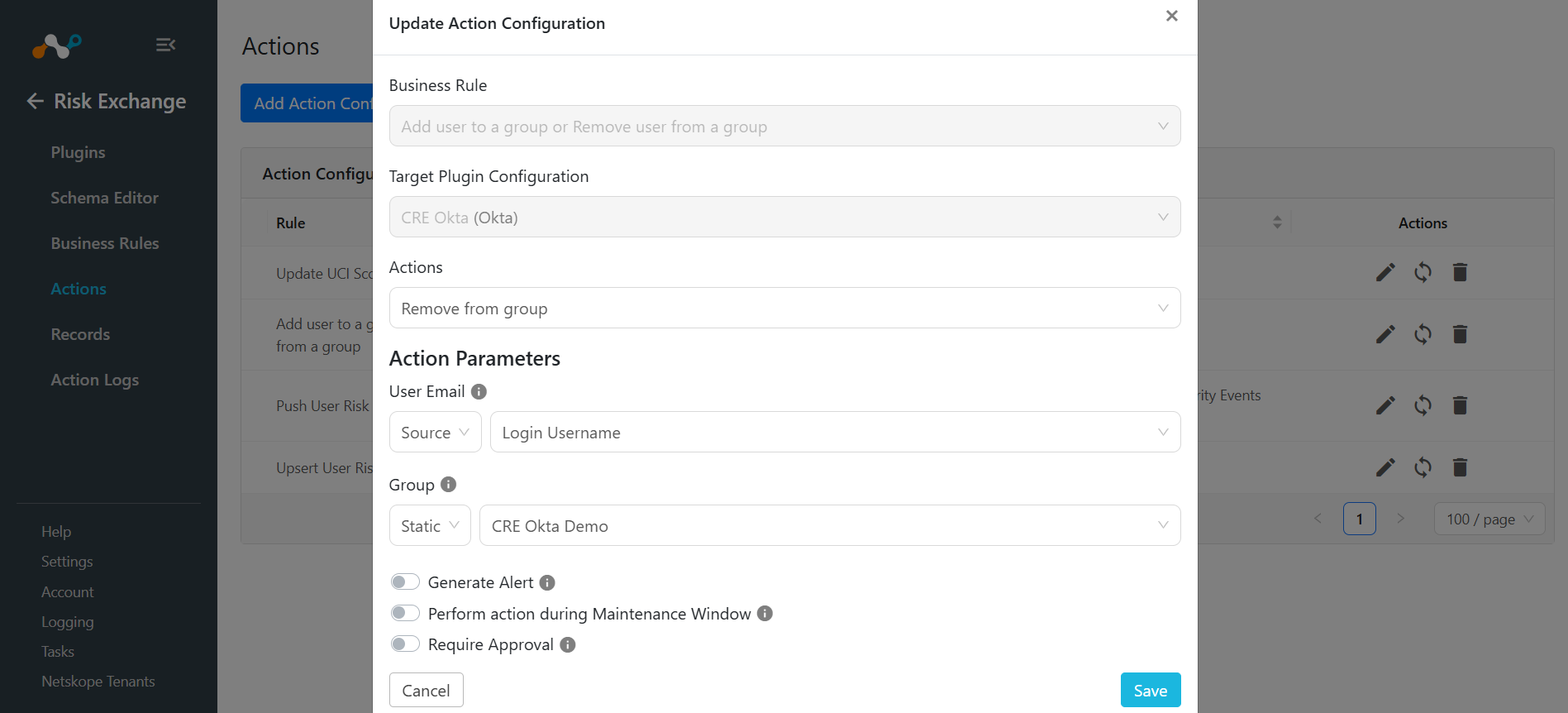
- Go to Risk Exchange > Actions and click Add Action Configuration.
- Select a Business Rule, Configuration (plugin), and Action (Remove from Group).
- Provide the User Email as the Static value or Business Rule Record Field.
- Select an existing group from the Group dropdown to remove the user from an existing group
- Click Save.
Push Risk Score
Whenever an action triggers, this action pushes the current and the previous score level of the user to Okta (provided the user exists on the Okta tenant).
The scores will only be pushed for a user if the user is available on Okta. If the user score is pushed for the first time, the value for the previous_level will be none in Okta.
Follow these steps to perform the Push Risk Score Action on Okta users.
- Go to Risk Exchange > Actions and click Add Action Configuration.
- Select Business Rule, Configuration and Action Type (Push risk score).
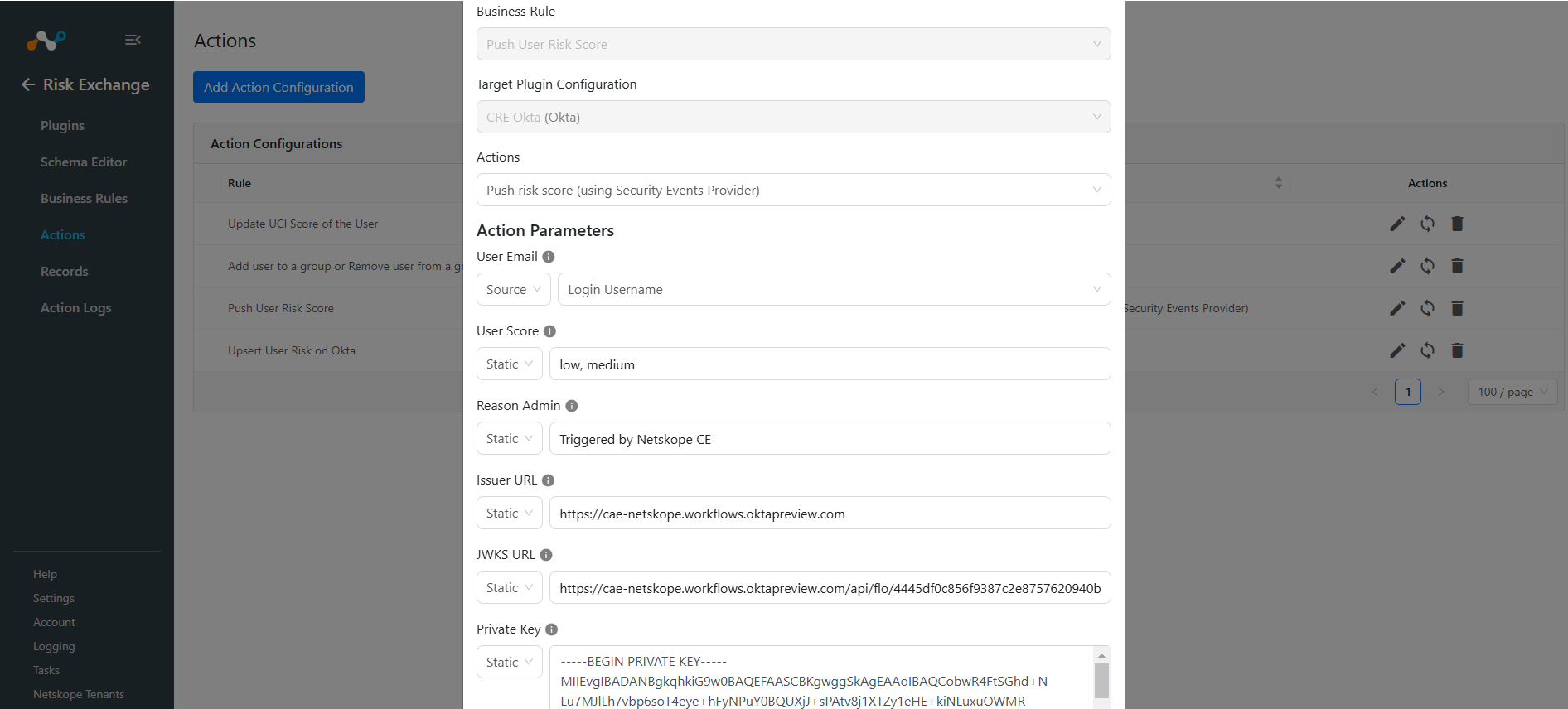
- Enter the following Action parameters:
- User Name: Provide a Static Username on whom you want to perform the action on. If you want to perform action on the Business Rule Field select the field from the Business Rule Record Field dropdown list.
- User Score: Score associated with the User Email. Should be in the form of levels: low, medium, high. If you select the Static option for this field, provide comma-separated values: ‘previous_level’, ‘current_level’, like low, medium. If you select Business Rule Record Field make sure the Merge Action is set to Merge in the Schema Editor for the selected field.
Refer to the Historical Score Field Mapping section to configure the field required for this parameter.
- Reason Admin: Reason Admin field to provide explanation of the event. Eg., Policy name of the Netskope Event.
- Issuer URL: The URL that is used for hosting the JWK Public Key publicly (Okta tenant URL used for hosting the public key in this case).
- JWKS URL: The URL where the JWK Public Key is hosted publicly (Invoke URL in this case).
- Private Key: Private Key (PEM format) corresponding to the Public Key hosted publicly.
Make sure to provide the Issuer URL, JWKS URL, and Private Key as Static, and not Source Field.
- Click Save.
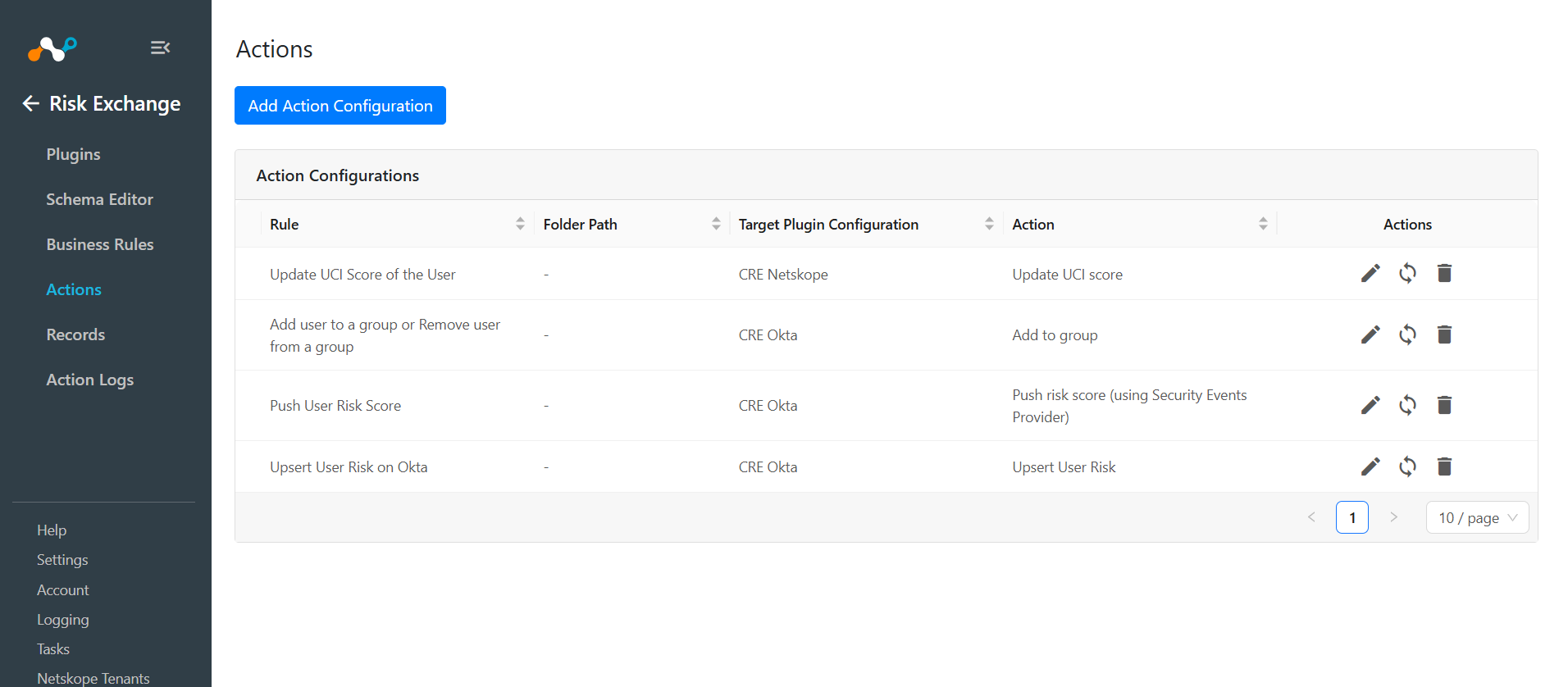
Upsert User Risk
Whenever an action triggers, this action Upsert updates the user risk on Okta.
- Go to Risk Exchange > Actions and click Add Action Configuration.
- Select a Business Rule, Configuration (plugin), and Action (Upsert User Risk).
- Provide the User Email as a Static value or Source Field. Add Risk Level as Static and
- Click Save.
The allowed values for the Risk Level for this action are LOW and HIGH. Any other value apart from these will be skipped and the action will not be performed on the user.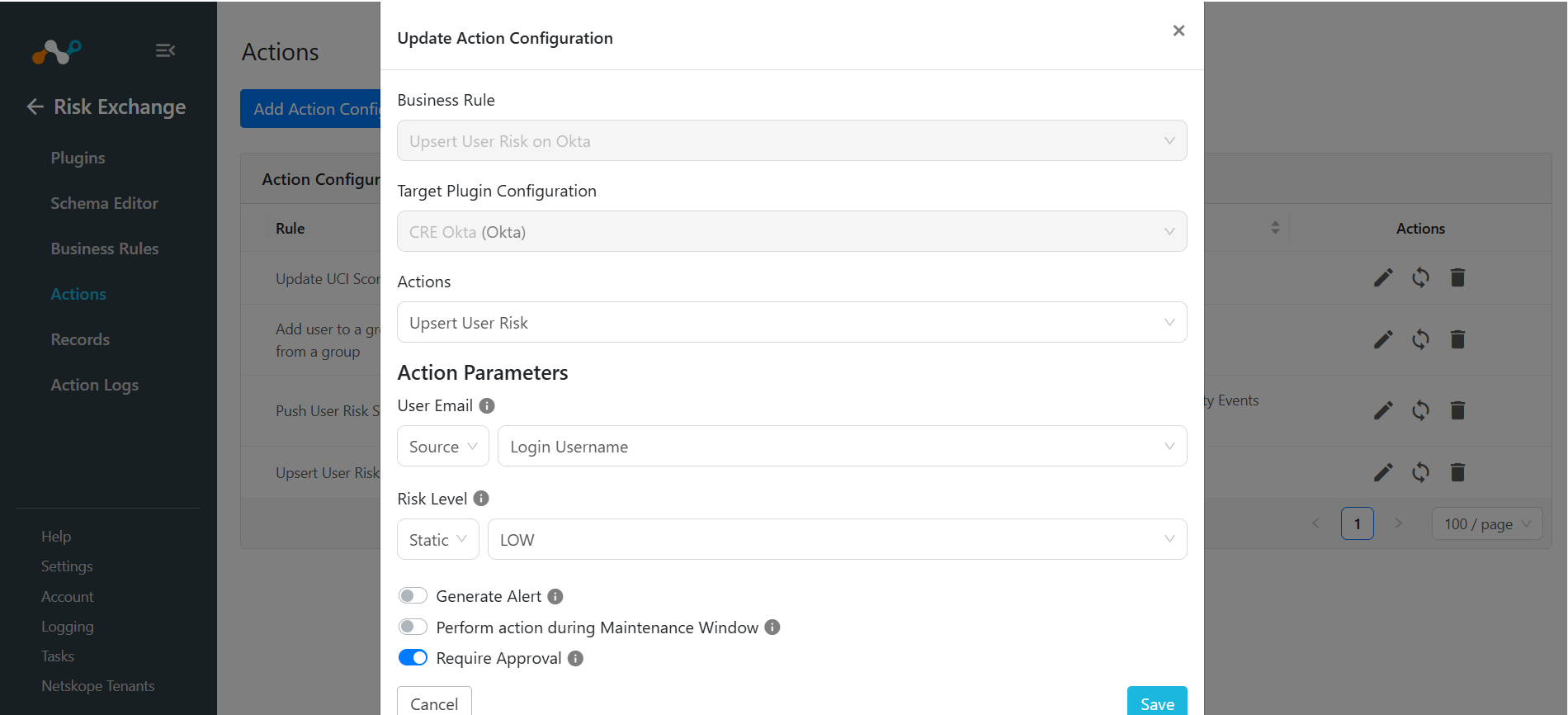
No Action
This action will not perform any kind of action on users. You can use this action to generate the UBA alerts in the Netskope CTO module.
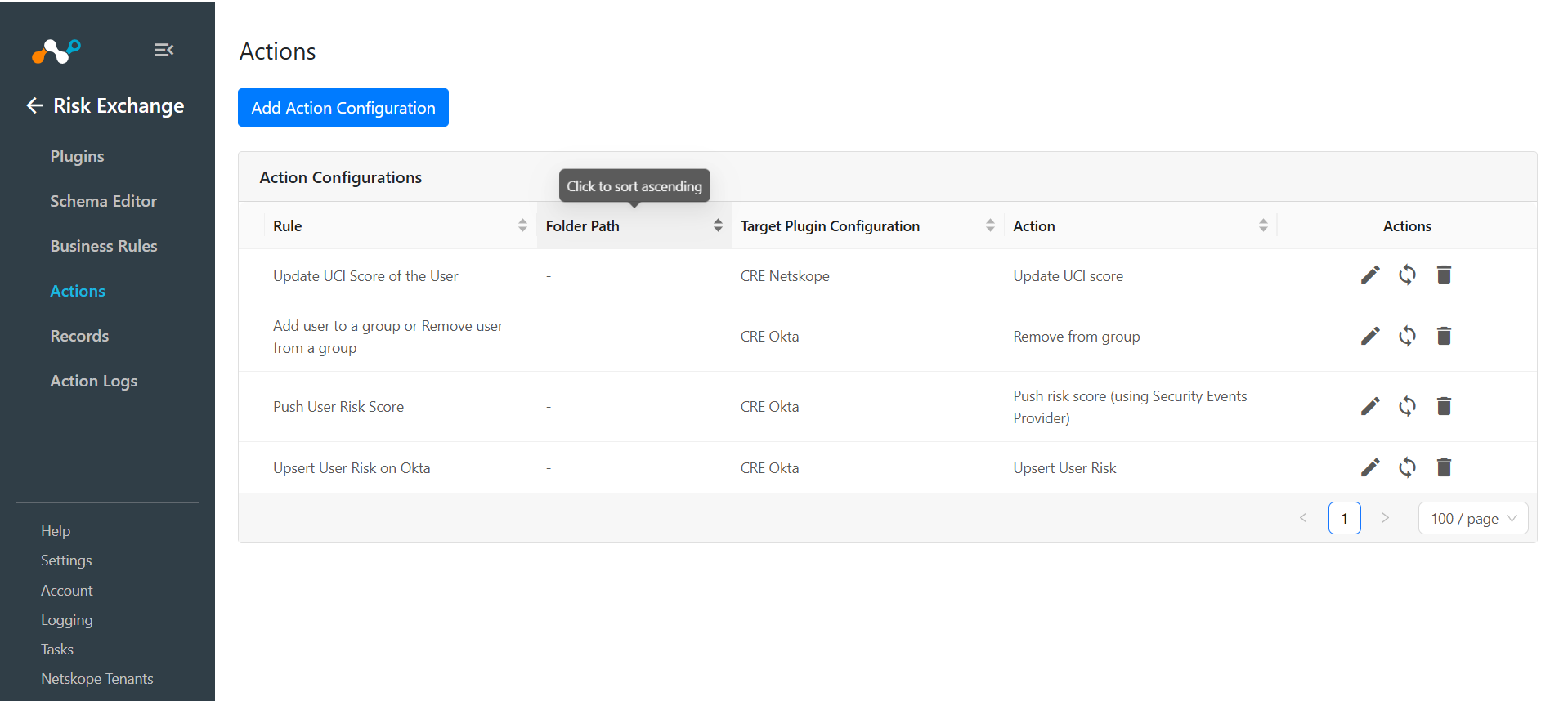
You can perform the actions on the applications and users pulled from Okta on the Netskope Tenant.
Validate the Okta Plugin
Validation on Netskope CE
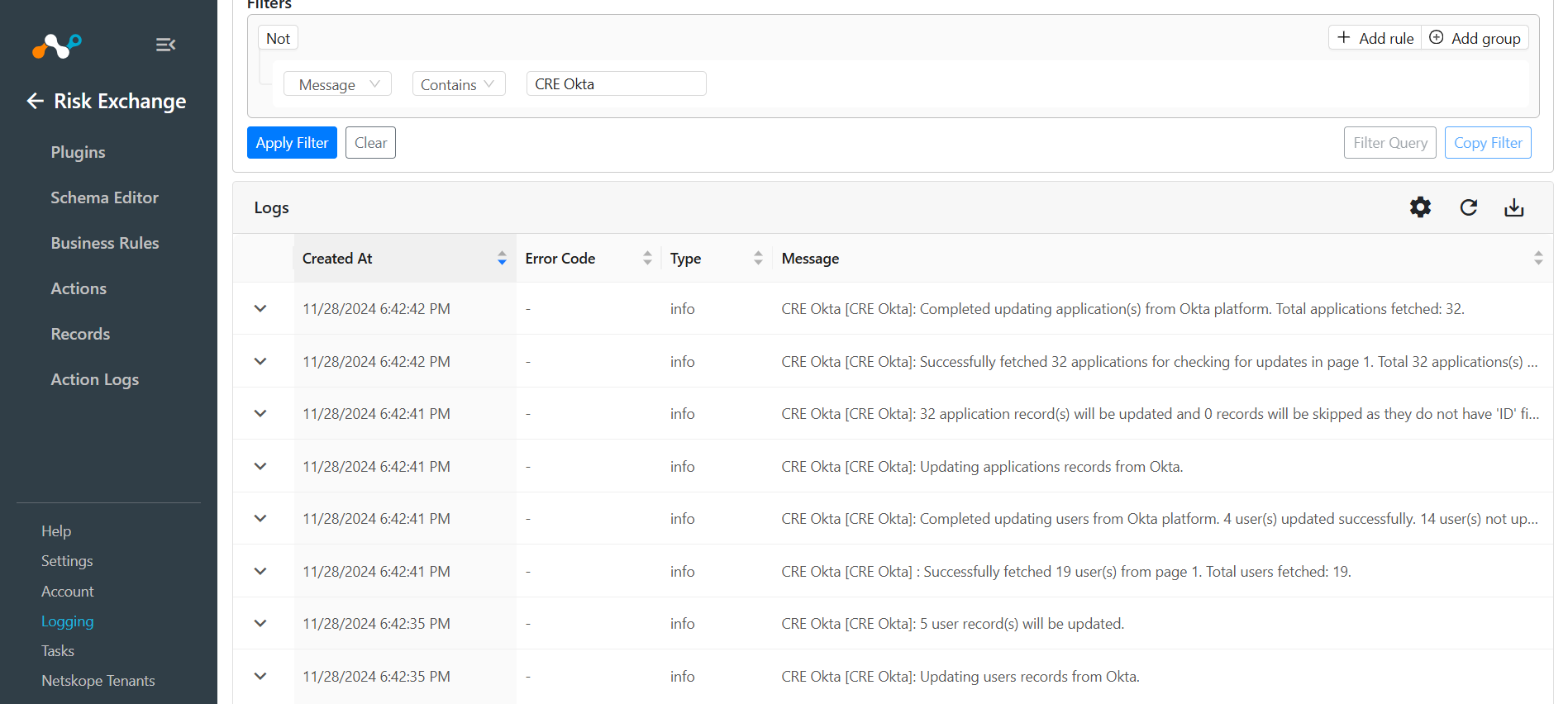
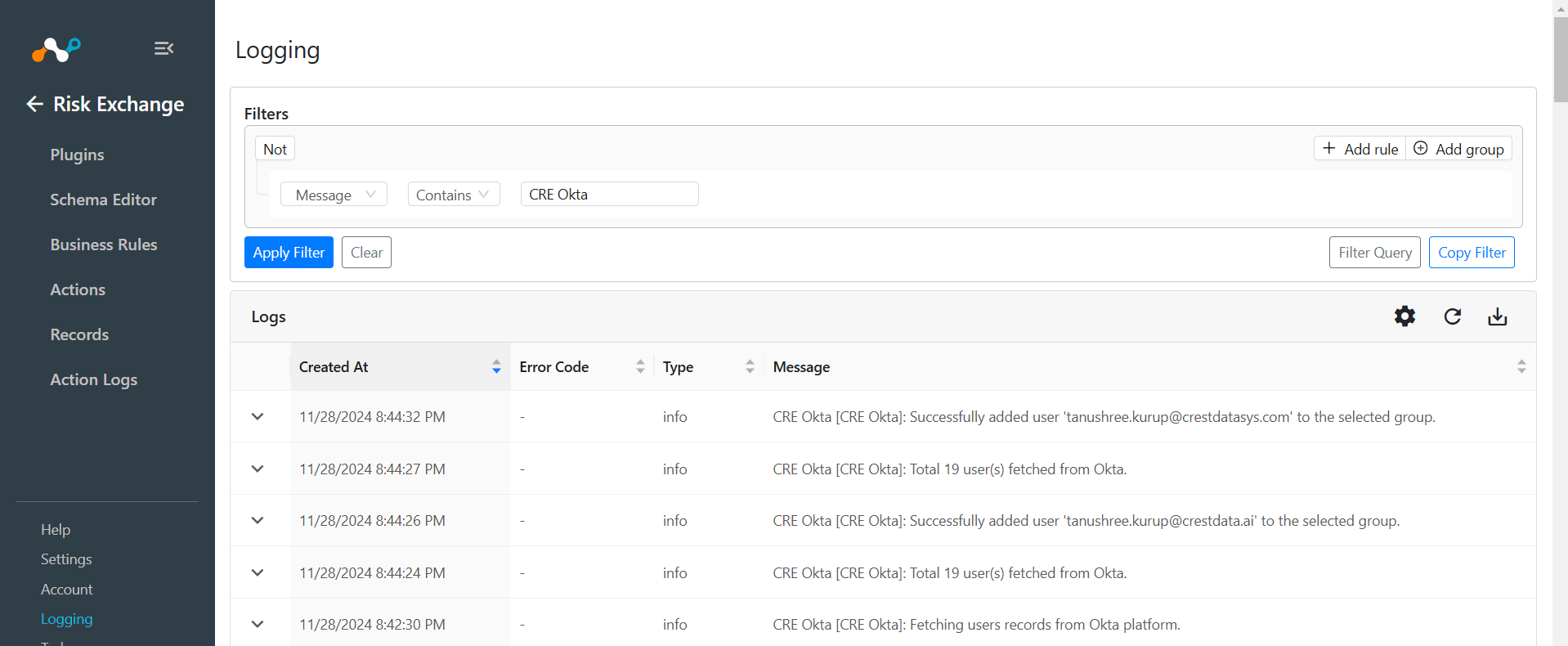
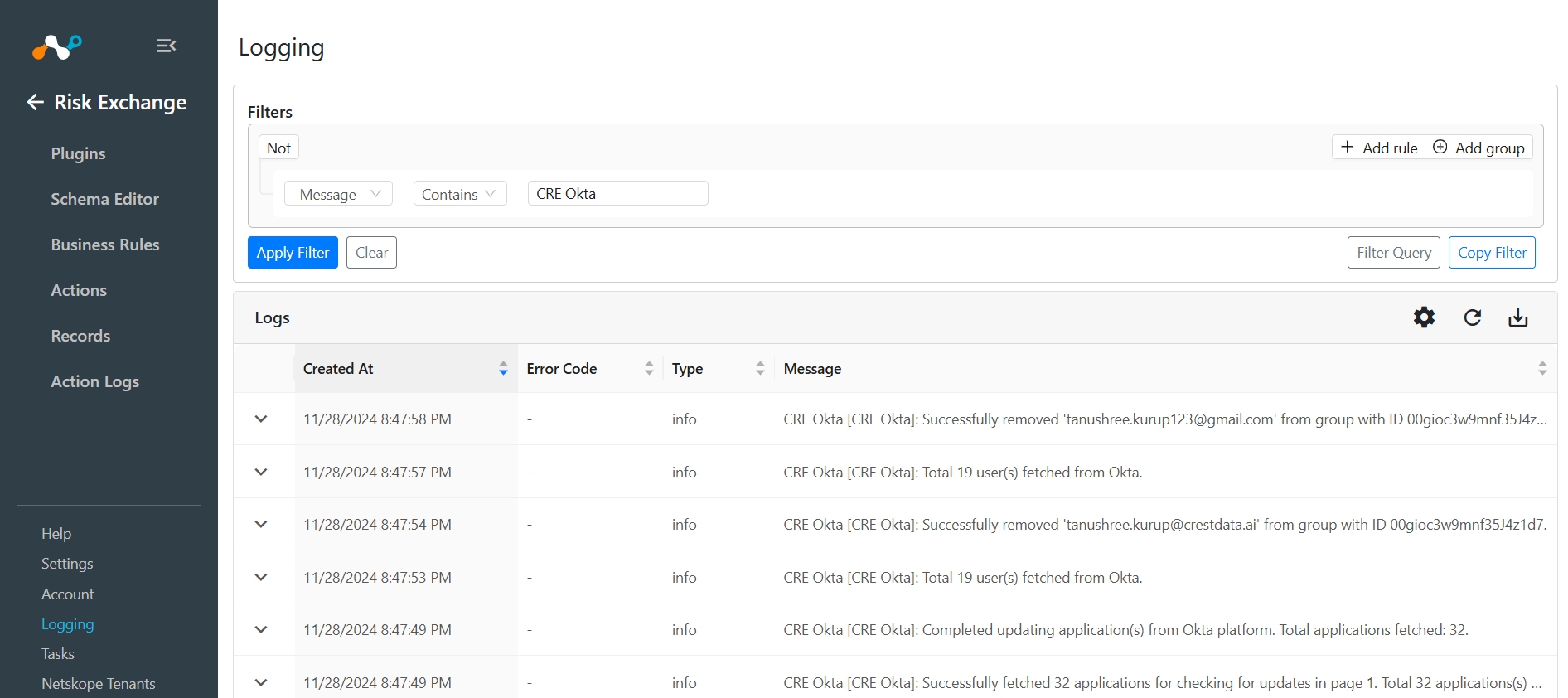
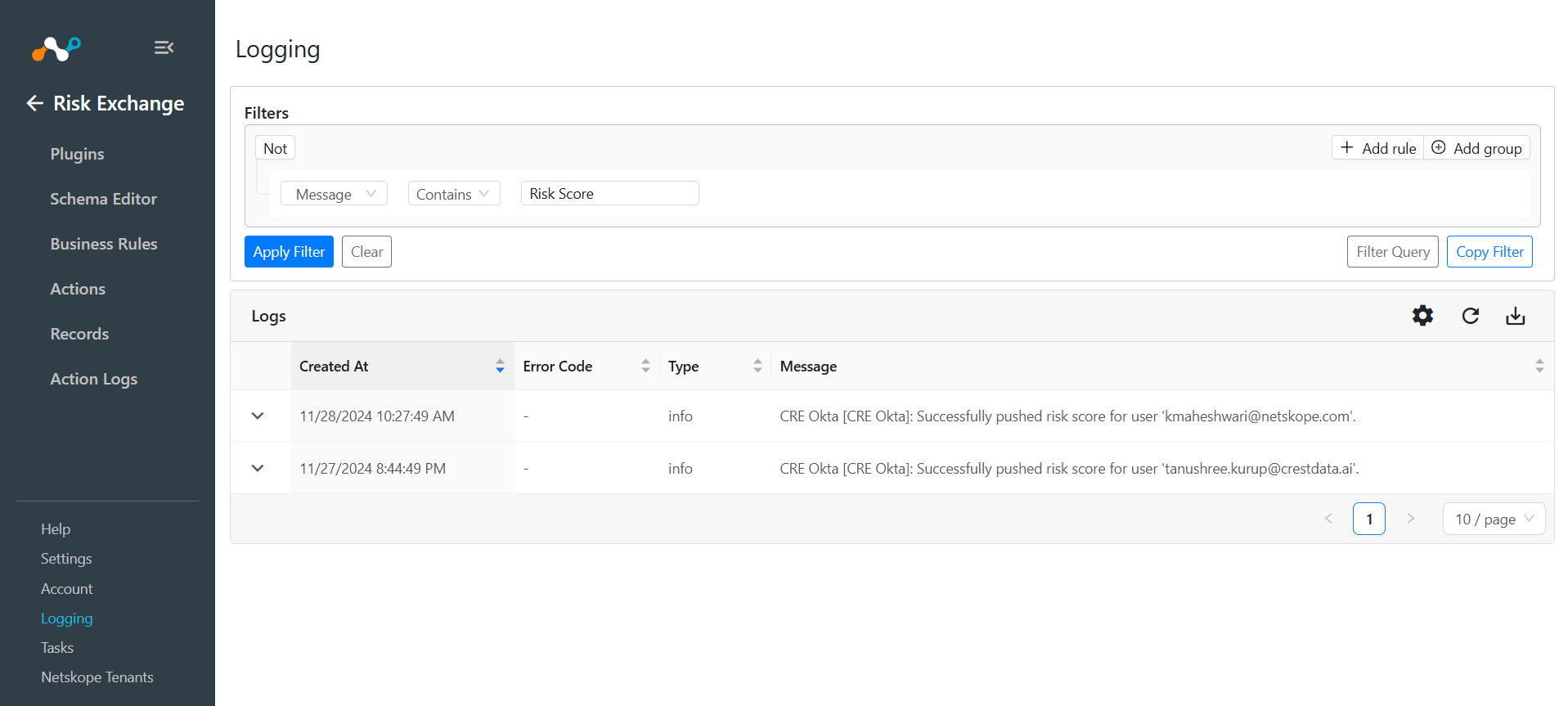
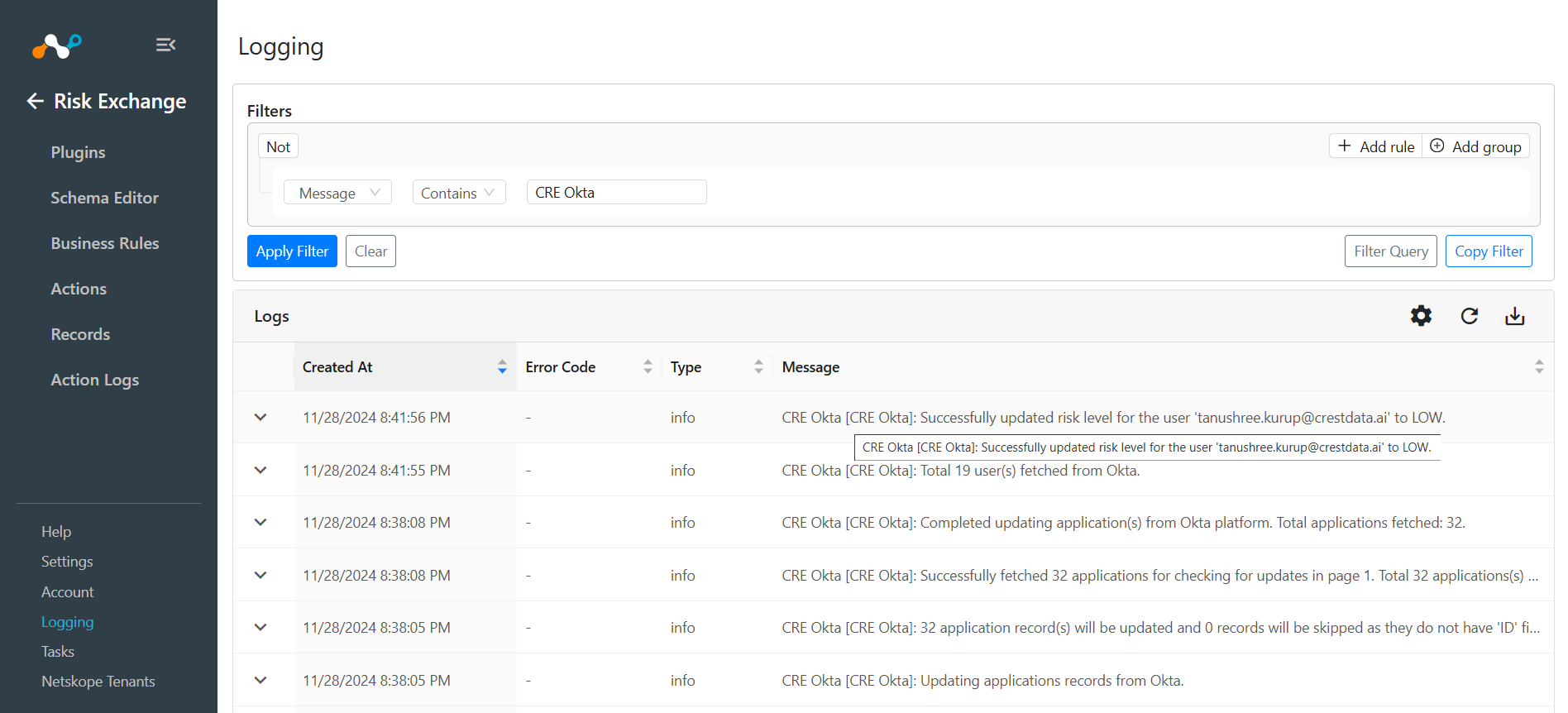
To validate the Application and Users records pulled from Okta, go to Logging and search for logs pulled from the Okta plugin.
Example: message Like “CRE Okta”
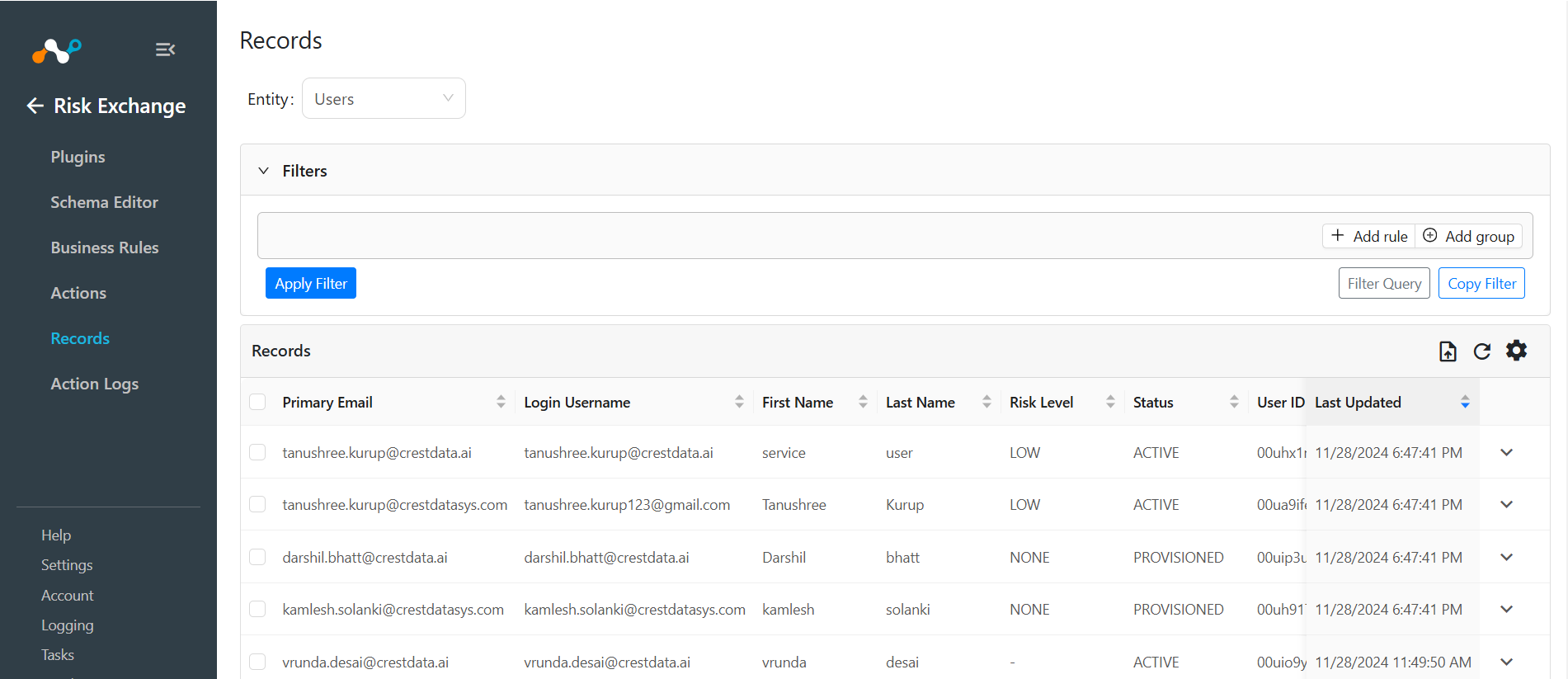
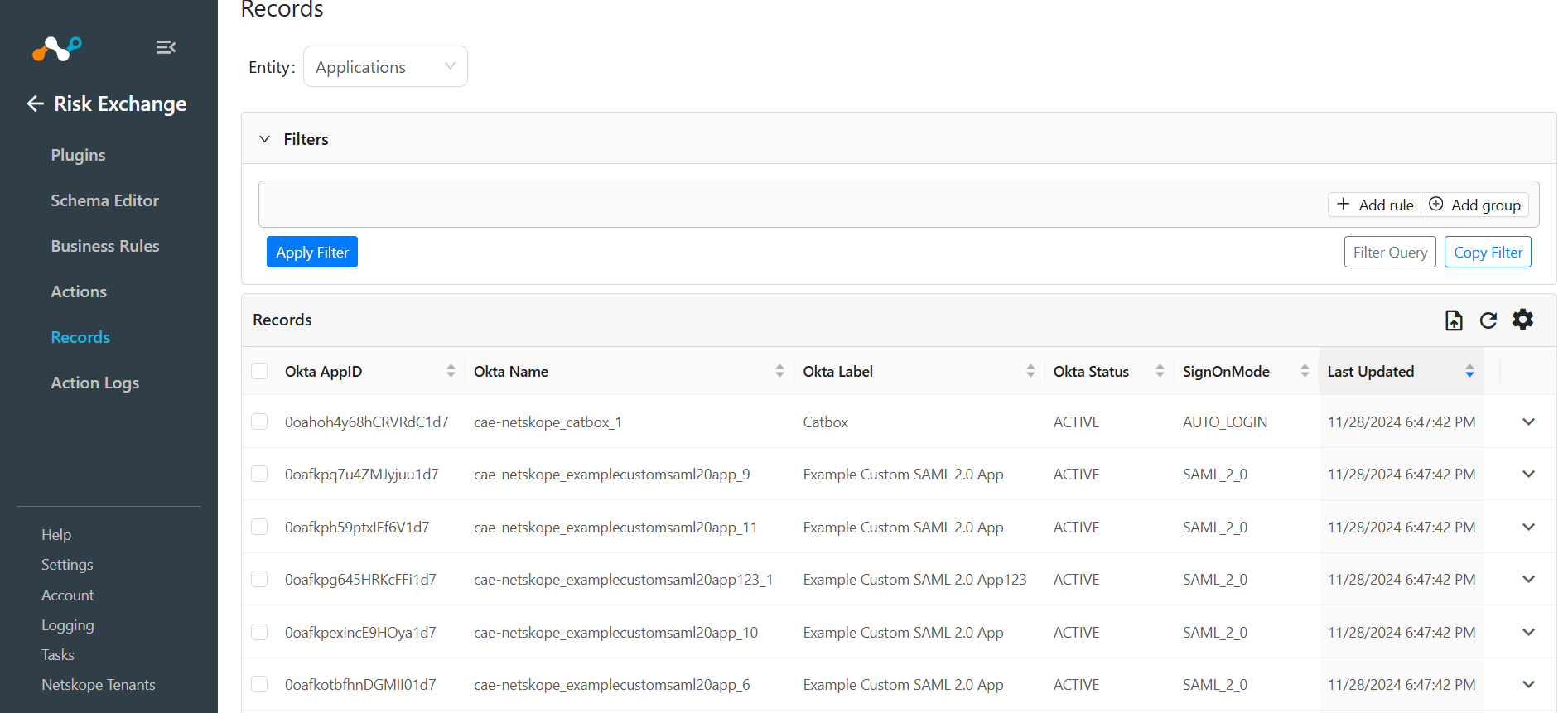
To check the pulled data, go to Records, select the type of Entity you used while configuring the Okta plugin. Check the pulled records.
For Users:
For Applications:
Check for the logs from Logging for the Okta plugin for the actions performed on the users.
For Add to Group action:
For Remove from Group action:
For Push Risk score action:
For Upsert User Risk action:
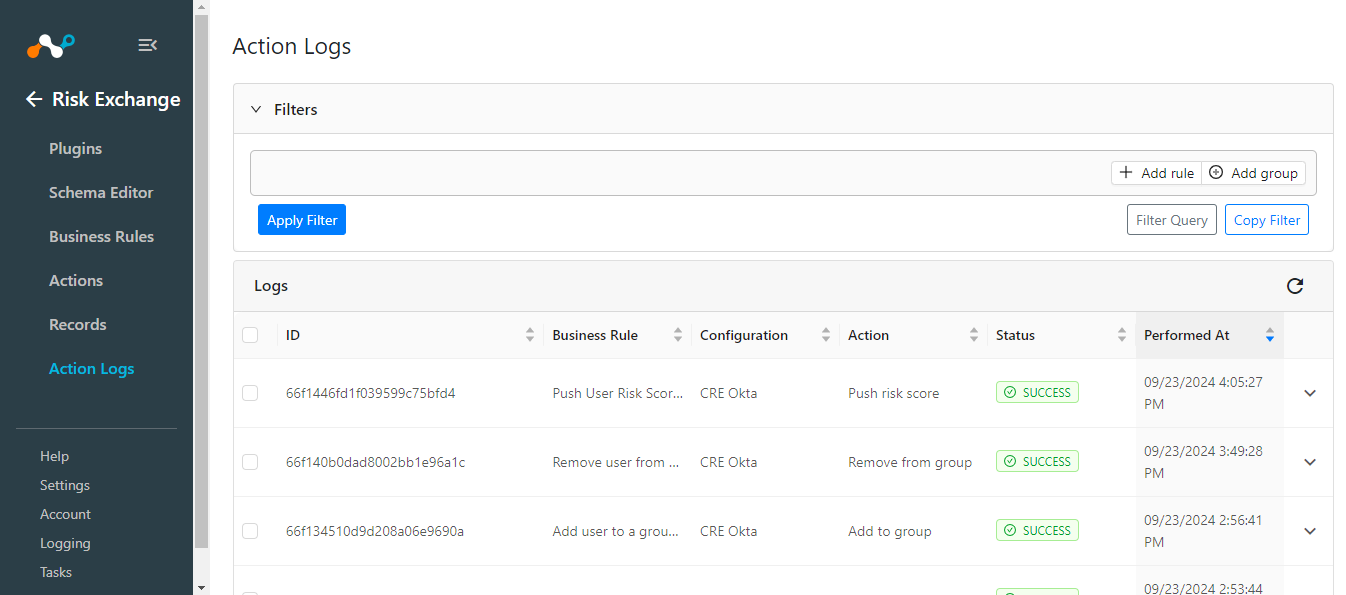
Go to Action Logs under Risk Exchange to check the logs for the actions performed on the user.
If the Require Approval toggle is enabled while configuring the action, make sure to provide the approval from the Action Log page shown above by selecting the pending approval entries, and enabling the Require Approval toggle.
Validate on Okta
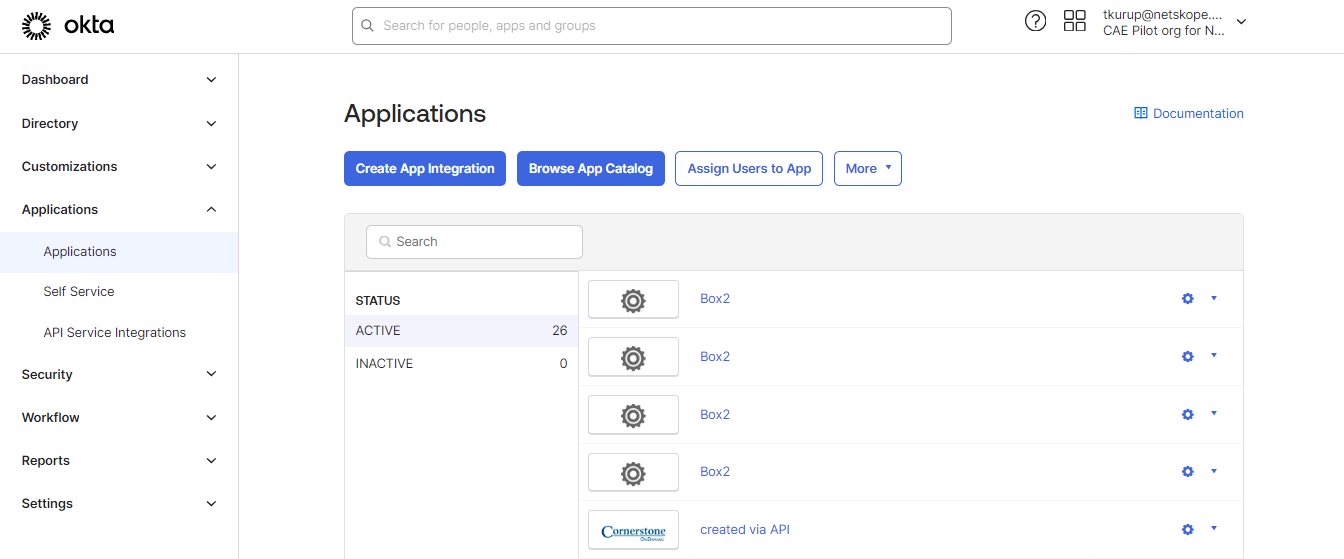
The plugin pulls Applications from the Applications page available on Okta.
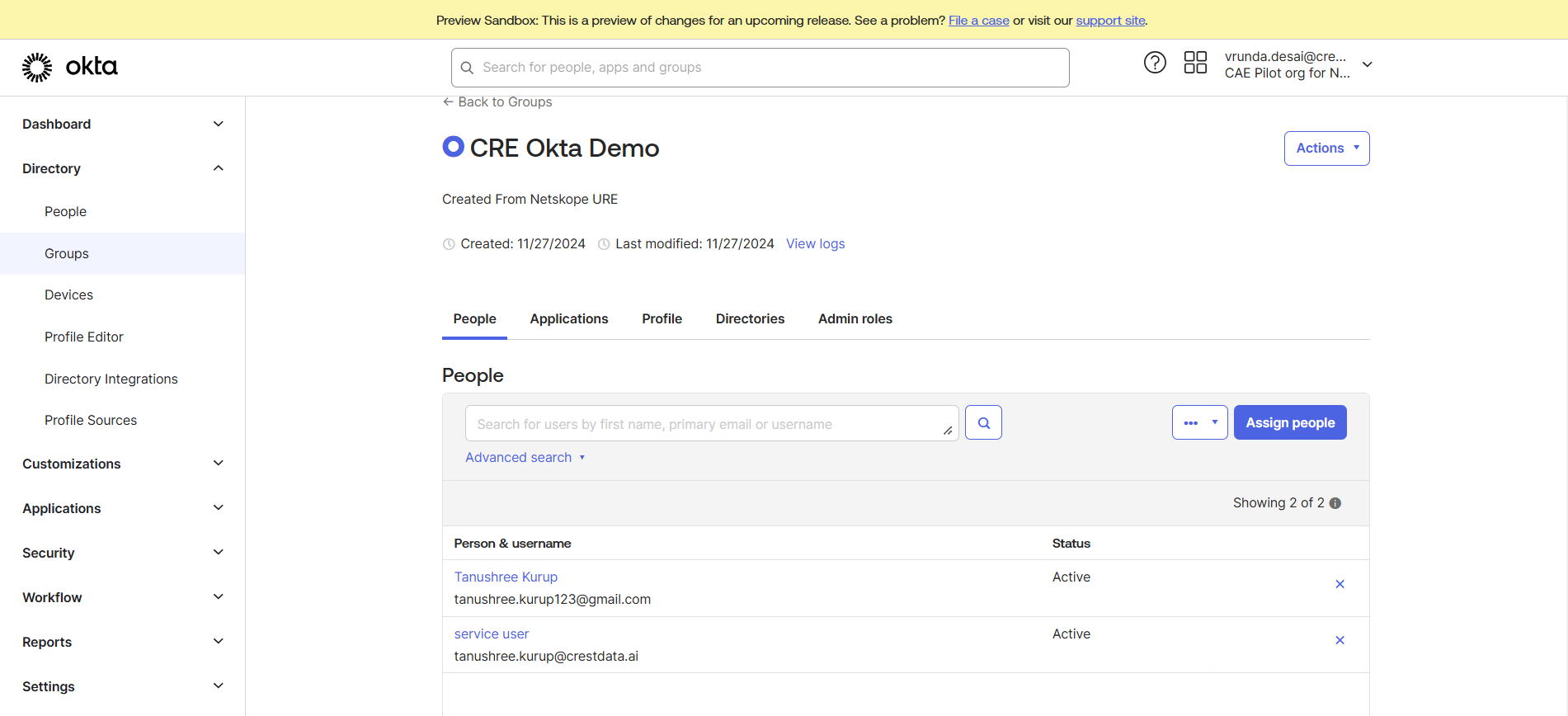
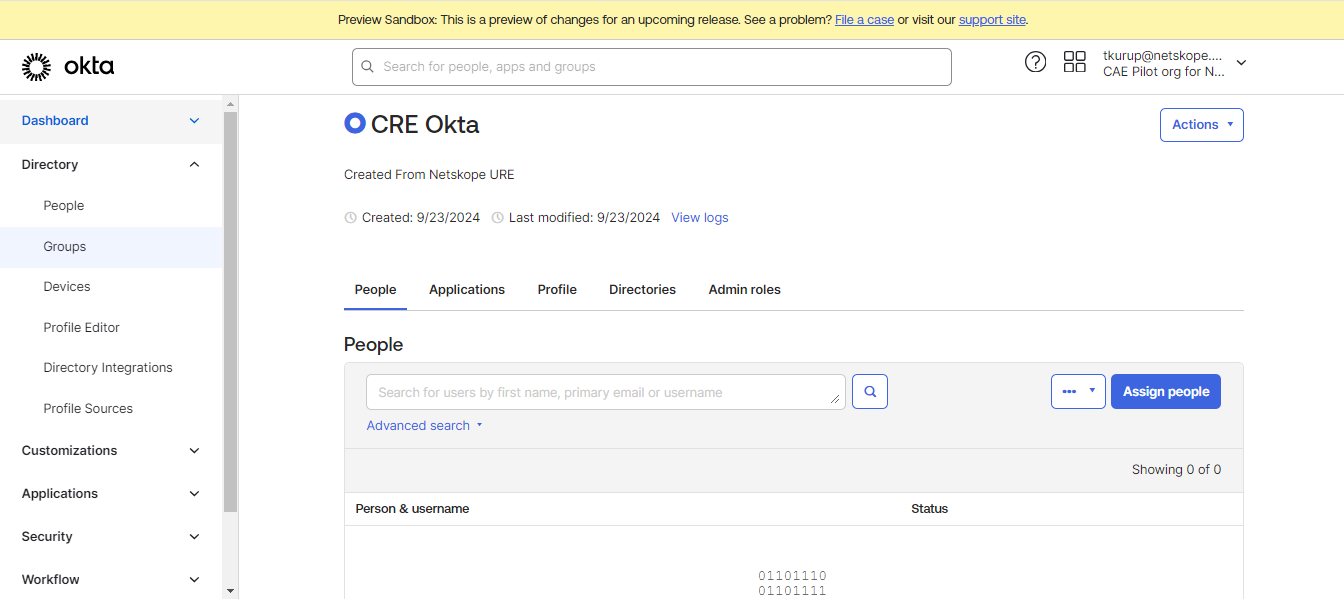
Open the Okta Admin section and go to Directories > Groups. Find the group that you selected in the Action configuration. Here you can check the groups created, and the user added in the groups, or removed from the group.
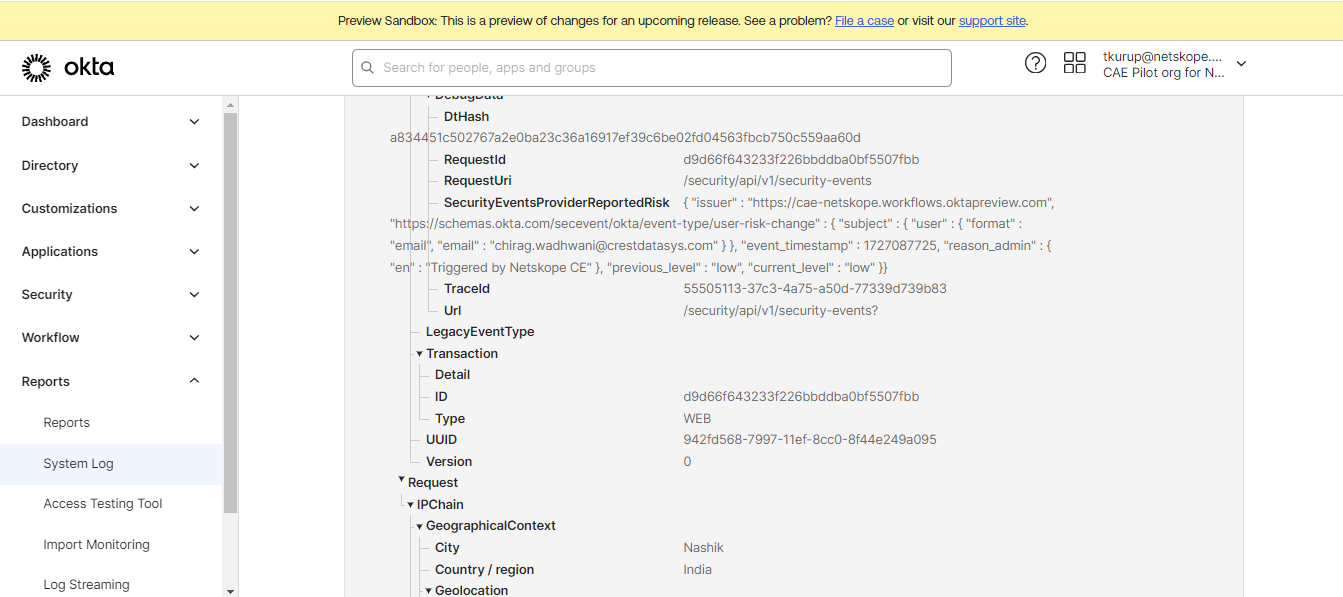
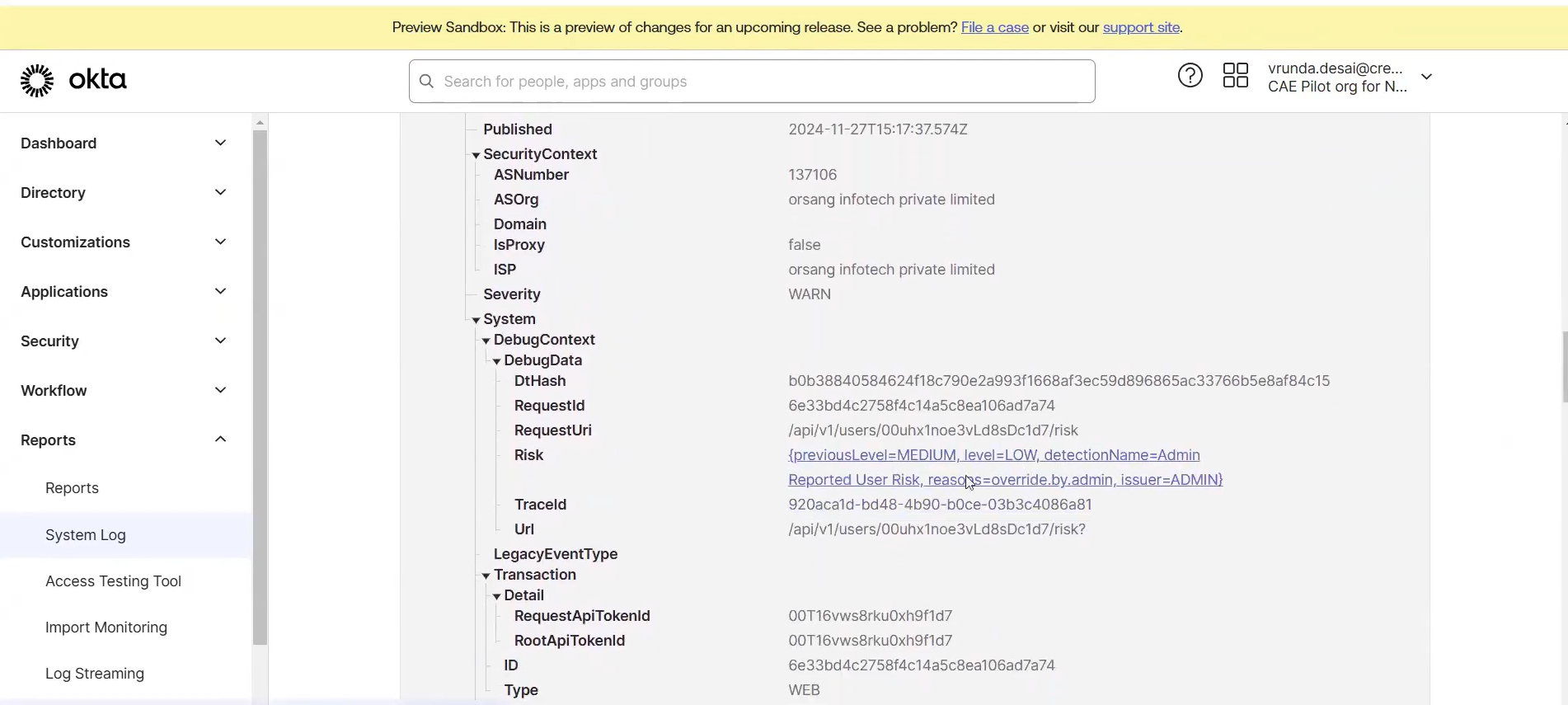
To verify the Push risk score and Upsert User Risk action, go to the Reports System Log. The logs for push risk score action will have Security Event Provider Reported Risk as the Event info, and the Upsert User Risk will have User Risk was detected as the Event Info.
Log for Push Risk Score action:
Log for Upsert User Risk action:
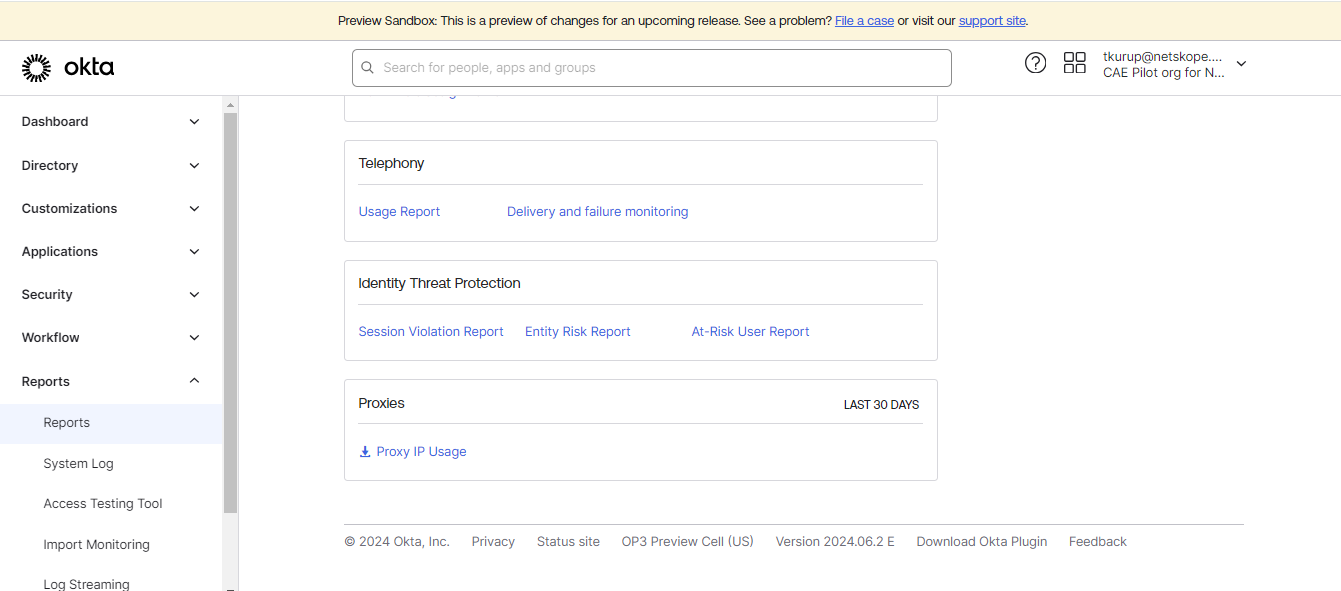
Go to Reports > Reports, scroll down to Identity Threat Protection, and click Entity Risk Report.
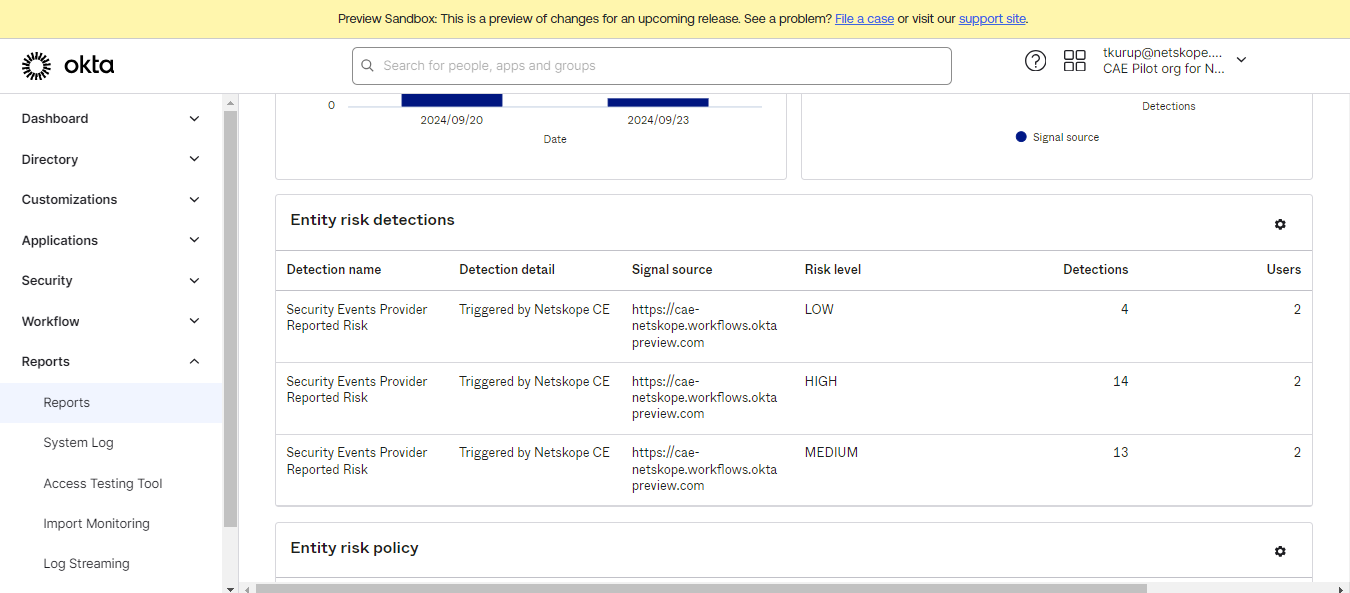
Check the Entity Risk Detections, you will be able to see all the push Risk scores for the user. The users will be pulled from the same page. The users will only be pulled if the Risk Levels are detected on this page.
It takes time to reflect the pushed scores under the Entity Risk Detections on Okta after the action is performed on CE. For both Push Risk Score and Upsert User Risk, the Risk level change can be seen as below:
Troubleshooting the Okta Plugin
Receiving error in the plugin workflow
- Not able to save the sharing configuration and receiving the below error in the loggers: CRE Okta [CRE Okta]: Received error code 400. Error Summary: Api validation failed: name. Error Causes: [{‘errorSummary’: ‘name: Security Events Provider name must be unique’}].
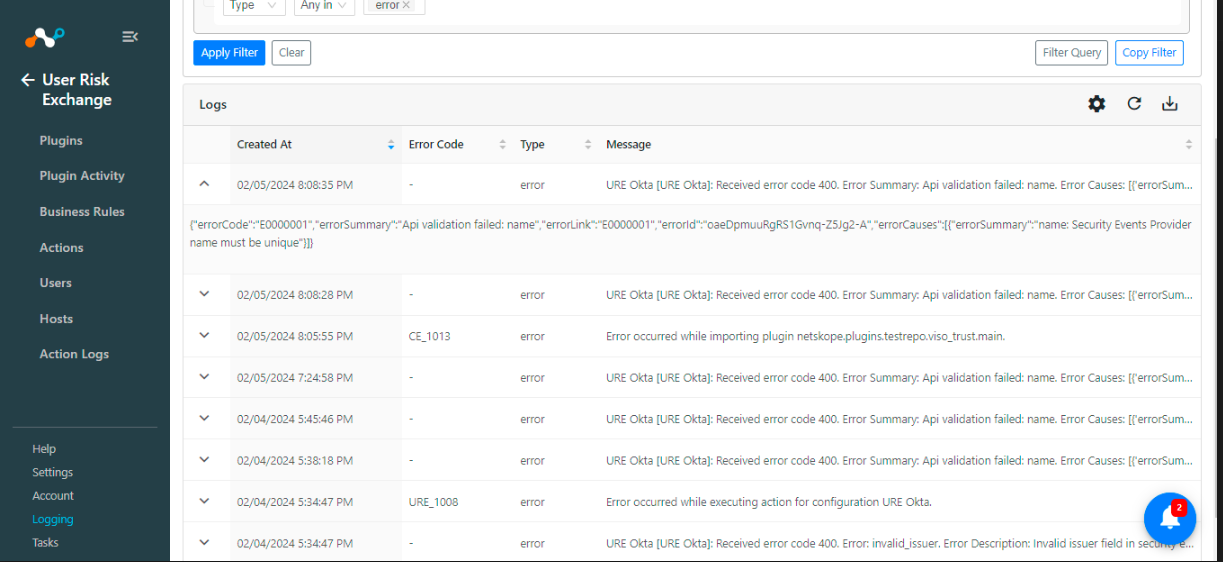
You can receive this error if a sharing configuration with destination Okta is currently present on CE or was earlier created and deleted.
Cause: While creating the sharing configuration, a new Security Event Provider is created on Okta tenants with the name – Netskope Security Events Provider.
But the Okta Netskope CRE accepts a single 1:1 mapping of sharing with the security event provider.
What to do: Delete the existing Security Event Provider from the Okta platform in order to edit or create a new sharing configuration with Okta in Netskope CE. Here are the steps to delete the existing Security Event Provider:- Log in to your Okta Tenant.
- Go to Security > Device Integrations.
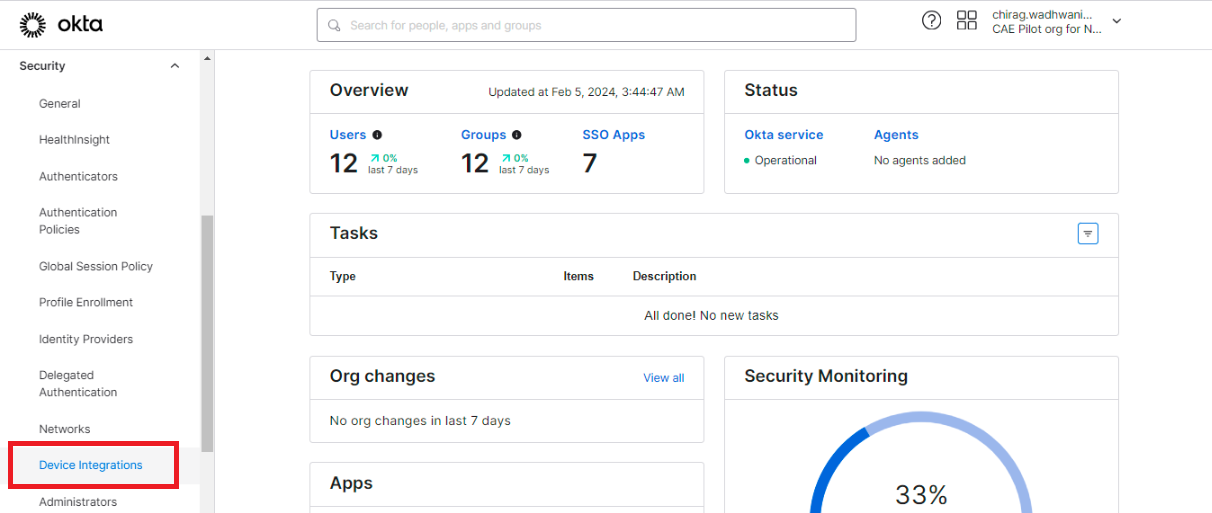
- Click the Receive shared signals tab
- For the shared signal named Netskope Security Events Provider, expand Actions and select Delete.
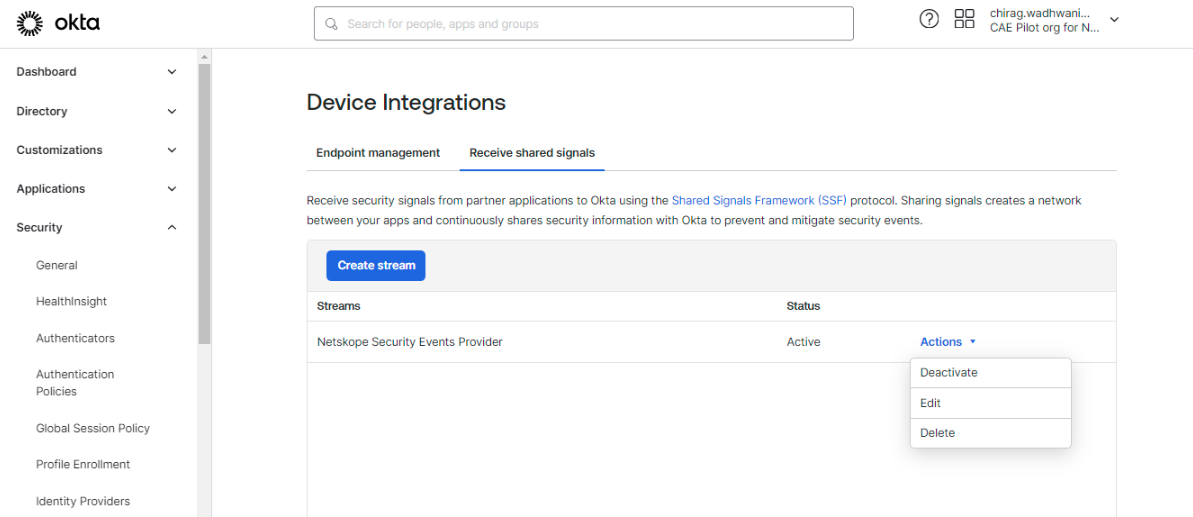
After this you can create a new sharing configuration for the Okta plugin, or edit the existing one.
- CRE Okta [configuration_name]: Received error code 400. Error Summary: Api validation failed: settings.jwksUrl. Error Causes: [{‘errorSummary’: ‘settings.jwksUrl: Is not a valid URL. Valid example: http://www.okta.com‘}].
What to do: Verify the Public Key hosted on the public URL.
- CRE Okta [CRE Okta]: Unable to establish connection with Okta platform while ‘Fetching Key ID’. Proxy server or Okta server is not reachable. Error: HTTPConnectionPool(host=’35.172.183.204′, port=8080): Max retries exceeded with url: /jwks (Caused by NewConnectionError(‘<urllib3.connection.HTTPConnection object at 0x7f075a904430>: Failed to establish a new connection: [Errno 111] Connection refused’))
What to do: Check the site where you have hosted the public key. If you are using a script, make sure the script is up and running.
- CRE Okta [CRE Okta]: Received error code 400. Error Summary: Error Summary not available. Error: invalid_key. Error Description: No matching key was found in JWKS uri, kid=8s4cciA4UPIN7aVyTwVEhE9JTUSL87XALbCY9SUKvws.
What to do: This specifies that the private key provided in the Action configuration does not match with its public key pair provided in the configuration or the public key is not hosted properly. Regenerate the public and private key or verify the public and private key added and make sure that the hosted key is accessible.
- CRE Okta [Okta]: Group with ID ’00ga2i326jTvm8sxV1d7′ does not exist on Okta.
What to do: If you receive the above error, that means that the group name provided in the action configuration does not exist on the Okta platform, change the group name or create the same group on Okta. - CRE Okta [CRE Okta]: Invalid Private Key provided, make sure the Private Key is in PEM format.
What to do: If you received the above error, that means the private key provided is invalid or is not in a valid PEM format.
- CRE Okta [Okta]: Invalid Okta Domain provided.
What to do: If you received the above error, that means the Okta Domain provided in the plugin configuration is invalid. - CRE Okta [okta]: Okta plugin expects the value of ‘Scores’ parameter to be any of the following values: low, medium or high.
What to do: If you receive the above error message it might be due to the score value provided in the action configuration being anything other than low, medium and high. Note that Okta expects the scores in low, medium and high range.
- CRE Okta [Okta]: Validation error occurred. Error: Authentication failed, check the API Token provided.
- CRE Okta [Okta]: Received exit code 401, Validation error occurred, HTTP Error while fetching applications for page 1.
What to do: If you received the above error, that means the Okta API Token provided in the plugin configuration is invalid/expired.
Unable to perform action on the user
If you are not able to perform the action on the user it might be due to one of the following:
- The user is not present on Okta.
- The Risk Level of the user does not match with Okta Risk Level.
- The action is configured with the Require Approval toggle button enabled.
What to do:
- Check if the user you are trying to perform an action on exists on Okta, if the user does not exist you will receive a log for the user not found on Okta when the action is being performed.
- Okta only supports Risk level as LOW and HIGH for Upsert User Risk action and for Push Risk Score action the supported type will be low, medium, and high. Any other risk in any other format will not be Okta equivalent and the action will fail for the user.
- If the user exists and the action is still not performed and no error is received, it might be due to the action configuration having the Require Approval toggle button enabled. If it is enabled, go to the Action Logs page in the CRE module and select the logs added for the approval, and click on the approve button.
Applications are not pulled from Okta
If no data for the application is pulled, it might be due to either:
- No application is available on the platform to pull.
- Mapping is not added in the plugin to store any applications.
What to do:
- Go to Okta and check if the applications are available to pull from the applications page.
- Edit the plugin configuration and check the Entity Source page, there should be some fields mapped in order to pull the same.
Push Risk Score does not reflect on the Okta platform
The loggers provide a successful response for the Push Risk Score action but the Risk level is not updated on Okta, this can be due to the Netskope User email that is being used for the Push Risk Score action does not match with the Login Username of the user on Okta.
What to do:
Make sure that the Netskope email being used matches with the Login Email along with the Primary Email of the user on Okta.
Risk Level is not being fetched or updated for a specific user
The Risk Level for all users is getting fetched except for a specific user and error is received for trying to pull the user risk. This could be due to the following:
The user whose risk level was not pulled and for which the error was received, the same user’s credentials were used to login on Okta to generate the API Token. This is an expected behavior from Okta that the user who has created the API token, the user risk level cannot be fetched or updated for the same.
What to do:
Create a separate user and use this user to generate the APO Token instead of the normal users that are being tracked. Refer to the Assign Roles and Applications to Users section for details.
Limitations
The plugin does not allow saving the Push Risk Score action configuration in the following scenarios:
- If the Public and Private Key pair is incorrect
- If the Netskope Security Events provider already exists on the platform with a different issuer and JWKS pair than provided in the configuration.
- If the Issuer and JWKS pair provided already exists on the platform with a different Security Event Provider.