

The findings page for an asset lists each finding with the description of the rule involved, when the finding occurred, the associated frameworks, and remediation guidance. For each combination of asset and rule, the page shows the latest finding.
You can create a ticket in two ways. Create a ticket for a single finding on an asset, or create one ticket for a rule that has findings on many assets. Creating a ticket posts the details to your ticketing system.
Configuring Webhooks for Tickets
Before you can create tickets, configure one or more webhooks for your ticketing system. You complete this setup once. When you add a webhook, you can test it to confirm the endpoint works, and you can review a preview of what Netskope posts. After a webhook is saved and tested, it appears as an option when you create a ticket.
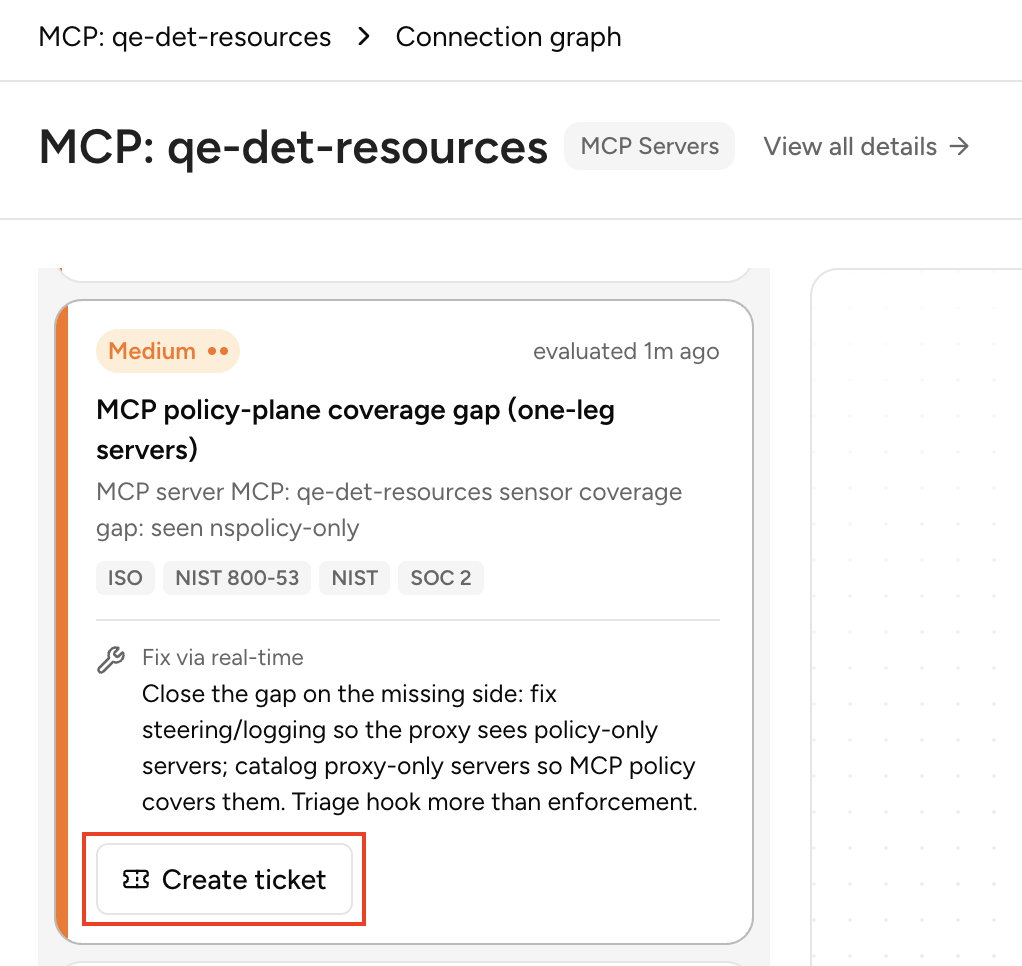
Creating a Ticket for a Finding
After you configure a webhook, you can create a ticket from the findings page for an asset.
To create a ticket for a finding:
- In the Overview page, open the findings for an asset.
- Click Create Ticket.
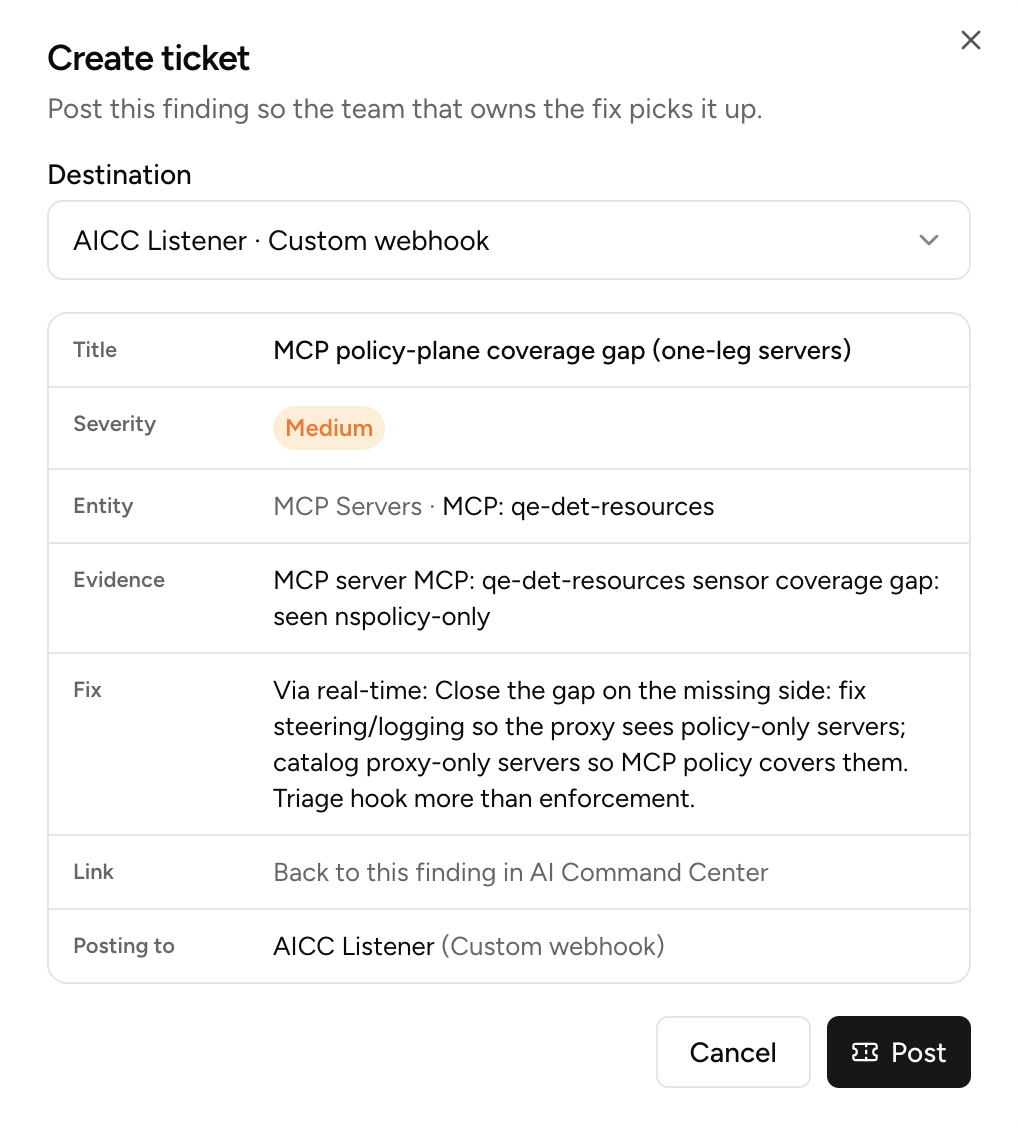
- Select a webhook endpoint.
- Confirm the post.
A success message appears when the post succeeds.
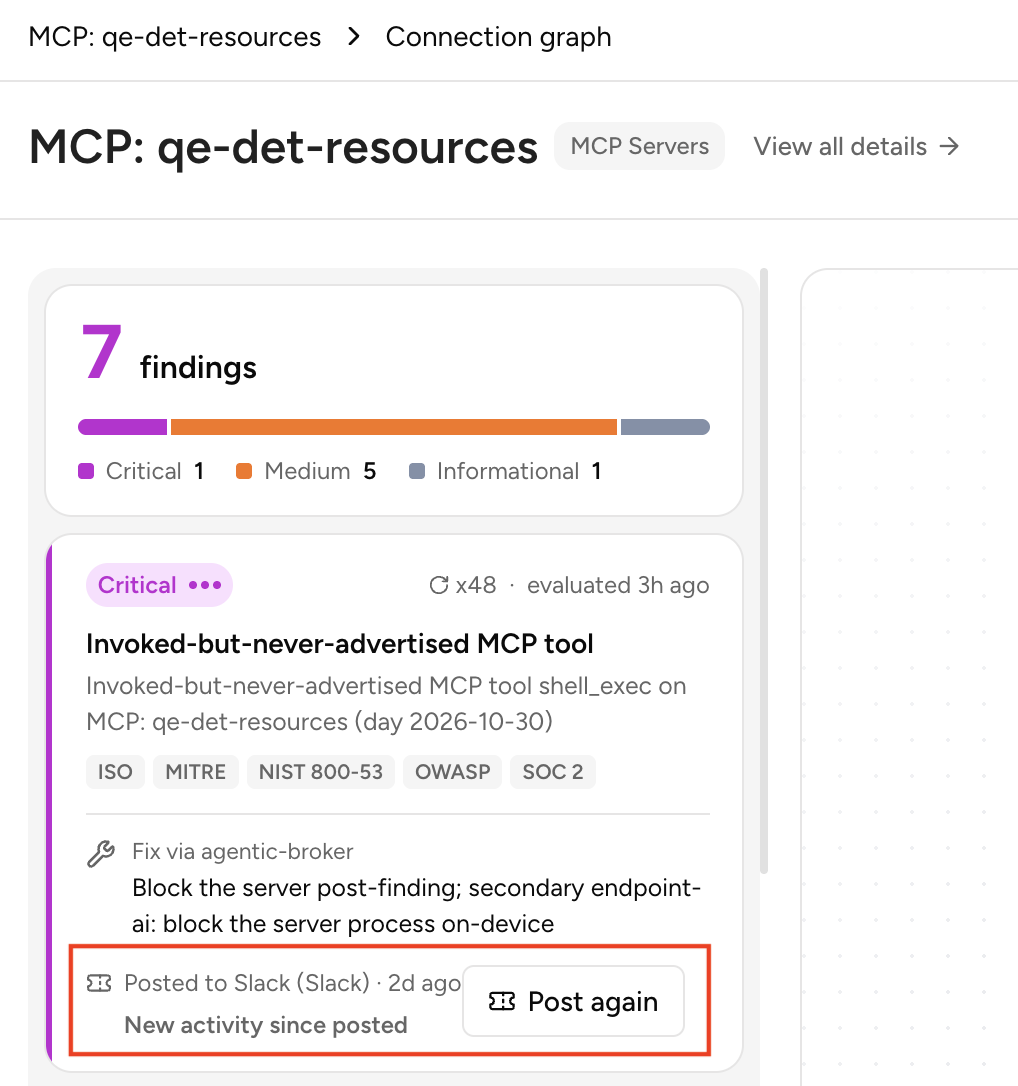
If you already posted a finding, the page shows when the last post occurred, for example 3 hours ago. If the severity of the finding has escalated since that post, the page also indicates the escalation.
Creating a Ticket for a Rule
When many assets breach the same rule, creating a ticket for each asset is not practical. Instead, create one ticket for the rule. The ticket summarizes the findings for that rule so the team can review and fix them together.
The Rule List shows only rules that have at least one finding. Each rule lists the assets that breached it.
The ticket includes the following:
- The total number of assets that have a finding for the rule.
- Details and evidence for the first five assets.
The ticket does not list every asset. Use the Rule List in Netskope to review all affected assets.
To create a ticket for a rule:
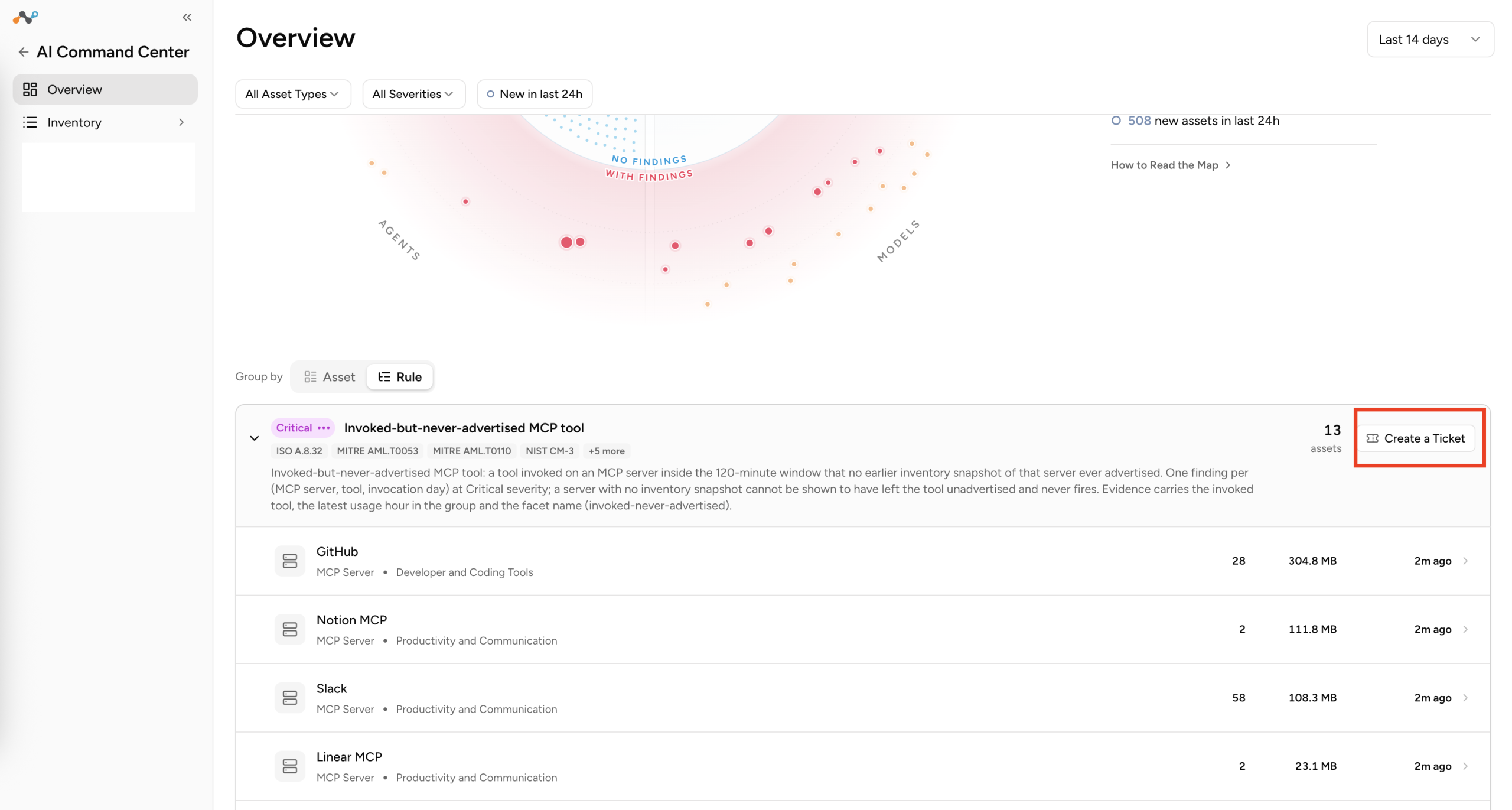
- In the Overview page, go to the Rule List.
- Find the rule that you want to create a ticket for.
- Click Create Ticket.
- Select a webhook endpoint.
- Confirm the post.
A success message appears when the post succeeds.
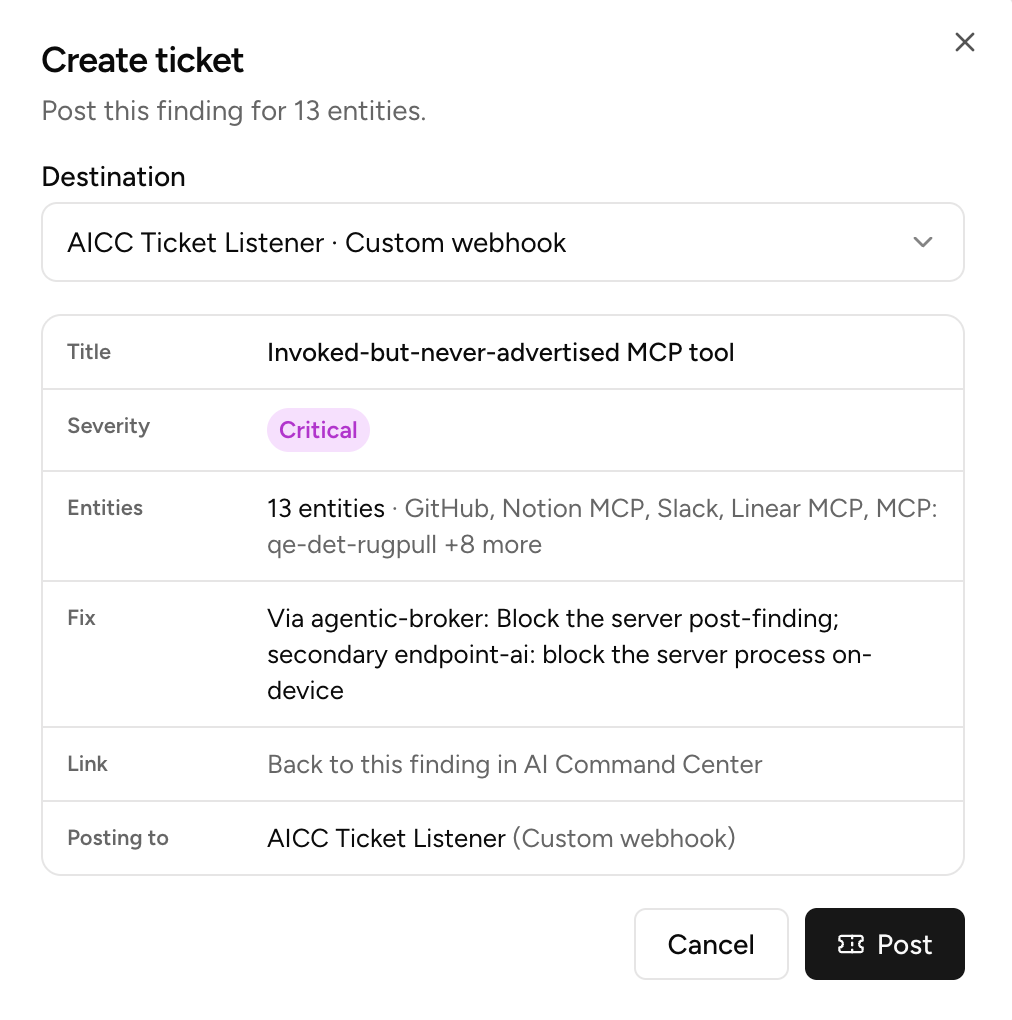
If you already created a ticket for the rule, the page shows when the last ticket was created. You can create another ticket, for example if the earlier ticket was closed or deleted, or if new assets breach the rule. The page summarizes what changed since the last ticket.