

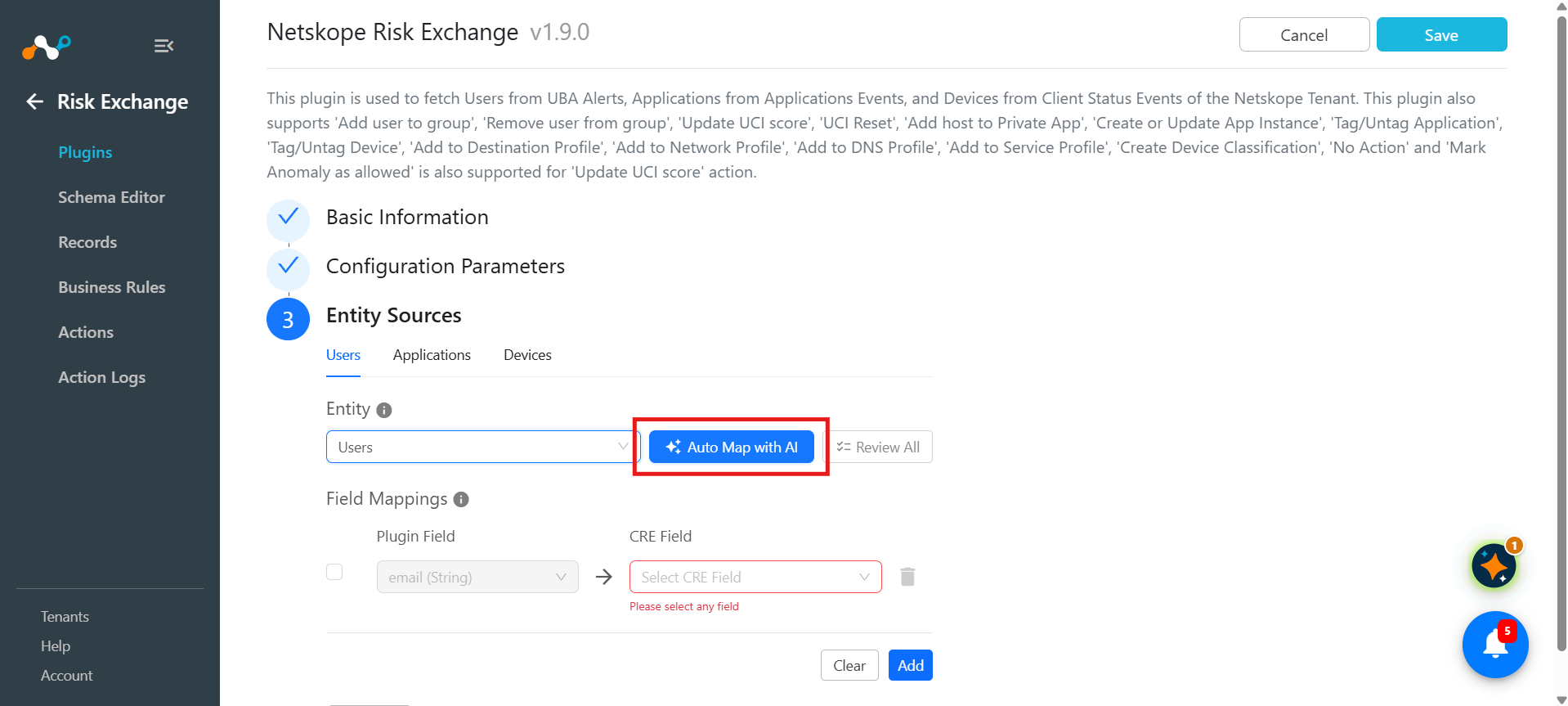
Risk Exchange Auto-Mapper suggests field mappings based on a plugin’s field descriptions and existing fields in Cloud Exchange for a particular entity. Select the destination entity, click Auto Map with AI, and Cloud Exchange returns a suggested destination for each plugin field, with a plain-language reason for every suggestion. Nothing is saved and no field is created until you review the suggestions and confirm.
For information about what it sends to the provider, go to Cloud Exchange Copilot.
Prerequisites
To complete this configuration, you need:
- The Risk Exchange module must be enabled under Settings > General.
- An LLM provider must be configured and enabled under Settings > LLM Provider. Go to Cloud Exchange Copilot for the steps.
- To use the Risk Exchange Auto-Mapper, a user needs Risk Exchange Write permission.
Auto-Map a Plugin Entity
- Go to Risk Exchange > Plugins and configure a plugin, or edit an existing configuration.
- Complete the Basic Information and Configuration Parameters steps, and continue to Entity Sources.
- Select the tab for the plugin entity you want to map.
- In Select Entity, select the Cloud Exchange entity the plugin fields should be mapped into, such as Users or Devices.
- Click Auto Map with AI.
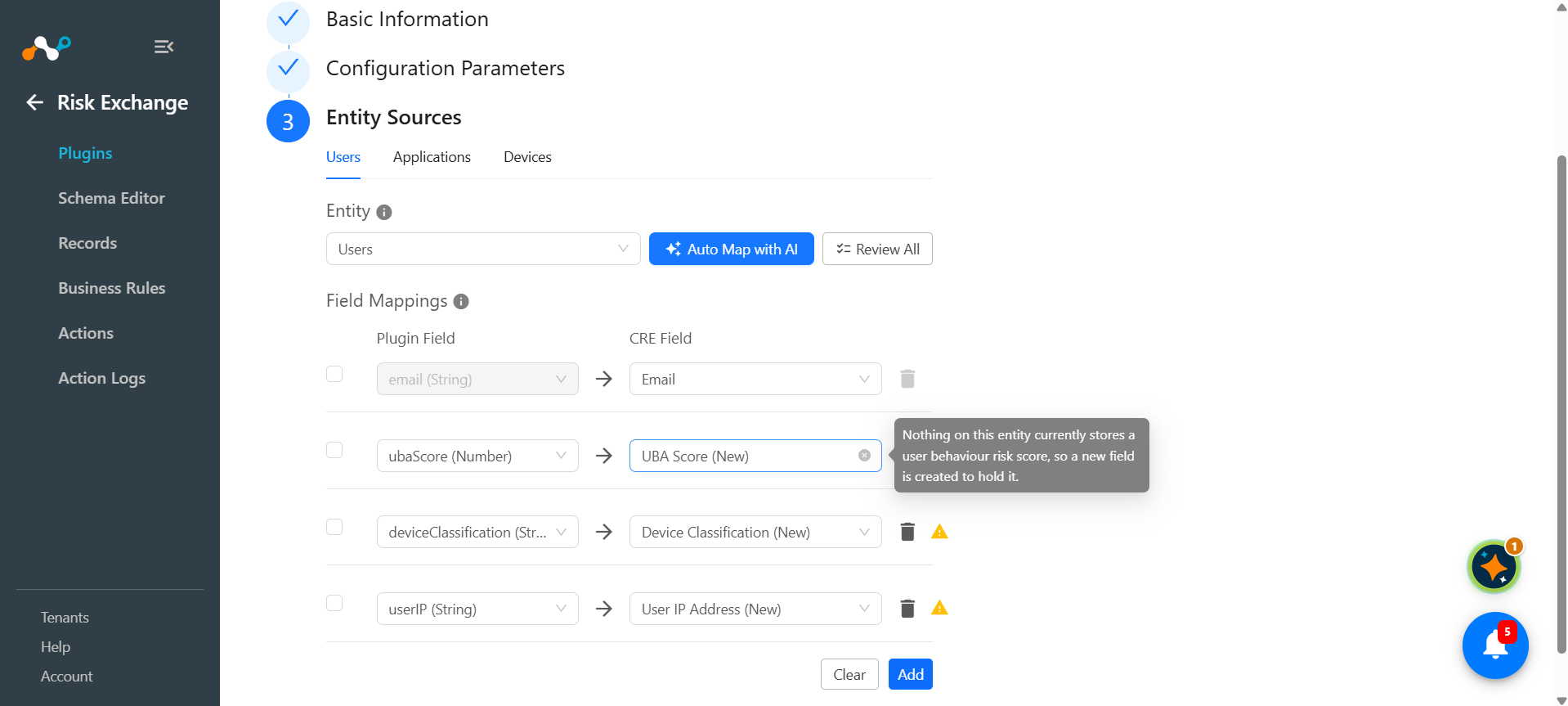
The mapping table is filled in when the run completes. The reasoning behind each mapping can be seen when you hover over the suggested field.
Review the Suggestions
Every suggested row has an information icon. Clicking the icon will open a pop-up in which you can review that field.
| What you see in the row | What it means |
|---|---|
| An existing field name in Select CRE Field | The plugin field will be mapped to a field that already exists on the entity. No new field will be created. |
| A field name followed by (New) | The Auto-Mapper found nothing suitable and is proposing a new field. It does not exist yet, and you have to review and create it. |
You can change any suggested destination, delete a row, or add a mapping by hand. Auto-mapped fields can be customized depending on the use case in the review stage.
Create the Suggested Fields
Rows marked (New) point at fields that do not exist yet. Create them before you save the configuration.
- Click Review All to open Configure new fields.
- Select the fields you want to create. Use Select all, or clear the check box on any suggestion you do not want.
- Select a field in the list to open its settings on the right. Go to Schema Editor to learn more about each options.
- Click Mark as reviewed on each field, or use Mark n fields as reviewed to mark every selected field at once. A field stays Review pending until you mark it.
- Click Create. The button shows how many fields will be created.
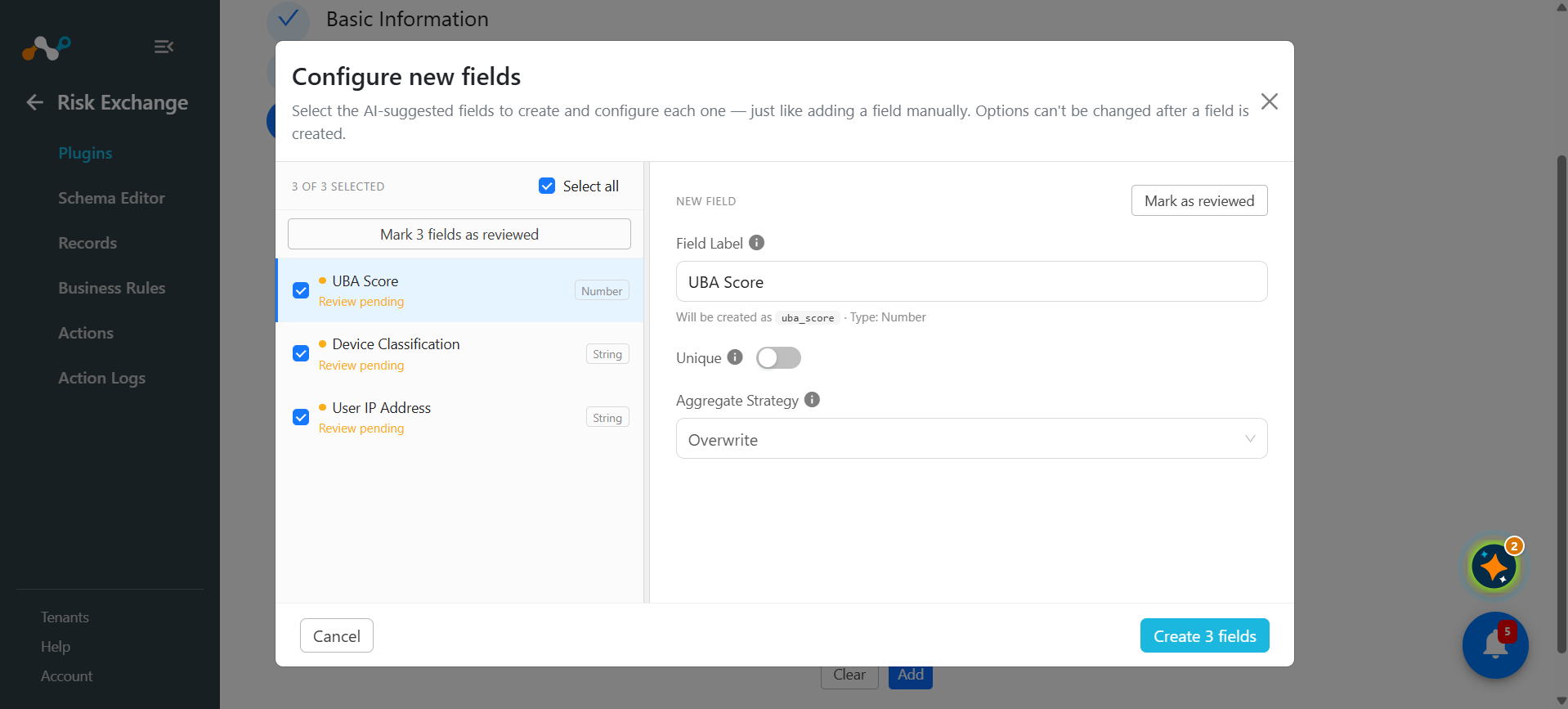
The fields are created on the entity and the mapping rows are updated to point at them.
If some of the suggestions are left unselected, Cloud Exchange asks if you want to save those suggestions for later or not. Choose Keep suggestion or Remove accordingly.
Rerun the Auto-Mapper
Rerunning the Auto-Mapper does not have to discard the work you have already reviewed.
Re-Suggest Selected Fields Only
You can select specific fields by the checkbox present before them. Select the fields for which you want the suggestion again and click Auto Map with AI. Auto-Mapper will give a suggestion for the selected fields only.
Rerun Against a Configured Mapping
If you click Auto Map with AI while editing an already configured plugin mapping, Cloud Exchange gives you following options:
| Option | Result |
|---|---|
| Overwrite | Every plugin field is mapped again from scratch and the existing mapping is replaced. |
| Keep & Map Remaining | The fields which are already mapped are kept as they ar, and only the unmapped plugin fields are asked for a suggestion. |
How the Auto-Mapper Chooses a Destination
Understanding the rules makes the suggestions easier to review.
- Types must match exactly. A string plugin field is only mapped to a string Cloud Exchange field. A field of the wrong type is never suggested.
- The plugin field’s description is the evidence. Currently, only selected plugins have field descriptions mentioned such as Netskope, Crowdstrike, Illumio, etc. Risk Exchange plugins. Accuracy of plugins without field descriptions may be reduced.
What the Auto-Mapper Sends to the LLM Provider
The Auto-Mapper works entirely from your schema.
| Sent | Not sent |
|---|---|
| For each plugin field: its name, type, whether it is required, and its description. | Any record value. No user, device, or application data is read or transmitted. |
| For each Cloud Exchange field: its label, type, whether it is unique, and whether another configuration already writes to it. | The plugin’s configuration parameters, including the API key and other credentials. |
Risk Exchange Auto-Mapper FAQs
Running the Auto-Mapper
Q: Why is the Auto-Map with AI button disabled?
A: No destination entity is selected for the tab. Choose the Cloud Exchange entity in Select Entity first. The Auto-Mapper never picks the entity for you; it only maps fields into the entity you selected.
Q: Will rerunning Auto-map destroy the mappings I already reviewed?
A: Only if you choose to. Select the check boxes on the rows you want reconsidered and rerun, and only those rows change. If you rerun with nothing selected on a tab that already has mappings, Cloud Exchange asks first, and Keep & Map Remaining leaves your existing rows untouched.
Q: Does dismissing the overwrite prompt still cost me an AI request?
A: No. Cancelling the dialog, closing it with the X, or clicking outside it all stop before any provider call is made.
Q: Does the Auto-Mapper need the AI Copilot permission?
A: No. It is part of Risk Exchange plugin configuration, so Risk Exchange write permission is enough. An LLM provider still has to be configured and enabled under Settings > LLM Provider.
Suggestions and New Fields
Q: One of my plugin fields came back with no suggestion. Why?
A: Usually because no existing field matched its type and the proposed new label collided with an existing field of a different type, so the suggestion was discarded rather than creating a duplicate. Map the field by hand; the discarded suggestion is recorded in the platform logs under Settings > Logging.
Q: The suggestions for one plugin are much better than for another. What makes the difference?
A: Field descriptions. The Auto-Mapper decides from what the plugin author documented each field to be, not from its name, so a plugin that ships thin descriptions produces weaker suggestions. Descriptive labels on your own Cloud Exchange fields help too. Generic labels such as ID, Name, or Key match nothing specific.
Cost & Data Handling
Q: Can I track the tokens this feature uses?
A: Yes. Go to the Home page and select the AI Analytics tab, where usage is listed against CRE Automapper. Input and output tokens are broken down by feature and by user, so you can see how much of your provider budget field mapping is consuming.
Q: Are any of my risk records sent to the LLM provider?
A: No. The Auto-Mapper reads your schema, not your data. No user, device, or application record values are read or transmitted, and the plugin’s configuration parameters, including its API key, are never sent.
Q: Does clicking Auto-Map save anything?
A: No. Suggestions land in the wizard only. Fields are created when you confirm them in the review modal, and the mapping itself is stored when you save the configuration.
Q: How much should I trust the suggestions?
A: Treat them as a reviewed first pass. They are generated by a language model, and each row carries a reason so you can judge it. Read every row before saving the configuration, and pay particular attention to any field marked unique.