

Cloud Exchange includes a set of AI features that help you configure, and operate the platform. These features can recommend plugins and field values while you are configuring a module, map a plugin’s fields onto your Risk Exchange schema, and read your platform logs to explain what went wrong and what to do about it.
Important
- AI Features require a configured and enabled LLM Provider plugin. Learn more.
- All outcomes produced by AI features are a suggestion that you should review and apply accordingly. AI itself will not make any changes to Cloud Exchange. AI response time may vary based on complexity of question.
AI Features in Cloud Exchange
| Feature | Where you use it | What it does |
|---|---|---|
| AI Copilot | The copilot icon, available on every Cloud Exchange page | Answers questions about the page you are on, walks you through a configuration step by step. It also raises proactive alerts that need your attention by performing pre-defined rule based scheduled detection. |
| CRE Auto-Mapper | Risk Exchange plugin configuration wizard | Suggests a destination platform field for every field of a plugin entity, and proposes new fields where nothing suitable exists. |
| Posture Assessment | Settings > Logging | Analyzes a single platform log, or a filtered set of logs, and returns a health verdict with a prioritized remediation plan. |
Watch a Video
Click play to watch a video.
Manage Provider Configurations
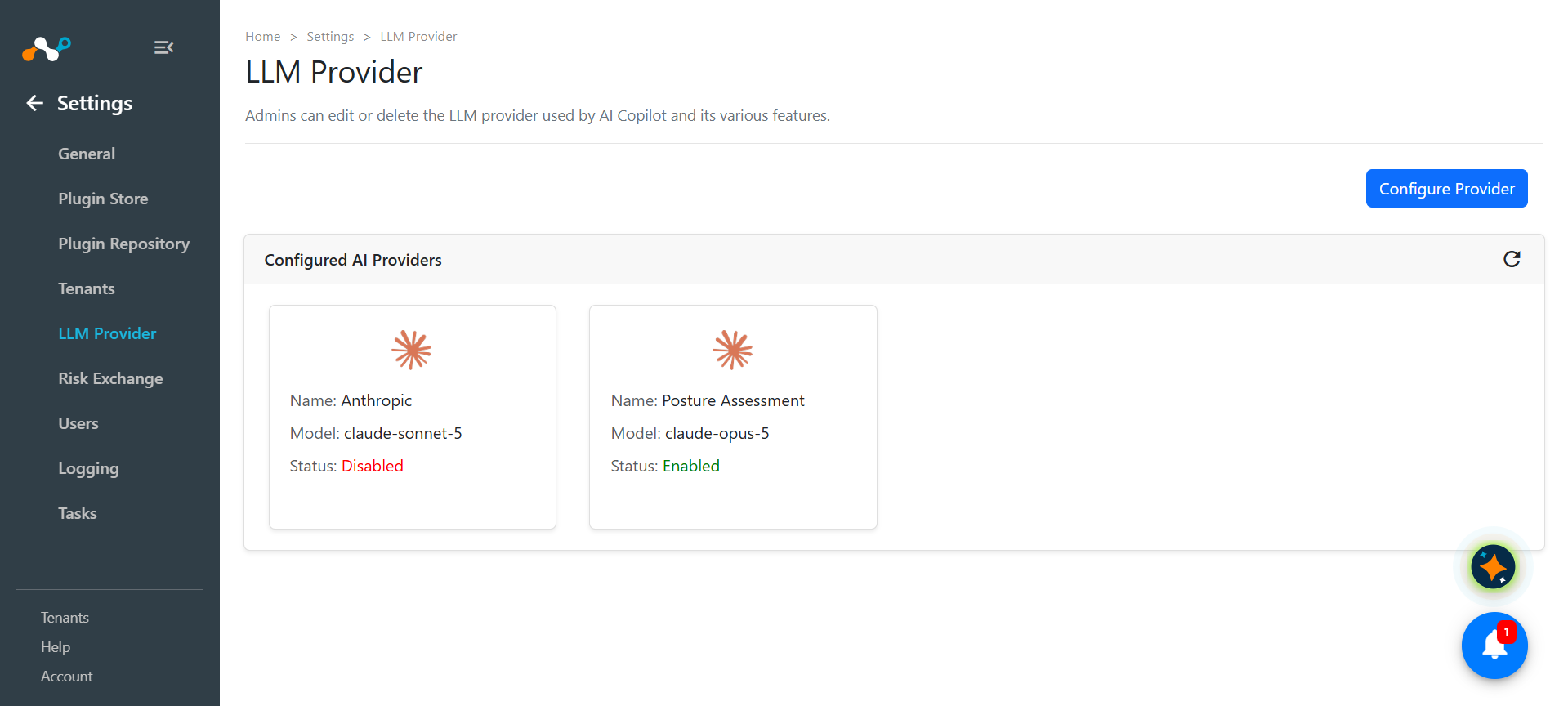
Users with ai-write and settings-write access can create the configuration.
Users with ai-write access can edit, enable/disabled, or delete the configuration using options available on created configuration by selecting the edit icon (pencil), the disable icon (circle and slash), or the delete icon (trash).
Disabling the provider or deleting the last provider configuration disables all AI features. Cloud Exchange continues to operate normally without AI features. The Copilot chat indicates that no AI provider is configured, Posture Assessment actions are unavailable, and the Risk Exchange plugin configuration wizard returns an error for the Auto Map action until an AI provider is enabled.
AI Feature Permissions
Access to the AI features requires two permissions: ai-read or ai-write on the user’s role and permission for the module where the feature runs. Admins have full access to all AI features.
| Permission | Grants |
|---|---|
| AI Copilot > Read | Use the AI Copilot, run a Posture Assessment or a single-log analysis, and view the AI Analytics dashboard. |
| AI Copilot > Write & Settings > Write | Configure the LLM Provider and all permissions AI Copilot Read access grants. |
| Risk Exchange > Write | Use the CRE Auto-Mapper. The Auto-Mapper is part of Risk Exchange plugin configuration, so it does not need any additional AI Copilot permission except a configured LLM Provider plugin. |
The copilot never returns data a user is not entitled to see. It reads only the modules the signed-in user has read permission on. If a guided setup step requires access to a page that the user cannot access, the action is blocked and the reason is displayed. For details about assigning permissions, go to Cloud Exchange Users.
What Cloud Exchange Sends to the LLM Provider
AI features send only what is needed to answer the request, and secret fields are removed before the request leaves your deployment.
- Credentials are never sent. Plugin configuration parameters are stripped of every password, token, API key, and secret before they reach the model. The copilot can tell you which field to fill in, but it never sees or repeats the value.
- Records are never sent. The CRE Auto-Mapper reads your schema, not your data. No user, device, or application record values are included in an Auto-Mapper request.
- Log content is sent only when you ask for it. Posture Assessment and single-log analysis send the logs you selected. The proactive alerts are purely rule based that are predefined. It does not invoke any LLM Provider plugin; however, it can be utilized if asked for help to fix the raised findings.
- Grounding is restricted. When the selected model supports web search, the AI features are allowed to search Netskope product documentation to find their answers, and every source is listed under Sources in the result.
Tune AI Features with Environment Variables
The AI features run with defaults that suit most deployments. Changing these parameters may degrade AI response time or response quality. If you need to change how much detail the Copilot returns, how much work a single AI request is allowed to do, or how much of your log volume an assessment reads, set these environment variables on the Cloud Exchange core container. Every variable is optional, and an unset or unrecognized value falls back to the default shown.
| Variable | Default | Description |
|---|---|---|
AI_COPILOT_VERBOSITY | concise | How much detail Copilot responses include. Accepts concise, balanced, or detailed (case-insensitive). Any unrecognized value falls back to concise. |
AI_COPILOT_TURN_MAX_ITERATIONS | 30 | Maximum reasoning steps a Copilot agent may take in a single turn that is applied to every agent. Accepts a positive integer; values below 1 are raised to 1, and non-numeric values fall back to 30. Raise it if complex requests are being cut short. |
AI_COPILOT_MAX_LOG_CAP | 500 | Maximum cumulative log lines the triage tool may pull into context for one analysis. Accepts a positive integer; values below 1 are raised to 1, and non-numeric values fall back to 500. |
CE_ATTENTION_SCAN_DISABLED | false | Kill switch for the background attention scan that surfaces items needing review. Accepts true to disable; any other value, including unset, leaves it enabled. |
Trace AI Activity with Langfuse
Cloud Exchange can send traces of its AI activity to Langfuse, an open-source LLM observability platform. Traces record the model calls, tool calls, and token counts behind each copilot turn and each assessment, which is useful when you want to see step by step how an answer was produced, compare cost across features over time, or investigate a slow request.
Tracing is entirely optional and off by default. It never changes what the AI features do or what they return, and Cloud Exchange keeps working normally if the Langfuse endpoint is unreachable. Enable it by setting the variables below; tracing activates as soon as both keys are present. Refer to https://langfuse.com/docs for Langfuse setup and to obtain keys.
| Variable | Default | Description |
|---|---|---|
LANGFUSE_PUBLIC_KEY | unset | Langfuse public key. Required to enable tracing. |
LANGFUSE_SECRET_KEY | unset | Langfuse secret key. Required to enable tracing. |
LANGFUSE_BASE_URL | unset | Langfuse endpoint URL. Takes precedence over LANGFUSE_HOST when both are set. |
LANGFUSE_HOST | unset | Langfuse endpoint URL, used only when LANGFUSE_BASE_URL is not set. |
LANGFUSE_TRACING_ENABLED | unset — enabled when both keys are present | Master switch. Accepts false or 0 to disable tracing even when both keys are set. Any other value leaves the key-presence rule in charge. |
Troubleshoot AI Features
| Symptom | Resolution |
|---|---|
| The copilot reports that no AI provider is configured, or that the AI provider is disabled. | Go to Settings > LLM Provider and configure a provider, or enable an existing configuration. |
| An AI action fails with an authentication error. | The API key is invalid, expired, or has been revoked at the provider. Edit the configuration and enter a new key. |
| An AI action fails with a rate limit or service busy error. | The provider is throttling or is temporarily overloaded. Cloud Exchange retries automatically based on LLM Provider; retry the action after a short wait. |
| An AI action fails with a message about the conversation or the request being too long. | Start a new copilot chat, or narrow the log filter before running a Posture Assessment. Simplify a complex question with multiple queries into a question with one query for Copilot. |
AI activity is written to the platform logs with the AI-COPILOT prefix. Go to Settings > Logging and filter on it to see what a failed request reported.