

The AI Copilot is an assistant built into Cloud Exchange. It knows which page you are on and what you are looking at, so you can ask it to explain a field, recommend a plugin, walk you through a configuration, or work out why a plugin run failed, without leaving the page you are working on.
The Copilot also watches your deployment in the background by executing predefined rule based detection scans, and it raises findings which needs admin’s attention, such as a plugin that has stopped pulling or a module that is enabled but has no configuration.
For information about what it sends to the provider, go to Cloud Exchange Copilot.
Click play to watch a video.
Prerequisites
To use AI Copilot, you need:
- An LLM provider must be configured and enabled under Settings > LLM Provider. Refer Cloud Exchange Copilot for the steps.
- To use the Copilot, a user needs the AI Copilot Read permission. For queries and conversations regarding specific module, the user would need the Read permission for that module as well.
Access AI Copilot
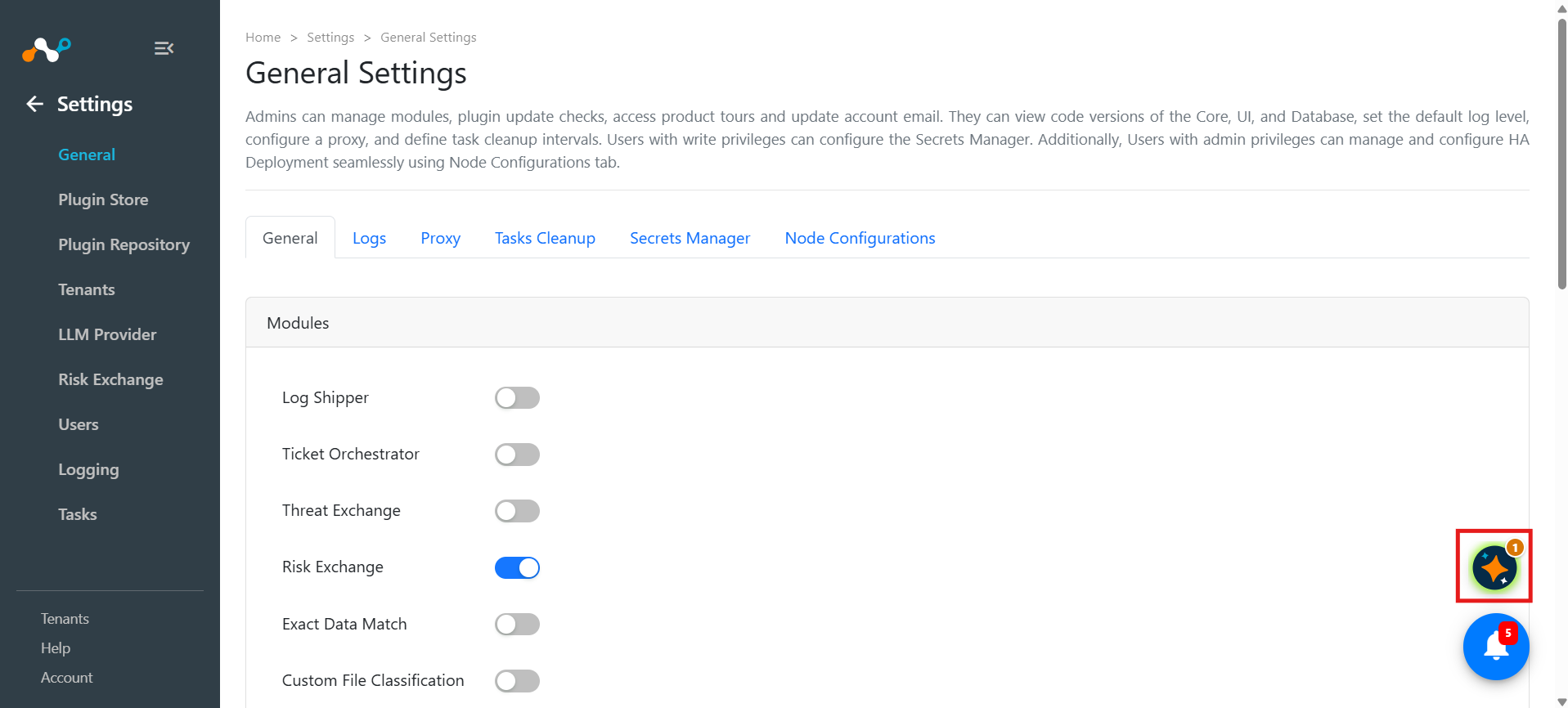
The Copilot icon sits in the lower right corner of every Cloud Exchange page. Click it to open the Copilot.
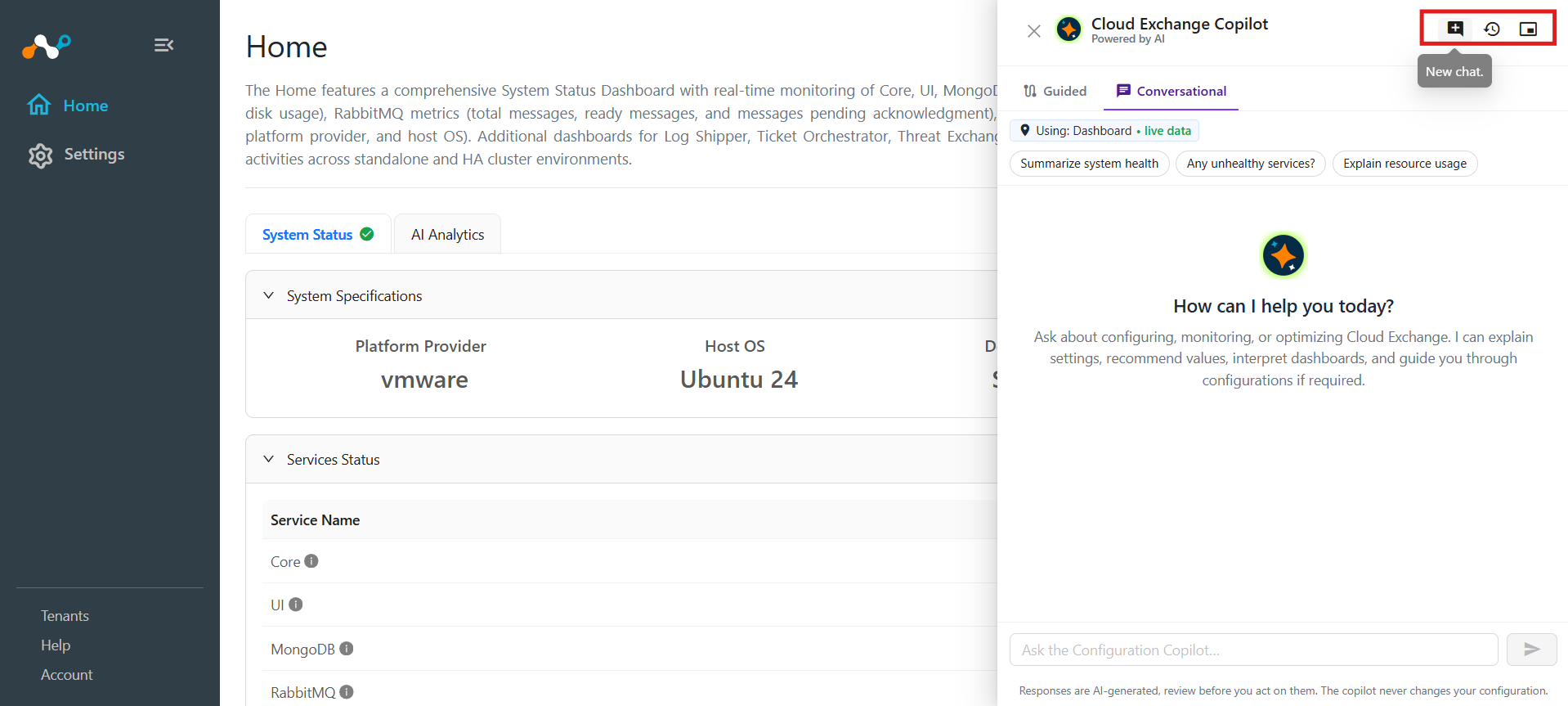
The Copilot opens docked beside the page. Use the icons in the Copilot header to change how it is displayed and to manage conversations.
| Icon | Action |
|---|---|
| New chat | Starts a new conversation. The current one is kept and can be reopened. |
| Conversations | Lists your previous conversations. Select one to resume it, or delete ones you no longer need. Use Back to chat to return. |
| Float window / Dock to side | Switches between a minimized adjustable window and a panel docked to the side of the page. |
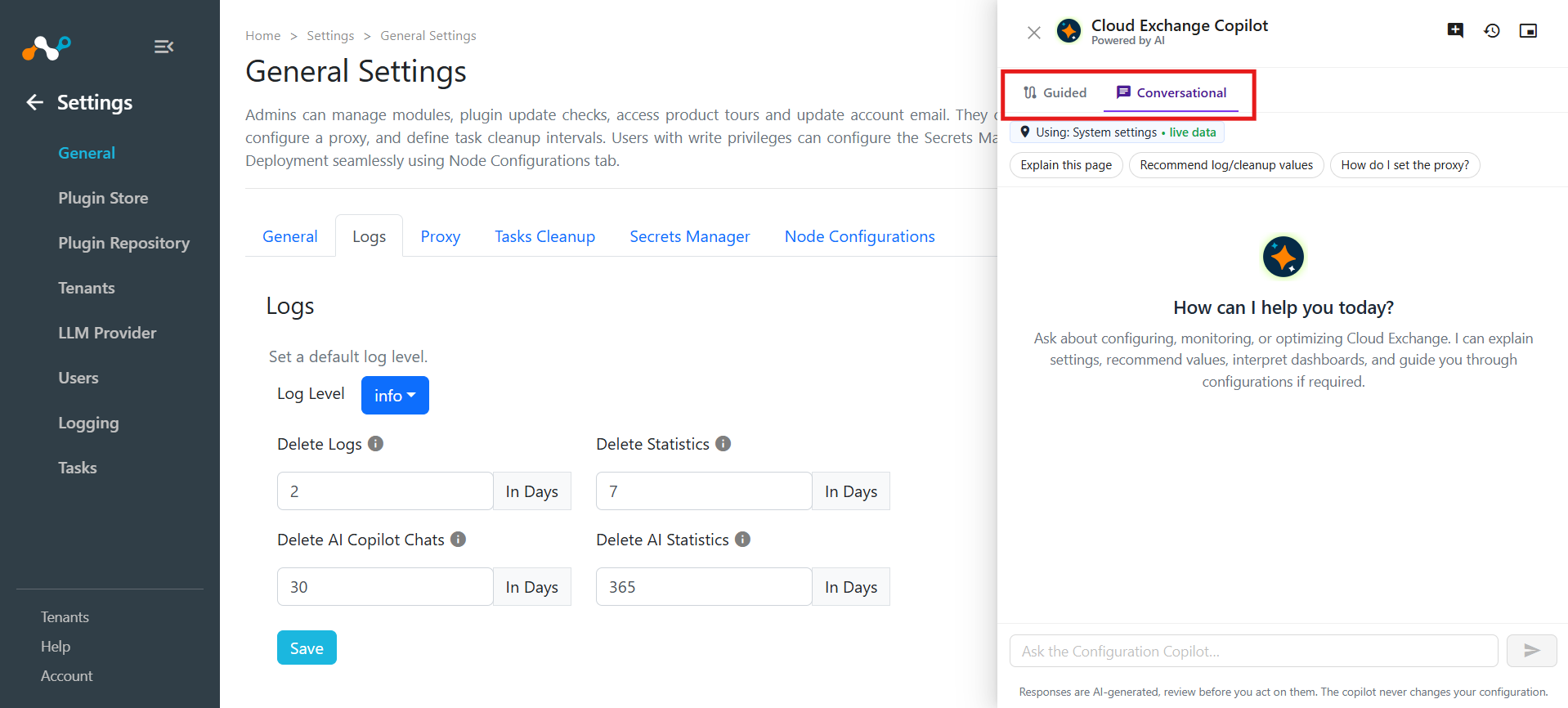
The Copilot has two tabs: Guided and Conversational. The Guided tab shows what the Copilot has noticed and any step-by-step guide in progress. The Conversational tab is where you ask questions.
Ask the Copilot a Question
On the Conversational tab, the Using: chip shows the page the copilot is reading. Type your question in the composer and press Enter, or click the send icon. A message can be up to 4000 characters.
Above the chat, Quick actions offers the questions that make sense on the current page. The available pills change with the page, and include:
| Quick action | Available on |
|---|---|
| Explain this page | Any module or settings page. |
| Guide me through this | Plugin configuration and business rule screens. |
| What does this do? | Configuration forms, for the field or rule you are editing. |
| Recommend a plugin | The Plugin Store and module plugin pages. |
| Diagnose a failed run | Module plugin pages. |
| Review my setup | Module pages, to look for gaps across the module’s configurations and rules. |
| Summarize this dashboard / Anything failing? | The Home dashboards. |
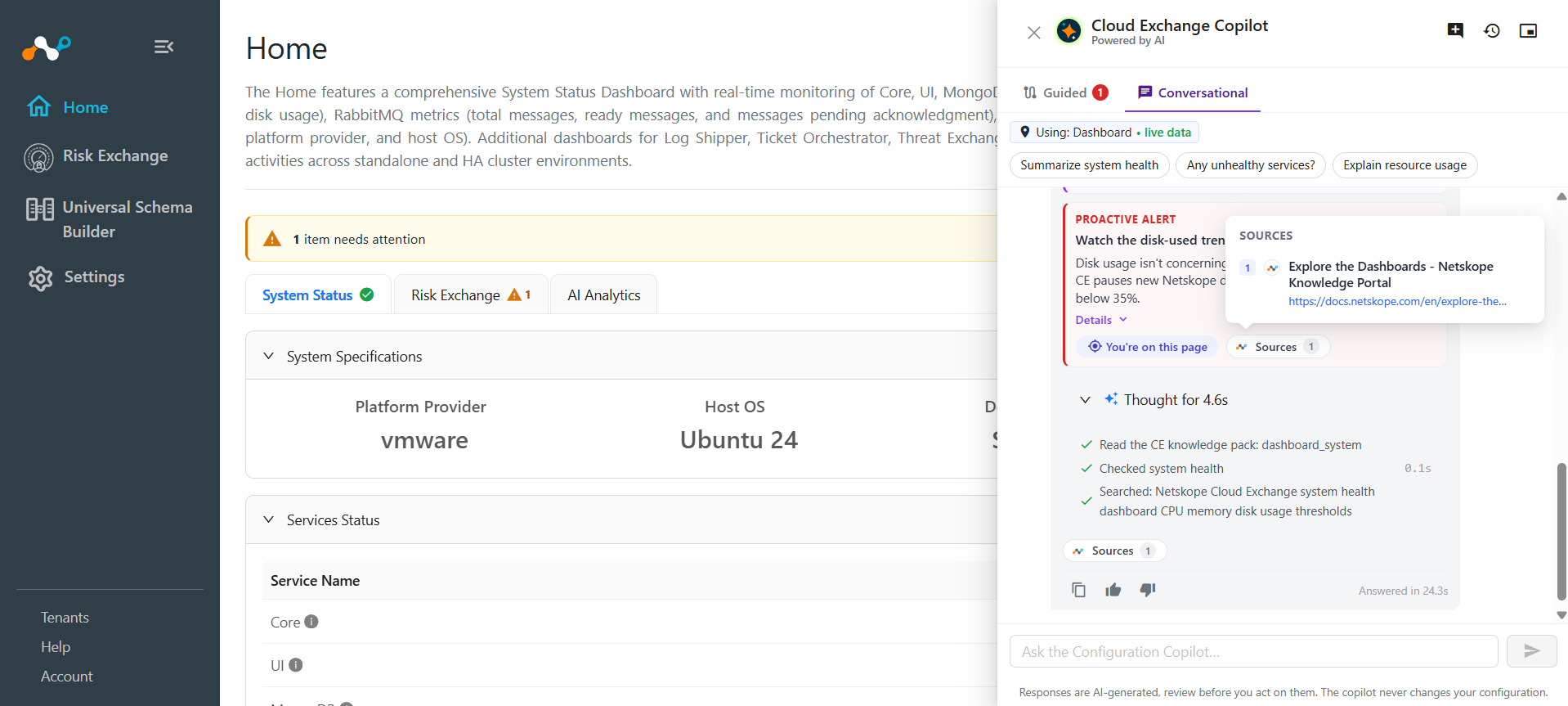
While the Copilot works, it shows its thought process including any tool calls or web search it is doing for reference. Click Cancel to end the request immediately and no further provider usage is charged for it.
Read the Answer
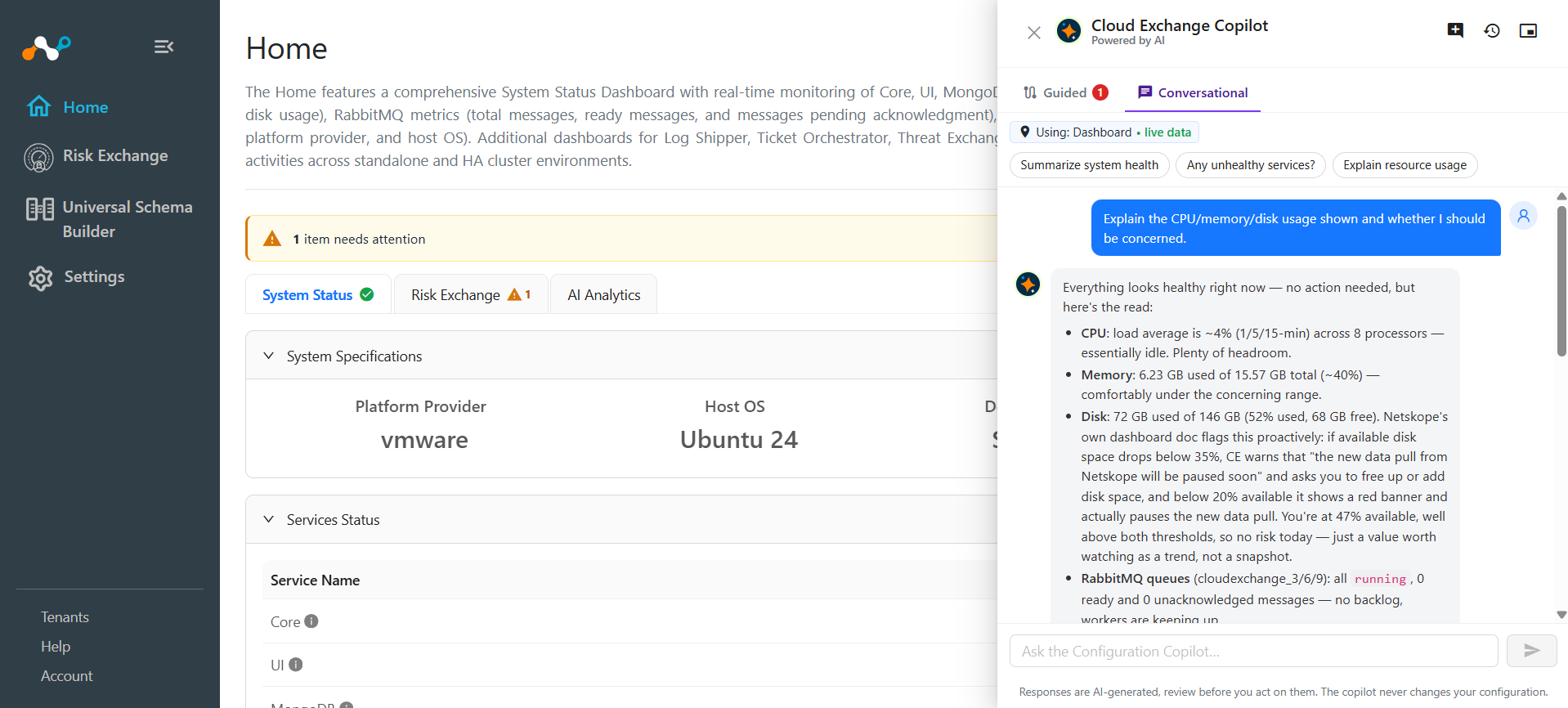
An answer can include any of the following.
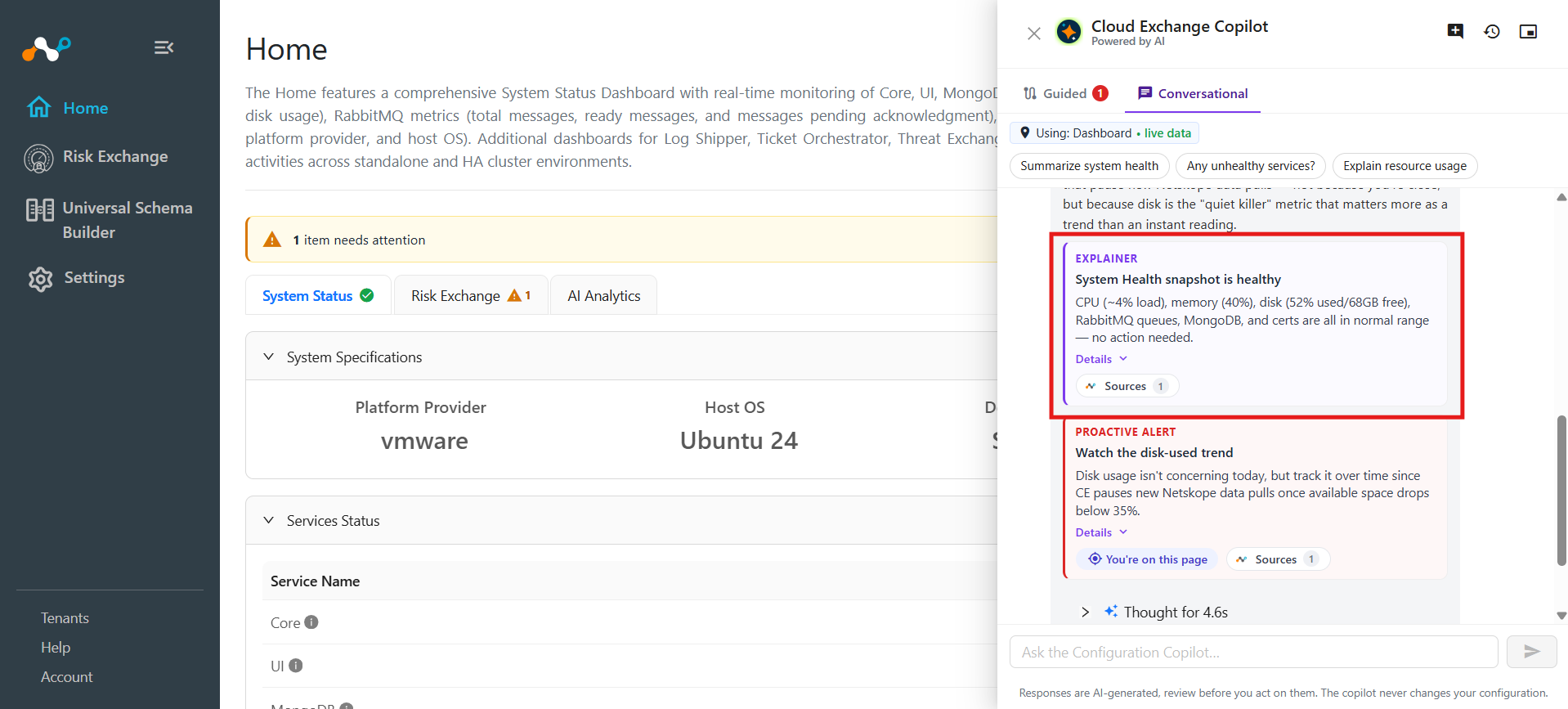
- Insight cards: Short summary cards above the answer, labeled by kind: Root cause, Log diagnosis, Explainer, How-to, Guided setup, Proactive alert, or Opportunity. Click Details to expand one.
- Sources: Numbered references to the public Netskope product documentation that was referenced while generating the response. The
[1],[2]markers in the answer match the numbered list, and each source opens in a new tab. - Thought process: An expandable record of the steps the Copilot took to reach the answer, including any log analysis it delegated.
- A guided setup: A step-by-step checklist, which the copilot pins to the Guided tab. See Follow a Guided Setup.
Use Copy answer to copy the response. To help us improve the Copilot, click Helpful or Not helpful to rate the response. You can choose a reason for non-helpful responses: Incorrect, Incomplete, Not relevant, Wrong suggestion, or Other.
Review Items That Need Attention
The Copilot proactively performs rule based scans in a predefined scheduled run. These scans are performed only when an LLM Provider plugin is configured. Although the scans do not invoke LLM provider plugin, it can be used for fixing the raised finding.
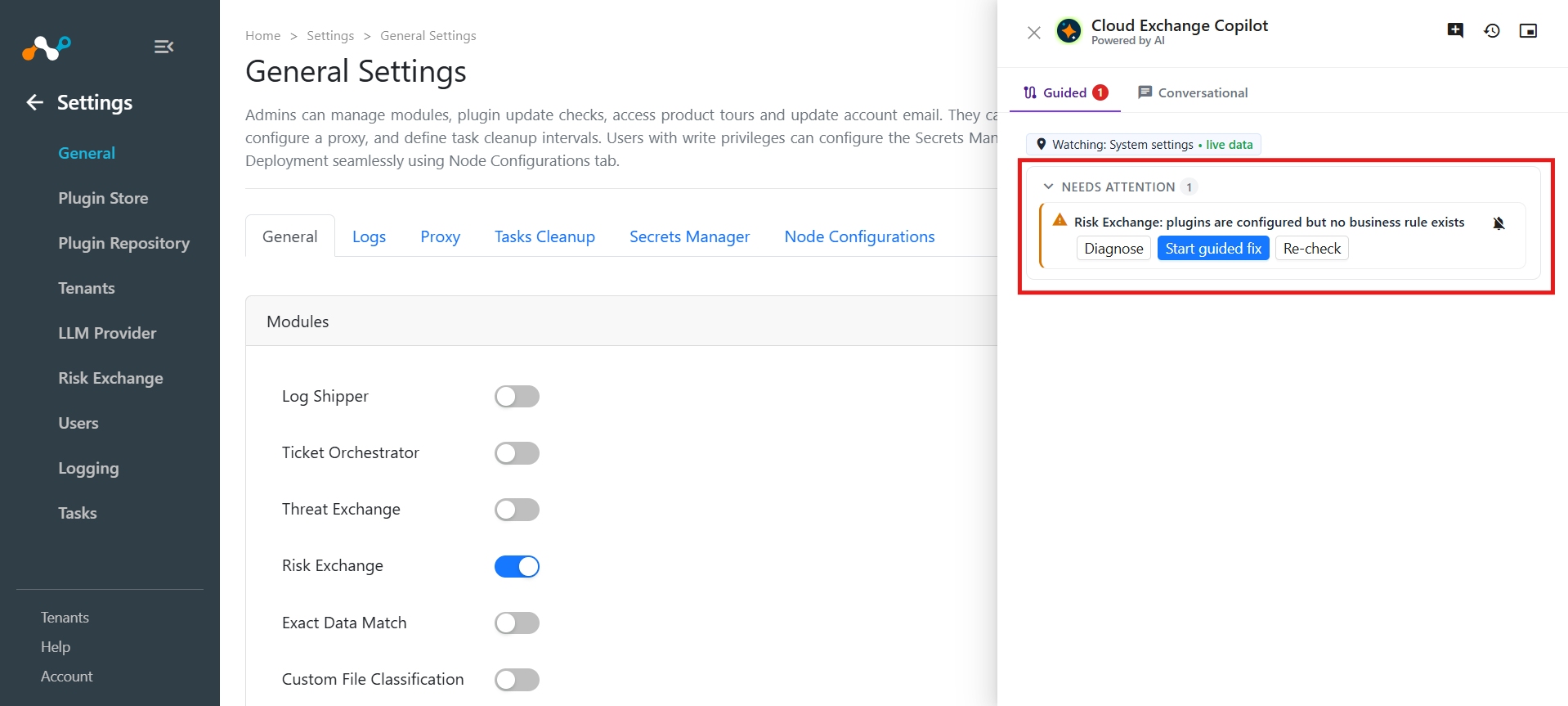
The Guided tab opens with Needs attention, a list of things Cloud Exchange has proactively noticed about your deployment. The checks run every 5 minutes inside Cloud Exchange and are independent of the LLM provider plugin. The provider is only contacted when you ask the Copilot to explain or fix an item.
You only see findings for the modules you have read permission on.
| Finding | Raised when |
|---|---|
| Repeated run failures | A plugin operation has failed several times in a row. It clears after one healthy run. |
| Stale configuration | An active plugin configuration has not run for well beyond its own pull interval. |
| Run cadence drift | A configuration is still running, but far less often than it used to. |
| Plugin errors in the logs | The same error is being logged repeatedly by a plugin. |
| Module not configured | A module is enabled but has no plugin configurations. |
| No business rules | A module has active configurations but no business rules, so nothing downstream is being triggered. |
| Business rule not wired | A business rule matches records but is not routed to any sharing configuration, queue, or action. |
| Ingestion paused | Cloud Exchange has paused pulling because of back pressure on storage or the queue. |
| Certificate expiring | A certificate expires within 30 days. |
Each finding carries a severity and offers these actions.
| Action | Result |
|---|---|
| Diagnose | Asks the Copilot to explain what the finding means and the likely root cause. The answer appears on the Conversational tab. |
| Start guided fix | Opens a step-by-step guide for resolving the finding. |
| Re-check | Reruns the check immediately against current data. If the problem is gone, the finding resolves. |
| Mute | Moves the finding to the Muted list at the bottom of the tab, collapsed by default. Muted findings will get auto-resolved and be removed if it is fixed before next scheduled scan. Use Unmute to bring one back. |
Follow a Guided Setup
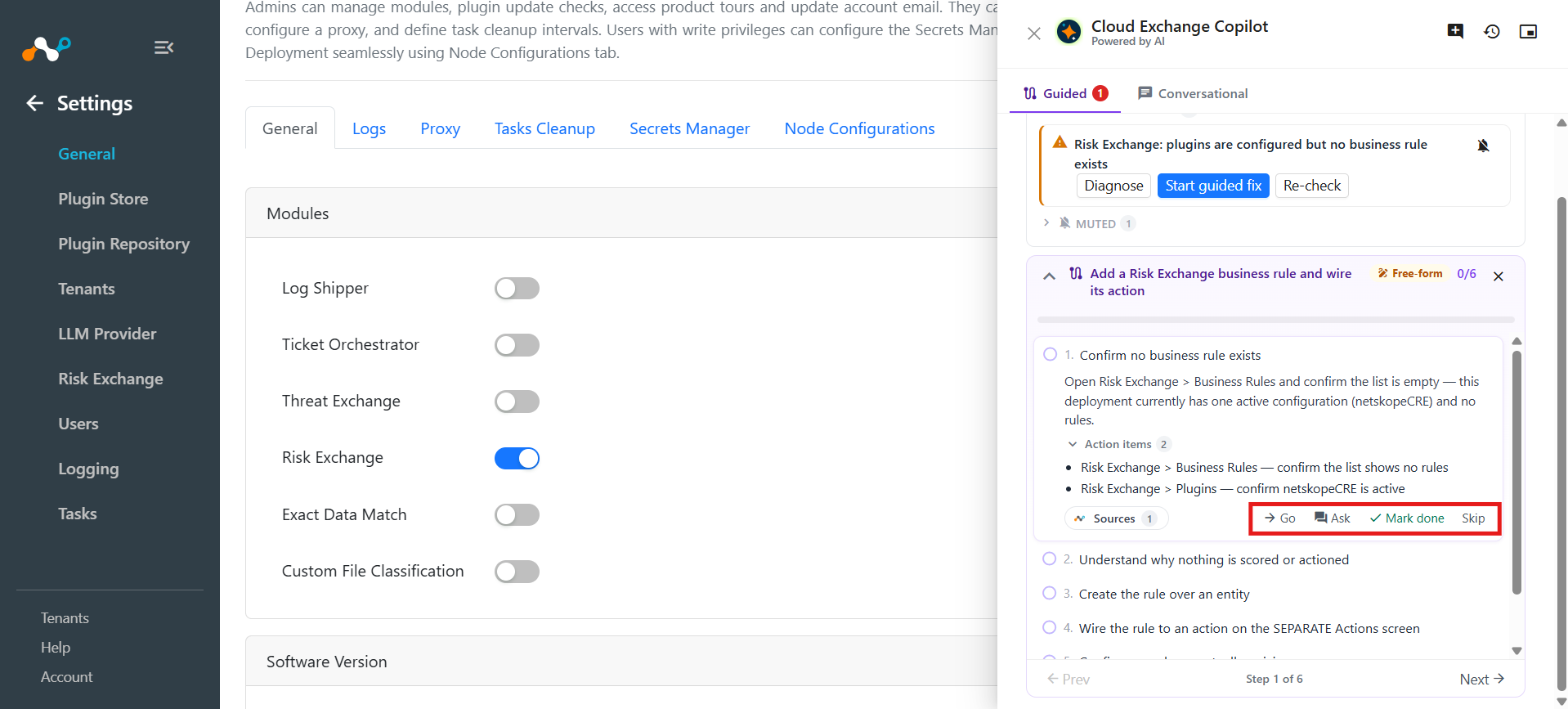
To implement and configure any of the Cloud Exchange supported workflows, you can ask Copilot for help. Copilot will provide a thorough guided steps grounded with official documentations. This can be accessed by visiting the Guided tab of the Cloud Exchange Copilot.
Each step shows what to do and offers these controls.
- Go to the page: Opens the Cloud Exchange page the step refers to.
- Ask about this step: Sends a question about the step to the Conversational tab.
- Mark done and skip: Tracks your progress. A step you skipped can be brought back.
A guide is badged Playbook when it follows a verified, pre-declared flow, and Free-form when the Copilot composed it for your question. A step that would take you to a page you do not have permission for is shown as blocked with the reason, rather than being hidden.
If you start a second, unrelated guide while one is still open, the first one is paused, and you can resume it later. Use Dismiss journey to remove a guide you no longer need.
What You Can Ask
The Copilot has access to the live obfuscated context, thus users can ask any relevant question and get help from the Copilot.
| Module | Examples |
|---|---|
| Threat Exchange | Which feeds are not shared anywhere? Why a plugin is pulling no indicators? How to set up a feed end to end? |
| Ticket Orchestrator | Which rules never match? Are there any duplicate rules? A queue that has stopped syncing, how to fix it? |
| Log Shipper | What does the SIEM mapping do? Which mapping a business rule uses? |
| Risk Exchange | What an entity field means? Which actions a business rule triggers? How does Unified Schema mapping work? |
| Exact Data Match, Custom File Classification | What is being shared with the tenant? What is the state of hash generation or classifiers? |
| Platform | Tell me about current Service and cluster health. Which plugin to install for [usecase]? What a user’s permissions allow (Admin only)? |
AI Copilot FAQs
Using the Copilot
Q: Can the copilot change my configuration for me?
A: No. It never saves a configuration, creates a business rule, or runs an action. It works out the values, explains them, and tells you where to apply them. You can validate the suggested content and apply according to your needs.
Q: The Copilot gives me shorter answers than I want. Can I change that?
A: Yes. Response detail is set by the AI_COPILOT_VERBOSITY environment variable, which accepts concise (the default), balanced, or detailed. It affects how much prose an answer carries, not what the copilot is able to look at. Go to Cloud Exchange Copilot for the full variable reference, and to Configure Cloud Exchange Environment Variables for where to set it.
Q: A complex request stopped before the Copilot finished. Why?
A: Each turn is allowed a fixed number of reasoning steps, 30 by default, so that one request cannot loop indefinitely or run up an unbounded cost. A request that spans several modules can exhaust that budget. Break the request into smaller questions, or raise AI_COPILOT_TURN_MAX_ITERATIONS if your admins routinely hit the ceiling. Go to Cloud Exchange Copilot for the full variable reference, and to Configure Cloud Exchange Environment Variables for where to set it.
Q: What happens if I close the Copilot while it is still working?
A: The request is cancelled, and is the same as clicking Stop this turn, and no further provider usage is charged for it. Reopening the Copilot returns you to the conversation.
Needs Attention and Guided Setups
Q: Do the Needs attention checks send my data to the LLM provider?
A: No. The checks run entirely inside Cloud Exchange on a background schedule and involve no model call at all. The provider is contacted only when you click Diagnose or Start guided fix on a finding.
Q: A finding is still listed after I fixed it. How do I clear it?
A: Click Re-check on the finding to rerun its check immediately against current data. If the problem is gone, the finding resolves. Otherwise it clears on its own at the next background scan.
Q: A step in my guided setup is marked blocked. What does that mean?
A: The step points at a page your user does not have permission to open. Cloud Exchange keeps the step visible with the reason rather than hiding it, so you know the guide has a stage that someone with wider permissions has to complete. Ask an Admin to carry out that step.
Accuracy, Cost, and Data Handling
Q: How much should I trust an answer?
A: Answers are generated by a language model and can be wrong. Check anything that carries no Sources reference before acting on it, and use Not helpful to report an answer that was not correct, so the feedback reaches the product team.
Q: Can I track the tokens this feature uses?
A: Yes. Go to the Home page and select the AI Analytics tab. Input and output tokens are broken down by feature and by user, so you can see how much of your provider budget the Copilot is consuming and which admins are using it most.
Q: Can the Copilot read or reveal my plugin credentials?
A: No. Password, token, and API key fields are stripped before anything reaches the provider, so the Copilot can explain what a credential field is for, but cannot read the stored value or fill it in for you.
Q: Can another admin see my conversations?
A: No. Conversations are private to the user who created them. They are deleted automatically after the retention period set by Delete AI Copilot Chats under Settings > General > Logs, which is 30 days by default.