

Posture Assessment reads your Cloud Exchange platform logs and analyses any possible issue based on those logs. To better assess the reason for a plugin’s failure, Cloud Exchange can analyze a single log line, or assess multiple logs filtered using the log filter and return a health verdict with a prioritized set of actions.
Both actions are available from Settings > Logging.
| Action | Use it to |
|---|---|
| Analyze a single log | Understand one error: what it means, what most likely caused it, and how to fix it. |
| Posture Assessment | Assess a filtered set of logs: overall health, health per area, an incident timeline, and a suggestive remediation plan. |
For information about what it sends to the provider, go to Cloud Exchange Copilot.
Prerequisites
To use Posture Assessment, you need:
- An LLM provider must be configured and enabled under Settings > LLM Provider. Go to Cloud Exchange Copilot for the steps.
- To use Posture Assessment, a user needs AI Copilot Read permission.
Watch a Video
Click play to watch a video.
Analyze a Single Log
The Assess column on the Logging page offers per-log analysis for logs that carry an error code or are of type Error. Users with AI read permission will be able to view the Assess column by default in the Cloud Exchange Logging page.
- Go to Settings > Logging.
- Find the log you want to understand and click the icon in the Assess column.
- Confirm the prompt to start the analysis.
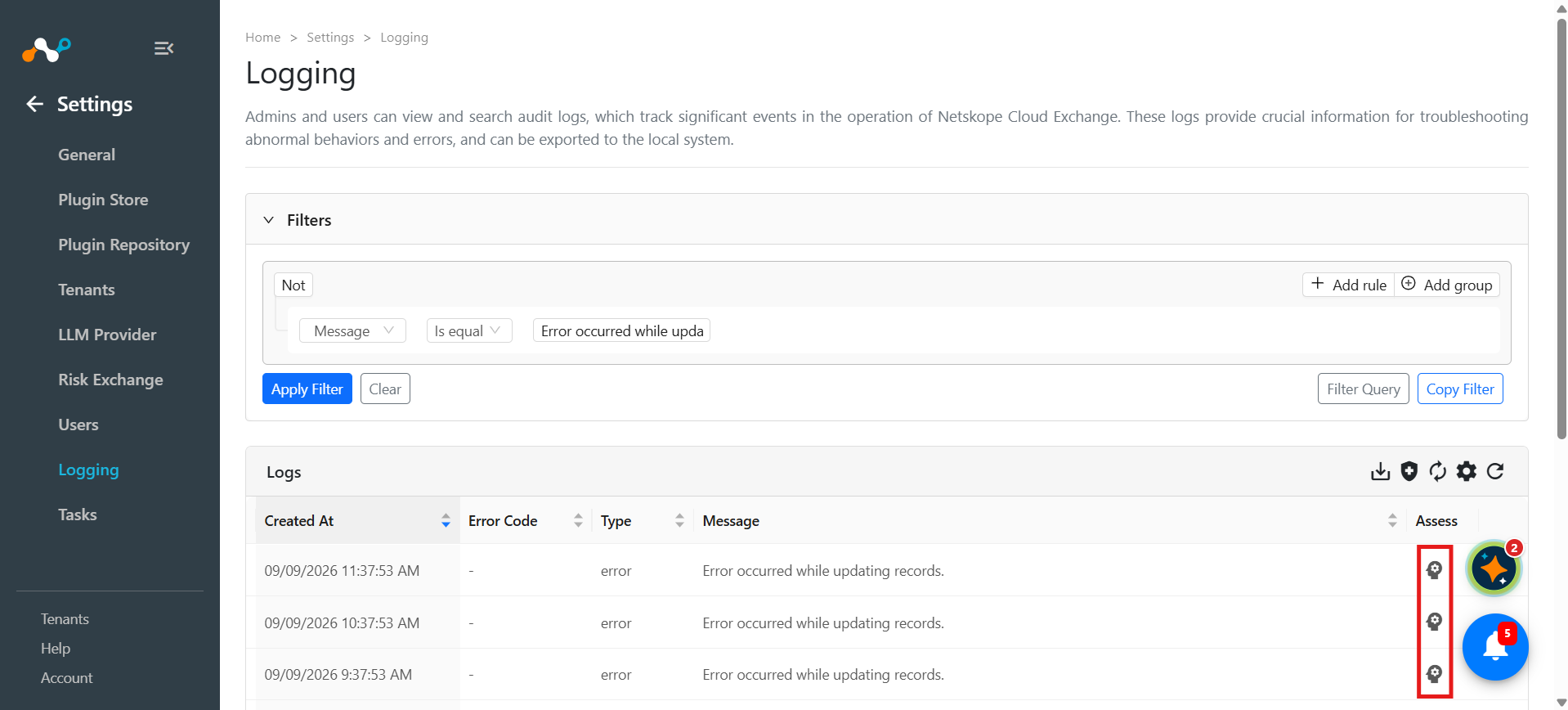
The result opens in the Cloud Exchange Posture Assessment window with these sections along with metadata, such as token consumption, sources referenced, and confidence.
| Section | Contents |
|---|---|
| Summary | What the log entry is reporting, in plain language. |
| Probable Root Cause | The most likely reason the error occurred. |
| Suggested Remediation | What to change to resolve it. |
| Sources | Numbered references to Netskope product documentation. The [1], [2] markers in the text match this list. |
Run a Posture Assessment
A Posture Assessment runs over the logs matching your current filter, so the filter is what defines the scope of the assessment.
- Go to Settings > Logging.
- Filter the logs using a filter.
- Click the Posture Assessment icon in the table toolbar.
- Review the confirmation, which states how many logs match your filter, and click Run Assessment.
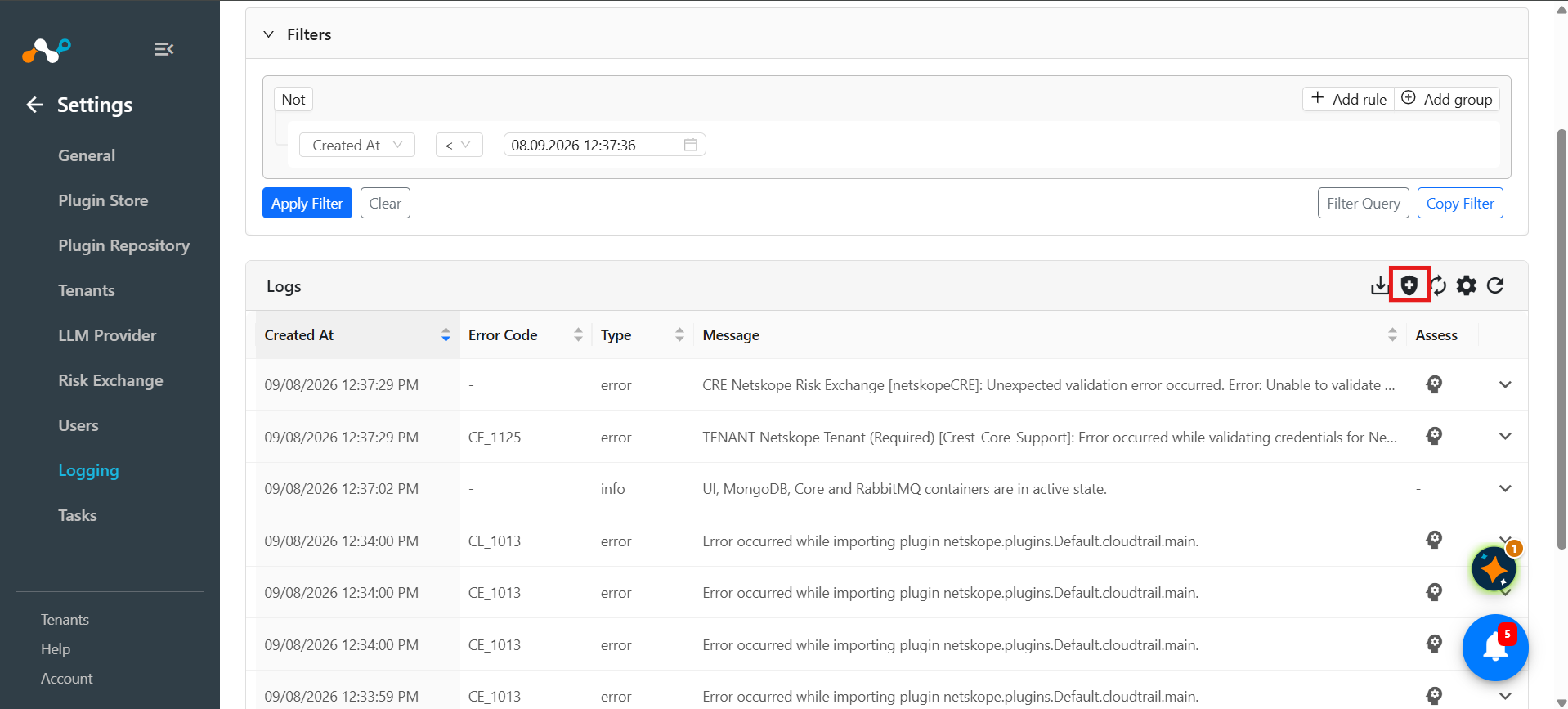
Cloud Exchange shows its thought process and any tool calls or web search performed to get proper context for an accurate analysis. Keep the window open until it completes.
Read the Assessment
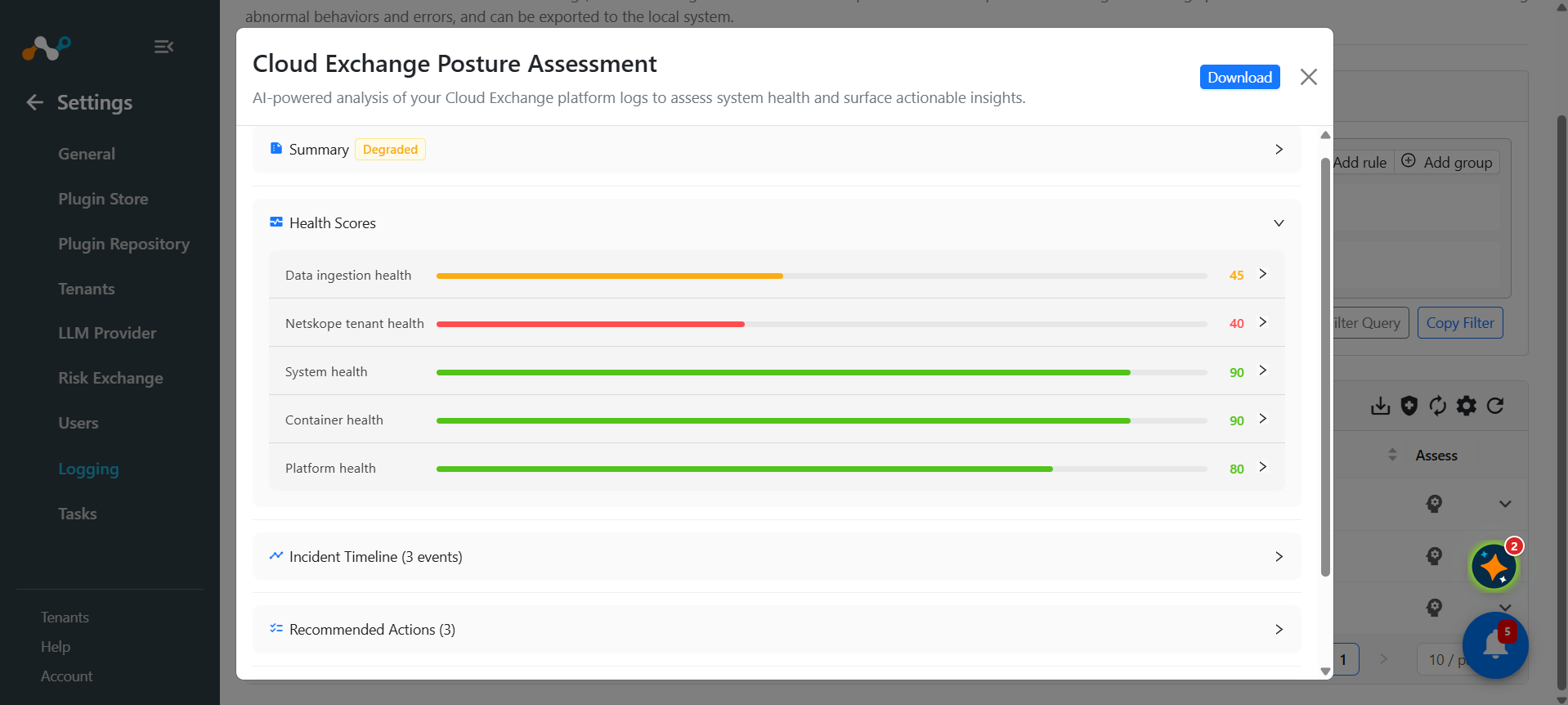
The completed report contains the following.
| Section | Contents |
|---|---|
| Overall posture | A single verdict for the assessed logs: Healthy, Degraded, or Critical. |
| Summary | A short narrative of what the logs show. |
| Health Scores | A score out of 100 per area, with the reasoning behind each one, so you can see which part of the deployment is pulling the verdict down. |
| Incident Timeline | The notable events in order, each with its timestamp, severity, and the number of logs behind it. Use it to see whether problems are ongoing or were a one-off burst. |
| Recommended Actions | A ranked list of what to do, each with numbered steps, its priority, its estimated impact, and how many logs it addresses. |
| Thought process | An expandable record of the steps the assessment took to reach its conclusions. |
| Sources | The documentation the assessment was grounded in, matching the [1], [2] markers in the text. |
The footer shows the confidence of the assessment, how many logs were analyzed, how many steps were taken, and the tokens consumed.
Download the Report
Click Download in the window header to save the assessment as a Markdown file. The download includes every section shown on screen, including the thought process, the sources, and the footer statistics. The file is generated in your browser and no data is sent anywhere to produce it.
Act on the Results
| Overall posture | What it indicates |
|---|---|
| Healthy | Nothing in the assessed logs requires action. Recommended actions, if any, are improvements rather than fixes. |
| Degraded | Something is not working as intended but data is still flowing. Work through the recommended actions in order. |
| Critical | One or more failures are stopping data from being pulled, shared, or acted on. Address the highest-priority action first. |
Verify a finding against the log table before you change a configuration. Every recommended action names the area it affects, so you can re-filter the Logging page to the plugin or time window it refers to and confirm the evidence yourself.
Posture Assessment FAQs
Scope and Coverage
Q: How many logs does one assessment actually read?
A: Up to 500 log lines in total, across every step of the run. The cap exists to control cost and to keep the request inside the model’s context window, so a filter matching 20,000 logs is assessed from a sample of them rather than all of them. This is why the confirmation warns you about large filtered sets: the narrower your filter, the more of it the assessment actually sees.
Q: Can I raise the 500-log cap?
A: Yes. Set the AI_COPILOT_MAX_LOG_CAP environment variable on the Cloud Exchange core container to the number of lines you want to allow. Raising it gives broader coverage at a higher cost per assessment, because more log content is sent to the provider on every run. Go to Cloud Exchange Copilot for the full variable reference, and to Configure Cloud Exchange Environment Variables for where to set it.
Q: An assessment stopped before it finished its analysis. Why?
A: Each run is allowed a fixed number of reasoning steps, 30 by default, so that a single request cannot loop indefinitely. A broad filter over a noisy log set can exhaust that budget. Narrow the filter, or raise AI_COPILOT_TURN_MAX_ITERATIONS if your assessments routinely need more room.
Q: Does Posture Assessment look at my Netskope tenant data?
A: No. It reads Cloud Exchange platform logs only, the same logs you see under Settings > Logging. It does not query your tenant, and it cannot see anything that was never logged.
Q: Why is the Assess icon missing on some log rows?
A: Single log analysis is offered only for logs that carry an error code or are of type Error, because those are the entries where a root cause and a remediation are meaningful. Informational rows show a dash instead.
Cost and Usage
Q: Can I track the tokens this feature uses?
A: Yes. Go to the Home page and select the AI Analytics tab. Input and output tokens are broken down by feature and by user, so you can see exactly how much of your provider budget Posture Assessment is consuming and who is running it. Each completed assessment also shows its own token counts in the report footer.
Results and Data Handling
Q: Does running an assessment change anything in Cloud Exchange?
A: No. Assessments are read-only. No configuration is modified, no plugin is restarted or rerun, and no log is deleted. The report tells you what to do; you decide whether to do it.
Q: How much should I trust the findings?
A: Treat them as a starting point. The report is generated by a language model and can be incomplete or wrong, which is why every run carries an AI-generated disclosure. Each recommended action names the area it affects, so you can re-filter the Logging page to that plugin or time window and confirm the evidence before you change a configuration.
Q: Two runs over the same filter gave slightly different reports. Is that expected?
A: Yes. Language model output is not deterministic, and a run samples the logs rather than reading all of them, so wording and emphasis can differ between runs. The substantive findings should agree; if they do not, narrow the filter so both runs cover the same evidence.
Q: Can I keep a copy of an assessment?
A: Yes. Click Download in the window header to save the report as a Markdown file, including the thought process, sources, and footer statistics.