

A unified mapping business rule filters the joined records of a saved unified mapping and determines what happens to the records that match. A mapping on its own only defines a view of your combined data; the rule is what puts that data to work.
A rule can be used in two ways, independently or together:
- Share to Threat Exchange destinations. The matching records are converted into indicators and shared to a destination configuration.
- Perform Risk Exchange actions. The matching records are passed to a Risk Exchange configuration, which performs an action such as updating a user’s risk score or applying a tag.
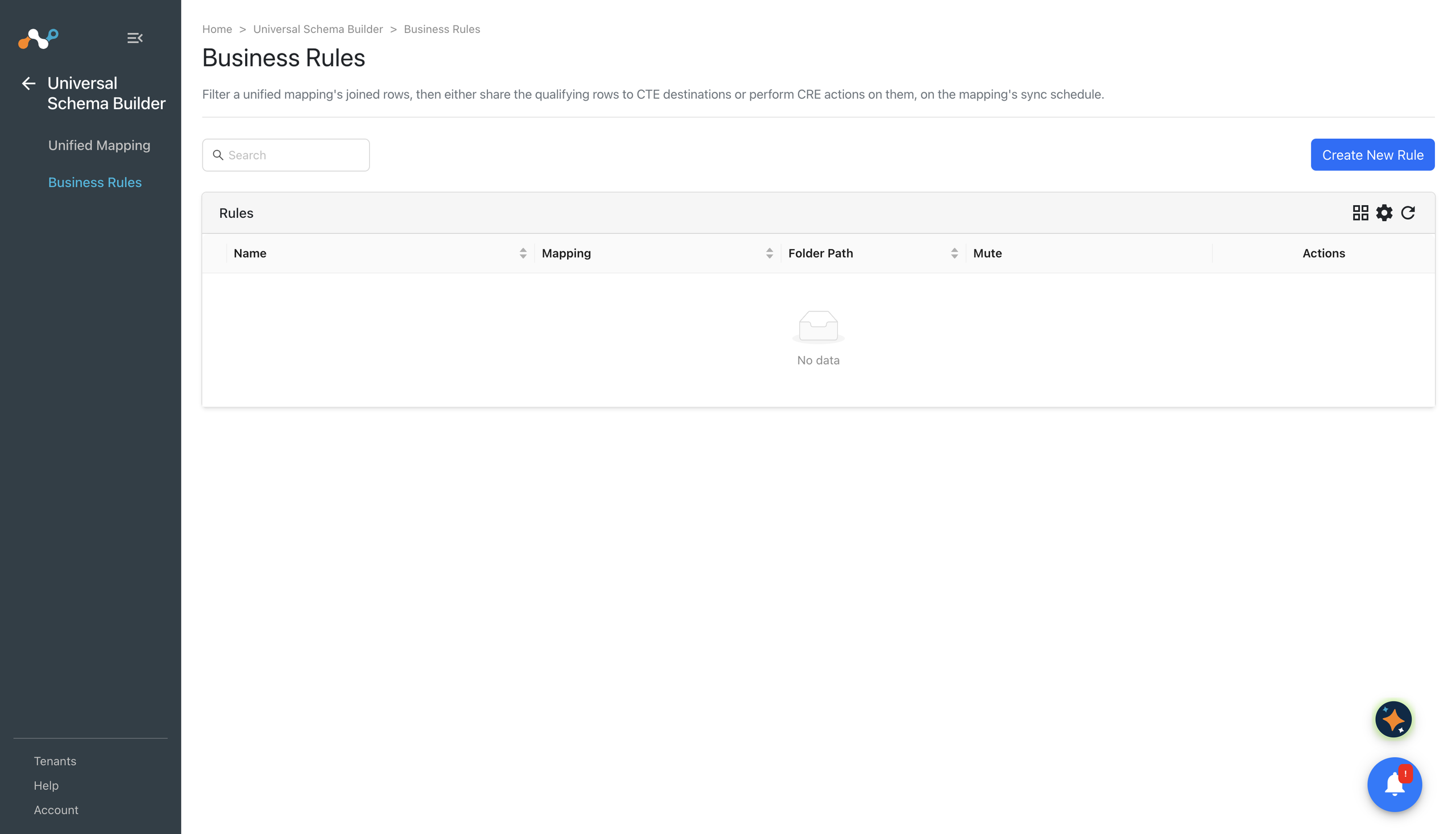
To open this page, go to Universal Schema Builder > Business Rules.
Prerequisites
To complete this configuration:
- Create the unified mapping the rule will filter. See Unified Mapping.
- To share matching records to a Threat Exchange destination, configure the destination plugin in Threat Exchange first.
- To perform Risk Exchange actions, configure the Risk Exchange plugin that provides the action first.
- Viewing rules requires the Risk Exchange read permission (
cre_read). Creating and editing rules requires the Risk Exchange write permission (cre_write). - Configuring Threat Exchange sharing on a rule requires the Threat Exchange write permission (
cte_write). A rule used only for Risk Exchange actions does not need it. - If the rule’s mapping joins the Threat Exchange indicators entity, the Threat Exchange read permission (
cte_read) is also required, because evaluating the rule reads the mapping’s joined records.
Create a Business Rule
To create a unified mapping business rule:
- Go to Universal Schema Builder > Business Rules.
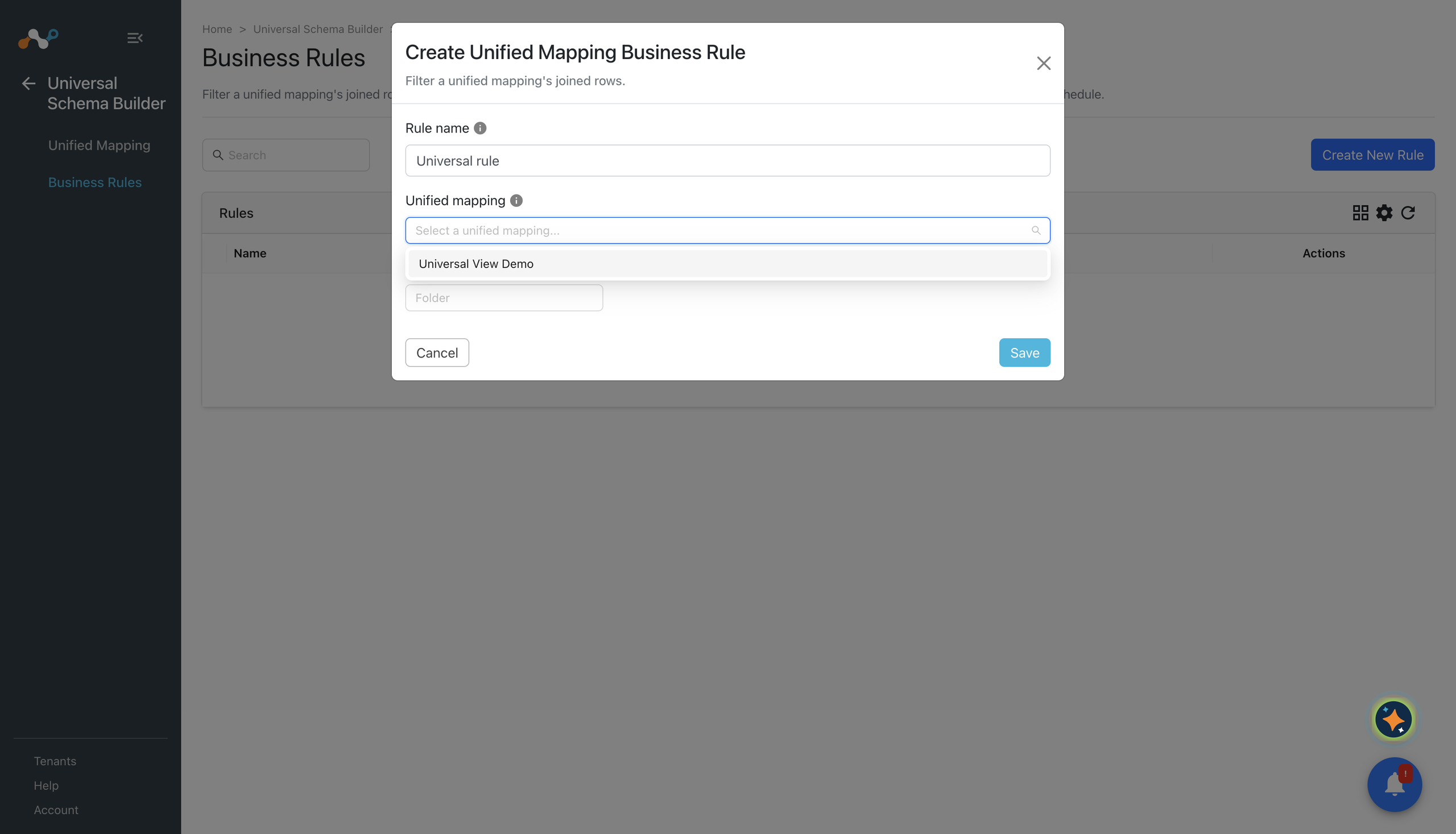
- Click Create New Rule. The Create Unified Mapping Business Rule window opens.
- Enter a rule name.
- In the mapping list, select the unified mapping whose joined records this rule filters.
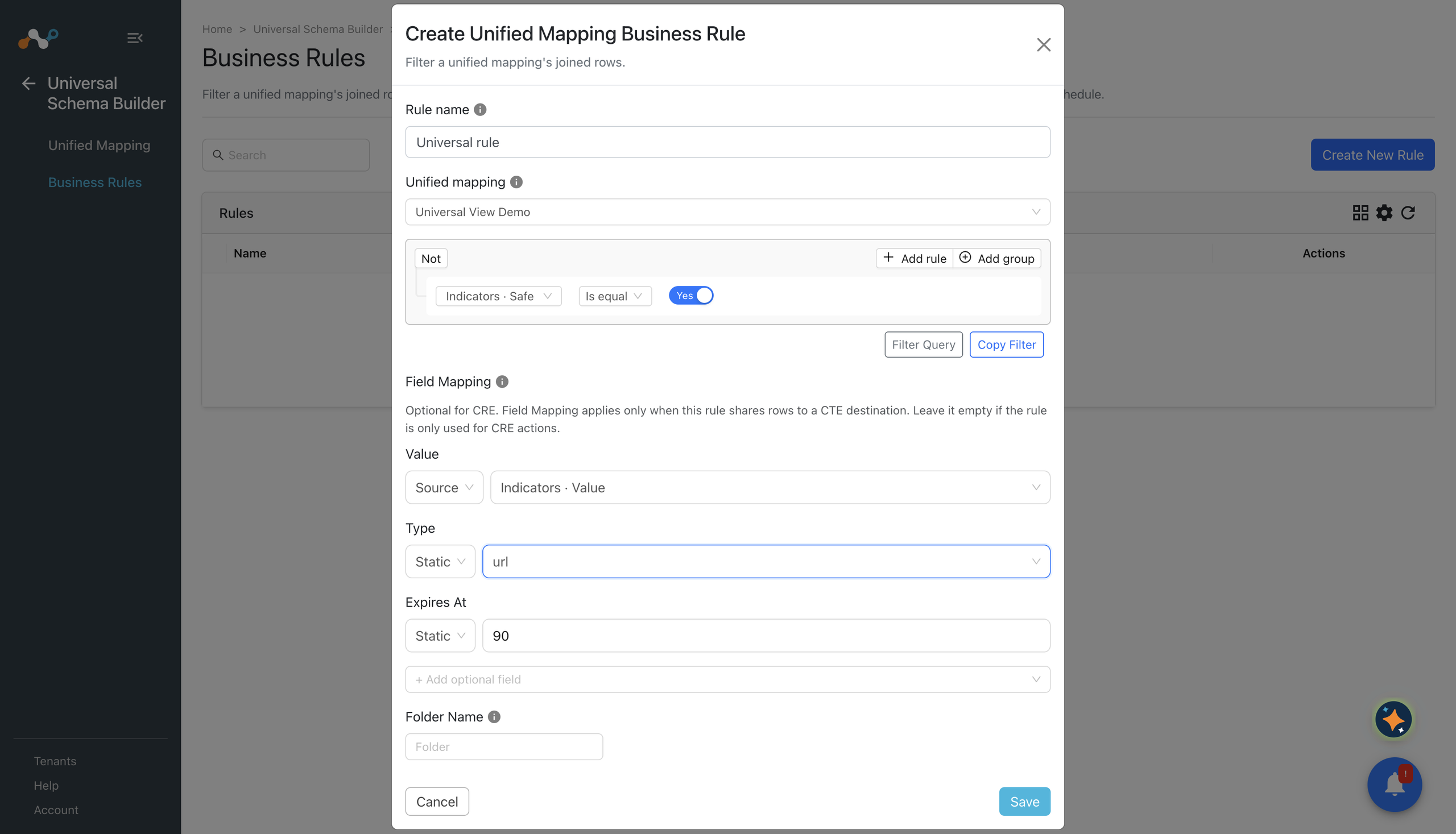
- Select or enter a query to filter the mapping’s records. You can filter on fields from any of the tables joined in the mapping.
- (Optional) Complete Field Mapping to define how a joined record becomes an indicator. See Map Records to Indicators.
- Enter the folder name that you want to add the rule to, or select an existing folder. You can go up to 3 levels of hierarchy.
- Click Save.
After the rule is saved, it filters records but does nothing with them until you configure sharing or actions.
Map Records to Indicators
Field Mapping tells Cloud Exchange how to turn a joined record into an indicator, by mapping the indicator fields to the fields of the mapping’s records. It applies only when the rule shares records to a Threat Exchange destination.
Leave Field Mapping empty if the rule is only used for Risk Exchange actions. A Risk Exchange action resolves its own parameters from the record and does not need an indicator to be built.
If you configure the rule for sharing, Value, Type, and Expires At become required and cannot be changed afterwards. You can leave the mapping empty, or partially complete at creation and finish it later, but once Value and Type are both set, they are fixed.
If the mapping has no text field suitable for the indicator value, switch the field to Static and enter a fixed value instead.
Configure Sharing and Actions
A rule is connected to its destinations and actions from the modules that perform them, not from this page.
On both of those pages, the business rule list contains the rules of that module alongside unified mapping business rules. Unified mapping business rules are shown with a [Unified Mapping] prefix, so you can tell them apart. A rule named Risky external hosts appears in the list as [Unified Mapping] Risky external hosts.
| To do this | Go to |
|---|---|
| Share the matching records to a Threat Exchange destination | Threat Exchange > Sharing, and add a sharing configuration that uses this rule. |
| Perform a Risk Exchange action on the matching records | Risk Exchange > Actions, and add an action configuration that uses this rule. |
After sharing or actions are configured, the rule runs on a schedule and processes the records that have changed since the last run. Each record is processed once per destination or action, so a record that continues to match is not shared or acted on repeatedly.
You can also run a rule immediately rather than waiting for the next scheduled run. When you trigger a manual run, you specify how many days back to look, and every record updated in that window is processed again, whether or not it was processed before.
Click here to watch a video.
Manage Business Rules
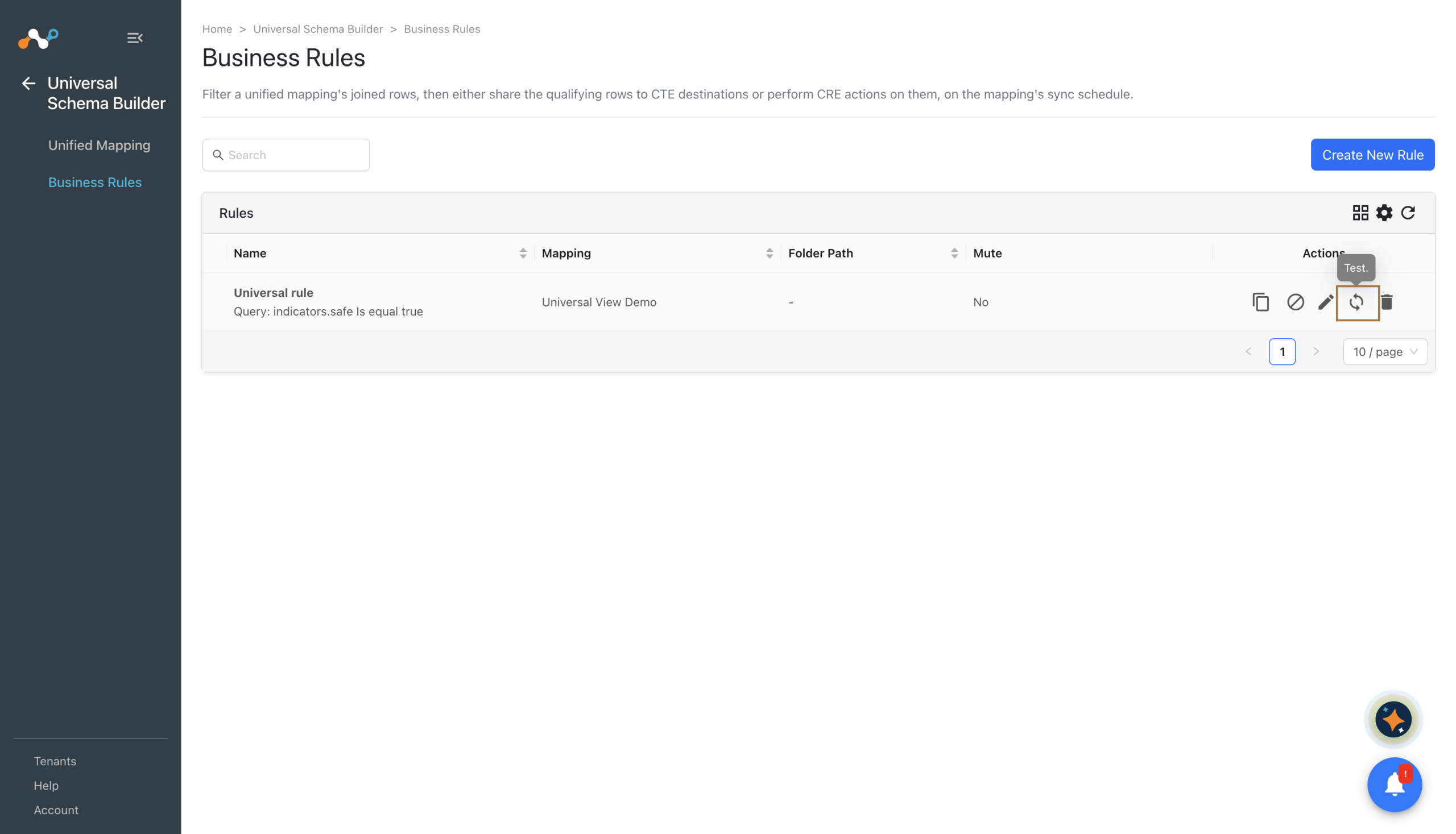
The Business Rules page lists the rules you have created, with the mapping each one filters and the folder it belongs to. Use the button beside the Refresh button to toggle between the grid and list views. You can expand each folder to see the business rules in that folder, and also delete a whole folder of business rules.
| Action | Steps |
|---|---|
| Edit | Click the pencil icon, change the rule, and click Save. The mapping cannot be changed. |
| Clone | Click the document icon to create a copy of the business rule. The filter is carried over; the sharing configuration is not, so the copy starts with no destinations. |
| Test | Click the test icon, enter a time period, and click Fetch. See Test a Business Rule. |
| Mute | Click the mute icon, set an Interval, and confirm. See Mute a Business Rule. |
| Unmute | Click Unmute and confirm. A Rule unmuted successfully. message displays. |
| Delete | Click the trash icon and confirm. A Rule deleted successfully. message displays. |
Mute a Business Rule
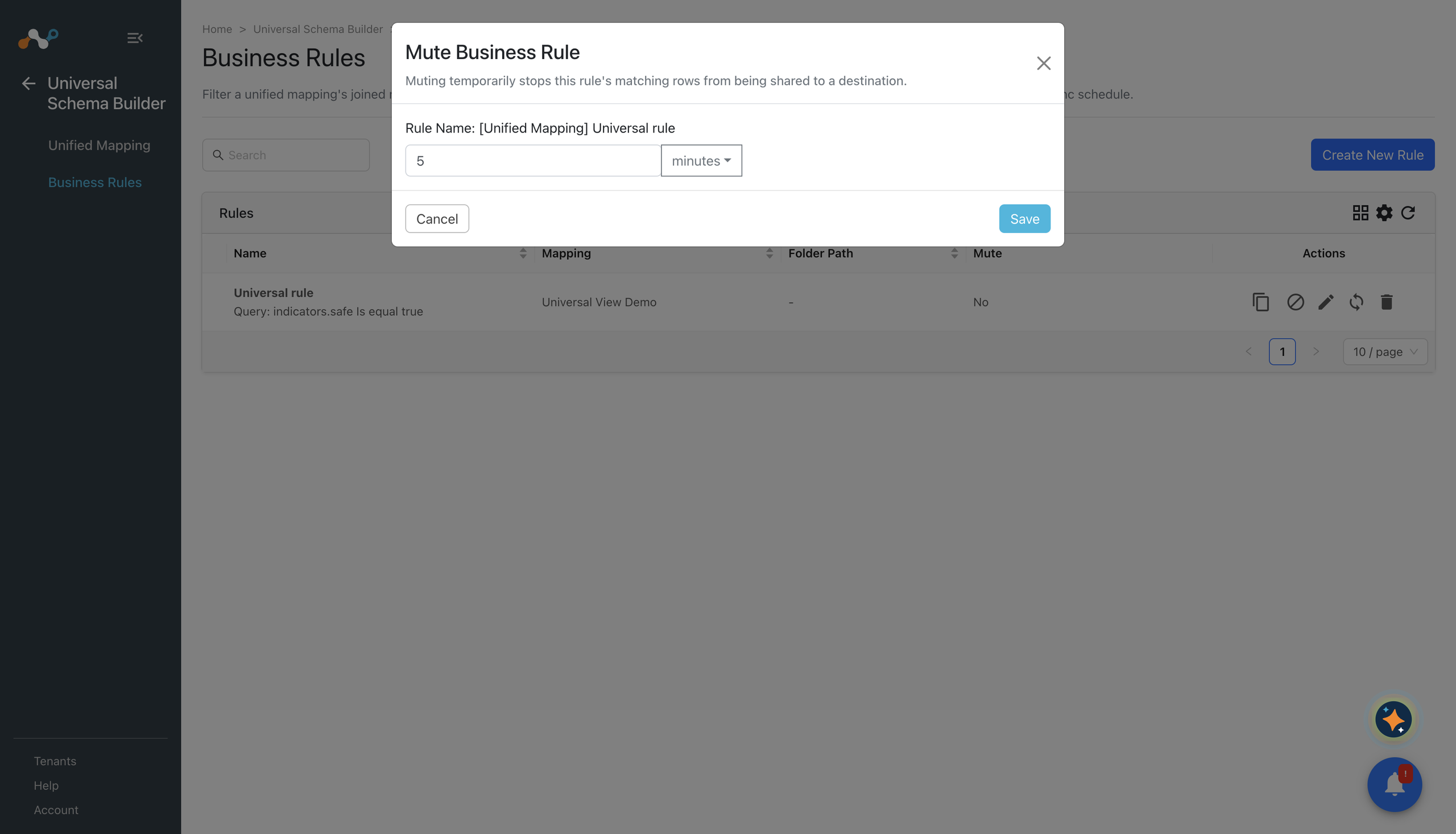
Muting temporarily stops a rule’s matching records from being shared to a destination. Use it when you need to suspend a rule without deleting it or unpicking its sharing configuration, like while you tune a noisy filter.
To mute a rule:
- Click the mute icon for the rule. The Mute Business Rule window opens.
- Set the Interval for which the rule should remain muted, or enter the date and time when it should resume.
- Click Save. A Rule muted successfully. message displays.
The interval must be between 5 minutes and 365 days. When it elapses, the rule resumes automatically. To resume it sooner, click Unmute.
Test a Business Rule
Testing a rule shows how many records currently match it, without sharing anything or performing any action. Use it to check a filter before you wire the rule up to a destination or an action, or to confirm why a rule is producing fewer records than you expect.
To test a rule:
- Click the test icon for the rule.
- Enter the time period, in days. Only records updated in that period are counted. The period must be between 1 and 365 days.
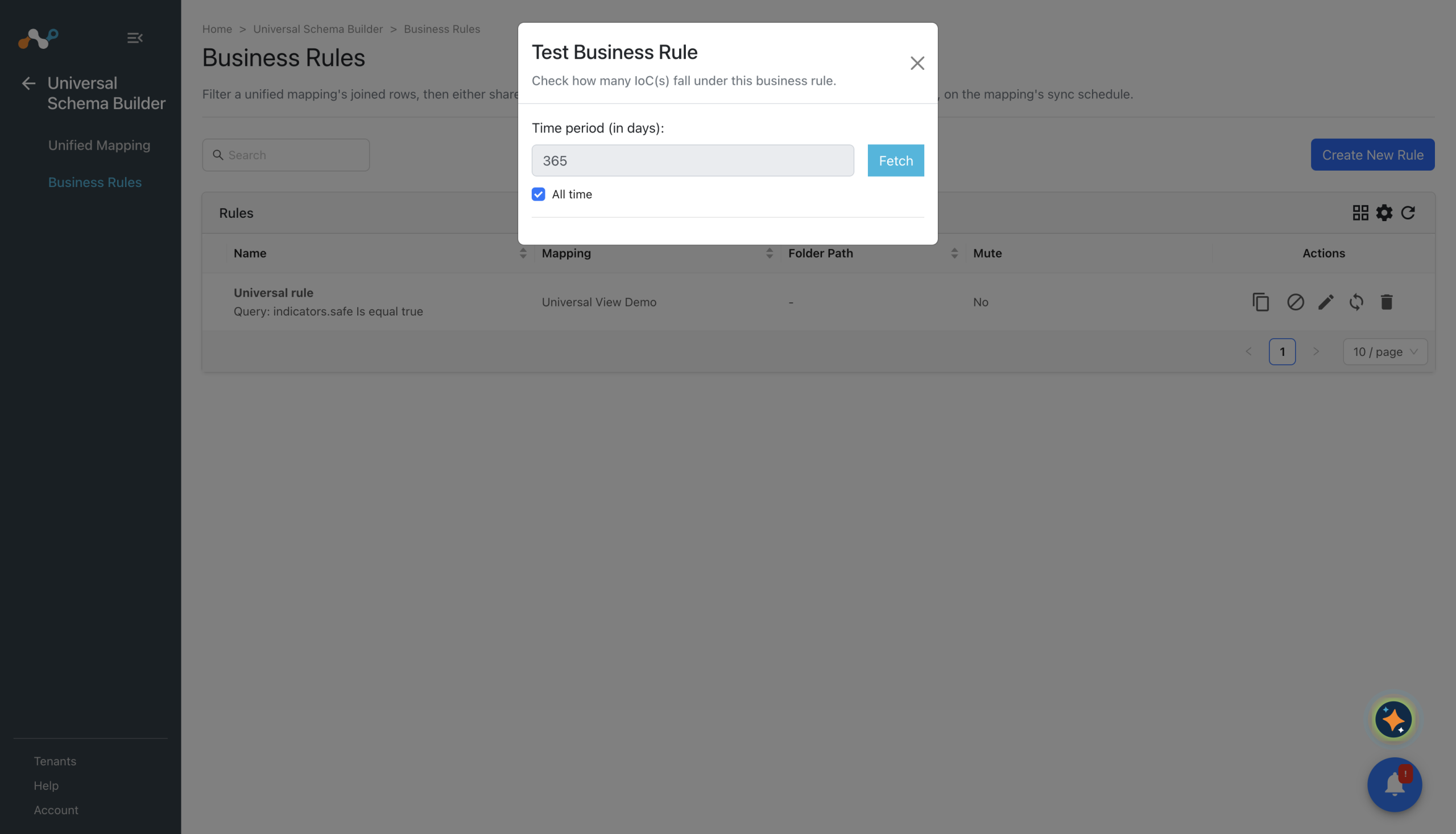
- Click Fetch. The total number of matching records displays, along with a breakdown of how many would become URL-type indicators and how many would become file hash indicators.
The indicator breakdown is derived from the rule’s Field Mapping. A rule with no usable Type mapping shares nothing, so it shows matching records but no indicators. If that is what you see, complete the field mapping.
Troubleshooting Business Rules
| Message | Resolution |
|---|---|
| A unified mapping is required. | Select a mapping before saving the rule. |
| Error while fetching fields for the selected view. | The mapping’s fields could not be loaded. Confirm the mapping still exists on the Unified Mapping page and that you have permission to the entities it joins. |
| This unified mapping business rule is disabled because the CRE module is turned off. | Enable the Risk Exchange module in Settings > General. Rules are disabled while the module is off, and cannot be modified or run. |
| Cannot configure CTE sharing while the CRE module is disabled. | Enable the Risk Exchange module before configuring Threat Exchange sharing on a rule. Sharing reads live Risk Exchange entity data. |
If a rule saves correctly, but nothing is shared or acted on, check the following:
- The rule is configured on the Threat Exchange > Sharing page or the Risk Exchange > Actions page. A rule with neither does nothing.
- The rule is not muted.
- The mapping produces records. Open it on the Unified Mapping page and check Generated Mapping. If the mapping is empty, the rule has nothing to filter.
- For sharing, Field Mapping is complete. Without Value and Type, a record cannot be turned into an indicator.