

A unified mapping defines how Threat Exchange and Risk Exchange entities are combined into one set of records. You choose a base table, connect additional tables to it by joining fields that hold the same kind of value, and optionally narrow the result with filters. The mapping is saved by name and can then be used by a business rule.
The joined records are not stored. Cloud Exchange saves only the definition and rebuilds the records from the current data each time the mapping is previewed, executed, or evaluated by a rule.
To open this page, go to Universal Schema Builder > Unified Mapping.
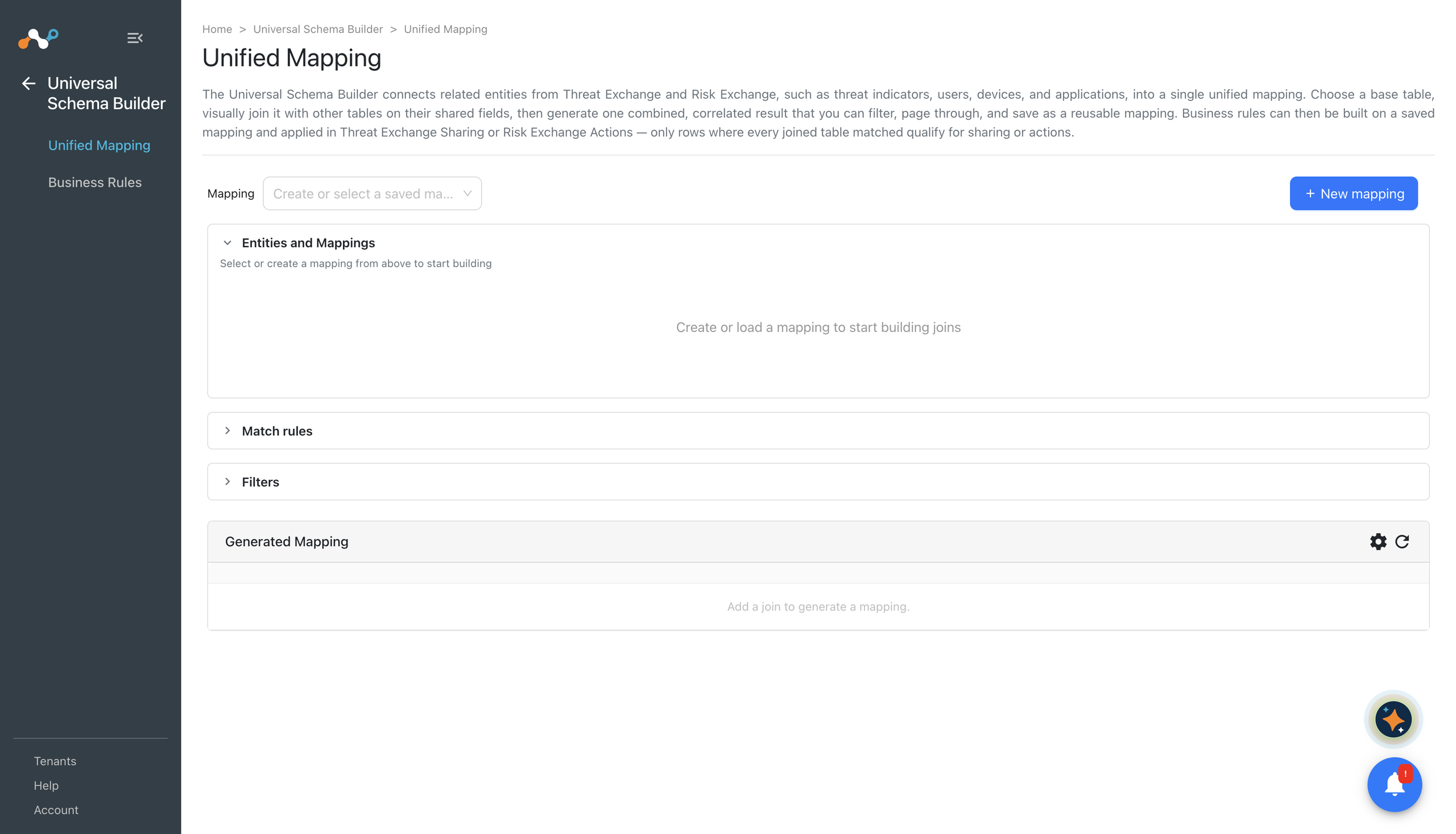
Page Layout
| Area | Description |
|---|---|
| Mapping Selector | The list at the top of the page, where you create a new mapping or open a saved one. It shows Create or select a saved mapping… when nothing is open. |
| Entities and Mappings | The working area listing the entities you can join, with the fields available in each one. Drag a field onto a field in another table to connect them, and add or remove the links between two tables here. |
| Match Rules | A written summary of the joins in the order they are applied. |
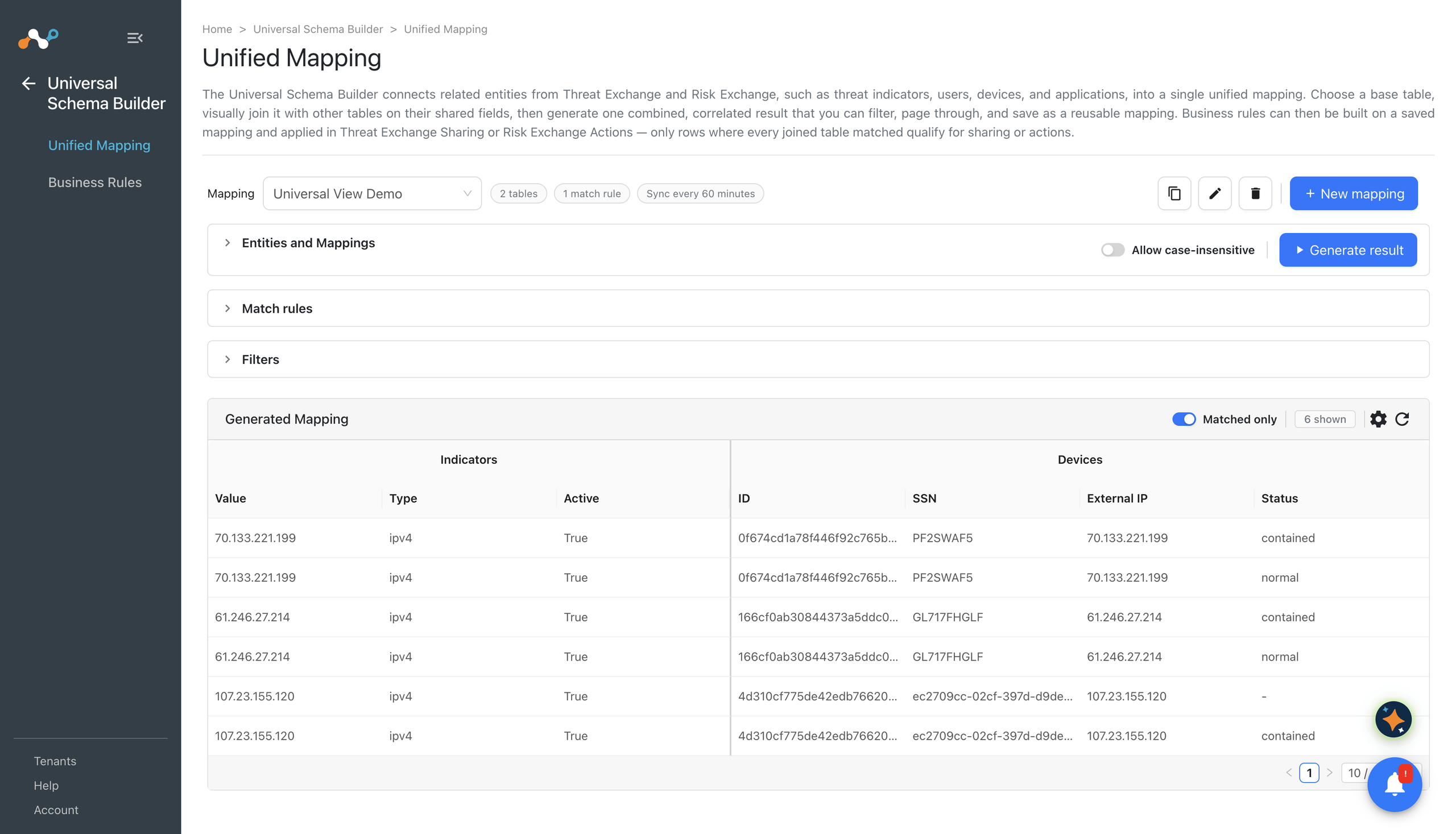
| Generated Mapping | The preview of the joined records produced by the current definition. |
Create a Unified Mapping
To create a unified mapping:
- Go to Universal Schema Builder > Unified Mapping.
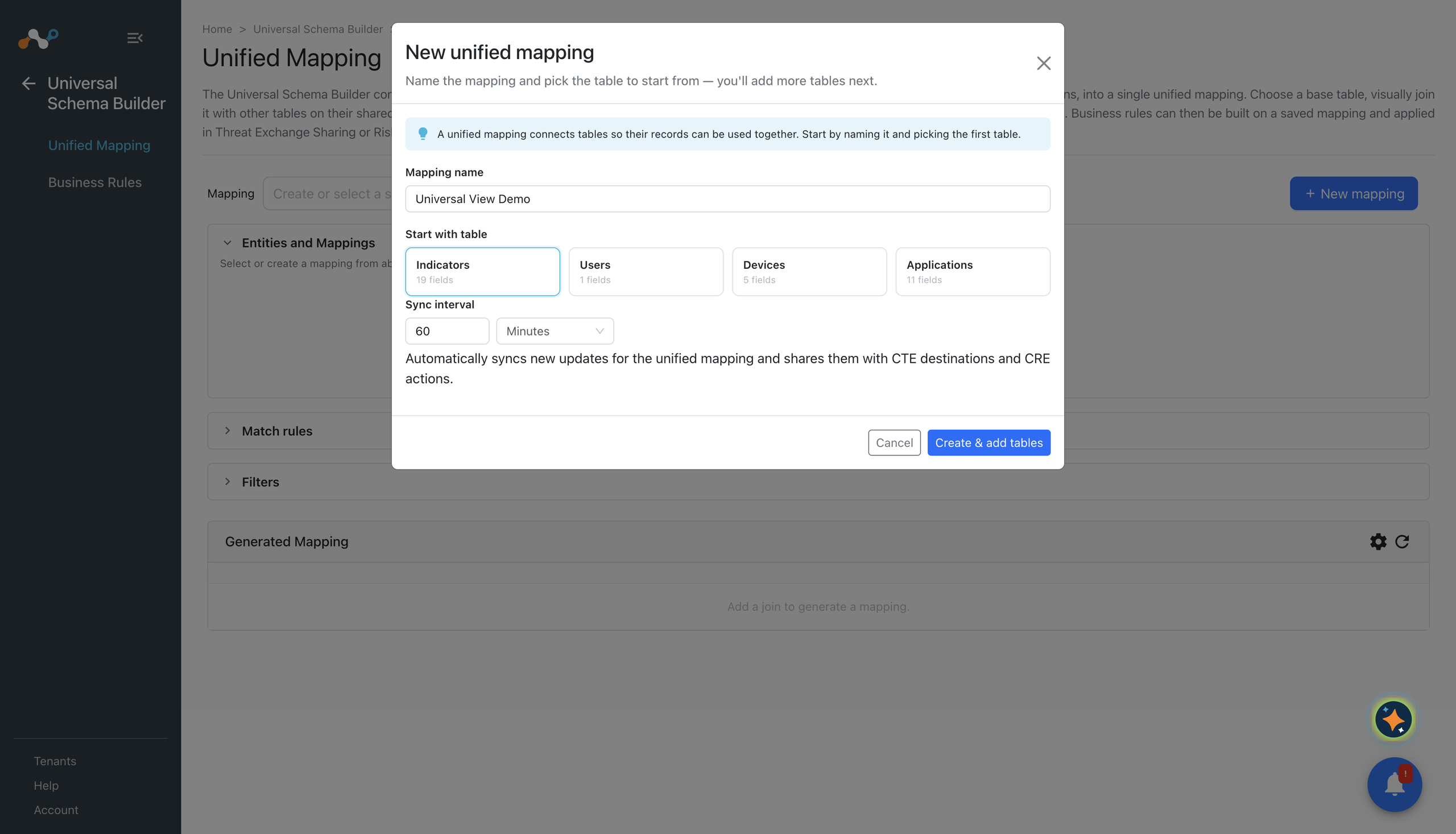
- Click the mapping selector and create a new mapping. The mapping opens as Untitled Mapping.
- In Entities and Mappings, select the entity to use as the base table. This is the starting point of the join, and its records determine which records can appear in the result.
- Add the next entity you want to join, and drag a field from one table onto the field it should match in the other. Each field is labeled unique or many so you can see how its values are distributed.
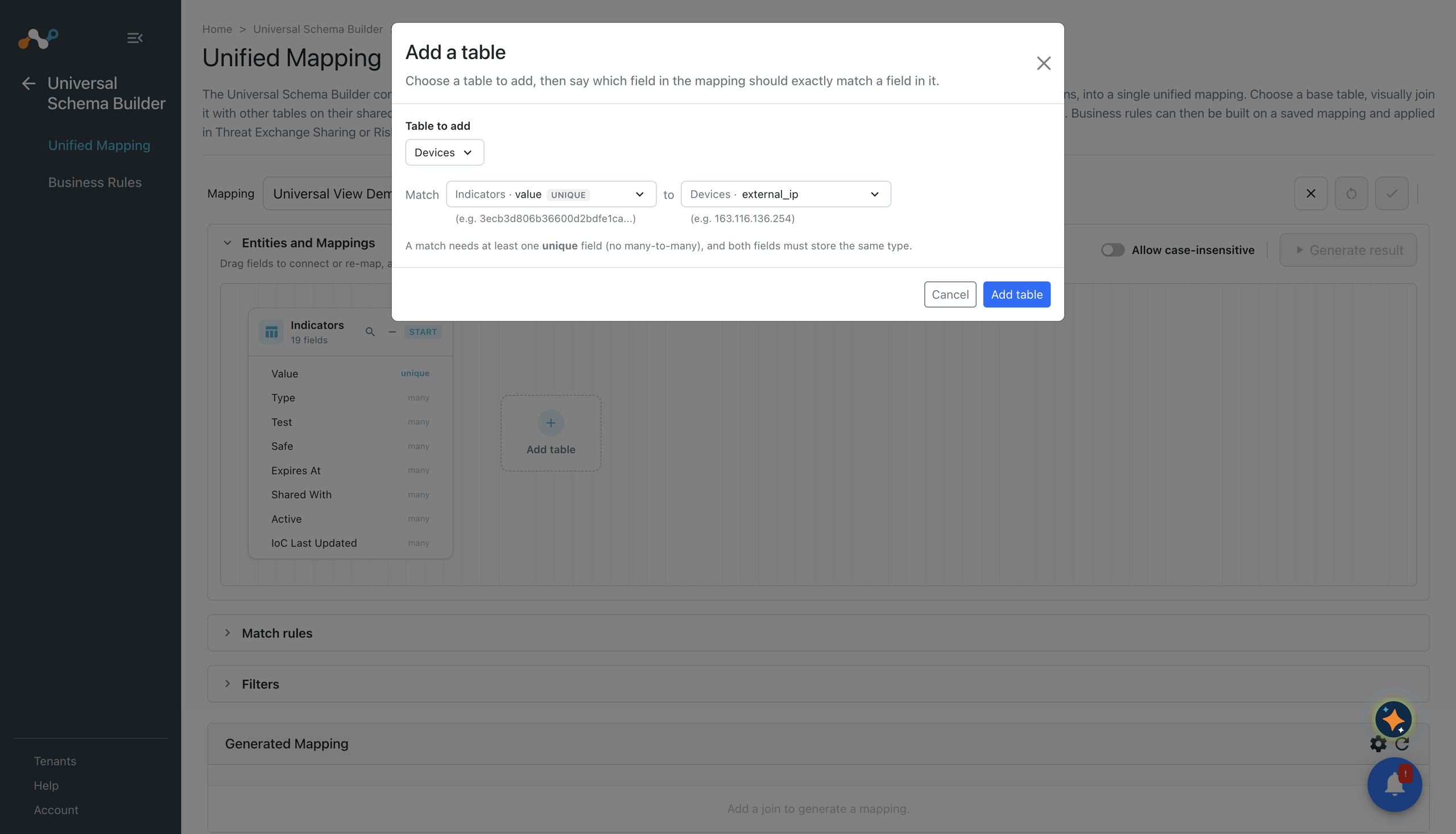
- Repeat for each additional entity. Every new table joins onto the combined result of the tables that are already connected, shown on the canvas as Combined.
- (Optional) Turn on Allow case-insensitive if the joined fields hold the same value in different letter cases For example:
Emailandemail. The setting applies to every join in the mapping and is saved with it. It is off by default, so joins match exact case. - (Optional) In Filters, select the conditions that a record must meet to be included, and click Apply filter.
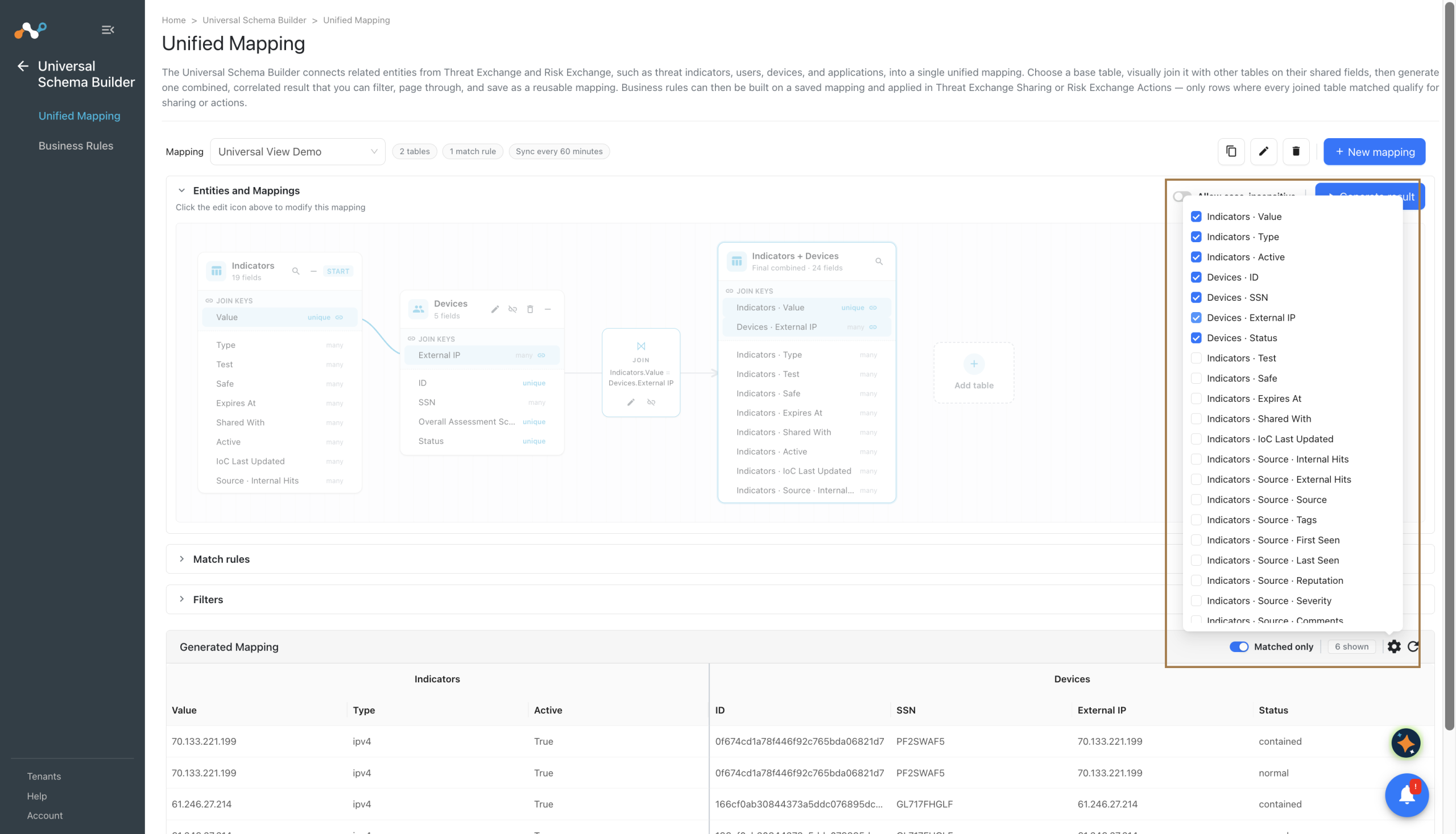
- (Optional) Use Customize Column to choose which fields appear in Generated Mapping.
- Review the records in Generated Mapping.
- Enter a name in Mapping name and click Save Mapping, and confirm when you are prompted.
Click here to watch a video.
Join Requirements
Keep the following in mind when you connect fields:
- Joins match on equality. Records are combined where the two selected field values are equal. Use filters when you need ranges or pattern matches.
- At least one side of a join must be a unique field. Joining two non-unique fields would multiply the records instead of matching them.
- The two fields must hold the same kind of value. A text field cannot be joined to a numeric field.
- A entity can be joined only once in a mapping. It cannot be joined to itself.
- Joins are applied in the order you create them. Each join builds on the combined result of the previous ones, which is why a table must be connected to the base table or to a table that is already part of the combined result.
Filter the Records
Filters narrow the records the mapping produces. They are applied to the combined result, so you can filter on fields from any of the joined tables.
To filter a mapping:
- Open the mapping and click Filters.
- Select a field, an operator, and a value.
- Click Apply filter. Generated Mapping refreshes with the records that match.
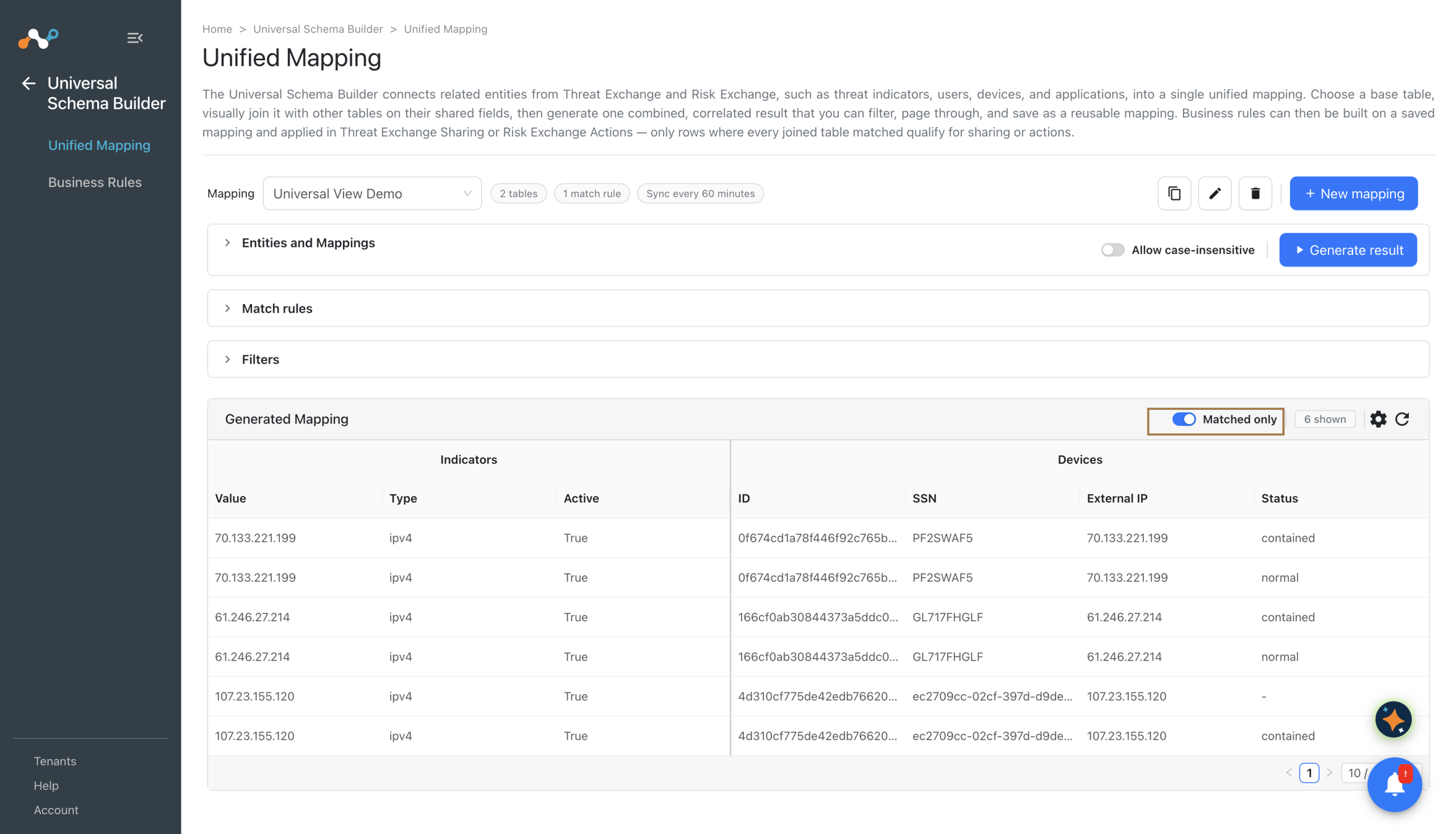
You can also limit the preview to records where every joined table matched by selecting Matched only instead of All records. This affects the preview only and is not saved as part of the mapping.
Preview the Records
Generated Mapping shows the records the current definition produces, so you can confirm the join is correct before you save. As you change the base table, the joins, or the filters, the preview refreshes.
If the preview is empty, the joined fields probably do not contain matching values, or the filters are too narrow. Widen the filters, or check that the plugins populating the source entities have pulled data.
When a mapping includes a sources column, each source appears as its own record.
Choose the Columns
Use Customize Column to choose which fields appear in Generated Mapping. The columns you select are saved with the mapping and define the fields a business rule can filter on and map from, so include every field a rule will need. By default, a table contributes its own fields when you add it to the mapping.
The Threat Exchange sources field behaves differently. An indicator holds a list of sources, one for each plugin or rule that contributed it, and each source carries its own metadata such as severity, reputation, tags, and first and last seen. Expand sources to select the individual fields inside it.
When you select a field from inside sources on the base table, each source becomes its own record in the result. An indicator contributed by three plugins therefore produces three records, one per source, each carrying that source’s own metadata. Select a source field only when you want that per-source detail; if you want one record per indicator, leave the sources fields out.
Manage Unified Mappings
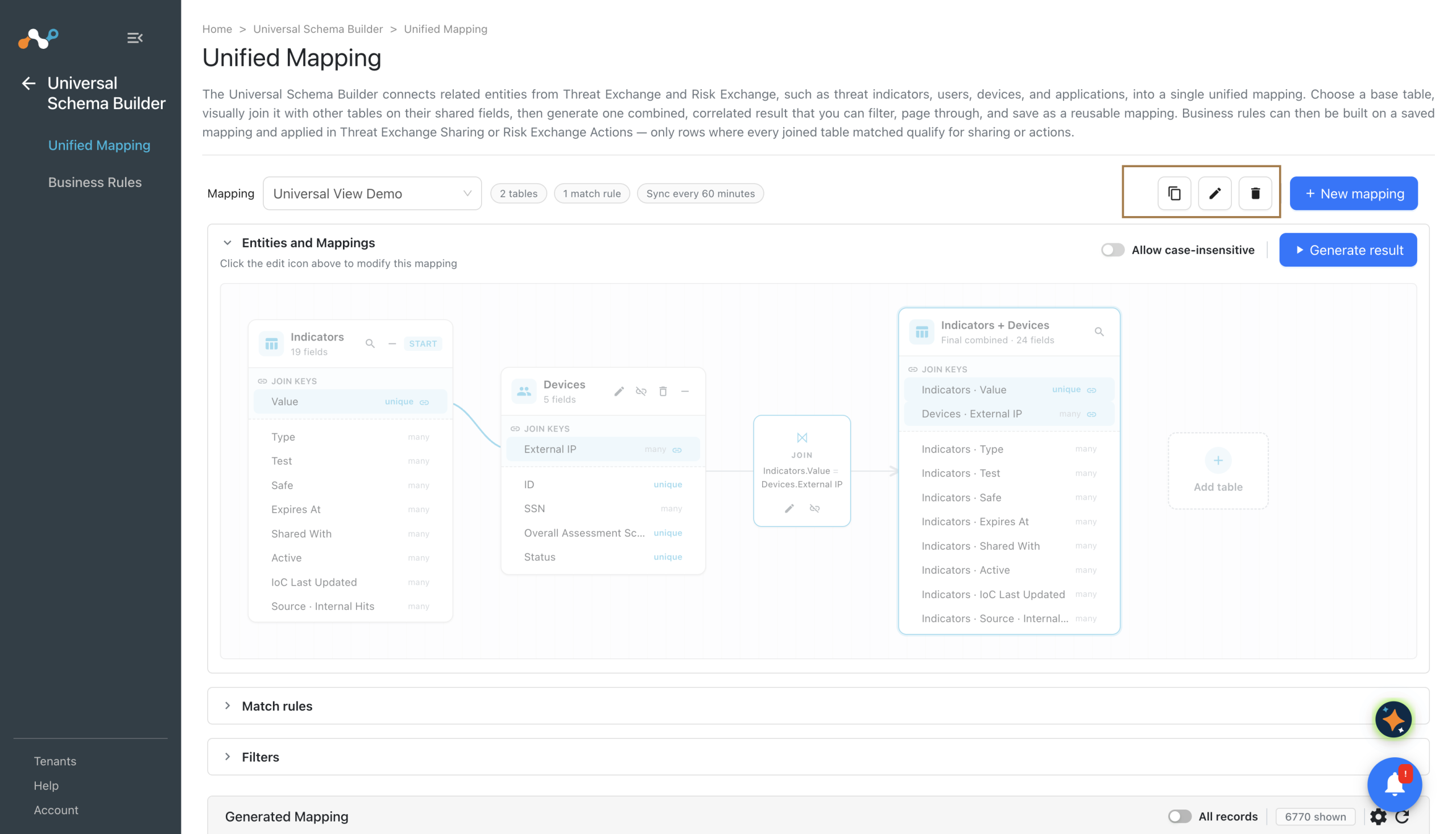
Open a saved mapping from the mapping selector. A mapping opens as read-only; click the edit icon to modify it.
| Action | Steps |
|---|---|
| Edit | Open the mapping, click the edit icon, make your changes, and click Save Mapping. |
| Clone | Click Clone Mapping, enter a value in New mapping name:, and confirm. |
| Reset | Click Reset Mapping to discard the unsaved changes on the canvas and return to the last saved definition. |
| Delete | Click Delete Mapping and confirm. |
Editing a mapping changes the records it produces, and therefore the records that every rule built on it evaluates. Review the affected rules after you change a mapping’s joins or filters.
Create a Business Rule from a Mapping
Click Create Business Rule to build a rule directly on the mapping you have open. The rule form opens with this mapping already selected. See Business Rules.