

Release Notes
2.0.0
Added
- Added support for File Type (JSON, XML, HTML, Plain Text).
- Added support for IoC Retraction.
1.2.0
Fixed
- The pull functionality now includes an option to choose whether to extract only the domain name or use the full URL. For example, if the URL is
google.com/abc/xyz, selecting Yes will extract only the domain google.com, while selecting No will retain the full URLgoogle.com/abc/xyz. This setting is applicable only when the indicator type URL is selected in the Type of Threat Data to Pull configuration parameter.
1.1.1
Fixed
- Fixed Bugs in Pull Functionality.
1.1.0
Changed
- Renamed the plugin from External Website to Web Page IOC Scraper.
Added
- Added support to bifurcate the URL by types (Domain, IPv4, IPv6) starting from CE v5.0.1.
1.0.0
Added
- Initial release.
This document explains how to configure the Web Page IoC Scraper v2.0.0 plugin with the Threat Exchange module of the Netskope Cloud Exchange platform. This plugin pulls IoCs of type URL, Domain, IPv4, IPv6, MD5 and SHA256 from any public website. This plugin does not support sharing of IoCs or performing any actions.
Note that this plugin was previously named External Website; it has been renamed to Web Page IoC Scraper.
Prerequisites
To complete this configuration, you need:
- A Netskope tenant (or multiple, for example, production and development/test instances).
- A Netskope Cloud Exchange tenant with the Tenant plugin and Threat Exchange plugin already configured.
- A File Profile on your Netskope tenant.
- A URL List on your Netskope tenant.
- A Destination Profile on your Netskope tenant.
- A Private App on your Netskope tenant.
- A DNS Profile on your Netskope Tenant
- A publicly accessible URL serving an IoC feed in plain text, JSON, XML, or HTML format.
- Connectivity to your Web Page IoC Scraper
Web Page IoC Scraper Plugin Support
This plugin pulls IoCs of type URL, Domain, IPv4, IPv6, MD5 and SHA256 from any public website. This plugin does not support sharing of IoCs or performing any actions.
| Fetched Indicator Types | Shared Indicator Types |
|---|---|
| URL, IPv4, IPv6, Domains, SHA256, MD5 | Not Supported |
IoC Retraction
The plugin supports IoC retraction by refetching the feed and identifying indicators no longer present, signalling CE to retract them from its threat intelligence store.
| Type | Description |
|---|---|
| IoC Retraction (Pull) | Yes |
| IoC Retraction (Push) | No |
API Details
List of APIs Used
| API Endpoint | Method | Use Case |
|---|---|---|
| https://bitbucket.org/abcd/netskope_ce_abcd/raw/0ee77838f1e1b0491c13e*********/ios.txt | GET | Fetch the IoC feed payload |
Fetch IoC Feed
Endpoint: https://bitbucket.org/abcd/netskope_ce_abcd/raw/0ee77838f1e1b0491c13e*********/ios.txt
Method: GET
Request Headers
| Key | Value |
|---|---|
| User-Agent | netskope-ce-6.1.0-cte-web-page-ioc-scraper-v2.0.0 |
Sample Response
HTTP/1.1 200 OK
Content-Type: text/plain

185.220.101.1
malware.example.com
44d88612fea8a8f36de82e1278abb02f
Performance Matrix
Here is the performance reading conducted after pulling 100K IoCs on a Large CE instance with these specifications.
| Description | Specification |
|---|---|
| Stack details | Size: Large RAM: 32 GB CPU: 16 Cores |
| Indicators fetched from Web Page IoC Scraper | ~55k per minute |
User Agent
netskope-ce-6.1.0-cte-web-page-ioc-scraper-v2.0.0
Workflow
- Configure the Web Page IoC Scraper Plugin.
- Configure a Business Rule for Web Page IoC Scraper.
- Configure Sharing for Web Page IoC Scraper.
- Validate the Web Page IOC Scraper plugin.
Watch a Video
Click play to watch a video.
Configure the Web Page IoC Scraper Plugin
-
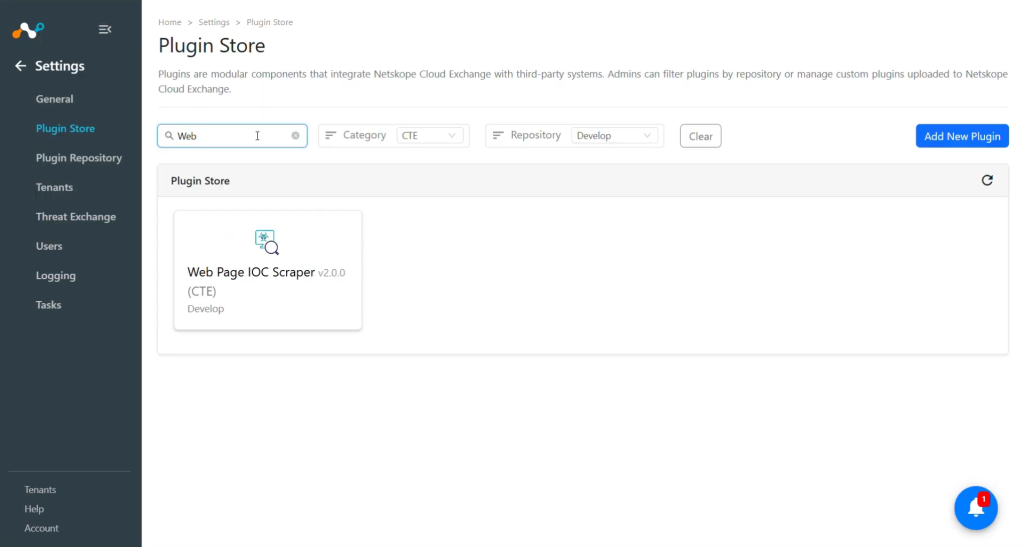
In Cloud Exchange, go to Settings > Plugin Store. Search for and select the Web Page IoC Scraper v2.0.0 (CTE) plugin.
-
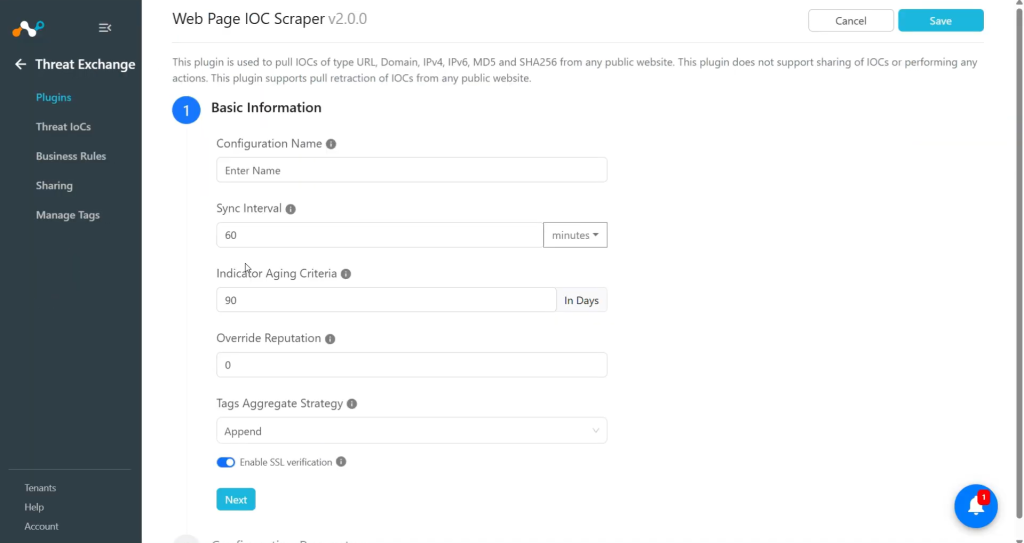
Enter the Basic Information:
- Configuration Name: Plugin configuration name.
- Sync Interval: Interval to fetch data from this plugin and share data to this plugin from other sources.
- Aging Criteria: Expire indicators after specific time.
- Override Reputation: Set value to override reputation of indicators received from this configuration. Leave empty to keep default.
- Tags Aggregate Strategy: Choose whether to append new tags to existing IoC(s) or overwrite them. This configuration parameters determines how tags are stored for indicators pulled for this configuration.
- Enable SSL Validation: Enable SSL certificate verification.
-
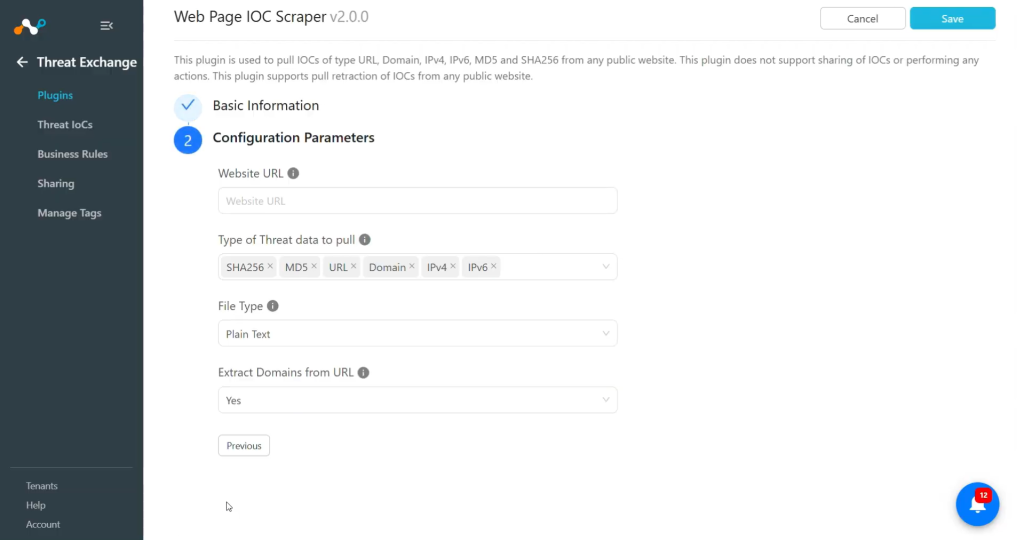
Click Next and enter the Configuration Parameters:
- Website URL: Add URL of public website from where you want to pull data.
- Type of Threat data to pull: Type of Threat data to pull. Allowed values are SHA256, MD5, URL, Domain, IPv4, IPv6.
- File Type: Expected response format (Plain Text, JSON, XML, HTML).
- Extract Domains from URL: Choose whether to extract only the domain name or use the entire URL. For example, if the URL is
google.com/abc/xyz, selecting Yes will extract google.com, while selecting No will use the full URLgoogle.com/abc/xyz. Note that this setting is applicable only when the indicator type URL is selected in the Type of Threat Data to Pull configuration parameter.
Note
- This setting is applicable only when the indicator type URL is selected in the Type of Threat Data to Pull configuration parameter.
- The Extract Domains from URL parameter will work as follow in below scenarios: (Here the assumption is that only URL type of data is available to fetch)
Only URL Selected.
Extract Domains from URL Fetched IOC Type Yes extracted domain No URL (raw data) Only Domain Selected
Extract Domains from URL Fetched IOC Type Yes extracted domain No extracted domain Both Selected
Extract Domains from URL Fetched IOC Type Yes extracted domain No URL, extracted domain -
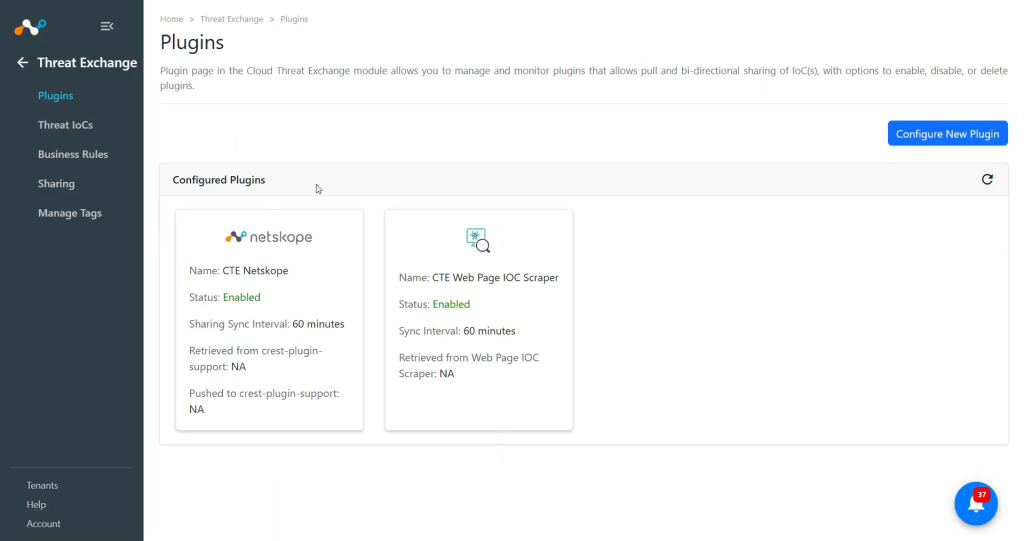
Click Save.


Configure a Threat Exchange Business Rule for Web Page IoC Scraper
To share indicators fetched from the Web Page IoC Scraper to Cloud Exchange, you need a business rule that will filter out the indicators that you want to share.
- In Threat Exchange, go to Business Rules and click Create New Rule.
- Add the filter according to your requirements in the rule, and then click Save.

Configure Threat Exchange Sharing for Web Page IoC Scraper
To share IoCs from the Web Page IoC Scraper plugin to Cloud Exchange:
-
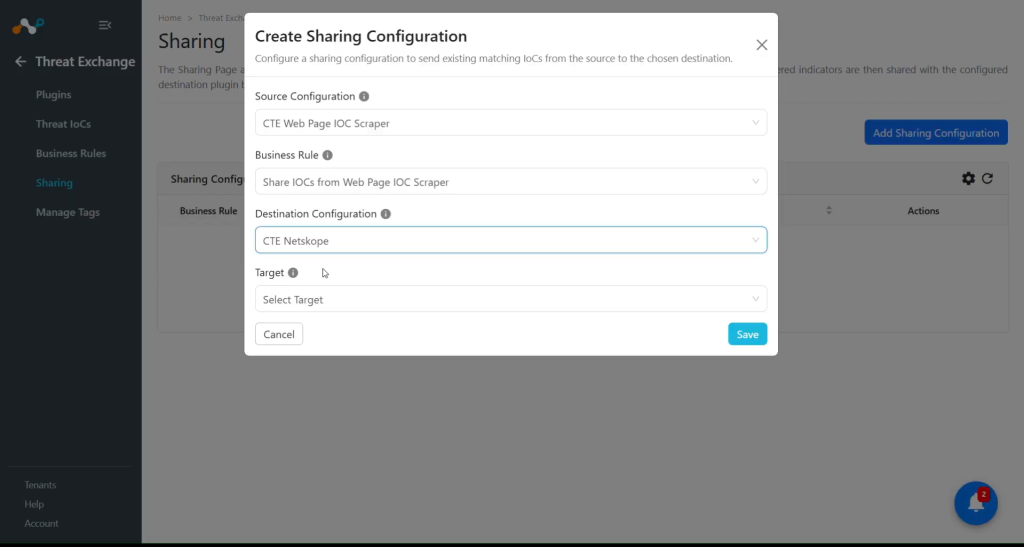
In Threat Exchange, go to Sharing and click Add Sharing Configuration.
-
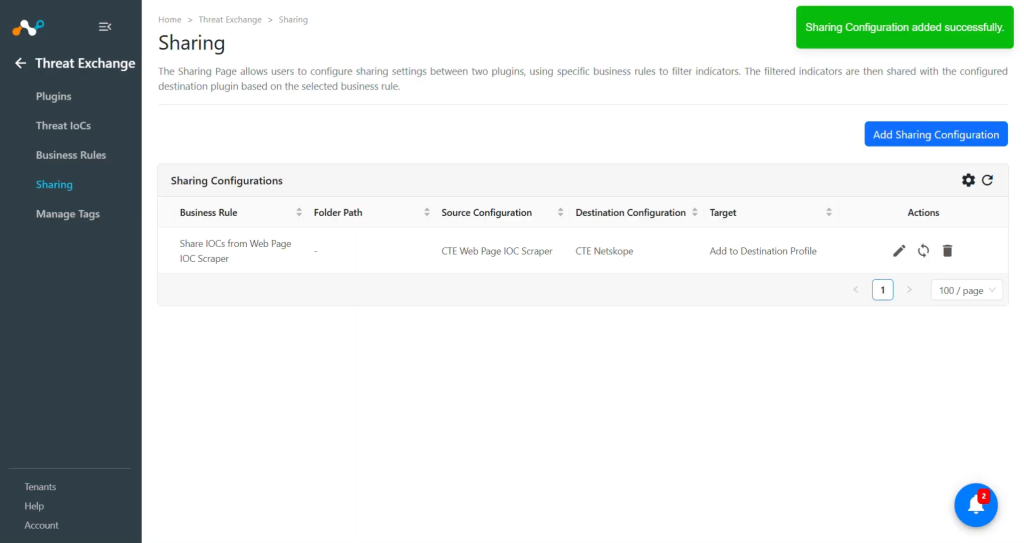
Select your Source Configuration (CTE Web Page IoC Scraper), Business Rule, Destination Configuration (CTE Netskope), and a Target.
-
Click Save.
Note
- Sharing of IoCs with the Web Page IoC Scraper plugin is not supported. To push IoCs from the Web Page IoC Scraper to Netskope, or to see IoC retraction workflow, refer to the Threat Exchange plugin guide.
- Because the plugin can pull IoCs of type URL, Domain, IPv4, IPv6, MD5 and SHA256 from any public website, we can perform Add to URL list, Add to File Hash list, Add to Private App, Add to Destination Profile and Add to DNS Profile on the Netskope tenant.


Validate the Web Page IoC Scraper Plugin
Validate the Pull
You can verify the pulling of IoCs from the plugin by going to Logging and checking the pulled logs from the CTE Web Page IoC Scraper plugin.
You can add a filter like message Like “CTE Web Page IOC Scraper”

You can check the pulled data stored in Cloud Exchange under Threat Exchange > Threat IOCs. Search the IoCs pulled from the plugin.


Note
Because the plugin is configured with keeping Extract Domains from the URL field as Yes, the URLs available on the website were converted into domains.
For example, if you have a URL (https://example.com/path) on your website, here are the possible scenarios:
- If you keep Yes in the Extract Domains from the URL field, only one IoC will be stored in CE (example.com) and it will be stored as domain type.
- If you keep No in the Extract Domains from the URL field, two IoCs will be stored in CE (https://example.com/path as URL and example.com as domain).

If you keep the Extract Domains from the URL field as No, then it will store the URL in raw format and in domain as well. (For example, 192.168.1.1 is an extracted domain from http://192.168.1.1/dashboard URL.)
Validate the Pull Retraction
You can filter the logs related to retraction by using the filter: sources.source Like “[Retraction]”

You can validate the retracted IoCs on the Threat IoCs page:

Note
When IoCs pulled from Web Page IoC Scraper are marked as retracted yes, then it will be marked as <plugin-config-name>: retracted in the Retraction Result if that IoC was already shared to the Netskope tenant or a 3rd-party platform, and that destination plugin supports push retraction.

Validate the Push Retraction
Push Retraction is not supported for Web Page IoC Scraper. To push IoCs from Web Page IoC Scraper to Netskope, or to see IoC retraction workflow, refer to the Threat Exchange plugin guide.
IoCs pulled from Web Page IoC Scraper were shared to a Destination Profile CTE Demo on the Netskope tenant.

If any of the shared IoCs are marked as retracted in Cloud Exchange, it would be deleted from the Netskope tenant as well then retraction result will be marked as “CTE Netskope Threat Exchange: retracted”.

You can see the IoCs that were marked Retracted Yes in the retraction screenshot. These were also deleted from the Destination Profile on the Netskope tenant.

Troubleshooting the Web Page IOC Scraper Plugin
Unable to pull data from the plugin
If you are not able to pull IoCs from the platform, it might be due to one of these reasons:
- The Website URL is not public.
- Available IoCs to pull are invalid or not supported.
What to do: Check the website URL. It should be publicly accessible in order to pull IoCs. If that is the case, check the data available to pull. The IoCs supported for pulling should be of type SHA256, MD5, URL, Domain, IPv4, IPv6, and valid.
Not able to pull IoCs of type IPv4, IPv6, and Domains after plugin update on Cloud Exchange versions below 5.0.1
If you are no longer able to pull the above mentioned IoC types, it can be due to the URL bifurcation added in the plugin from CE version 5.0.1.
What to do: If you have updated your plugin on CE versions below 5.0.1, you might need to manually edit the plugin and select the IPv4, IPv6 and Domain, types of IoCs in the Type of Threat data to pull dropdown list. Previously, the plugin only supported the IoC types MD5, SHA256 and URL, where the URL itself included the subtypes. And new IoC type filters were added in the new plugin version, so they would not be selected in the existing configured plugin.
Note
The IoCs of types IPv4, IPv6, and Domains will still be listed as type URL if the CE version is below 5.0.1 even though the latest plugin is configured. Since the support for URL bifurcation is available only from CE version 5.0.1.

Not able to pull IoCs of type URLs
If you are not able to pull IoCs of type URL, it can be due to one of these reasons:
- There are no available URLs on the website provided.
- Extract Domains from URL is set to Yes and the URLs available on the website are extracted to domains.
What to do:
- Verify you have available URLs to fetch from the website provided.
- Verify that the configured plugin has Extract Domains from URL is set to Yes, and if you want to fetch URLs, you can set it to No. For more such scenarios, refer to Web Page IoC Scraper plugin configuration section.