

Use these steps to migrate a containerized Cloud Exchange deployment, standalone or HA, to the latest version. For the supported migration paths and the other deployment type, refer to Migrate Cloud Exchange.
Important
Contact your SE/AM if you have questions regarding Cloud Exchange installation, deployment, configuration, and migration.
Prerequisites
- Before you start the migration, make sure your instance meets the Cloud Exchange System Requirements.
- Disable all source plugins in all modules, and wait for the queued tasks to finish:
- Wait 20 to 30 minutes after you disable the source plugins.
- Go to Settings > Logging, click Filter Query, enter this filter in the Filters field, and click Load.
message Like "Ingested " || message Like "Stored " || message Like "task(s)" || message Like "Completed storing"
- Monitor the filtered logs. When no new logs appear, continue with the migration.
- After the migration is complete, enable the source plugins that you disabled.
- Keep the maintenance password ready. You need it to complete some of the steps.
Important
If you lose the maintenance password, your existing data cannot be retained.
RabbitMQ data migration is not supported, because the queue type changed from Classic to Quorum.
Standalone Deployment
To v7.0.0 from v5.1.1, v5.1.2, v6.0.0, v6.0.1, v6.1.0 Standalone Deployment
The migrate_ce script migrates your deployment to the latest Cloud Exchange standalone deployment. Run the script on the new (destination) machine.
Before you run the script, make sure that:
- You have the SSH credentials (root password or PEM file) of the old machine where Cloud Exchange is installed.
- The latest Cloud Exchange repository is cloned on the new machine. To clone it, run:
git clone https://github.com/netskopeoss/ta_cloud_exchange
- On the new machine, go to the directory where you cloned the latest Cloud Exchange. Copy the example configuration file, and open it for editing:
cp cloudexchange.config.example cloudexchange.config
vi cloudexchange.config
- In
cloudexchange.config, set the values of these fields. Also set any optional fields that you use or customized, such as the proxy configuration and UI port.MAINTENANCE_PASSWORD=<old cloud exchange maintenance password> JWT_SECRET=<old cloud exchange JWT secret>
JWT_SECRETis optional. If you leave it empty, the setup script generates a new JWT secret. - On the new machine, run the migration script:
sudo ./migrate_ce
- When prompted, enter the username, IP address, and authentication method of the old machine. Then enter the user’s password for password authentication, or the path to the PEM file for PEM file authentication.
- Wait for the script to finish. After it connects to the old machine, the script:
- Runs the stop script on the old machine.
- Zips the existing data on the old machine, and transfers it to the new machine.
- Unzips the data into the installation folder on the new machine.
- Runs the setup script, which asks for the inputs it needs to start the latest Cloud Exchange.
- Runs the start script.
- Check the status of the containers. If you use Podman, run
sudo podman psinstead.sudo docker ps
- Open the UI of the migrated Cloud Exchange in your browser. Log in with your existing Cloud Exchange credentials, and check that your configurations and data are present and working.
HA Deployment
To v7.0.0 from v5.1.1, v5.1.2, v6.0.0, v6.1.0 Standalone Deployment
To move from a standalone deployment to the latest containerized HA deployment, copy the data from the old standalone machine to the node that becomes the new primary node.
For details about the HA parameters and how to set up the cluster, refer to Cloud Exchange High Availability.
On the Old Standalone Machine
- Go to the
ta_cloud_exchangedirectory:cd ta_cloud_exchange
- Stop the containers:
sudo ./stop
- Go to the data directory:
cd data
- Create a zip file of the data:
sudo zip -r ce_backup.zip mongo-data/ repos/ plugins/
- If you use custom plugins, add them to the zip file:
sudo zip -r ce_backup.zip custom_plugins
- Copy the zip file to the new primary node:
sudo scp ce_backup.zip <username>@<ip-of-vm>:<ta_cloud_directory>/data
On the New Primary Node
Run these steps on the node that you want to make the primary node.
- Go to the data directory of the latest Cloud Exchange:
cd <ta_cloud_directory>/data
- Extract the data:
sudo unzip ce_backup.zip "mongo-data/*" -d .
sudo mkdir /opt/shared/data/ -p
sudo unzip ce_backup.zip "plugins/*" "repos/*" "custom_plugins/*" -d /opt/shared/data/
- Go back to the original working directory:
cd ..
- Copy the example configuration file, and open it for editing:
cp cloudexchange.config.example cloudexchange.config
vi cloudexchange.config
- In
cloudexchange.config, set the values of these fields. Also set any optional fields that you use or customized, such as the proxy configuration and UI port.MAINTENANCE_PASSWORD=<old cloud exchange maintenance password> JWT_SECRET=<old cloud exchange JWT secret>
JWT_SECRETis optional. If you leave it empty, the setup script generates a new JWT secret. - Run the setup script. Run it on the primary node first.
sudo python3 ./setup
- Start Cloud Exchange:
sudo ./start
- Open the UI of the primary node in your browser at
https://<ip>:<port>, and log in with your existing Cloud Exchange credentials. - Go to Settings > General Settings > Node Configurations and enable the Enable HA toggle. In the Confirm Action pop-up, enter the Cloud Exchange IP address or FQDN only if you need to change it, and click Enable HA.
Important
While HA is being enabled, Cloud Exchange is temporarily unavailable and may restart several times.


On the Secondary Nodes
Complete steps 1 to 6 on each secondary node. Then add the secondary nodes from the UI of the primary node.
- Go to the
ta_cloud_exchangedirectory that has the latest Cloud Exchange version:cd <ta_cloud_exchange-dir>
- On the primary node, copy the contents of the CA key file:
<ta_cloud_exchange-dir>/data/ssl_certs/mongodb_rabbitmq_certs/tls_cert_ca.key
- On the secondary node, create the CA key file, paste the key that you copied, and save the file. The matching CA key lets the secondary node communicate with the HA cluster.
sudo vi data/ssl_certs/mongodb_rabbitmq_certs/tls_cert_ca.key
- Copy the example configuration file, and open it for editing:
cp cloudexchange.config.example cloudexchange.config
vi cloudexchange.config
- In
cloudexchange.config, set the values of these fields:Important
The JWT secret and the CA key of a secondary node must match the primary node. If they differ, adding the secondary node to the HA cluster fails with an authentication error. If you don’t know the JWT secret of the primary node, generate and apply a new one. For the steps, refer to Cloud Exchange Troubleshooting.
JWT_SECRET=<JWT_SECRET value of the primary node>
MAINTENANCE_PASSWORD=<old maintenance password>
- Run the setup script:
sudo python3 ./setup
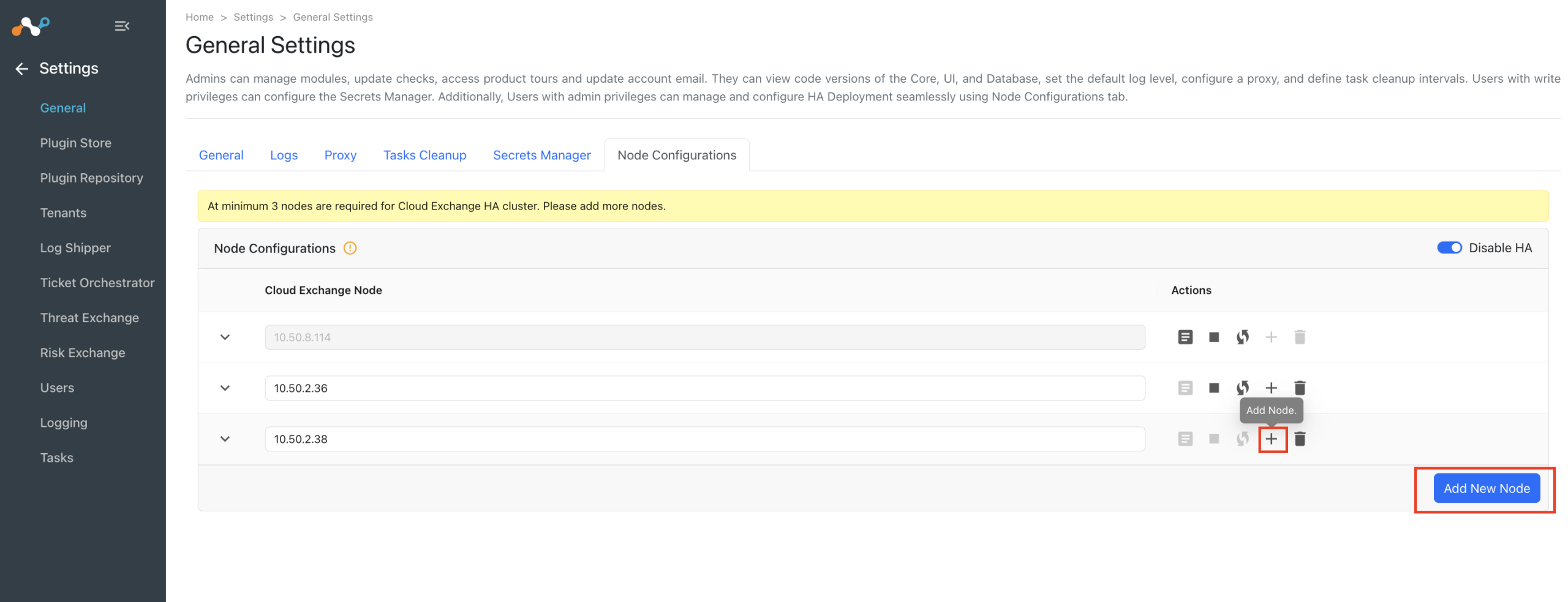
- In the UI of the primary node, go to Settings > General Settings > Node Configurations and add the secondary nodes one at a time.
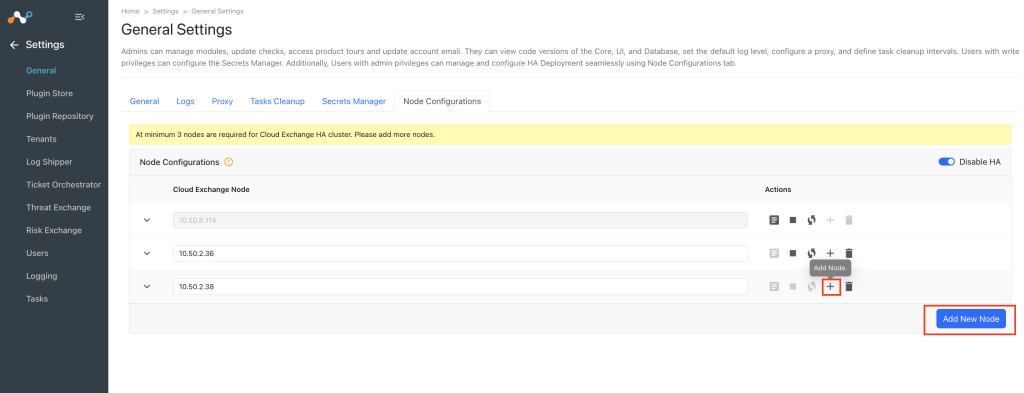 You don’t need to run the start script on the secondary nodes. It runs automatically when you add a secondary node from the UI of the primary node.
To v7.0.0 from v5.1.1, v5.1.2, v6.0.0, v6.0.1, v6.1.0 HA Deployment
To move from the current containerized HA deployment to the latest containerized HA deployment, copy the data from the current primary node to the new primary node.
On the Current HA Deployment
- Stop the secondary nodes first, and then the primary node, so that the containers shut down properly:
sudo ./stop
- On the primary node, go to the data directory, and create a zip file of the MongoDB data:
cd <ta_cloud_exchange_directory_path>/data
sudo zip -r ce_backup.zip mongo-data/
- Go to the shared drive, and add the
reposandpluginsfolders to the zip file. For v6.0.0 and later, the shared drive path is/opt/shared/data/.cd <shared_drive> sudo zip -r <ce_backup_zip_location>/ce_backup.zip repos/ plugins/
- If you use custom plugins, add them to the zip file:
sudo zip -r <ce_backup_zip_location>/ce_backup.zip custom_plugins/
- Copy the zip file from the current primary node to the new primary node, which has the latest Cloud Exchange version:
sudo scp <ce_backup_zip_location>/ce_backup.zip <username>@<ip-of-vm>:<ta_cloud_exchange_directory_path>/data
On the New Primary Node
- Go to the data directory:
cd <ta_cloud_exchange_directory_path>/data
- Extract the data:
sudo unzip ce_backup.zip "mongo-data/*" -d .
sudo mkdir /opt/shared/data/ -p
sudo unzip ce_backup.zip "plugins/*" "repos/*" "custom_plugins/*" -d /opt/shared/data/
- Go back to the original working directory:
cd ..
- Copy the example configuration file, and open it for editing:
cp cloudexchange.config.example cloudexchange.config
vi cloudexchange.config
- In
cloudexchange.config, set the values of these fields. Also set any optional fields that you use or customized, such as the proxy configuration and UI port.HA_ENABLED=True HA_CURRENT_NODE=<current node ip> HA_PRIMARY_NODE_IP=<current node ip> HA_IP_LIST=<current node ip> MAINTENANCE_PASSWORD=<old maintenance password> JWT_SECRET=<old cloud exchange JWT secret>
JWT_SECRETis optional. If you leave it empty, the setup script generates a new JWT secret. - Run the setup script:
sudo python3 ./setup
- Migrate the MongoDB data. Run this command only once.
sudo ./restore_ha_backup
- Start Cloud Exchange:
sudo ./start
On the Secondary Nodes
Complete steps 1 to 6 on each secondary node. Then add the secondary nodes from the UI of the primary node.
- Go to the
ta_cloud_exchangedirectory:cd <ta_cloud_exchange_directory_path>
- On the primary node, copy the contents of the CA key file:
<ta_cloud_exchange_directory_path>/data/ssl_certs/mongodb_rabbitmq_certs/tls_cert_ca.key
- On the secondary node, create the CA key file, paste the key that you copied, and save the file. The matching CA key lets the secondary node communicate with the HA cluster.
sudo vi data/ssl_certs/mongodb_rabbitmq_certs/tls_cert_ca.key
- Copy the example configuration file, and open it for editing:
cp cloudexchange.config.example cloudexchange.config
vi cloudexchange.config
- In
cloudexchange.config, set the values of these fields:Important
The JWT secret and the CA key of a secondary node must match the primary node. If they differ, adding the secondary node to the HA cluster fails with an authentication error. If you don’t know the JWT secret of the primary node, generate and apply a new one. For the steps, refer to Cloud Exchange Troubleshooting.
JWT_SECRET=<JWT_SECRET value of the primary node>
MAINTENANCE_PASSWORD=<old maintenance password>
- Run the setup script:
sudo python3 ./setup
- In the UI of the primary node, go to Settings > General Settings > Node Configurations and add the secondary nodes one at a time.
You don’t need to run the start script on the secondary nodes. It runs automatically when you add a secondary node from the UI of the primary node.