

This article outlines the installation steps and troubleshooting tips for Enterprise Browser.
Prerequisites for Installation
Before initiating installation, ensure the following prerequisites are met:
- System Requirements: Verify that the client machines meet the minimum hardware and software specifications.
- Windows: x64 or ARM processor. Windows 10+.
- Mac: macOS 12 Monterey and higher.
- Administrative Privileges: The user performing the manual (user-driven) installation (.exe on Windows, .dmg on macOS) doesn’t need local administrator privileges or elevated permissions as the installation is done on the user folder.
- Network Connectivity: Netskope Enterprise Browser needs access to the following domains/ports:
- https://nsbrowser-updates.<MP>.goskope.com : Browser updates and installer downloads.
- https://nsbrowser-config.<MP>.goskope.com: To retrieve tenant and user configurations.
- eproxy-<tenant-name>.goskope.com:8090: The secure proxy server used to steer EB traffic to internet destinations (e.g. SaaS apps).
<tenant-name>.ebnpa.goskope.com:8090: The secure proxy server used to steer EB traffic to private apps.
Without full access to these domains/ports, Netskope Enterprise Browser will not work.
- Netskope Client configuration: If you are deploying Netskope Enterprise Browser with the Netskope Client, follow these steps to configure the Netskope Client.
- Security Software Compatibility: Some antivirus software and/or endpoint detection and response (EDR) might block the installation of Netskope Enterprise Browser. See troubleshooting section for more information.
Installation Methods
There are several methods for deploying browsers in a corporate environment.
Manual Installation
For individual machines or small deployments:
- Download the official Netskope Enterprise Browser installer from the URL received via email invitation.
- Run the installer executable.
- Create a profile by entering a profile name and the License Key received via email.
An explanation of possible errors can be found in the License errors section.
MDM
The following Netskope Community articles give guidance on how to deploy Enterprise Browser with MDM solutions in Mac and Windows. You may need to adapt the directions if you’re using a different MDM solution.
- Deploying Enterprise Browser to your Mac Devices
- Deploying Netskope Enterprise Browser to your Windows Devices
Troubleshooting Common Installation Issues
This section covers different scenarios.
Manual Installation
UPDATE_RESPONSE_NOT FOUND
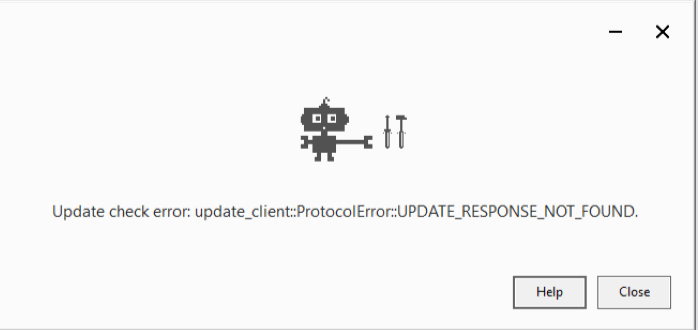
This error is shown when trying to install Netskope Enterprise Browser on a windows computer with arm64 processor.
File Permission issues
When installing the browser via MSI or regular installer, a permissions error or file error is showing up.
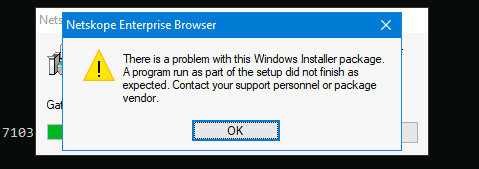
These types of errors are usually caused by an Antivirus software or EDR system that is blocking the installation flow of Netskope Enterprise Browser.
Please make sure the Antivirus or EDR system allows access to the following paths
- c:\Users\<USERNAME>\AppData\Local\Netskope\Browser
- c:\Users\<USERNAME>\AppData\Local\Netskope\NetskopeBrowserUpdater
- c:\Users\<USERNAME>\AppData\Local\Temp
- MSI installation only c:\Windows\Installer
Also, access to the following Registry key is required: HKCU\Software\Netskope\Update
Network issues
Failed to retrieve data. Check your network connection
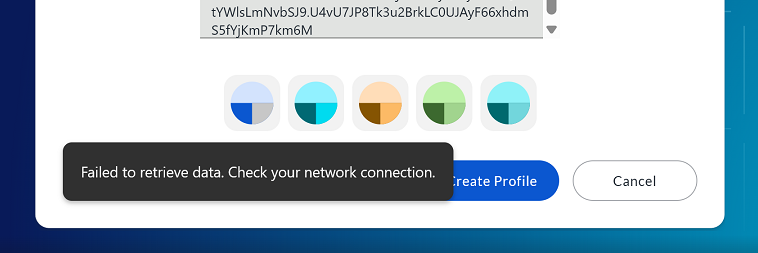
This issue appears when Netskope Enterprise Browser is unable to connect to Netskope’s configuration services. Please ensure that all domains and ports mentioned on the Network Connectivity section are reachable.
ERR_TIMED_OUT when browsing
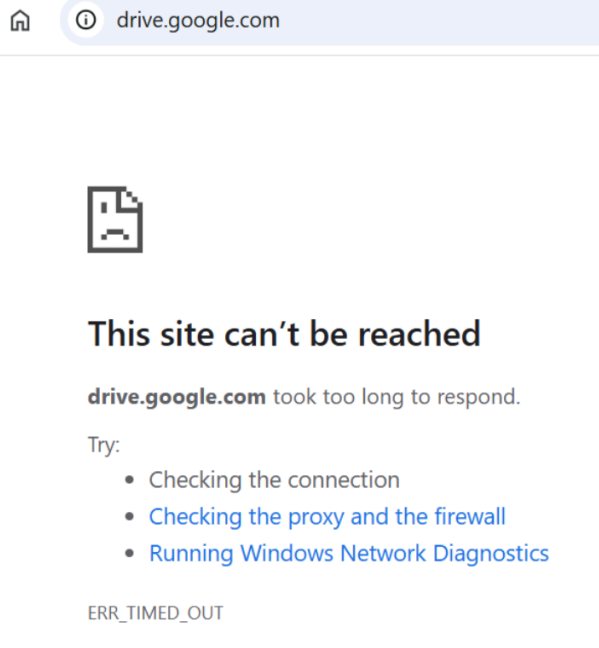
This issue appears when Netskope Enterprise Browser is unable to connect to Netskope’s secure proxy. Please ensure that all domains and ports mentioned on Network Connectivity section are reachable, particularly eproxy-<tenant-name>.goskope.com:8090
License Errors – During Manual Installation
Your license is not correct
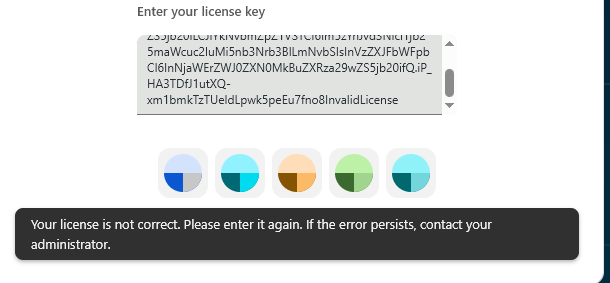
This issue appears when the license entered is not correct. Please check that the license has been entered correctly. Contact your administrator if the error persists.
License has been deleted
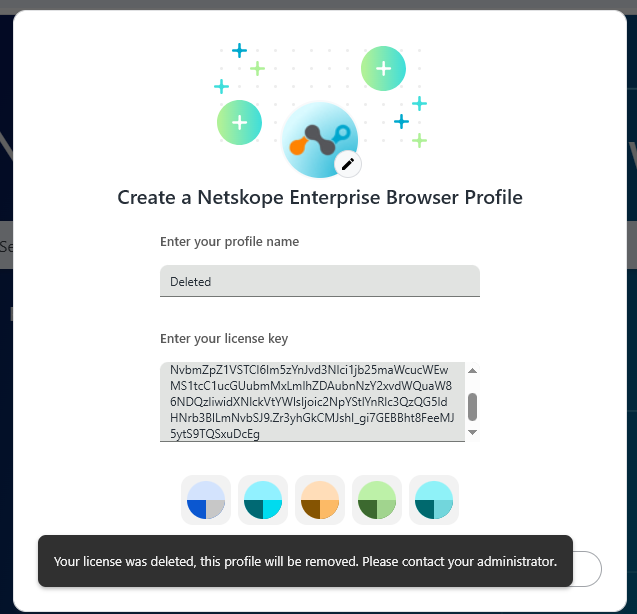
This issue appears when the license has been deleted from the system. Contact your administrator if the error persists.
License was deactivated
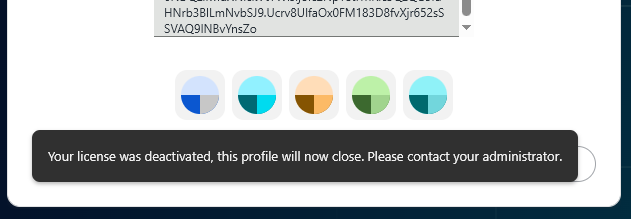
This issue appears when the license has been deactivated. Contact your administrator if the error persists.
Profile Creation Failure – for MDM Installation
| EXIT CODE | VALUE | DESCRIPTION | NOTES |
|---|---|---|---|
| ERROR_SUCCESS | 0 | The action completed successfully. | This is the expected result. This means that the browser was successfully installed and registered in the list of installed apps, and that the browser and entry in the list of installed apps were successfully updated if an older version already existed prior to execution. When running the installer with profile creation parameters (MDM installation), this additionally means that the profile was successfully created or that the specified profile already exists. |
| ERROR_INSTALL_USEREXIT | 1602 | The user canceled the installation. | This happens when the MSI installation is interrupted by the user. |
| ERROR_INSTALL_FAILURE | 1603 | A fatal error occurred during installation. | This exit code typically means the (MDM installation) profile creation failed, due to a failure to fetch the license key based on the profile parameters passed to the installer, e.g., the specified license does not exist, or due to failure to communicate with the configuration server. Ensure that the user has a valid license and the computer is able to connect with the configuration servers. In rare cases, this can mean that the browser fails to install, e.g., due to insufficient disk space. |
| ERROR_INSTALL_PACKAGE_OPEN_FAILED | 1619 | This installation package couldn't be opened. Verify that the package exists and is accessible, or contact the application vendor to verify that this is a valid Windows Installer package. | This exit code is returned by msiexec.exe when it cannot find the specified MSI file. Probable causes are antivirus or EDR systems interfering with the installation. |
| ERROR_PRODUCT_VERSION | 1638 | Another version of this product is already installed. Installation of this version can't continue. To configure or remove the existing version of this product, use Add/Remove Programs in the Control Panel. | This issue appears if an old version of Enterprise Browser was already installed and the new installer is unable to upgrade. Please fully remove the old version of the browser and try again. |