

The Inventory page provides a centralized view of AI assets discovered across your organization, giving you visibility into the enterprise AI ecosystem. You can explore and analyze AI assets such as AI Applications, MCP Servers, Agents and Models used by users across the enterprise. These assets might be accessed from managed endpoints, run locally on managed endpoints. To learn what Netskope Client detects during an endpoint scan, see Netskope Client AI Discovery.
By consolidating this information into a single interface, the Inventory page helps you understand how AI components are interconnected, identify high-risk assets, and investigate user interactions and data flows. This page is primarily used for in-depth analysis, allowing you to drill down into specific entities for effective monitoring and governance.
Use the time range filter in the top-right corner to select a time frame. All metrics and data on the page update dynamically based on the selected range. The same time range options are available as on the Overview page.
The Inventory page UI is organized into three primary sections: Summary, Assets, and Identities
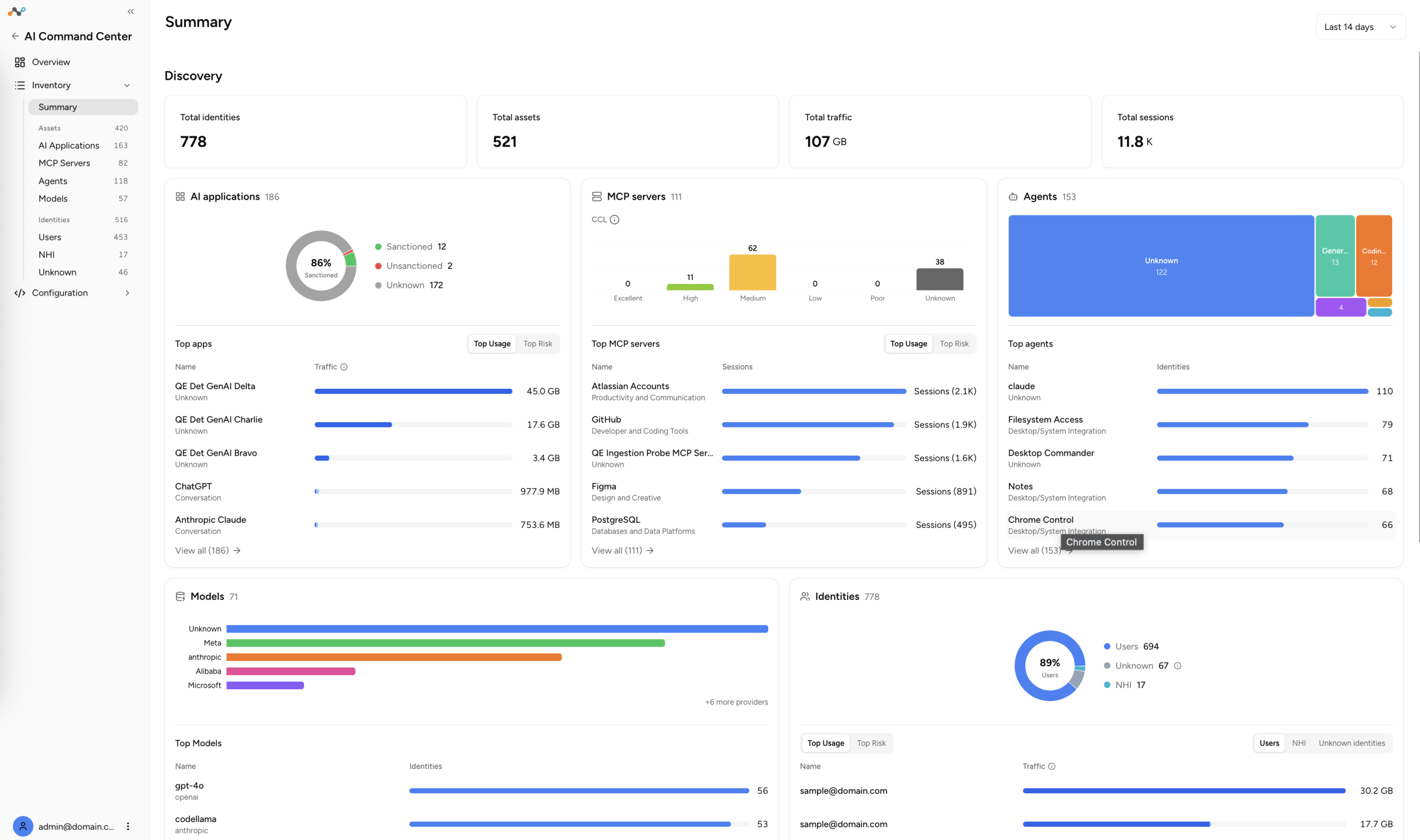
Summary
The Summary section provides a centralized, high-level view of AI usage across your organization. It is designed for security teams monitoring AI-related risks and for administrators responsible for assessing adoption and governance. It helps you quickly identify anomalies and high-risk activities across the environment.
Use the Summary section to monitor AI adoption trends, identify unsanctioned usage, detect high-risk signals, and decide where to focus your investigation. All metrics and data in this section update based on the time range filter described earlier on this page.
Key Metrics
The metrics at the top of the section summarize overall AI activity within the selected time range. Each metric includes a sparkline chart that shows the data trend over that range.
- Identities: The number of unique users interacting with AI applications.
- Assets: The total number of discovered AI applications and MCP servers.
- Total Traffic: The volume of data exchanged by AI applications, including upload and download.
- Sessions: The number of sessions involving AI applications.
AI Applications
The AI Applications panel provides visibility into the AI applications used within the organization.
- The panel shows the total number of discovered applications, with a breakdown of Sanctioned applications (approved for enterprise use) and Unsanctioned applications (unapproved or potentially risky).
- The Top Apps list ranks applications by traffic volume, so you can identify the most actively used applications.
- Click an app to open a details panel with metadata, policy violations, traffic charts, identities, and domains.
- Click View in Inventory to go to the full AI Applications inventory.
- Switch between Top Usage and Top Risk to sort the Top Apps list.
- Each app in the list shows a risk badge with its reconciled risk level and a confidence indicator. See What Does the Risk Score and Confidence Level Mean in AICC?.
MCP Servers
The MCP Servers panel provides insight into the MCP servers that users in your organization access through traffic that Netskope steers.
- The panel shows the total number of MCP servers, with the Cloud Confidence Level of each (for example, Excellent, High, Medium, Low, Poor, or Unknown).
- The Top MCP Servers list ranks servers by the number of sessions.
- Click an MCP server to open a details panel with metadata, session charts, identities, prompts, tools, and resources.
- Click View in Inventory to go to the full MCP Servers inventory.
Agents
The Agents panel provides visibility into the AI agents discovered across your organization, such as browser extensions, editor extensions, and desktop extensions that use AI. Netskope detects these agents through Netskope Client Endpoint AI Discovery.
- The panel shows the total number of discovered agents, with a treemap that breaks them down by category.
- The Top Agents list shows the name and type of each agent, for example editor_extension, desktop_extension, or browser_extension.
- Click an agent to open a details panel with metadata, traffic charts, and the identities and endpoints where the agent was detected.
- Click View all to go to the full Agents inventory.
Models
The Models panel provides visibility into the AI models that Netskope discovers on managed endpoints through Netskope Client Endpoint AI Discovery. This includes locally running AI models that do not transit the network and that network-based discovery cannot see.
- The panel shows the total number of discovered models, with a bar chart that breaks them down by provider (for example, OpenAI, Anthropic, Mistral, Google, and Meta). When more providers exist than the chart displays, a +n more providers link shows the remaining count.
- The Top Models list ranks models by data volume and shows the name and provider of each model.
- Click a model to open a details panel with metadata and the identities and endpoints where the model was detected.
- Click View all to go to the full Models inventory.
Identities
The Identities panel highlights how users interact with AI applications and MCP servers, so you can see who is using them.
- The panel shows a donut chart with the proportion of known users and unknown identities.
- Tabs for Users and Unknown identities list the top identities by usage.
- Click an identity to open a details panel with metadata, traffic charts, and the connected AI apps and MCP servers.
Alerts
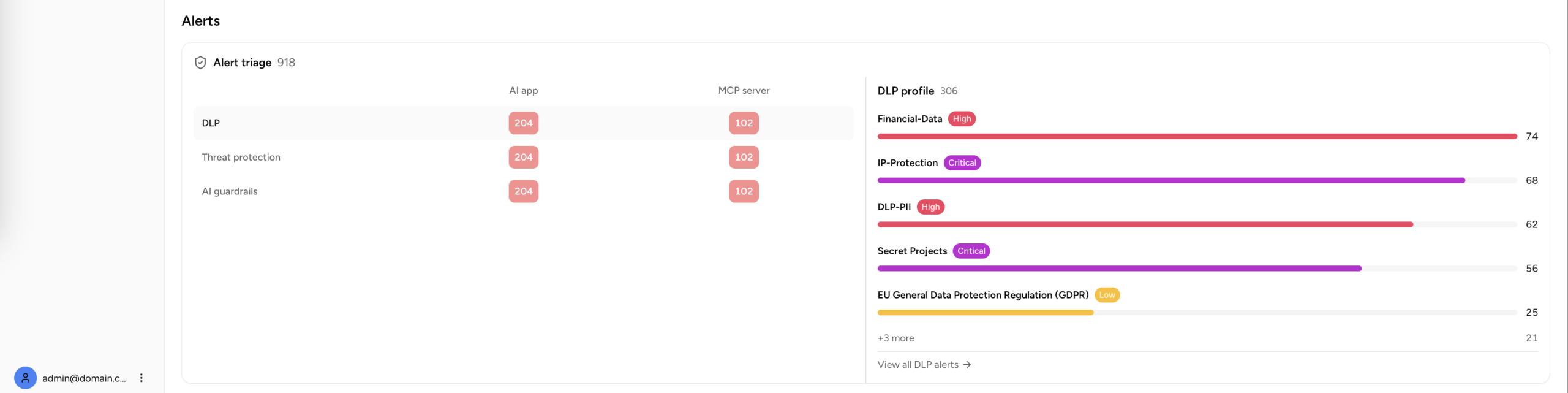
The alerts area shows Netskope alerts for Data Loss Prevention (DLP), Threat Protection, and AI Guardrails on generative AI traffic. The Alert Triage grid shows alert counts by detection type and asset type.
- Each cell shows a color-coded count badge. The color intensity depends on the number of alerts.
- Click a cell to filter to a specific combination, for example DLP alerts on AI applications.
- Click a detection type row to display a policy card for that detection type (DLP Profile, Threat Protection, or AI Guardrails). Use the card to go quickly to policy configuration.
- Click an application or asset to open a details panel with more information.
Assets and Identities
Assets provide a detailed view of discovered AI applications, MCP servers, Agents and Models used across the enterprise, whether accessed from managed endpoints, running locally on endpoints, or hosted in cloud and on-premises environments.
Identities offers visibility into users interacting with AI systems, helping you analyze user activity for specific identities.
See following articles to learn more about individual articles:
Search and Filtering
A search bar is available above each inventory table, allowing you to filter results by name or identifier. Each section also provides filter dropdowns specific to the data type. When filters are active, a “Clear All” button appears to reset all filters at once.
Freequently Asked Questions
Q: Why do I see blank footprints or identities in AI Inventory?
Footprints and Identities can be blank if the asset was discovered in 90 days but not seen in the given time frame. Footprints and identities appear blank when the asset has not been accessed within the time period set by the filter. Available filter values are 24 hours, 7 days, and 14 days. For example, if you set the filter to 7 days and the asset has not been accessed in the last 7 days, its footprint or identity fields show as blank. Selecting a longer filter window, such as 14 days, may surface footprint data if the asset was accessed within that broader range.