

Getting Started (Quick Start Guide)
SAML&SSO Setup for Enterprise Browser
The Enterprise Browser utilizes Cloud Explicit Proxy and Forward Proxy configurations; consequently, all supported SSO and SAML protocols are compatible. For comprehensive configuration instructions, please refer to the documentation regarding SAML/SSO Setup for Enterprise Browser
Main flows
(Admin) Browser Set Up
Before inviting users to install Netskope Enterprise Browser and setting up policies, you must set up the basic configurations for the Enterprise Browser.
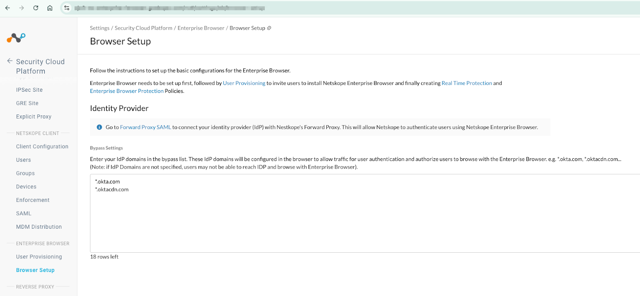
Path: Settings → Security Cloud Platform → Enterprise Browser → Browser Setup
- Set up the identity provider:
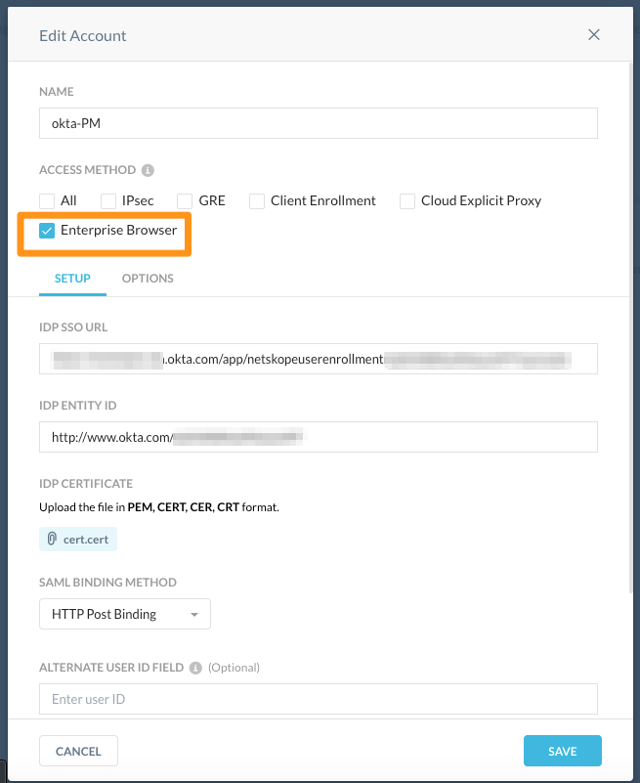
Go to Forward Proxy SAML Section to connect your identity provider with Nestkope’s Forward Proxy. This will allow Netskope to authenticate users using Netskope Enterprise Browser. Select Access Method = “Enterprise Browser”.
- Set up the Bypass Settings:
Incoming requests from EB are only accepted after the user is authenticated to the customer’s SSO as configured in the previous step.
You need to specify your IdP domains to allow user authentication to your SSO. If you do not include your IdP domains in this list, users will not be able to reach your IdP Domains to authenticate, and they will not be able to use Enterprise Browser.
E.g. If your IdP is Okta, you will need to include: *.okta.com, *.oktacdn.com each in a separate row.
(Admin) User Provisioning
You can invite users to download and install Netskope Enterprise Browser. Configure the style and content of the invitation and installation emails by editing the logo, button color, and templates below.
Path: Settings → Security Cloud Platform → Enterprise Browser → User Provisioning
- Provisioning Users: click the Invite Users button. Select users, user groups or OUs that you want to onboard to use Netskope Enterprise Browser.
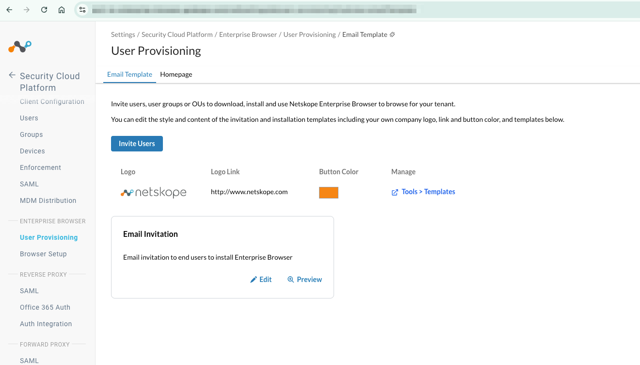
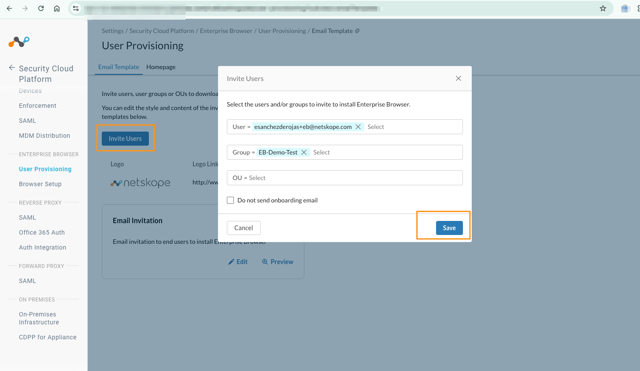
Individual invites will be sent using the Email invitation template. You can edit the template and / or use your company logo.
Notes:
Inviting a user that has been previously invited will resend the onboarding email. License Key remains the same.
The “Do not send onboarding email” option is used in MDM deployment scenarios, where admins need to provision the user in Enterprise Browser service before running the MDM script.
(Admin) Setting Up Your First RTP Policy for the Enterprise Browser
You can define your own Real Time Protection (RTP) policies with the Netskope Enterprise Browser.
Path: Policies → Real-time Protection
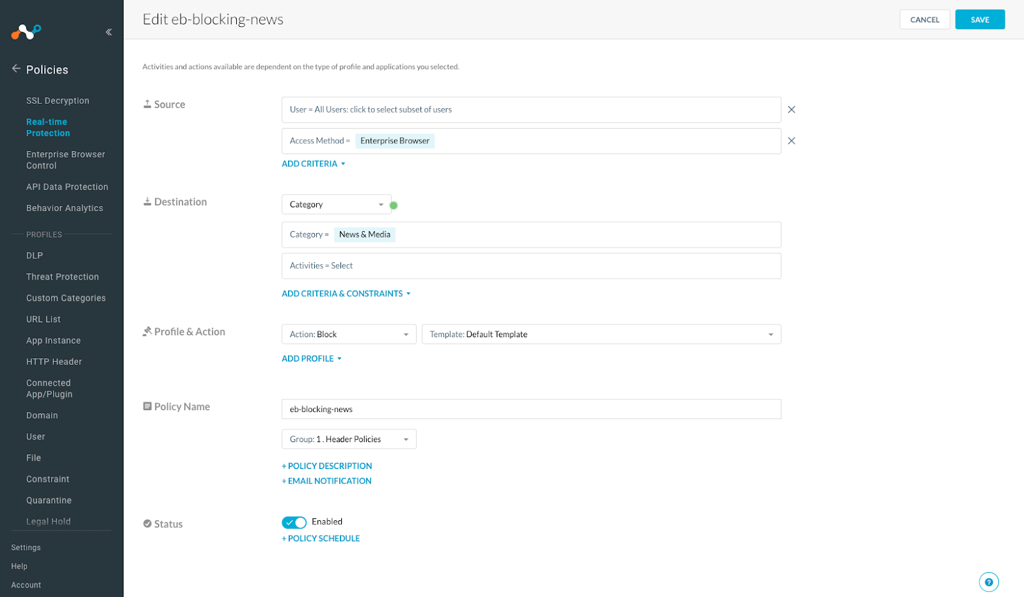
- For Web Access Policies: e.g. you can create a policy blocking any traffic to web sites in a certain category (e.g. “News & Media”). Click “New Policy” → “Web Access”.
You will select Access Method = “Enterprise Browser” to apply these policies to “Enterprise Browser” traffic
Note: Leaving Access Method empty will apply to all Access Methods including EB (e.g. “Client”, “GRE”, “Enterprise Browser”…)
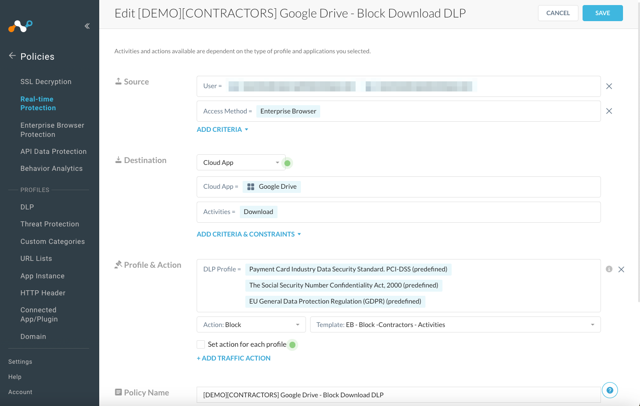
For Cloud Apps / DLP Policies: e.g. Admins can create policies to control activities in cloud apps and combine them with DLP profiles to prevent data leakage when EB users interact. E.g. blocking Downloads of Files with sensitive Data from Google Drive.. Click “New Policy” → “DLP”.
(Admin) Setting Up Your First Browser Control for the Enterprise Browser
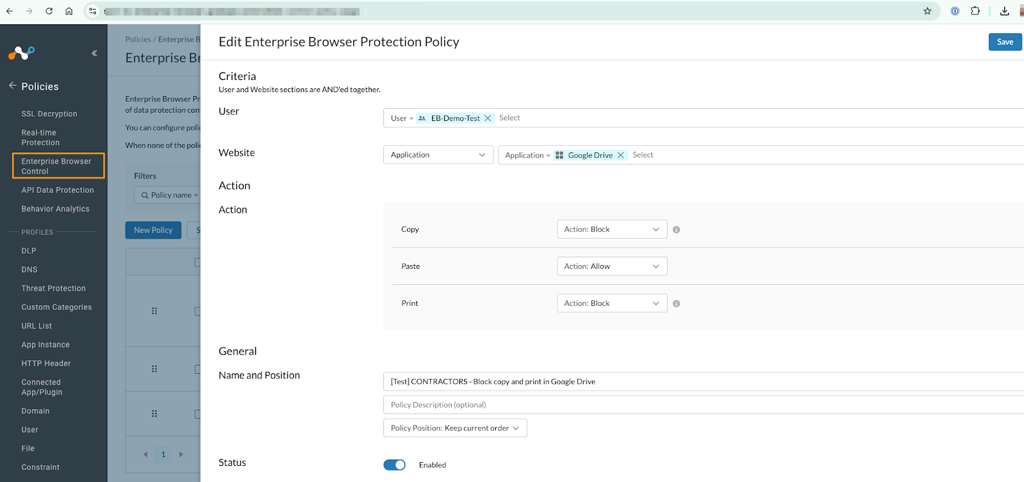
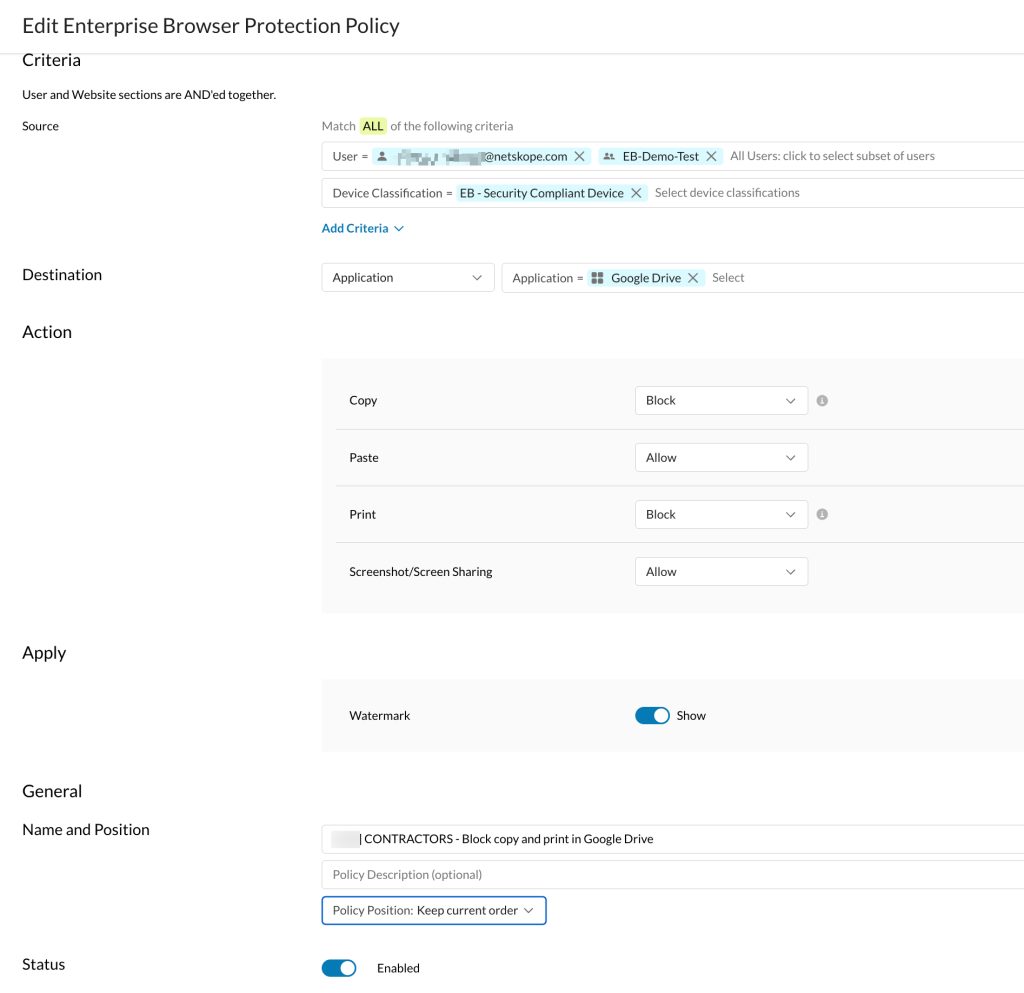
You can define Browser Protection policies (copy, paste, print) and enforce them in Netskope Enterprise Browser.
Path: Policies → Enterprise Browser Control
Select the Users or User groups and the destination to which you want to apply the policy to. You can create fine grain policies leveraging Predefined and Custom categories, as well as any cloud application (E.g. Create a policy to block copy and print in Google Drive)
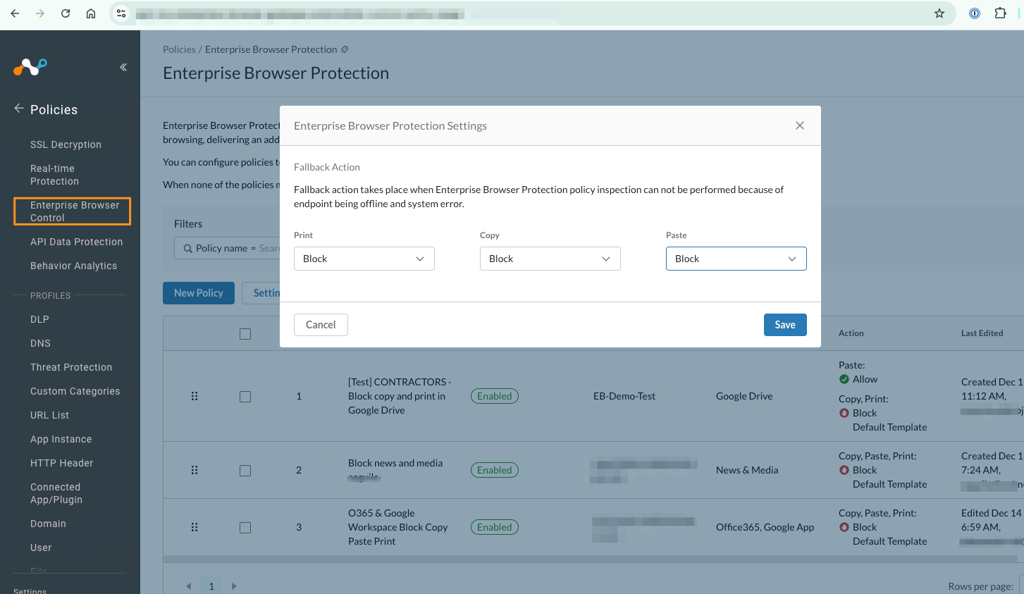
Note: In the unlikely event of an error in the processing of the Enterprise Browser Protection Policies, EB will apply the fallback actions defined by the customer in
Path: Policies → Enterprise Browser Control → “Settings”
(Admin) Setting Up Homepages for your User
The homepage will show a list of applications/websites that can be defined in the UI admin panel.
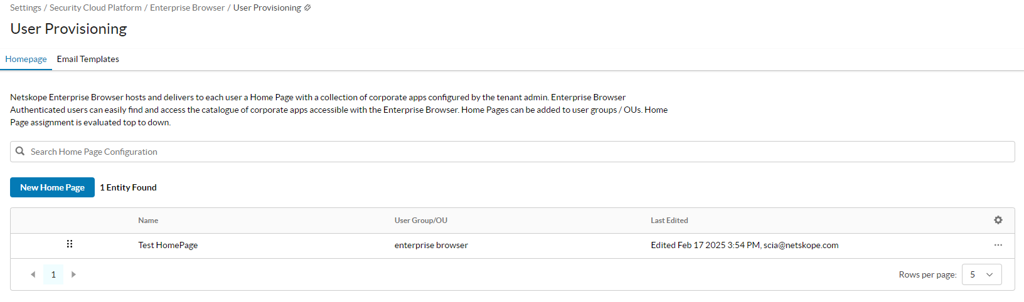
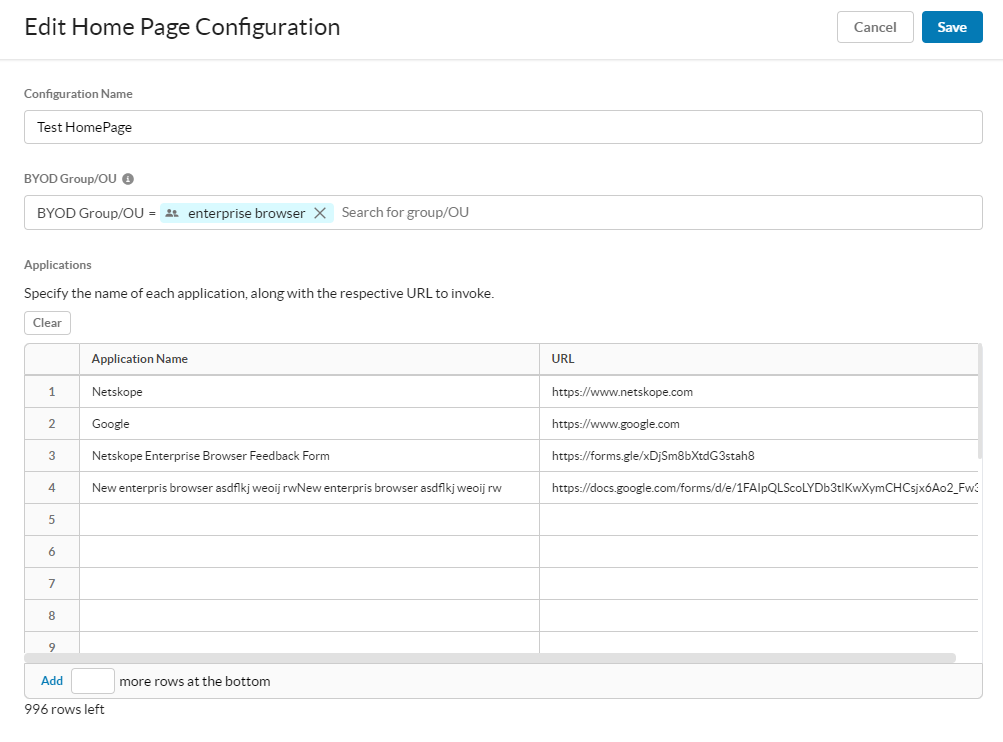
Homepages are associated with groups or OUs (organizational units). That means that the user retrieves homepages belonging to his groups and/or OUs.
Architecture Overview
Lead: Carlos| Reviewer: Emilio | Priority: P0
Content: How EB fits in the Netskope One platform.. Edge proxy for traffic steering, WebUI for license key enablement and configuration, Back-end Services, Browser identification, policy evaluation flow.
The Netskope Enterprise Browser is a Chromium-based secure browser that integrates directly into the Netskope One platform. It provides enterprise-grade security controls, data protection policies, and centralized management — all enforced through the Netskope Security Cloud without requiring the Netskope Client on the endpoint. This page explains how the Enterprise Browser fits into the Netskope One architecture and how security policies are delivered.
How Enterprise Browser Fits in Netskope One
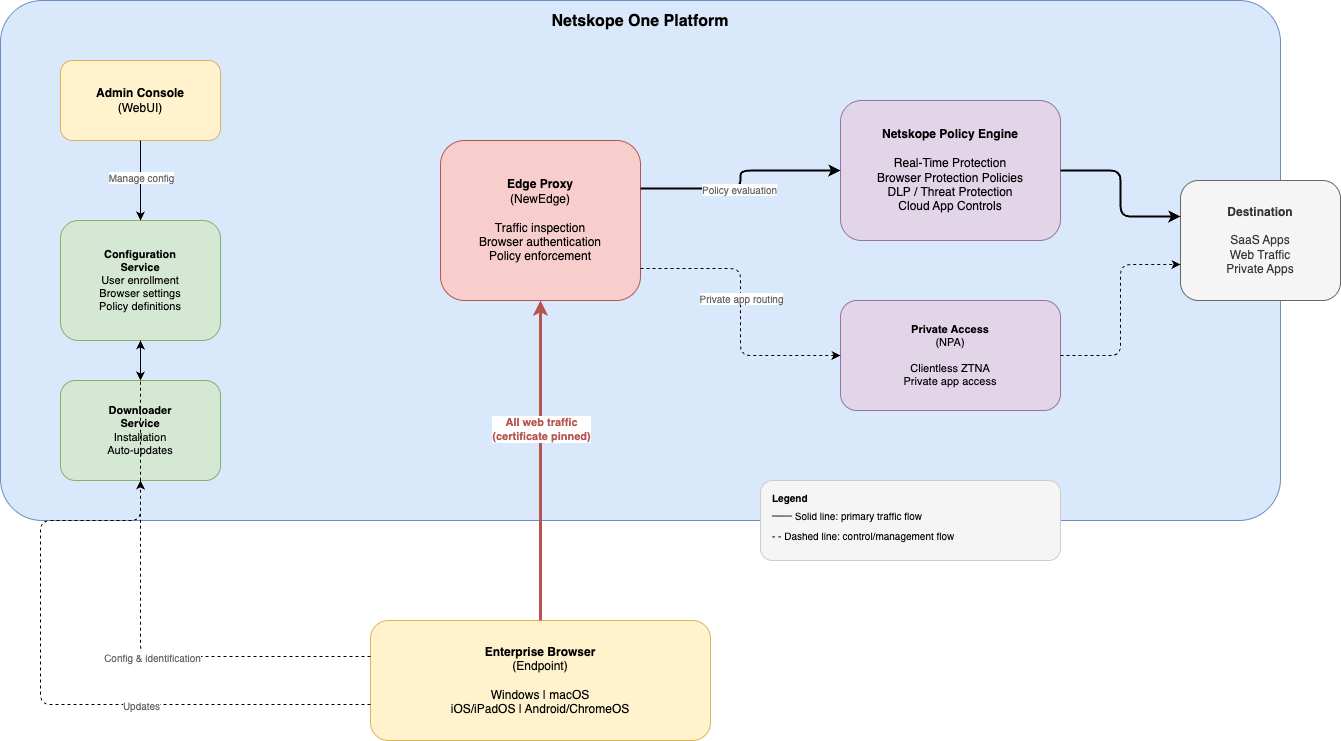
The Enterprise Browser is a clientless access method within the Netskope One platform. It steers all browsing traffic through the Netskope Security Cloud, where security policies are evaluated inline. The architecture consists of the following components:
Enterprise Browser (endpoint) — the secure Chromium-based browser running on the user’s device. It retrieves configuration from the Netskope cloud and routes all web traffic through the Netskope edge for inspection.
Edge Proxy (NewEdge) — the Netskope edge service that receives all traffic from the Enterprise Browser. It authenticates the browser, applies security policies inline, and returns policy decisions to the browser for local enforcement.
Netskope Policy Engine — evaluates Real-Time Protection policies and Browser Protection Policies for each request, determining what actions are allowed or blocked.
Configuration Service — manages browser configuration, user enrollment, and Browser Protection Policy definitions. Administrators configure it through the Netskope One admin console.
Downloader Service — handles browser installation delivery and automatic updates.
Admin Console (WebUI) — the Netskope One web interface where administrators enable the Enterprise Browser, manage users, configure browser settings, and define protection policies.
Traffic Steering
All web traffic from the Enterprise Browser is steered through the Netskope Edge Proxy at the nearest NewEdge data center. This ensures that:
All traffic is inspected by the Netskope policy engine,
Real-Time Protection policies (DLP, threat protection, cloud application controls) apply to Enterprise Browser sessions, and
Browser Protection Policies are evaluated inline and enforced locally by the browser.
The Enterprise Browser uses certificate pinning to secure its connection to the Netskope edge.
Note: NewEdge data center selection for the Enterprise Browser relies on DNS resolution. The browser connects to the geographically closest NewEdge location.
Browser Identification
The Enterprise Browser uses a secure identification mechanism to authenticate itself to the Netskope Security Cloud. Only authorized Enterprise Browser instances — provisioned by a tenant administrator — can access the Netskope infrastructure through the dedicated browser endpoint.
When a user is enrolled, the administrator generates a unique credential associated with that user and tenant. The browser uses this credential to periodically obtain a short-lived token, which it includes in every request to the Netskope edge. The edge validates the token before processing any traffic. If validation fails, the connection is rejected.
This browser identification operates alongside user authentication (SAML/SSO) — both must succeed for traffic to be processed.
Policy Evaluation Flow
When a user browses through the Enterprise Browser, policy evaluation occurs as follows:
The browser sends the request to the Netskope Edge Proxy with its identification credentials.
The edge authenticates the user via SAML and validates the browser identity.
The Netskope Policy Engine evaluates applicable policies for the request.
Policy decisions are returned to the browser, which enforces them locally.
If the browser cannot reach the policy engine (for example, during a temporary connectivity interruption), fallback actions apply. Administrators define fallback behavior in the admin console to ensure a secure default posture.
Browser Protection Policies
In addition to the Real-Time Protection policies shared with other Netskope access methods, the Enterprise Browser supports a dedicated set of Browser Protection Policies that control client-side actions. Administrators can define granular policies per user, group, application, category, or destination. Supported controls include:
Copy — allow or block copying content from protected applications
Paste — allow or block pasting content into protected applications
Print — allow or block printing from protected applications
Screenshot and Screen Sharing — allow or block screen capture and screen sharing of protected content
Watermark — display a visible deterrent overlay on sensitive content (username, timestamp, tenant)
Data Masking — mask sensitive data patterns in real time
File Downloads — restrict or control file downloads from protected applications
Text Input Control — restrict text input in specific contexts
Path: Policies → Enterprise Browser Protection
Private Access (NPA) Integration
The Enterprise Browser provides clientless access to private applications through integration with Netskope Private Access (NPA). Users can access internal web applications directly through the Enterprise Browser without requiring a VPN or the Netskope Client. Administrators configure private application access through NPA policies, and the Enterprise Browser enforces the same Browser Protection Policies on private applications as it does on SaaS and web traffic.
Multi-Platform Support
The Enterprise Browser is available on the following platforms:
Windows — full desktop support with MSI and EXE installers for MDM and self-service deployment
macOS — full desktop support with PKG and DMG installers for MDM and self-service deployment
iOS and iPadOS — available through the App Store and MDM deployment
Android and ChromeOS — available through the Google Play Store and managed Google Play
All platforms share the same centralized configuration and policy engine. Platform-specific differences in enforcement are noted in individual feature documentation.
Device Classification
Netskope Enterprise Browser support for Device Posture Checking and Device Classification enables administrators to assign customer-defined Device Classification labels to unmanaged (BYOD) and contractor devices—without requiring the Netskope Client to be installed. These labels can then be used to drive zero-trust access and browser controls based on device risk.
This feature includes:
Customer-defined Device Classification labels for Enterprise Browser: Create classification rules and labels based on posture signals collected by Enterprise Browser (Windows and macOS).
Use classifications in policy enforcement:
Real-time Protection (RTP) policies for Enterprise Browser traffic: Apply access controls based on customer-defined Device Classification labels.
Enterprise Browser Protection Policies: Apply browser controls based on the device’s risk classification.


Key Posture Signals Supported (examples)
OS Version: Minimum required operating system levels (Windows & macOS).
Anti-Virus (AV) & Firewall (FW): Verification that local security software is present and active.
Processes & Files: Detection of specified running processes or the existence of specific files (requires full path).
Registry & Certificates: Advanced checks for registry keys or specific local certificates.
AD Domain: Verification of Active Directory domain membership.
Configuring the Enterprise Browser
Path: Settings → Security Cloud Platform → Enterprise Browser → User Provisioning
To enable the Enterprise Browser for a tenant in the Netskope One admin console, you need an active Enterprise Browser license. Once enabled, administrators can:
Enroll users and generate credentials (via email invitation or MDM),
Configure browser settings and protection policies,
Define device classification criteria, and
Manage browser updates and version control.
Note: The Enterprise Browser feature must be enabled for the tenant before it appears in the admin console.
Considerations
Considerations include:
The Enterprise Browser is not available through China PoPs.
When running the Enterprise Browser alongside the Netskope Client, a Certificate Pinned Application exception must be configured to prevent traffic conflicts.
Browser identification operates alongside user authentication — both layers must succeed for traffic processing.
NewEdge data center selection uses DNS-based routing, which may differ from Netskope Client routing on the same device.
To learn more: Enterprise Browser Prerequisites
Deployment & Installation
Windows Installation
Understanding Installation Methods
Before choosing a deployment method, review the differences between available options:
System-Wide MSI | User-Wide MSI | Email Invitation Installer
| |
|---|---|---|---|
Installation scope | System-wide (C:\Program Files\Netskope\) | Per-user (%LOCALAPPDATA%\Netskope\) | Per-user (%LOCALAPPDATA%\Netskope\) |
Admin privileges required | Yes | No | No |
Profile creation | Separate step (remediation script) | Separate step (script as logged-on user) | Built-in (single step via invitation link) |
Intended deployment method | MDM (Intune LOB app, SCCM), GPO, scripted | MDM (Intune LOB app, user-context), scripted | Self-service via email invitation link |
Auto-update | Yes (system-level updater) | Yes (user-level updater) | Yes (user-level updater) |
Visibility in system inventory | Yes (appears in Add/Remove Programs for all users) | Limited (appears only for the installing user) | Limited (appears only for the installing user) |
Filename | NetskopeSetupSystem-<MP>_<Version>.msi | NetskopeSetup-<MP>_<Version>.msi | NetskopeOnlineSetup-<MP>-<Version>.exe |
When to use the system-wide MSI: You want centralized IT control over deployment, versioning, and visibility. Ideal for managed fleets where IT needs to guarantee the browser is installed and enrolled. Requires admin privileges.
When to use the user-wide MSI: You want MDM-managed deployment without requiring admin privileges. The MSI installs to the user’s %LOCALAPPDATA% directory, similar to the email invitation installer, but can be deployed and managed centrally through Intune or scripts.
When to use the email invitation: You want a lightweight, self-service option for users on unmanaged devices or where admin privileges are not available and MDM is not in use.
Downloading the MSI Installer
The MSI installer is available from your tenant-specific download URL:
- Windows x64:
https://browser-downloads-<tenant-name>.goskope.com/mdm/win/x64/get/pkg
- Windows ARM64:
https://browser-downloads-<tenant-name>.goskope.com/mdm/win/arm64/get/pkg
Replace <tenant-name> with your organization’s tenant name.
Coexistence Behavior
Standardize on a single installation method per machine. If migrating between methods, uninstall the existing installation(s) first.
Deploying the System-Wide MSI
The system-wide MSI deployment consists of two steps:
Install the MSI package via a Line-of-business app running as System.
Create a browser profile by running a remediation script as the logged-on user.
Step 1: Installing the System-Wide MSI
Creating the Line-of-Business App in Intune
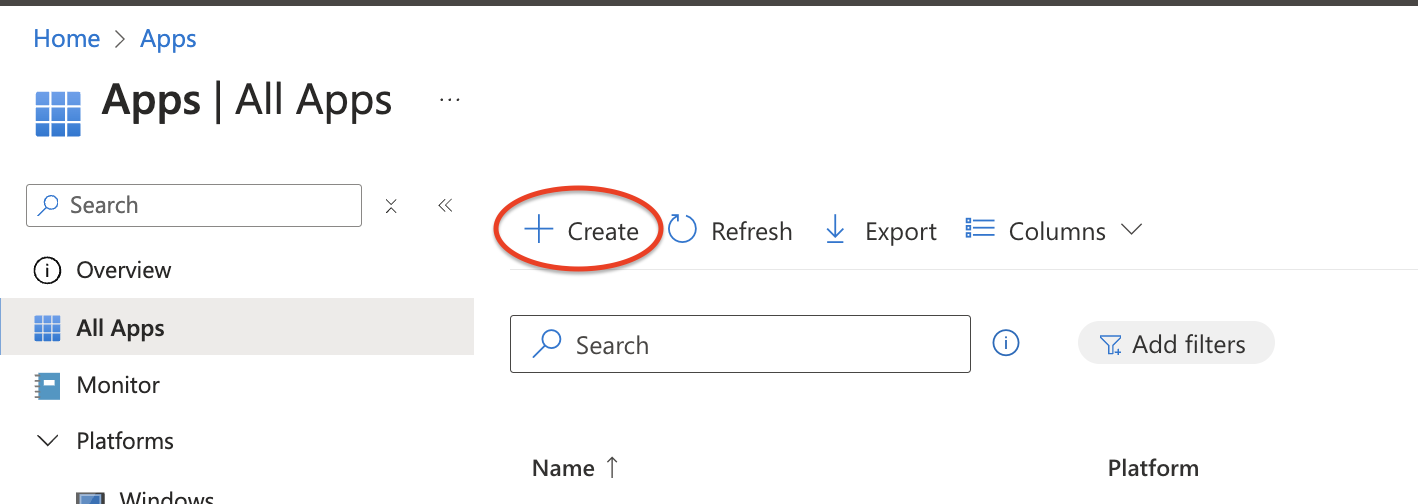
In the Intune admin center, go to Apps > All apps > Add.
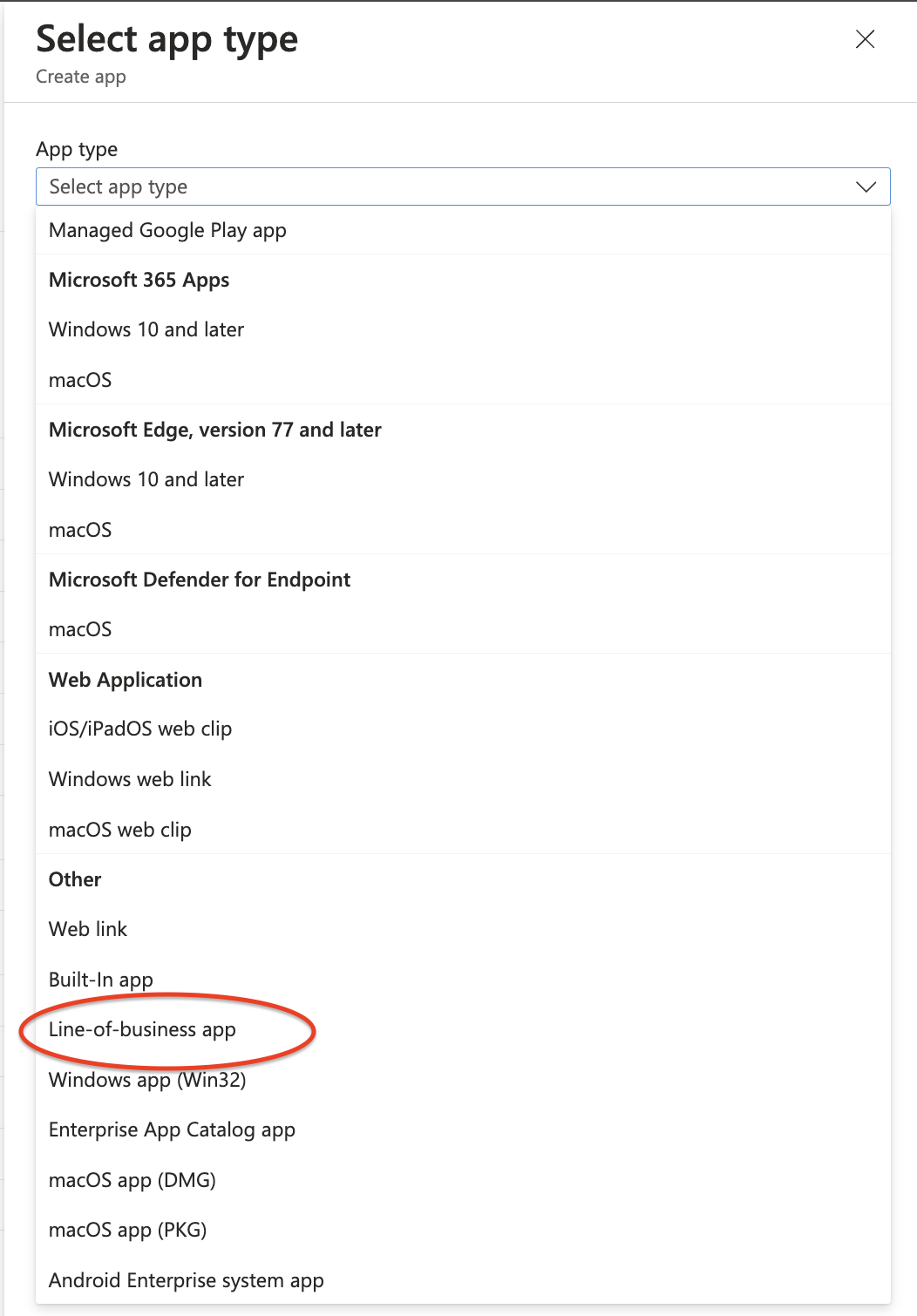
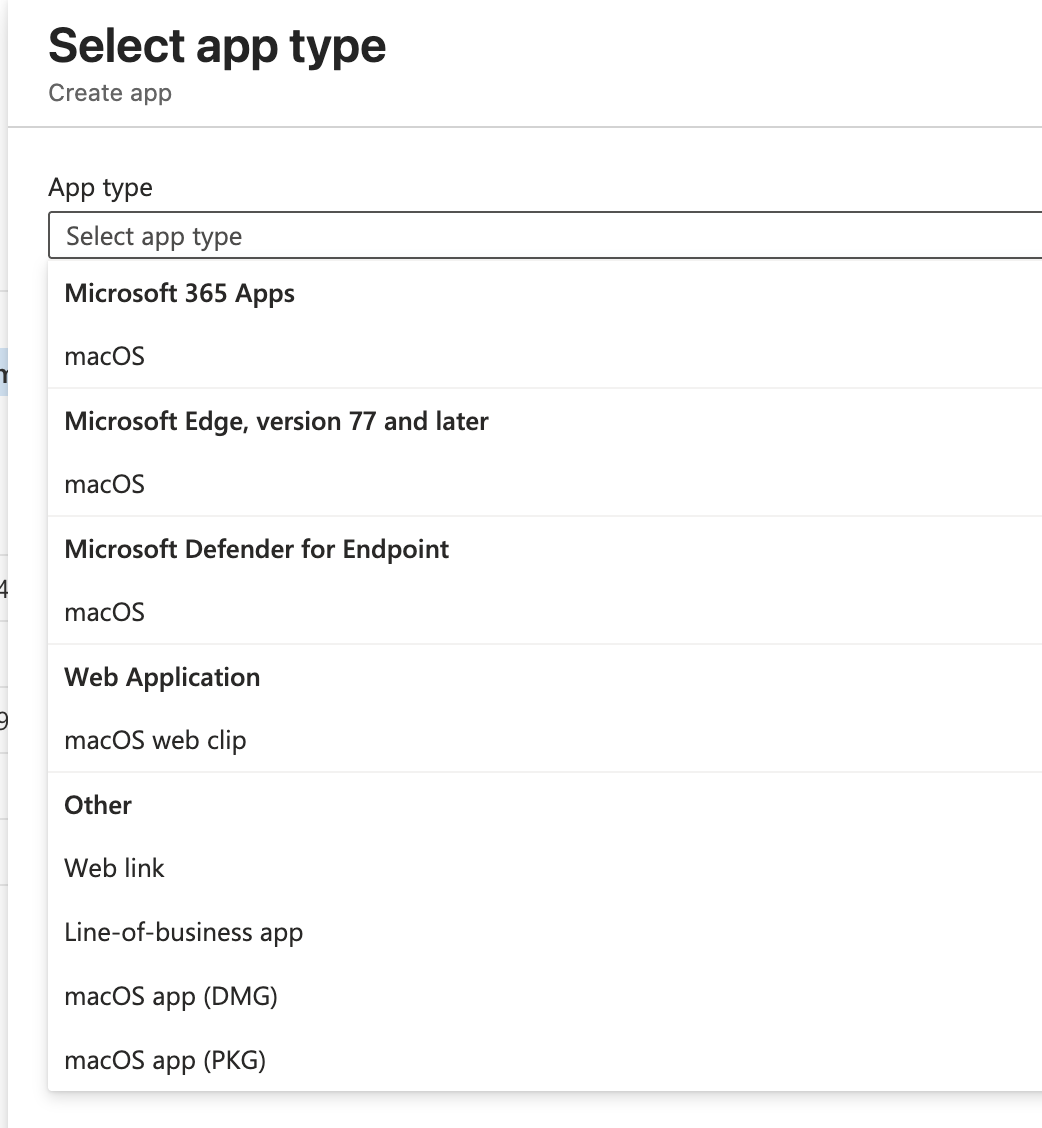
In the Select app type pane, under Other, select Line-of-business app and click Select.
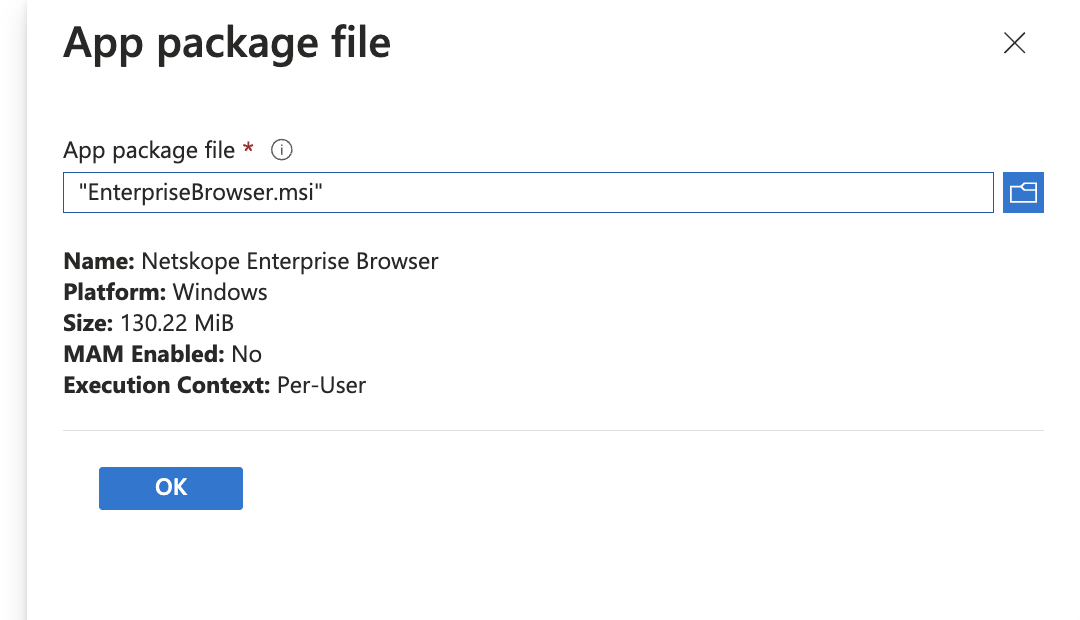
Click Select app package file and upload the system-wide MSI file (e.g., NetskopeSetupSystem-<MP>_<Version>.msi).
On the App information tab, configure the name, description, and publisher.
On the Command-line arguments field, enter:
/qn /norestart /l*v “%TEMP%\NetskopeInstall.log”
Set Ignore app version to Yes. Enterprise Browser updates itself via its built-in auto-updater, so Intune should not attempt to update the app when a newer MSI is uploaded. Set this to No only if you intend to manage version updates by uploading new MSI packages to Intune.
Review and Create the app.
Note: Intune handles MSI detection automatically for Line-of-business apps based on the MSI product code. No manual detection rule is required.
Expected Install Locations
On a successful system-wide MSI installation, the following paths are populated:
- Browser: C:\Program Files\Netskope\Browser\Application
- Updater: C:\Program Files (x86)\Netskope\NetskopeBrowserUpdater
- Registry keys: HKLM\SOFTWARE\WOW6432Node\Netskope\Update
Step 2: Creating the User Profile (System-Wide)
Profile creation requires the logged-on user’s security context because the profile is bound to the user’s identity and stored under their Windows user directory. For the system-wide MSI (which installs as SYSTEM through Intune), this means a separate remediation script.
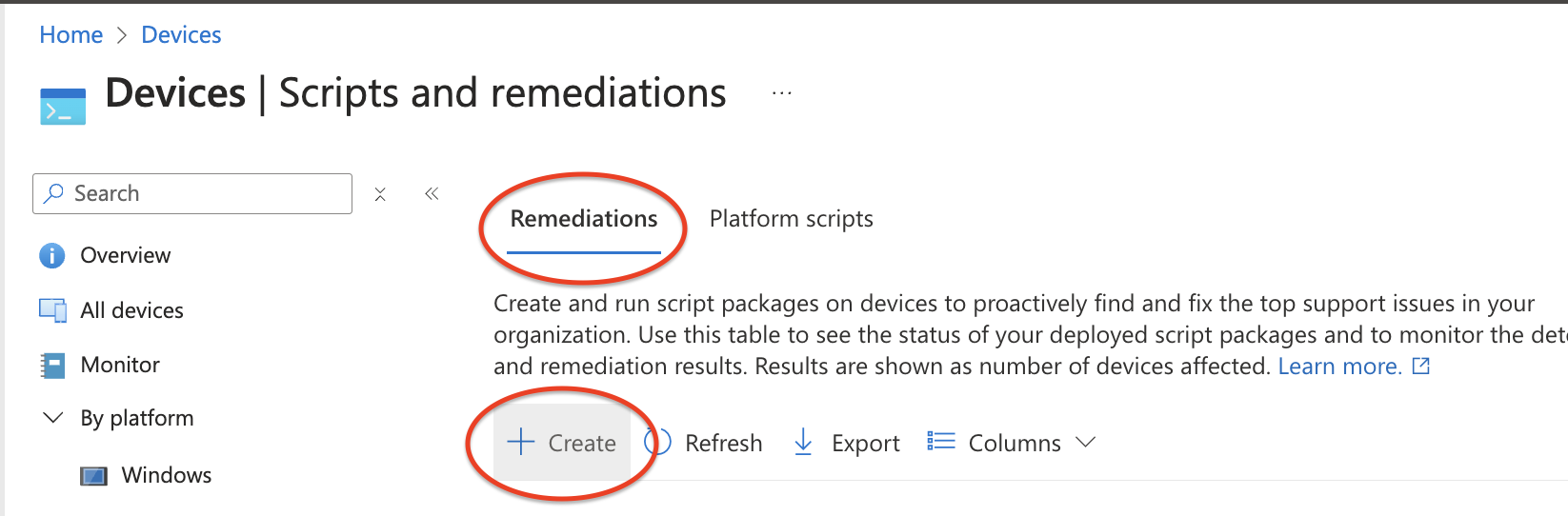
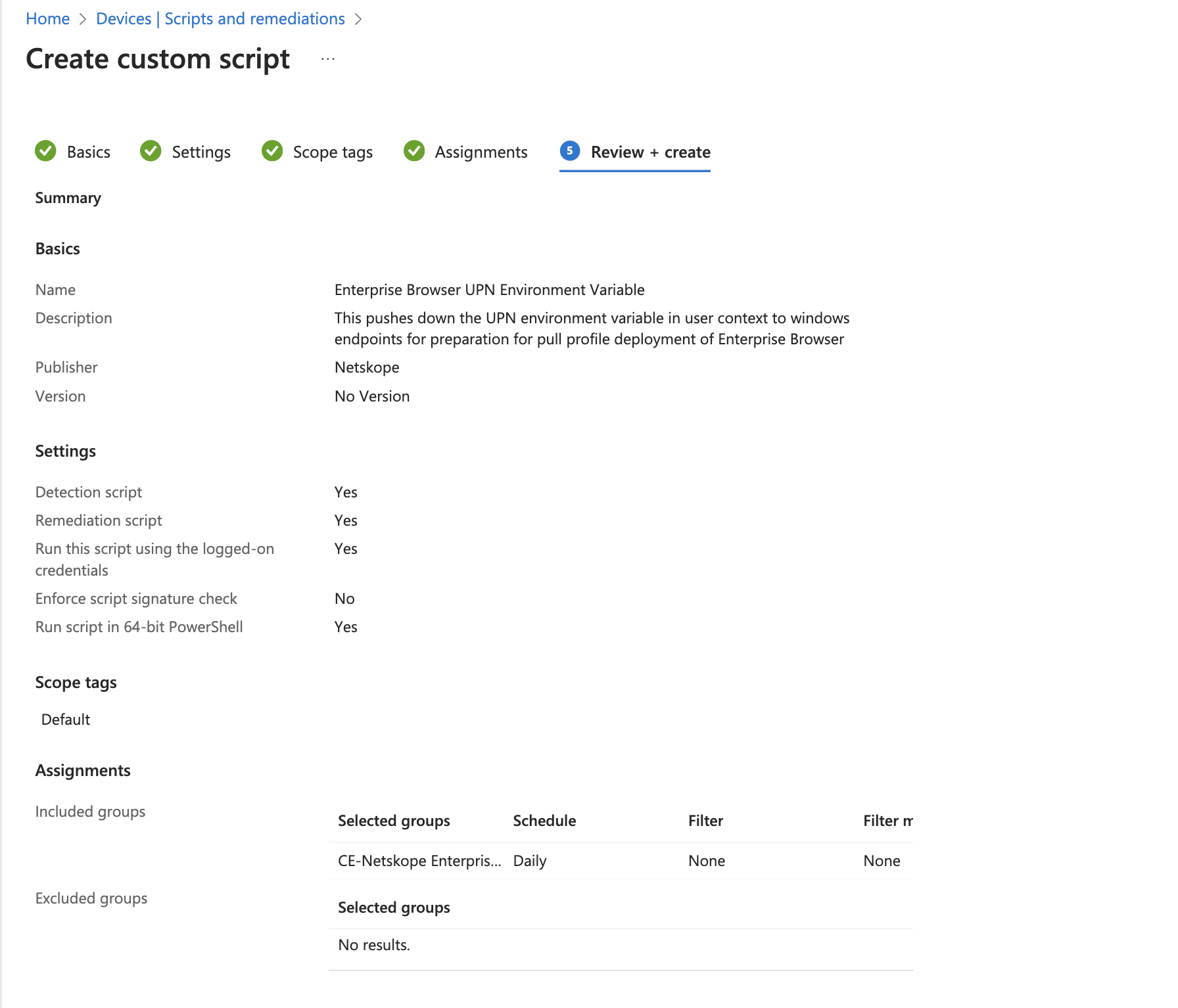
Create a Remediation in Devices > Scripts and remediations with the detection and remediation scripts described in the Profile Creation Scripts section below.
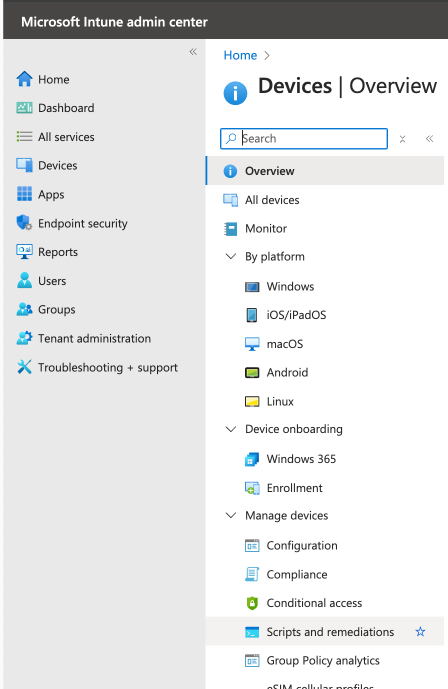
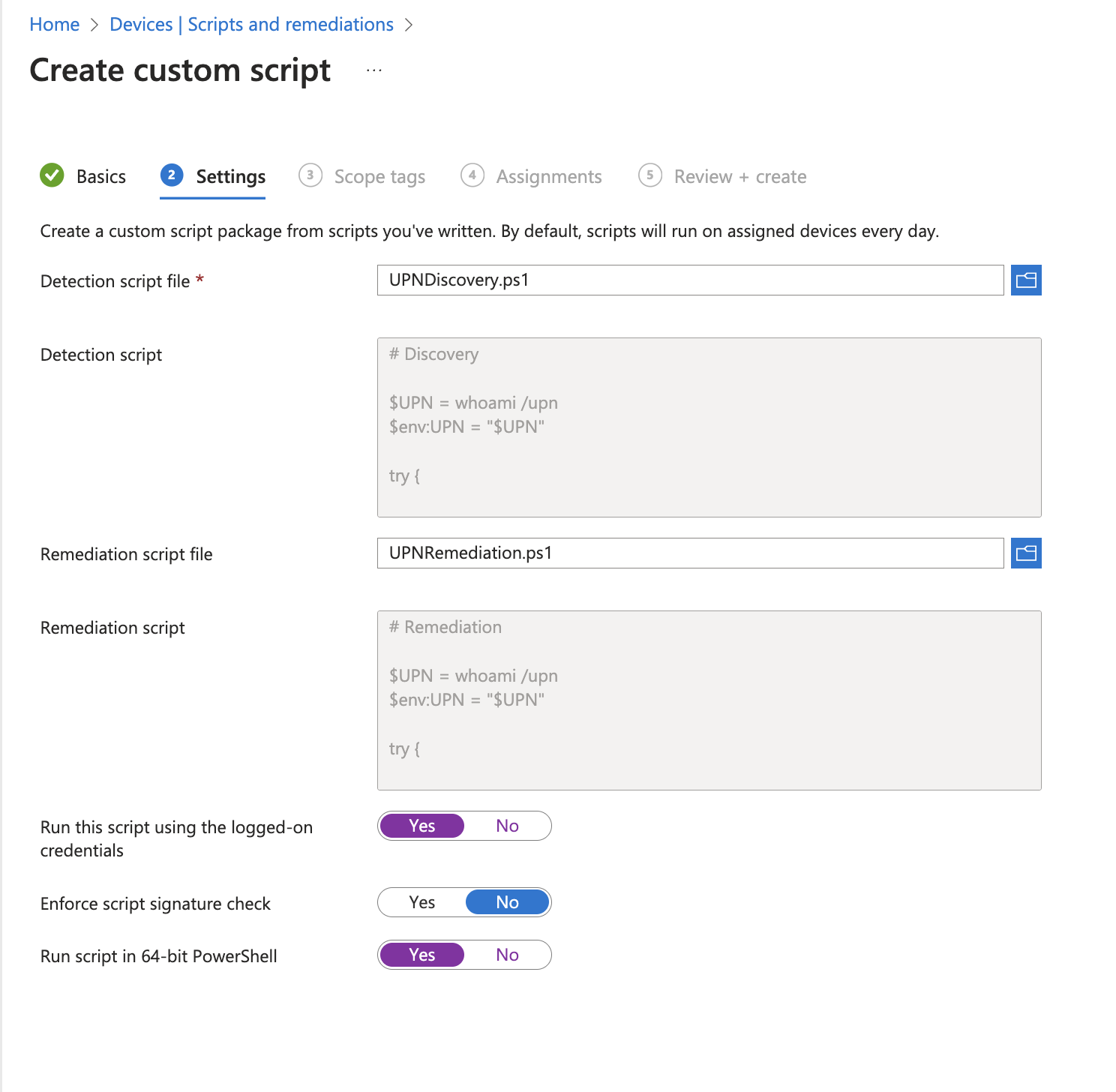
Configure the remediation with these settings:
Setting | Value
|
|---|---|
Run this script using the logged-on credentials | Yes |
Run script in 64-bit PowerShell | Yes |
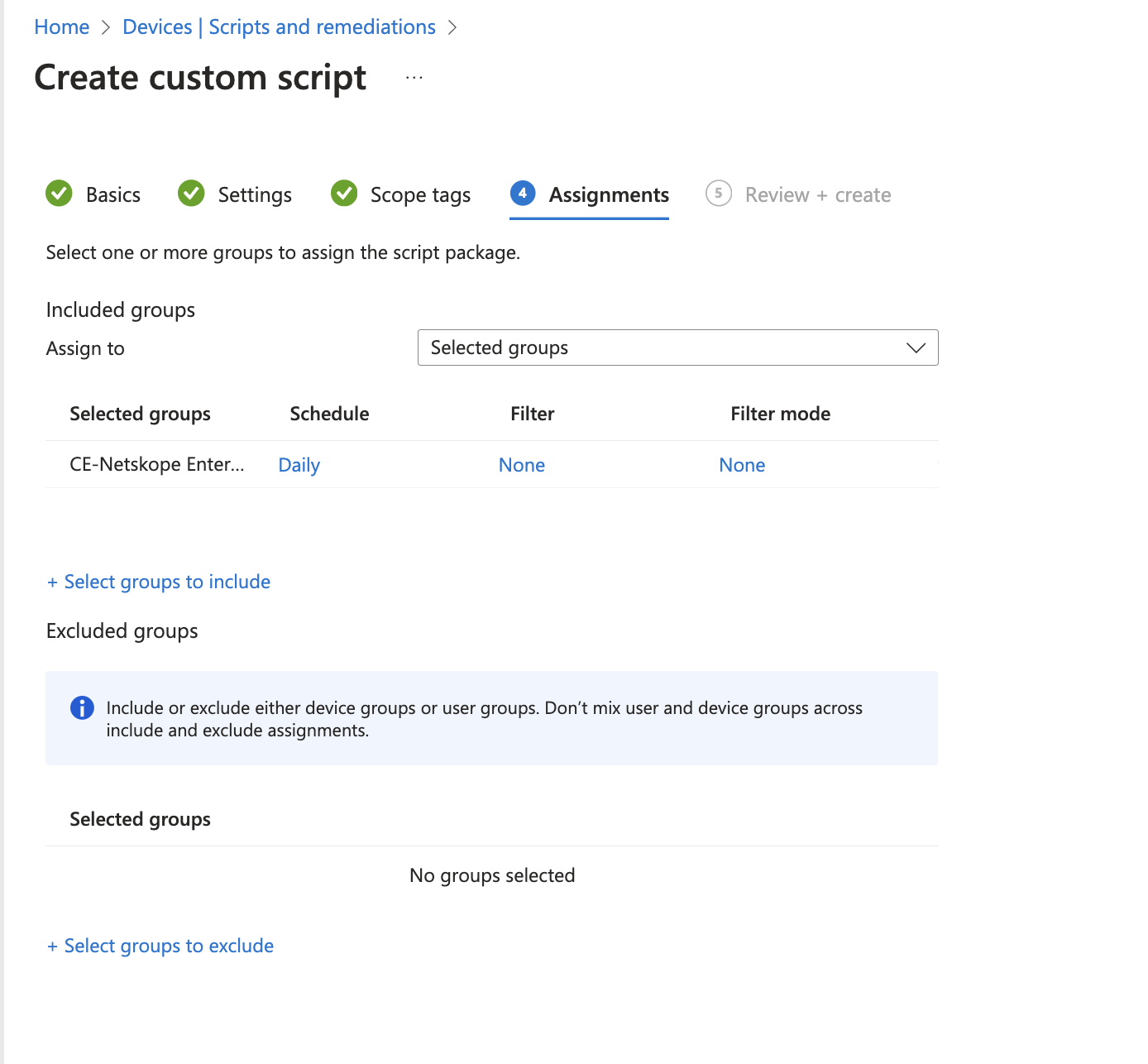
Set your assignment and schedule (e.g., run once per day until the profile is detected).
Deploying the User-Wide MSI
The user-wide MSI deployment also consists of two steps, but runs entirely in the user’s context:
Install the MSI package via a Line-of-business app assigned to a user group.
Create a browser profile by running a remediation script as the logged-on user.
Step 1: Installing the User-Wide MSI
Creating the Line-of-Business App in Intune
Follow the same steps as the system-wide deployment, with the following differences:
On the App information tab, set App install context to User.
Upload the user-wide MSI artifact (e.g., NetskopeSetup-<MP>_<Version>.msi).
On the Assignments tab, assign the app to a user group (not a device group).
The command-line arguments are the same:
/qn /norestart /l*v “%TEMP%\NetskopeInstall.log”
Note: The user-wide MSI is a per-user package (ALLUSERS=””). When creating the Line-of-business app in Intune, set App install context to User and assign the app to a user group. Intune then installs the package in the user’s context when the user signs in, placing the browser in that user’s %LOCALAPPDATA% directory. Do not deploy this package in Device context — a per-user installer running as SYSTEM fails with msiexec error 1603 and rolls back. If device-context deployment is required, use the system-wide MSI instead.
Note: Intune handles MSI detection automatically for Line-of-business apps based on the MSI product code. No manual detection rule is required.
Expected Install Locations
On a successful user-wide MSI installation, the following paths are populated:
- Browser: %LOCALAPPDATA%\Netskope\Browser\Application
- Updater: %LOCALAPPDATA%\Netskope\NetskopeBrowserUpdater
- Registry keys: HKCU\Software\Netskope\Update
Step 2: Creating the User Profile (User-Wide)
The profile creation step is identical to the system-wide deployment. Use the same detection and remediation scripts described below. The scripts automatically detect both install paths.
Note: The created profile is named after the user’s email address (the value passed to –netskope-user-email). This is what the user sees in the browser’s profile UI.
Profile Creation Scripts
The following scripts handle profile creation for both system-wide and user-wide installations. They check the system-wide path first and fall back to the user-wide path.
Detection Script
$systemExe = “C:\Program Files\Netskope\Browser\Application\nsbrowser.exe”
$userExe = “$env:LOCALAPPDATA\Netskope\Browser\Application\nsbrowser.exe”
$browserExe = if (Test-Path $systemExe) { $systemExe }
elseif (Test-Path $userExe) { $userExe }
else { $null }
if (-not $browserExe) {
Write-Host “Netskope Enterprise Browser is not installed.”
exit 0
}
$regPath = “HKCU:\Software\Netskope\Browser”
if (Test-Path $regPath) {
$props = Get-ItemProperty -Path $regPath -ErrorAction SilentlyContinue
if ($null -ne $props.LastProfileCreationStatus) {
$status = [int]$props.LastProfileCreationStatus
if ($status -eq 0 -or $status -eq 6) {
Write-Host “Profile already exists (status: $status).”
exit 0
}
}
}
Write-Host “Browser installed but no profile found. Remediation required.”
exit 1
Remediation Script
Replace YOUR_MP_HOST and YOUR_TENANT_NAME with your organization’s values. The mpHost value uses the format nsbrowser-config.<MP>.goskope.com (for example, nsbrowser-config.sjc1.goskope.com). See the Annex: Endpoints per MP for the full list of configuration service hostnames per Management Plane.
Note: This script uses the Windows User Principal Name (UPN) retrieved via whoami /upn as the value for –netskope-user-email. This works for Entra ID (Azure AD) joined devices where the UPN matches the user’s corporate email. If your environment uses a different identity source or the UPN does not match the email provisioned in Enterprise Browser, modify the script to obtain the email address from the appropriate source (for example, an environment variable injected by your MDM, an Active Directory attribute, or a CSV lookup).
$systemExe = “C:\Program Files\Netskope\Browser\Application\nsbrowser.exe”
$userExe = “$env:LOCALAPPDATA\Netskope\Browser\Application\nsbrowser.exe”
$logFile = “$env:TEMP\NetskopeProfileCreation.log”
$mpHost = “YOUR_MP_HOST”
$tenantName = “YOUR_TENANT_NAME”
$browserExe = if (Test-Path $systemExe) { $systemExe }
elseif (Test-Path $userExe) { $userExe }
else { $null }
$upn = (whoami /upn 2>$null)
if (-not $upn) {
$upn = [System.Security.Principal.WindowsIdentity]::GetCurrent().Name
}
$upn = $upn.Trim()
$timestamp = Get-Date -Format “yyyy-MM-dd HH:mm:ss”
function Write-Log {
param ([string]$Message)
$entry = “$timestamp – $Message”
Write-Host $entry
Add-Content -Path $logFile -Value $entry
}
if (-not $browserExe) {
Write-Log “ERROR: nsbrowser.exe not found. Is the MSI installed?”
exit 1
}
Write-Log “Using browser at: $browserExe”
$arguments = @(
“–netskope-mp-host=$mpHost”,
“–netskope-user-email=$upn”,
“–netskope-tenant-name=$tenantName”,
“–no-startup-window”
)
Write-Log “Starting profile creation for: $upn”
try {
$process = Start-Process -FilePath $browserExe `
-ArgumentList $arguments `
-Wait -PassThru -NoNewWindow
$exitCode = $process.ExitCode
} catch {
Write-Log “ERROR: Failed to launch nsbrowser.exe: $_”
exit 1
}
switch ($exitCode) {
0 { Write-Log “Profile created successfully for $upn.”; exit 0 }
6 { Write-Log “Profile for $upn already exists.”; exit 0 }
7 { Write-Log “ERROR: Profile creation failed (exit code 7).”; exit 1 }
default { Write-Log “ERROR: Unexpected exit code: $exitCode”; exit 1 }
}
MSI Command-Line Reference
The following msiexec options are relevant when deploying the Netskope Enterprise Browser MSI:
Standard msiexec Options
Option | Description
|
|---|---|
/i “path.msi” | Install the specified MSI package |
/x “path.msi” | Uninstall the specified MSI package |
/qn | Silent install (no UI) |
/qr | Reduced UI (progress bar only) |
/qf | Full UI |
/norestart | Suppress reboot even if required |
/l*v “path.log” | Write a verbose log file (recommended for troubleshooting) |
Troubleshooting Exit Codes
The MDM installation process involves a chain of components: MSI installer, offline installer (meta-installer), installer executable, and browser executable. Each component produces status codes that propagate up the chain.
MSI Installer Exit Codes
These are the exit codes returned by msiexec after the MSI installation completes. Check the exit code of the msiexec process in your MDM reporting to determine the installation outcome.
Exit Code | Name | Description | Notes
|
|---|---|---|---|
0 | ERROR_SUCCESS | The action completed successfully. | The browser was successfully installed and registered in the list of installed apps. If an older version existed prior to execution, the browser and the installed apps entry were updated. |
1602 | ERROR_INSTALL_USEREXIT | The user canceled the installation. | The MSI installation was interrupted by the user. |
1603 | ERROR_INSTALL_FAILURE | A fatal error occurred during installation. | In rare cases, this means the browser failed to install (for example, due to insufficient disk space). Check the verbose log for details. |
1619 | ERROR_INSTALL_PACKAGE_OPEN_FAILED | This installation package could not be opened. | Returned by msiexec.exe when it cannot find the specified MSI file. Probable causes are antivirus or EDR systems interfering with the installation. Verify that the package exists and is accessible. |
1638 | ERROR_PRODUCT_VERSION | Another version of this product is already installed. | This appears if an old version of Enterprise Browser was already installed and the new installer is unable to upgrade. Fully remove the old version of the browser and try again, or use ALLOWDOWNGRADE=1. |
An error exit code from the MSI can be caused by the following conditions:
the underlying browser installation failed (for example, due to disk being full)
the user cancelled the MSI package execution
the MSI package was not found or is inaccessible
there is an incompatibility between the currently installed MSI package and the one being executed
Installer Registry Statuses
After the browser installation completes, the installer executable writes additional status data to the Windows registry. These values provide more detail than the MSI exit code alone.
For the system-wide MSI, statuses are written to:
HKLM:\SOFTWARE\WOW6432Node\Netskope\Update
HKLM:\SOFTWARE\WOW6432Node\Netskope\Update\ClientState\{b65831c5-a4c1-4a0a-9d70-03488008ffea}
For the user-wide MSI, statuses are written to:
HKCU:\Software\Netskope\Update
The following registry values are available:
Key | Description
|
|---|---|
LastInstallerResult | Stores 0 for a successful installation or 1 for a failure. |
LastInstallerError | Stores the installer error code in the case of an installation failure. |
LastInstallerResultUIString | Stores a human-readable string describing the installation failure. Available when installing via meta-installer (online or offline), but not available when installing via MSI. |
To retrieve these values after a system-wide MSI installation:
$RegPath = “HKLM:\SOFTWARE\WOW6432Node\Netskope\Update”
Get-ItemProperty -Path $RegPath -Name LastInstallerResult, LastInstallerError -ErrorAction SilentlyContinue
To retrieve these values after a user-wide MSI installation:
$RegPath = “HKCU:\Software\Netskope\Update”
Get-ItemProperty -Path $RegPath -Name LastInstallerResult, LastInstallerError -ErrorAction SilentlyContinue
Profile Creation Exit Codes
When nsbrowser.exe runs in profile creation mode, it writes the result to HKCU:\Software\Netskope\Browser in two values: LastProfileCreationStatus (numeric) and LastProfileCreationStatusString (human-readable).
On failure, a third value, LastProfileCreationFailureDetail, contains a machine-readable reason: INVALID_PARAMS (missing required parameter, listed in the value), NOT_INTERACTIVE_SESSION, LICENSE_KEY_NOT_FOUND, LICENSE_KEY_TIMEOUT, LICENSE_KEY_PERMISSION_DENIED, LICENSE_KEY_SERVER_UNAVAILABLE, LICENSE_BLOCKED (license deleted or deactivated), SYSTEM_PROFILE_UNAVAILABLE, PROFILE_MANAGER_UNAVAILABLE, or DIRECTORY_CREATION_FAILED.
Value | Name | Description
|
|---|---|---|
0 | PROFILE_CREATED | The requested profile was created successfully. |
6 | PROFILE_WITH_NAME_EXISTS | A profile with the same name already exists. This is a success condition — the requested profile is available. |
7 | PROFILE_CREATION_FAILED | The requested profile could not be created, or an attempt was made to create a profile from a non-interactive or elevated session. |
To retrieve the profile creation status:
Get-ItemProperty -Path “HKCU:\Software\Netskope\Browser” -Name LastProfileCreationStatus, LastProfileCreationStatusString, LastProfileCreationFailureDetail -ErrorAction SilentlyContinue
Diagnosing Profile Creation Failures
If profile creation fails (status 7), verify the following:
- Correct mpHost format — the value must use the format nsbrowser-config.<MP>.goskope.com. See the Annex: Endpoints per MP for the full list of configuration service hostnames per Management Plane.
- User is provisioned — the user’s email address must be invited in Enterprise Browser. Go to Settings > Security Cloud Platform > Enterprise Browser > User Provisioning > Invite Users to confirm. Use “Do not send onboarding email” for silent MDM flows.
- Interactive user session — the profile creation command must run in the logged-on user’s interactive session. It fails if run from a non-interactive session, such as the SYSTEM account, a service, or a scheduled task running whether the user is logged on or not. When this happens, LastProfileCreationFailureDetail is set to NOT_INTERACTIVE_SESSION. Running the command as the logged-on user via an Intune remediation script (with “Run this script using the logged-on credentials” set to Yes) satisfies this requirement.
- Network connectivity — the machine must be able to reach https://nsbrowser-config.<MP>.goskope.com. Firewall, proxy, or DNS blocks cause error code 7.
- Profile creation log — check %TEMP%\NetskopeProfileCreation.log for details on the failure.
User Experience
When the deployment completes, users see the Netskope Enterprise Browser icon on their desktop with their corporate profile automatically enrolled. Depending on the MSI variant, the browser runs from:
- System-wide MSI: C:\Program Files\Netskope\Browser\Application\nsbrowser.exe
- User-wide MSI: %LOCALAPPDATA%\Netskope\Browser\Application\nsbrowser.exe
The browser auto-updates via a background updater. For the system-wide MSI, the updater runs at system level. For the user-wide MSI, the updater runs at user level.
Considerations
Considerations include:
the user-wide MSI and the email invitation installer write to the same file paths (%LOCALAPPDATA%\Netskope\). Only one should be present on a machine at a time. Uninstall the existing installation before switching methods.
if both a system-wide MSI and user-wide MSI are installed on the same machine, the system-level installation takes precedence for shortcuts and file associations. This combination is not recommended — standardize on one deployment model per machine.
the NETSKOPEPROFILE msiexec property is deprecated for new deployments. Profile creation should always be performed as a separate step after MSI installation.
profile creation must run in the logged-on user’s interactive session, regardless of which MSI variant is used. Running nsbrowser.exe from a non-interactive session (SYSTEM, service account, or non-interactive scheduled task) fails with status 7.
profile creation only succeeds when the user has no running instance of Enterprise Browser. If the browser is open when the command runs, the launch is handed to the running instance and exits with code 0 without creating a profile or writing a registry status. Schedule the remediation to run repeatedly (for example, once per day) — the detection script re-triggers remediation on the next run because no status was recorded.
all MSI download URLs are tenant-specific. User-wide installers use /mdm/win/<arch>/get and system-wide installers use /mdm/win/<arch>/get/system.
on a successful MSI installation, the browser appears in Add/Remove Programs showing the Netskope version. If the MSI install fails, the browser and updater may still be installed on disk but will not appear in the installed apps list.
verbose logging (/l*v) is recommended as part of the standard install command to aid troubleshooting failed deployments.
To learn more: Netskope Enterprise Browser Installation and Troubleshooting
MacOS Installation
Netskope Enterprise Browser for macOS can be deployed through two methods: a self-service email invitation (DMG installer) or centralized MDM deployment (PKG installer). The PKG installer provides a system-level installation managed by IT, while the DMG is a per-user installation triggered by the end user. This page covers both methods, including step-by-step instructions for Microsoft Intune and JAMF Pro.
Prerequisites
macOS 12 Monterey or later
Intel (x64) or Apple Silicon (ARM64) processor
Enterprise Browser license assigned to target users
End users must be provisioned in Netskope Enterprise Browser
Path: Settings > Security Cloud Platform > Enterprise Browser > User Provisioning > Invite Users
Network connectivity to the Netskope Enterprise Browser endpoints for your Management Plane (see Enterprise Browser Prerequisites and Requirements for the full list)
For MDM deployments: access to your MDM admin console (Intune, JAMF Pro, Kandji, Mosyle, or Workspace ONE)
Understanding Installation Methods
Before choosing a deployment method, review the differences between available options:
PKG Installer (MDM) | DMG Installer (Email Invitation)
| |
|---|---|---|
Installation scope | System-wide (/Applications/) | Per-user (/Applications/) |
Admin privileges required | Yes (installed via MDM as root) | No (user drag-and-drop) |
Profile creation | Separate step (post-install script) | Built-in (single step via license key) |
Intended deployment method | MDM (Intune, JAMF, Kandji, Workspace ONE) | Self-service via email invitation link |
Auto-update | Yes (system-level updater) | Yes (user-level updater) |
Updater location | /Library/Netskope/NetskopeBrowserUpdater/ | ~/Library/Application Support/Netskope/NetskopeBrowserUpdater/ |
Installer artifact | PKG | DMG |
When to use the PKG (MDM): You want centralized IT control over deployment and automated profile enrollment. Ideal for managed fleets.
When to use the DMG (email invitation): You want a lightweight self-service option for individual users on unmanaged devices.
Downloading the PKG Installer
The PKG installer is available from your tenant-specific download URL:
- macOS x64 (Intel): https://browser-downloads-<tenant-name>.goskope.com/mdm/mac/x64/get/pkg
- macOS ARM64 (Apple Silicon): https://browser-downloads-<tenant-name>.goskope.com/mdm/mac/arm64/get/pkg
Replace <tenant-name> with your organization’s tenant name.
Note: The DMG (user-wide) installer is available at the same base URL without the /pkg suffix:
- macOS x64 DMG: https://browser-downloads-<tenant-name>.goskope.com/mdm/mac/x64/get
- macOS ARM64 DMG: https://browser-downloads-<tenant-name>.goskope.com/mdm/mac/arm64/get
Coexistence Behavior
If a user already has Enterprise Browser installed via DMG and the PKG is subsequently installed via MDM, the PKG overrides the application in /Applications/ and installs a new system-level updater. The user-level updater from the DMG installation remains in place but does not interfere. It can be manually removed if the user encounters any issues.
Deploying with MDMs
Deploying with Microsoft Intune
Step 1: Creating the macOS App
In the Intune admin center, go to Apps > macOS > Add.
In the dropdown, select macOS App (PKG).
Click Select and upload the PKG file.
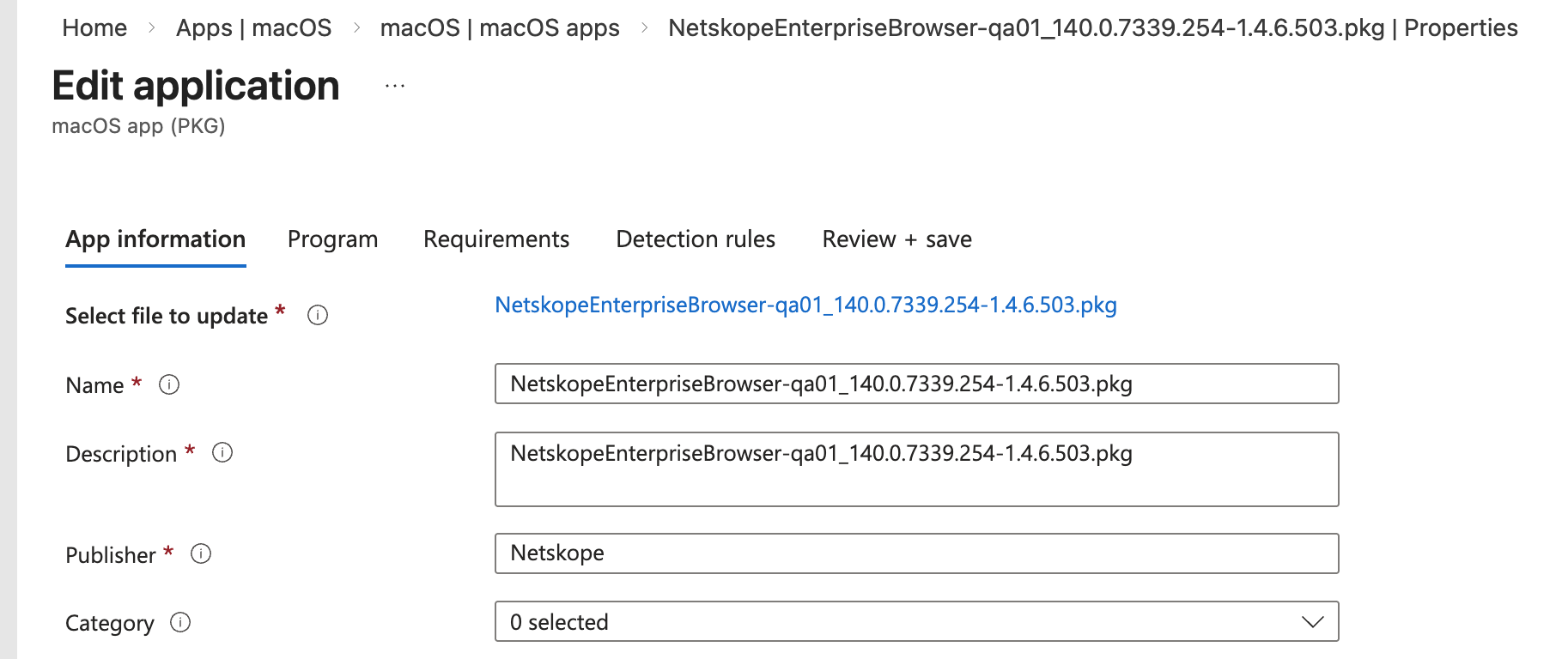
Specify Publisher as Netskope. Additional settings are optional and should follow your organization’s standards.
Click Next.
Step 2: Adding the Post-Install Script
In the Post-install script section, enter the following script to create the user profile after installation. The PKG installs as root, but profile creation must run as the logged-in user because the profile is stored in the user’s home directory.
#!/bin/bash
# Get the current logged-in user (not root)
CURRENT_USER=$(stat -f%Su /dev/console)
CURRENT_UID=$(id -u “$CURRENT_USER”)
# If no user is logged in (e.g., during DEP enrollment), exit gracefully.
# Profile creation will need to be handled via a separate mechanism at first login.
if [[ “$CURRENT_USER” == “root” ]] || [[ “$CURRENT_USER” == “loginwindow” ]] || [[ -z “$CURRENT_USER” ]]; then
echo “No user logged in. Skipping profile creation.”
exit 0
fi
BROWSER_PATH=”/Applications/Netskope Enterprise Browser.app/Contents/MacOS/Netskope Enterprise Browser”
if [[ ! -x “$BROWSER_PATH” ]]; then
echo “Browser not found at expected path.”
exit 1
fi
echo “Creating profile as user $CURRENT_USER…”
launchctl asuser “$CURRENT_UID” sudo -u “$CURRENT_USER” “$BROWSER_PATH” \
–netskope-mp-host=<MP-HOSTNAME>\
–netskope-user-email={{mail}} \
–netskope-tenant-name=<tenant-name>.goskope.com \
–no-startup-window &
sleep 30
# Quit the browser
echo “Quitting Netskope Enterprise Browser…”
pkill -f “Netskope Enterprise Browser” || true
Replace <MP-HOSTNAME> with your Management Plane region code.See the Annex: Endpoints per MP for the full list of configuration service hostnames per Management Plane.
Replace <tenant-name> with your Netskope tenant name.
The {{mail}} variable is an Intune token that resolves to the enrolled user’s email address.
Note: If no user is logged in at install time (for example, during Automated Device Enrollment), the script exits without creating a profile. In this case, configure a separate Intune Shell Script with the same profile creation logic, assigned to run at user login.
Click Next.
Step 3: Setting Minimum OS Requirements
In the dropdown, select the minimum macOS version for your environment (for example, macOS 12 Monterey).
Click Next.
Step 4: Assigning and Creating
Detection rules are pre-populated automatically for PKG apps — no manual detection rule is needed.
Assign the app to the appropriate user or device groups. Click Save.
Deploying with JAMF Pro
JAMF Pro deployment requires three components: a package, a configuration profile (PLIST), and a deployment policy with a post-install script.
Step 1: Adding the PKG Package
Go to Settings > Computer Management > Packages > New.
Upload the PKG file.
Click Save.
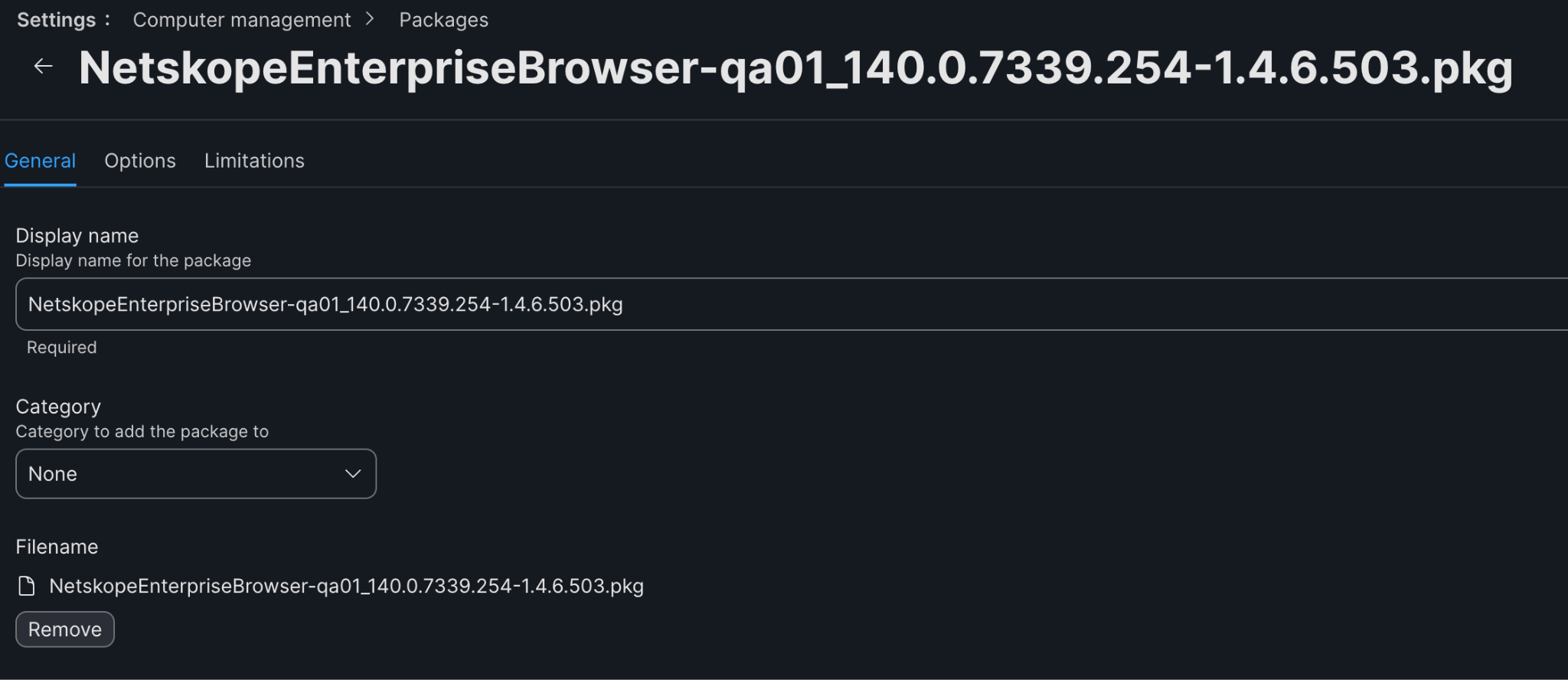
Step 2: Creating the PLIST Configuration Profile
This profile delivers the user’s email address to the device for use during profile creation.
Go to Computers > Configuration Profiles > New.
Define the name (for example, Netskope EB Configuration Profile).
Set Level to Computer Level.
Set Distribution Method to Install Automatically.- Under Application & Custom Settings, click Upload and add the following:
- Preference Domain: netskope
- Property List:
- Preference Domain: netskope
<?xml version=”1.0″ encoding=”UTF-8″?>
<!DOCTYPE plist PUBLIC “-//Apple//DTD PLIST 1.0//EN”
“http://www.apple.com/DTDs/PropertyList-1.0.dtd”>
<plist version=”1.0″>
<dict>
<key>email</key>
<string>$EMAIL</string>
</dict>
</plist>
Click Save.
On the Scope tab, configure the appropriate scope.
Click Save.
Step 3: Creating the Deployment Script
Go to Settings > Computer Management > Scripts > New.
Define the name (for example, Netskope Enterprise Browser Script).
Switch to the Script tab and paste the following: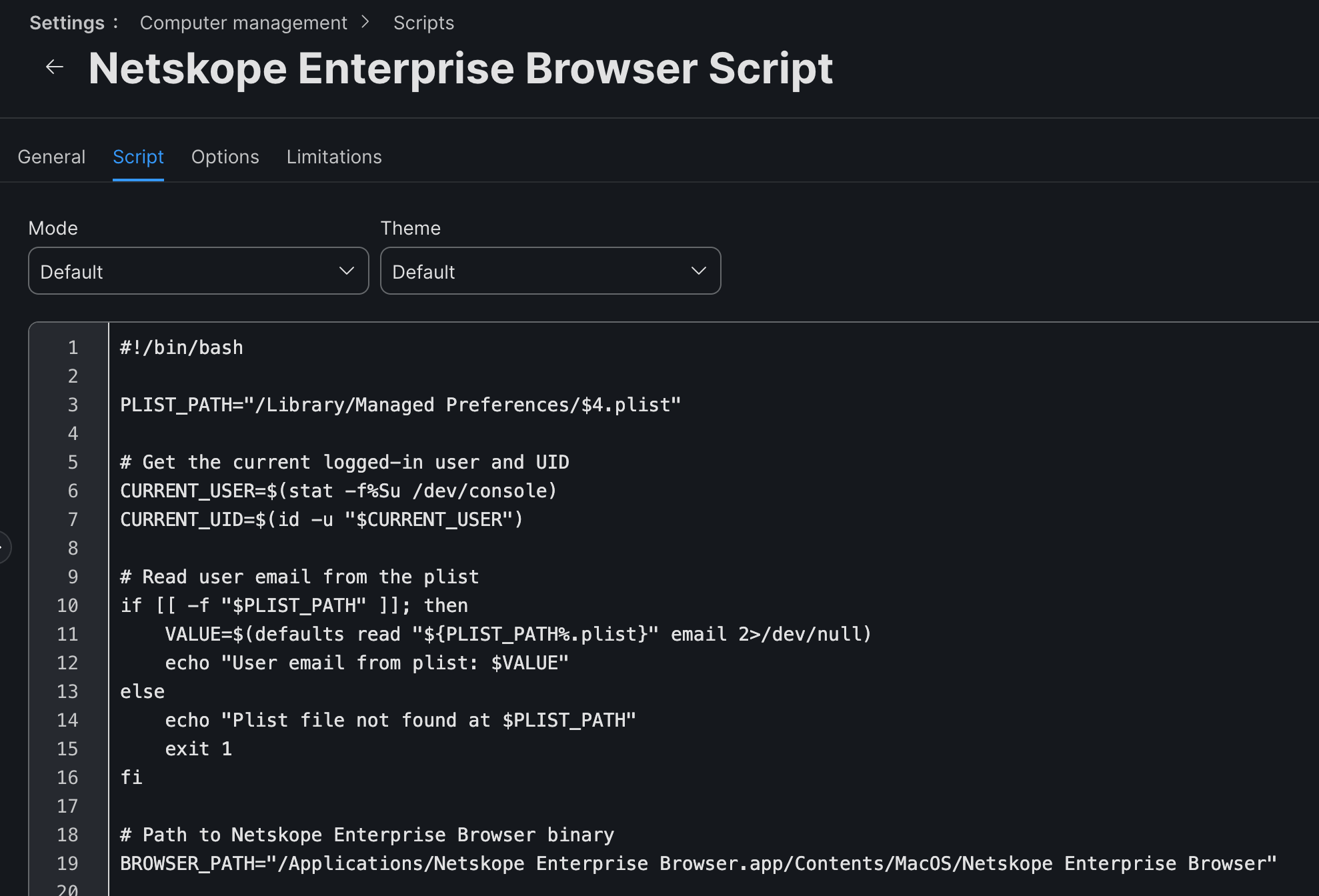
#!/bin/bash
PLIST_PATH=”/Library/Managed Preferences/$4.plist”
# Get the current logged-in user and UID
CURRENT_USER=$(stat -f%Su /dev/console)
CURRENT_UID=$(id -u “$CURRENT_USER”)
# Read user email from the plist
if [[ -f “$PLIST_PATH” ]]; then
VALUE=$(defaults read “${PLIST_PATH%.plist}” email 2>/dev/null)
echo “User email from plist: $VALUE”
else
echo “Plist file not found at $PLIST_PATH”
exit 1
fi
# Path to Netskope Enterprise Browser binary
BROWSER_PATH=”/Applications/Netskope Enterprise Browser.app/Contents/MacOS/Netskope Enterprise Browser”
# Launch the browser with all arguments
if [[ -x “$BROWSER_PATH” ]]; then
echo “Launching Netskope Browser as user $CURRENT_USER…”
launchctl asuser “$CURRENT_UID” sudo -u “$CURRENT_USER” “$BROWSER_PATH” \
–netskope-mp-host=<MP-HOST> \
–netskope-user-email=”$VALUE” \
–netskope-tenant-name=<tenant-name>.goskope.com \
–no-startup-window &
else
echo “Browser not found at expected path: $BROWSER_PATH”
exit 1
fi
sleep 30
# Quit the browser
echo “Quitting Netskope Enterprise Browser…”
osascript -e ‘quit app “Netskope Enterprise Browser”‘
Click Save.
Step 4: Creating the Deployment Policy
Go to Computers > Policies > New.
Define the name (for example, Netskope EB Policy).
Set Trigger according to your organization’s preferences (for example, Startup, Login, Enrollment Complete, or Recurring Check-in).
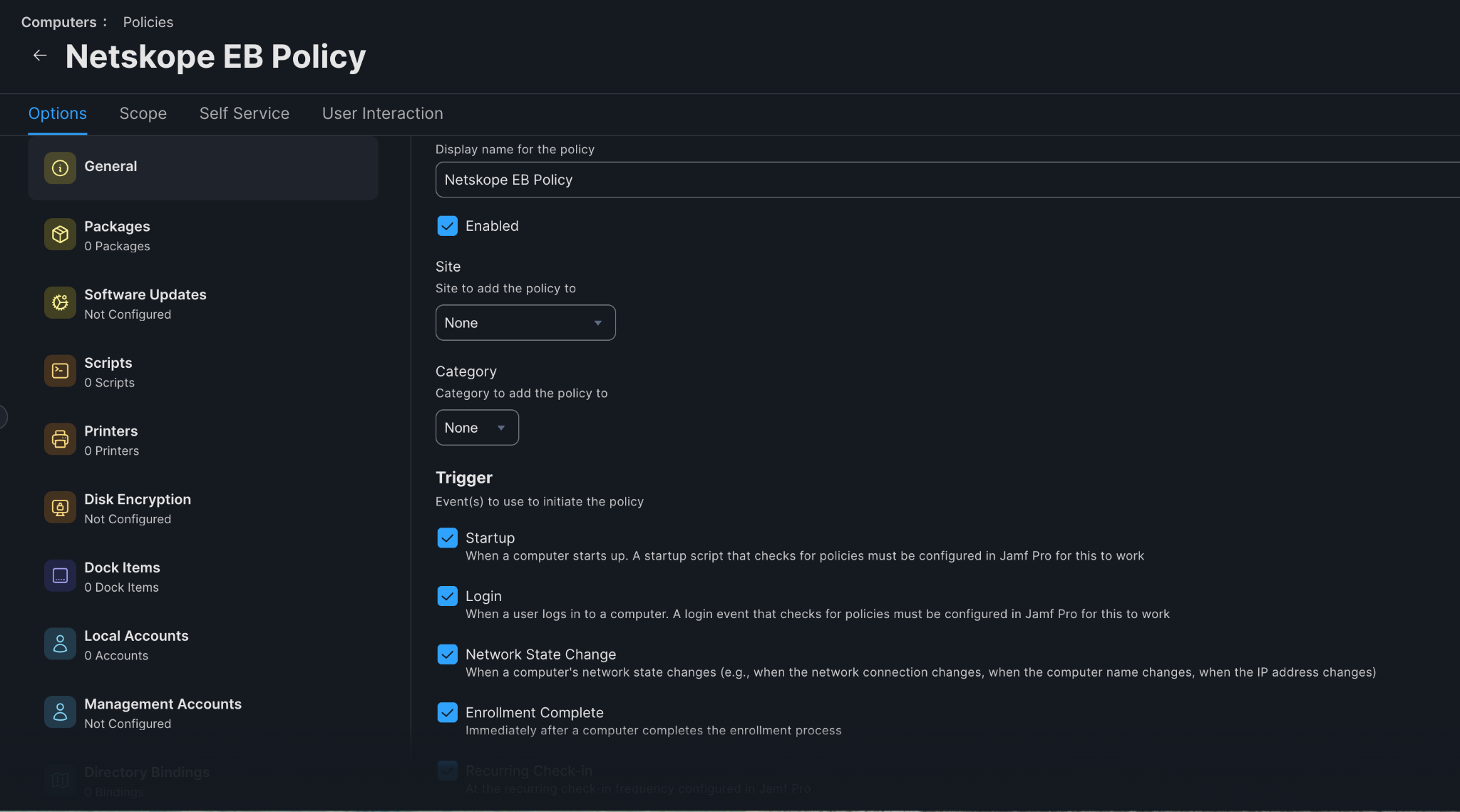
Set Execution Frequency to Ongoing or as appropriate.
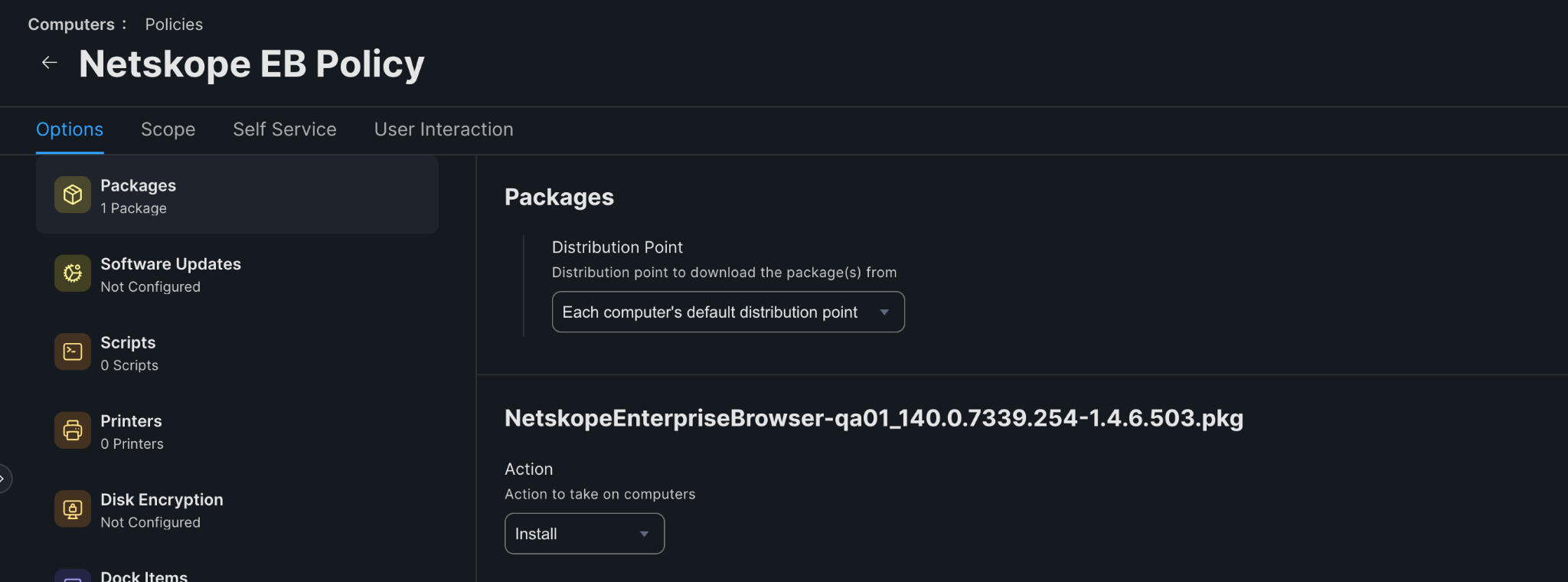
Under Packages, click Configure > Add the pre-created package. Set action to Install.
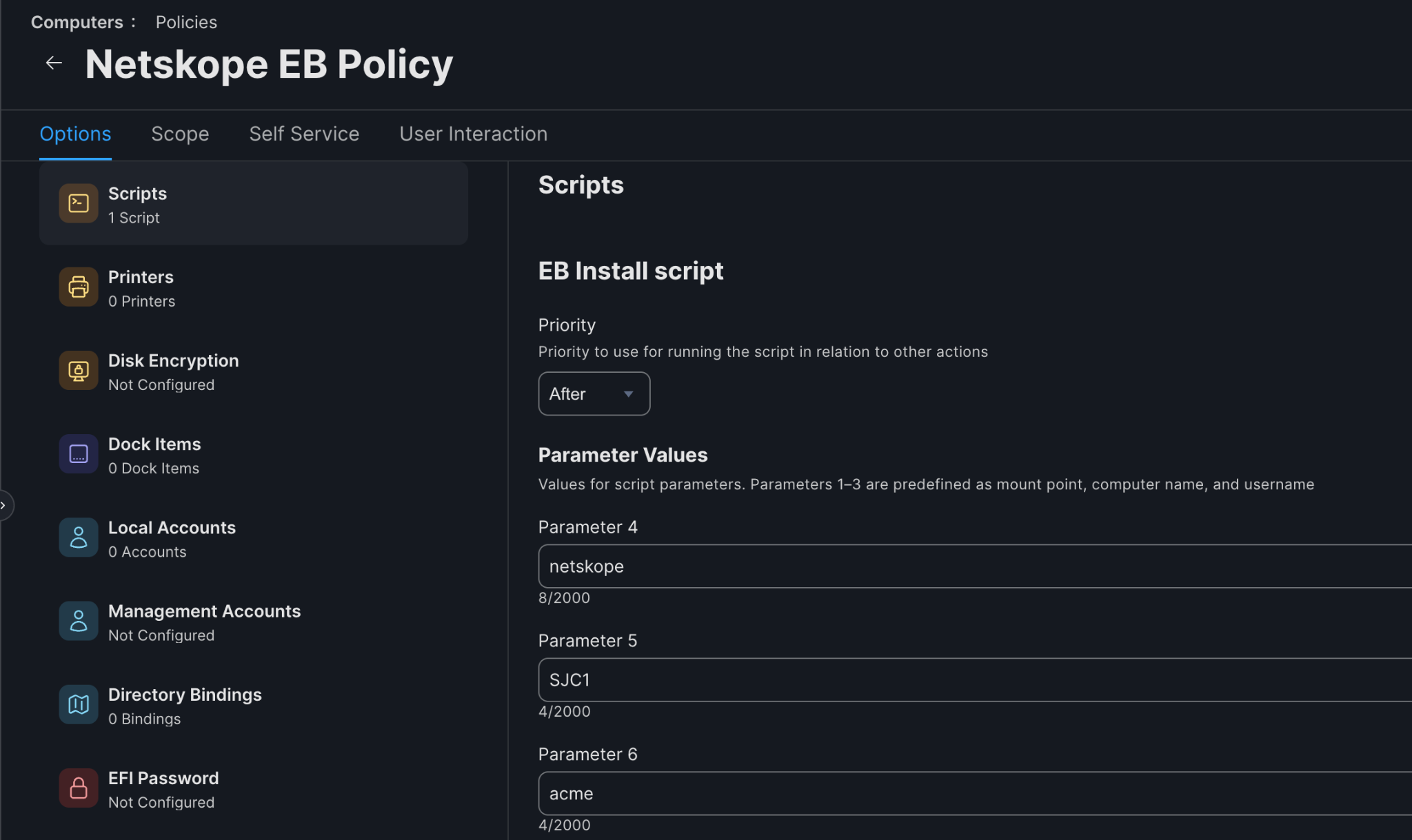
- Under Scripts, click Configure > Add the pre-created script with:
- Priority: After
- Parameter 4: netskope (PLIST configuration name)
- Parameter 5: your tenant MP code (for example, sjc1, dfw3)
- Parameter 6: your tenant name (for example, acme.goskope.com)
- Priority: After
On the Scope tab, configure the appropriate scope.
Click Save.
Enterprise Browser is deployed and the user profile is created automatically.
Deploying with Other MDM Solutions (Kandji, Mosyle, Workspace ONE)
For other MDM solutions, follow the same general pattern:
Upload the PKG as a custom app or package.
Configure a post-install script that runs the profile creation command as the logged-on user.
The profile creation command is always:
“/Applications/Netskope Enterprise Browser.app/Contents/MacOS/Netskope Enterprise Browser” \
–netskope-mp-host=<MP-HOSTNAME> \
–netskope-user-email=<user-email> \
–netskope-tenant-name=<tenant-name>.goskope.com \
–no-startup-window
Wait 30 seconds for profile creation to complete, then quit the browser process.
The script must run as the logged-on user (not root) for the profile to be created correctly.
Deploying iOS and iPadOS with MDM
Netskope Enterprise Browser for iOS and iPadOS is available on the Apple App Store. You can deploy it to managed devices using your organization’s Mobile Device Management (MDM) solution, or employees can install it manually by following an email invitation. Once enrolled, the browser connects to your Netskope tenant and enforces your browser configuration.
Prerequisites
Enterprise Browser 1.5.0 or later (iOS and iPadOS)
iOS 17.0 / iPadOS 17.0 or later on target devices
A Netskope One tenant with Enterprise Browser entitlement
Access to your MDM console (for managed deployments)
NPA access configured in the Netskope console (if deploying private app access)
Deploying via MDM
MDM deployment lets you push the Enterprise Browser app and its configuration to devices without requiring user action beyond accepting the managed app.
Step 1: Add the App to Your MDM
In your MDM console, go to the app catalog or app management section.
Add Netskope Enterprise Browser from the Apple App Store (App Store ID: 6744964352).
Assign the app to the appropriate user groups or device groups.
Step 2: Configure Managed App Configuration
Enterprise Browser reads the following keys from the MDM-pushed Managed App Configuration:
Key | Required | Description |
|---|---|---|
netskope-tenant-name | Yes | Your Netskope tenant name (for example, tenantname.goskope.com) |
netskope-user-email | Yes | The enrolled user’s email address |
netskope-mp-host | Yes | Your management plane hostname (See Annex. Endpoints per MP) |
When all three keys are present, Enterprise Browser auto-provisions the user profile — no manual license key entry is required.
Step 3: Configure Network Access (NSClient Coexistence)
If you deploy Enterprise Browser alongside the Netskope Client (NSClient) on iOS:
In the Netskope console, go to Security Cloud Platform → App Definition.
On the Certificate Pinned Apps tab, click New Certificate Pinned Application.
Select iOS as the platform, then add the relevant domains (for example, <MP>.goskope.com). See the Annex: Endpoints per MP for the full list of configuration service hostnames per Management Plane.
Go to Steering Config Exceptions for the app entry and configure the appropriate user group exceptions.
Step 4: Distribute
Push the app and configuration to devices using your standard MDM deployment workflow. Devices with valid managed configuration auto-provision when the user opens the browser for the first time.
Considerations
Considerations include:
iOS and iPadOS require version 17.0 or later. Older OS versions are not supported.
Sideloading is not supported; Enterprise Browser must be distributed through the App Store or your MDM app catalog.
NPA (private app access) requires the NSClient coexistence configuration described above.
WebRTC-based screen sharing interception is not supported on iOS.
Copy link with highlight is allowed on iOS even when a copy policy is set to block (known limitation).
Deploying Android and ChromeOS with MDM
Netskope Enterprise Browser for Android and ChromeOS is available on Google Play. You can deploy it to managed devices using Android Enterprise MDM solutions such as Microsoft Intune, VMware Workspace ONE, or Google Workspace. Once enrolled, the browser connects to your Netskope tenant and enforces your configured Browser Protection Policies.
Prerequisites
Enterprise Browser 1.5.0 or later (Android and ChromeOS)
Android 12 (Snow Cone) or later on target Android devices
ChromeOS 89 or later on target Chromebooks (running Android apps via ARC++)
A Netskope One tenant with Enterprise Browser entitlement
An Android Enterprise MDM console configured for your organization
Deploying via Android Enterprise MDM
MDM deployment uses Android Enterprise Managed App Configuration to push the browser app and profile settings to devices automatically.
Step 1: Add the App to Your MDM
In your MDM console, go to the managed app catalog.
Add Netskope Enterprise Browser from Google Play.
Assign the app to the appropriate user groups or device groups.
Step 2: Configure Managed App Configuration
Enterprise Browser reads the following keys from the MDM-pushed Managed App Configuration (Android Enterprise):
Key | Required | Description |
|---|---|---|
netskope-tenant-name | Yes | Your Netskope tenant name (for example, tenantname.goskope.com) |
netskope-user-email | Yes | The enrolled user’s email address |
netskope-mp-host | Yes | Your management plane hostname (See Annex. Endpoints per MP) |
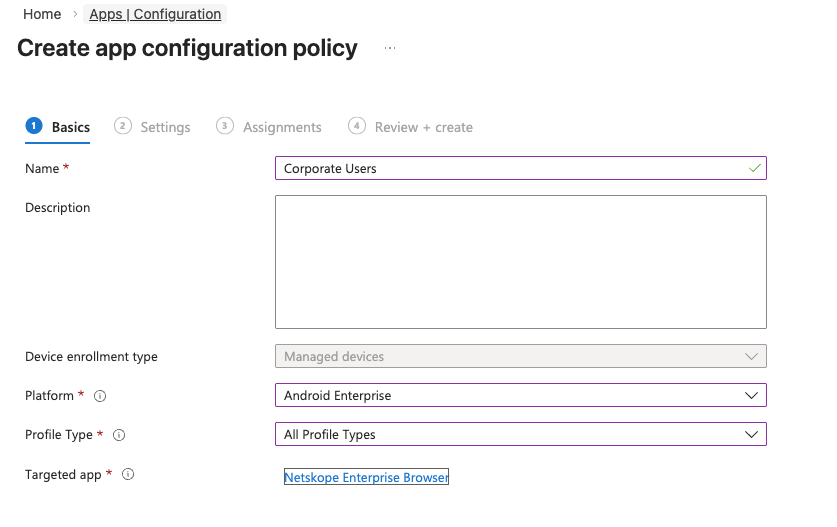
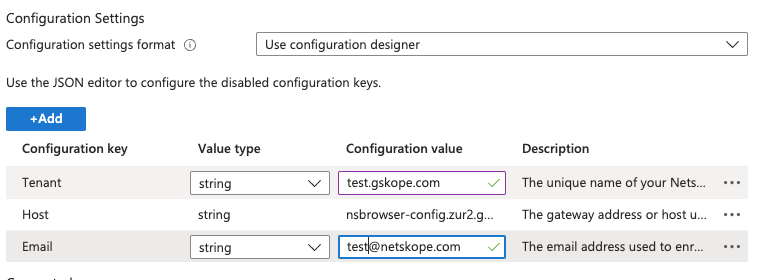
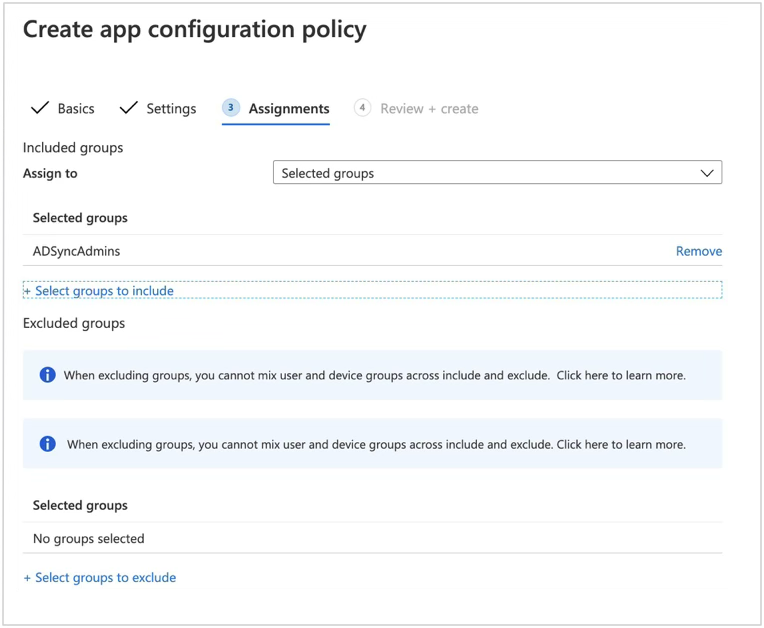
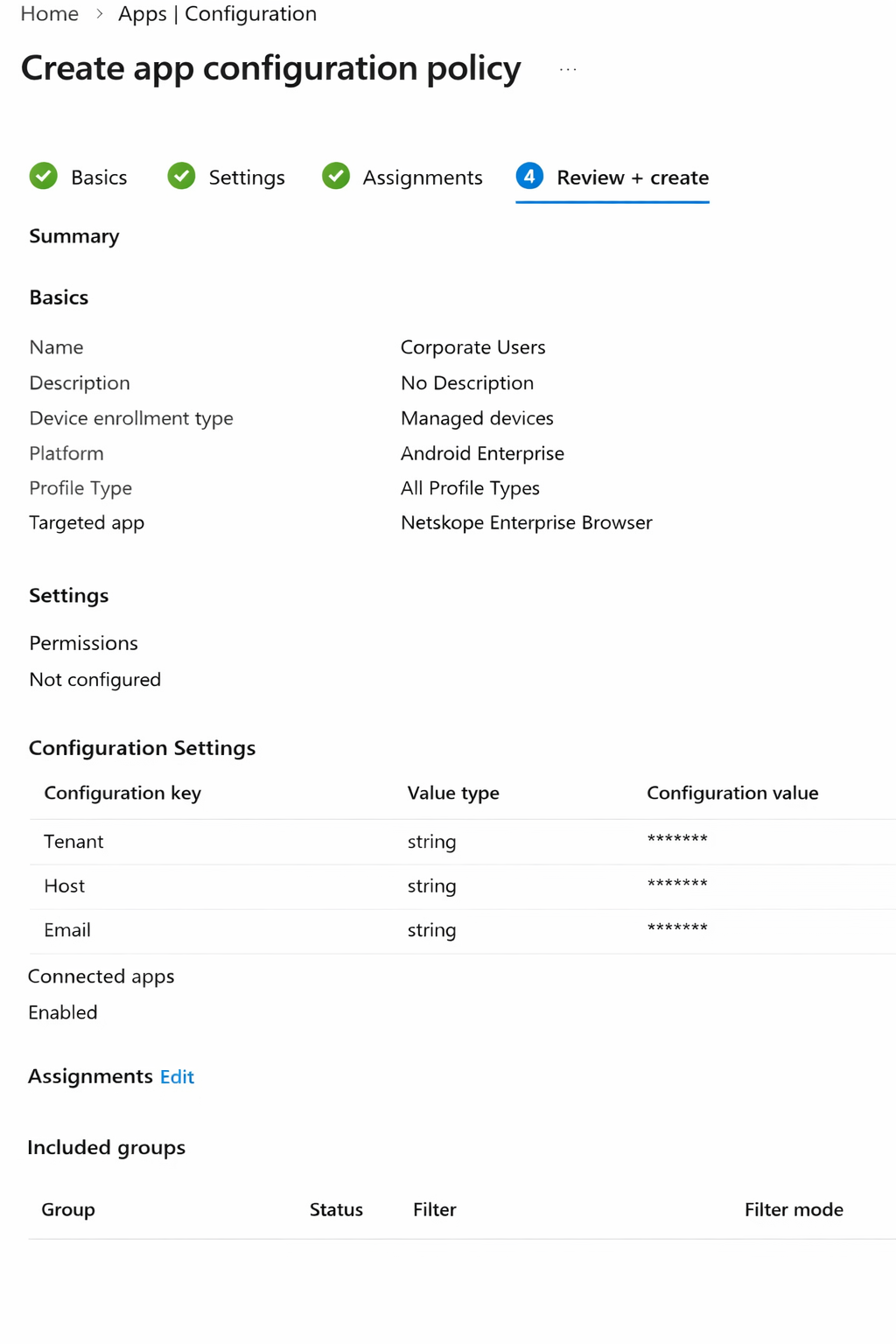
When all three keys are present, Enterprise Browser auto-provisions the user profile — no manual license key entry is required. If any key is missing or empty, the browser falls back to the manual profile creation flow.
Step 3: Distribute
Push the app and configuration to devices using your standard MDM deployment workflow. Devices with valid managed configuration auto-provision when the user opens the browser for the first time.
Step 4: Verify Enrollment
After deployment, verify that the browser is correctly connected to your tenant:
On a test device, open Netskope Enterprise Browser.
Navigate to netskope://policy to confirm policies are being received from your tenant.
In the Netskope console, confirm the device appears under the user’s devices.
ChromeOS-Specific Notes
On ChromeOS, Enterprise Browser runs as an Android app through ARC++ (Android Runtime for Chrome). The deployment procedure is the same as for Android. Note that:
ChromeOS 89 or later is required.
The browser window resizes with the ChromeOS window manager. Watermark rendering adapts to window size changes.
Managed App Configuration on ChromeOS is pushed through your EMM solution in the same way as for Android mobile.
User Experience
Once deployed, users launch Netskope Enterprise Browser from their app drawer or ChromeOS shelf. The browser looks and behaves like a standard Android browser, with Netskope-enforced policies applied transparently. Users may see:
A watermark overlay on protected pages (if Watermarking is enabled)
A blank screen when attempting to take a screenshot of a protected page (if Screenshot and Screen Sharing Protection is enabled)
A policy indicator showing active Browser Protection Policies
Restricted copy/paste behavior on protected sites (if Sandboxed Clipboard is enabled)
Considerations
Considerations include:
Android 12 or later is required. Devices on Android 11 or earlier are not supported.
ChromeOS requires the Android app (ARC++) to be enabled on the device.
Intelligent Tab Sharing is not supported on Android and ChromeOS.
Google Play does not support downgrading to an older APK; hotfixes are delivered as new versions.
To learn more: Platform Support Matrix | Enterprise Browser Installation and Troubleshooting
Deploying via Manual Enrollment (Email Invitation)
For organizations without MDM, or for individual user enrollment:
In the Netskope console, go to Security Cloud Platform → User Management.
Find the user and click Send Invitation, or create a new user and send an invitation.
The user receives an email with a link to install the app and a configuration profile.- The user follows these steps on their iPhone or iPad:
Open the invitation link in a browser to download the configuration profile.
Go to Settings → Profile Downloaded and tap Install to trust the profile.
Open the App Store link in the email and install Netskope Enterprise Browser.
Open the browser and create a profile using the license key from the invitation email.
Verifying Enrollment
After deployment, verify that the browser is correctly connected to your tenant:
Ask the user (or verify via MDM) that the browser launches without errors.
In the browser, navigate to netskope://policy to confirm policies are being received from your tenant.
In the Netskope console, confirm the device appears under the user’s devices.
User Experience once Enterprise Browser is installed
Once deployed, users launch Netskope Enterprise Browser from their home screen. The browser looks and behaves like a standard browser, with Netskope-enforced policies applied transparently. Users may see:
A watermark overlay on protected pages (if Watermarking is enabled)
A blank screen or a notification when attempting to take a screenshot of a protected page (if Screenshot Protection is enabled)
A policy indicator in the navigation bar showing active Browser Protection Policies
Restricted copy/paste behavior on protected sites (if Sandboxed Clipboard is enabled)
To learn more: Platform Support Matrix | Enterprise Browser Installation and Troubleshooting
Updater & Version Management
The Netskope Enterprise Browser includes -on Mac and Windows platforms- a built-in auto-updater that keeps the browser current with the latest security patches and features. Updates are delivered automatically in the background without disrupting the user’s work. Administrators can control update behavior through update policies to align with their organization’s change management requirements.
How the Auto-Updater Works
The Enterprise Browser uses a dedicated updater component that runs independently from the browser process. The updater periodically contacts Netskope services to check for new versions available for the endpoint’s platform and architecture.
The update process follows these steps:
The updater checks for available updates at regular intervals (approximately every 5 hours).
If a new version is available, the updater downloads it in the background.
The new version is installed alongside the current browser installation.
If the browser is not running, the update replaces the existing installation immediately.
If the browser is running, the update is staged and applied when the user relaunches the browser.
The updater is installed automatically when the Enterprise Browser is first launched. It runs as a background process and can update both itself and the browser independently.
Note: If the browser is uninstalled, the updater detects this after a few wake cycles and removes itself automatically. This process may take several hours.
Update Notifications
End users are notified when a new version is ready and a relaunch is required. The notification progresses through the following stages:
Menu indicator — a colored dot appears on the browser menu indicating an update is available
Recommended relaunch — a notification suggests the user relaunch the browser to apply the update
Required relaunch — a notification informs the user that the browser will restart automatically
The Enterprise Browser enforces a forced relaunch after a configured time window. If the user does not relaunch within that window, the browser restarts automatically to apply the update.
Update Policies
Administrators can configure update behavior to control how and when updates are applied. The following policies are available:
- Updates enabled — the updater checks for and installs all updates automatically (default behavior)
- Automatic updates only — updates are downloaded and installed automatically without manual user intervention; manual update checks are disabled
- Manual updates only — updates are only applied when triggered manually
- Updates disabled — no updates are checked or installed
Note: Update policies are configured at the account level. Contact your Netskope account team to adjust and update policy settings for your tenant. These settings are not available through the admin console.
Versioning
The Enterprise Browser maintains two version numbers:
- Netskope Product Version (for example, 1.4.13) — identifies the Enterprise Browser release, including Netskope-specific features and fixes
- Chromium Version (for example, 140.0.7339.256) — identifies the underlying Chromium engine version
Users can check their current version by going to Menu → About Enterprise Netskope Enterprise Browser or by entering netskope://version in the address bar.
Release Cycle
The Enterprise Browser release cycle is driven by two factors:
- Security vulnerabilities — critical vulnerabilities from Chromium upstream or found internally are addressed according to severity SLAs. Critical issues are fixed and deployed immediately.
- Feature releases — new features and enhancements are delivered monthly, aligned with the Chromium release cycle and the Enterprise Browser rebase strategy.
Platform-Specific Update Behavior
Update mechanisms differ by platform:
- Windows and macOS — the built-in updater handles all updates automatically as described above
- iOS and iPadOS — updates are delivered through the Apple App Store; administrators can control update timing through MDM policies
- Android and ChromeOS — updates are delivered through the Google Play Store or managed Google Play; administrators can control update timing through EMM policies
Considerations
Considerations include:
The auto-updater requires network connectivity to Netskope services to check for and download updates.
Endpoint security software (such as CrowdStrike or other EDR solutions) may occasionally flag the updater process; allowlist the Enterprise Browser updater if this occurs.
On macOS, the updater process may persist briefly after the browser is uninstalled before self-removing.
Update policies are configured at the account level and require Netskope support to change; they cannot be set per-user or through the admin console.
When running the Enterprise Browser alongside the Netskope Client, include both nsbrowser.exe and netskopebrowserupdater.exe (Windows) or Netskope Enterprise Browser and netskopebrowserupdater (macOS) in the Certificate Pinned Application exception.
Uninstallation
This page describes how to remove Netskope Enterprise Browser from Windows, macOS, iOS, iPadOS, Android, and ChromeOS devices.
Windows
Manual Uninstallation
Go to Settings → Apps (or Control Panel → Programs and Features on older Windows versions).
Find Netskope Enterprise Browser in the list.
Click Uninstall and follow the on-screen prompts.
Alternatively, run the uninstaller from the command line using the MSI package:
msiexec /x <path-to-installer.msi> /quiet
MDM-Based Removal (Silent Uninstallation)
To remove Enterprise Browser from managed Windows devices via your MDM solution:
In your MDM console, go to the app assignment for Netskope Enterprise Browser.
Change the assignment to Uninstall for the target device groups.
Push the change. The browser is removed silently on the next MDM sync.
After removal, the following directories and registry entries are cleaned up automatically by the uninstaller:
C:\Users\<USERNAME>\AppData\Local\Netskope\Browser
C:\Users\<USERNAME>\AppData\Local\Netskope\NetskopeBrowserUpdater
HKCU\Software\Netskope\Update
If profile data was stored locally, it is removed with the browser. Browser data is not recoverable after uninstallation.
macOS
Manual Uninstallation
Open Finder and go to Applications.
Drag Netskope Enterprise Browser to the Trash, or right-click and choose Move to Trash.
Empty the Trash to complete removal.
Residual profile data may remain in ~/Library/Application Support/Netskope/. Remove this folder manually if you want a clean removal.
MDM-Based Removal
To remove Enterprise Browser from managed macOS devices:
In your MDM console (Jamf, Kandji, Mosyle, or similar), locate the app policy for Netskope Enterprise Browser.
Set the policy action to Remove or Uninstall for the target device scope.
Push the change. The browser is removed on the next MDM policy evaluation.
iOS and iPadOS
Manual Removal
On the device home screen, long-press the Netskope Enterprise Browser app icon.
Tap Remove App, then Delete App.
Confirm deletion.
MDM-Based Removal
In your MDM console, remove the Netskope Enterprise Browser app assignment for the target device or user. The app is removed on the next MDM sync.
Note: Removing the app also removes the browser profile and any locally stored session data.
Android and ChromeOS
Manual Removal (Android)
Go to Settings → Apps.
Find Netskope Enterprise Browser and tap Uninstall.
Confirm uninstallation.
MDM-Based Removal
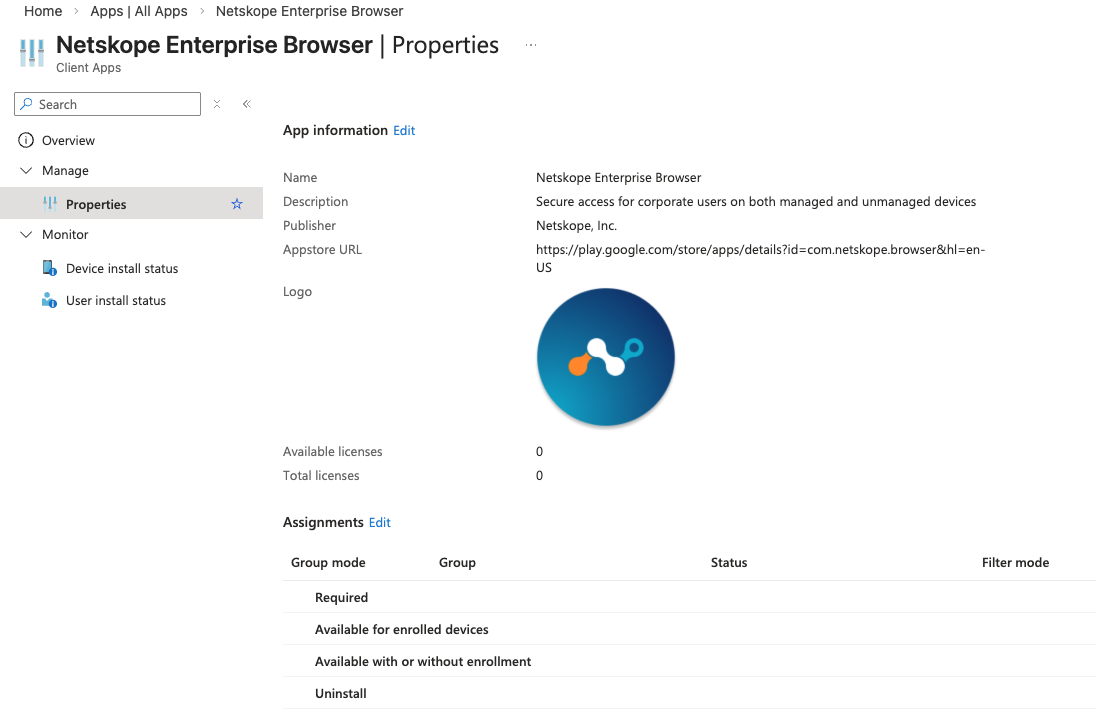
In your MDM console, change the Netskope Enterprise Browser app assignment to Uninstall or remove it from the managed app catalog for the target device or user groups. The app is removed on the next MDM policy sync.
Troubleshooting Uninstallation
Error 1638 on Windows MSI install
This error appears when an older version of Enterprise Browser is already installed. Uninstall the existing version first, then run the new installer.
App cannot be removed on a managed device
On MDM-managed devices, the MDM policy may prevent manual removal by the user. Use your MDM console to push a removal instead.
To learn more: System Requirements | Enterprise Browser Installation and Troubleshooting
Migration from Other Browsers
Lead: Sergio | Reviewer: Emilio | Priority: P2
Content: Bookmarks, passwords, settings import. Migration from Chrome/Edge managed environments.
Migrating User Data to Enterprise Browser
Enterprise Browser supports importing user data — such as bookmarks, browsing history, passwords, and autofill data — from other Chromium-based browsers and Firefox. This helps employees transition to Enterprise Browser without losing their personal browsing data from Chrome, Microsoft Edge, or Firefox. The import process is user-initiated from within the browser and does not require admin console configuration.
Prerequisites
Enterprise Browser installed on Windows or macOS
The source browser (Chrome, Microsoft Edge, or Firefox) must be installed on the same device
The source browser must be closed during the import process
How Import Works
Enterprise Browser inherits Chromium’s built-in data import capability. There is no admin console setting to enable or disable this feature. Users access the import function directly within their browser settings.
Users can import the following data types from a supported source browser:
- Bookmarks – all bookmarks and bookmark folders from the source browser
- Browsing history – previously visited sites
- Saved passwords – login credentials stored in the source browser
- Autofill form data – addresses, phone numbers, and other form entries
- Search engines – custom search engine configurations
Supported source browsers include:
Google Chrome
Microsoft Edge
Mozilla Firefox
Safari (macOS only)
Bookmarks HTML file (exported from any browser)
User Experience
Users can import data at any time by going to Settings > Import bookmarks and settings within Enterprise Browser. A dialog appears allowing the user to select the source browser and choose which data types to import. The import completes in seconds for most users.
Note: There is no automated sync between a source browser’s cloud-synced data and Enterprise Browser. Users must manually trigger the import, and imported data reflects the state of the source browser’s local profile at the time of import.
Migrating from Managed Chrome or Edge Environments
When migrating users from a managed Chrome or Edge environment, consider the following:
- Managed bookmarks configured via Chrome or Edge group policy do not transfer automatically. Use the Enterprise Browser Company Workspace feature to provide organization-managed bookmarks and app shortcuts.
- Passwords stored in Chrome or Edge are importable if they are saved in the local browser profile. Passwords synced only to cloud (and not cached locally) are not available for import.
- Extensions do not migrate. Use Enterprise Browser’s Extension Governance policy to pre-install required extensions for your users.
- Browser policies (such as homepage, proxy settings, or content restrictions) from Chrome or Edge do not carry over. Configure equivalent policies through the Netskope One admin console under Browser Settings.
Considerations
Considerations include:
import is available on Windows and macOS only; mobile platforms (iOS, iPadOS, Android, and ChromeOS) do not support the import dialog
the source browser must be closed during import to avoid file-locking issues
cloud-synced bookmarks from Chrome or Edge are only importable if they exist in the local profile on the device
there is no automated or recurring sync — import is a one-time operation
Enterprise Browser does not support exporting data back to another browser
User & Device Management
Enterprise Browser relies on your organization’s identity provider (IdP) to authenticate users and manage access. Administrators configure SAML-based authentication, provision users through SCIM, and manage licenses. This guide covers the full enrollment lifecycle: from initial IdP configuration through license management and group-based provisioning.
Prerequisites
A supported identity provider: Okta, Microsoft Entra ID (formerly Azure AD), PingIdentity (PingOne), or any SAML 2.0-compliant IdP including ADFS
SCIM API v2 token with read/write permissions for Users and Groups endpoints (for automated provisioning)
Administrative access to both the Netskope One console and your identity provider
Understanding the Enrollment Architecture
Enterprise Browser user enrollment involves three coordinated systems:
- Identity Provider (IdP) – authenticates users via SAML and provisions user/group data via SCIM
- Netskope Forward Proxy SAML – validates SAML assertions and maps authenticated identities to Netskope users
- Enterprise Browser License Management – assigns licenses to users, enabling them to create browser profiles
Each enrolled user receives a license key tied to your tenant. When the user creates a browser profile with this key, the browser authenticates via your IdP’s SAML flow. The authenticated session uniquely identifies the browser instance for policy enforcement and traffic attribution.
Configuring Your Identity Provider
The following IdP-specific guides cover the complete setup including SAML and SCIM:
- Okta Set Up for Enterprise Browser
- Microsoft Entra Set Up for Enterprise Browser
- PingIdentity Set Up for Enterprise Browser
- Configure ADFS for Netskope SAML
Setting the SAML Subject (NameID)
Netskope identifies users by email address. Your IdP must send the user’s email address as the SAML Subject (NameID) in the assertion. This is critical because:
Real-Time Protection (RTP) policies are evaluated based on email address
Enterprise Browser Protection policies match users by email
SCIM provisioning uses email as the unique identifier
If your organization uses User Principal Names (UPNs) that differ from email addresses, configure the SAML assertion to send the email address as the NameID claim, not the UPN. Users can still sign in with their UPN at the IdP login page, but the assertion transmitted to Netskope must contain their email.
Managing Licenses
Path: Settings > Security Cloud Platform > Enterprise Browser > License Management
Licenses determine which users can create Enterprise Browser profiles. Each license is tied to a specific user and tenant.
Admins can manage licenses through:
- Individual license assignment – manually assign licenses to specific users from the license management page
- Bulk invitation – invite users via email; each email contains a unique license key and download instructions
- IdP Group Sync – automatically provision licenses based on IdP group membership (see “Configuring IdP Group Sync” below)
License Lifecycle
- Issued – license assigned to a user but profile not yet created
- Active – user has created a browser profile using the license
- Revoked – license removed; user can no longer create new profiles (existing profiles continue to work until the next authentication cycle)
Users can use the same license across multiple devices (for example, a work laptop and a personal device). Each device creates a separate browser profile tied to the same license.
Email Invitations
Path: Settings > Security Cloud Platform > Enterprise Browser > Email Template
Customize the invitation email sent to users when licenses are assigned. The email template supports the following variables:
- {{NS_WINADDON}} – Windows installer download link
- {{NS_MACBROWSER}} – macOS installer download link
- {{NS_ANDROIDBROWSER}} – Android installer download link
- {{NS_IOSBROWSER}} – iOS/iPadOS installer download link
- {{NS_EBENROLLKEY}} – the user’s unique license key
Configuring IdP Group Sync (Automated Provisioning)
IdP Group Sync automates user onboarding and offboarding by synchronizing Enterprise Browser license assignments with your IdP’s group or organizational unit (OU) membership. When a user is added to a synced group in your IdP, they automatically receive an Enterprise Browser license. When removed, their license is revoked.
How It Works
Your IdP pushes user and group changes to Netskope via SCIM
Enterprise Browser monitors configured groups/OUs for membership changes
When a new user appears in a synced group, a license is automatically assigned and an invitation email is optionally sent
When a user is removed from all synced groups, their license is revoked
Setting Up SCIM Provisioning
Before enabling IdP Group Sync, configure SCIM provisioning in your identity provider:
Generate a SCIM API v2 token in Netskope with read/write permissions for Users and Groups.
Configure your IdP’s SCIM provisioning with the base URL: https://<tenant-url>/api/v2/scim.
Enable user and group provisioning in your IdP.
Push at least one group to Netskope via SCIM.
Verify the sync by checking Settings > Security Cloud Platform > Netskope Client > Users.
Managing User Groups and Policy Assignment for the Enterprise Browser
Enterprise Browser uses groups and Organizational Units (OUs) to control which users receive which policies. By assigning Browser Protection policies, Browser Configuration policies, and Extension Governance policies to specific groups or OUs, administrators can enforce different security postures for different teams — for example, stricter clipboard controls for the finance department and a more permissive configuration for engineering. All user and group data is synchronized from your Identity Provider through SCIM, ensuring that Enterprise Browser always reflects your organization’s current directory structure.
Provisioning Users and Groups via SCIM
Enterprise Browser only supports SCIM-provisioned users. Users created manually in the Netskope UI are not available for Enterprise Browser enrollment. To provision users and groups, configure SCIM integration between your Identity Provider and the Netskope tenant. Once SCIM sync is active, user groups and Organizational Units from your IdP automatically appear in the Netskope One admin console and are available for targeting in Enterprise Browser policies. When new users are added to a SCIM-synced group that has already been invited to Enterprise Browser, they automatically receive a license and onboarding email. Similarly, when users are removed from the IdP, their Enterprise Browser license is deactivated.
Creating and Managing Groups
Groups and Organizational Units are managed in your Identity Provider, not in the Netskope admin console. To create a new group for Enterprise Browser policy targeting, create the group in your IdP (for example, in Okta or Microsoft Entra), assign the relevant users, and ensure the group is included in SCIM provisioning scope. After the next SCIM sync cycle, the group appears in Netskope and can be selected when configuring Enterprise Browser policies. You can invite entire groups to Enterprise Browser at once by going to Settings > Security Cloud Platform > Enterprise Browser > User Provisioning and clicking Invite Users, then selecting the desired group or OU.
Assigning Policies per Group and Organizational Unit
Enterprise Browser supports multiple configuration policies evaluated in priority order — the first matching policy wins. Each policy can target specific users, user groups, OUs, or a combination. To assign a policy to a group, go to the relevant policy section (Browser Protection, Browser Configuration, or Extension Governance), create or edit a policy, and in the user scope section select the target groups or OUs. Policies are evaluated top-to-bottom by priority: if a user belongs to multiple groups with different policies, the highest-priority (topmost) policy applies. Administrators can reorder policies to control precedence. When no group-specific policy matches a user, the baseline (default) policy applies.
Considerations
Considerations include:
Enterprise Browser only supports SCIM-provisioned users and groups — manual user creation is not supported
When a new user is added to a previously invited group, the user automatically receives a license (no re-invitation required)
Policies are not applied when a new user is added to an existing group until the SCIM sync propagates — allow a few minutes for synchronization
Each policy can target users, user groups, and OUs in combination — these are additive (any match triggers the policy)
The maximum number of users, user groups, or OUs per policy is 100 entries each
Organizational Units follow a flat structure in Netskope — nested OU hierarchies from your IdP are flattened upon sync
Browser Configuration
Enterprise Browser allows administrators to centrally manage browser settings and enforce them across the organization. You can configure homepage appearance, search engine defaults, autofill behavior, download paths, proxy settings, developer tools access, and more. Policies can be applied globally via a baseline policy or targeted to specific User Groups and Organizational Units (OUs) for granular control. Configuration can be managed through the Netskope One admin console (WebUI) or programmatically via the REST API.
Understanding Policy Hierarchy
Enterprise Browser uses a layered policy model for browser configuration:
- Baseline policy – the default configuration that applies to all Enterprise Browser users in your tenant. A baseline policy is automatically created when Enterprise Browser is enabled. It cannot be deleted.
- User Group / OU policies – additional policies that target specific User Groups or Organizational Units. These policies override the baseline for users who match the targeting criteria.
When a user belongs to multiple groups with different policies, the system evaluates policies in priority order. Higher-priority policies take precedence. The baseline policy always has the lowest priority.
Each policy contains a set of browser configuration settings. Settings not explicitly defined in a targeted policy inherit from the baseline.
Configuring Browser Settings via the Admin Console
Path: Settings > Security Cloud Platform > Enterprise Browser > Browser Settings
The Browser Settings page displays the baseline policy and any additional policies you have created. From this page you can:
view and edit the baseline policy settings
create new policies targeted to User Groups or OUs
reorder policy priority using drag-and-drop
enable or disable individual policies without deleting them
Creating a New Configuration Policy
On the Browser Settings page, click New Browser Configuration.
Enter a name for the policy.
Under Applies To, select the User Groups or OUs this policy targets.
Configure the desired browser settings (see “Available Browser Settings” below).
Click Save.
The new policy is added above the baseline in the priority list. You can drag it to adjust its priority relative to other policies.
Editing an Existing Policy
On the Browser Settings page, click the policy name or the edit icon.
Modify the settings as needed.
Click Save.
Changes propagate to targeted users on their next policy refresh cycle.
Available Browser Settings
The following settings can be configured within a browser configuration policy. Each setting can be set to Enabled or Disabled, and some support additional configuration such as Website Exceptions or mode selection.
Autofill and Passwords
- Password Manager – enable or disable the built-in password save and autofill functionality. Supports Website Exceptions.
- Autofill Addresses – enable or disable autofill for address forms.
- Autofill Credit Cards – enable or disable autofill for payment methods.
Privacy and Security
- Developer Tools – enable or disable access to browser developer tools (F12 / Inspect).
- Sandbox Clipboard – enable or disable the private (sandboxed) clipboard, which restricts clipboard data transfer between Enterprise Browser and external applications. When enabled, select a sandbox mode:
- Full Sandbox – blocks all clipboard transfer in both directions. Data copied inside EB cannot be pasted outside, and data copied outside cannot be pasted into EB.
- Sandbox with Read Allowed – allows pasting external data into EB, but blocks copying data out of EB to external applications.
- Sandbox with Write Allowed – allows copying data out of EB to external applications, but blocks pasting external data into EB.
Alerts and Notifications
Notification – enable or disable browser notifications from websites. Supports Website Exceptions.
- Popups – enable or disable popup windows. Supports Website Exceptions.
Media
- Audio Input – enable or disable microphone access for websites. Supports Website Exceptions.
- Video Input – enable or disable camera access for websites. Supports Website Exceptions.
- Cast – enable or disable casting (Chromecast) functionality.
User Experience
When browser configuration policies are applied, users experience the changes automatically on their next policy refresh. The browser updates its settings without user interaction. Users cannot override settings that have been centrally managed — the corresponding options appear grayed out or hidden in the browser’s settings page.
For homepage customization, users see the configured homepage with the organization’s branding (custom title, icon, and background image) each time they open a new tab or launch Enterprise Browser.
Considerations
Considerations include:
the baseline policy applies to all users and cannot be deleted. To exempt a group from a setting, create a targeted policy with the desired override at a higher priority.
policy changes propagate on the next policy refresh cycle. The default refresh interval is configurable per tenant.
User Group/OU targeting requires that users and groups are provisioned via SCIM from your identity provider. Groups not synced via SCIM are not available for policy targeting.
not all browser settings are supported on all platforms. Mobile platforms (Android, ChromeOS, iOS, iPadOS) may have a reduced set of configurable options compared to desktop (Windows, macOS).
Extension Governance
Extension Governance gives administrators full control over which browser extensions users can install in Enterprise Browser. By default, all extensions from the Chrome Web Store are blocked. Admins create policies that define an allowlist of permitted extensions and a force-install list of extensions that are automatically installed for targeted users. Policies can target all users, specific User Groups, or Organizational Units (OUs).
Prerequisites
Enterprise Browser deployed with users enrolled
Administrative access to the Netskope One console
Users and groups provisioned via SCIM (required for User Group/OU targeting)
Understanding Extension Governance
Extension Governance operates on a default-deny model:
- Default action: Block all extensions – when no policies are configured, or when extensions are not explicitly listed in any policy, they are blocked. Users cannot install extensions from the Chrome Web Store unless an admin has allowed them.
- Exception List (Allowlist) – extensions added to this list are permitted for installation at the user’s discretion. Users can choose whether or not to install these extensions.
- Force Install List – extensions added to this list are automatically installed for all users targeted by the policy. Users cannot uninstall force-installed extensions.
Policies are evaluated in priority order. When a user matches multiple policies, the highest-priority policy determines which extensions are allowed or force-installed for that user. A baseline policy applies to all users and always has the lowest priority.
Configuring Extension Governance
Path: Policies > Enterprise Browser Protection > Extension Governance
The Extension Governance tab displays all configured policies in a table showing their priority number, name, status, targeted users, action, exception list count, and force install list count.
When no policies are configured, the default configuration applies: all extensions are blocked.
Creating an Extension Governance Policy
On the Extension Governance tab, click New Policy.
Under Criteria, configure the User field to select which users, User Groups, or OUs this policy targets. Click to select a subset of users, or leave as “All Users.”
Under Action, configure the extension lists:
In the Exception List, click + Extension to search for extensions by name or ID. Extensions added here are allowed for users to install at their discretion.
In the Force Install List, click + Extension to search for extensions by name or ID. Extensions added here are automatically installed for targeted users.
Under General, enter a Name for the policy and optionally a description. Set the Policy Position to control priority order.
Set the Status toggle to Enabled.
Click Save.
Editing a Policy
On the Extension Governance tab, click the policy row or the edit icon.
Modify the criteria, exception list, force install list, or general settings as needed.
Click Save.
Changes propagate to targeted users on their next policy refresh cycle.
Managing Multiple Policies
When multiple policies exist, they are listed in priority order (lowest number = highest priority). The baseline policy always appears last.
Admins can:
reorder policies to change priority
enable or disable policies without deleting them (disabled policies do not apply to users but remain visible)
delete policies that are no longer needed
Note: The baseline policy cannot be deleted. To change the default behavior for all users, edit the baseline policy directly.
User Experience
When Extension Governance is active:
users cannot install extensions that are not on any allowlist in a policy that applies to them. Attempts to install blocked extensions from the Chrome Web Store result in a blocked notification.
extensions on the Exception List appear available in the Chrome Web Store. Users can install and manage them normally.
extensions on the Force Install List are automatically installed and pinned to the browser toolbar. Users cannot uninstall or disable force-installed extensions.
if a previously installed extension is removed from the allowlist, it is disabled on the next policy refresh.
Considerations
Considerations include:
by default, all extensions are blocked. You must explicitly allow any extension you want users to be able to install.
extensions are identified by their Chrome Web Store Extension ID. Ensure you use the correct ID when adding extensions to the allowlist or force install list.
force-installed extensions are installed silently. Users do not need to take any action, and they cannot remove these extensions.
policies are evaluated per user. If a user belongs to multiple groups with different extension policies, the highest-priority matching policy determines their effective extension configuration.
Extension Governance applies to desktop platforms (Windows and macOS). Mobile platforms do not support browser extensions.
Profile Customization & Branding
The Enterprise Browser allows administrators to customize the appearance of the new tab page (company homepage) with organization-specific branding. You can configure a company logo, title, background image or color, and text colors to reinforce your corporate identity and provide a professional, branded experience for your users.
Configuring the Company Homepage
Administrators can customize the following aspects of the company homepage:
Title — the main title displayed on the new tab page, typically your organization’s name or browser instance name
Icon — a company logo displayed on the homepage. SVG format is preferred as it handles sizing automatically. JPEG and PNG formats are also supported
Background Image — an image displayed as the page background. Provide a publicly accessible URL to the image
Background Color — a solid color for the page background, as an alternative to a background image
Title Color — (optional) color for the main title text displayed next to the logo. Falls back to the theme color if not specified
Company Workspace Title Color — (optional) color for the “Company Workspace” heading text
Personal Workspace Title Color — (optional) color for the “Personal Workspace” heading text
Show Search Bar — controls whether the search bar is visible on the homepage
Show Personal Workspace — controls whether the personal workspace section (user bookmarks and shortcuts) is visible on the homepage
User Experience
When homepage customization is configured, users see the branded new tab page each time they open a new tab or launch the Enterprise Browser. The customized elements include the company logo, title, background, and workspace layout based on the administrator’s configuration.
If no customization is applied, the default Netskope Enterprise Browser homepage is displayed.
Considerations
Considerations include:
Homepage customization is available on all platforms: Windows, macOS, iOS and iPadOS, and Android and ChromeOS.
Background images provided as URLs must be accessible without requiring authentication.
SVG is the preferred format for icons because it scales automatically.
This feature supports dynamic policy refresh — changes take effect without requiring a browser restart.
Customization is applied per tenant. All users on a tenant see the same branded homepage.
To learn more: Enterprise Browser Prerequisites
Browser Protection Policies — Overview
Browser Protection Policies let you control what users can do in Netskope Enterprise Browser on a per-destination basis. When a user navigates to a website, the Netskope cloud evaluates the applicable policies and returns the active controls in the x-ns-browser-actions HTTP response header. The browser enforces those controls for the duration of the session on that page. If no header is returned (for example, if the page is not being steered), the browser applies your tenant-level fallback policy.
Available Policies
The following Browser Protection Policies are available in the Netskope One admin console:
Watermarking – overlays a visual watermark containing the tenant name, username, and date on pages matching the policy criteria. Prevents data exfiltration via screen capture.
Screenshot and Screen Sharing Protection – prevents browser content from appearing in screenshots, screen recordings, or screen shares. Protected content renders as blank when captured.
Data Masking – obfuscates sensitive text patterns (for example, credit card numbers, social security numbers) on web pages based on regular expressions defined in the policy.
File Downloads Control – controls whether users can download files from the browser. Options include allowing unencrypted downloads, requiring encrypted downloads (files receive a .eb extension and can only be opened in Enterprise Browser), or blocking downloads entirely.
File Uploads Control – controls whether users can upload files to web applications. Options include allowing or blocking standard file picker, drag-and-drop, and clipboard paste upload methods.
Copy / Paste – controls whether content can be copied from or pasted into the browser.
Print – controls whether users can print pages from the browser.
Save As – controls whether users can save pages locally.
Text Input – controls whether users can type into web forms.
Data Masking
Netskope Enterprise Browser supports Data Masking as a Browser Protection Policy, allowing administrators to obfuscate sensitive text patterns on web pages in real time.
When a Data Masking policy is active for a destination, the browser identifies text matching administrator-defined regular expressions (for example, credit card numbers, social security numbers) and replaces the visible content with masked characters before the page is displayed. Masking is applied to the rendered view only — the underlying data is not modified.
What’s included:
Configure Data Masking as a Browser Protection Policy, scoped to specific destinations and users.
Define one or more regular expression patterns specifying the sensitive data types to mask.
Masking is disabled by default; no content is masked unless a policy is explicitly configured.
Considerations:
Data Masking applies to DOM-based text nodes only. Content rendered via HTML5 Canvas (including Google Docs), images, video, SVG, and the native PDF viewer is not masked.
Available on Windows and macOS only. Mobile platforms are not supported in this release.
WebUI configuration is not yet available. Configure policies via the backend API.
File Downloads Control
Netskope Enterprise Browser enforces File Downloads Control as a Browser Protection Policy, giving administrators per-destination control over how files are downloaded from the browser.
What’s included:
Block – Block downloads for specific destinations — a notification dialog informs the user that the download is not permitted.
Allow – Allow downloads normally (no encryption applied) — the default behavior when no policy applies.
Encrypt – Encrypt downloads — files are encrypted on-the-fly and saved with a .eb extension. Encrypted files can only be opened in Netskope Enterprise Browser with the same profile used to download it.
Considerations:
In this release, the download policy applies based on the main web page domain, not the file’s host domain.
Applying File Downloads Control to specific file types is not supported in this release.
WebUI configuration is available under request. Policies including this control can be configured via the backend API.
Save As Control
Netskope Enterprise Browser supports Save As Control as a Browser Protection Policy. Administrators can prevent users from saving page content locally for specific destinations.
Save actions covered:
Save Page As
Save As
Save Image As
Save Video As
Save File As
Save Link As
Considerations:
Save As Control has domain-level granularity, allowing it to be restricted on specific sites while leaving others unaffected.
Save Page to PDF is not compatible with encrypted file downloads in this release.
Text Input Control
Netskope Enterprise Browser supports Text Input Control as a Browser Protection Policy. When enabled, the browser restricts text input into web forms on matching destinations. When an input action is blocked, users see an infobar notification.
Input methods covered:
Standard keyboard input
Drag-and-drop text
Voice dictation
Composition-based input (for example, Japanese IME)
Inform Users About Active Restrictions and Controls
Enterprise Browser now proactively informs users about the Browser Protection Policies and configuration policies that apply on the page they are visiting.
What’s included:
A Policy button appears in the navigation bar when Browser Protection Policies are active on the current page, showing users the controls in effect (for example, copy blocked, watermark enabled, download encrypted).
A policy list in the profile popup shows general configuration policies for the user’s profile (for example, Password Manager, Developer Tools, Notifications, Popups, Audio/Video Input).
Sandboxed Clipboard
The Sandboxed Clipboard (also called Private Clipboard) is a browser configuration setting that controls how the Enterprise Browser clipboard interacts with the operating system clipboard. When enabled, the browser uses a private in-memory clipboard that is isolated from the OS clipboard, preventing data from being copied out of the browser or pasted into it from external applications. This is a tenant-level configuration, not a per-destination Browser Protection Policy. The feature is available on Windows and macOS.
Prerequisites
Enterprise Browser 1.4.0 or later
Access to Browser Settings in the Netskope One admin console
Configuring the Sandboxed Clipboard
Path: Settings → Browser Settings → Privacy & Security
The Sandboxed Clipboard setting appears in the Privacy & Security group of the Browser Settings feature table, below Developer Tools.
To configure it:
Go to Settings → Browser Settings.
In the Privacy & Security group, find the Sandboxed Clipboard row.
In the Status column, set the toggle to Enabled.
In the Configuration column, click + Sandbox Mode Configuration to open the configuration panel.- In the panel, select the sandbox mode:
Sandboxed – the browser uses a fully isolated in-memory clipboard. Content cannot be copied from the browser to external applications, and content from external applications cannot be pasted into the browser. This is the default when enabling the feature.
Read System Clipboard – the browser uses an in-memory clipboard but can receive data from the OS clipboard. Users can paste content from external applications into the browser, but cannot copy browser content out.
Write System Clipboard – the browser uses an in-memory clipboard but can write to the OS clipboard. Users can copy browser content to external applications, but cannot paste content from external applications into the browser.
Click Save.
To disable clipboard sandboxing, set the Status toggle to Disabled. The browser reverts to using the standard OS clipboard.
Note: Setting the toggle to Disabled sends NonSandboxed regardless of the last configured mode.
How It Works
When the Sandboxed Clipboard is enabled, the Enterprise Browser replaces the standard OS clipboard with a private in-memory clipboard scoped to the browser profile. The operating mode determines whether synchronization with the OS clipboard is allowed and in which direction
Mode | Copy out (browser → OS) | Paste in (OS → browser) |
|---|---|---|
Full Sandbox | Blocked | Blocked |
Read System Clipboard | Blocked | Allowed |
Write System Clipboard | Allowed | Blocked |
Disabled (NonSandboxed) | Allowed | Allowed |
The mode applies to the entire browser profile and updates dynamically when the tenant configuration is refreshed — no browser restart is required.
User Experience
When Sandboxed Clipboard is enabled, users may notice that copy/paste between the browser and external applications does not work as expected:
Full Sandbox mode: attempting to paste content copied from outside the browser will produce no result inside the browser, and content copied inside the browser will not be available in external applications.
Read System Clipboard mode: pasting from external applications works normally, but copying from the browser to external applications is blocked.
Write System Clipboard mode: copying from the browser to external applications works normally, but pasting from external applications is blocked.
Blocked actions: when an action is blocked, users see an infobar notification explaining that the clipboard action is restricted.
It displays the following notification messages:
When copying from the browser is blocked:
“Pasting data outside of this browser has been blocked by administrator policies — Netskope Enterprise Browser.”
When pasting into the browser is blocked:
“Copying data from outside of this browser has been blocked by administrator policies — Netskope Enterprise Browser.”
Considerations
Considerations include:
The Sandboxed Clipboard is a browser configuration setting that applies to the whole browser profile. It is not scoped per destination or per user group.
The feature is available on Windows and macOS only. iOS, Android, and ChromeOS are not supported.
The clipboard is isolated per browser profile. Data copied in one profile is not accessible in another profile.
The Private Clipboard does not prevent users from manually re-typing content.
Configuring Browser Protection Policies
Path: Policies → Enterprise Browser Protection
From this page you can create, edit, and prioritize Browser Protection Policies. Each policy specifies:
Criteria — the destinations (URLs, categories, or app instances) the policy applies to
Users / Groups — the user scope the policy applies to
Actions — the set of controls to enforce (watermark, screenshot block, clipboard isolation, and so on)
Policies are evaluated in priority order. The first matching policy for a given destination and user takes effect.
Policy Delivery
Policies are pushed to the browser through two channels:
Per-page (CEP header): The Netskope cloud returns the x-ns-browser-actions header for each steered request, specifying the controls to apply for that specific page.
Fallback (config service): The browser receives a tenant-level fallback policy via the configuration service. This applies when no per-page header is present (for example, on unsteered pages or when the browser is offline).
User Experience
When a Browser Protection Policy is active on a page, users see a Policy button in the navigation bar. Clicking it shows a list of the controls currently applied on that page. This gives users visibility into why certain actions are restricted.
For policies that block a specific action (such as copy, screenshot, or download), the browser displays an informational notification explaining that the action is blocked by your organization’s policy.
Platform Support
Policy | Windows | macOS | iOS and iPadOS | Android and ChromeOS |
|---|---|---|---|---|
Watermarking | ✓ | ✓ | ✓ | ✓ |
Screenshot and Screen Sharing Protection | ✓ | ✓ | ✓ | ✓ |
Data Masking | ✓ | ✓ | — | — |
File Downloads Control | ✓ | ✓ | — | — |
File Uploads Control | ✓ | ✓ | — | — |
Copy / Paste | ✓ | ✓ | ✓ | ✓ |
✓ | ✓ | ✓ | ✓ | |
Save As | ✓ | ✓ | — | — |
Text Input | ✓ | ✓ | — | — |
Considerations
Considerations include:
- Policies only apply to pages that are steered through the Netskope cloud. Pages accessed without steering are governed by the tenant-level fallback policy.
- The browser evaluates the first matching policy. Lower-priority policies do not apply if a higher-priority policy matches.
- Feature availability varies by platform. See the table above and the individual policy pages for supported configurations.